
"Sometime between noon and four" is the most resented sentence in home service. Your customer takes a half day off, sits by the window, and every hour that passes without a word makes them a little less likely to book you again.
On My Way fixes that with one tap. The customer gets a text naming the technician who is coming, the company they are from and the address they are headed to, with your office number if they have a question. No calls to the office asking where the tech is, no wasted afternoons, and a customer who feels looked after before you even arrive. That is the kind of experience that turns into repeat work and five star reviews, and it takes about five minutes to set up once.
Where to find it
Go to Settings and, under Workflow, click Communication. The General Notifications tab groups your customer messages by when they go out: Before the visit, Day of service and After the job. On My Way sits under Day of service.
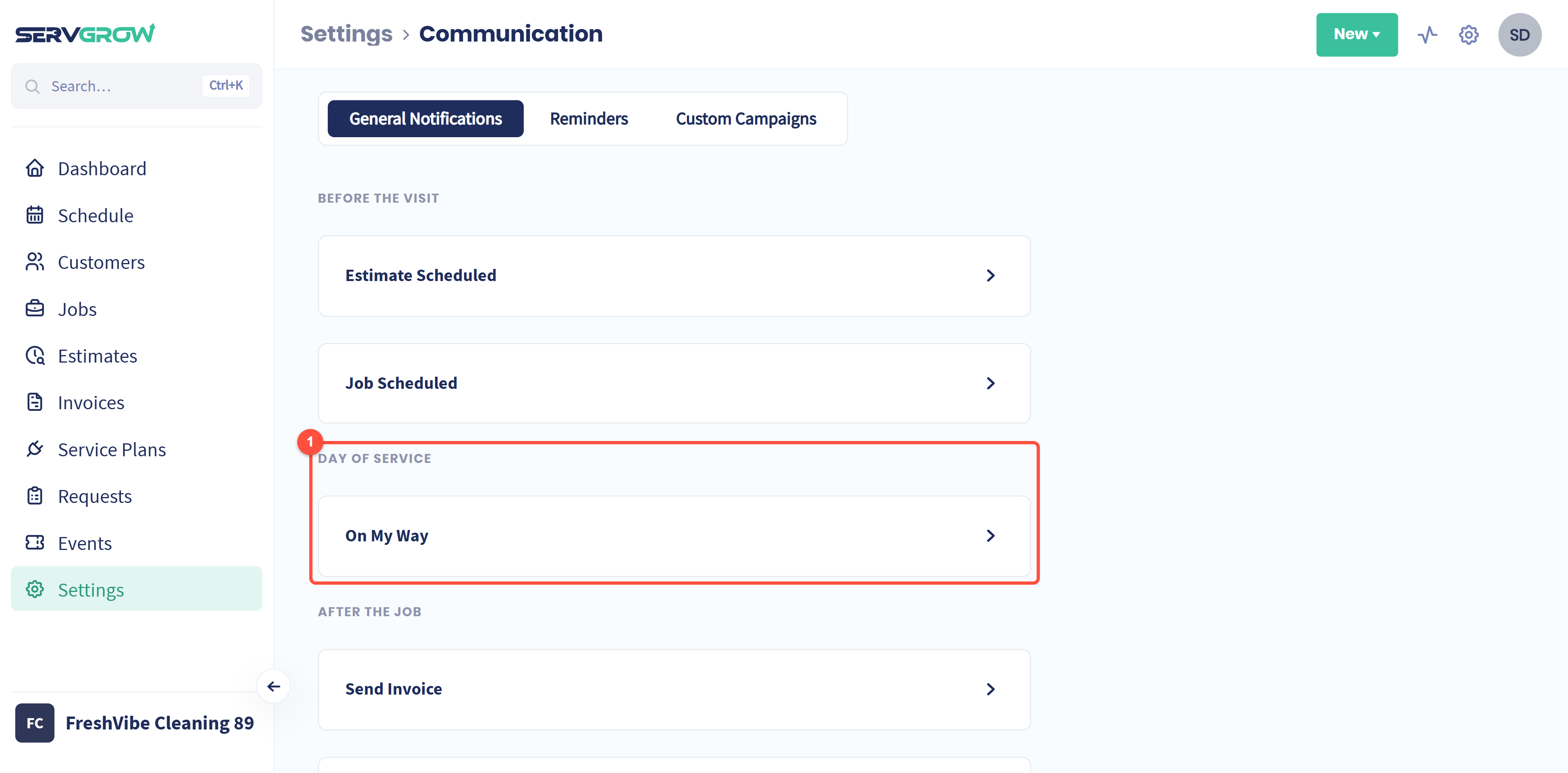
Click On My Way to open it.
Write the text message
There are two channels, Text and Email, and you set them up separately. Start with Text, since that is what most customers read.
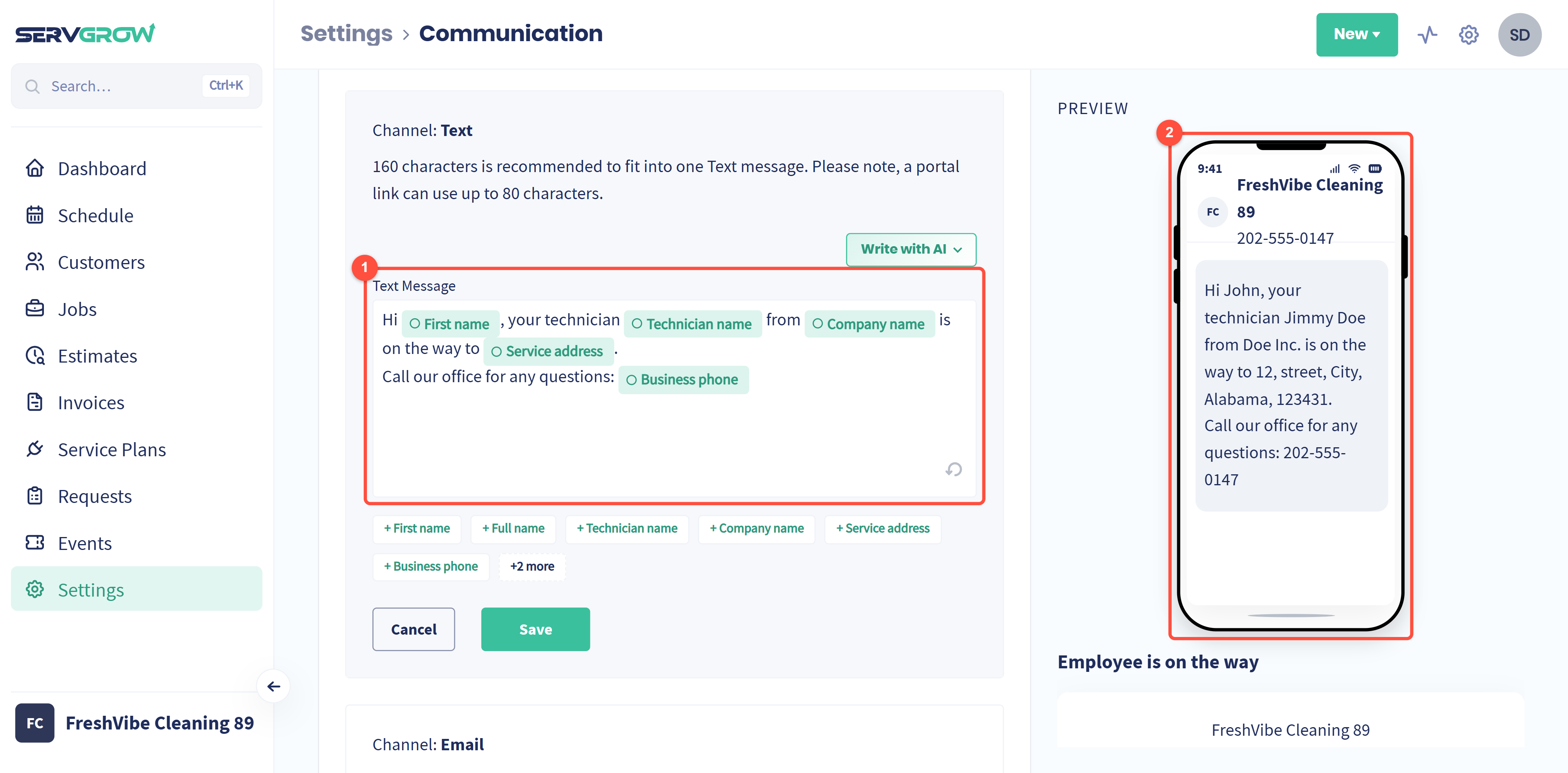
The default message reads: "Hi First name, your technician Technician name from Company name is on the way to Service address. Call our office for any questions: Business phone." The Preview on the right shows exactly what lands on the customer's phone, with sample details filled in, and it updates as you type.
Merge fields fill in the details for you
Click any button under the editor to drop in a field that fills itself in when the message goes out. Click +2 more to see all of them.
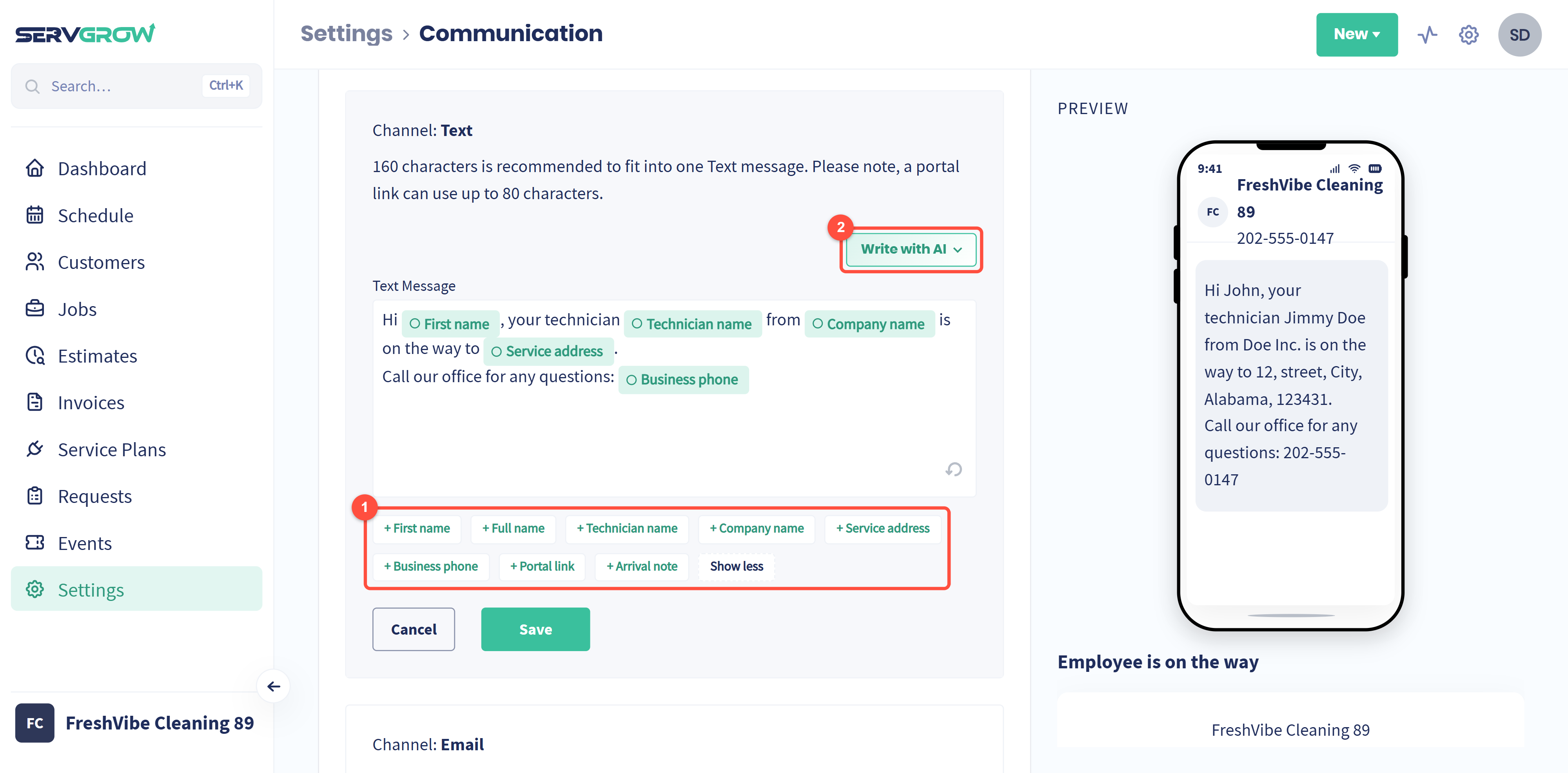
First name and Full name: the customer.
Technician name: whoever is assigned to the job.
Company name and Business phone: yours, so the customer knows who is texting and how to reach a person.
Service address: where the technician is headed.
Portal link: a link to the customer's portal, where they can see their appointment details.
Arrival note: a short ETA line, such as "Arriving in about 15 minutes."
Rewrite the message in your own voice if you like, or click Write with AI for a draft you can edit.
Keep it under 160 characters. That fits in one text message. Go over and it splits into two, which reads worse. If you add the Portal link, budget for it: a link can use up to 80 of those characters on its own.
Click Save when you are happy with it.
Write the email version
Scroll down to Channel: Email. It works the same way with more room.
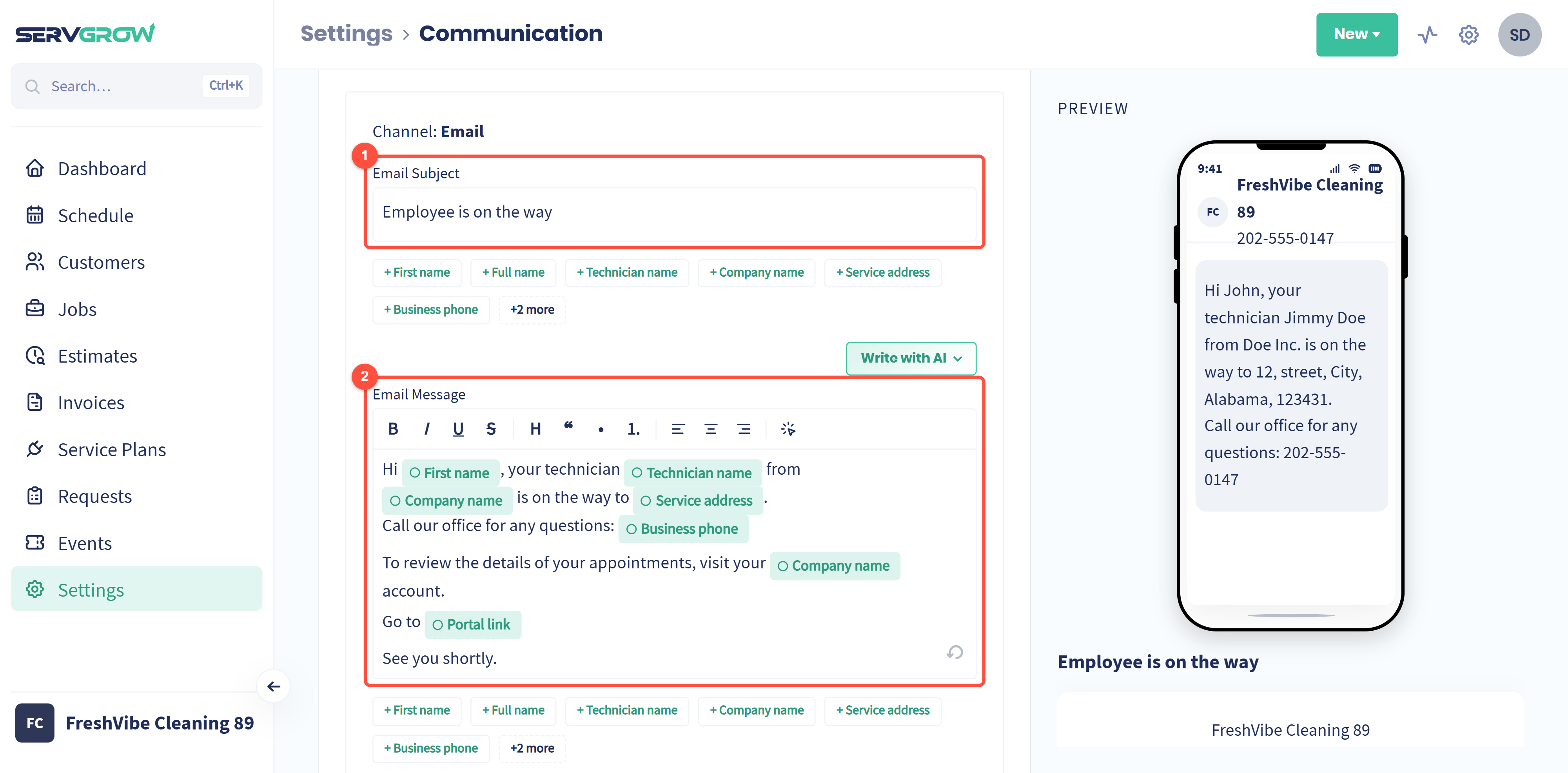
Set an Email Subject (the default is "Employee is on the way") and write the Email Message with the same merge fields. The email editor has full formatting, and the default version adds the customer's portal link so they can review their appointment. Keep it short. Someone reading this is expecting a van soon, not a newsletter. Click Save under the email to keep your changes.
Send it from the job
Open any scheduled job. The progress bar across the top shows each stage: Schedule, OMW, Start, Finish, Send Invoice and Pay.
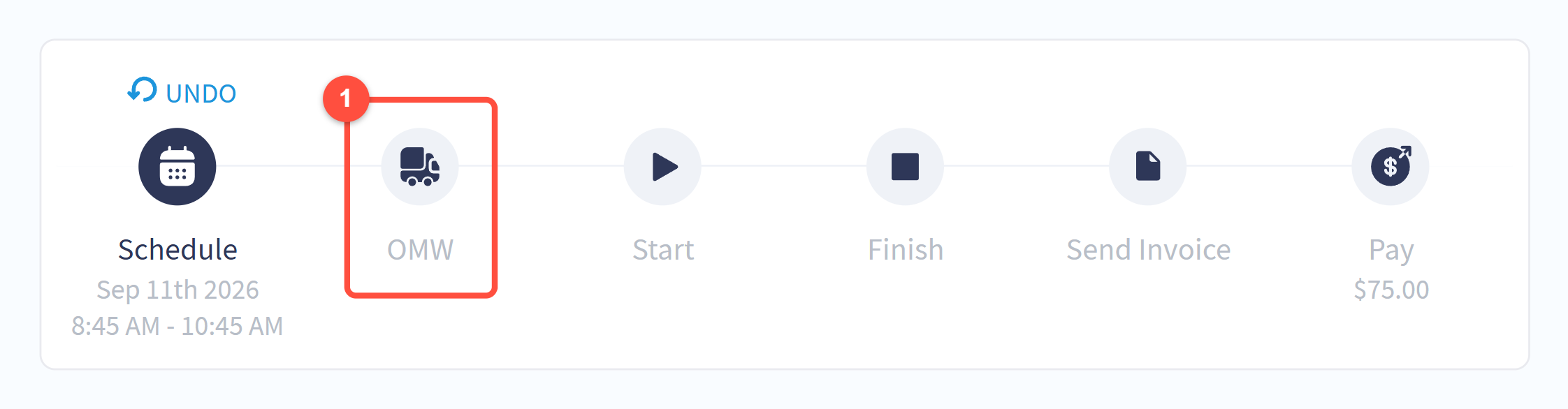
Click OMW when the technician sets off. The message goes out with the customer's name, the assigned technician and the address already filled in. Each stage fills in as it is completed, so anyone looking at the job can see at a glance whether the customer has been told.
Getting the timing right
The message only helps if it is honest. A few things worth agreeing with your crew:
Send it when you actually leave, not when you plan to. An On My Way sent forty minutes early is worse than none, because now the customer is watching the door for forty minutes.
Make sure the right technician is assigned first. The message pulls the name from the job. If it is wrong, the customer greets a stranger by someone else's name.
Check your business phone number is current. The point is that the customer can reach a person instead of wondering.
Related articles