
Every missed appointment is a wasted trip, a gap in your day and money you do not get back. Most no-shows are simply people who forgot. Appointment reminders send a short email or text before each visit so customers are home, the gate is open and the dog is inside. The same tab also chases unpaid invoices and unanswered estimates for you.
Find your reminders
Click Settings, then Communication, then the Reminders tab.
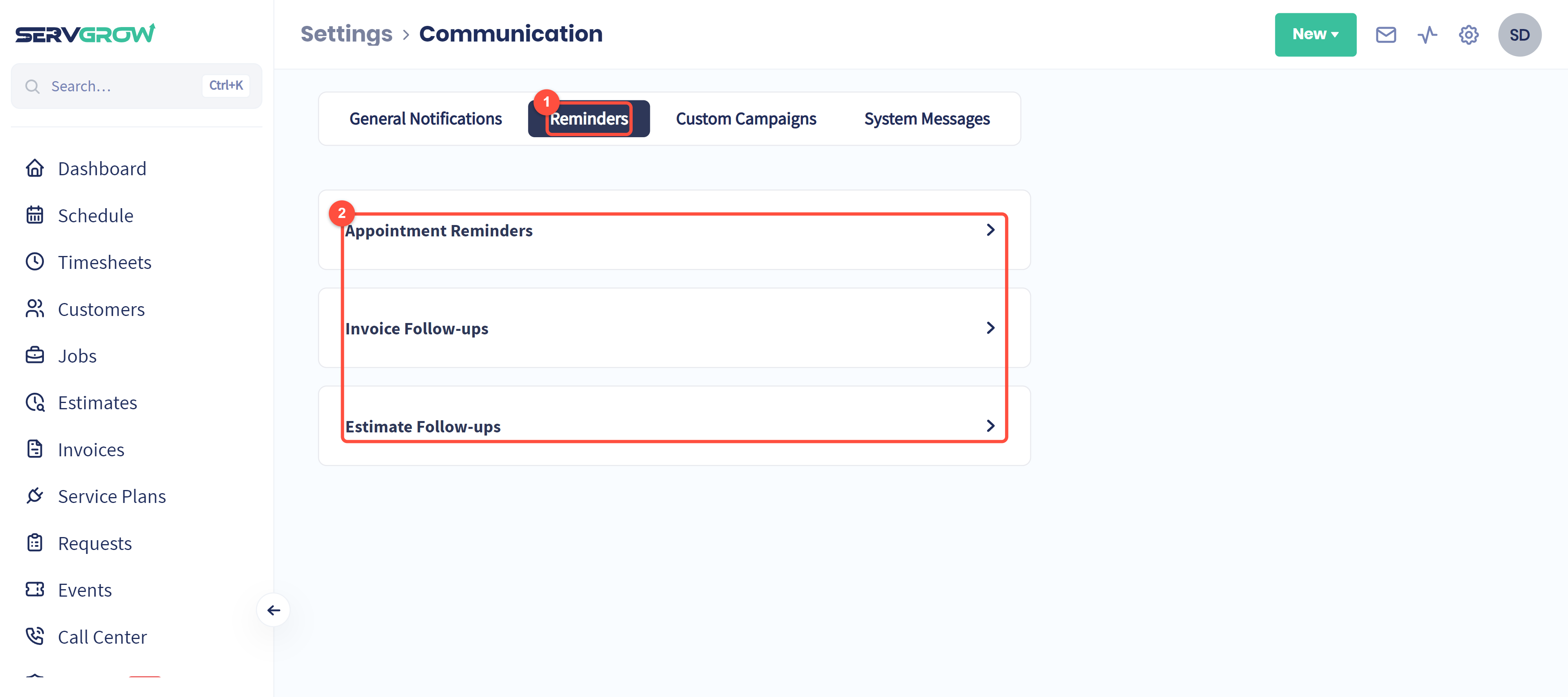
The Reminders tab.
Three kinds of automatic message:
Appointment Reminders: before a scheduled job or estimate visit.
Invoice Follow-ups: nudges for invoices that have not been paid.
Estimate Follow-ups: nudges for estimates the customer has not answered.
Set up appointment reminders
Click Appointment Reminders to open it.
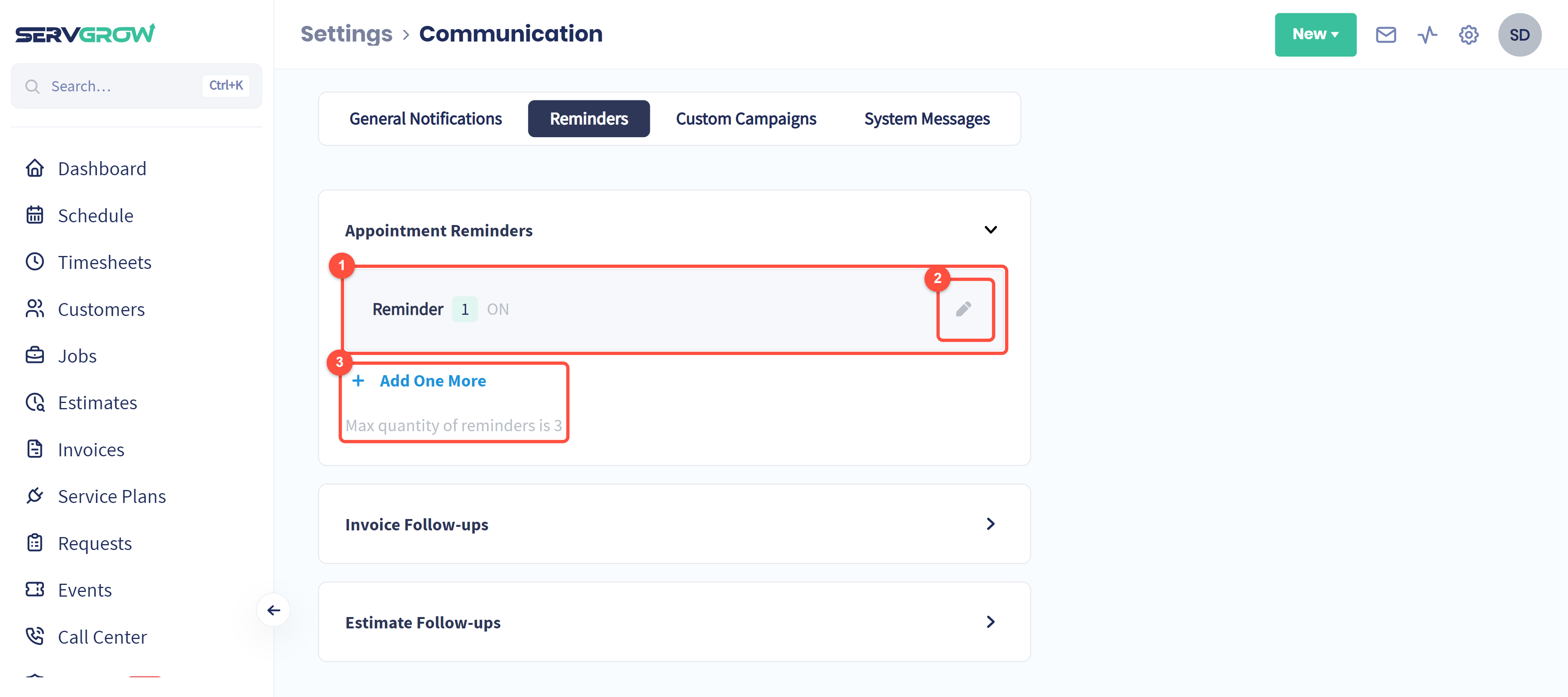
Each reminder you have, and whether it is ON.
The pencil opens the reminder to change it.
Add One More adds another reminder. You can have up to 3, for example one 2 days before and one on the morning of the visit.
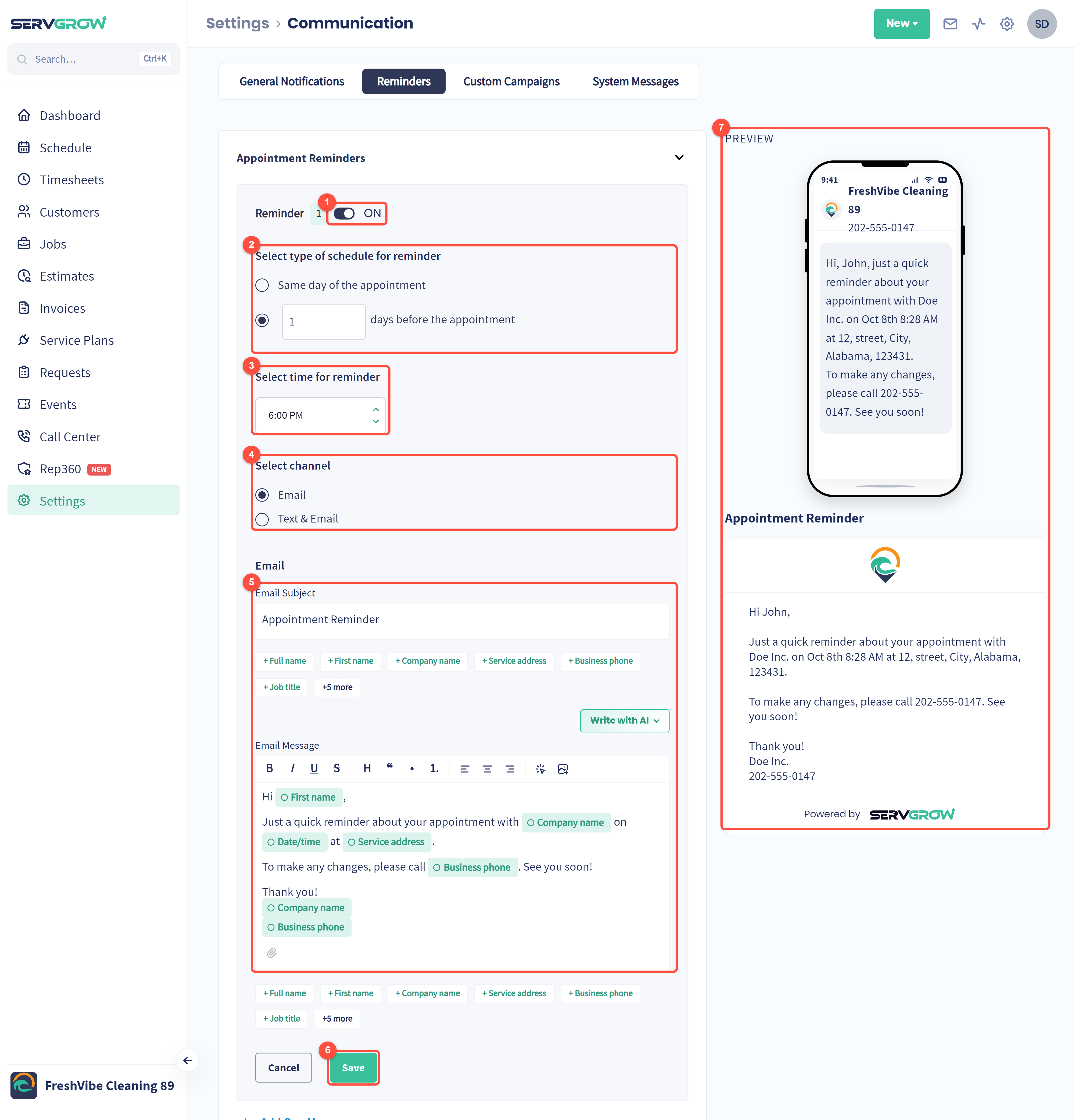
The switch turns this reminder on or off.
When: on the same day as the appointment, or a number of days before it.
What time it goes out.
Channel: Email, or Text & Email.
The message: the subject and the wording. Click the green tags (First name, Company name, Date/time, Service address and more) to drop in details that fill themselves in for each customer. Write with AI can draft the wording for you.
Click Save.
Preview: exactly how the text and the email will look to your customer.
Invoice Follow-ups and Estimate Follow-ups work the same way: open them, edit each reminder, choose the timing and the wording, and save.
Tips
Use two appointment reminders: one the day before and one the morning of. That covers both the planners and the forgetters.
Turn on Text & Email. Customers read texts far more often than emails.
Include your phone number in the message so customers can reschedule instead of just not being home.
Switch on invoice follow-ups. They collect money you would otherwise have to chase by hand.
Related articles