
An estimate only makes you money once it turns into a job. The quicker a quote gets to the customer, gets a yes and lands on your schedule, the less chance they shop around or forget about you. Servgrow carries an estimate all the way: send it, get it approved, and copy it into a job with the line items, prices and customer already filled in. Nothing is retyped, so nothing is lost on the way.
The steps from quote to job
Click Estimates and open the estimate. The progress bar across the top shows where it has got to.
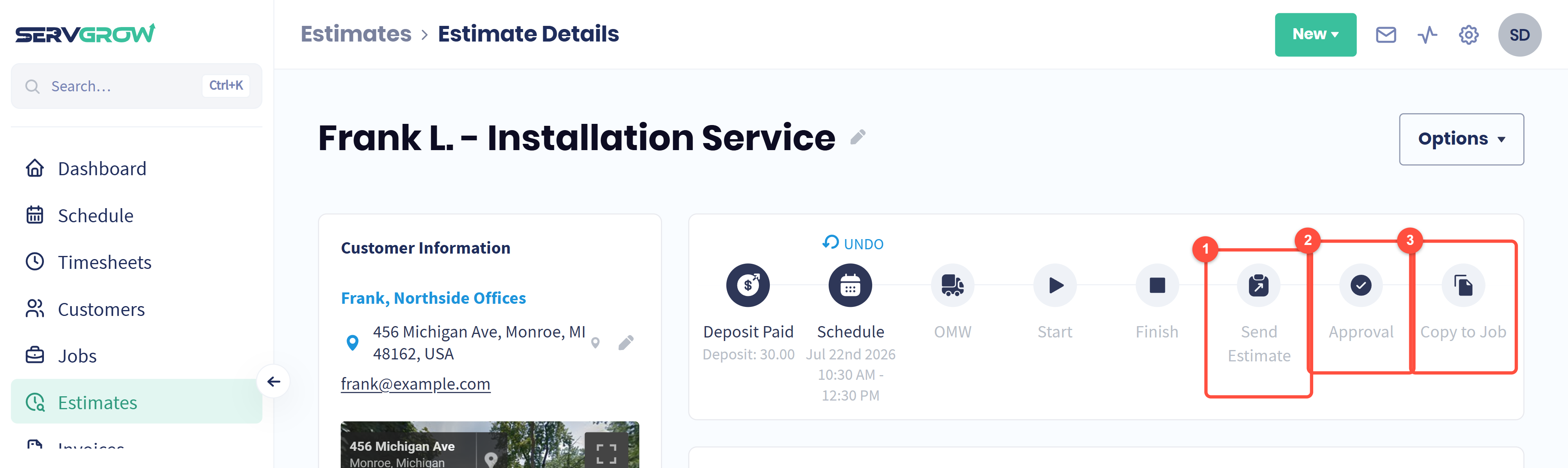
Send Estimate: get the quote to the customer.
Approval: the customer says yes (or no).
Copy to Job: turn the approved estimate into a job.
The steps before these (Deposit, Schedule, OMW, Start and Finish) are for when you visit to quote. Skip them if you quote from the office. For a tour of the whole estimate page, see Estimate Page: Turn a Quote Into Approved, Paid Work.
1. Send the estimate
Click Send Estimate on the progress bar.
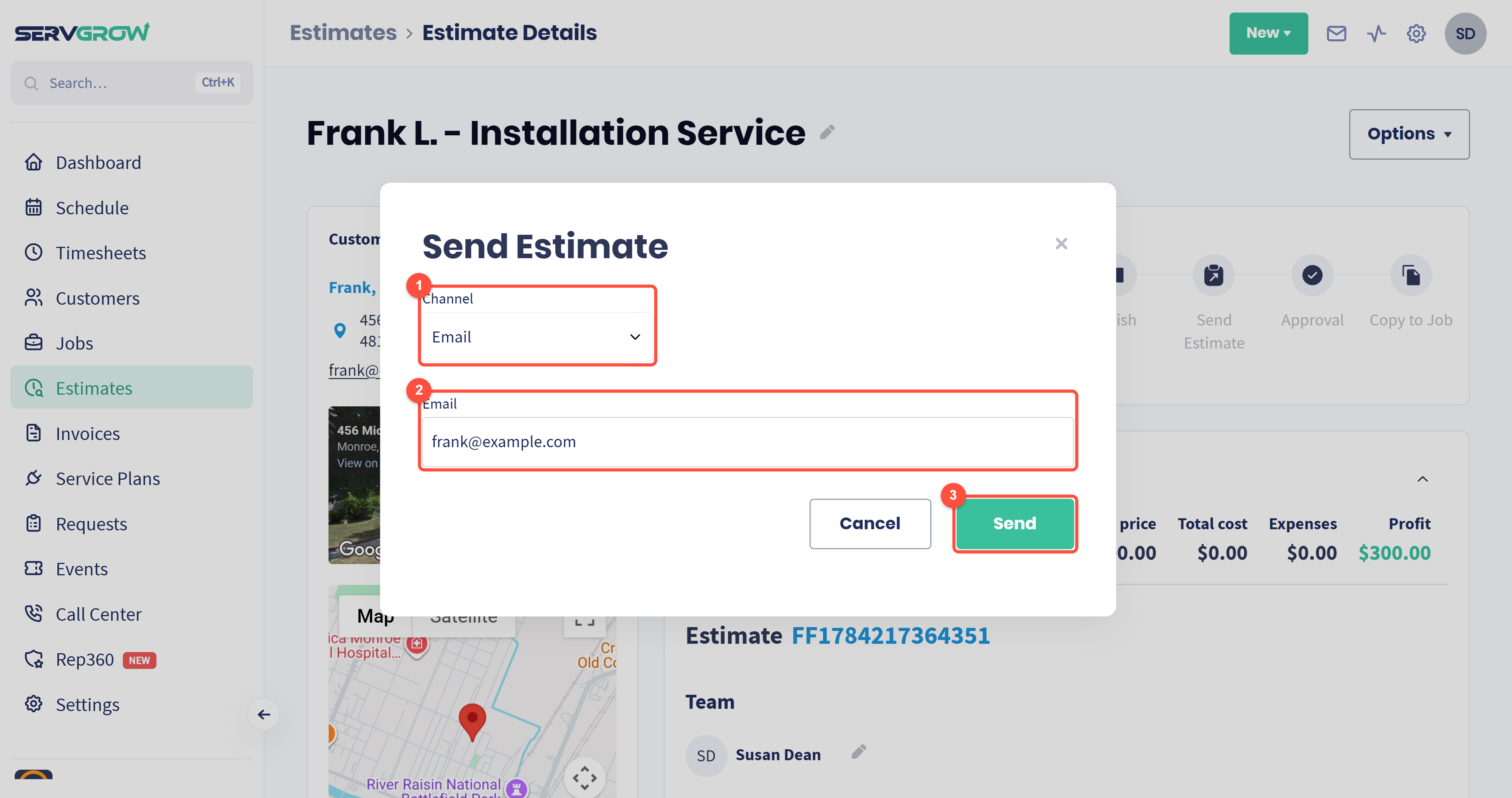
Channel: how it goes out, by email or text.
The customer's email address or phone number, filled in from their record. Check it is right.
Click Send. The customer gets a link to view the estimate and approve it themselves.
Or share a link
Want to send the estimate through your own email, a text thread or a social message? Use a link instead.
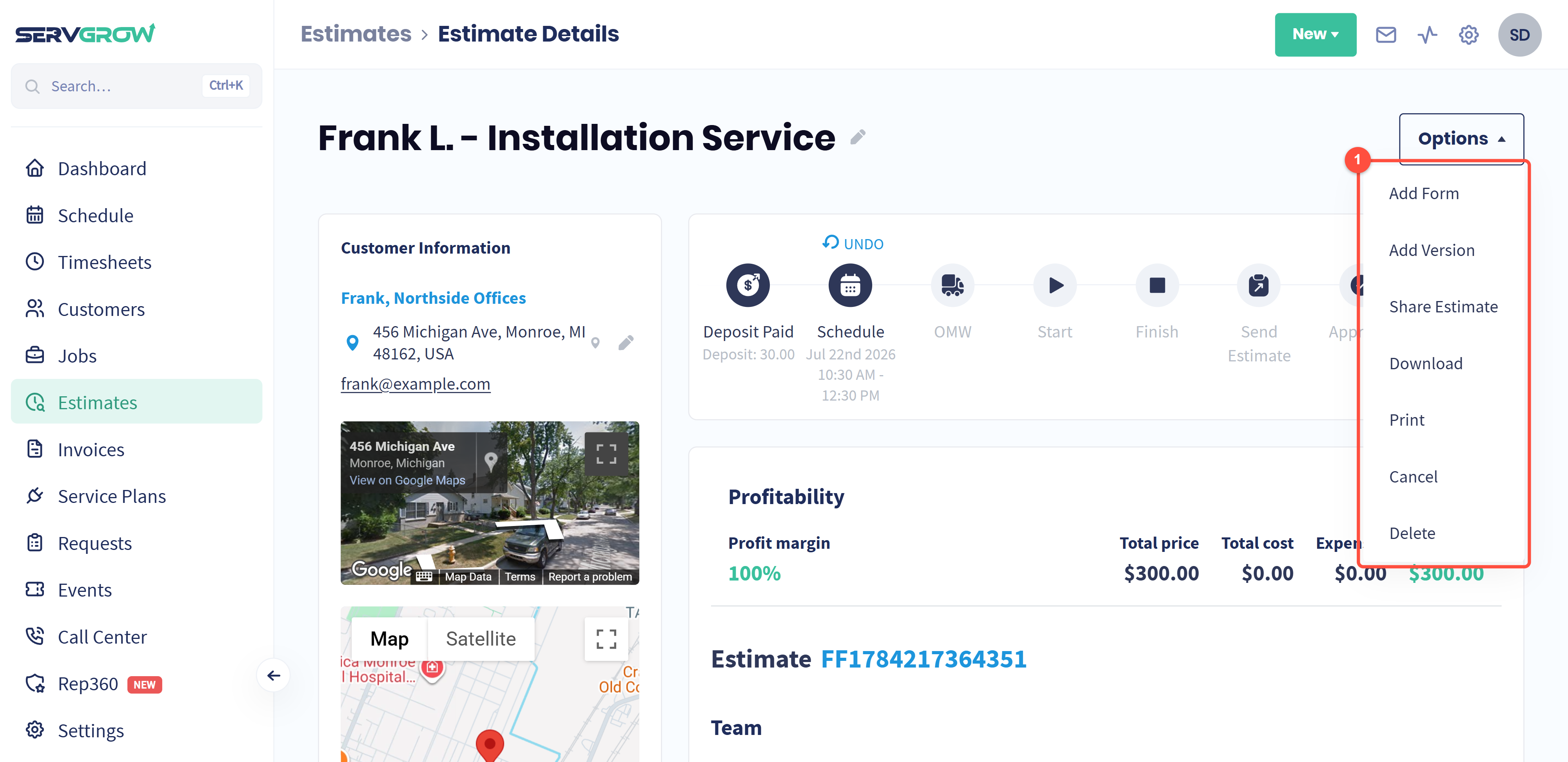
Click Options. Alongside Share Estimate you will find Add Form, Add Version (a second version of the same quote), Download, Print, Cancel and Delete.
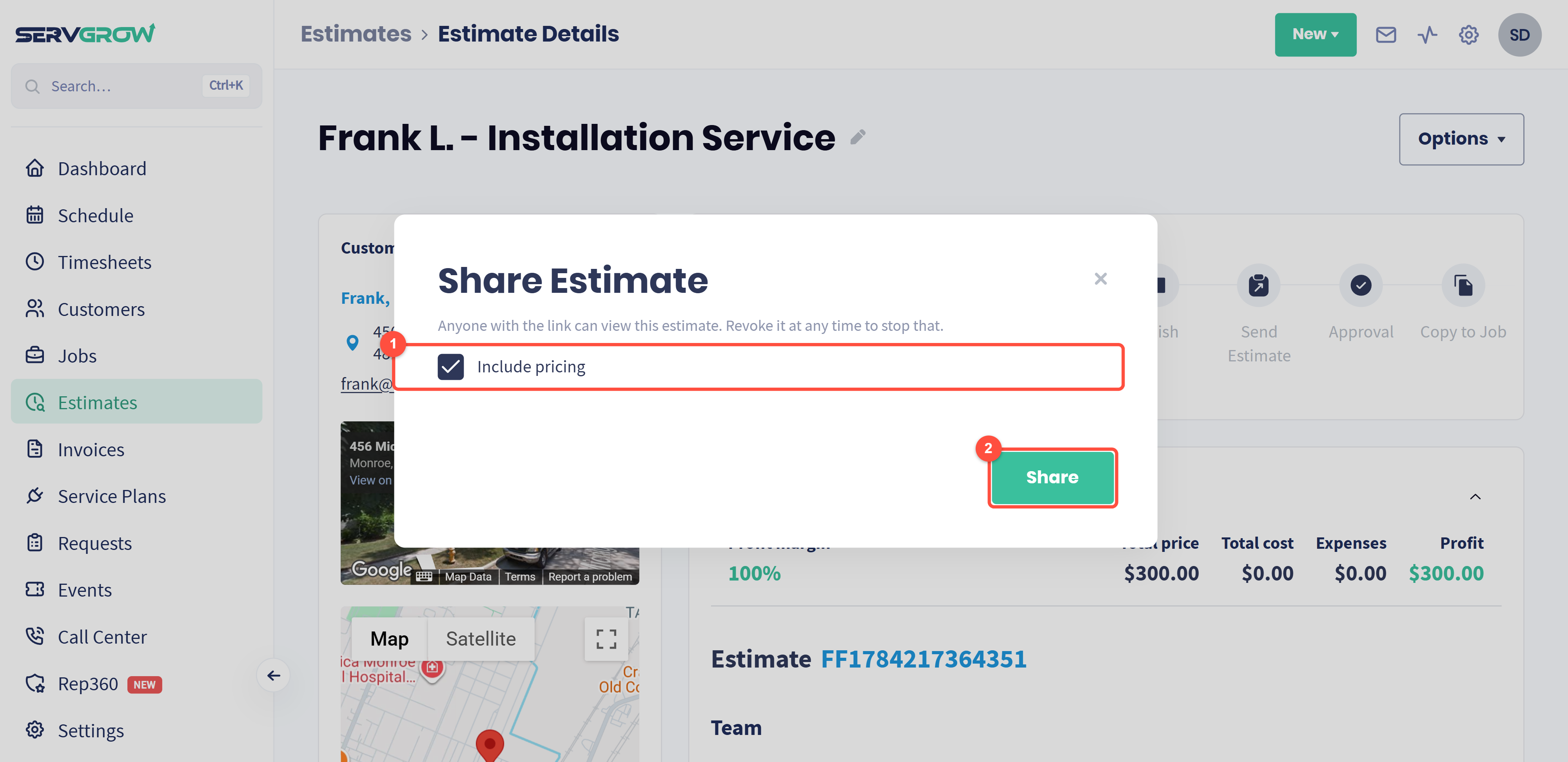
Include pricing: untick it to share the scope of work without the prices.
Click Share to get the link. Anyone with it can view the estimate, and you can revoke it at any time.
2. Get it approved
When the customer approves the estimate from their link or the customer portal, the Approval step is ticked for you. If they say yes on the phone or in person, record it yourself: click Approval.
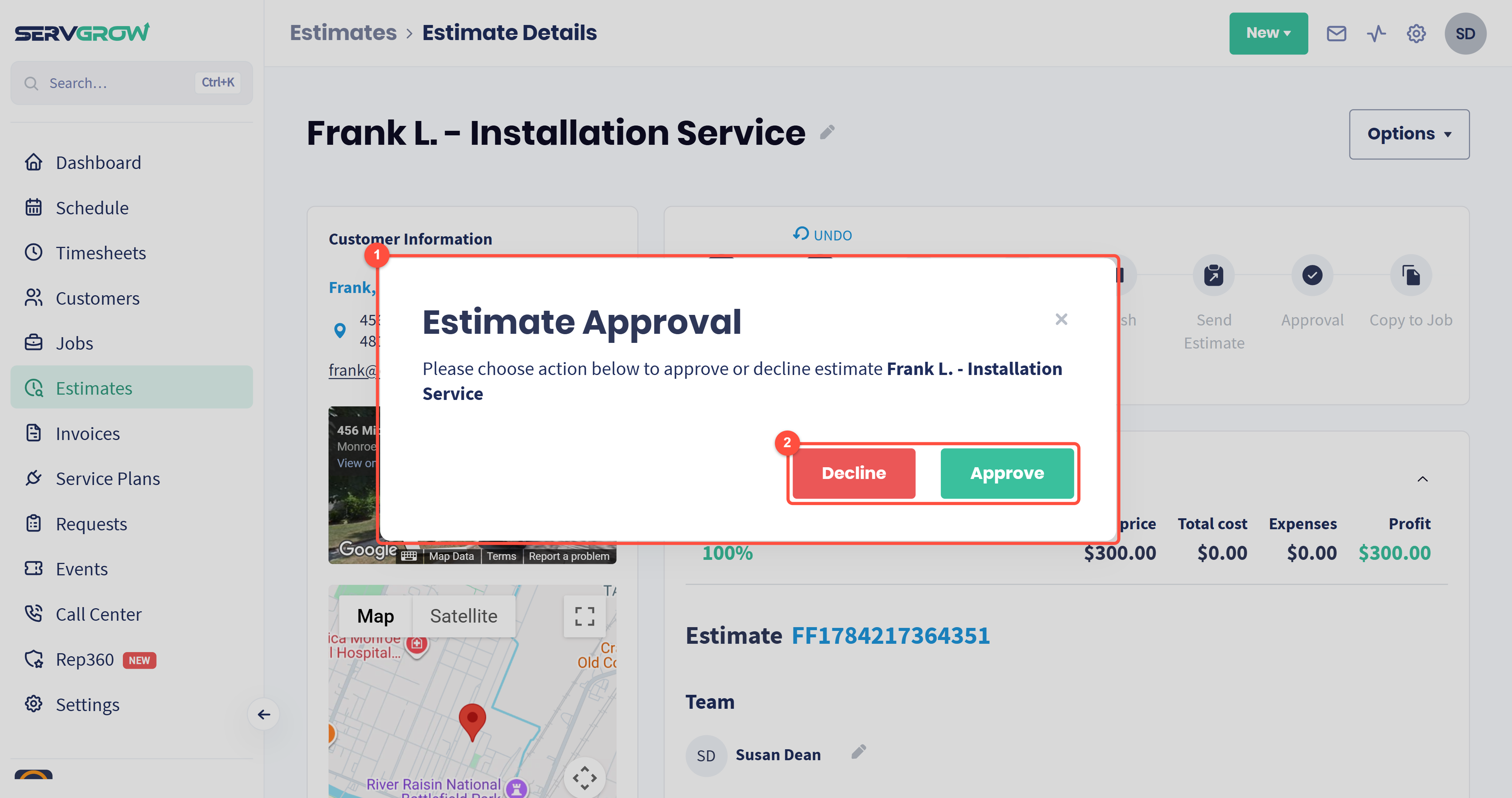
The Estimate Approval window names the estimate you are deciding on.
Click Approve, or Decline if the customer said no, so your estimates list stays honest.
3. Copy it to a job
Once the estimate is approved, click Copy to Job.
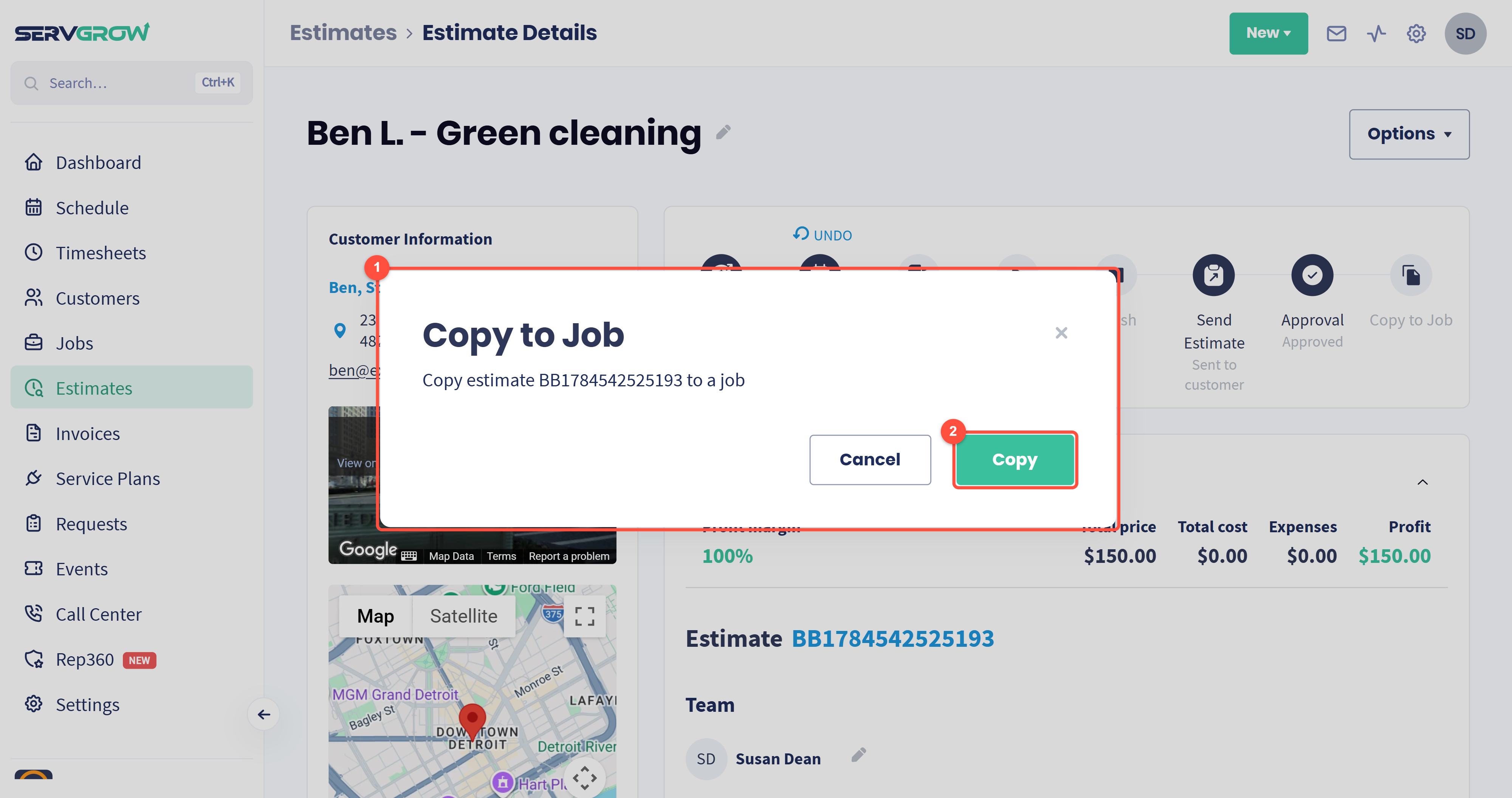
The window confirms which estimate (by its number) becomes a job.
Click Copy. The new job carries over the customer, the address and the line items and prices.
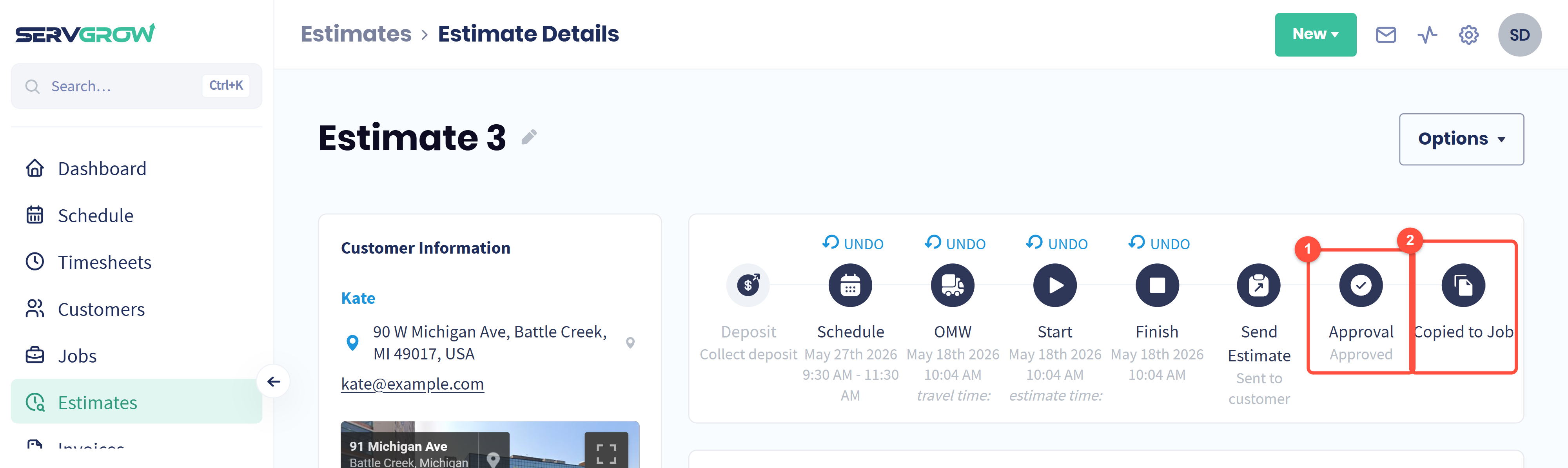
Approval shows Approved.
The last step now reads Copied to Job, so anyone opening the estimate can see it has already been turned into work.
Open the new job from Jobs to schedule it, assign the crew and invoice it when the work is done.
Let approved estimates turn into jobs on their own
If you take a deposit, Servgrow can do the copying for you. Scroll to Require Deposit on the estimate.
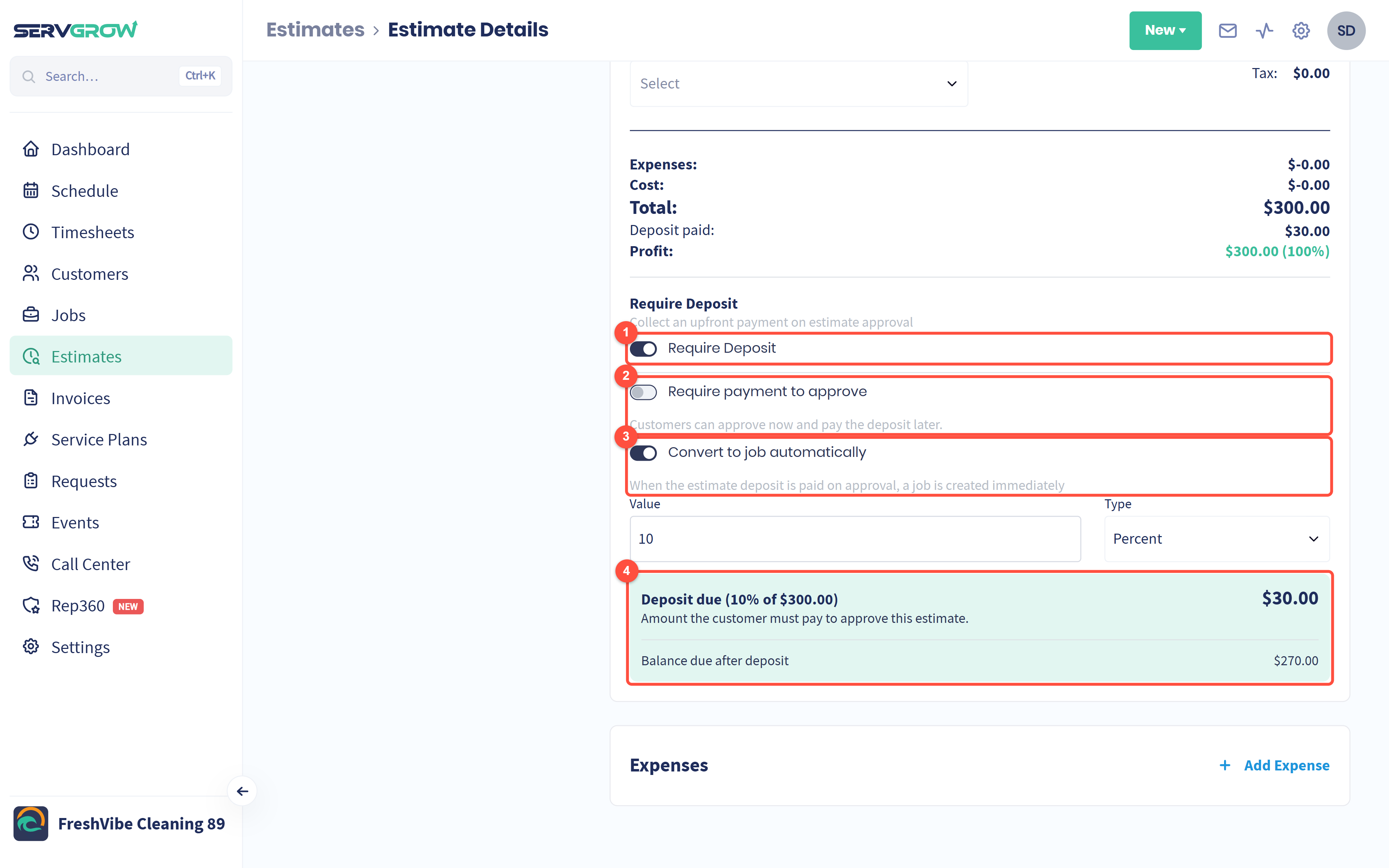
Require Deposit: ask for money up front when the customer approves.
Require payment to approve: on, the customer has to pay the deposit to approve. Off, they can approve now and pay the deposit later.
Convert to job automatically: when the deposit is paid on approval, the job is created straight away. No one has to click Copy to Job.
The deposit due and the balance left after it, worked out from the value and type you set.
To make these the default for every estimate, set them once under Settings, Invoice settings, Deposits. See Deposits: Get Paid Before the Work Starts.
Tips
Send the same day you quote. The estimate that arrives first is usually the one that wins.
Use Convert to job automatically with a deposit. The customer commits and the job appears without anyone touching it.
Record phone approvals straight away so the estimate does not sit in your list looking open.
Decline lost quotes. Your estimates list then shows what is really still in play.
Related articles