
Waiting until the work is finished to see any money is how you end up buying materials out of your own pocket and driving to jobs that quietly evaporate. A deposit fixes both. The customer puts something down to approve the quote, you know the job is real before you load the van, and the balance is what is left at the end.
Set it once and Servgrow asks for it every time: a percentage or a flat amount, on estimates, on jobs, or both. You can even have the approved quote turn itself into a booked job the moment the deposit lands.
Turn deposits on
Click Settings, then Invoice settings.
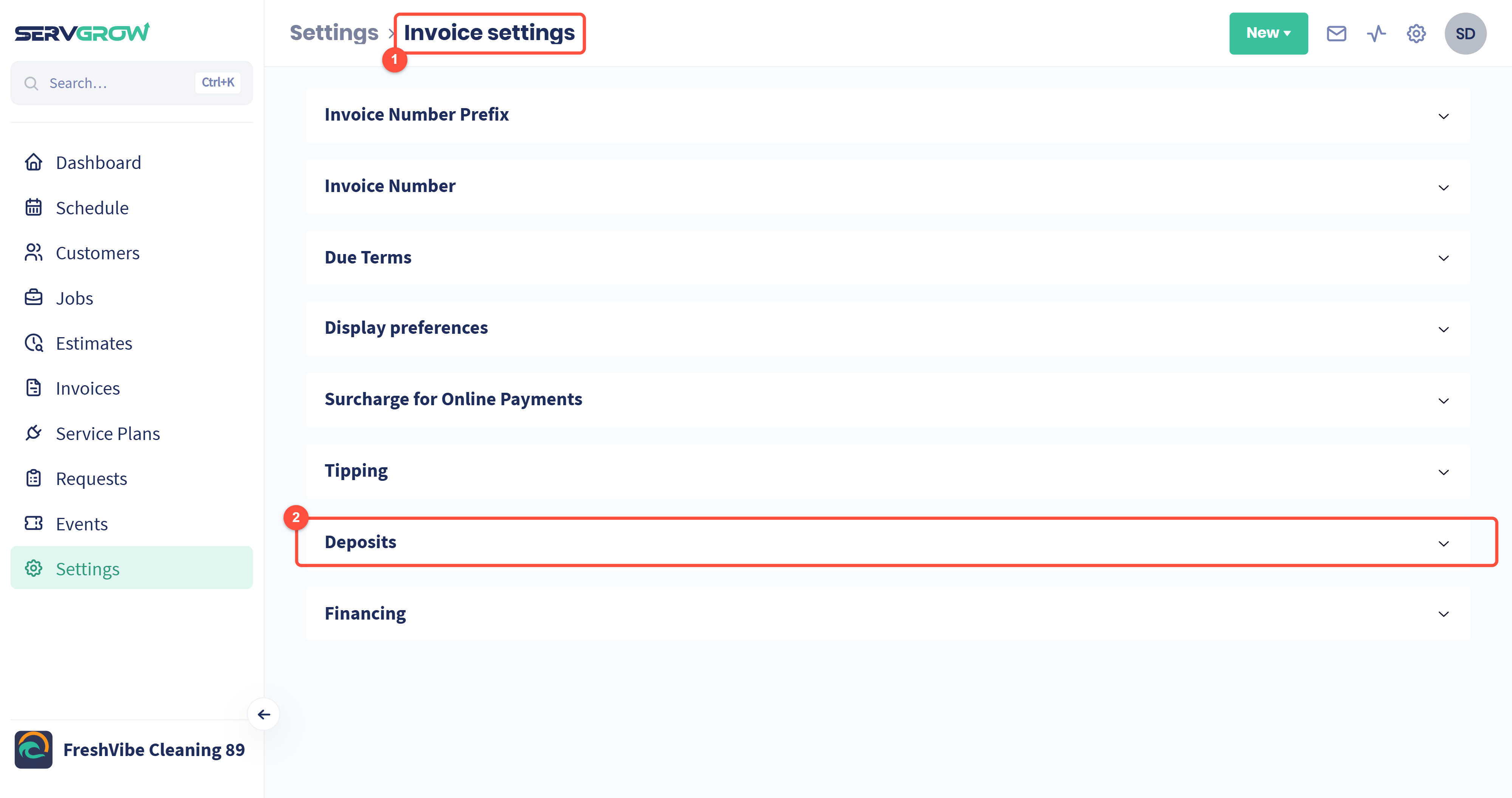
You are in Invoice settings, the same place your invoice numbers and due terms live.
Open Deposits.
Deposits on estimates
This is the one that earns its keep: the customer pays as they approve, so you are only booking work that is already part paid.
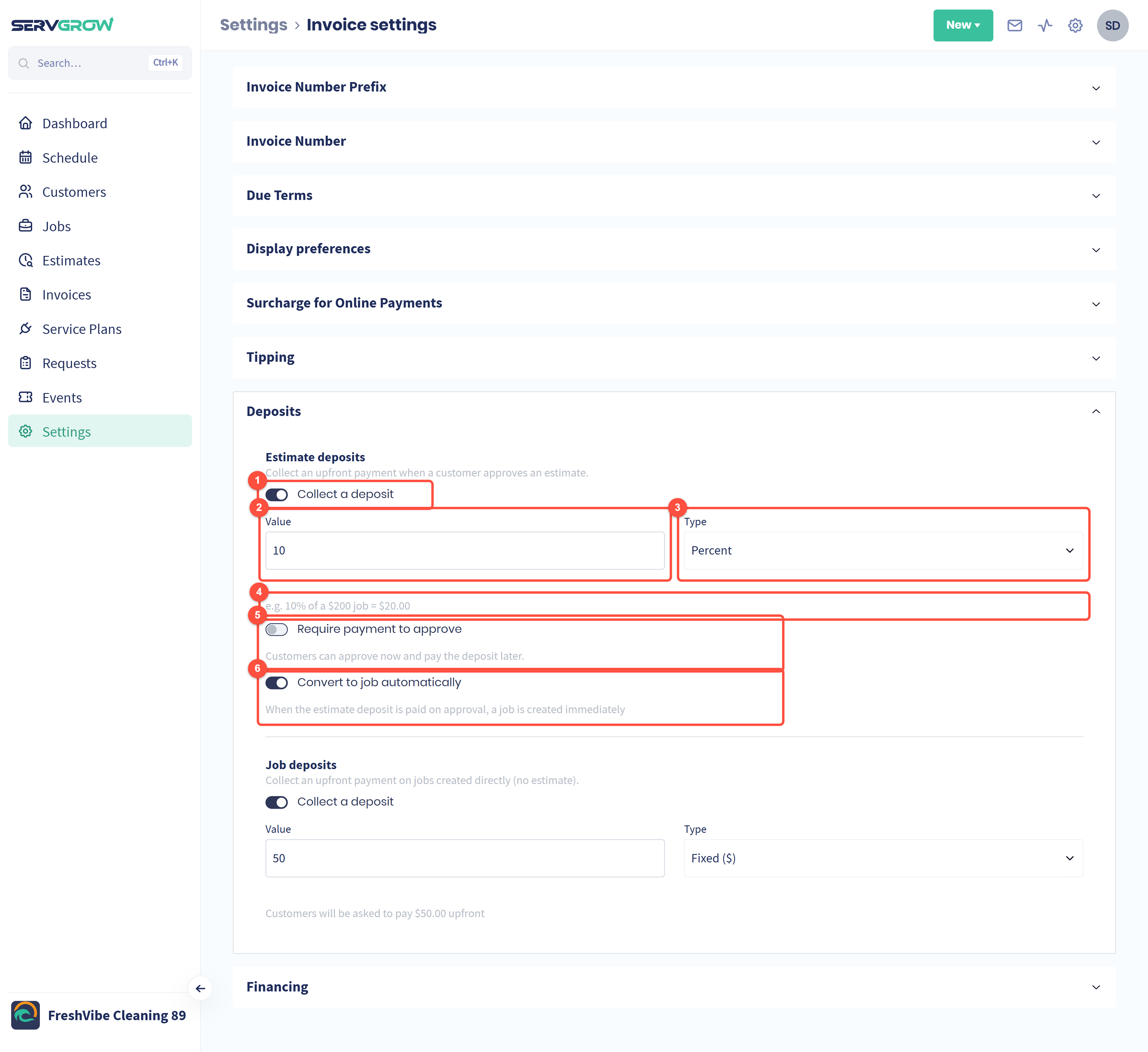
Collect a deposit: turn it on and every estimate asks for one.
Value: how much.
Type: Percent of the estimate, or a fixed amount in dollars.
Servgrow does the sum for you underneath, for example "10% of a $200 job = $20.00". Read that line before you move on.
Require payment to approve. Off, and customers can approve now and pay the deposit later. On, and the money has to land before the estimate counts as approved.
Convert to job automatically: when the deposit is paid on approval, the job is created straight away. No retyping, no forgetting to book it.
Deposits on jobs you book directly
Not every job starts as an estimate. This block covers the ones you book yourself.
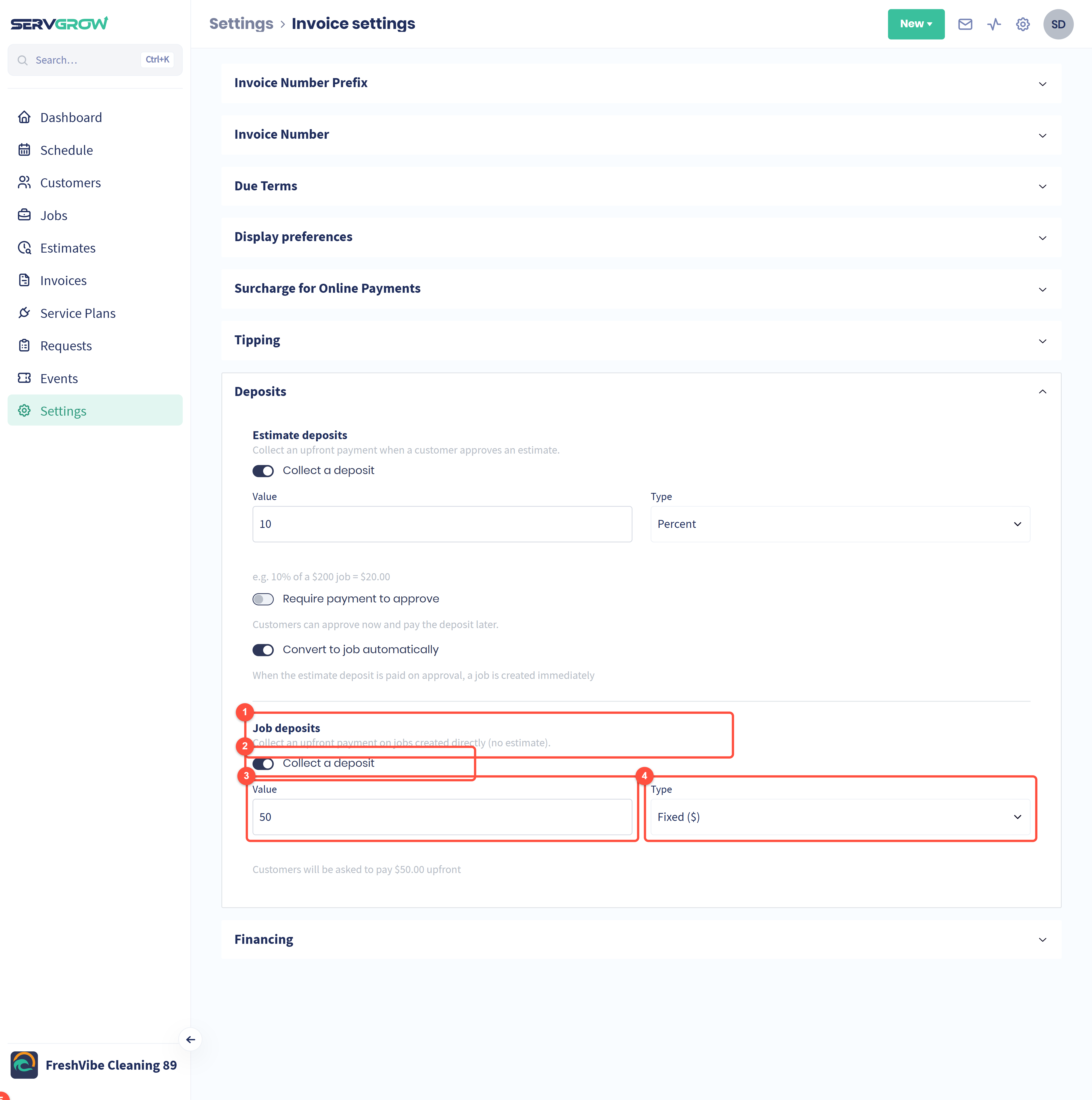
Job deposits applies to jobs created directly, with no estimate behind them.
Collect a deposit: turn it on.
Value: how much.
Type: a percentage or a fixed amount.
The line underneath spells it out, for example "Customers will be asked to pay $50.00 upfront".
Save your settings
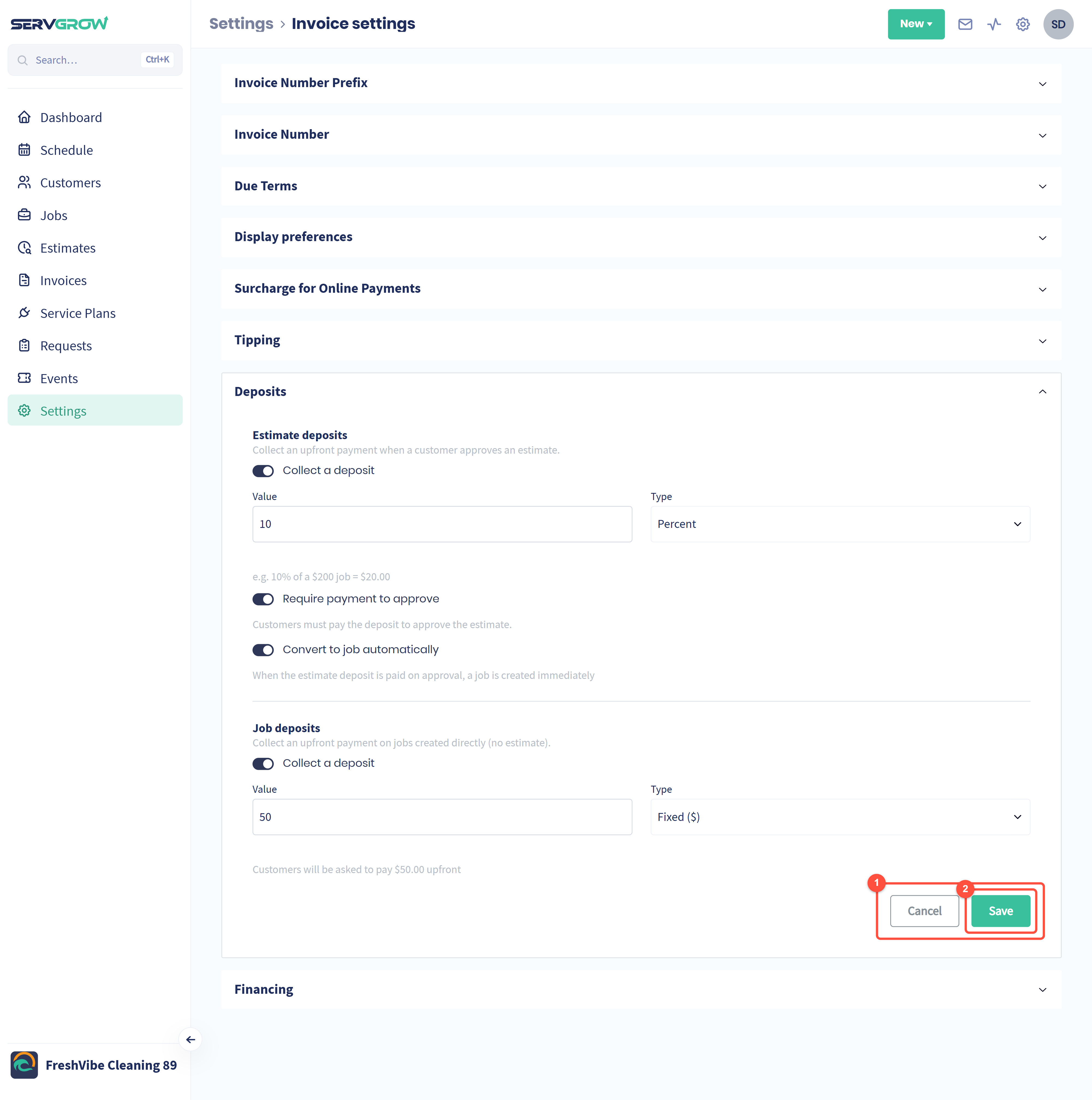
Change anything in Deposits and Cancel and Save appear at the bottom of the section.
Click Save. Nothing you changed counts until you do.
Change the deposit on one estimate
Your settings are the default, not a straitjacket. Open any estimate, scroll to Require Deposit, and set that one differently.
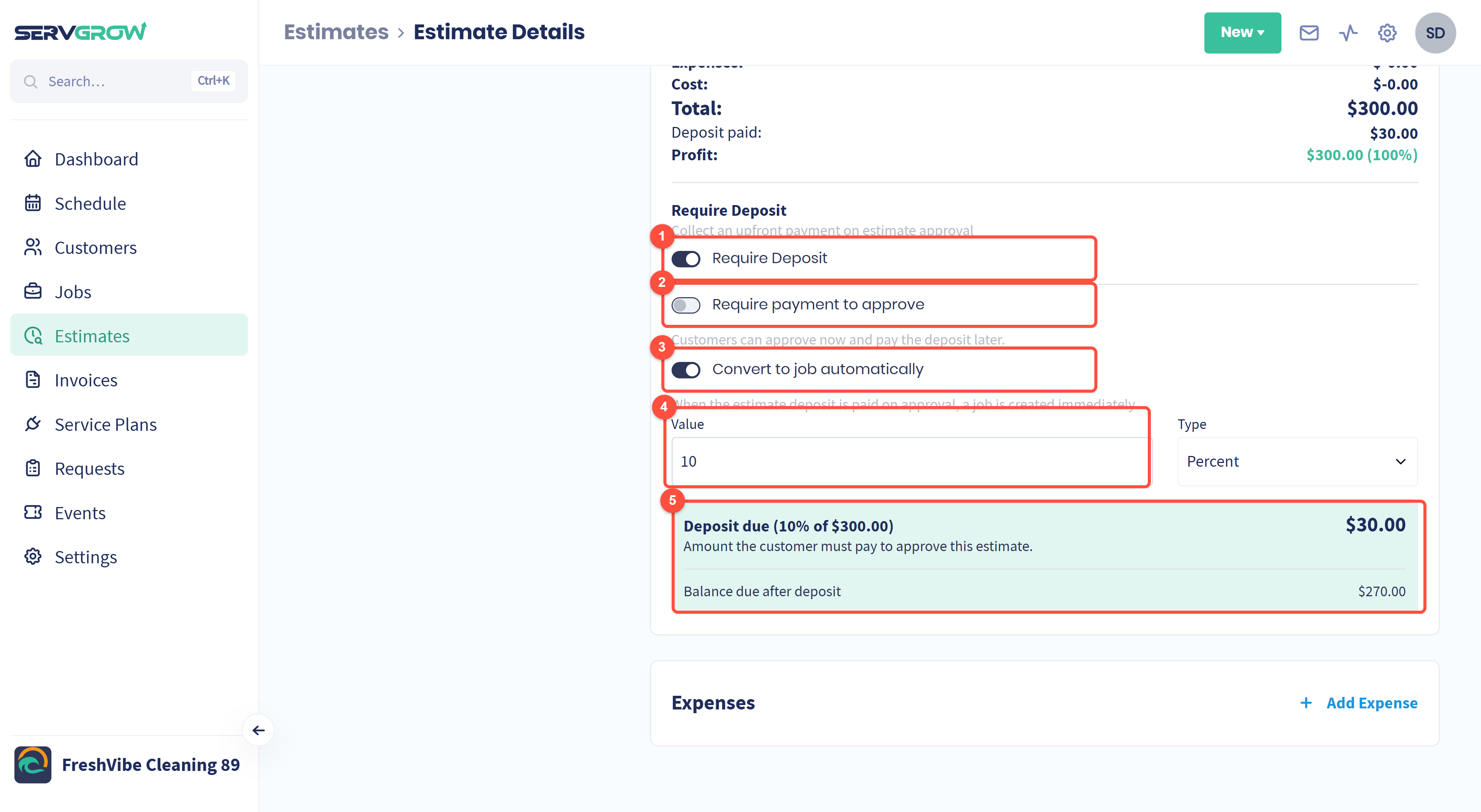
Require Deposit: ask for one on this estimate.
Require payment to approve: the same choice as in settings, for this quote only.
Convert to job automatically: same again.
Value and Type: a bigger deposit on a big job, or none at all on a small one.
The green panel shows the customer's side of it: Deposit due, what they must pay to approve, and the Balance due after deposit.
Remember to click Update Estimate at the bottom, or the change is not saved.
What the customer sees
When they open the estimate you sent, the deposit is shown with the total, and they pay it by card as they approve. If Require payment to approve is off they can approve first and pay the deposit afterwards. If it is on, the approve button takes them to payment.
When the deposit lands
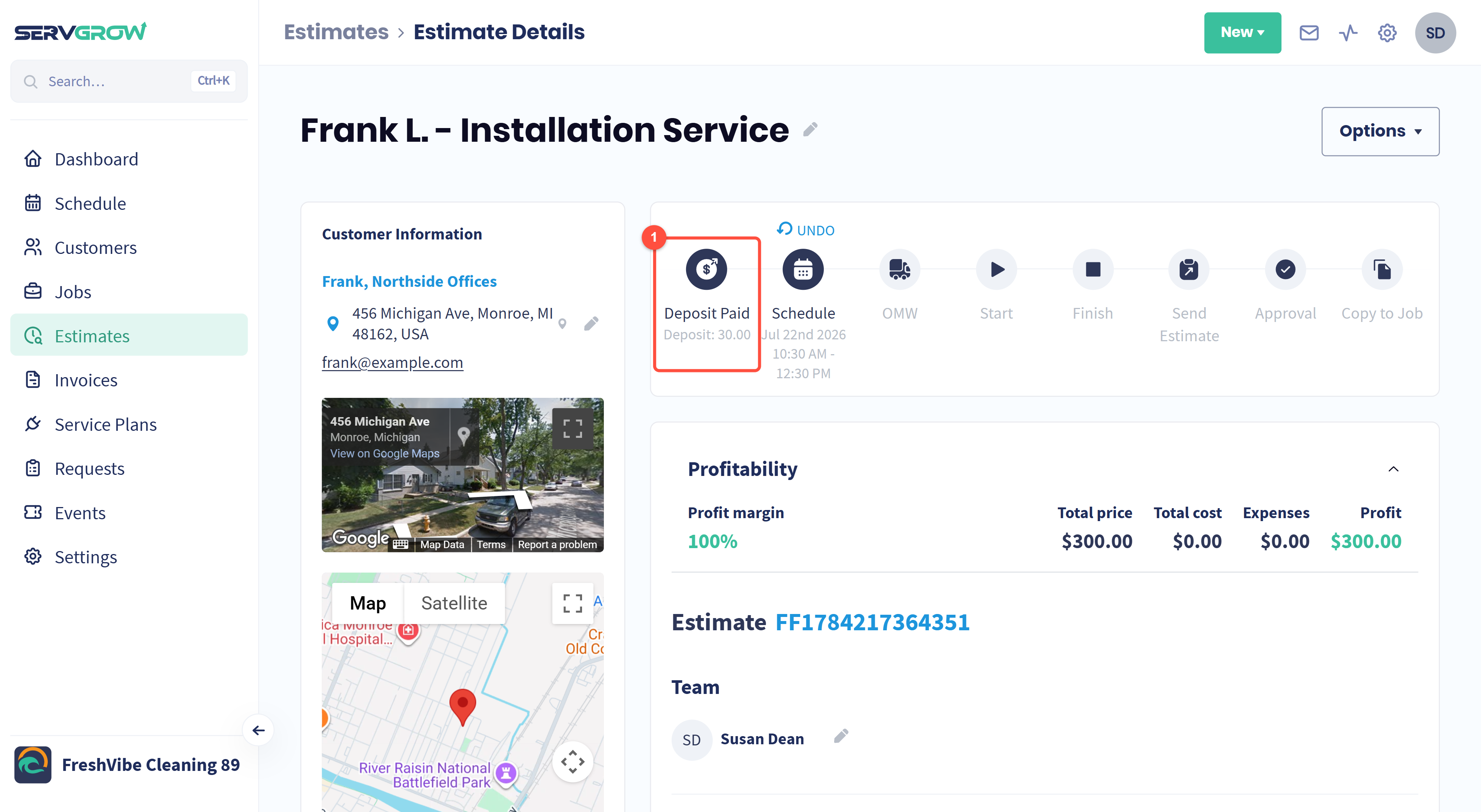
The Deposit Paid step at the front of the estimate's progress bar fills in, with the amount underneath. One look tells you the customer has skin in the game.
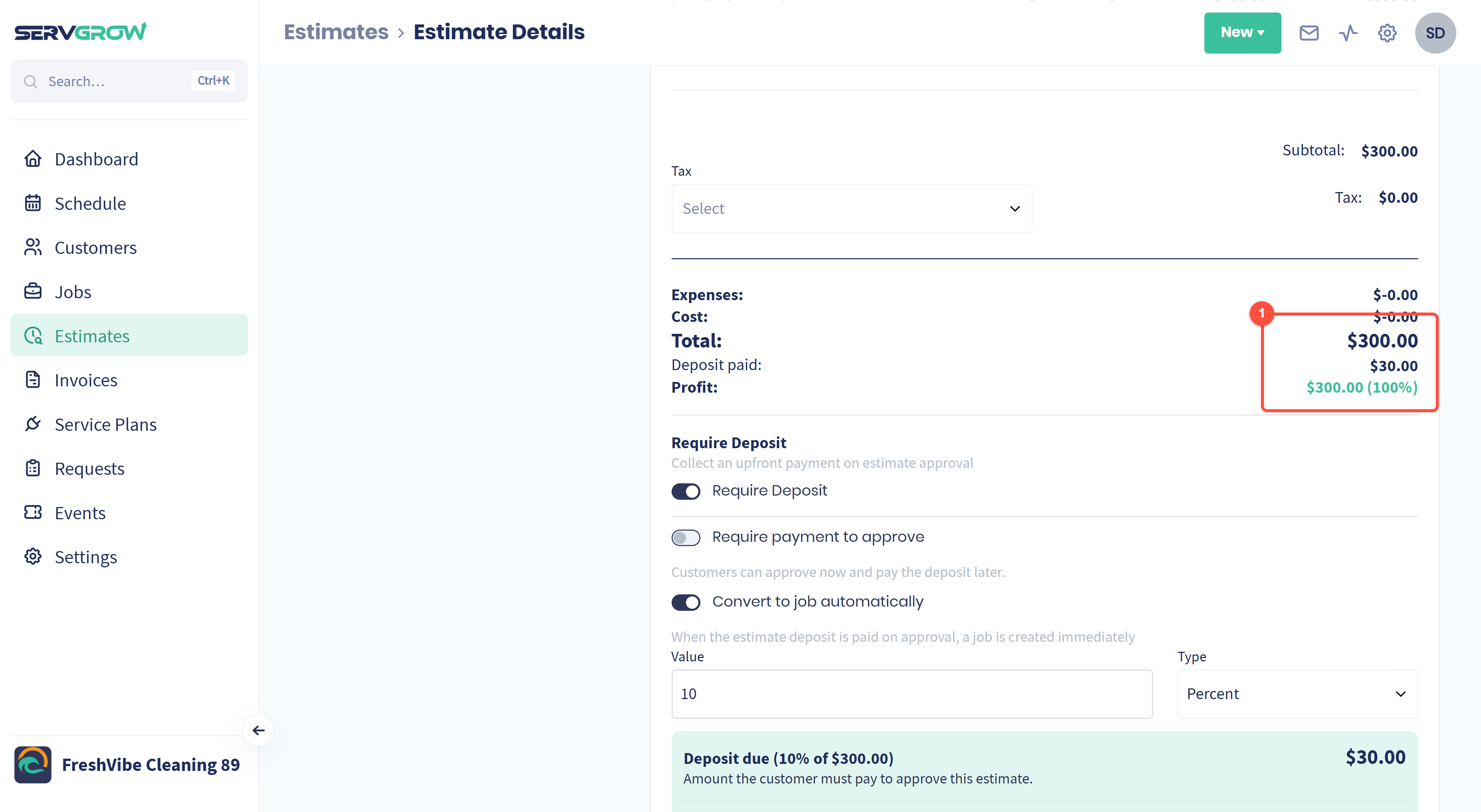
The totals keep the running story: the Total, the Deposit paid against it, and what that leaves. Invoice the balance when the work is done.
Ask for a deposit on a job
Open the job, scroll to Require Deposit.
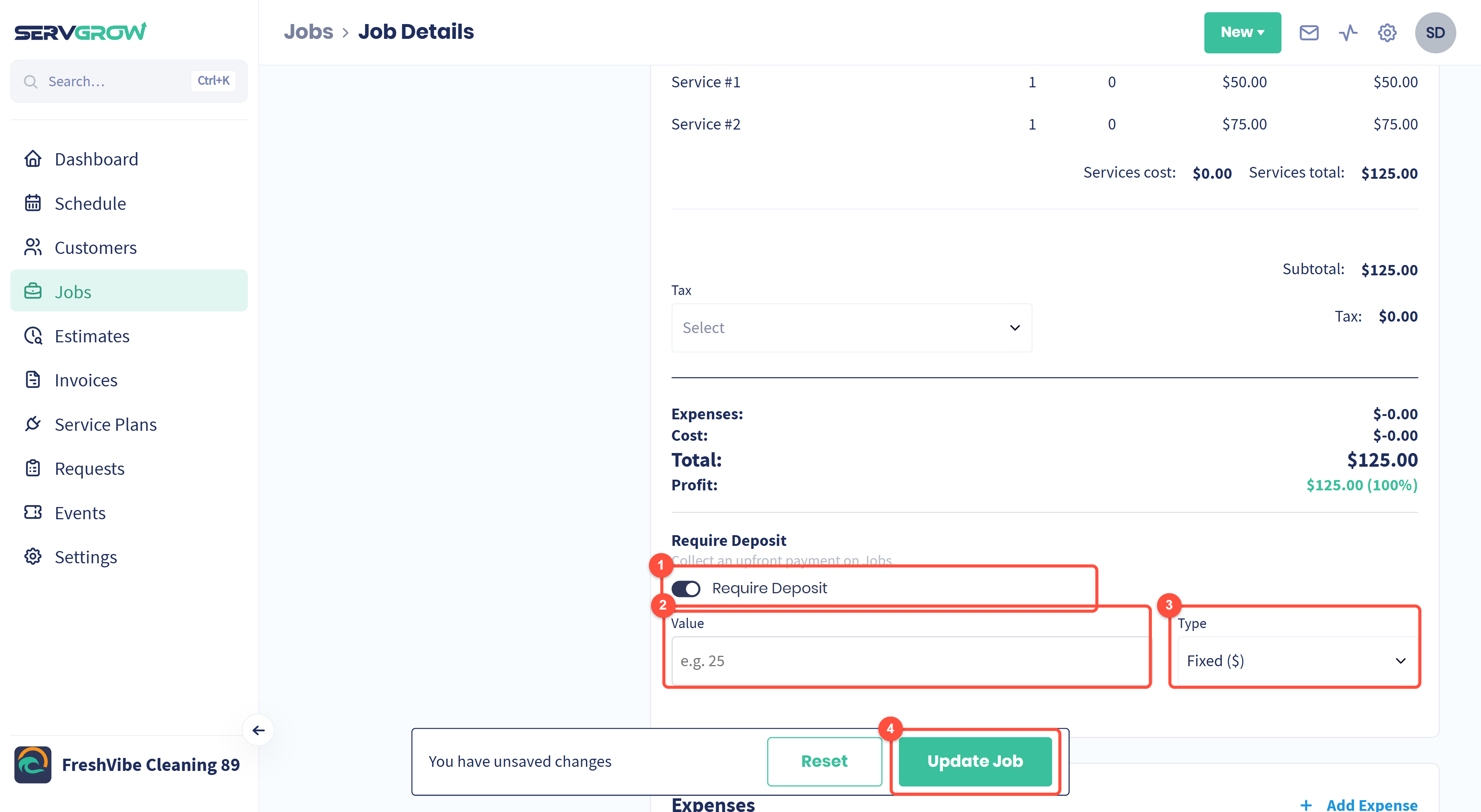
Turn Require Deposit on.
Value: how much you want up front.
Type: a percentage of the job or a fixed amount.
Click Update Job. The unsaved changes bar is your reminder: until you click it, nothing is saved.
Tips
A deposit is a filter, not just cash. Someone who will not put 10% down was usually never going to book.
Size it to your risk. Percentage for jobs that vary, a flat amount when the cost you carry is the same every time, like a call-out or a part you have to order.
Leave "require payment to approve" off when you are chasing a yes. Let them approve first and pay after, so you are not putting a payment screen between you and the booking.
Turn on convert to job automatically. The quote becomes a job the second the deposit lands, which is one less thing to remember on a busy day.
Related articles