
Finishing the work is only half the job. The other half is getting paid, and that is where money quietly slips away: invoices that never get sent, customers who forget, and no clear picture of who owes what. Chasing it from memory or a spreadsheet costs you time and cash.
The Invoices section shows every invoice in one place with its status, so you always know what is unsent, what is due and what is overdue. You can send, collect and follow up in a few clicks, one invoice at a time or many at once, and see exactly when a customer opened their invoice and when they paid.
Where to find it
Click Invoices in the left menu.
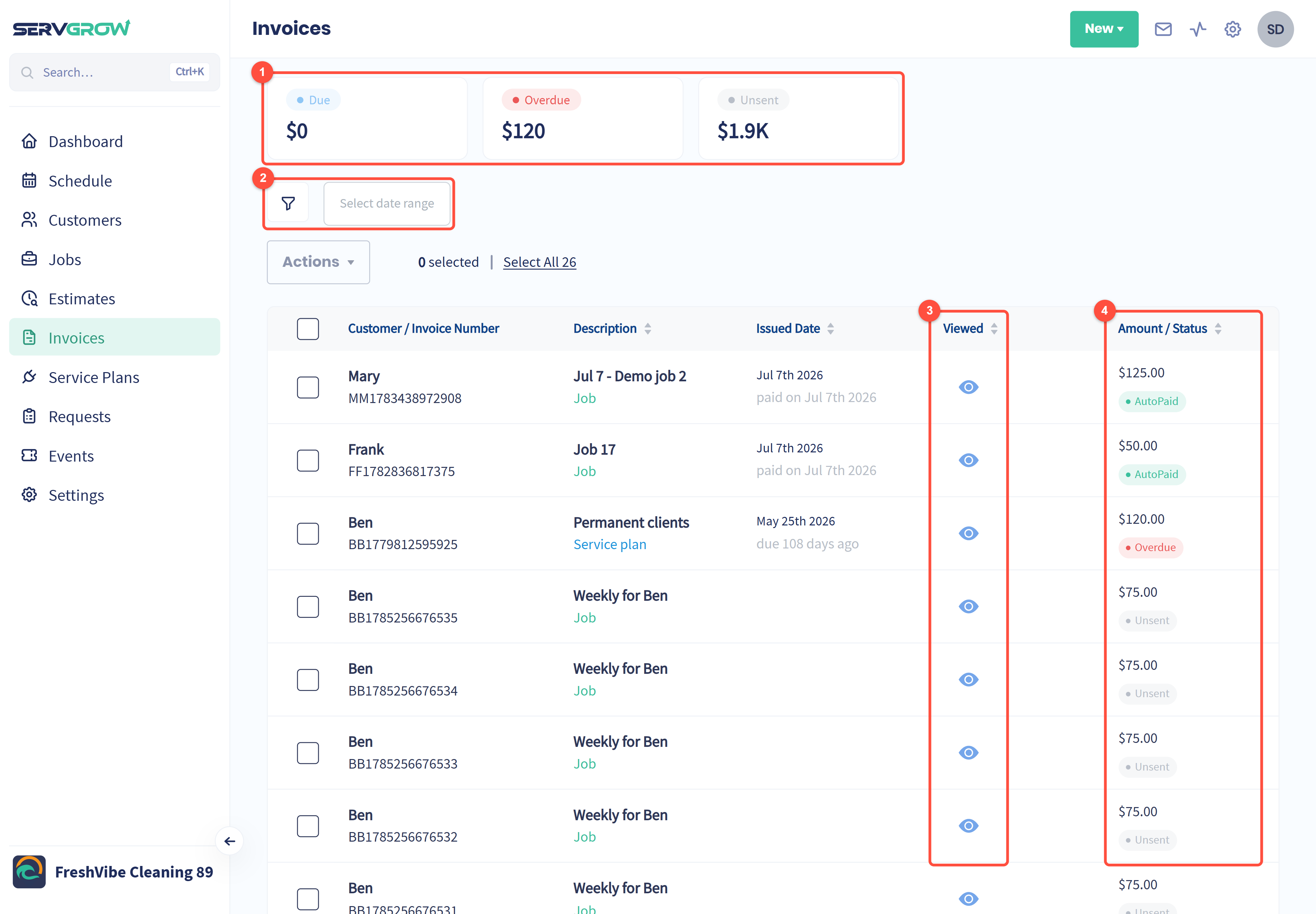
The totals at the top show how much is Due, Overdue and still Unsent. Check them every week: unsent money is work you have not asked to be paid for yet.
Use the filter button and Select date range to narrow the list.
Viewed: the eye shows whether the customer has opened the invoice. Hover over it to see when.
Amount / Status: what the invoice is for and where it stands.
Each row also shows the customer, the invoice number, what it was for (a Job, Service plan or Recurring Job) and the date it was issued or paid.
What each status means
Unsent: the invoice exists but has not been sent to the customer.
Due: sent and waiting for payment, and not yet past its due date.
Overdue: past its due date and still unpaid.
Pending: a payment has been started and is still processing.
Paid: paid in full. AutoPaid means it was charged automatically to the customer's saved card.
Failed: a payment attempt did not go through. Follow up with the customer.
Uncollectible: you have written the invoice off.
Deposited: a deposit has been collected on it.
Filter the list
Click the filter button to filter by Type, Status, Customer or Date Range.
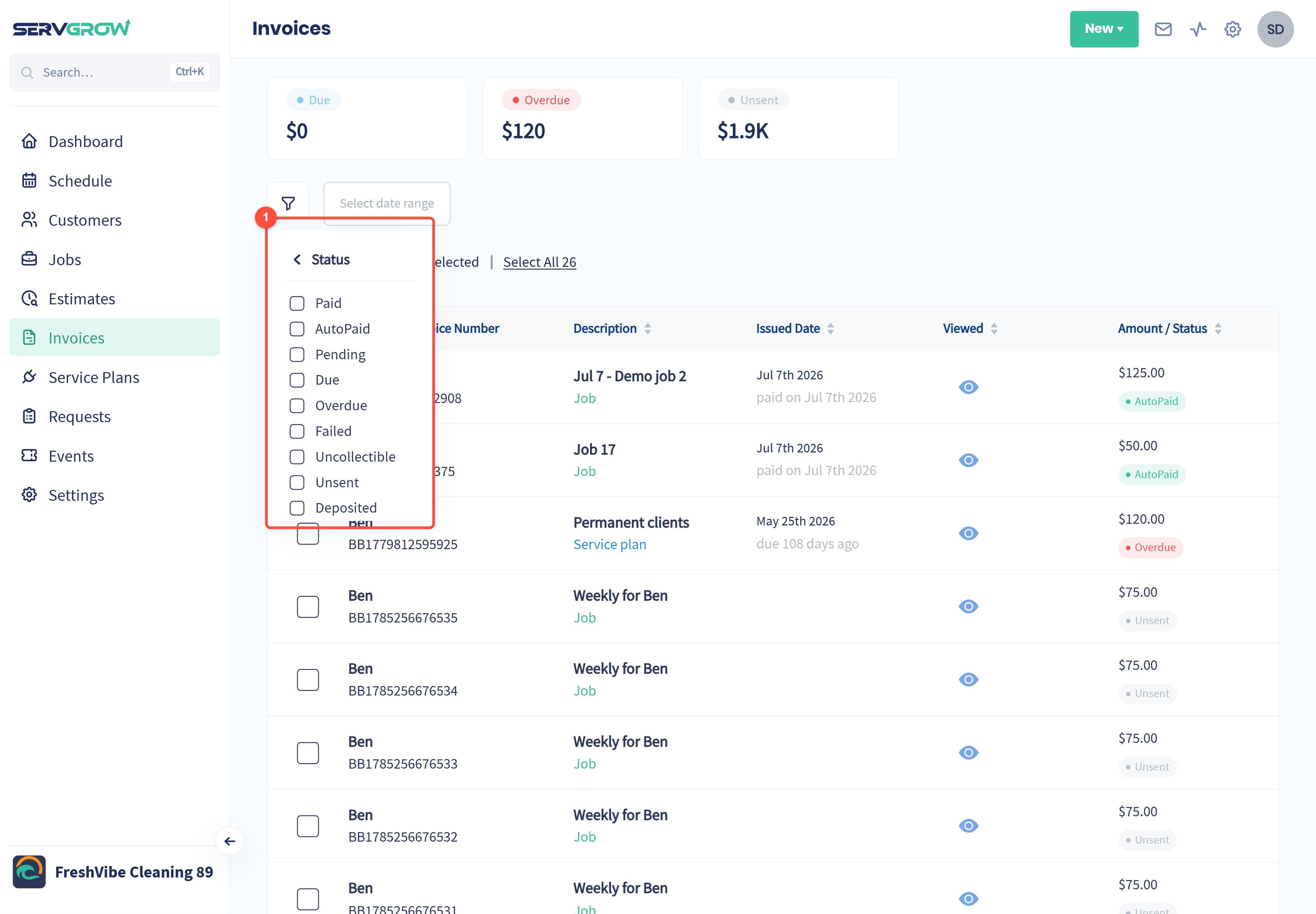
Choose Status and tick the ones you want, for example Overdue and Failed to build your follow-up list for the day.
Work on many invoices at once
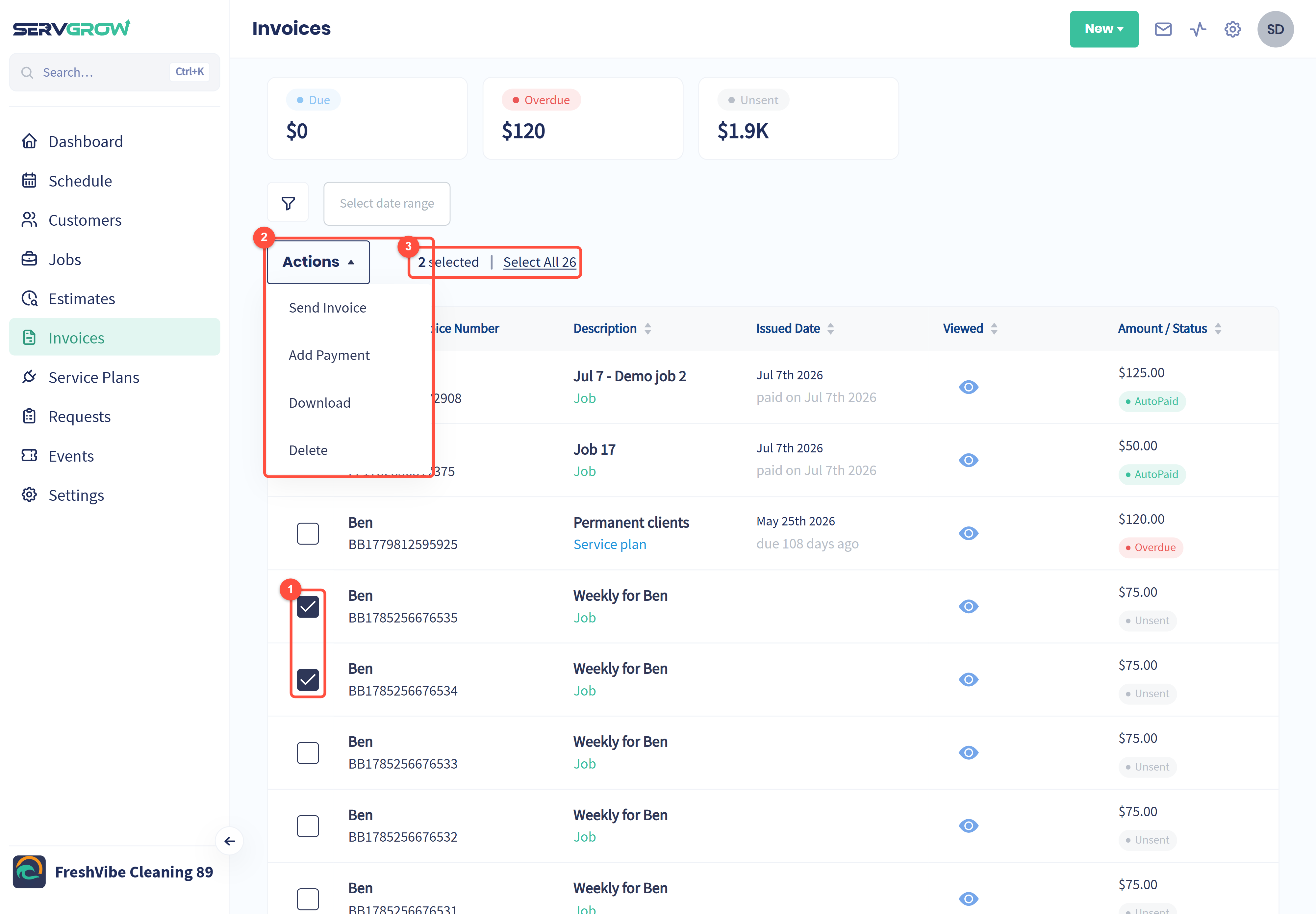
Tick the invoices you want to work on.
Open Actions and choose Send Invoice, Add Payment, Download or Delete.
The counter shows how many you have selected. Click Select All to select every invoice in the list.
Sending all of last week's unsent invoices in one go is the quickest way to bring that Unsent total down.
Open an invoice
Click any invoice to open it.
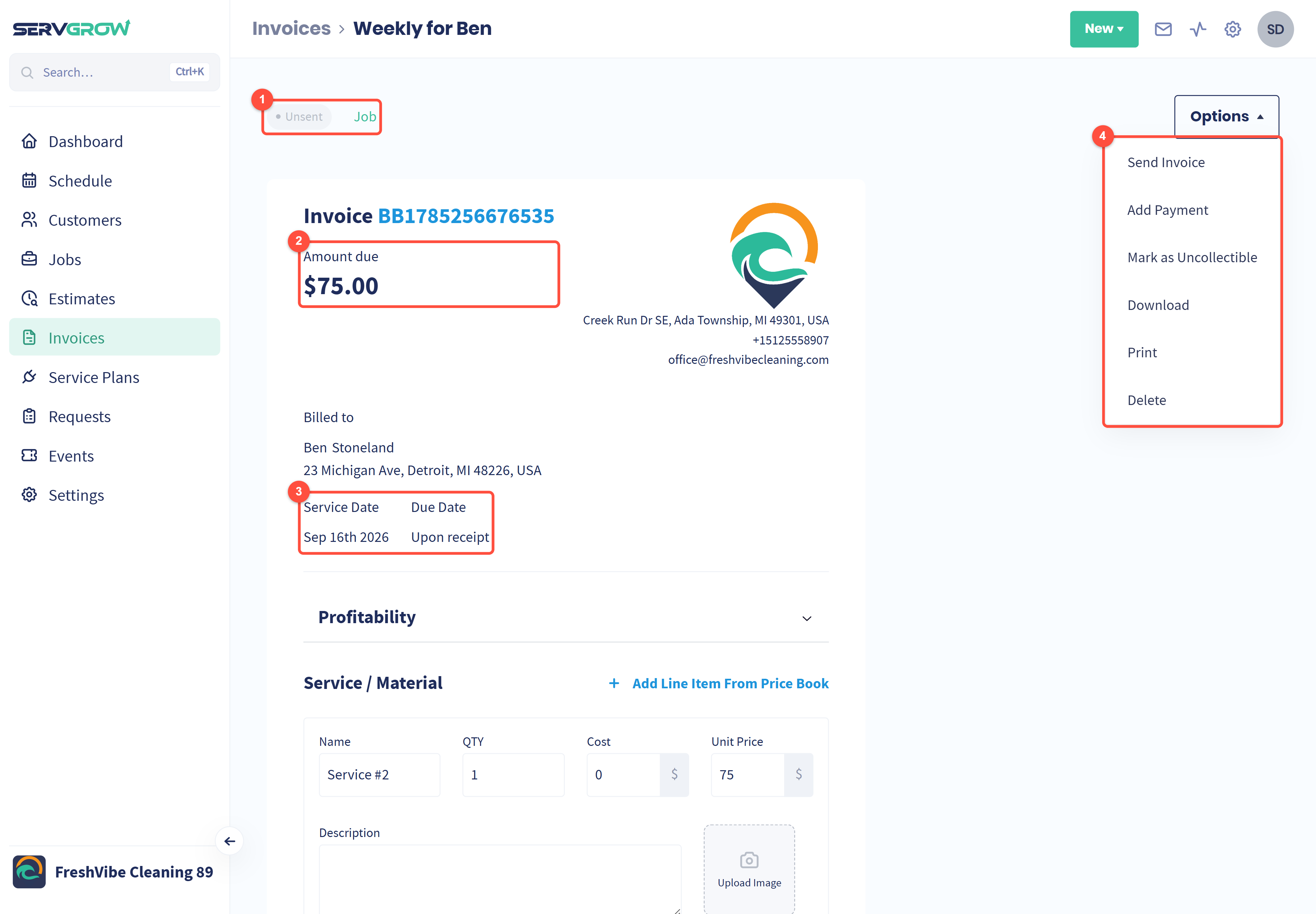
The status and what the invoice is for.
Amount due: what the customer still owes.
Service Date and Due Date. The due date follows the terms you set under Settings, Invoice settings.
Options: Send Invoice (or Resend Invoice once it has been sent), Add Payment, Mark as Uncollectible, Download, Print and Delete.
Below that, you can still change the line items, discount and tax, then click Update Invoice to save. Marking an invoice as uncollectible cannot be undone, so only do it once you have stopped trying to collect.
See how it was paid
Once a payment is recorded, the invoice shows its Sent Date and Paid Date at the top, and every payment is listed at the bottom.
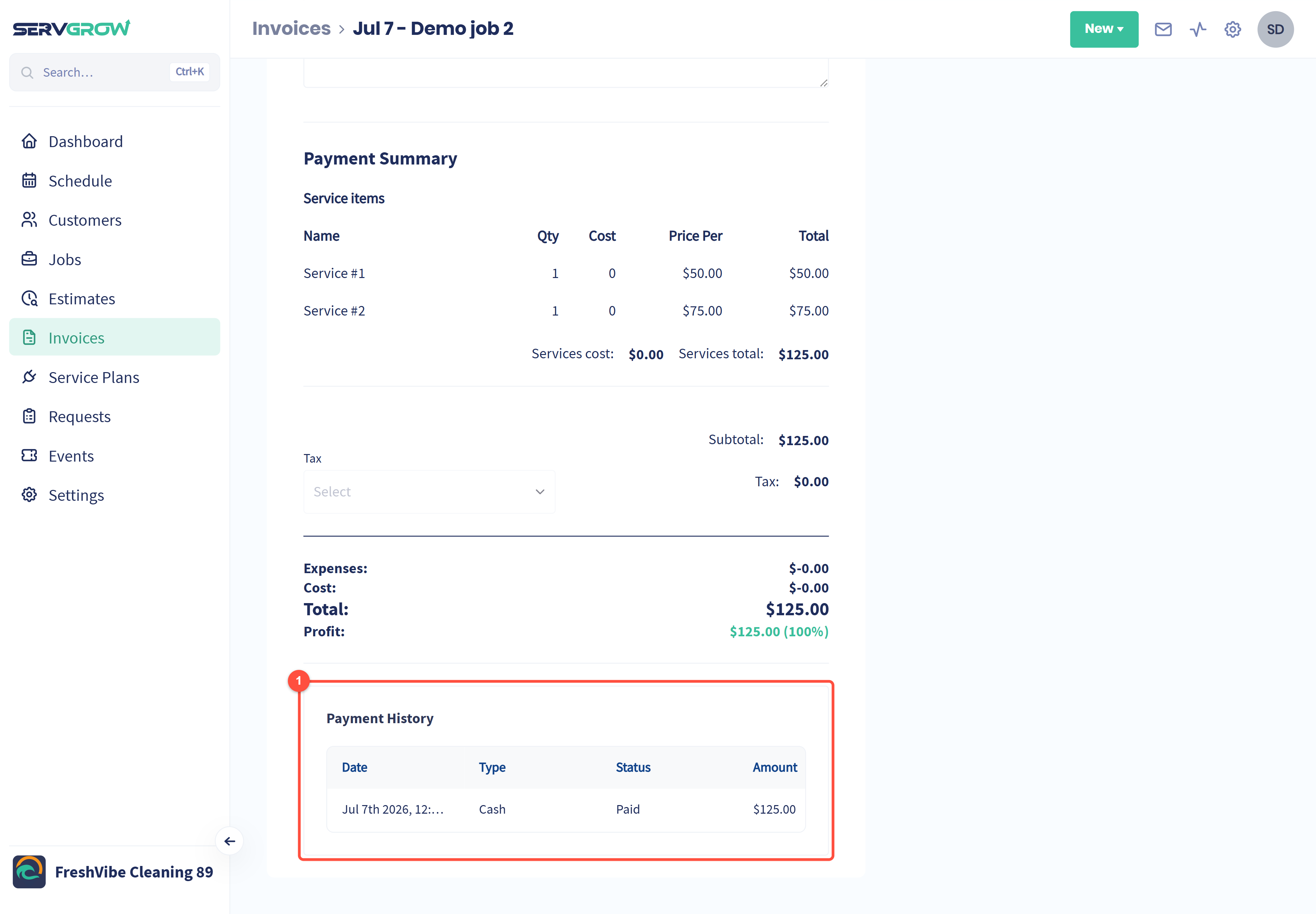
Payment History: the date, payment type (such as Cash or Card), status and amount of each payment. Useful when a customer asks whether you received their payment.
Tips to get paid faster
Send invoices the day the job is finished. See How to Invoice Completed Jobs.
Filter by Overdue and Failed every week and follow up with a quick text.
Watch the Viewed eye. If a customer has not opened the invoice, resend it before you chase the payment.
Related articles