
An empty price book is the main thing that keeps a new account from sending its first quote. Typing in every service, material, duration and cost can take weeks. The Price Book Builder does the first draft for you: pick your trades, choose how big a list you want and how it should be priced, and it drafts the services, materials, durations and costs. You check them, change anything you like, and add them in one click. Nothing is saved until you do.
Start the builder
Click Settings, then Price Book.
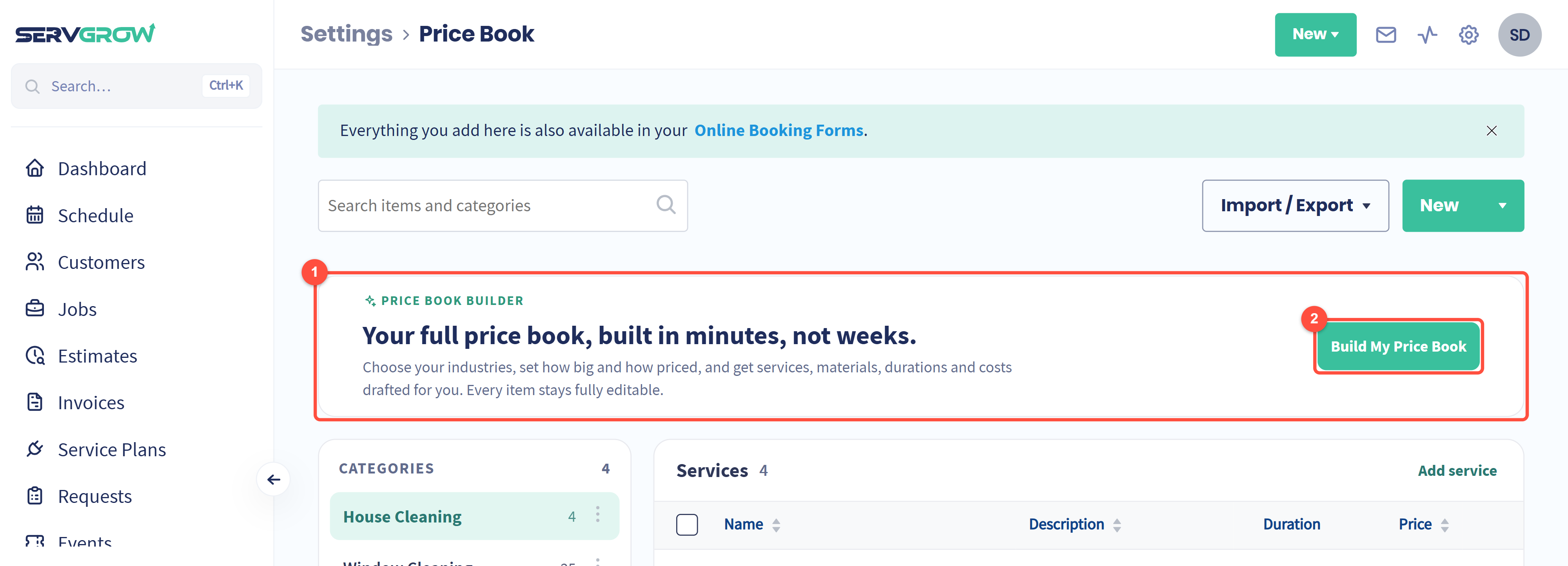
The Price Book Builder banner sits at the top of your Price Book.
Click Build My Price Book. It is also under New as Build my price book.
Step 1: Industries
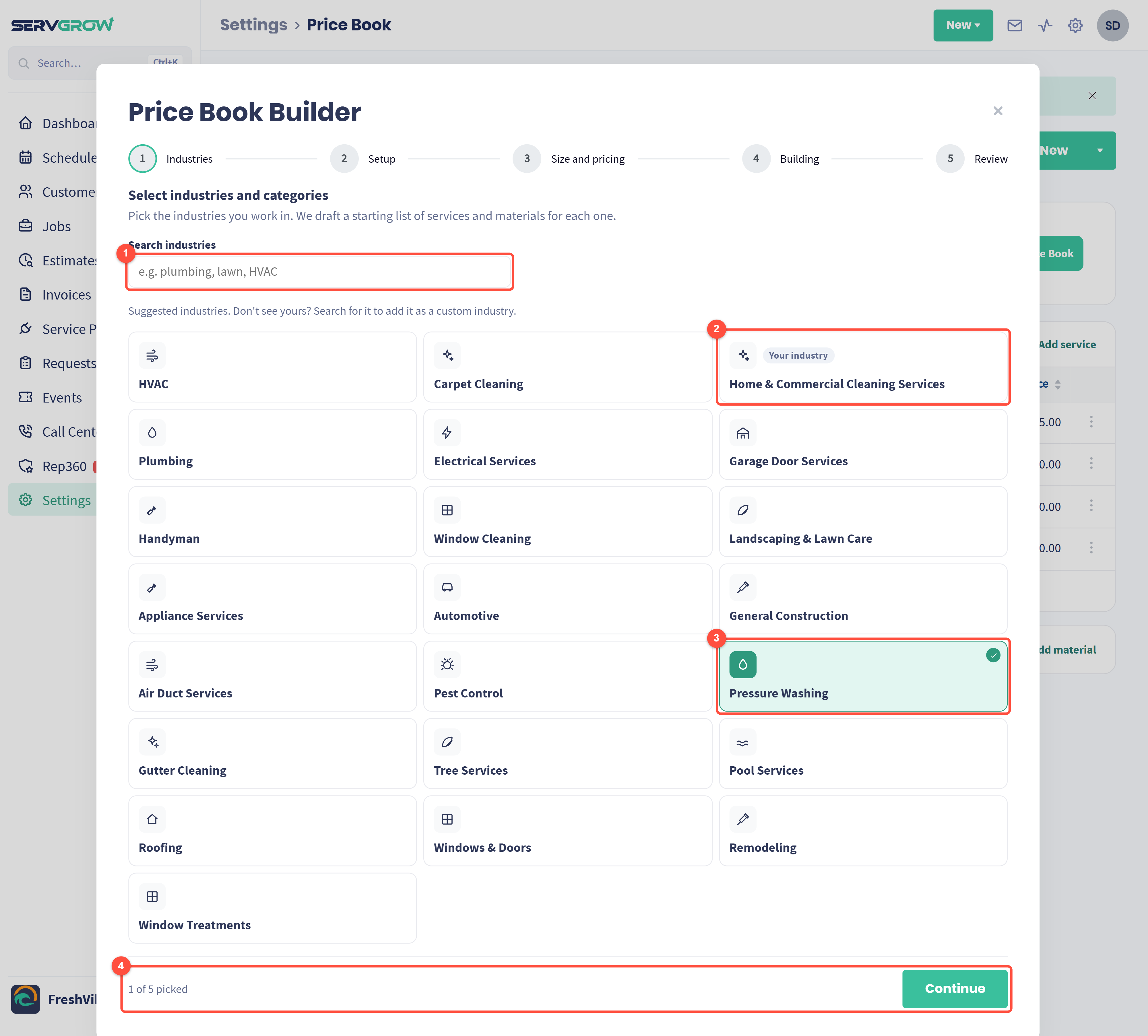
Search industries if yours is not in the list. Anything you search for can be added as a custom industry.
The industry on your company profile is marked Your industry and is picked for you. Click it to leave it out.
Click any other trade you work in. Each one you pick gets its own starting list. Here a cleaning company is adding Pressure Washing.
You can pick up to five. Click Continue.
Step 2: Setup
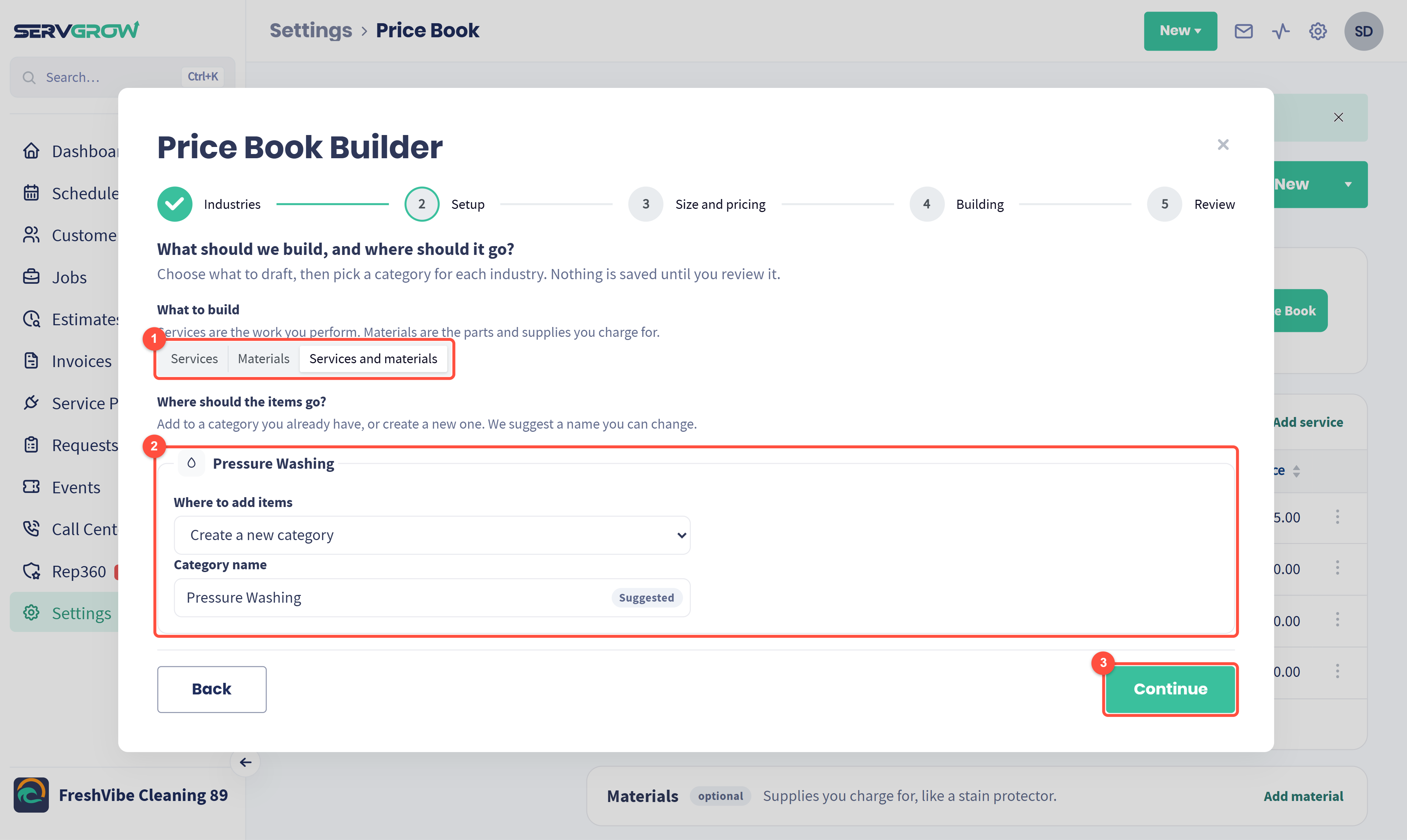
What to build: Services (the work you do), Materials (the parts and supplies you charge for), or Services and materials.
Where should the items go? For each industry, add the items to a category you already have, or create a new one. The builder suggests a name you can change. If a category with that name already exists, it asks you to add to it instead, so you do not end up with two.
Click Continue.
Step 3: Size and pricing
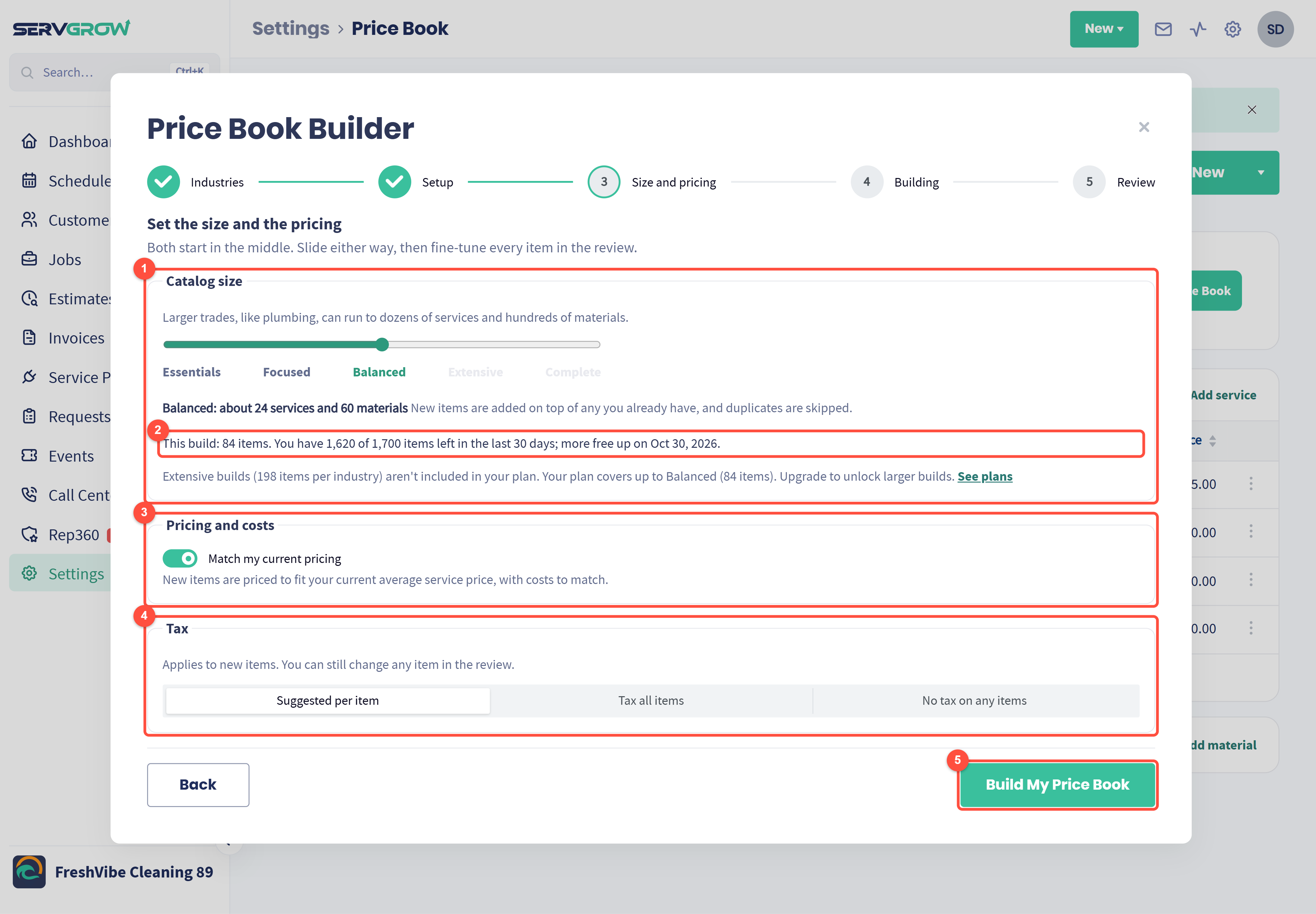
Catalog size: slide from Essentials (a short list of your core jobs) through Focused and Balanced to Extensive and Complete. The line under the slider says roughly how many services and materials you will get. New items are added on top of what you already have, and duplicates are skipped.
How many items this build uses, and how many your plan has left. Builds use a monthly allowance of items, and larger sizes depend on your plan. See plans shows what each plan includes.
Pricing and costs: leave Match my current pricing on and the new items are priced to fit your current average service price, with costs to match. That keeps a new trade in line with what you already charge.
Tax: Suggested per item, Tax all items or No tax on any items. You can still change any single item in the review.
Click Build My Price Book.
Step 4: Building
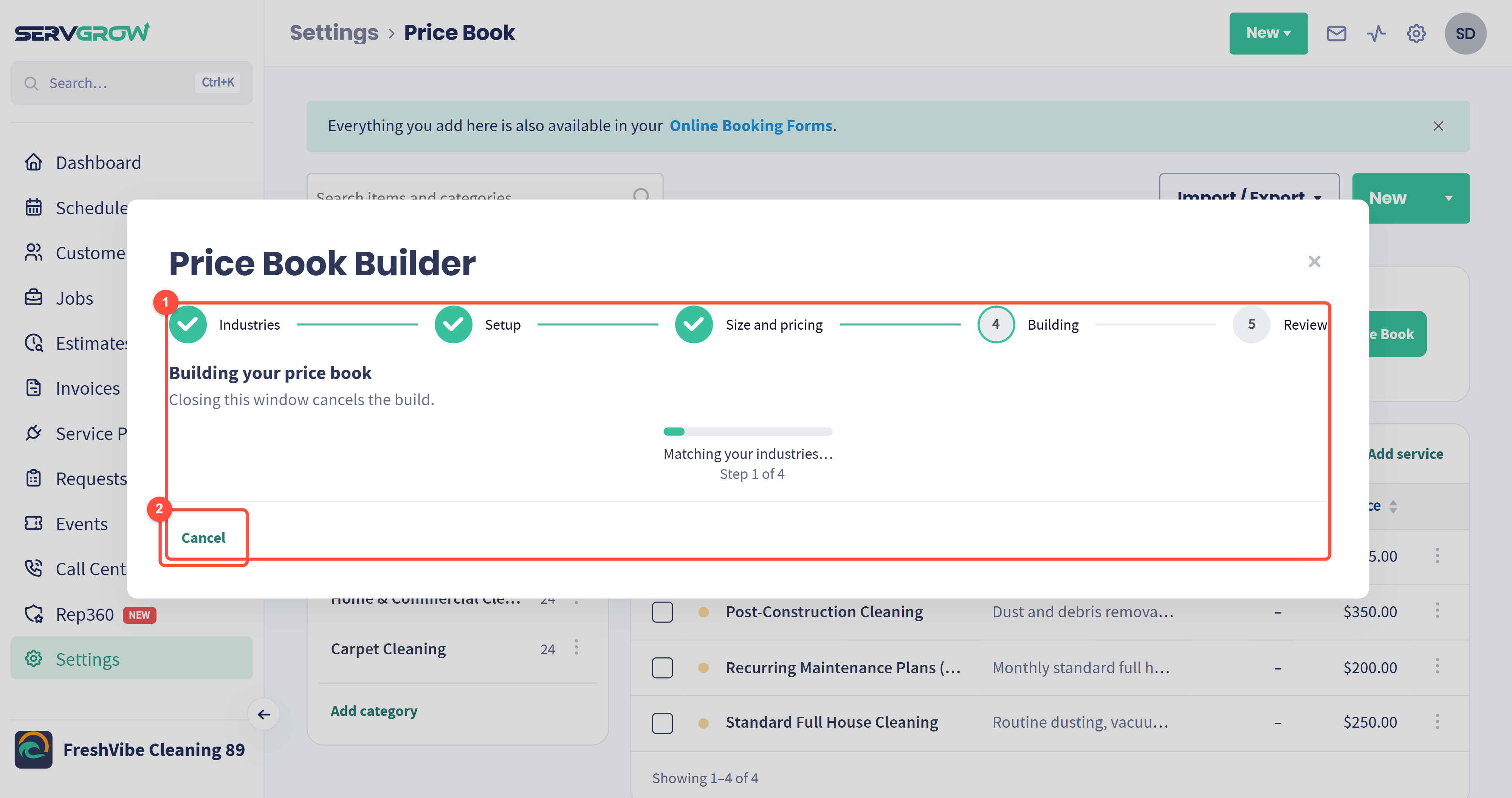
The builder works through matching your industries, drafting services, drafting materials, and estimating durations, prices and costs. It usually takes a few minutes. Keep the window open, because closing it cancels the build.
Cancel stops the build.
If a build cannot finish, you will see Your price book wasn't built with a Try again button. Nothing is saved and that build does not count against your allowance.
Step 5: Review and add
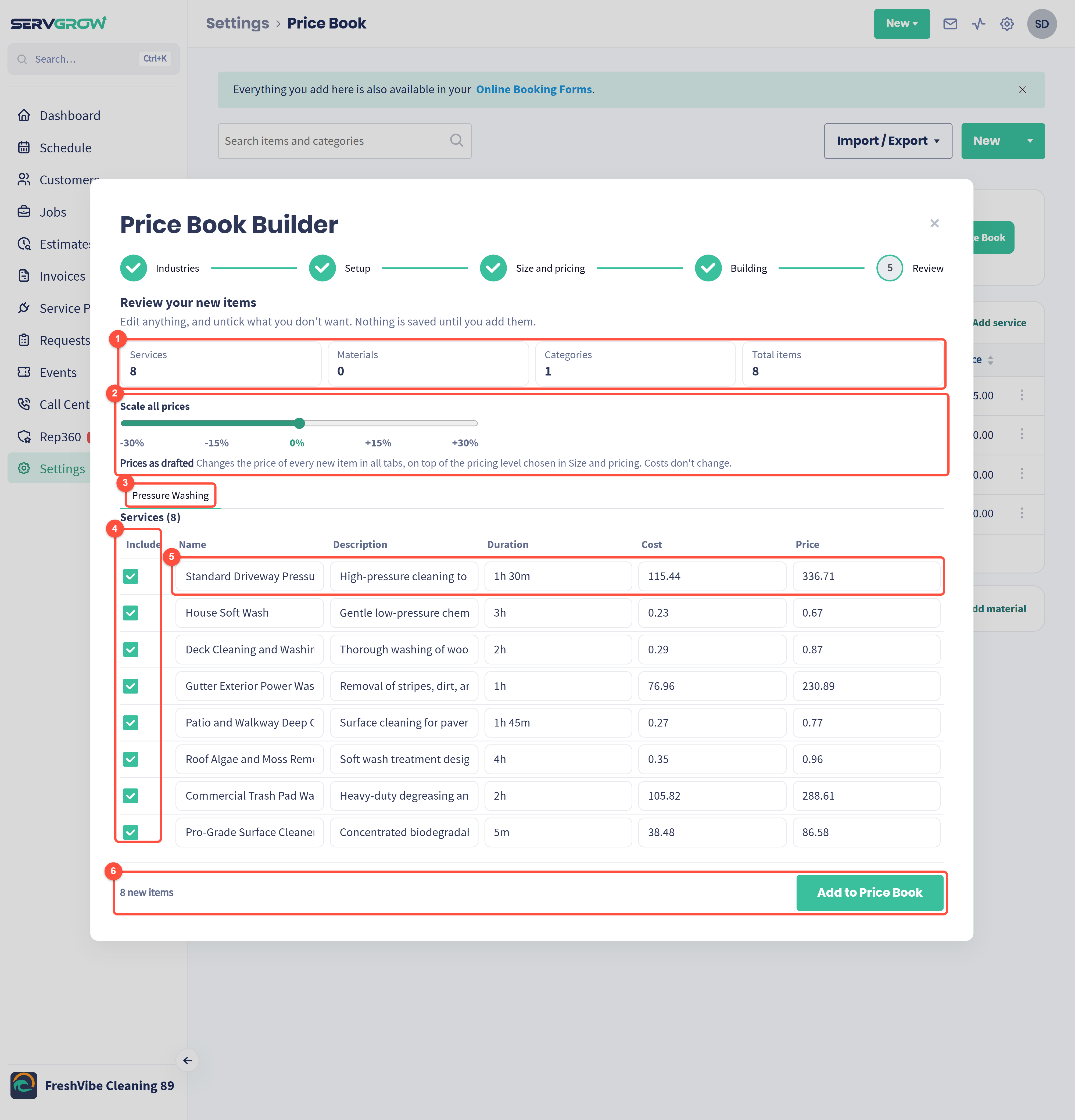
The totals: how many services, materials and categories were drafted.
Scale all prices: slide from -30% to +30% to move every new price at once, on top of the pricing you chose in step 3. Costs do not change. This is the quickest way to match your market.
One tab per industry you picked.
Include: untick anything you do not offer.
Every name, description, duration, cost and price can be edited right here before you add it.
Check the count, then click Add to Price Book. Only now are the items saved.
Prices are per unit. Some trades price per square foot, so a soft wash may show a price like 0.67. After adding, open any item in your Price Book to check or change its Unit Cost Type.
Tips
Start small. Essentials or Focused gives you a clean core list. You can run the builder again later, and duplicates are skipped.
Fill in your own prices for a few core jobs first. Match my current pricing then has something real to match.
Untick generously. A shorter list you actually sell is easier for your team to quote from.
Use Scale all prices before you add rather than editing prices one by one afterwards.
Related articles