
Every time someone types a price from memory, you risk quoting two customers differently for the same job, or forgetting the add-on that makes the work worth doing. The Price Book fixes that. List each service and material once, with its price, your cost, how long it takes and whether it is taxed. From then on, estimates, jobs, invoices and your online booking form all fill themselves in, and your team quotes the same way every time.
Starting from an empty Price Book? The Price Book Builder can draft a full list for your trade in a few minutes. See Price Book Builder: Fill Your Price Book in Minutes, Not Weeks.
Find your way around the Price Book
Click Settings, then Price Book.
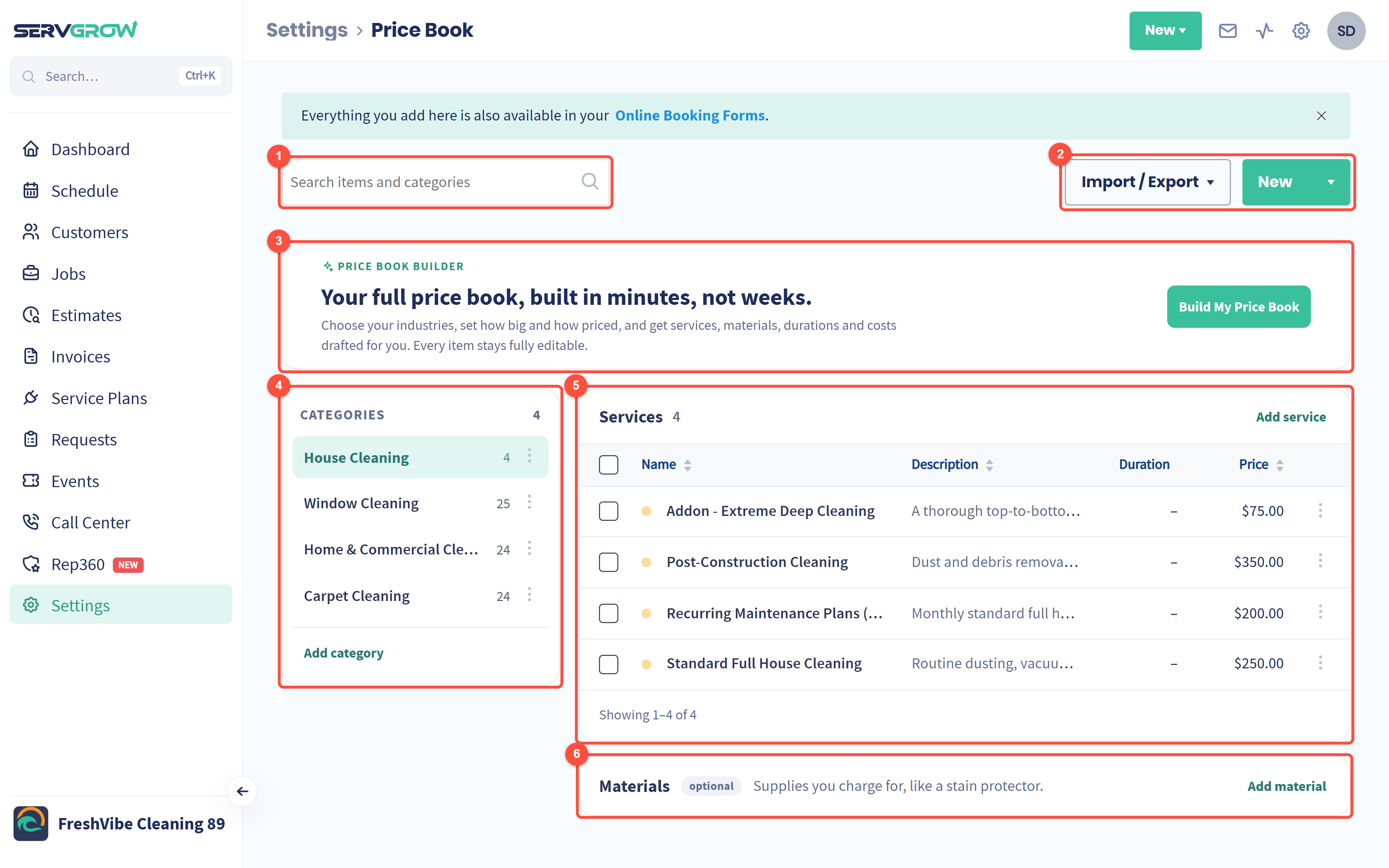
Search items and categories by name.
Import / Export moves your list in or out as a file. New adds an item or a category.
Price Book Builder: has the list drafted for you (see the article above).
Categories group your items, for example House Cleaning or Window Cleaning. Click one to see its items. The number is how many items it holds.
Services: the work you do in the selected category, with description, duration and price. Click a column heading to sort.
Materials (optional): the parts and supplies you charge for, such as a stain protector or a filter.
Everything here also shows up in your Online Booking forms, so customers book from the same list and prices.
Add a service, material or category
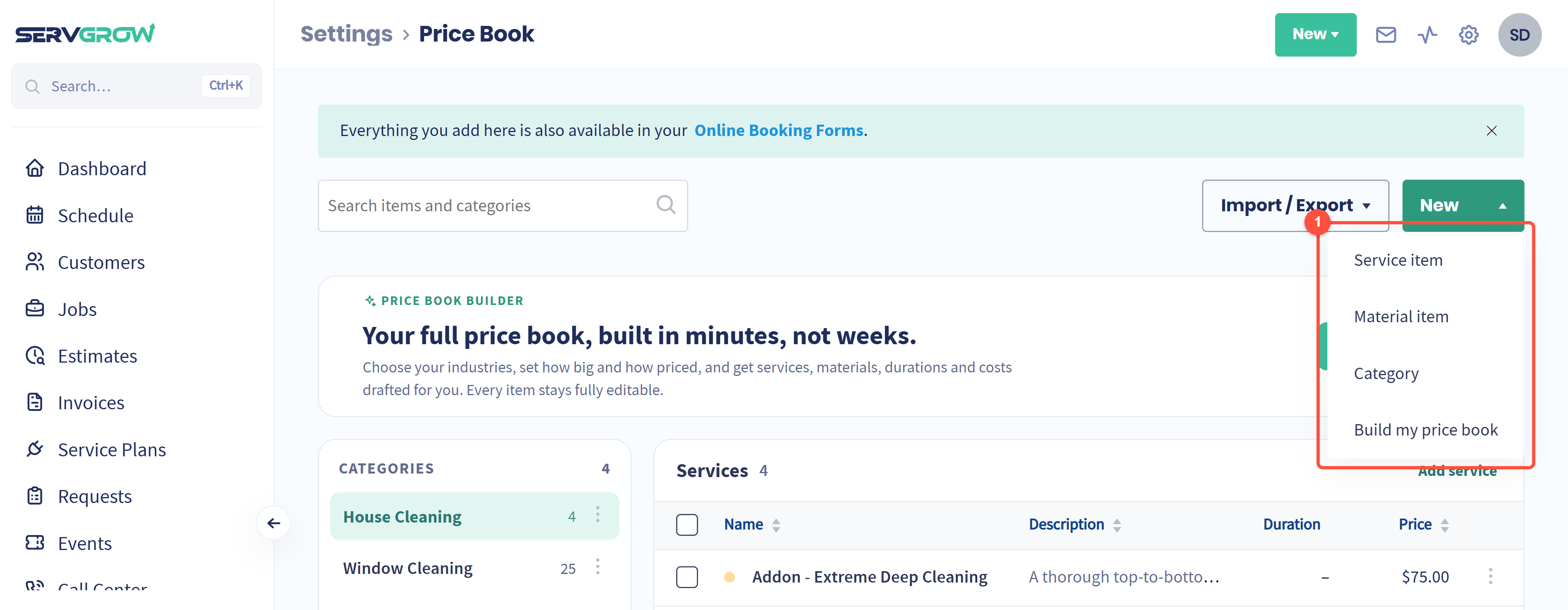
Click New and choose Service item, Material item or Category. You can also use Add service, Add material and Add category on the page itself. Build my price book opens the Price Book Builder.
Set up your categories first. That way each new item goes straight into the right group.
Fill in an item
The same window opens when you add an item or edit one. To edit, click the three dots at the end of the item's row and choose Edit.
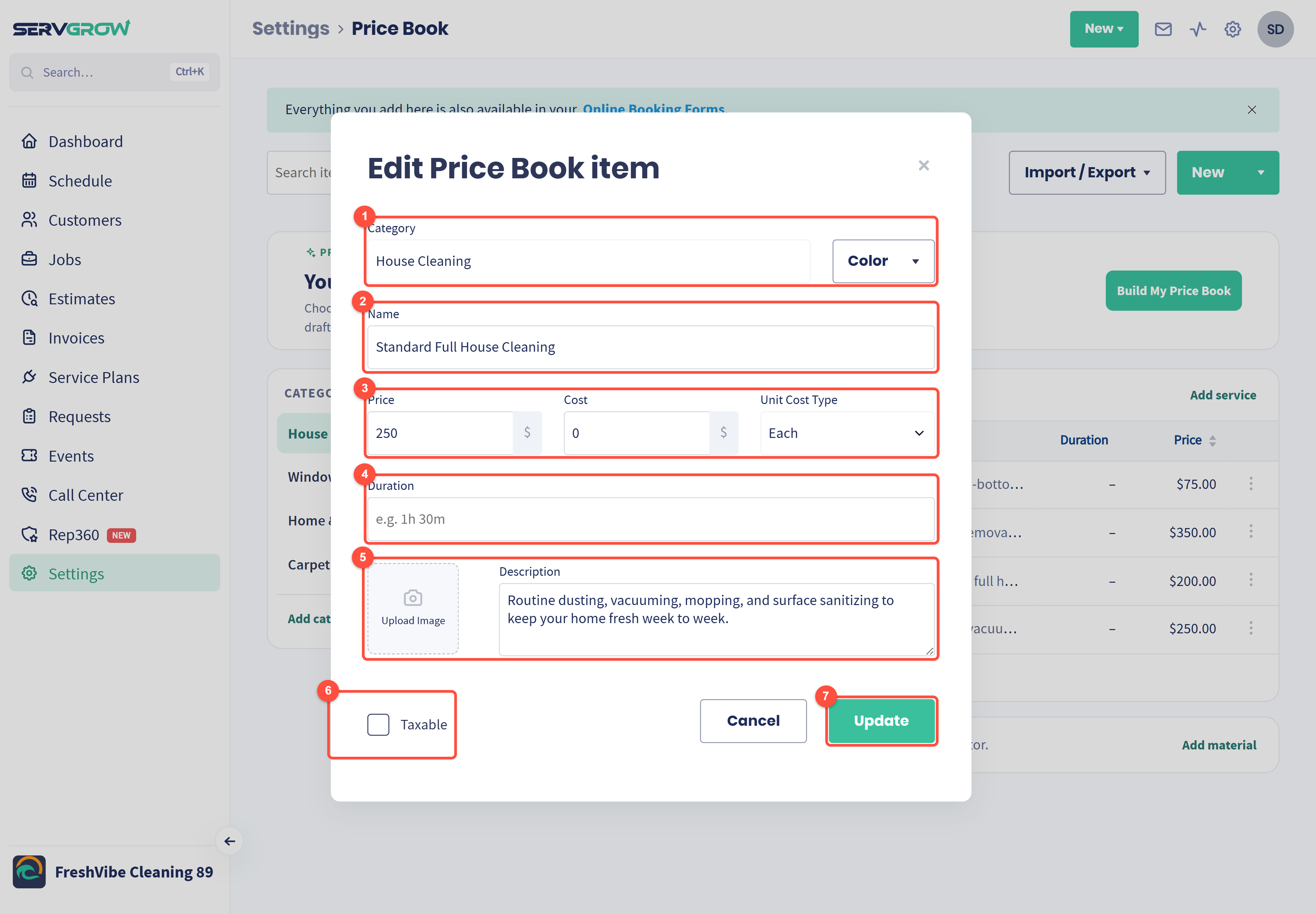
Category it belongs to, and a Color so this kind of work is easy to spot on your calendar.
Name: what the customer sees on the estimate and invoice.
Price is what you charge and Cost is what it costs you, which is how Servgrow shows your profit on each job. Unit Cost Type sets what the price is per: Each, Sq.feet, Gallon, Hour, Meter or Kilogram.
Duration: how long the work usually takes, typed like 1h 30m.
An optional image and a Description of what is included. Spelling out what is included heads off "I thought that was part of it" calls.
Tick Taxable if sales tax applies.
Save with the button at the bottom (Update when you are editing an item).
The three-dot menu on a row also has Duplicate, the quick way to make a similar item, and Delete.
Change many prices at once
When your costs go up, you do not need to open every item.
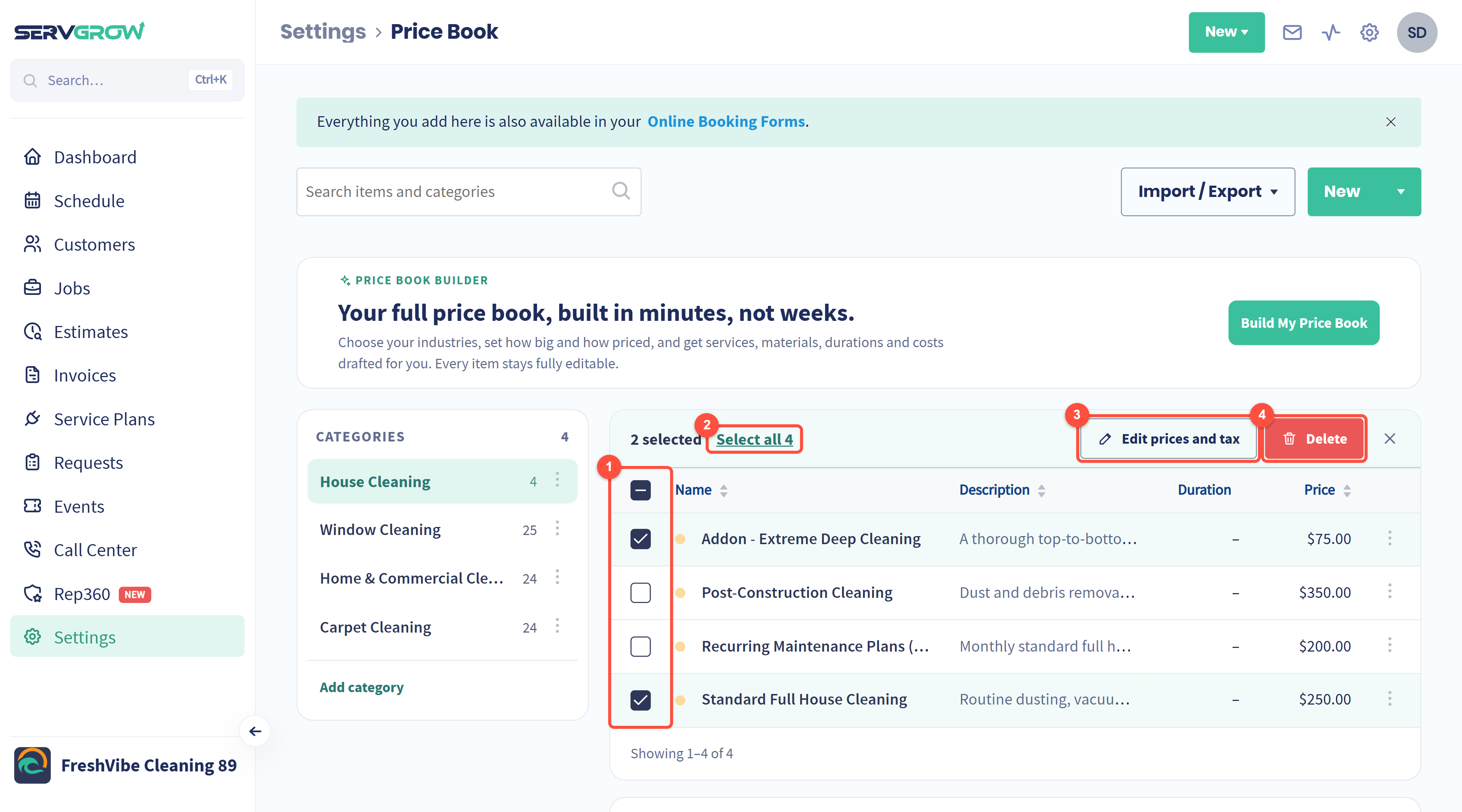
Tick the items you want to change.
Select all picks every item in the category.
Edit prices and tax changes them together (below).
Delete removes the selected items.
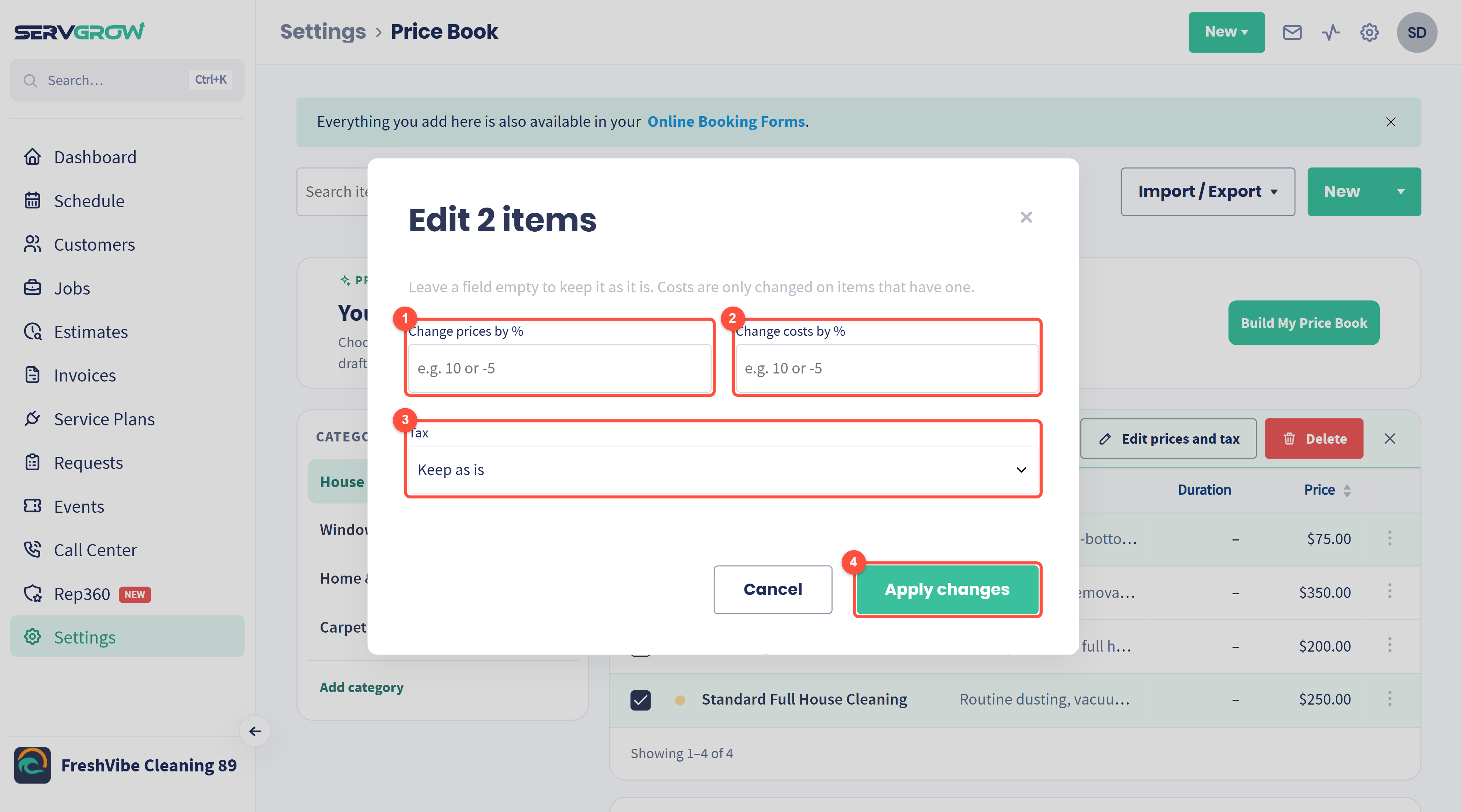
Change prices by %: type 10 to raise every selected price by 10 percent, or -5 to lower them by 5.
Change costs by % works the same way. It only changes items that already have a cost.
Tax: keep each item as it is, or set them all at once.
Click Apply changes. Leave a field empty and that part stays as it is.
Organize your categories
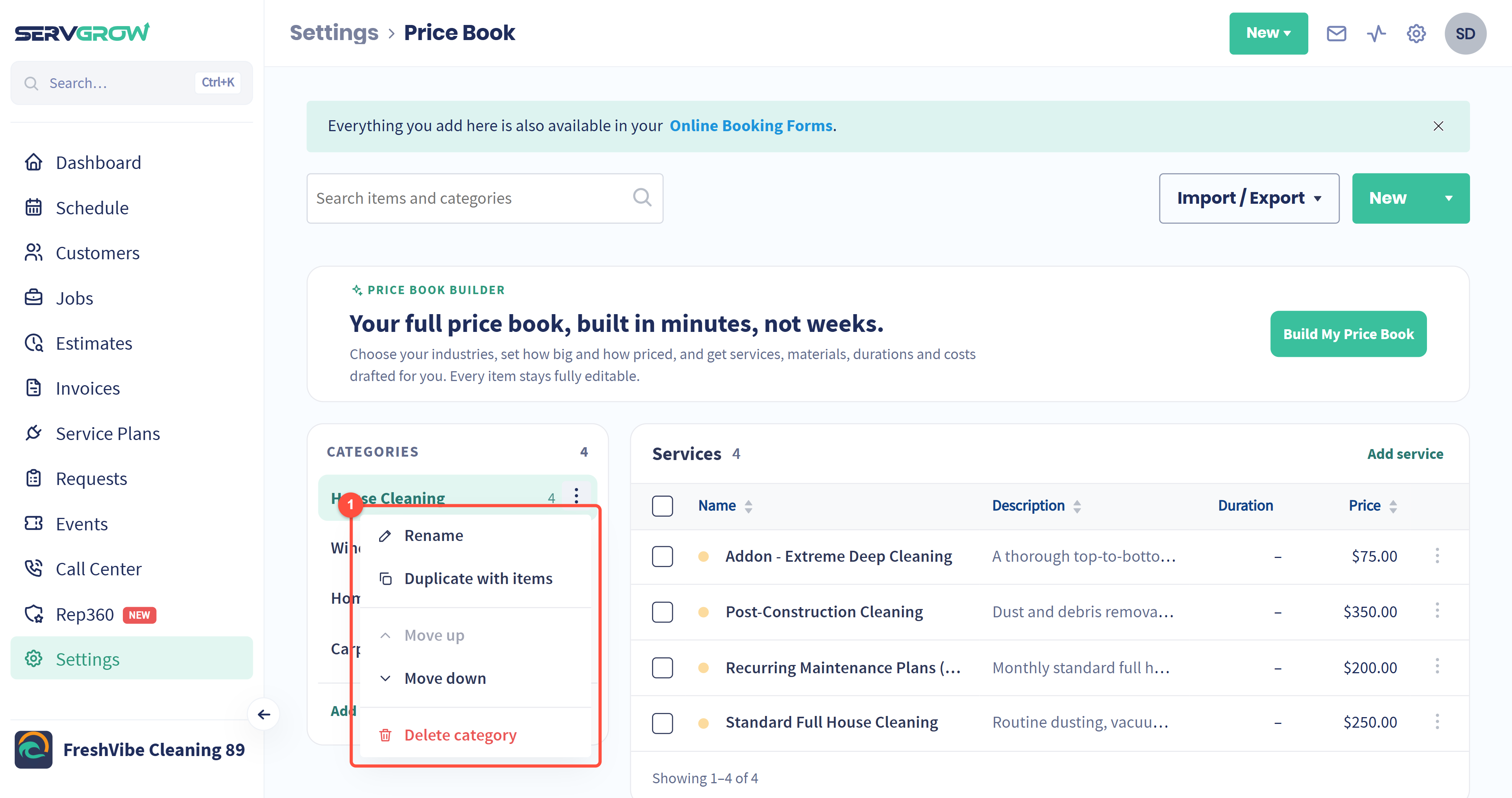
Click the three dots beside a category to Rename it, Duplicate with items (a fast start for a similar service line), Move up or Move down to change the order, or Delete category.
Import or export your list
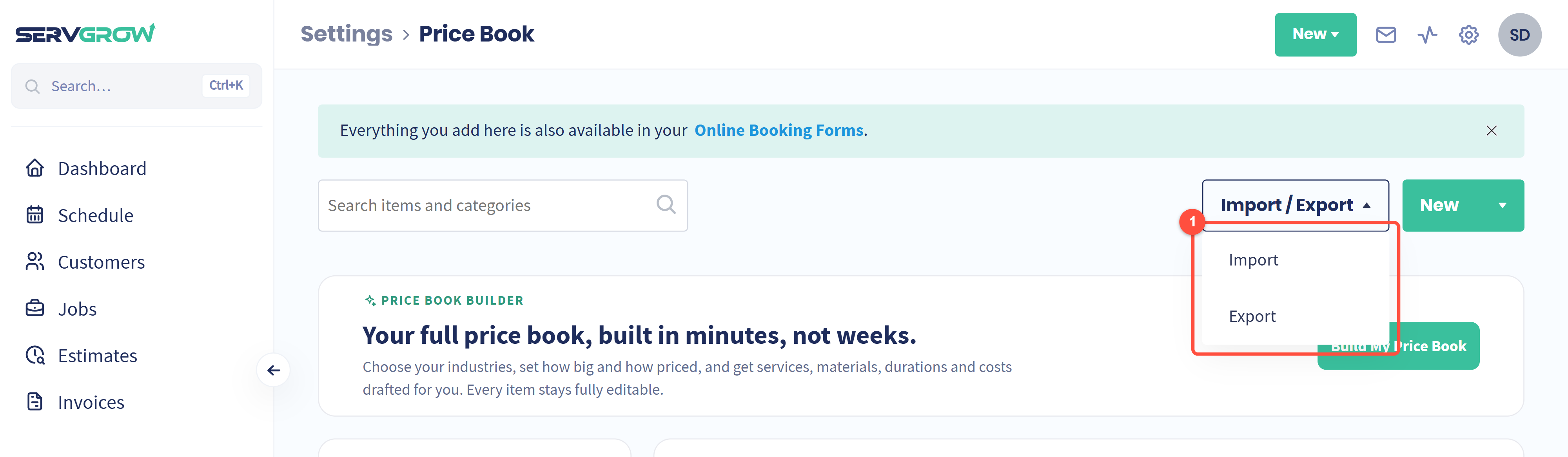
Import brings in a list you already keep elsewhere, from a file. Export downloads your Price Book, which is handy for a price review or a backup.
Using your Price Book
When you add a line item to an estimate, job or invoice, start typing and pick the item from your Price Book. The name, description, price, cost and tax all fill in. You can still change any of them on that one job without touching the Price Book.
Tips
Always fill in Cost. It is what turns a price into a profit figure on every job and estimate.
Pick the right unit. A soft wash priced per square foot and a driveway priced each need different units, or the totals will be wrong.
Review prices once a year with Select all and Change prices by %, instead of editing items one by one.
Use add-ons. Small extras like a deep-clean add-on are easy to forget on site and easy to pick from a list.
Related articles