
When you are up a ladder or under a sink, the phone keeps ringing, and the customer who reaches voicemail calls the next company on the list. Call Center turns your Servgrow business number into a call center: every call rings the phones you choose, missed callers get a voicemail or a text back, and every call is logged and recorded in one place. Add the AI Receptionist and even the calls nobody can take turn into requests your team can book.
Turn on Call Center
Click Call Center in the left menu.
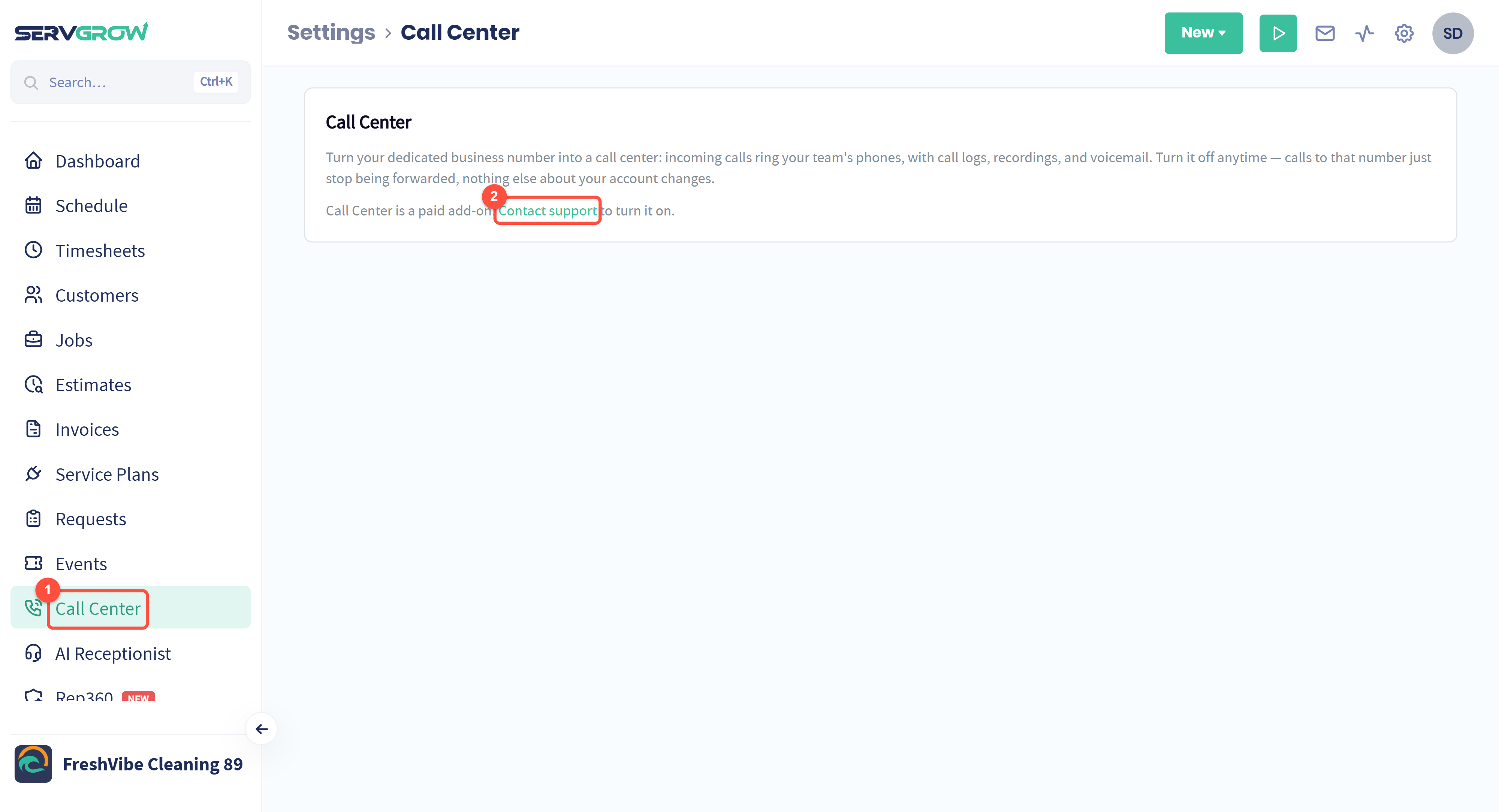
Call Center has its own place in the left menu.
Call Center is a paid add-on. Click Add Call Center if your account shows it, or click Contact support and we will turn it on for you.
Call Center works on your Servgrow business number, the same number your 2-Way Text messages come from, so start your 2-Way Text setup first. You do not have to wait for the registration to be approved.
Choose your business number
If you do not have a business number yet, Call Center asks you to pick one first. Calls work as soon as you choose it, and texting starts once your 2-Way Text registration is approved.
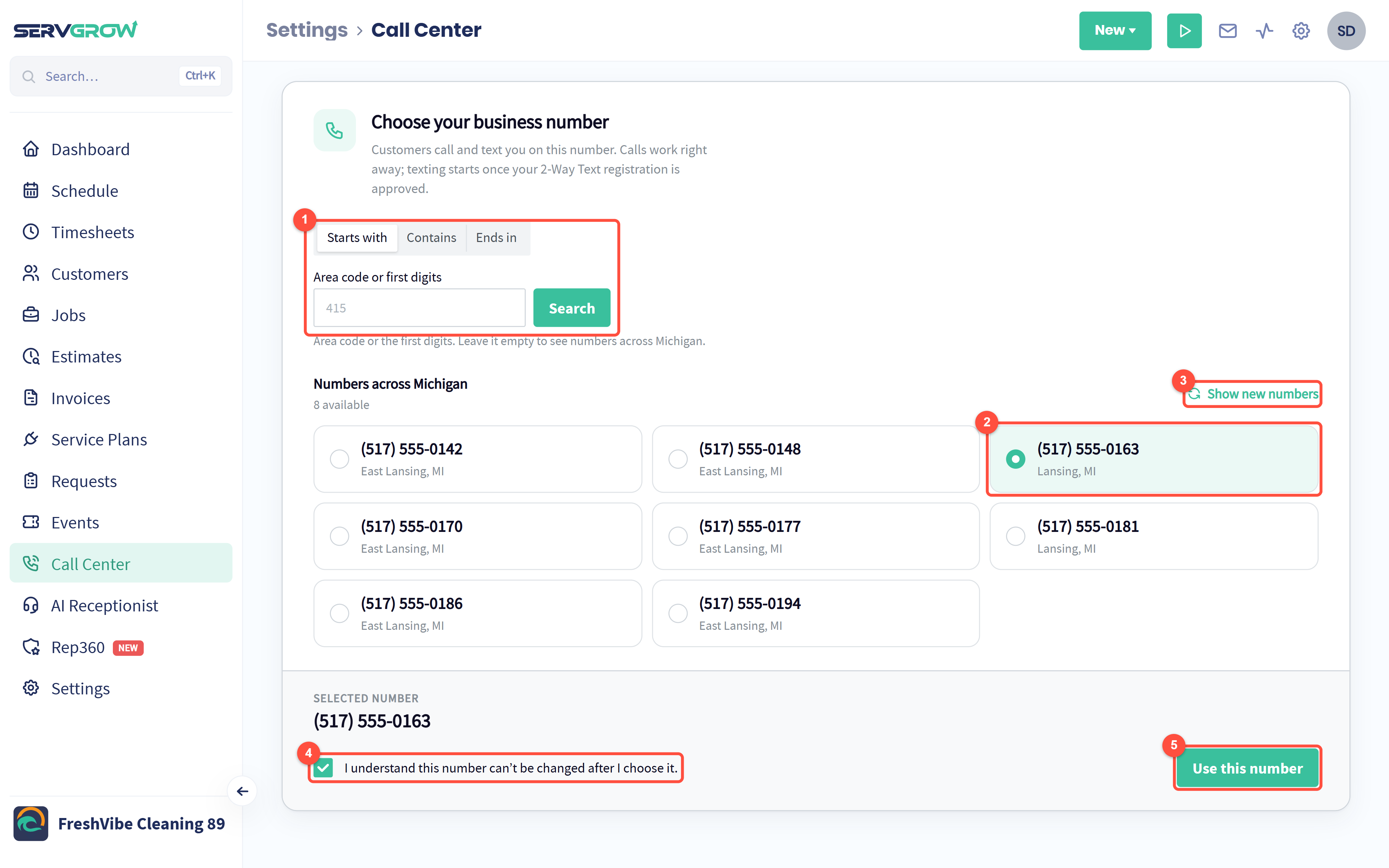
Search for numbers that start with, contain or end in the digits you want, such as your area code. Leave it empty to see numbers across your state.
Click a number to select it.
Show new numbers loads a fresh set if you do not like these.
Tick the box to confirm you understand the number cannot be changed after you choose it.
Click Use this number, then Set up call forwarding.
Check that Call Center is on
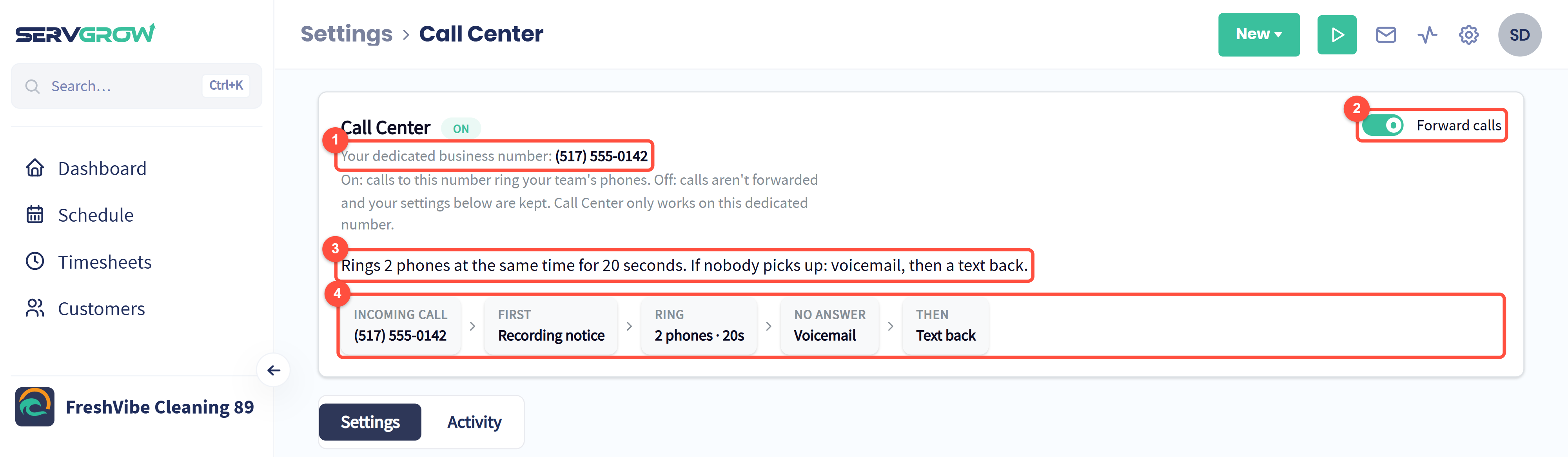
Your dedicated business number. This is the number customers call.
Forward calls: on, calls to this number ring your team's phones. Off, calls are not forwarded and your settings below are kept.
A plain-language summary of what happens on every call.
The steps a caller goes through, from the incoming call to what happens when nobody answers. They update as you change the settings below.
Choose which phones ring
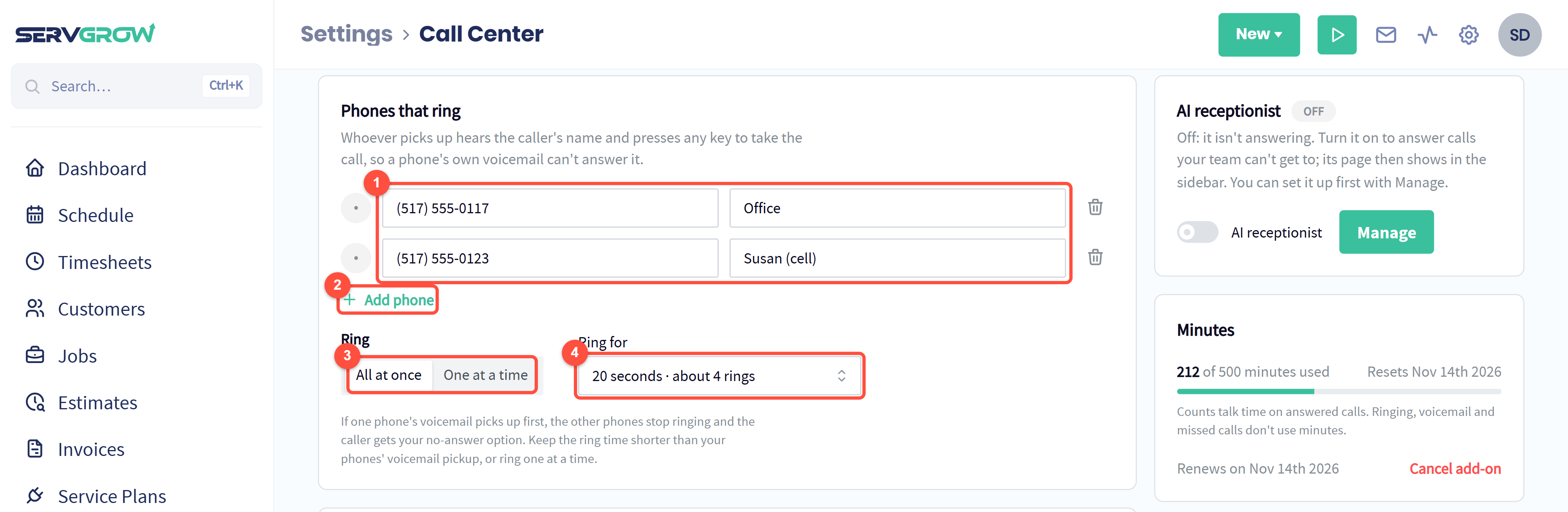
Add each phone that should ring, with a name so you know whose it is. Whoever picks up hears the caller's name and presses any key to take the call, so a phone's own voicemail cannot answer it.
Add phone adds another, up to five.
All at once rings every phone together. One at a time rings them in order.
Ring for: how long each phone rings before the call moves on.
If one phone's own voicemail picks up first, the other phones stop ringing. Keep the ring time shorter than your phones' voicemail pickup, or ring one at a time.
Decide what happens when nobody answers
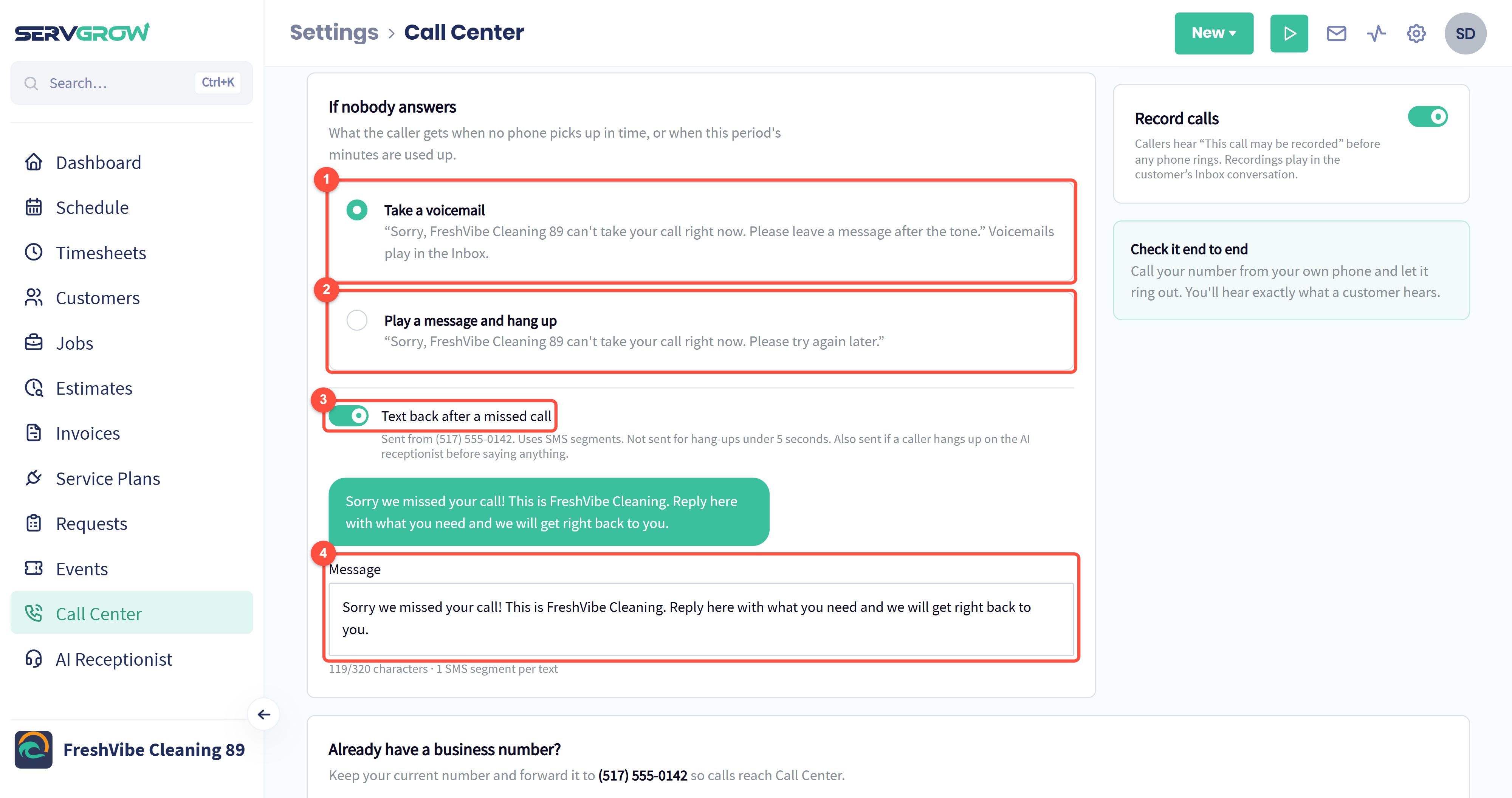
Take a voicemail: the caller hears that you cannot take the call and leaves a message. Voicemails play in the Inbox.
Play a message and hang up: the caller is asked to try again later.
Text back after a missed call: a text goes out from your business number straight away, so the customer knows you saw the call. It is not sent for hang-ups under 5 seconds, and it uses your SMS segments.
Write the text. The bubble above shows what the customer sees.
When the AI receptionist is on, it answers the calls nobody picks up, and these options only apply when it cannot, for example when its minutes run out.
The AI receptionist, minutes and call recording
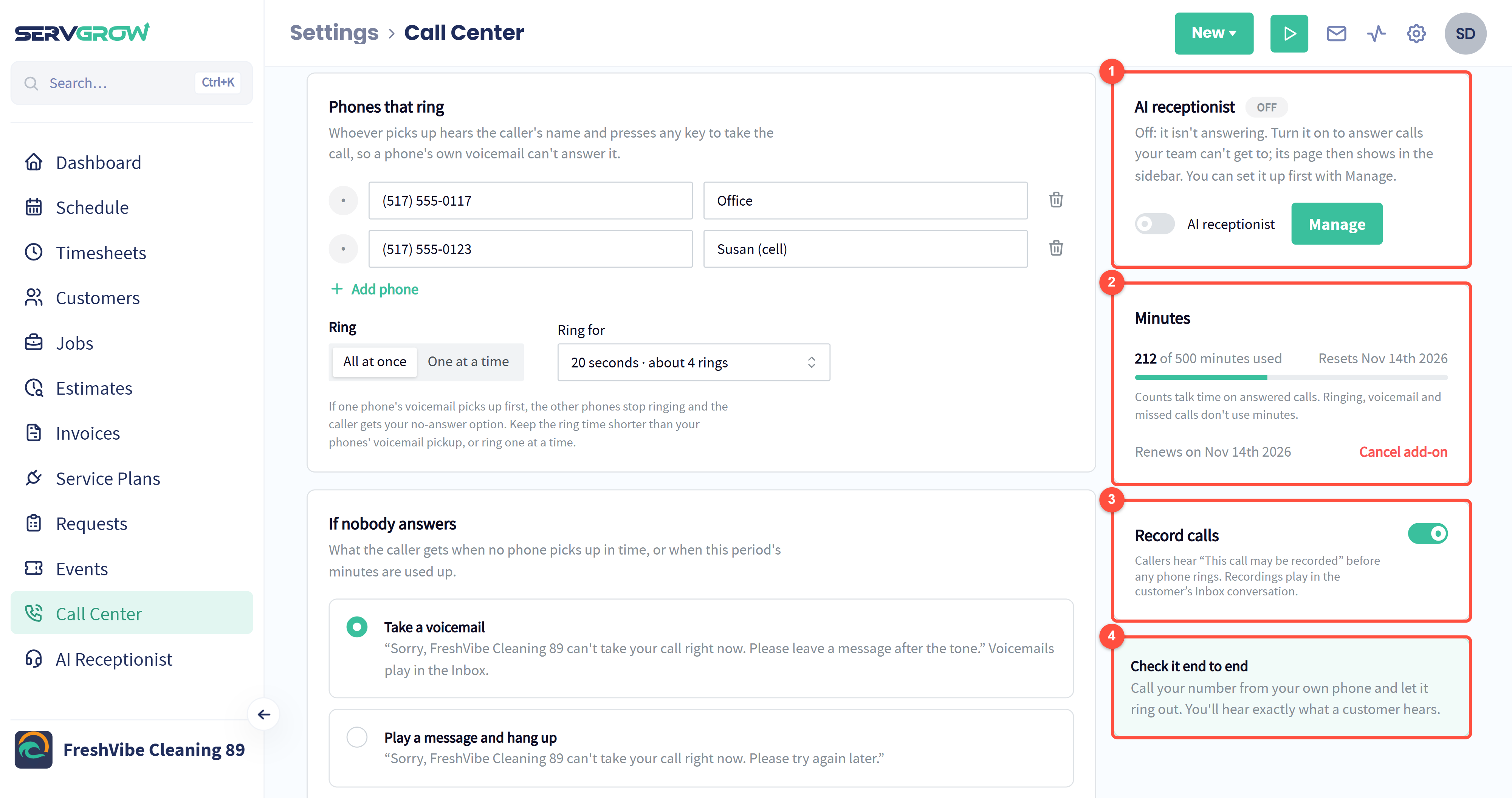
AI receptionist: turn it on to answer the calls your team cannot get to. Click Manage to set it up first. See AI Receptionist: Answer Every Call Your Team Can't Get To.
Minutes: how many of this period's included minutes you have used. Only talk time on answered calls counts; ringing, voicemail and missed calls do not. If the minutes run out, calls go straight to voicemail until they renew.
Record calls: callers hear "This call may be recorded" before any phone rings. Recordings play in the customer's Inbox conversation.
Check it end to end: call your number from your own phone and let it ring out, so you hear exactly what a customer hears.
When you change anything on this page, click Save changes at the bottom.
Keep the number you already have
Your old number is on your trucks, your website and your customers' phones. You can keep it and forward it to Call Center. Scroll to the bottom of the Settings tab.
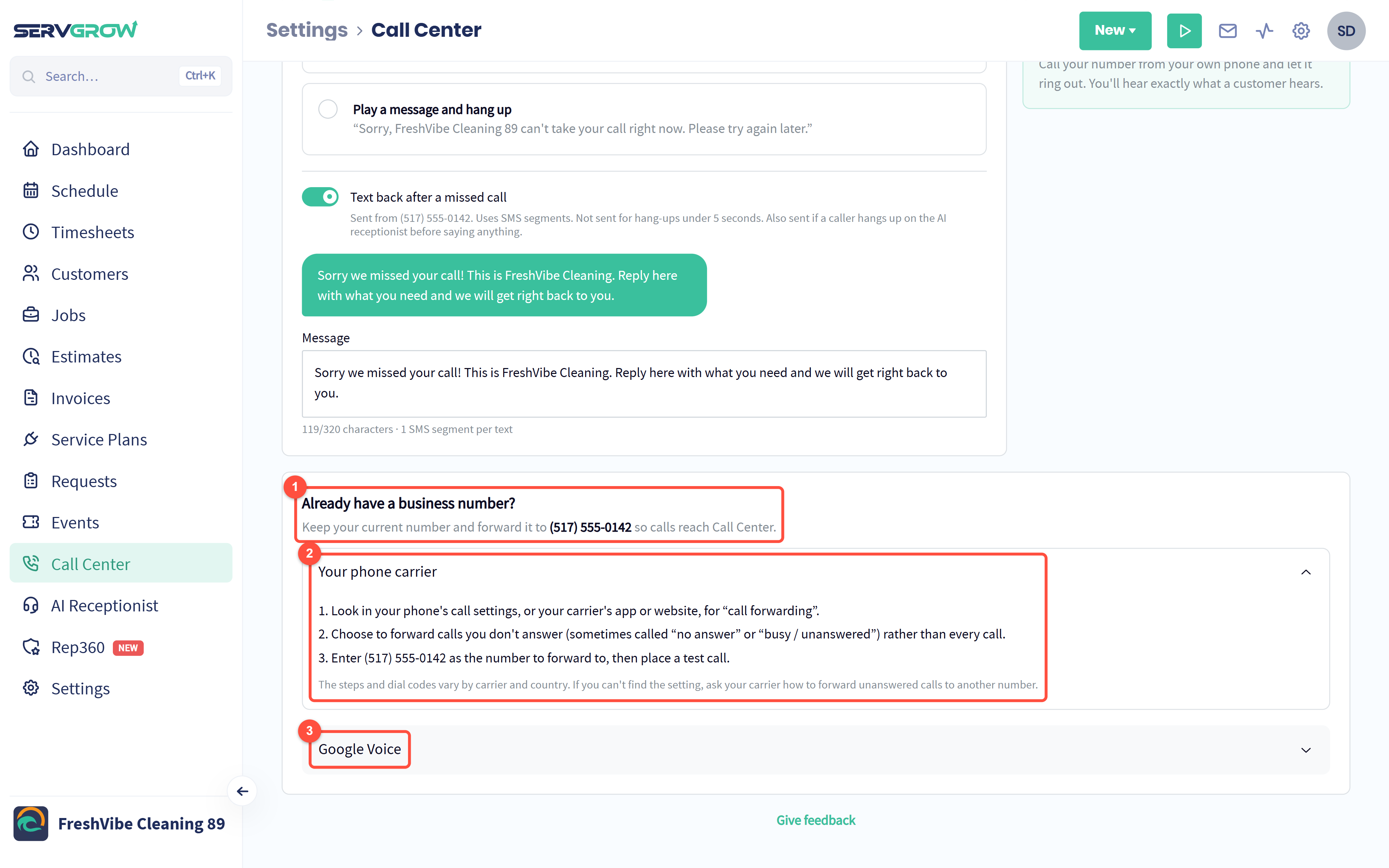
The number to forward your calls to.
Your phone carrier: find "call forwarding" in your phone's call settings or your carrier's app, choose to forward the calls you do not answer, enter your Call Center number, then place a test call.
Google Voice: step-by-step instructions if your business number is a Google Voice number.
See your call activity
Click the Activity tab to see how your phones are really doing.
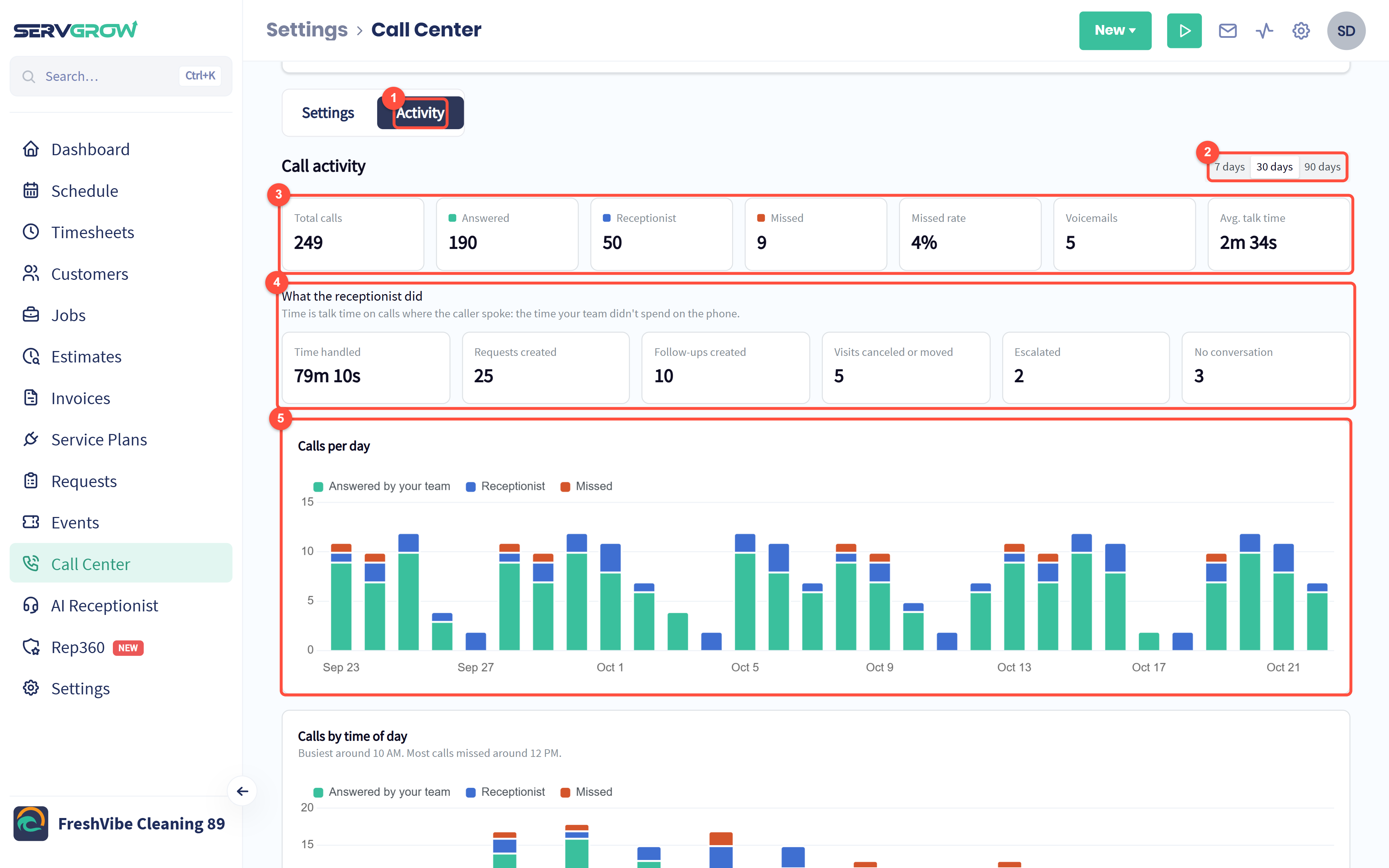
Activity: your call numbers and every call.
Look at the last 7, 30 or 90 days.
Total calls, how many your team answered, how many the receptionist took, how many were missed, the missed rate, voicemails and the average talk time.
What the receptionist did: shown when the AI receptionist has answered calls. It counts the time it handled, the requests and follow-ups it created, the visits it moved or canceled, and the calls it escalated.
Calls per day: answered by your team, taken by the receptionist and missed, day by day.
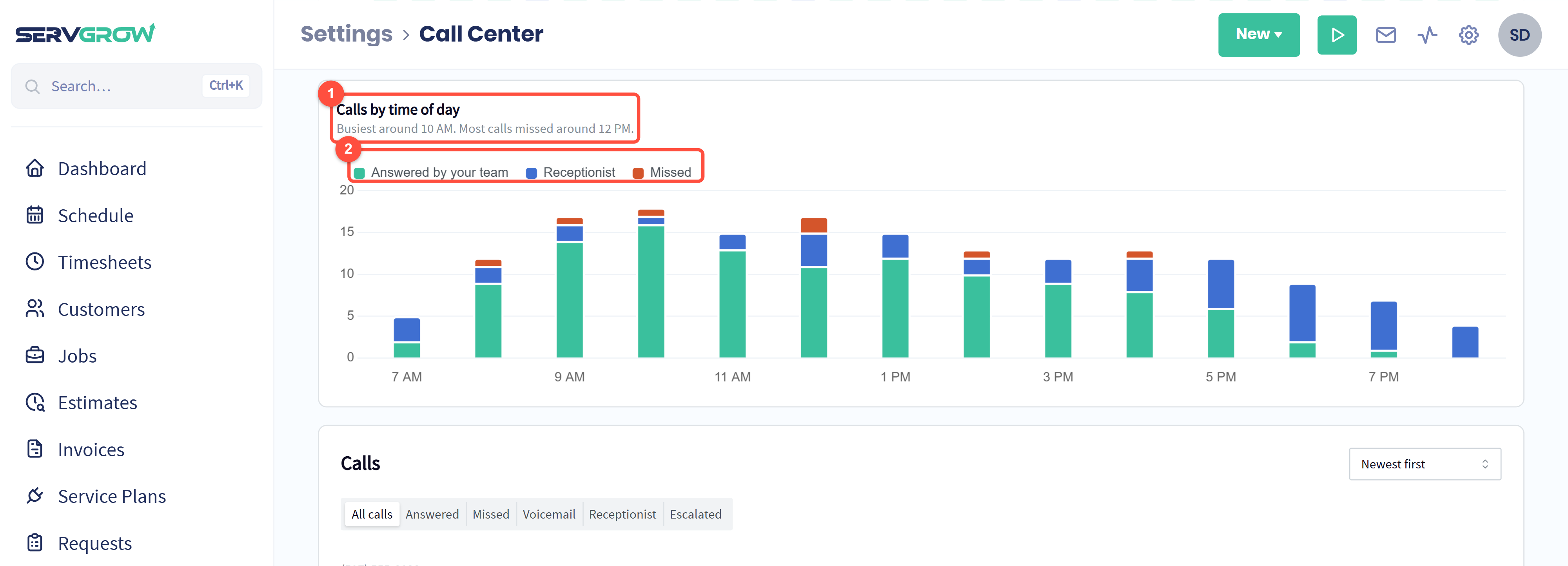
Your busiest hour, and the hour you miss the most calls.
Each bar splits the calls your team answered, the receptionist took and nobody got to. Use it to decide who covers the phones, and when.
Review every call
Scroll down to Calls, a log of every call to your business number.
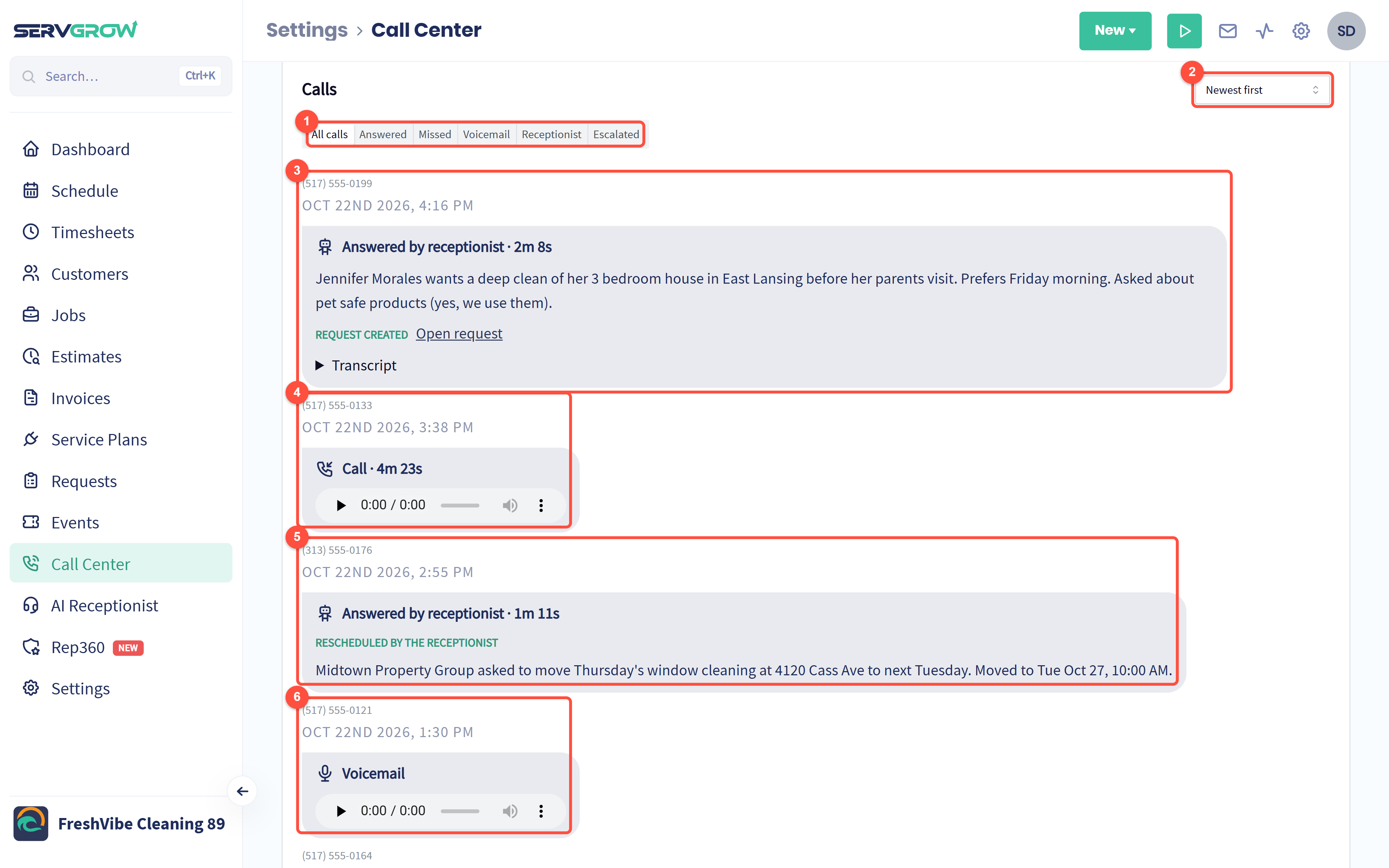
Show all calls, or only answered, missed, voicemail, receptionist or escalated calls.
Sort newest or oldest first.
A call the receptionist answered, with a summary of what the caller needed, the request it created (click Open request) and the full transcript.
A call your team answered, with its recording.
A call where the receptionist moved a booked visit for the customer.
A voicemail, ready to play.
Calls from people who hide their number are listed under the activity charts for 90 days, because they cannot be matched to a customer in the Inbox.
Tips
Turn on the text back. A missed call followed by a text in seconds still feels like great service.
Call your own number after every change. It takes a minute and you hear exactly what your customers hear.
Check Calls by time of day once a month. If most missed calls land at lunch or late afternoon, change who covers the phones then, or let the AI receptionist answer.
Keep your old number. Forward the calls you do not answer to Call Center instead of reprinting your trucks and cards.
Related articles