
Every call you miss is a customer deciding whether to wait for you or call someone else. The AI receptionist picks up when your team cannot, greets callers in your company's name, answers their questions from what it knows about your business, and turns the call into a request your team can book, with a summary and the full transcript. Urgent calls go straight to a real person. It answers the calls that come in through Call Center, so you set both up together.
Turn on the AI receptionist
The AI receptionist answers calls to your Call Center number, so turn on Call Center first. See Call Center: Ring Your Whole Team and Never Miss Another Job. Then click Call Center in the left menu.
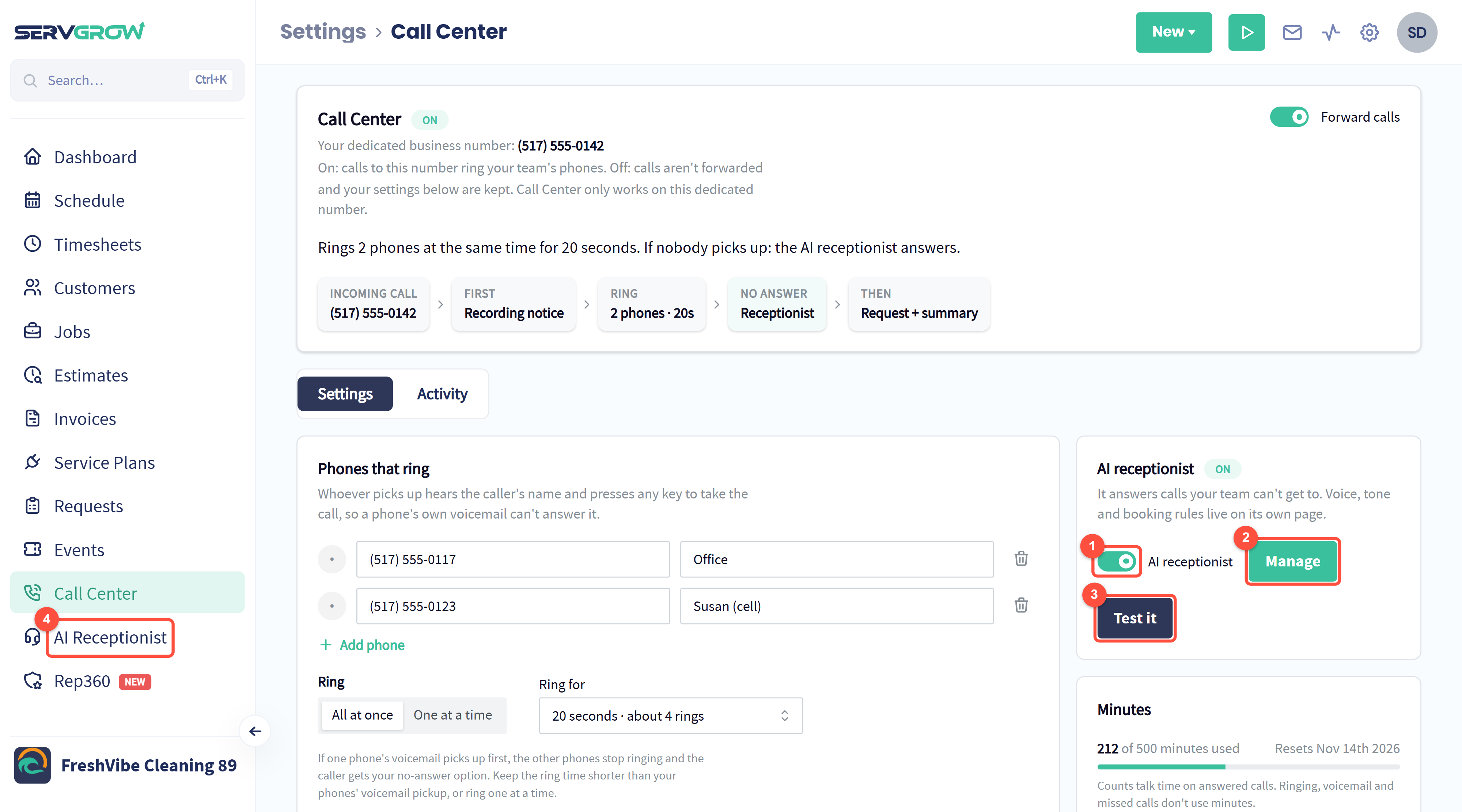
Turn on the AI receptionist switch. It is a paid add-on: if the card shows Add AI receptionist instead, click it to choose a plan, or contact support.
Manage opens all of its settings. You can set it up before you turn it on.
Test it lets you talk to it as a customer would.
Once it is on, AI Receptionist has its own place in the left menu.
The steps at the top of Call Center now show that when nobody answers, the receptionist picks up and creates a request with a summary.
Check the setup
Click AI Receptionist in the left menu.
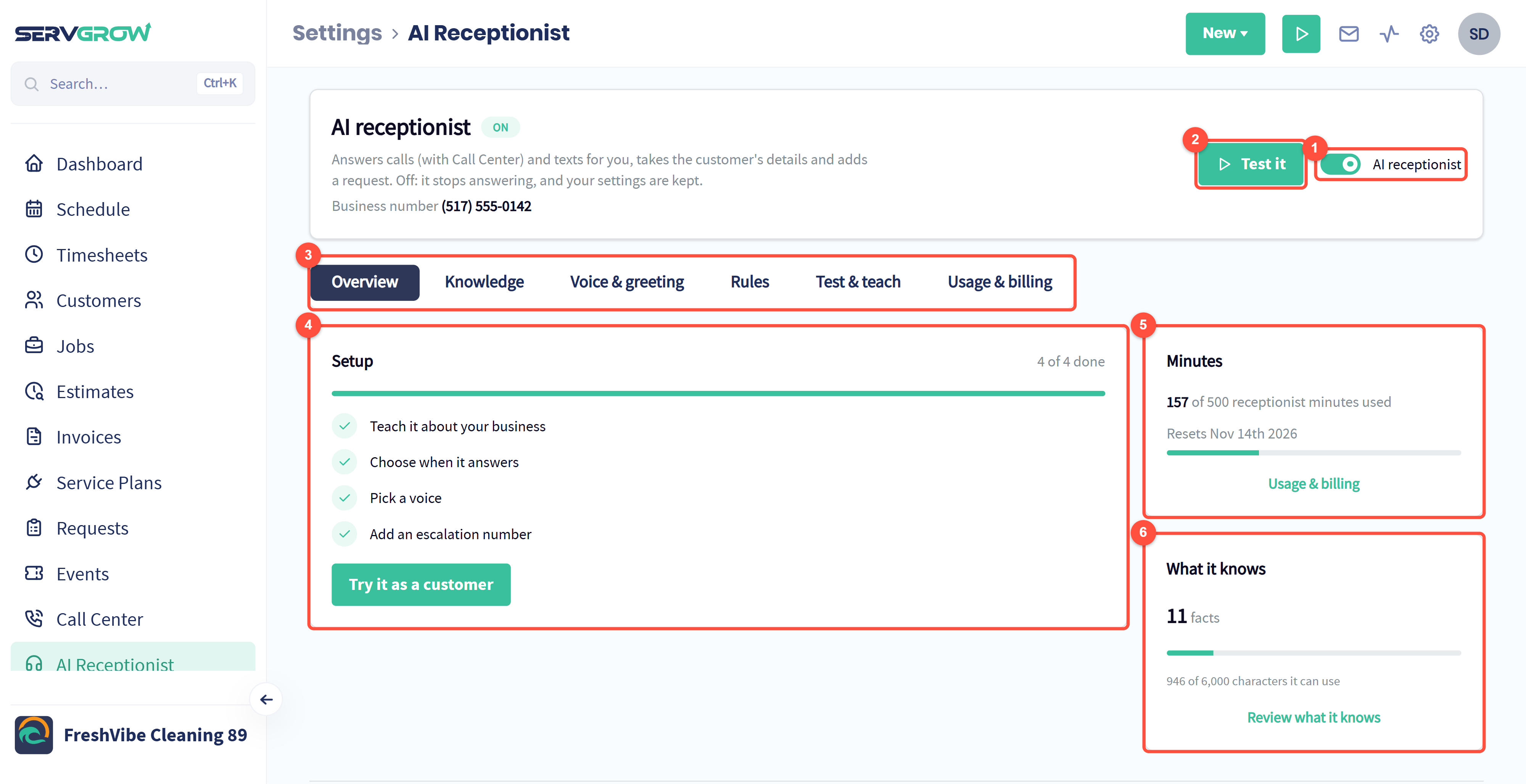
The main switch. Off, it stops answering and your settings are kept.
Test it: try it as a customer.
Its settings, one tab each: Knowledge, Voice & greeting, Rules, Test & teach and Usage & billing.
Setup: the four things to do before it answers real customers. Teach it about your business, choose when it answers, pick a voice and add an escalation number.
Minutes: how many receptionist minutes you have used this period.
What it knows: how many facts it has learned, and how much room is left.
Teach it about your business
The receptionist can only be as helpful as what it knows. Click the Knowledge tab.
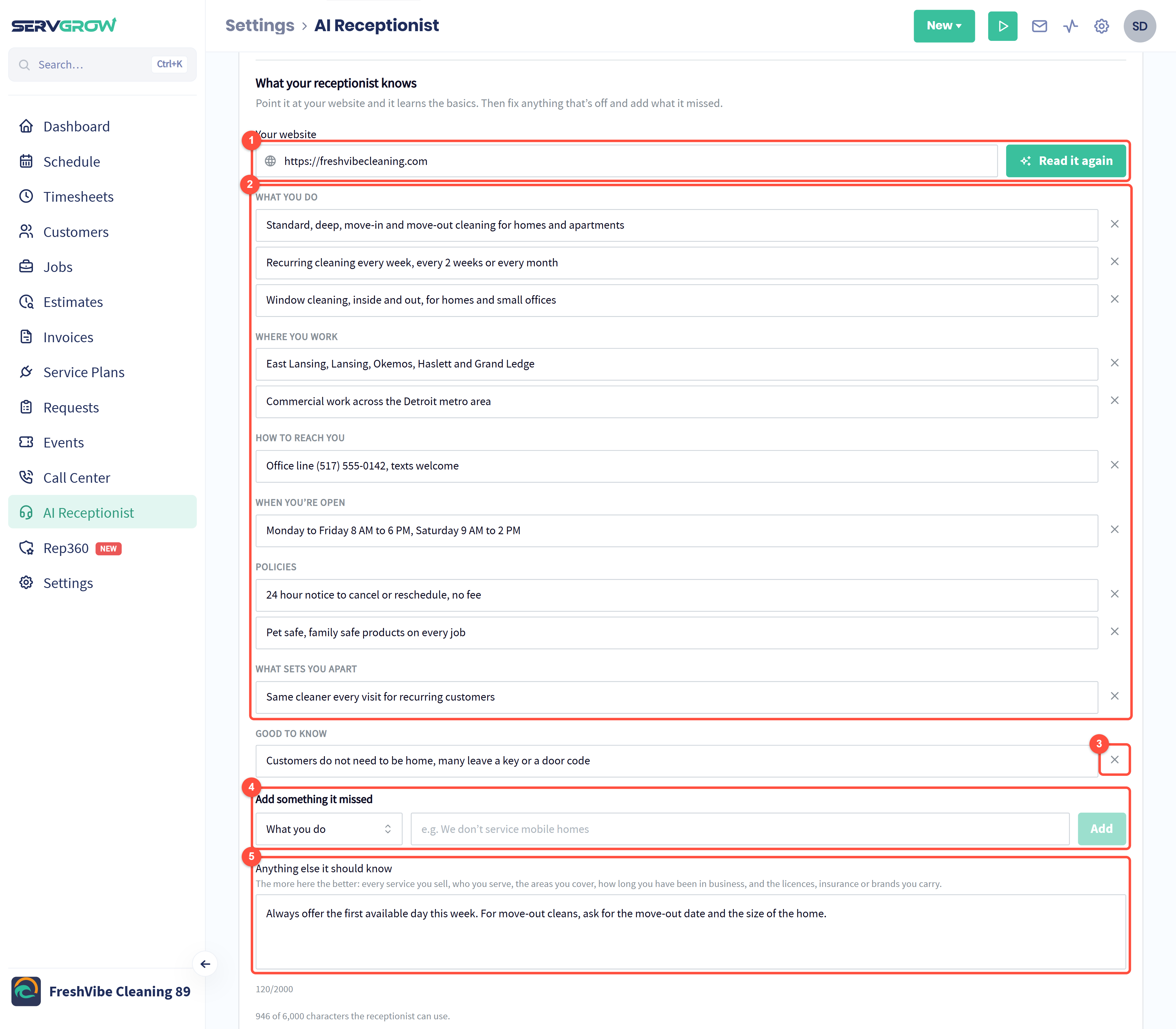
Enter your website and click Learn from my website. It reads the site and learns your services, service area, contact details, hours and policies. Read it again after you update your site: it replaces what came from the website and keeps anything you added or changed.
What it learned, grouped by kind: what you do, where you work, how to reach you, when you are open, policies, what sets you apart and good to know. Fix any line that is off by typing over it.
The x removes a fact.
Add something it missed: pick the kind of fact, type it and click Add. For example, "We don't service mobile homes".
Anything else it should know: instructions in your own words, such as which slots to offer first or what to ask for a move-out clean.
Click Save changes at the bottom when you are done.
Choose its voice and greeting
Click the Voice & greeting tab.
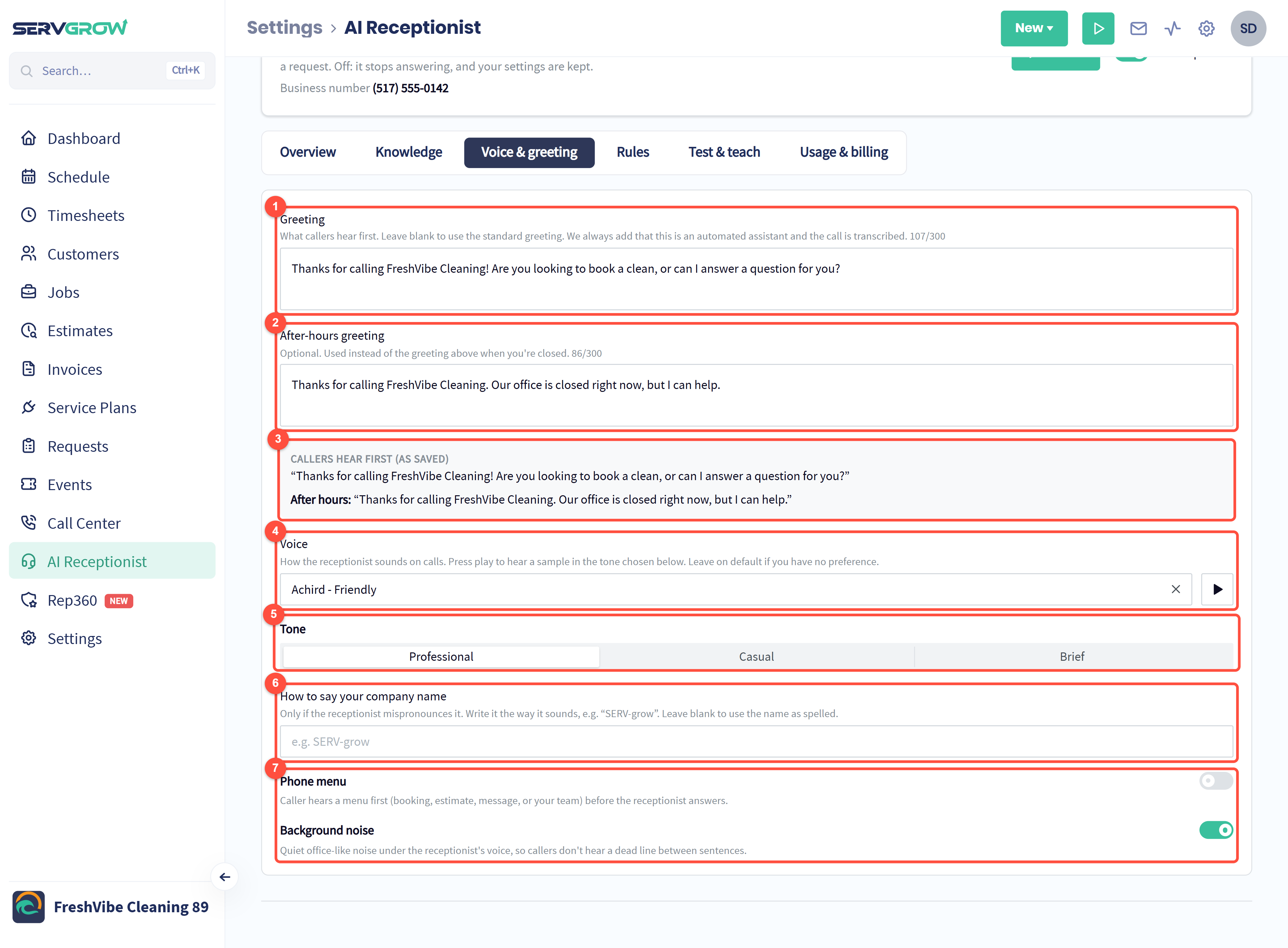
Greeting: the first thing callers hear. Leave it blank to use the standard greeting. Servgrow always adds that this is an automated assistant and the call is transcribed.
After-hours greeting: optional, used instead when you are closed.
Exactly what callers hear first, as saved.
Voice: pick a voice and press play to hear a sample in the tone chosen below.
Tone: Professional, Casual or Brief.
How to say your company name: only if it mispronounces your name. Write it the way it sounds.
Phone menu plays a short menu first (booking, estimate, message or your team). Background noise adds quiet office sound, so callers do not hear a dead line between sentences.
Set the rules for calls
Click the Rules tab. The Calls section decides when it answers and when it hands a call to a person.
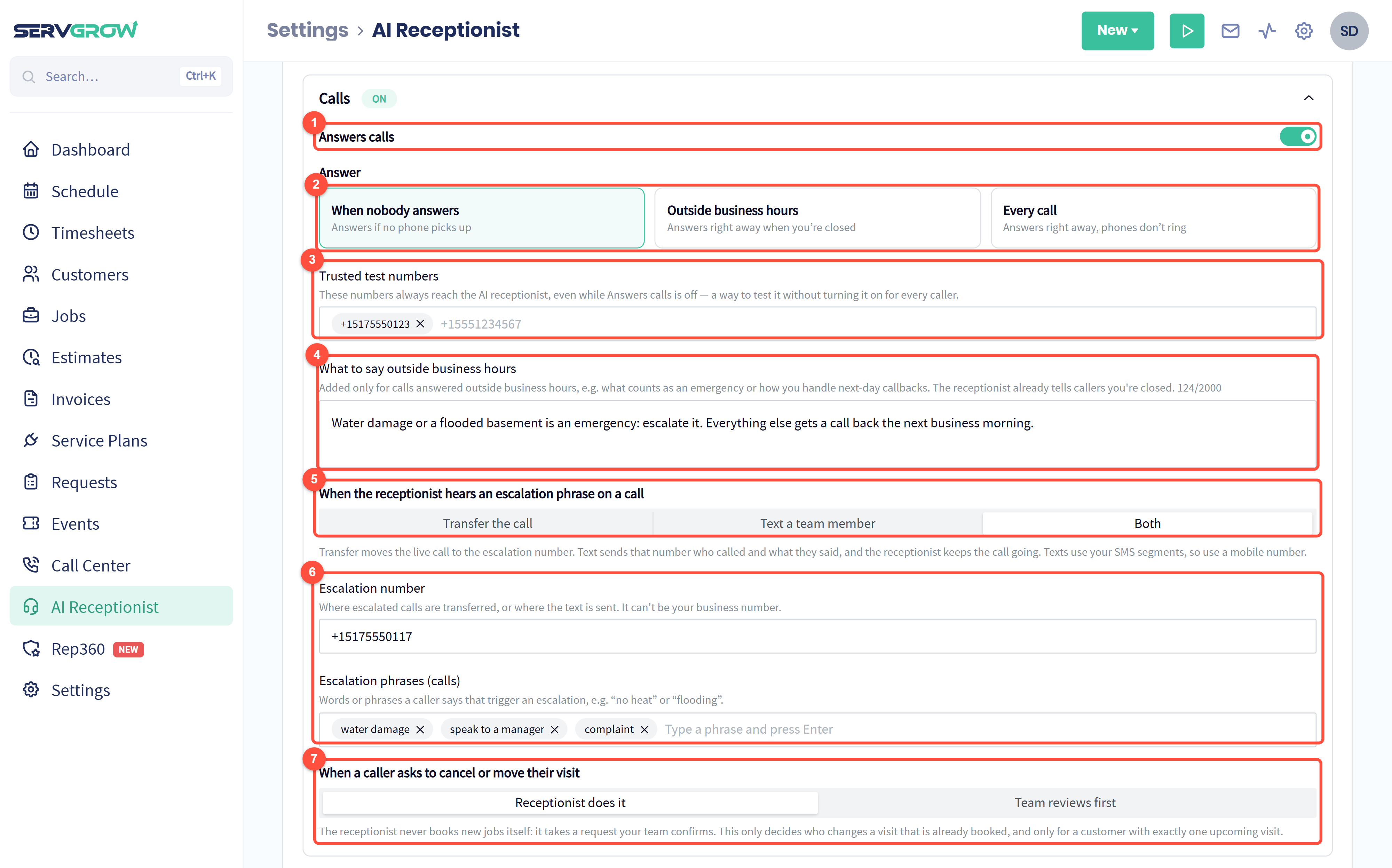
Answers calls: turns call answering on or off.
When it answers:
When nobody answers: your phones ring first, and it only picks up the calls your team misses.
Outside business hours: your phones ring as usual during the day, and it answers right away when you are closed. Your hours come from your Company Profile.
Every call: it answers right away and your phones do not ring.
Trusted test numbers: calls from these numbers always reach the receptionist, even while it is off, so you can test it from your own phone first.
What to say outside business hours: for example, what counts as an emergency and how you handle next-day callbacks.
When the caller says an escalation phrase: Transfer the call to a person, Text a team member who called and what they said while it keeps the call going, or Both.
Escalation number: where calls are transferred or texts are sent, ideally a mobile number. Escalation phrases: the words that trigger it, such as "water damage" or "speak to a manager".
When a caller asks to cancel or move a visit, the Receptionist does it, or the Team reviews first. It never books new jobs itself: it creates a request your team confirms.
Test it and teach it before it goes live
Try it as a customer before it answers a real one. Click the Test & teach tab. Practice runs use what it knows right now, including changes you have not saved, and nothing is sent or created.
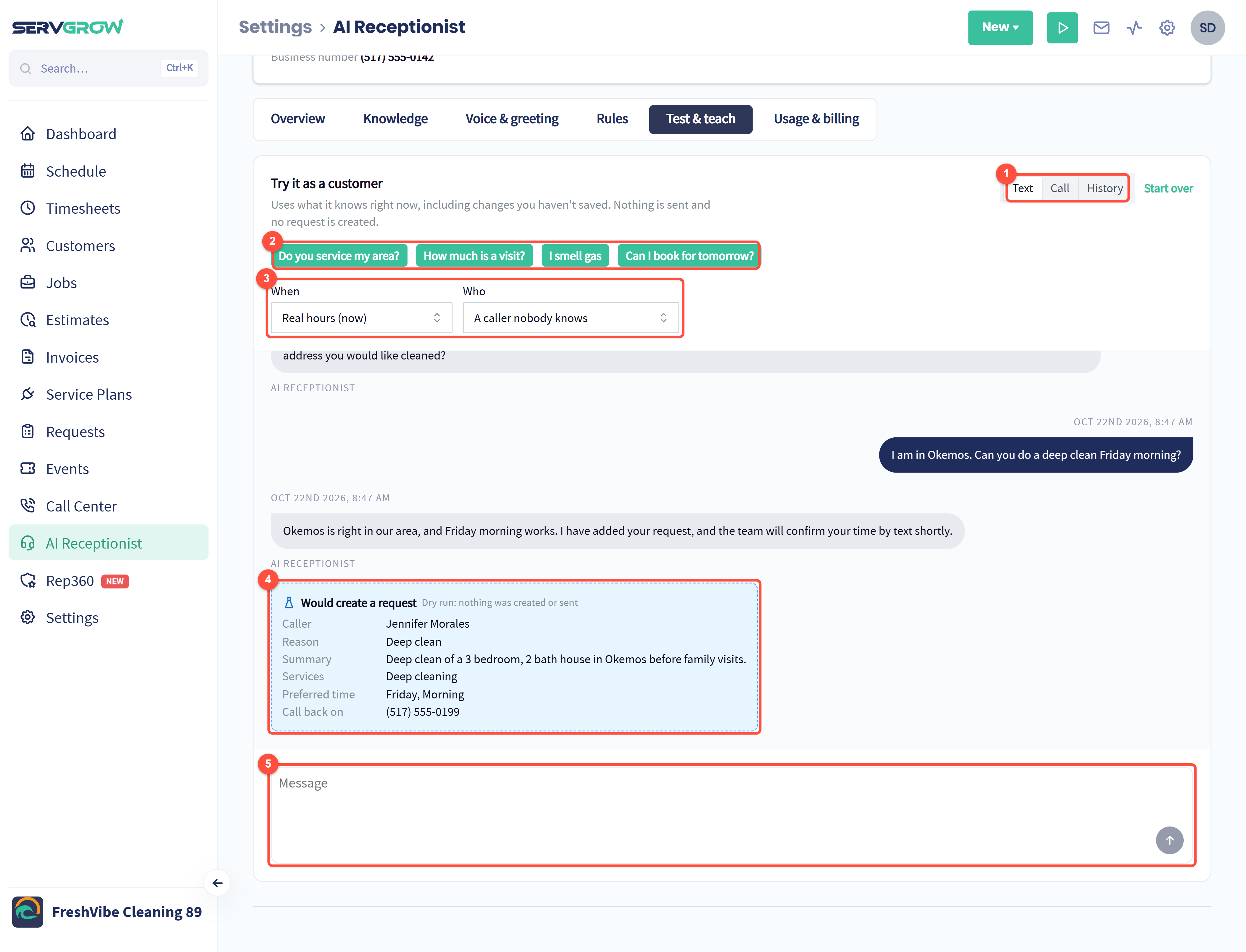
Practice by Text or Call. History keeps every practice chat and call for 90 days.
Click a suggested question to start, or type your own.
When: test during business hours or after hours. Who: a caller nobody knows, or an existing customer with a visit tomorrow.
When the conversation would create a request, move a visit or escalate, a dry run shows exactly what it would do.
Type your next message as the customer.
When it is not sure of an answer, teach it the right one on the spot.
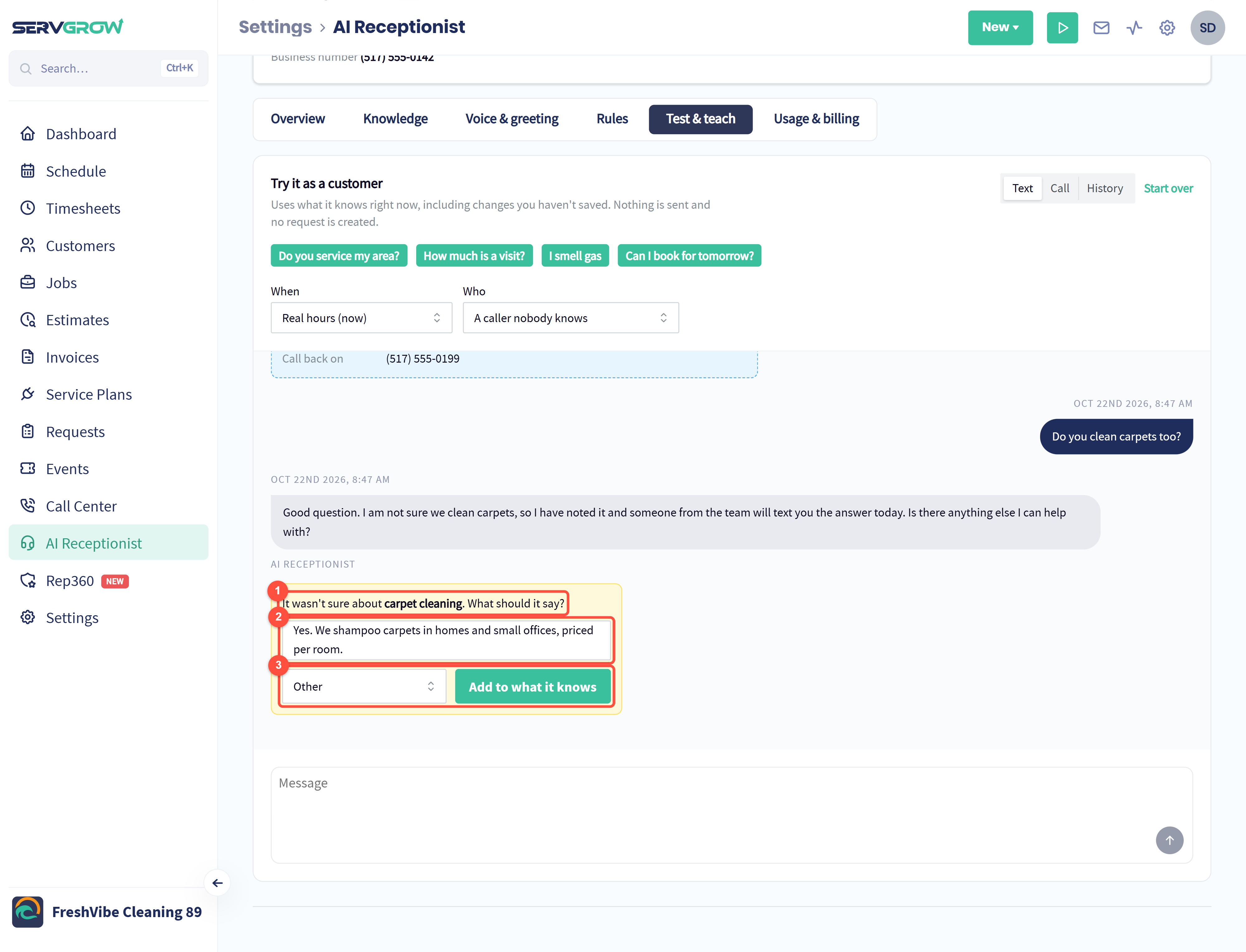
It tells you what it was not sure about.
Type what it should say.
Pick the kind of fact and click Add to what it knows. Ask again to hear the difference, then click Save changes.
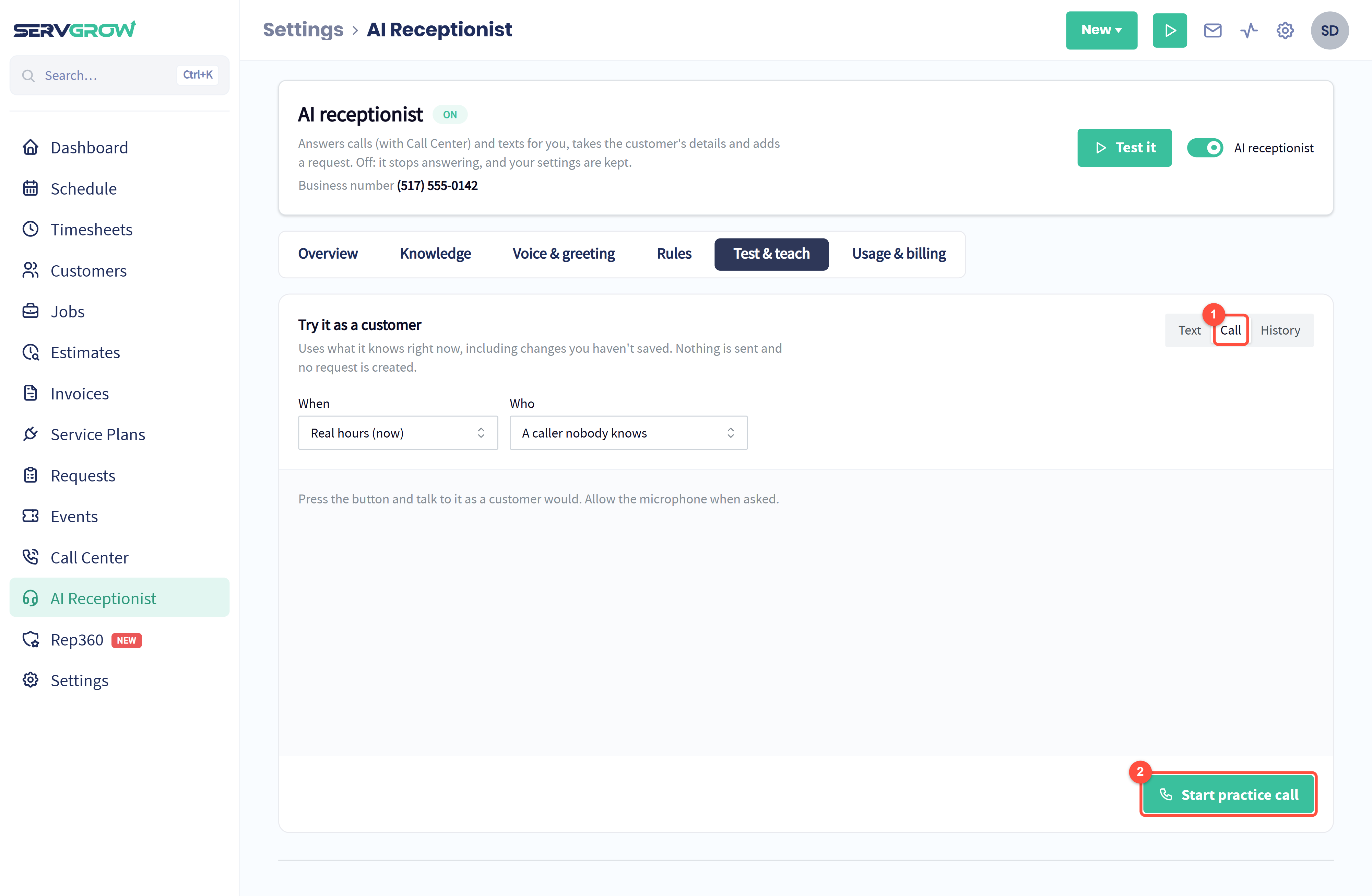
Click Call to hear it the way your callers will.
Click Start practice call, allow your microphone and talk to it as a customer would.
See what it did on every call
Every call it takes is in Call Center, on the Activity tab, and every request it creates is waiting in Requests.
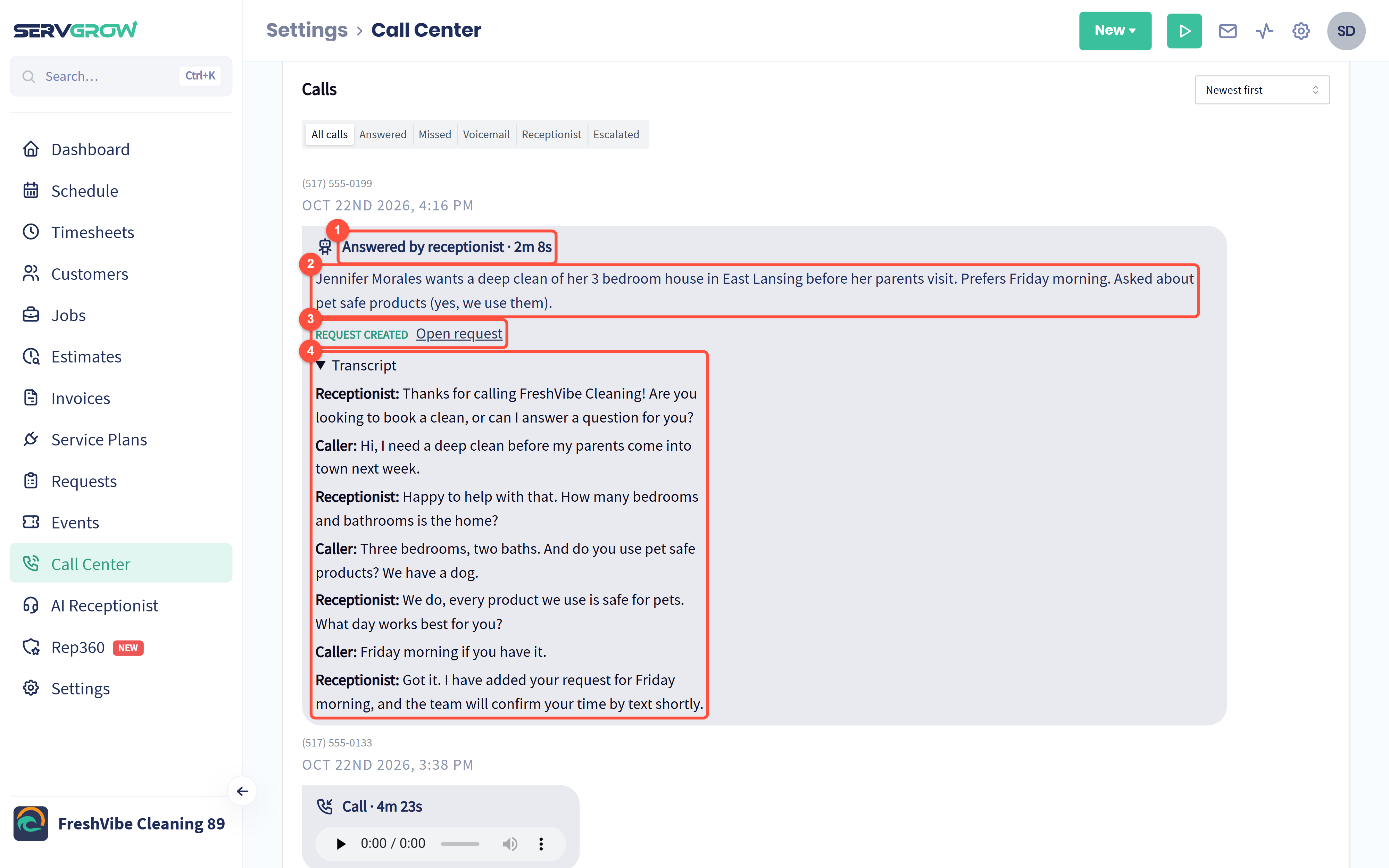
Answered by receptionist and how long it talked.
A summary of what the caller needed.
Request created: click Open request to book the work.
The full Transcript of the call.
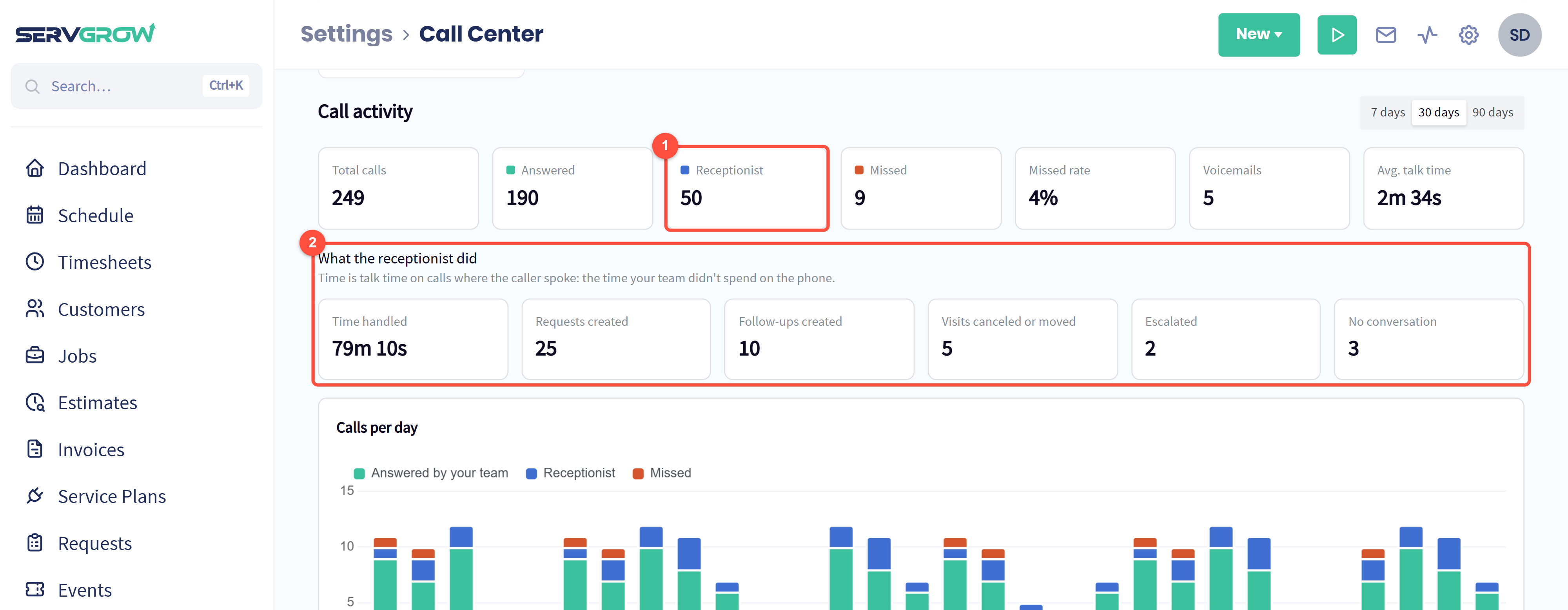
How many calls the receptionist took in the period.
What the receptionist did: the time it handled for your team, the requests and follow-ups it created, the visits it canceled or moved, the calls it escalated and the calls where the caller said nothing.
Usage and billing
The Usage & billing tab shows the receptionist minutes you have used this billing period and when they reset. Only talk time counts, and calls where the caller says nothing do not use minutes. When the minutes run out it only takes messages, unless you turn on Keep answering after my minutes run out: then extra minutes are added to your next renewal invoice, up to a cap. Cancel add-on stops it at the end of the billing period.
Tips
Start with When nobody answers. Your team still takes most calls, and the receptionist catches the rest.
Add your own number as a trusted test number and call it a few times before you switch it on for everyone.
Read the transcripts in the first week. Anything it gets wrong is a fact to add on the Knowledge tab.
Keep your escalation phrases short, such as "flooding" or "no heat", so real emergencies reach a person fast.
Related articles