
Running more than one business, or helping out at a sister company? Signing out and back in every time you need the other account wastes minutes every day and makes it easy to text a customer from the wrong business. Link your Servgrow accounts once, and you can switch between them from the account menu in two clicks, without signing out.
Add another account
Click your initials at the top right of any page.
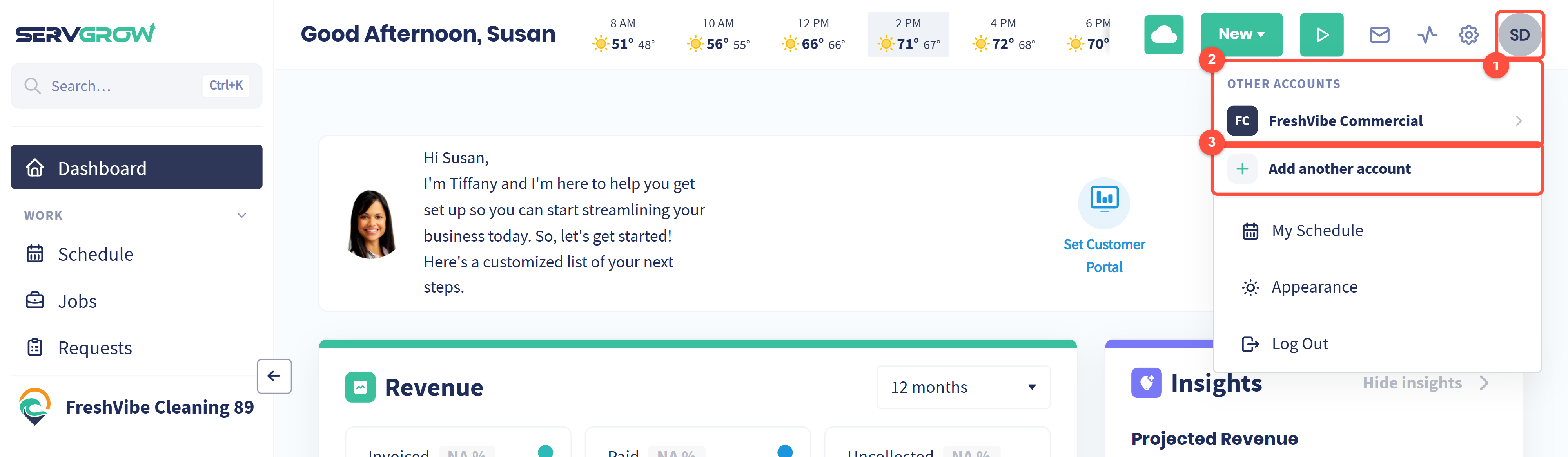
Your initials open the account menu.
Other accounts: every account you have linked. Click one to switch to it.
Add another account: link a new one.
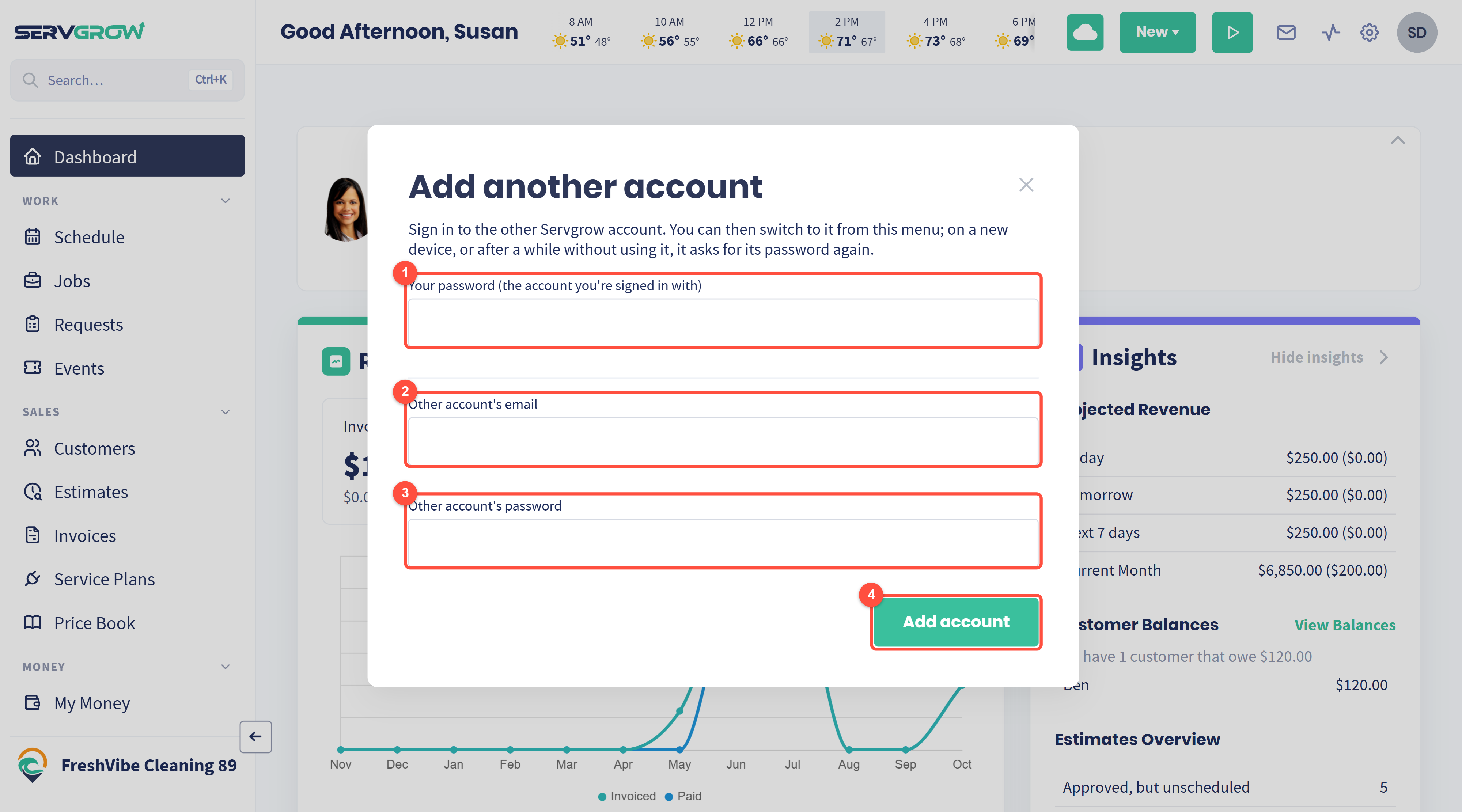
Your password: the password of the account you are signed in with, to confirm it is you.
Other account's email: the email you sign in to the other Servgrow account with.
Other account's password: its password.
Click Add account. If the other account uses two-step sign-in, Servgrow sends it a code to enter.
The account now appears under Other accounts in the menu.
Switch between accounts
Open the account menu and click the business you want under Other accounts. On a new device, or after a while without using it, Servgrow asks for that account's password again before it switches, so a lost laptop does not open every business you run.
Each account keeps its own customers, jobs, settings and team. Check the business name at the bottom of the left menu to see which one you are in before you send anything.
To take an account out of the switcher, remove it from the same menu. You can add it again later with its password.
Tips
Link every business you run once. After that, moving between them takes two clicks.
Look before you send. Texts and emails go out from the business you are switched into.
Related articles