
How your business runs in Servgrow comes down to a handful of settings: your prices, the messages customers receive, who on your team can do what, and how you get paid. When those are hard to find, they get set up once and never looked at again, even as your business changes.
Settings puts all of them on one page, grouped by what they control. In a couple of clicks you can update a price, reword a reminder text, add a team member or check your payouts, so Servgrow keeps working the way your business works today.
Where to find it
Click the gear icon at the top right of any page, or click Settings in the left menu.
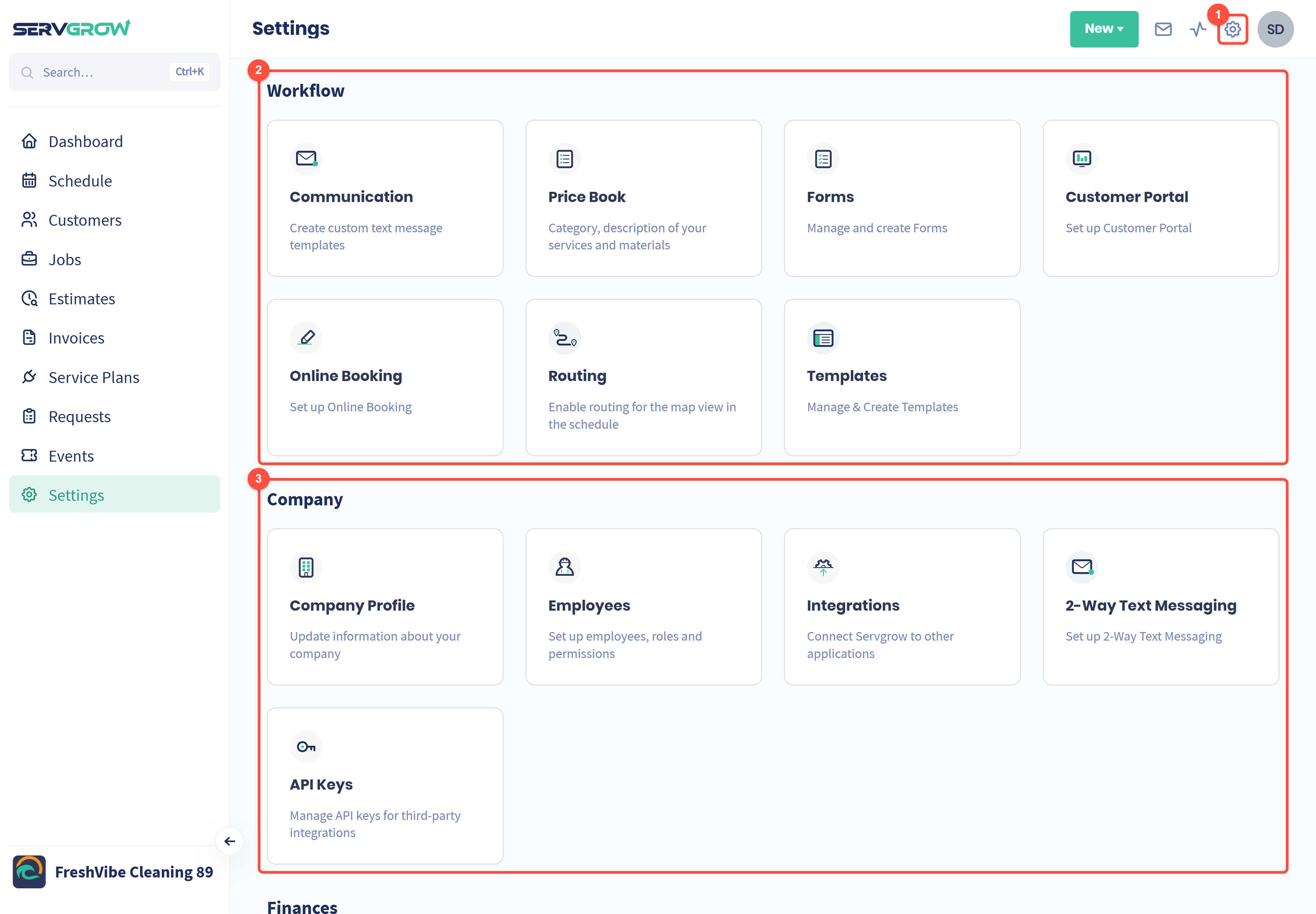
The gear icon opens Settings from anywhere in Servgrow.
Workflow: how jobs, estimates and customer messages work day to day.
Company: your business details, your team and the apps you connect.
Click any card to open that setting.
Workflow
Communication: the automatic texts and emails customers receive, appointment reminders and follow-ups, and your own marketing campaigns. See Setting Up Your Email and Text Notifications: Keep Every Customer in the Loop Automatically.
Price Book: your services and materials with their descriptions and prices, so jobs, estimates and invoices take a few clicks. See Price Book: Set Your Services and Prices Once, Then Quote and Invoice in Seconds.
Forms: checklists and forms your team fills in on a job.
Customer Portal: your logo, colors and contact details on the portal where customers see their work with you.
Online Booking: the form customers use to request work from your website. See Online Booking: Take Work While You Sleep.
Routing: turn on routing for the map view on your Schedule.
Templates: ready-made jobs and estimates for the work you book most often. See Job & Estimate Templates.
Company
Company Profile: your business name, logo, phone, address, service area and working hours. See Company Profile: Set Up Your Business Details, Hours and Security.
Employees: add team members and decide what each role can see and do. See How to Add an Employee: Give Every Team Member the Right Access and Changing Employee Permissions and Roles: Give Everyone the Right Access.
Integrations: connect Servgrow to other apps, such as QuickBooks Online. See How to Connect QuickBooks With ServGrow.
2-Way Text Messaging: text back and forth with customers from Servgrow.
API Keys: create keys that let other software connect to your Servgrow account.
Finances
Scroll down to the last section.
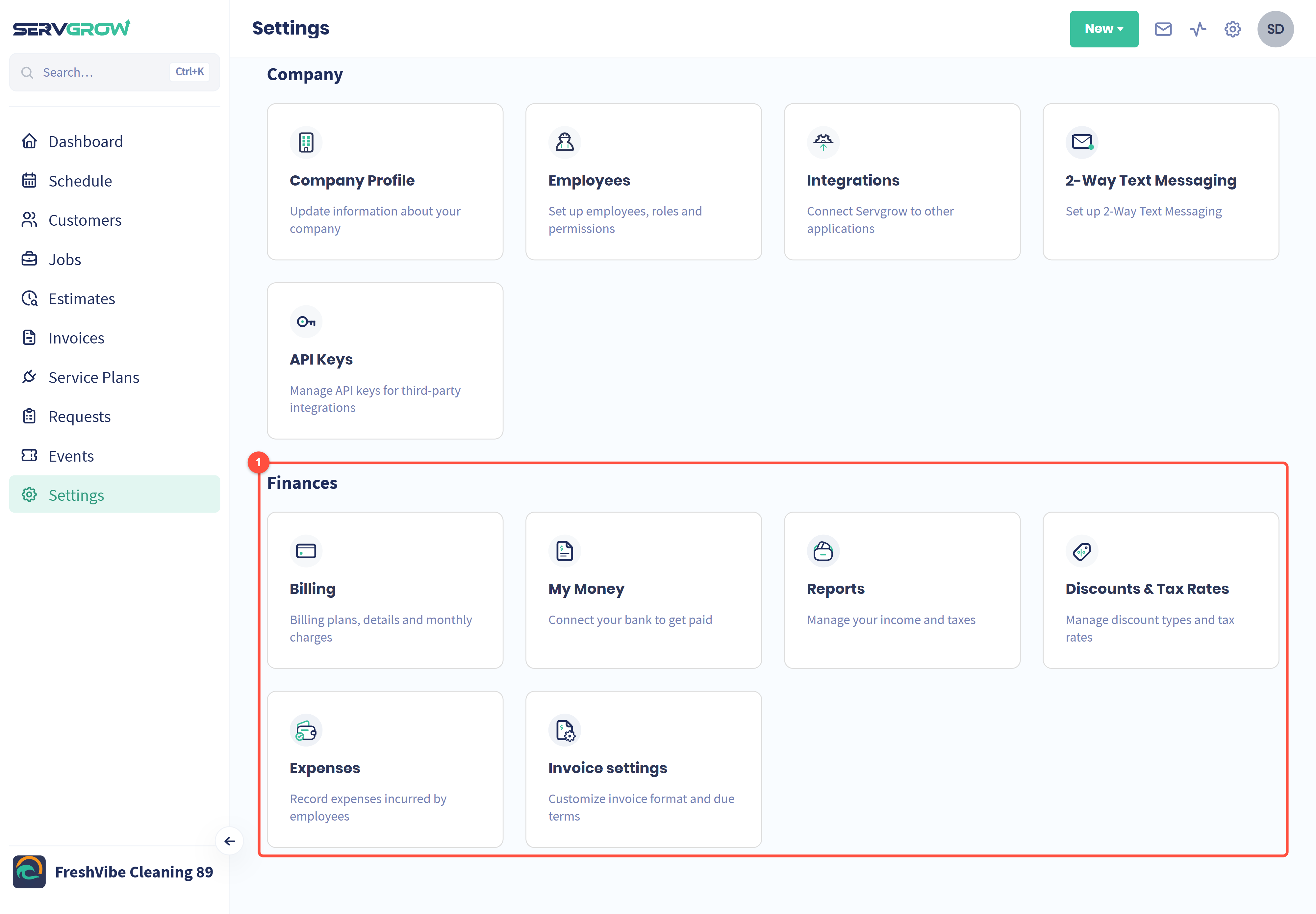
Finances: everything to do with money coming in and going out.
Billing: your Servgrow plan, billing details and monthly charges.
My Money: connect your bank to accept card payments, and see your transactions, payouts and disputes.
Reports: your income and taxes. See Sales Reporting: See What You Sold and What You Actually Kept.
Discounts & Tax Rates: the discounts and tax rates you add to jobs, estimates and invoices. See How to Create Discounts.
Expenses: costs your team records against jobs. See Expense Tracking: Know What Every Job Really Costs.
Invoice settings: your invoice format and payment due terms.
Who sees which settings
Company Admins see every card. Other roles only see the cards their role allows. For example, Office Staff see Reports and Expenses, and anyone whose role includes an Online Booking permission sees Online Booking. A few cards, such as 2-Way Text Messaging, only appear once that feature is turned on for your account.
Tips
Review your Price Book and Communication messages every few months. Prices and wording drift out of date faster than you think.
New to Servgrow? Follow Step by Step Guide to Fully Set Up Servgrow From Scratch to set things up in the best order.
Keep Settings to the people who need it. Use roles so only the right people can change prices, payments and permissions.
Related articles