
Checking tomorrow's schedule at 5 AM, or sending invoices from the couch at night, a bright white screen is hard on your eyes. Dark mode switches Servgrow to dark backgrounds with light text, and you can let it follow your computer's own light or dark setting.
Turn on dark mode
Click your initials at the top right of any page.
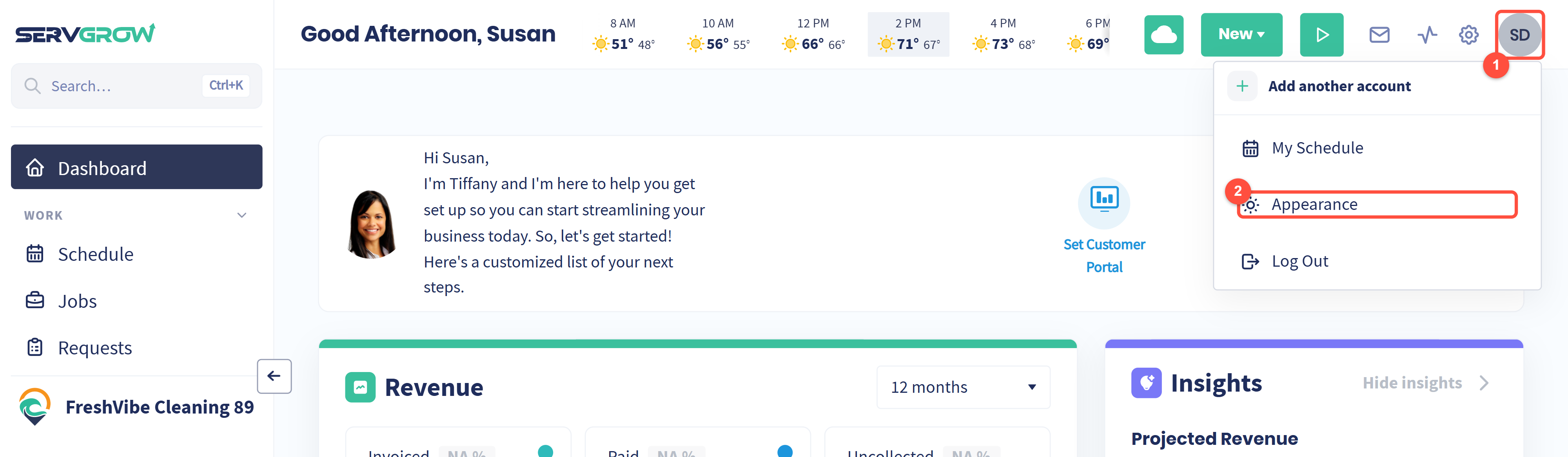
Your initials open the account menu.
Click Appearance.
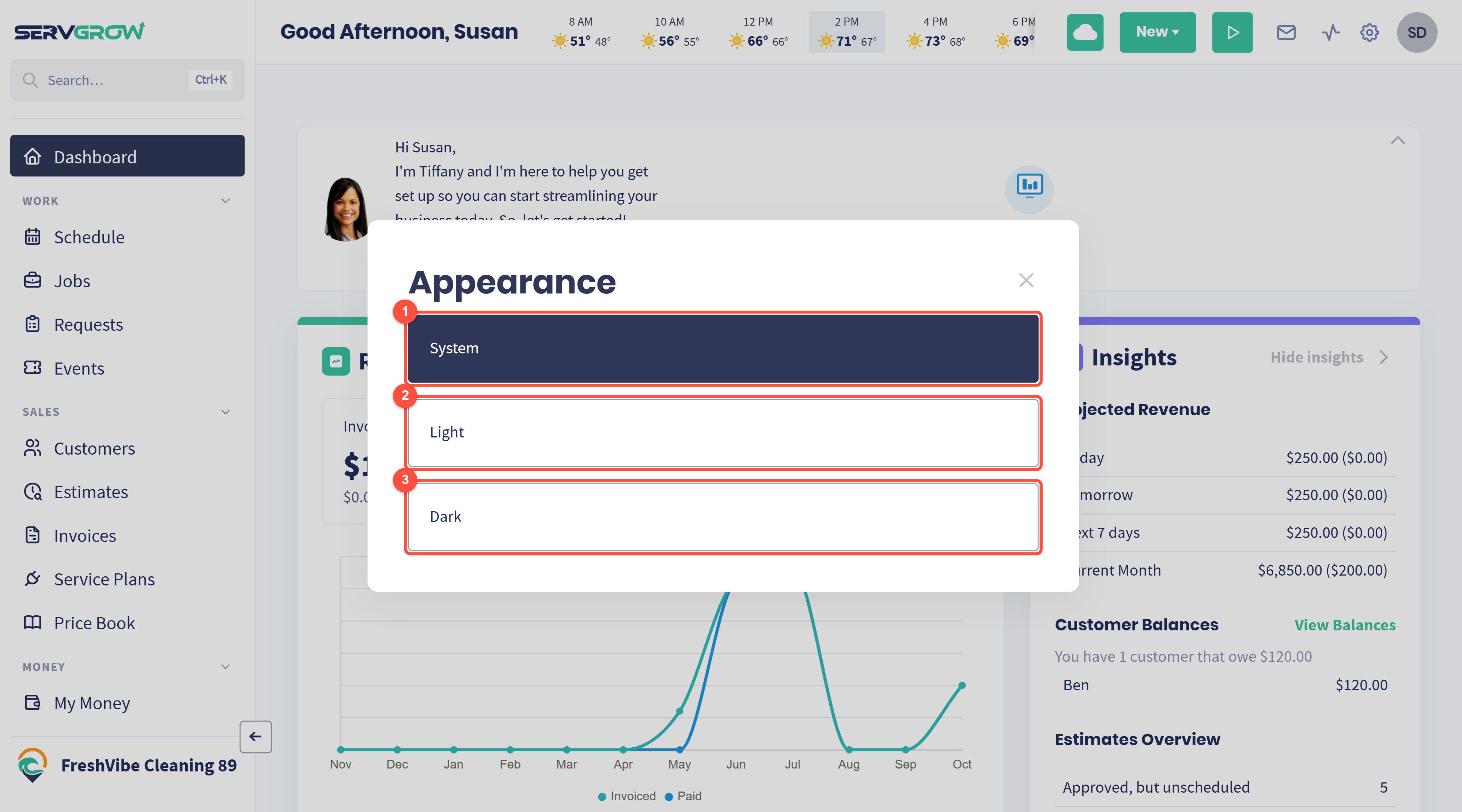
System: follows your computer or browser, so Servgrow goes dark when your device does, for example in the evening.
Light: always the light look.
Dark: always dark.
It changes straight away, and Servgrow remembers your choice for your user. Everyone on your team picks their own.
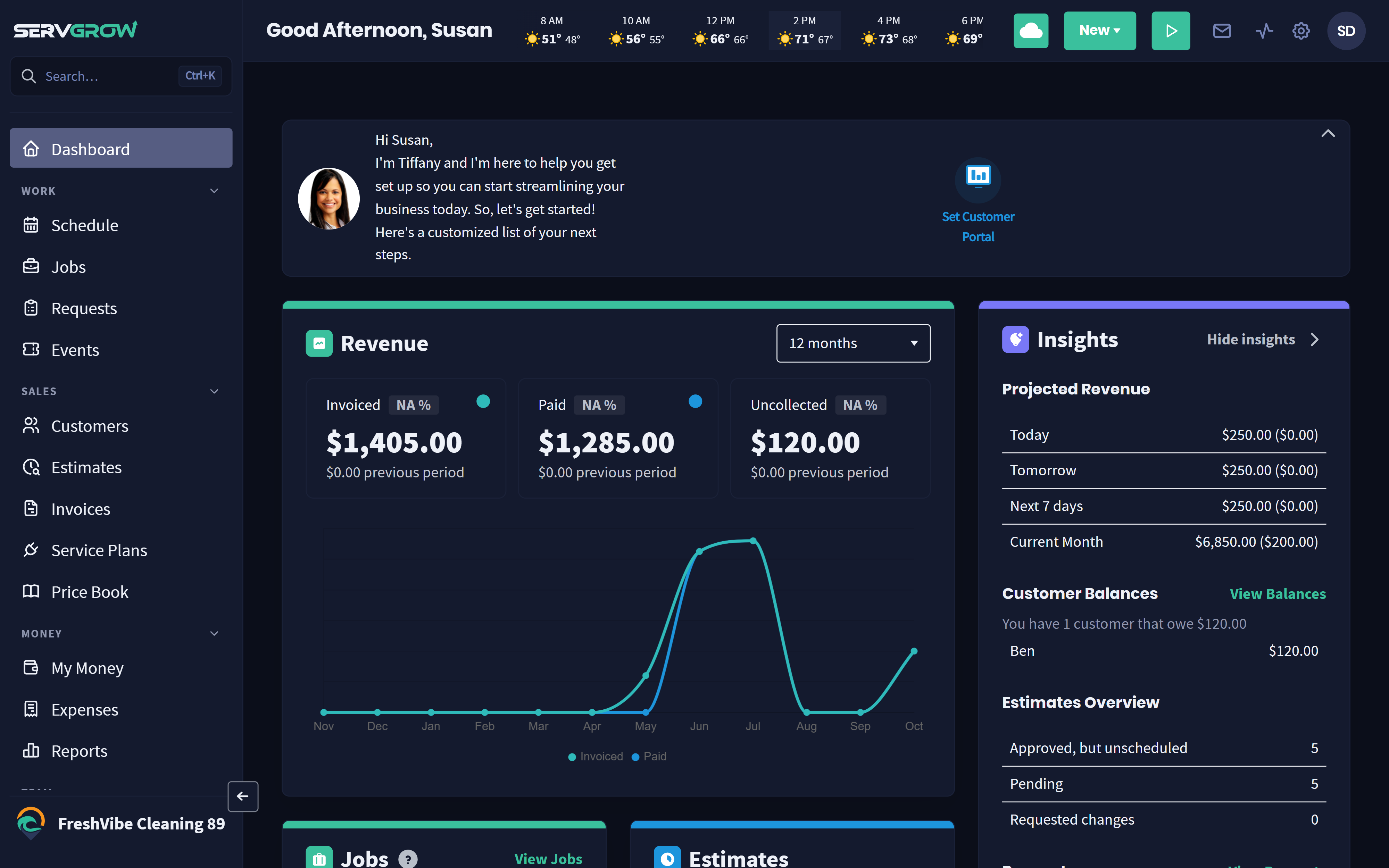
Tips
Pick System if your computer already switches to dark at night: Servgrow follows along.
Screenshots for your team or customers? Switch to Light first, so they print and read well.
Related articles