
A service plan is money you can count on: the same customer, the same visits, billed on the same day every cycle. To keep it that way you need three things at hand. Where every customer's plan lives, how each one gets paid, and a quick way to send a plan again when a customer cannot find it. This article covers all three.
If you have not set up a plan to sell yet, start with How to Create a Recurring Service Plan. For every screen of the sign-up wizard, see How to Add a Service Plan to a Customer.
The Service Plans page
Click Service Plans in the left menu.
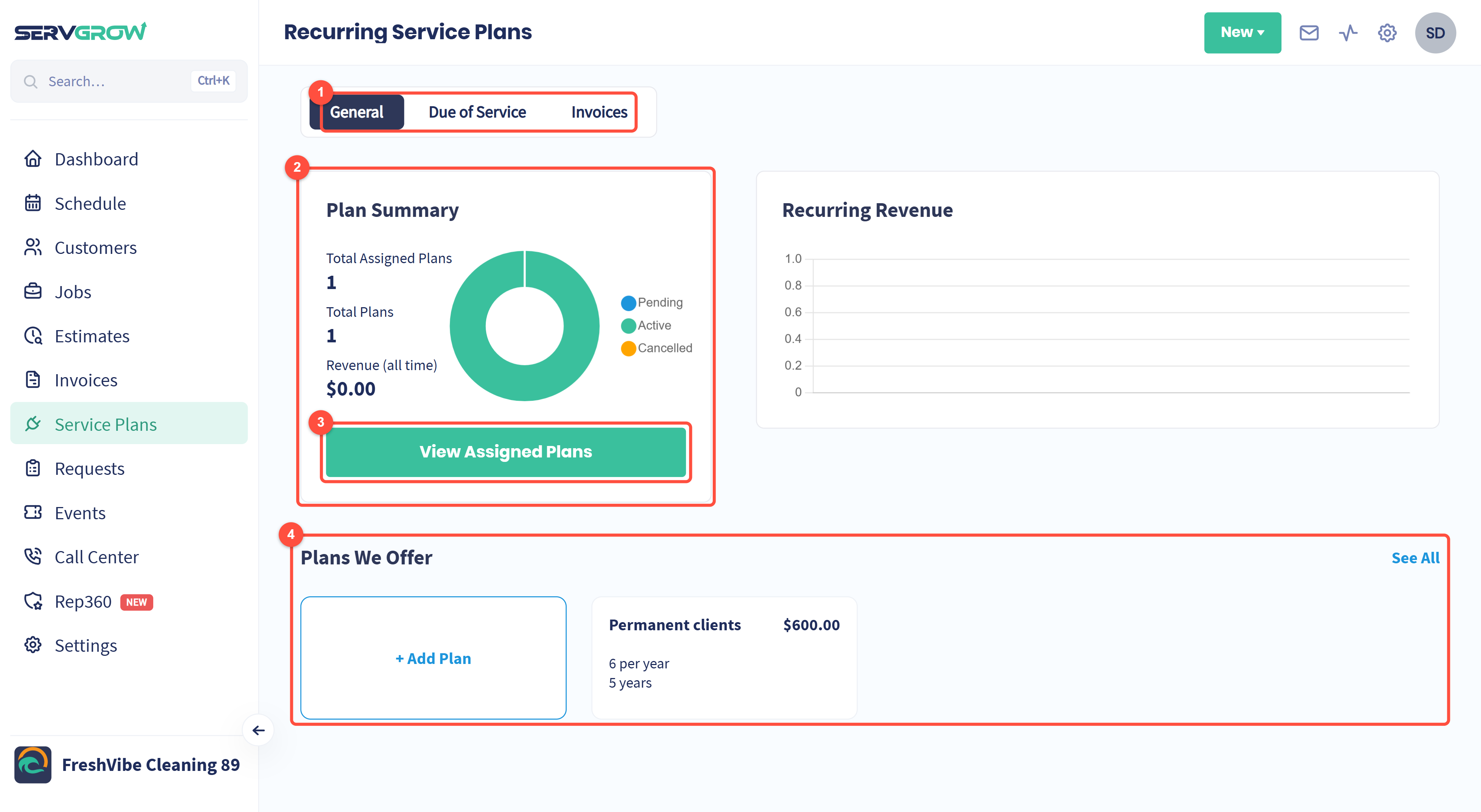
General is the overview. Due of Service lists customers whose next plan visit is coming up, so you can book them before they chase you. Invoices takes you to your invoices, where plan bills are marked Service plan.
Plan Summary: how many customers are on a plan, how many plans you offer, what plans have earned so far, and the split between Pending, Active and Cancelled.
View Assigned Plans opens the list of every customer on a plan (below).
Plans We Offer: the plans you sell. + Add Plan creates a new one and See All lists them with duration, visits and price.
Find every customer's plan
Click View Assigned Plans. This is the one list to check when someone asks "is this customer on a plan?"
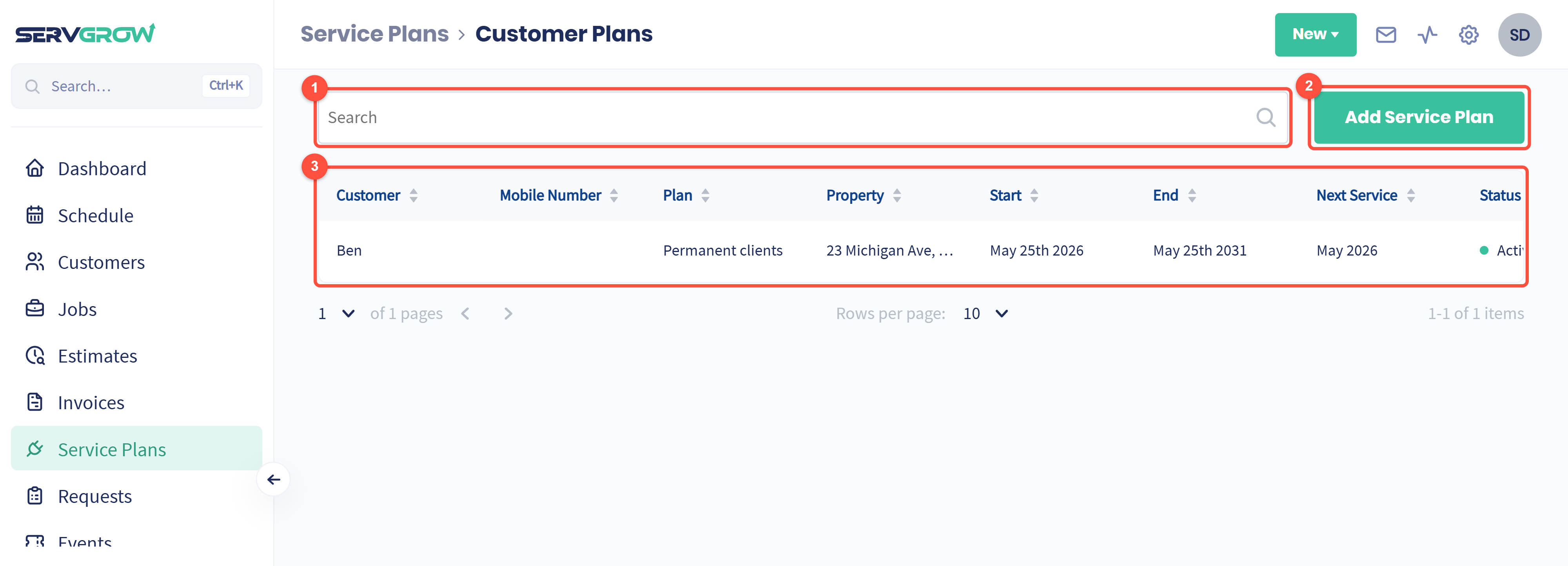
Search by customer name to find one plan fast.
Add Service Plan signs another customer up (see below).
Each row shows the customer, the plan, the property it covers, the start and end dates, when the next service is due, the status and the billing cycle. Scroll the table sideways to reach Actions. Click a row to open that plan.
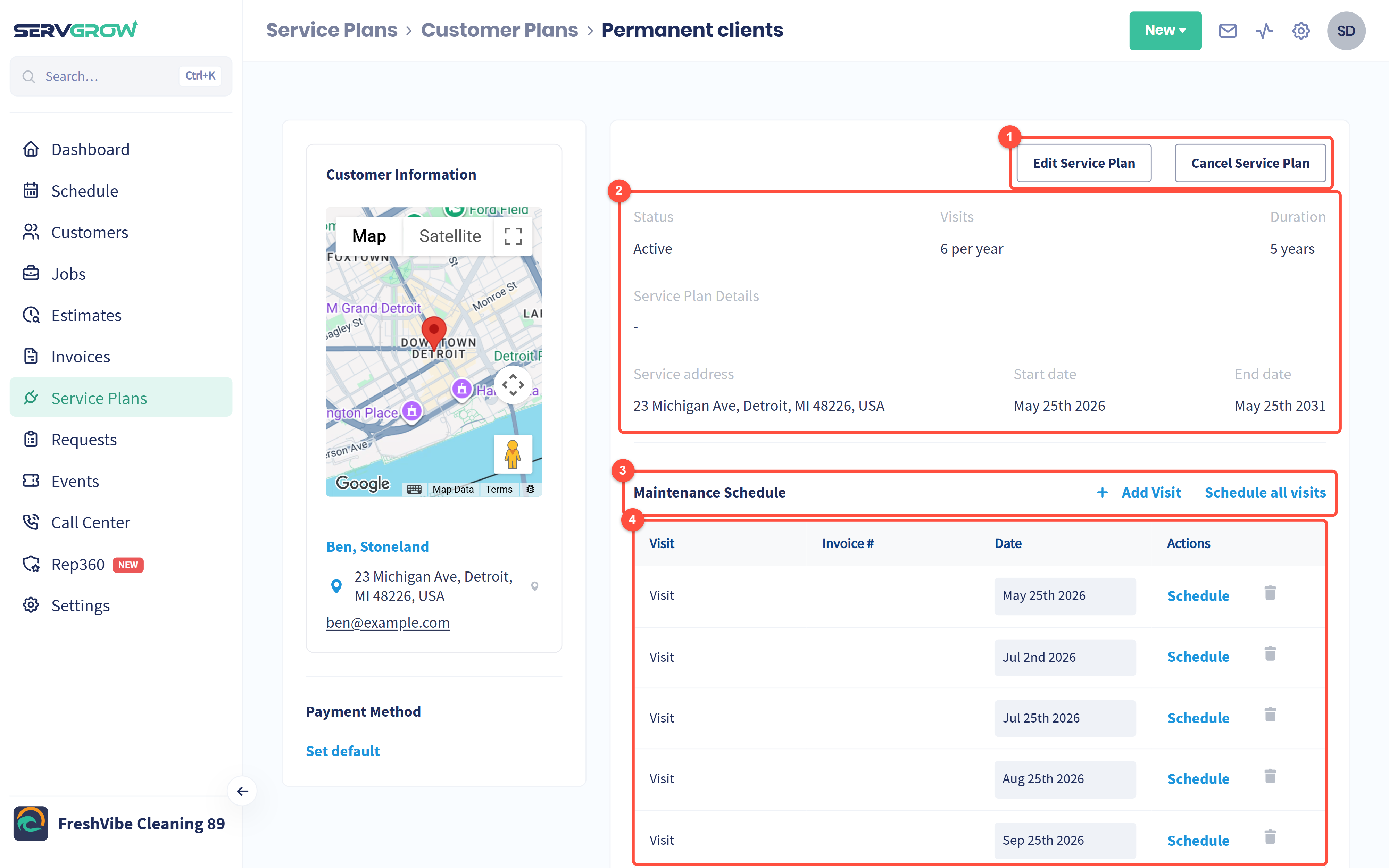
Edit Service Plan changes the property or the plan details. Cancel Service Plan ends it.
The facts at a glance: status, visits a year, duration, the service address and the start and end dates.
Maintenance Schedule: every visit the plan includes. Add Visit adds an extra one, and Schedule all visits puts them all on the calendar in one go.
Each visit has its date, the invoice it belongs to, and Schedule to book just that one.
Further down the same page, Equipment Information & Notes holds the model, serial number and notes for the equipment you look after. Handy for HVAC, pools and anything with a filter or a part number.
You can also see a customer's plans from their own page: open the customer and click the Service Plans tab.
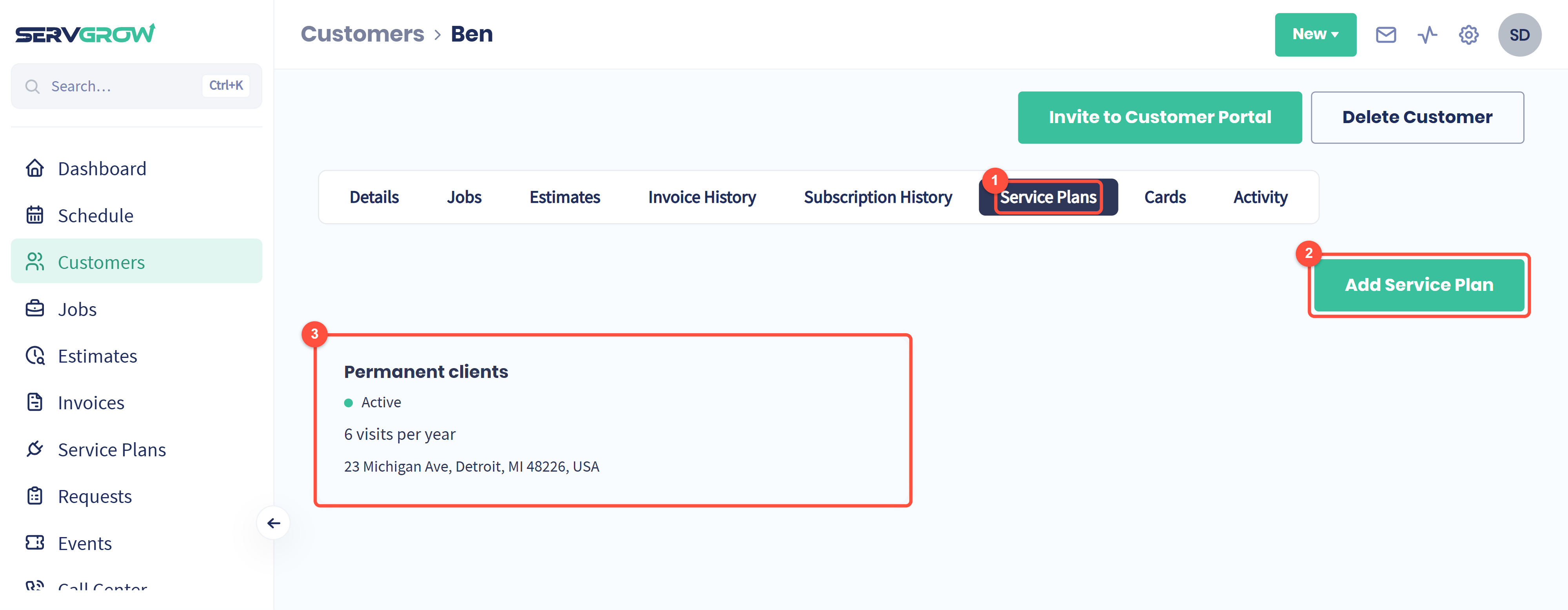
The Service Plans tab on the customer page.
Add Service Plan starts a new plan with this customer already filled in.
Each plan the customer is on, with its status, visits a year and property. Click it to open the plan.
Add a customer to a plan
Click Add Service Plan on the Customer Plans list or on the customer page.
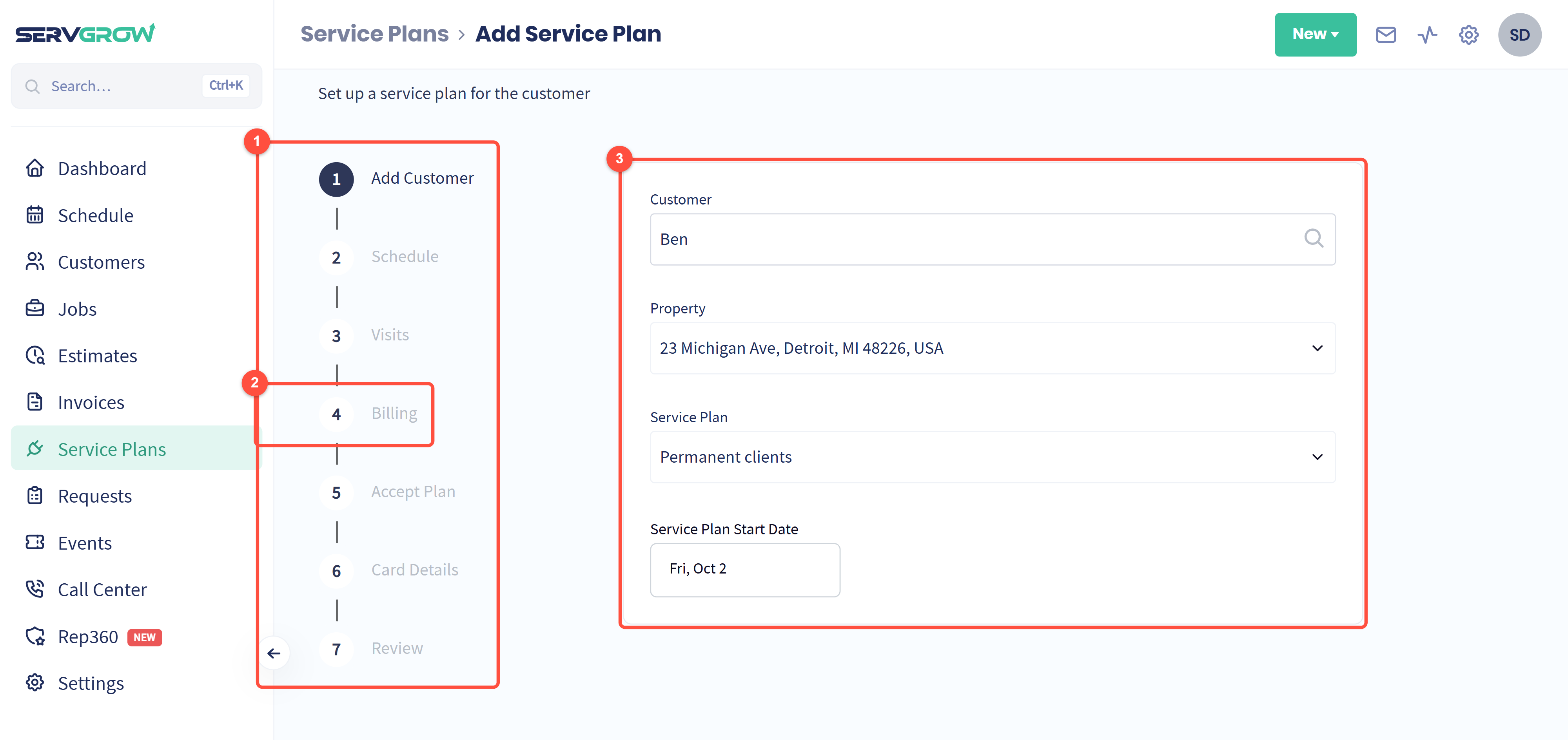
The wizard runs in seven steps: Add Customer, Schedule, Visits, Billing, Accept Plan, Card Details and Review. You can go back to any step before you finish.
Billing is where you choose automatic or manual payments (next section).
Step one: pick the Customer, the Property, the Service Plan and the Service Plan Start Date. The start date is also the first billing date.
Every step is explained in How to Add a Service Plan to a Customer.
Automatic or manual billing
You choose this on the Billing step, along with how often the customer pays and whether tax is added.
Automatic: the customer's card is charged on every billing date, with no one on your team lifting a finger. You add or pick the card on the Card Details step, and on Accept Plan you decide whether the first payment is taken as soon as the plan is accepted or on the next billing date. This is the one that keeps cash coming in and stops late payments.
Manual: a bill is still raised on every billing date, but nothing is charged. You collect it your way (cash, check, a card over the phone) and record the payment on the customer's Subscription History tab. Card Details is skipped. Use it for customers who will not leave a card on file.
Not sure which a customer is on? Their Subscription History tab shows each plan and whether it is billed manually or automatically.
Resend a plan to a customer
Customers lose the message, change phones, or ask to read the agreement again. Sending it takes a few seconds.
On the Customer Plans list, scroll the table to Actions and click the circular arrow on the customer's row.
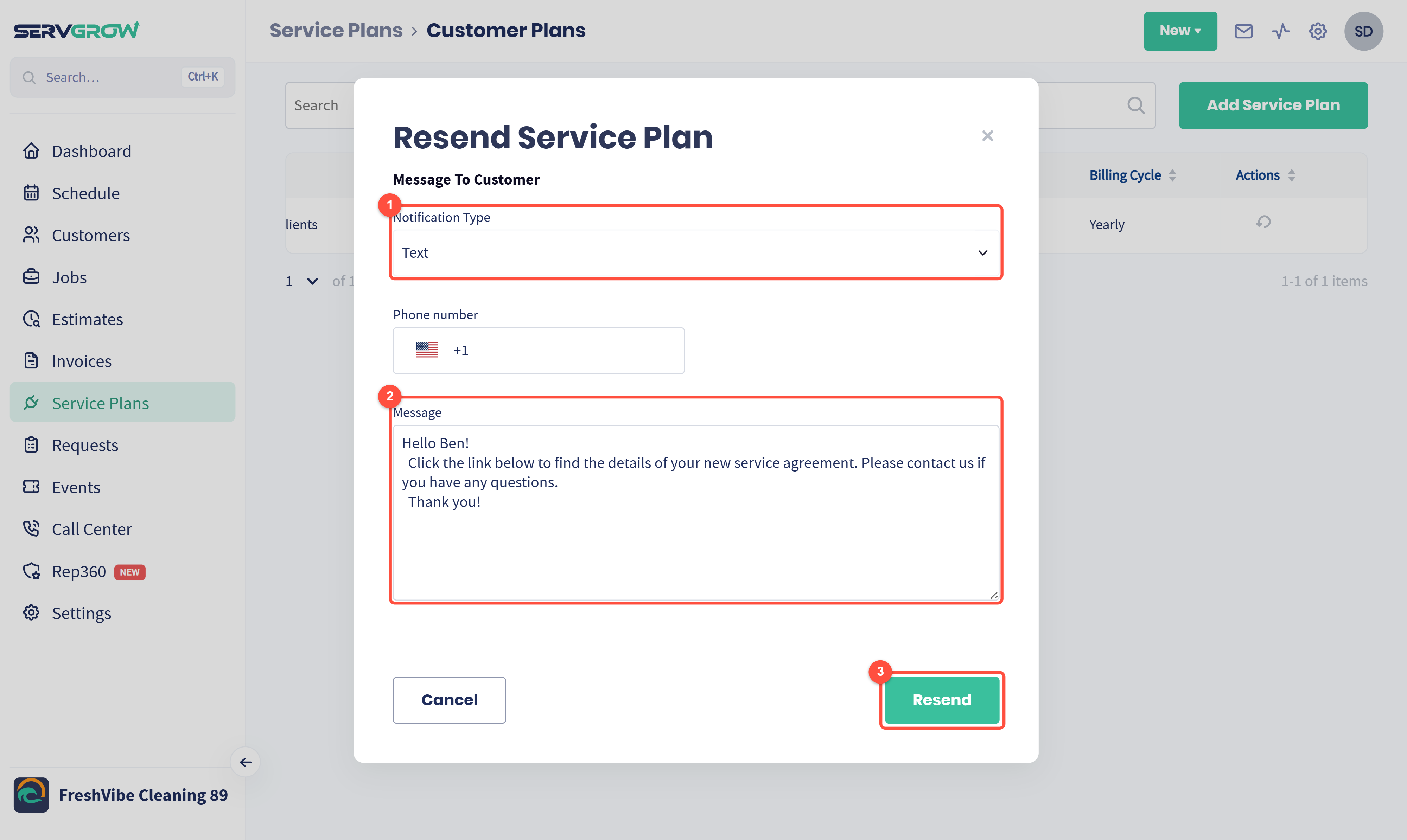
Notification Type: send it by text or by email. Check the phone number or email address underneath is right. If it is not, fix it on the customer's page first.
Message: keep the default or write your own. The customer gets a link to their plan with it.
Click Resend.
Tips
Check Due of Service every week. It is the list of plan customers who are owed a visit, which is the easiest work you will ever book.
Default to automatic billing. Manual plans depend on someone remembering to chase every cycle.
Use Schedule all visits right after a plan is accepted so the whole year is on the calendar and nobody is forgotten.
Keep the equipment notes filled in. The next tech arrives knowing the model and the filter size.
Related articles