
Repeat work is the best work: it fills your calendar, it is predictable, and you do not have to sell it again every month. What you do not want is to rebook the same clean, cut or service by hand, week after week, and hope nobody forgets.
Set the job up once and tell Servgrow how often it repeats. Every visit lands on your schedule automatically, your crew sees it like any other job, and the invoices follow the pattern you choose. You can even have regulars charged automatically once they have a card on file.
Set up a repeating job
Click Jobs, then Add Job, pick your customer and click an open time on the calendar to open Schedule Details. Fill in the job as usual, then set the repeat.
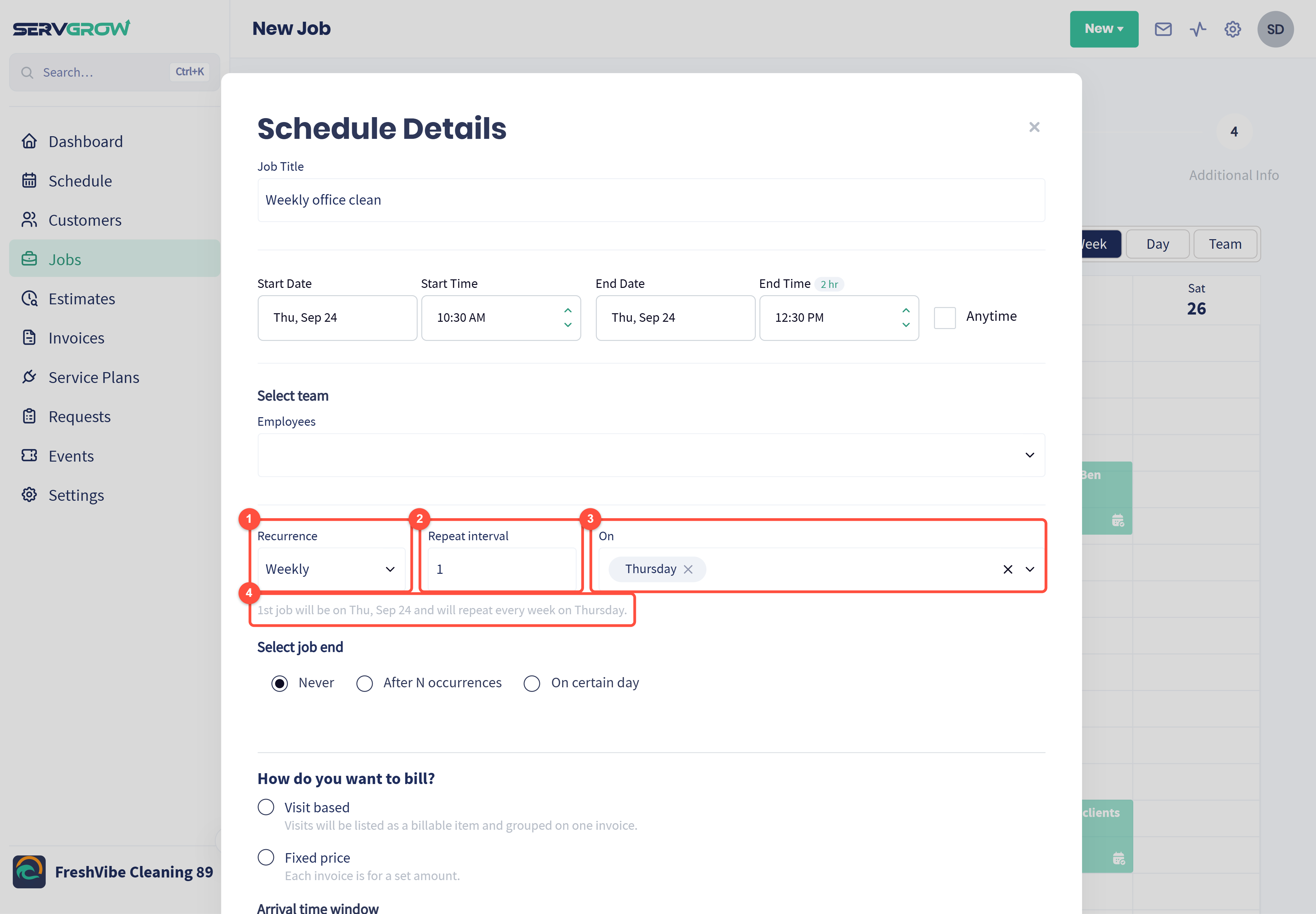
Recurrence: Daily, Weekly, Monthly or Yearly. Leave it on Never for a one-off job.
Repeat interval: how many days, weeks, months or years between visits. Put 2 with Weekly for every other week.
On: which day or days it lands on. Pick more than one day for something like Monday and Thursday.
Servgrow spells the pattern out under the fields, for example "1st job will be on Thu, Sep 24 and will repeat every week on Thursday". Read that line before you move on.
When it ends, and how it is billed
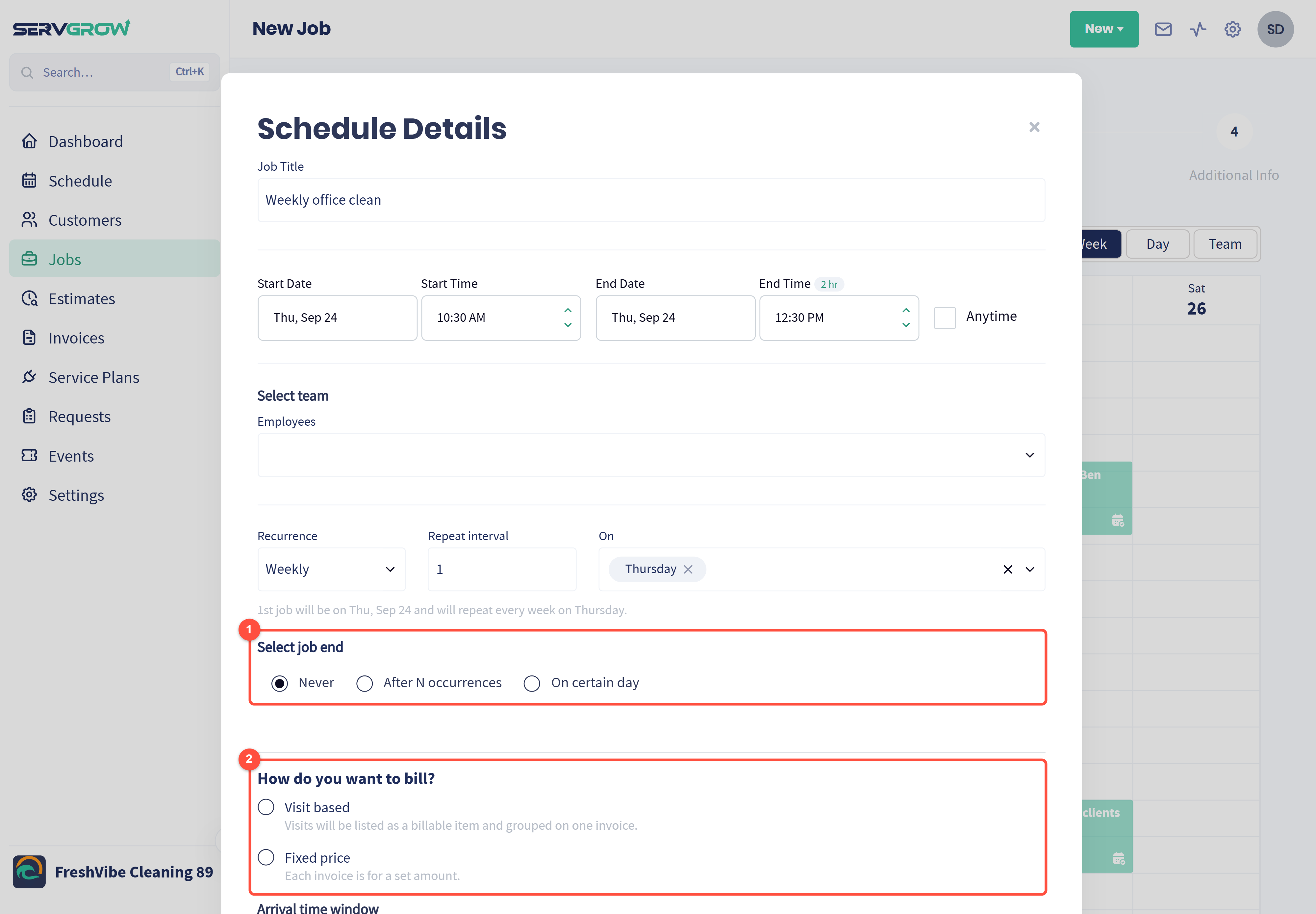
Select job end: Never keeps it going, After N occurrences stops after a number of visits, and On certain day stops on a date. Use a count for something like a six-visit package.
How do you want to bill? Visit based lists each visit as a billable item and groups them on one invoice. Fixed price makes each invoice a set amount.
Click Schedule Job, then finish the job as normal with your line items.
Every month on the same date
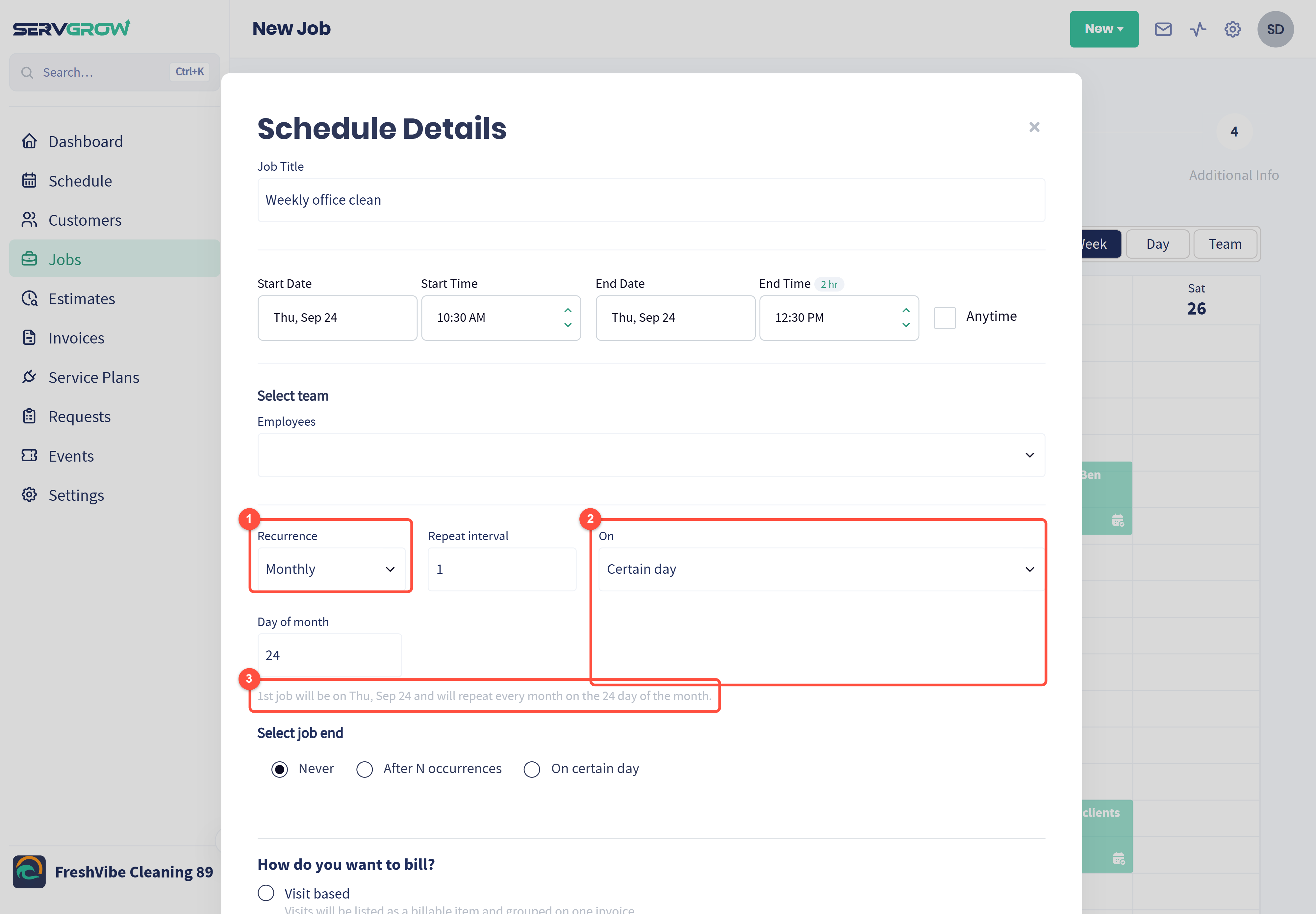
Set Recurrence to Monthly.
On: choose a Certain day, such as the first Tuesday, or a Day of month, such as the 24th.
Check the sentence underneath, then carry on as above.
How a repeating job looks afterwards
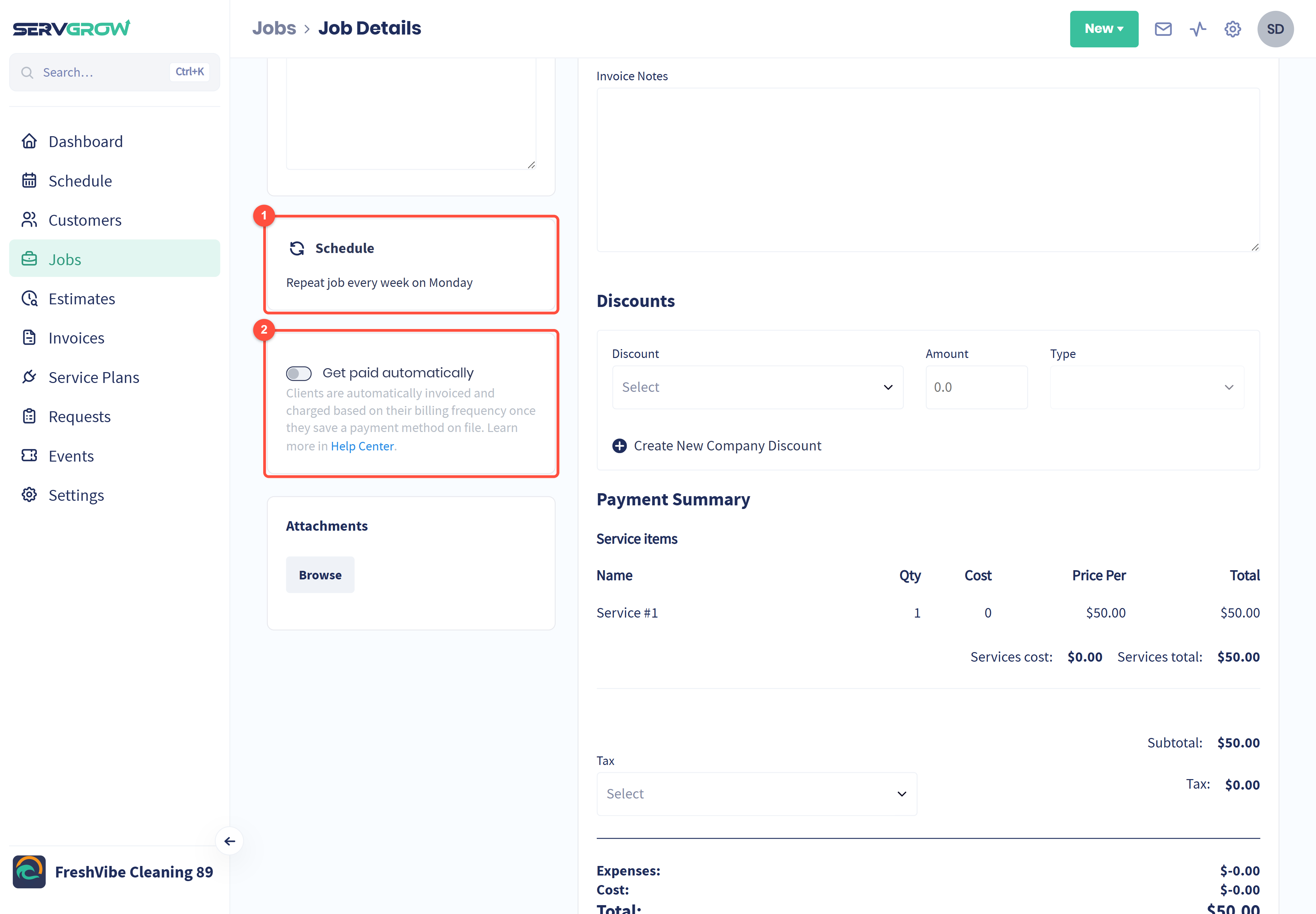
Open any visit and the Schedule card tells you the pattern, for example "Repeat job every week on Monday".
Get paid automatically: turn it on and the customer is invoiced and charged on their billing frequency, once they have a payment method saved.
Change one visit or the whole series
Open the job and click the calendar icon on the Schedule step of the progress bar, then drag the job to its new day or time. Dragging it on your main Schedule asks the same question.
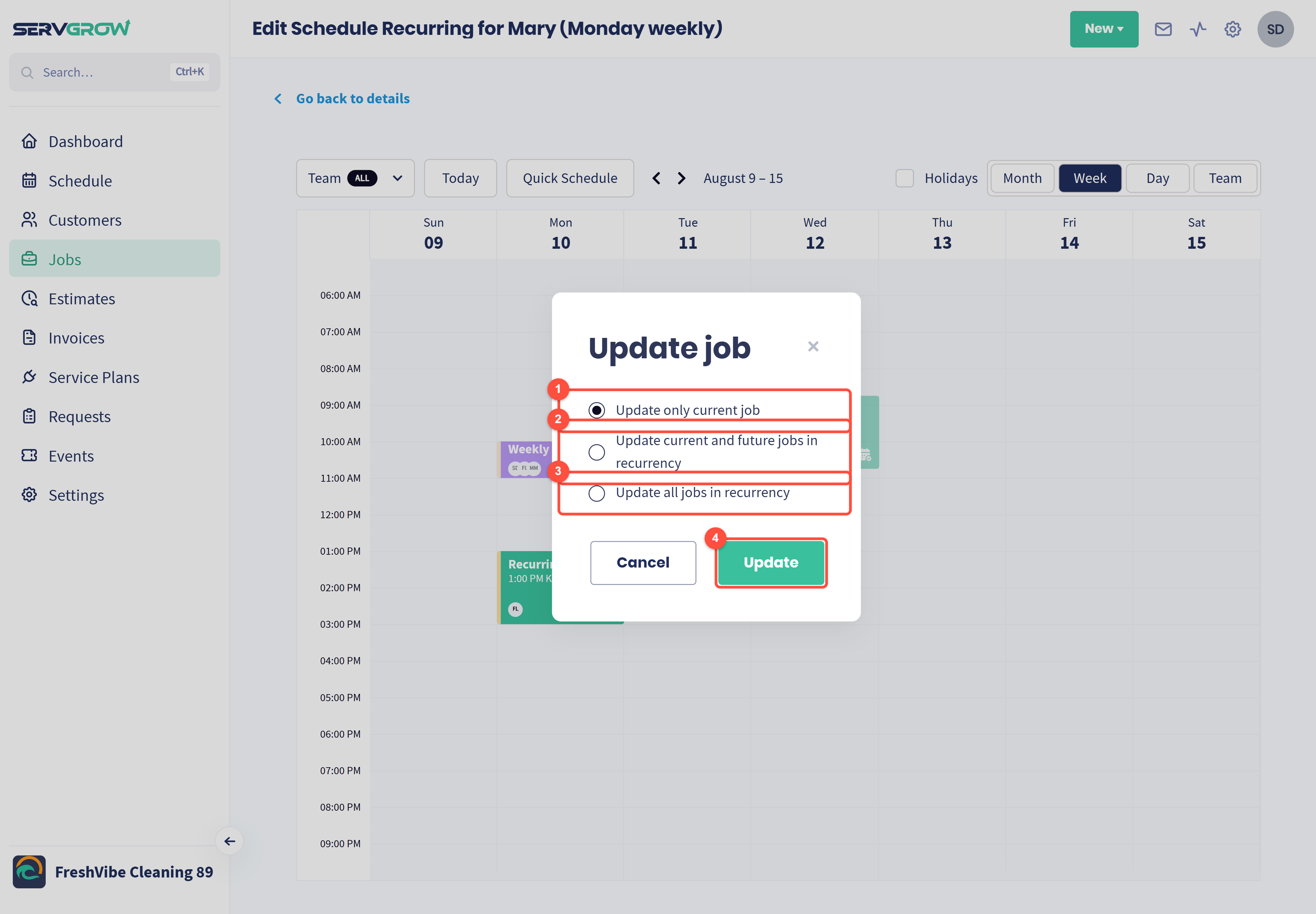
Update only current job: just this visit moves, the rest stay where they are.
Update current and future jobs in recurrency: this visit and everything after it moves. Use this when a customer changes their regular day from here on.
Update all jobs in recurrency: the whole series moves, including visits already behind you.
Click Update.
Repeating work with its own invoice schedule
Repeating jobs invoice around the visits. If you want to bill on a different rhythm to the work, for example a monthly payment for weekly visits, use a Service Plan instead. Service plans also support automatic payments and can be sent to the customer for approval.
Tips
Read the sentence under the fields. It is the quickest way to catch a wrong interval or day before you book a year of visits.
Use an end after N occurrences for packages. Sold six visits? Set six, and it stops on its own.
Set the team once. The crew you pick carries through the series, so regulars keep seeing the same faces.
Related articles