
The Schedule is where your day gets decided. When it is out of date or hard to read, jobs get double-booked, crews drive back and forth across town and someone always ends up asking "where am I supposed to be?"
Servgrow's Schedule shows every job and estimate on one calendar that the whole team shares. Look at the month to plan ahead, a single day to run it, or one row per team member to see who is busy and who has room. Put the calendar next to a map to group nearby work, book a new job in seconds with Quick Schedule, and sync it to your phone so it is always in your pocket. A schedule everyone trusts means fewer wasted trips and fewer missed appointments.
Where to find it
Click Schedule in the left menu.
Your Schedule at a glance
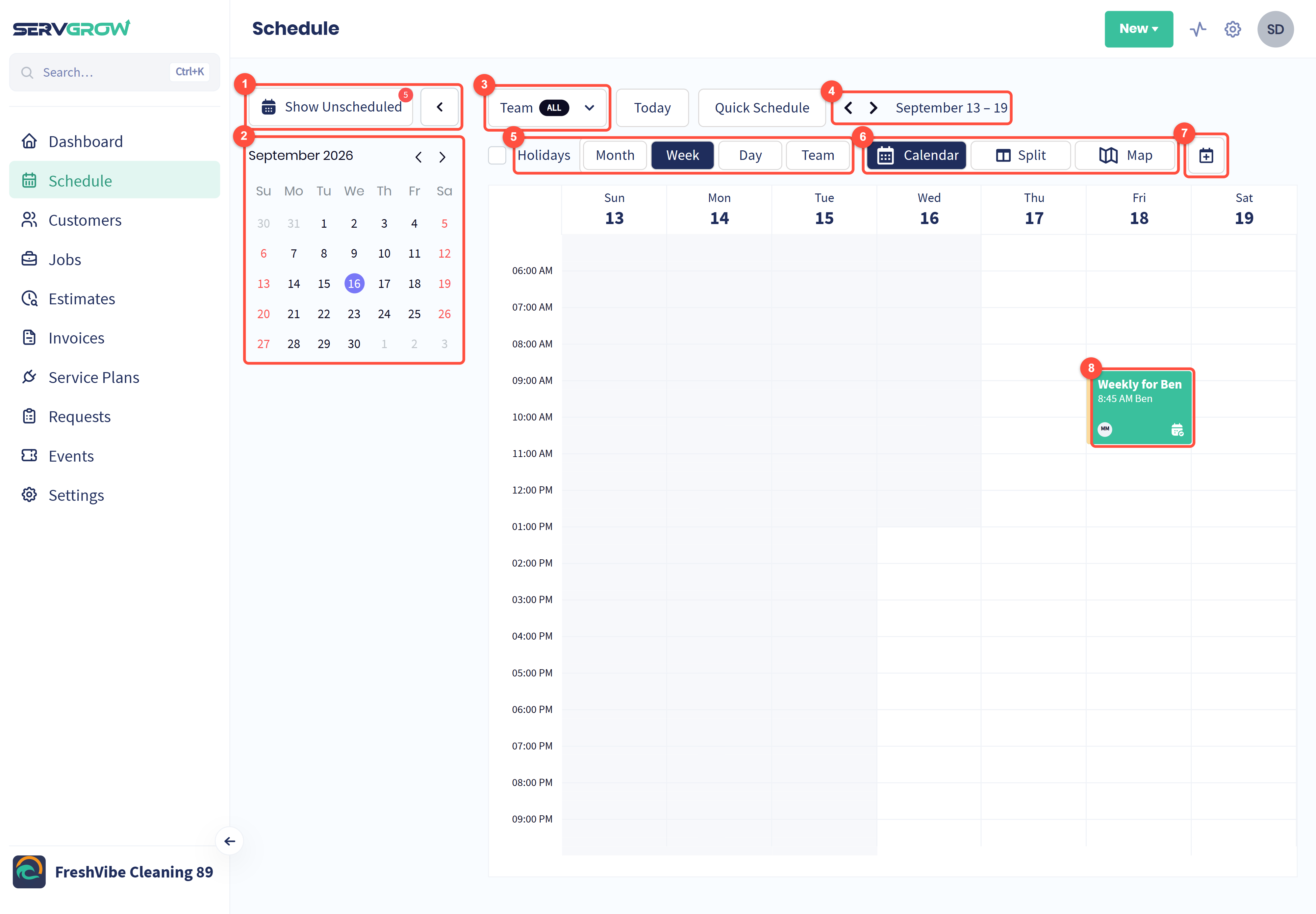
Show Unscheduled lists jobs and estimates that do not have a time yet. The red badge shows how many are waiting. The arrow next to it hides the small calendar to give the schedule more room.
Mini calendar: click a date to jump straight to that day.
Team: choose whose work to show.
Date range: use the arrows to move back and forward. Click Today to come back to the current date.
Holidays and the calendar views: Month, Week, Day and Team.
Calendar, Split and Map: show the calendar, the calendar next to a map, or the map on its own.
Calendar Sync: get a link that puts your Servgrow schedule in Google Calendar or Apple Calendar.
Each job or estimate is a tile showing its title, start time and customer, with the assigned team member's initials. Jobs show in green and estimates in blue. Click a tile to see its details.
In Week and Day views, times that have already passed are shaded.
Plan the month
Click Month to see the weeks ahead.
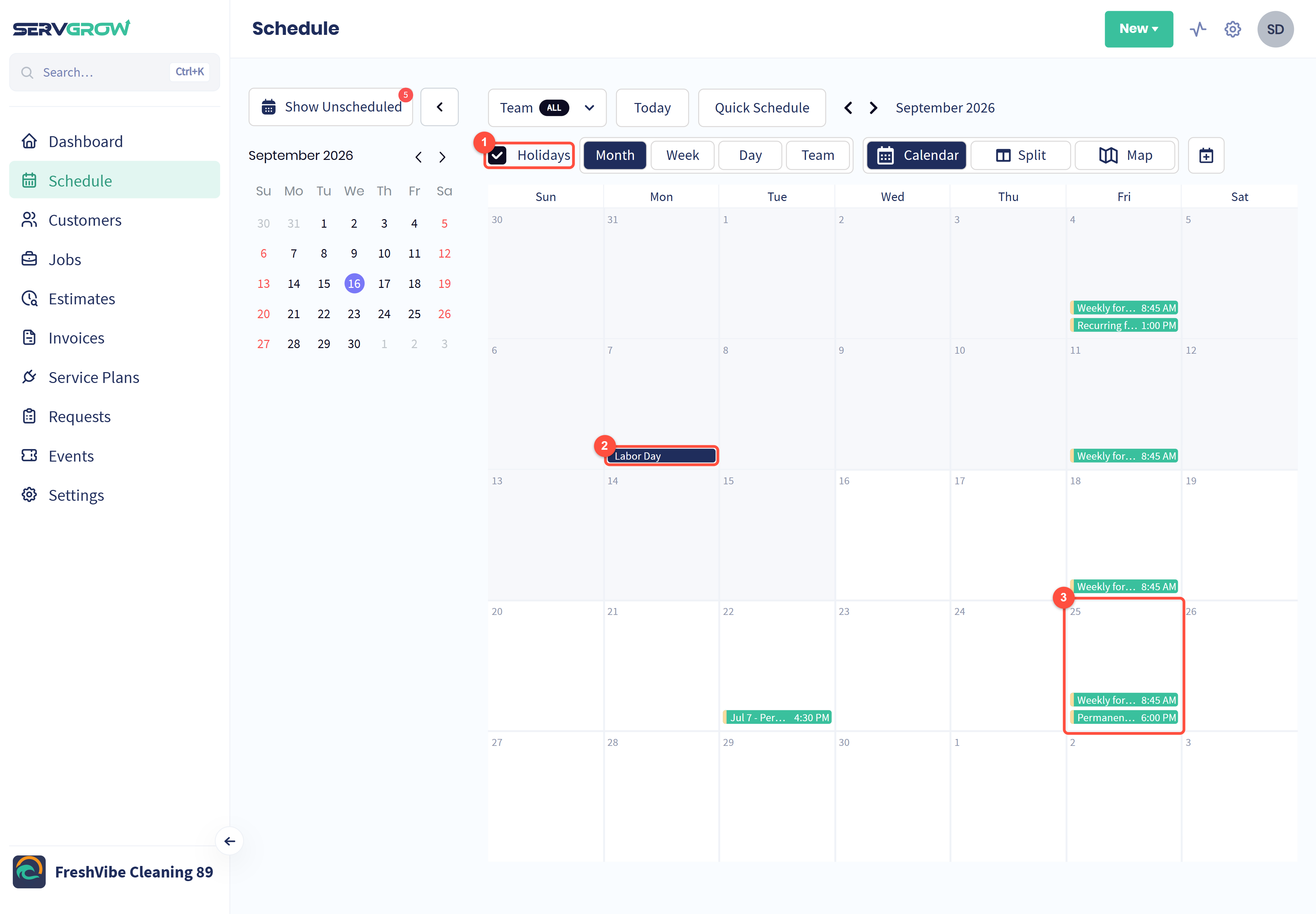
Tick Holidays to add public holidays to the calendar.
Holidays such as Labor Day appear on their date, so you do not book work on a day your team is off.
Each day lists its jobs and estimates with their start times. Busy days stand out at a glance.
See who is working with Team view
Click Team (next to Day) to see one day with a row for each team member.
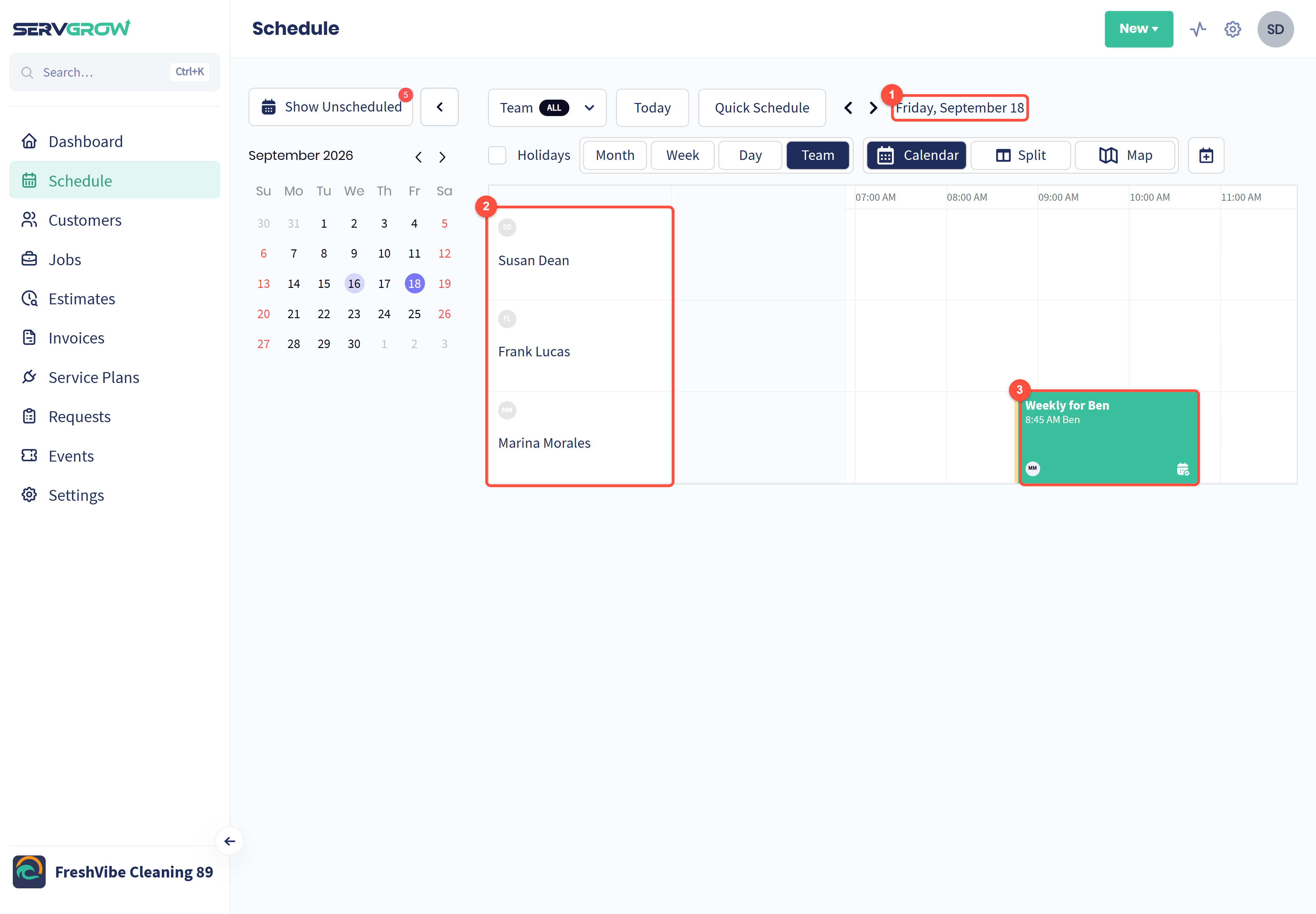
Move between days with the arrows next to the date.
Each team member gets their own row.
Their jobs line up along the hours of the day, so gaps and overbooked people are easy to spot. Scroll sideways to see the rest of the day.
Show one person's schedule
Click Team at the top left of the calendar.
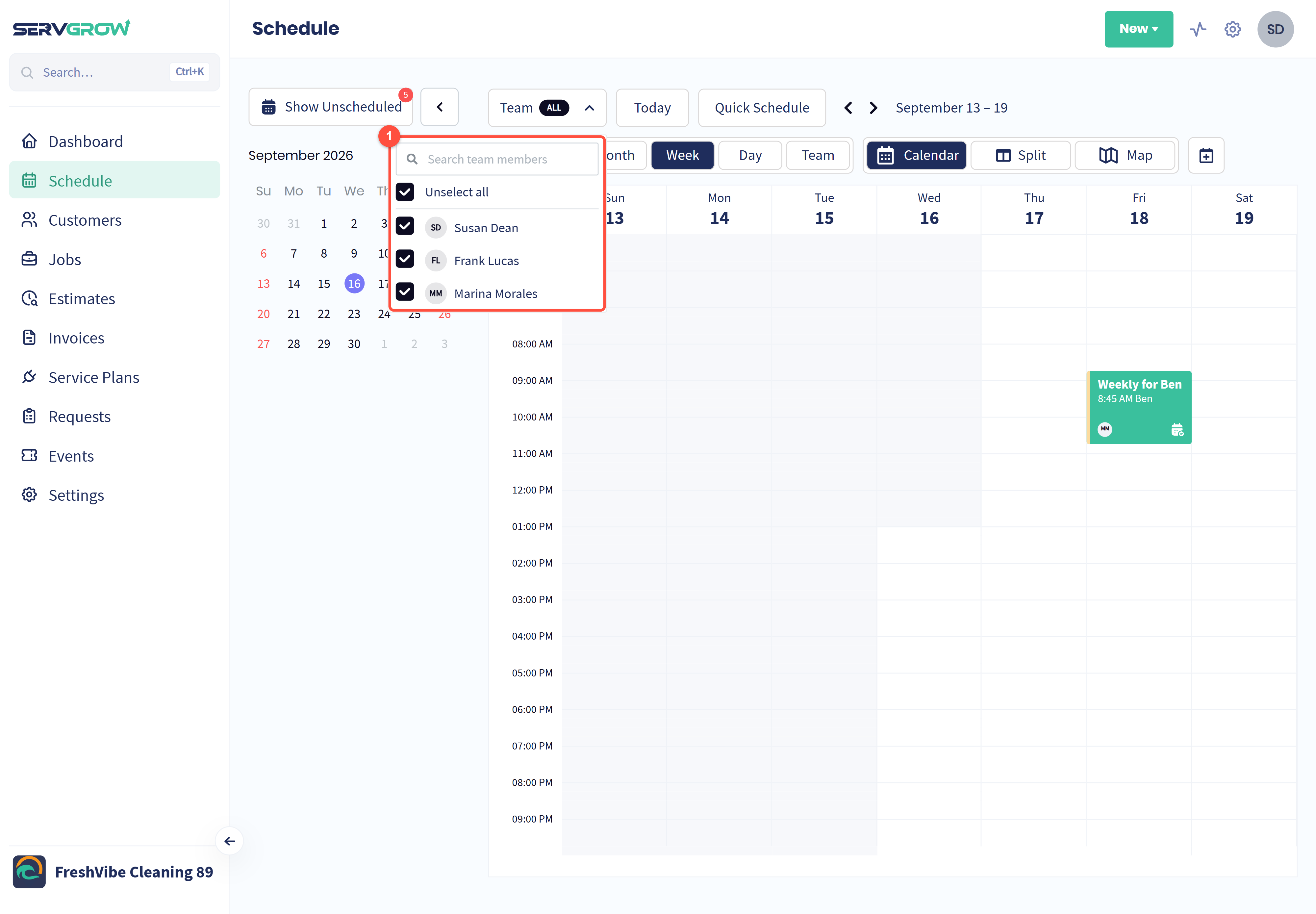
Search for a team member or tick just the people you want to see. Unselect all clears everyone so you can pick one person. The calendar only shows work assigned to the people you ticked.
Put the schedule on a map
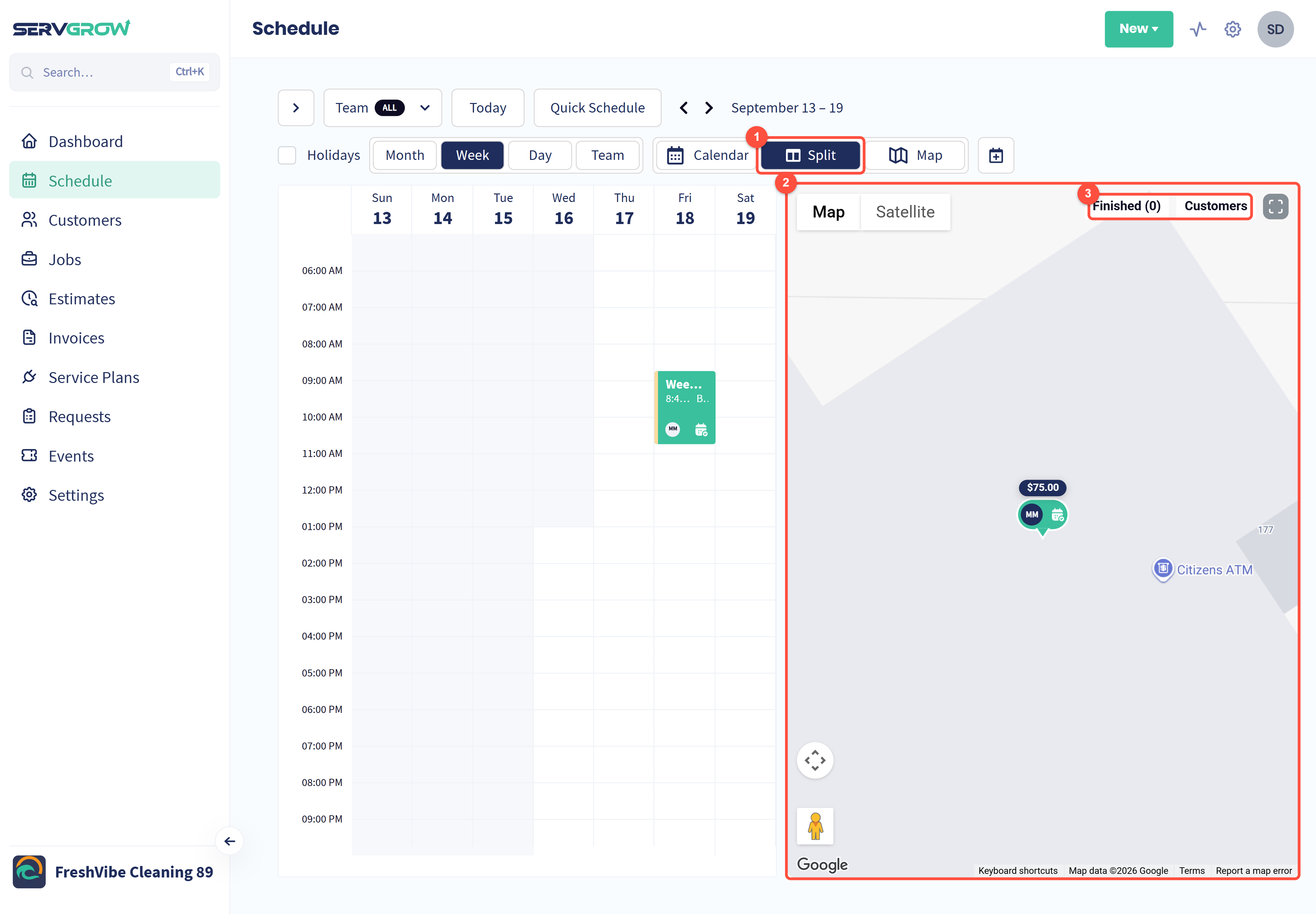
Click Split to show the calendar and a map side by side. Click Map for the map on its own, with the day's work listed next to it.
Each pin is a scheduled job or estimate, labelled with its price and the assigned team member's initials. Use it to keep a crew's visits close together.
Use Finished and Customers at the top of the map to add finished work and your customers' locations.
Click Calendar to go back to the full calendar.
Sync the schedule to your phone
Click the calendar button to the right of Map.
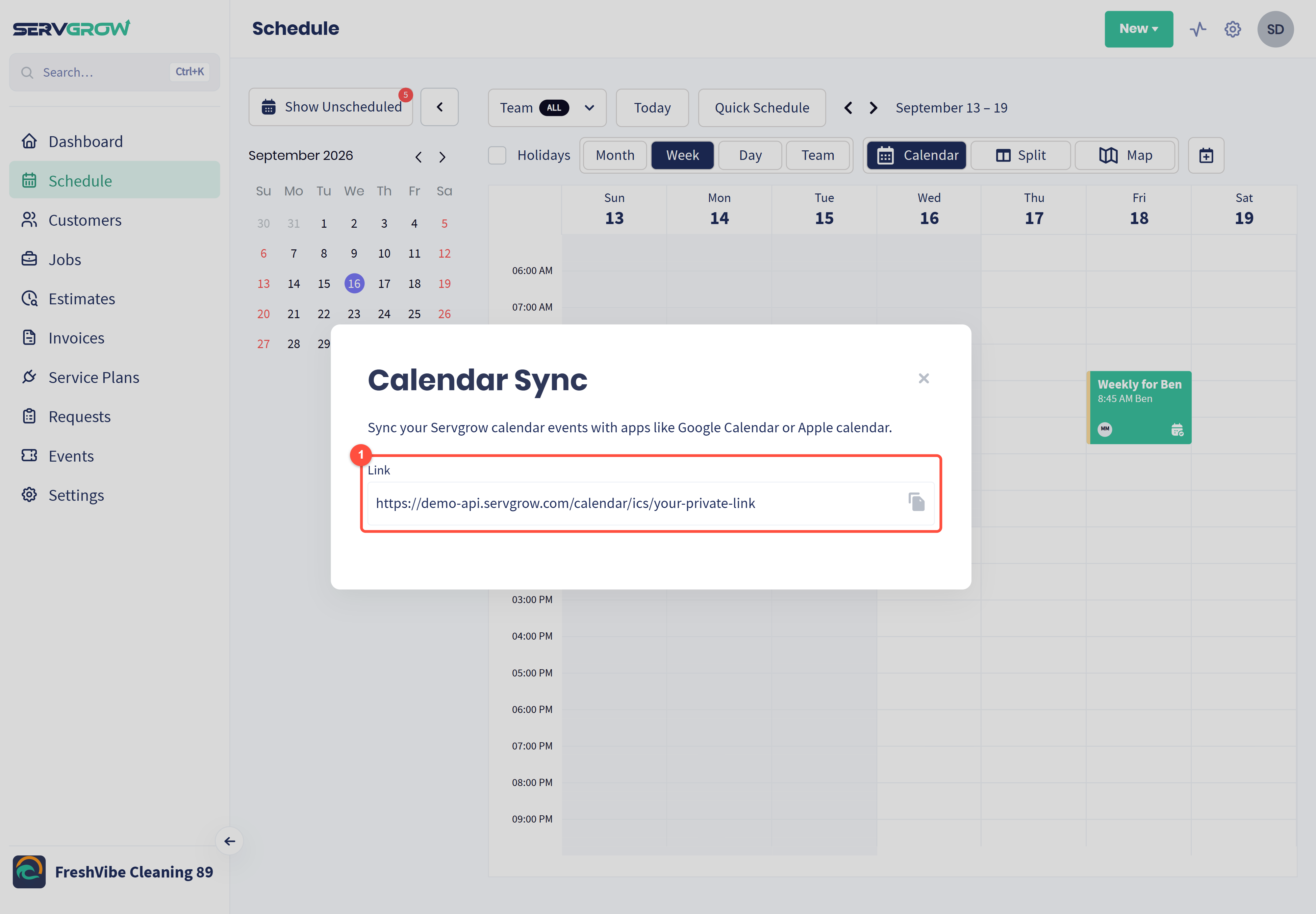
Click the copy button next to the Link, then add it to your calendar app. In Google Calendar, go to Other calendars, From URL. In Apple Calendar, choose File, New Calendar Subscription. Your Servgrow jobs and estimates then show up alongside your personal calendar.
Keep the link private. Anyone who has it can see your schedule.
Book a job in seconds with Quick Schedule
When a customer calls, you can book them without leaving the Schedule.
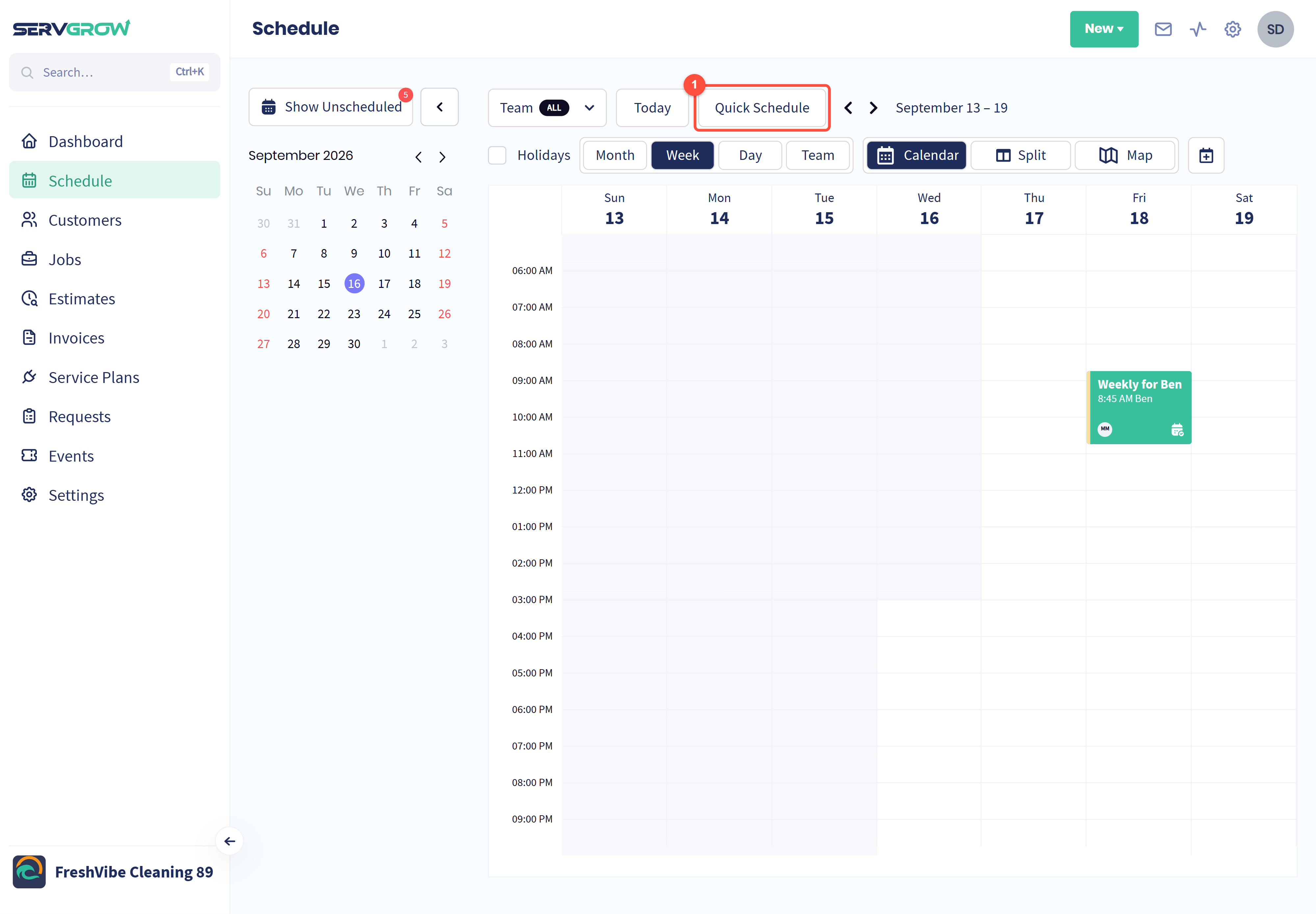
Click Quick Schedule, next to Today. A small card opens on top of the calendar where you pick the customer, the work from your price book, the team and the time.
Tick Show availability on the card to highlight the times your team is free, then click a time on the calendar to put the job there. Each team member's drive time shows next to their name, so you can send the person who is closest. See Quick Schedule: Book a Job or Estimate in Seconds for every option.
Book and move work from here
You can also click an open time to create a job or estimate, drag unscheduled work onto the calendar, or click a tile to reschedule it. See How to Schedule Jobs and Estimates for the step by step.
Tips
Start the day in Team view. You will see straight away who has a gap for an urgent call.
Check Show Unscheduled every week. That list is work you have already won that is not on anyone's calendar yet.
Use Split view when you plan routes. Jobs that are close on the map belong next to each other on the calendar.
Keep Show availability on when you take calls. Quick Schedule shows who is free, so you can offer a time that works before you hang up.
Related articles