
Dispatching from a list of addresses is guesswork. You cannot tell which jobs are close together, who is already working nearby, or which booked-but-unscheduled work sits right next to a tech's route. The result is crews crossing town twice, wasted fuel and fewer jobs done in a day.
The Map view on your Schedule puts the whole day on one map: every scheduled job, who is doing it, and every piece of work that still needs a time. In a glance you can see where your team will be, group nearby work, and make changes straight from the pin. Less driving means more jobs per day, lower fuel costs and techs who arrive on time.
Open the map
Click Schedule in the left menu, then click Map.
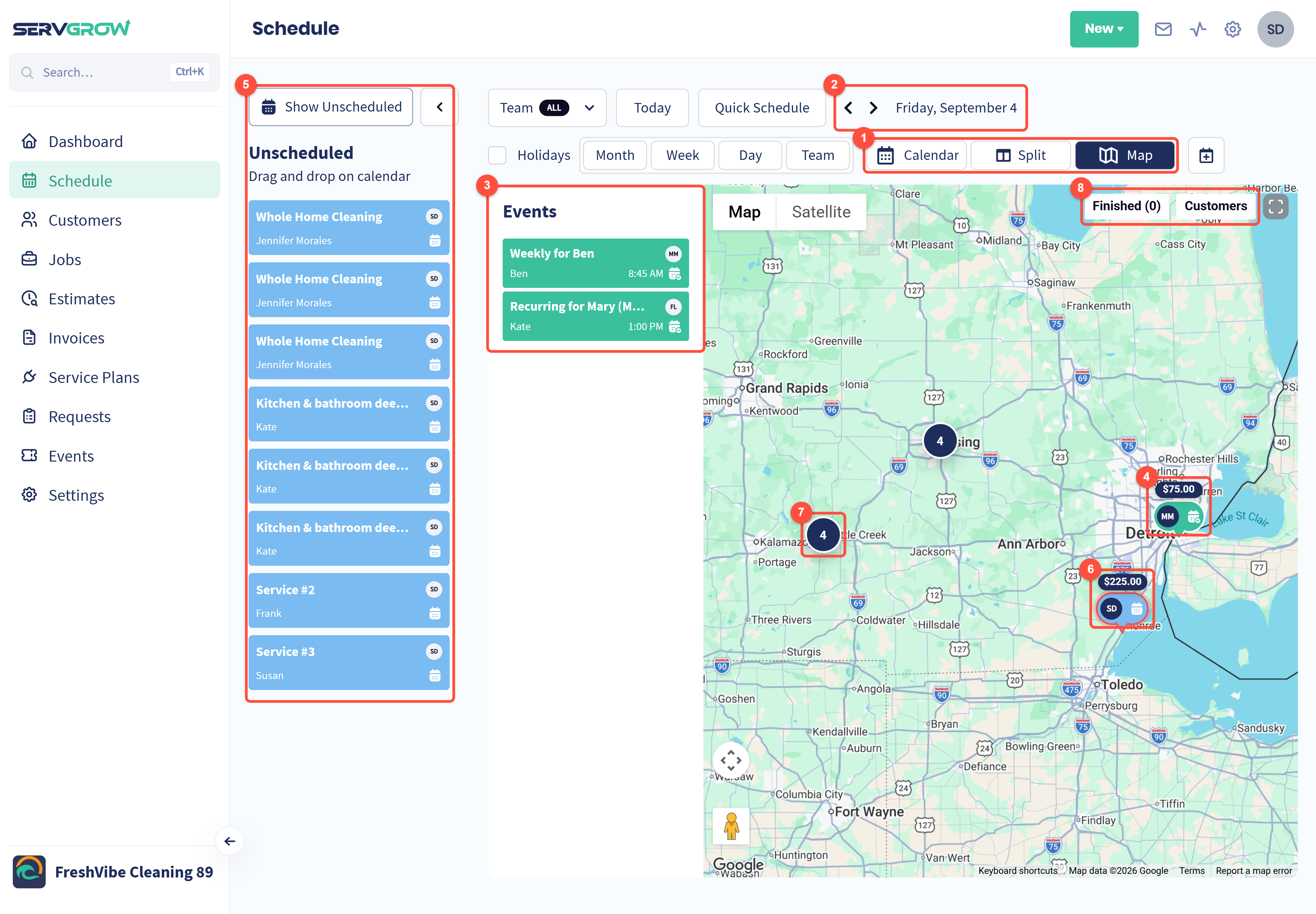
Calendar, Split and Map: Split shows the calendar and the map side by side, Map gives the map the whole page.
The map shows one day. Use the arrows to move between days, or click a date in the small calendar.
Events: the day's scheduled work in time order. The initials show who is doing each job.
Each scheduled job is a pin with its price and the assigned team member's initials.
Show Unscheduled opens the list of work that has no date yet and adds it to the map.
Unscheduled work shows as a pin with a red outline, so you can see how close it is to where your team is already working.
A number means several pieces of work are close together. Click it to see them all.
Finished adds the day's finished work to the map, and Customers adds your customers' locations.
See a job's details
Hover over a pin.
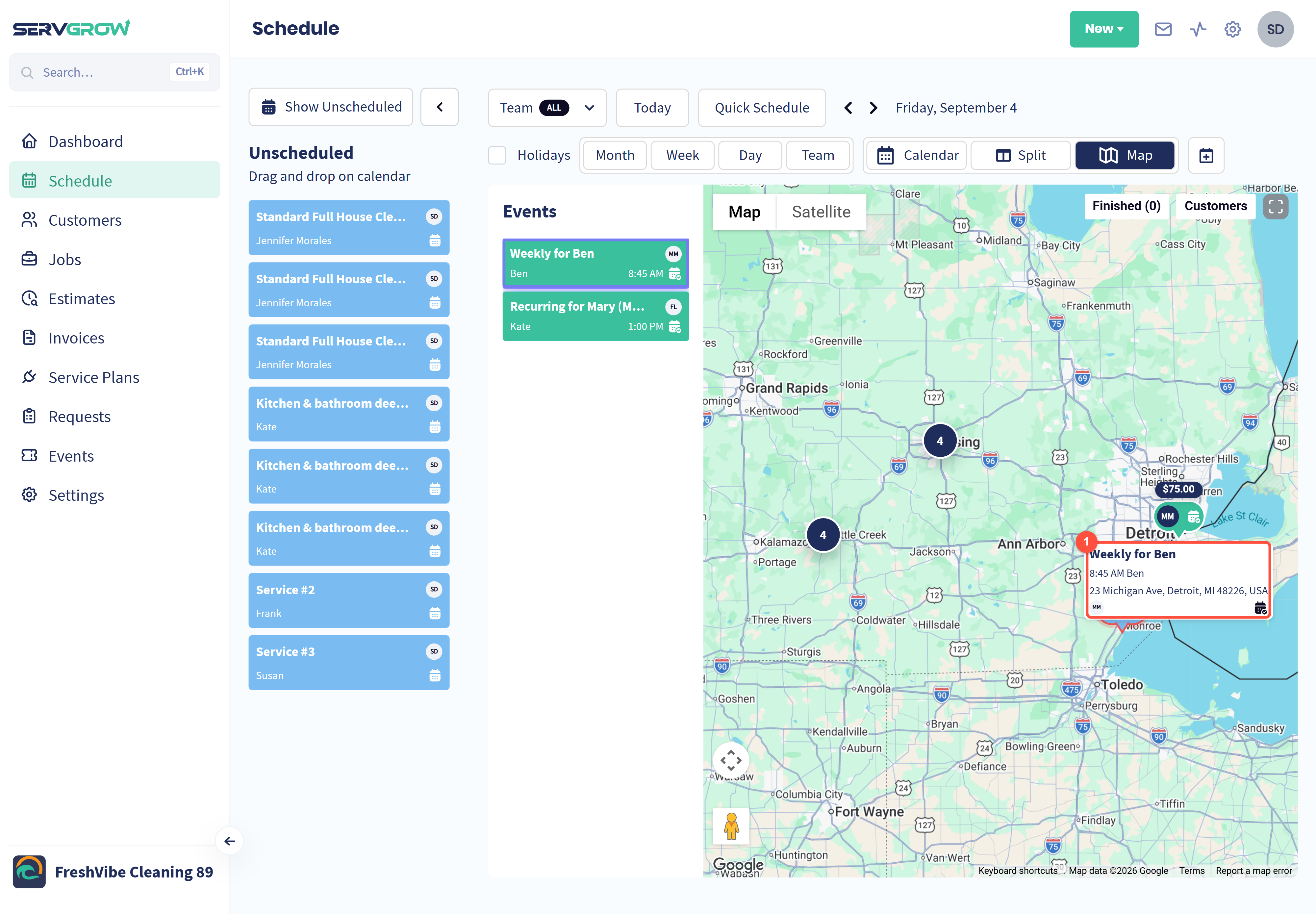
A card shows the job, its time, the customer, the address and who is assigned. The job is also highlighted in the Events list.
Make changes from the pin
Click a pin to open its panel.
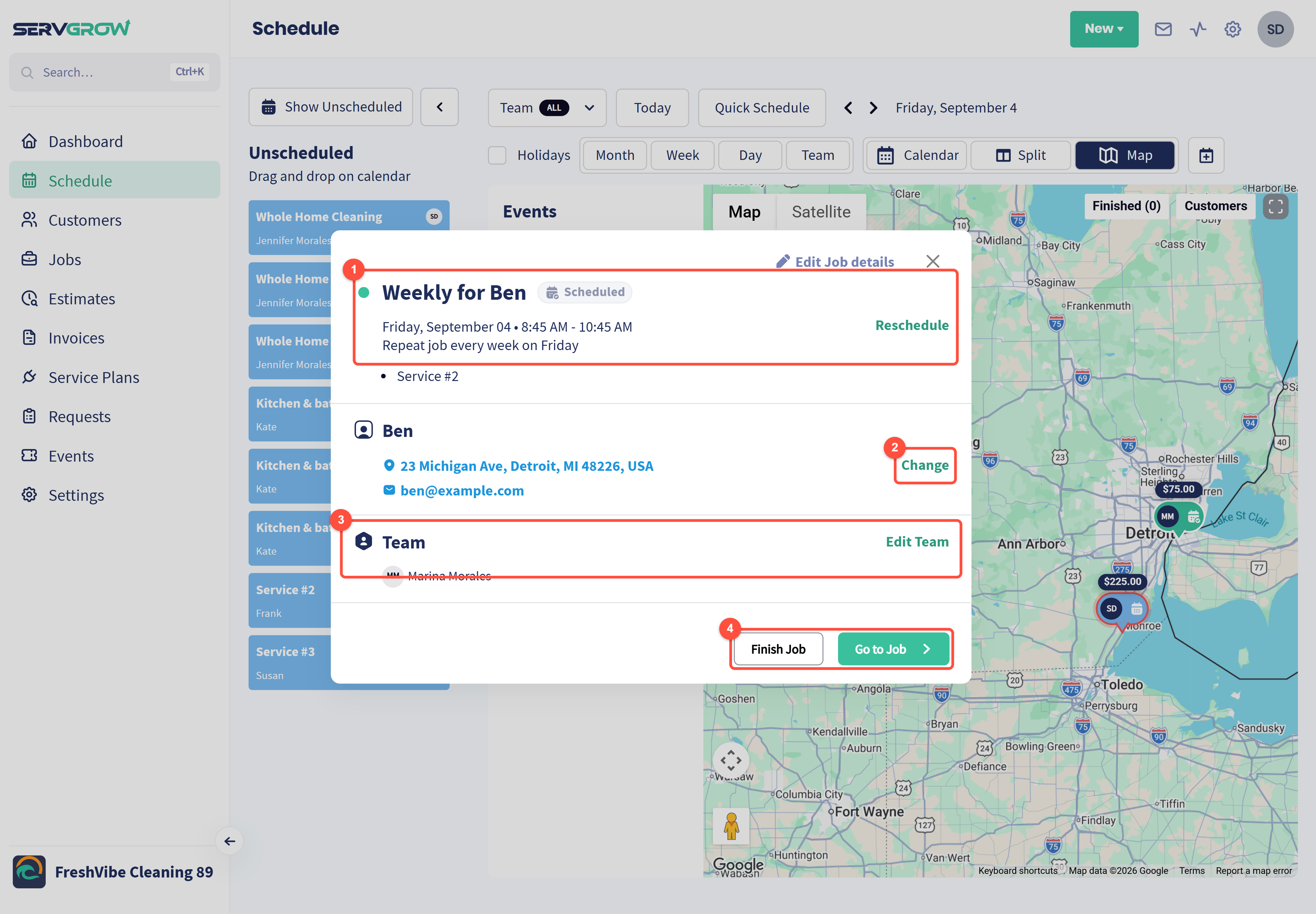
The job, its status, date and time, and whether it repeats. Click Reschedule to move it to another day or time.
Change: pick a different property for the customer.
Team: who is doing the job. Click Edit Team to send someone else.
Finish Job marks the work done. Go to Job opens the full job page.
Click Edit Job details at the top to change anything else.
Open a busy area
Click a number on the map.
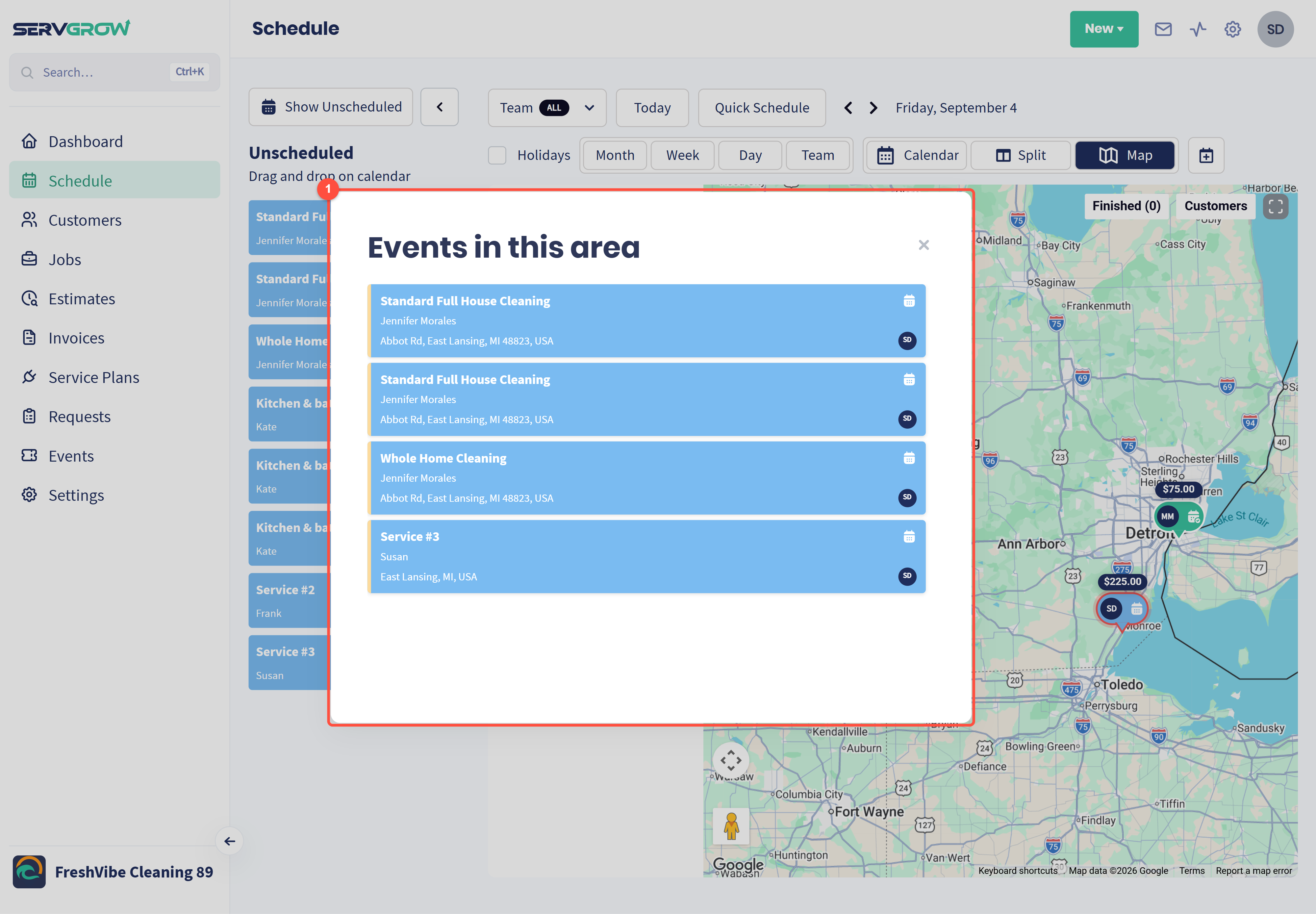
Events in this area lists everything in that spot with its customer, address and team member. Click any of them to open its panel.
See one tech's day
Click Team at the top, click Unselect all, then tick the team member you want to see.
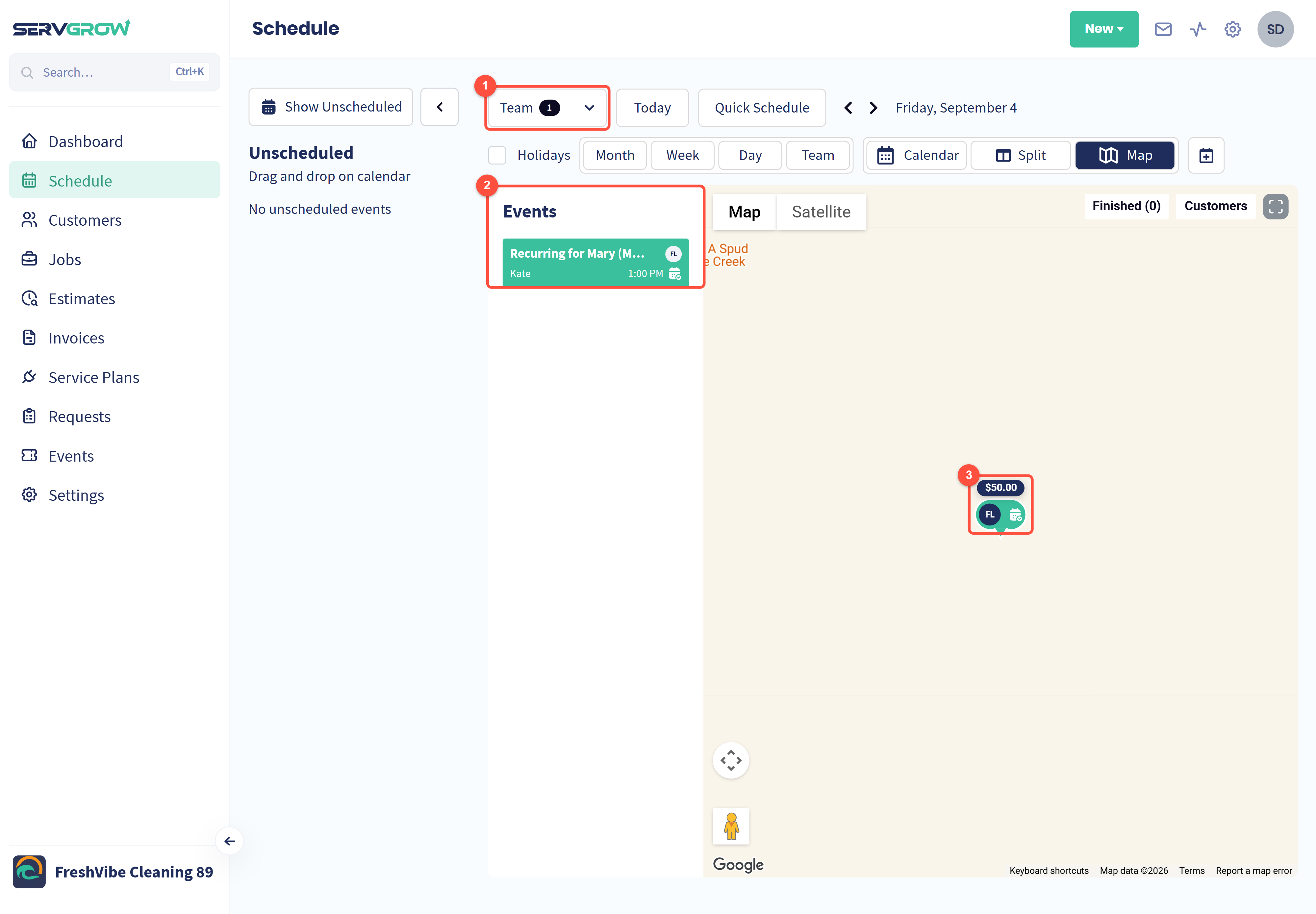
The number next to Team shows how many people you are looking at.
The Events list and the Unscheduled list only show that person's work.
The map only shows their pins, so you can see exactly where they will be.
Tick Select all to bring everyone back.
Plan routes
Under Settings, Routing, you can turn on routing for the map. It plans efficient routes for your team, lets you drag work into a different order, and uses start and end addresses you set.
Tips
Check the map before you book. Unscheduled work next to a tech's existing job is the easiest win of the day.
Look one day at a time. Tomorrow's map at the end of today is the best time to spot gaps and long drives.
Use Split view while you move work around. You see the times and the locations together.
Related articles