
Every extra mile between jobs is fuel you pay for and time nobody bills. Route optimization puts each crew's day in a sensible driving order, shows how long every drive takes, and warns you before a crew is booked into two places it cannot get between. Each employee and crew gets a route of its own, on the web and in the mobile app, so the whole team stays in sync as the day changes.
Routing is available on select plans. See current plans at servgrow.com/pricing.
Set up routing
Click Settings, then Schedule (Customize schedule cards, calendar and routing).
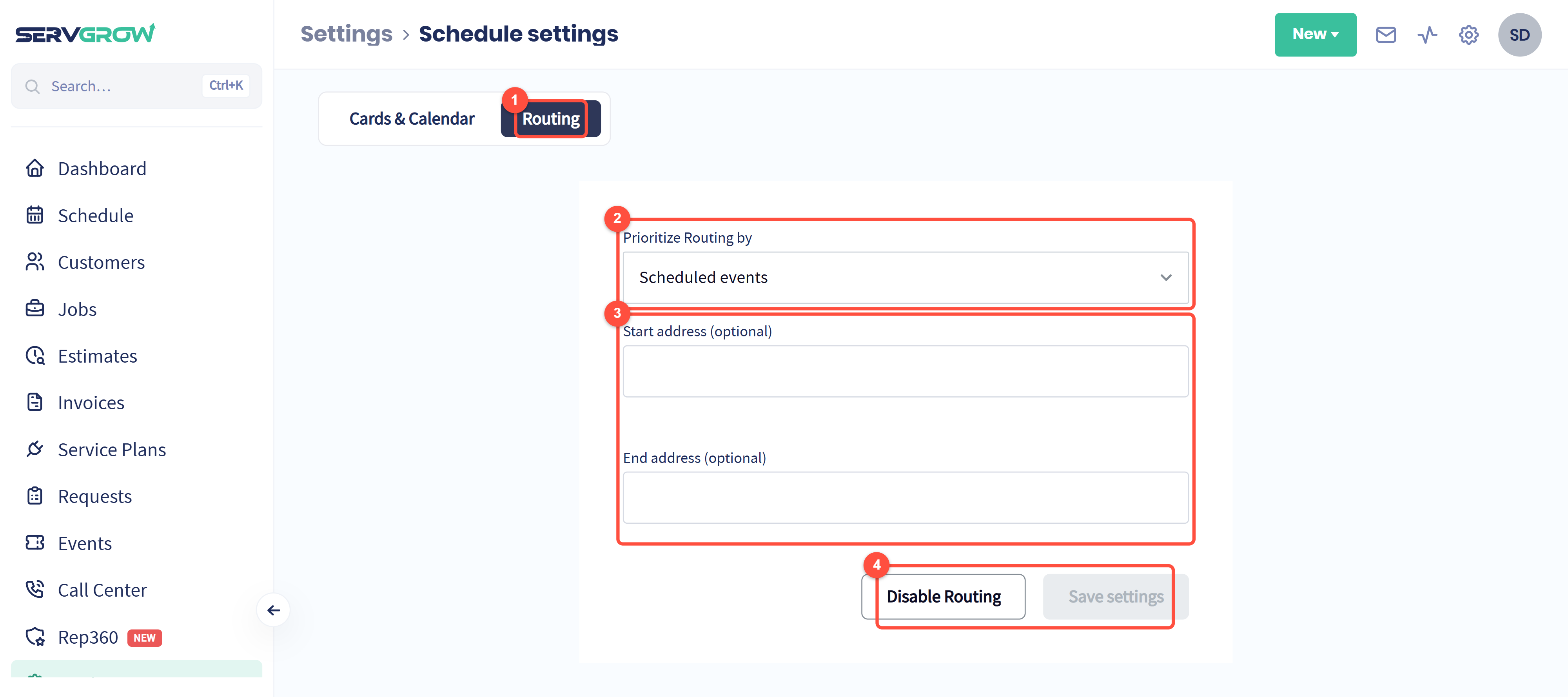
Open the Routing tab. If routing is not on yet, this is where you turn it on.
Prioritize Routing by: what the route is built around.
Scheduled events: jobs and estimates with a set time, in time order.
Anytime events: work with no set time, ordered by where it is.
Both (timed and anytime events): the timed work, with anytime work fitted in around it.
Start address and End address (both optional): where the day begins and ends, usually your shop or yard. Leave them empty if crews go straight from home to the first job.
Save settings once you change something. Disable Routing turns it off again.
See the day's routes on the map
Click Schedule, then Map. A route is built for today and the next 14 days, so it is ready before you open it.
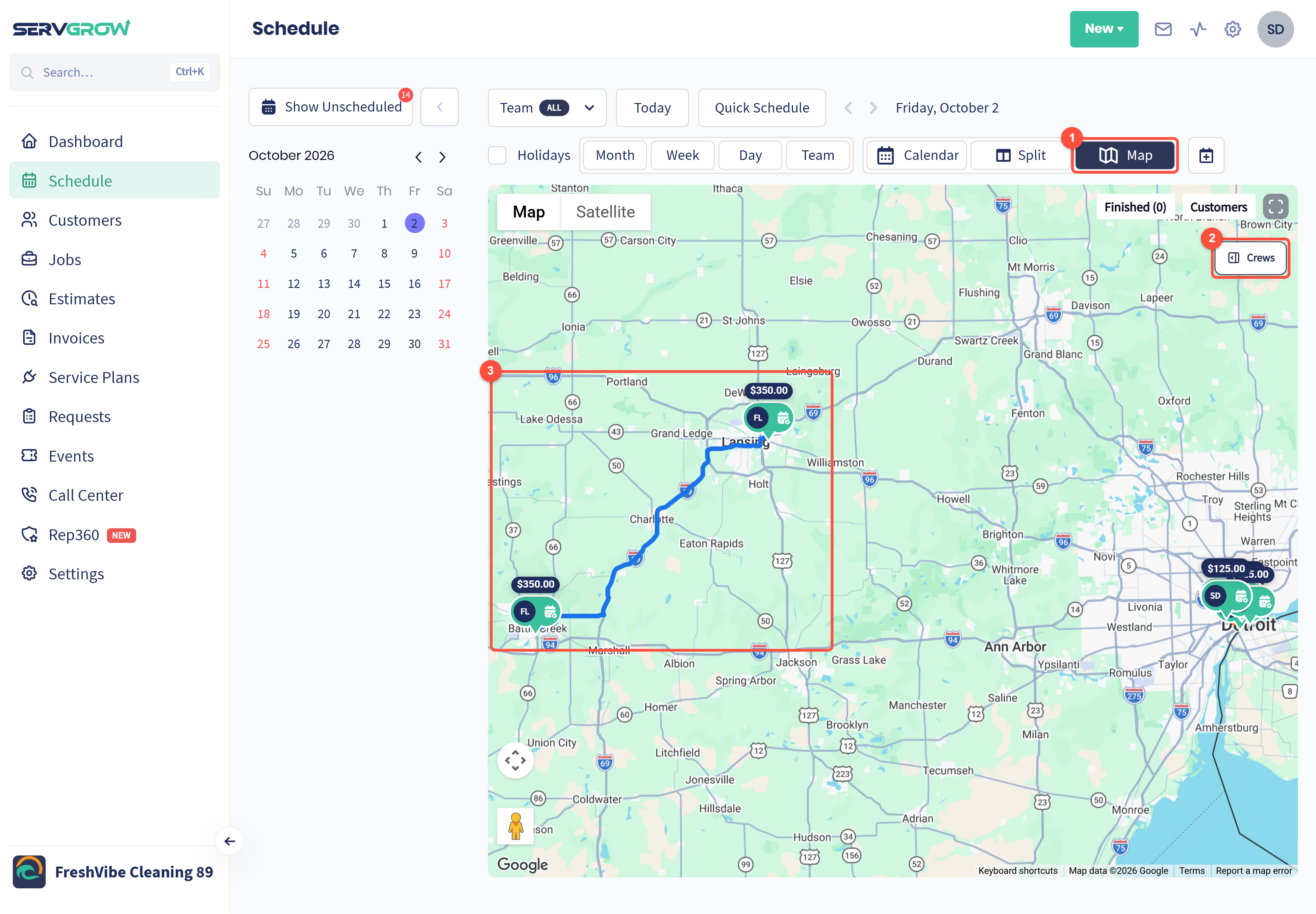
Map switches the schedule to the map.
Crews opens the route for every crew (next section).
Each crew's route is drawn as a line from stop to stop, so a long drive stands out at a glance.
Check and optimize each crew's route
Click Crews.
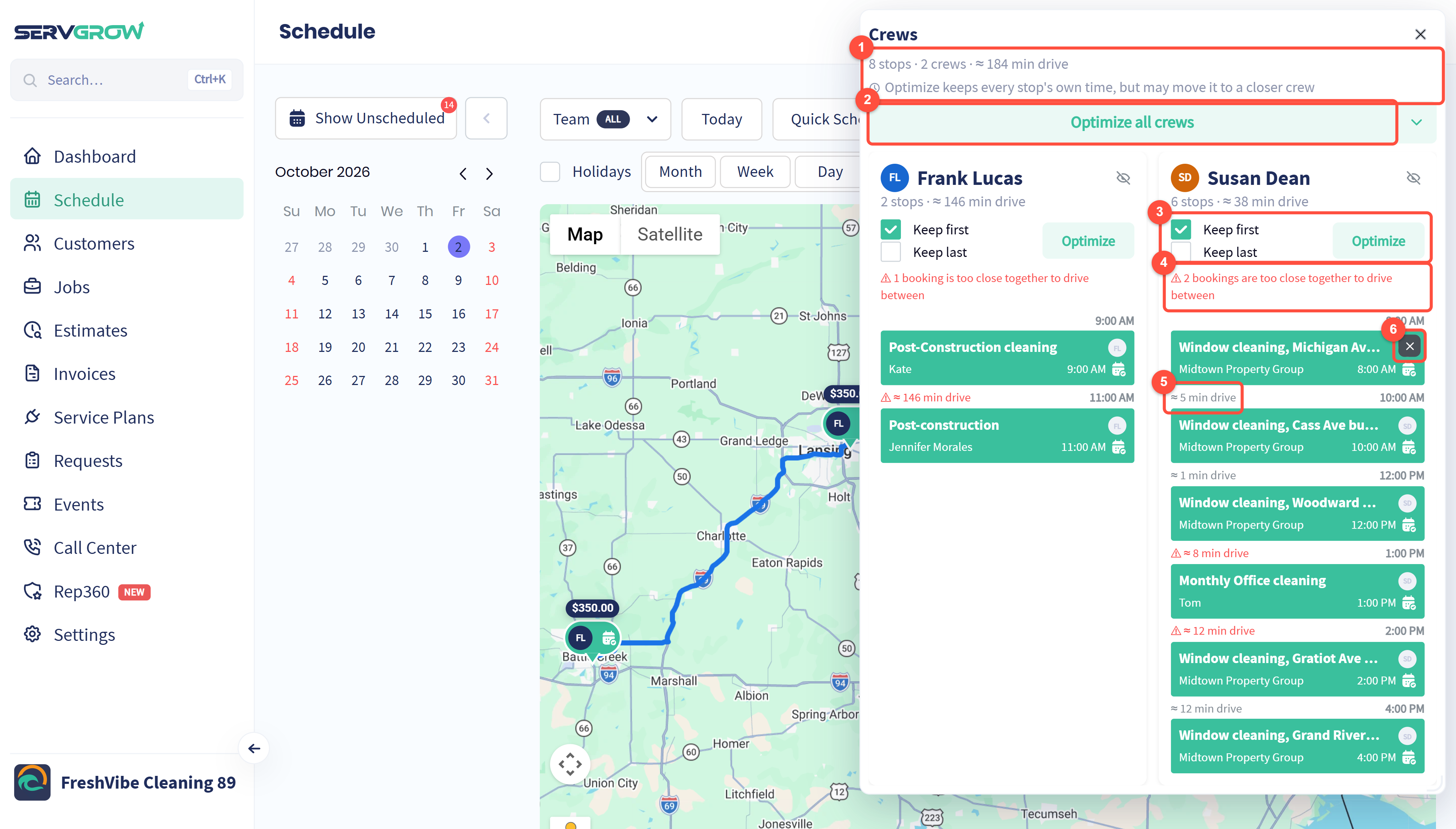
The day at a glance: how many stops, how many crews and the total drive time. The note underneath is the one rule to remember: optimizing keeps every stop's own time, but may move it to a closer crew.
Optimize all crews works out every crew's route in one go.
Each crew has its own column with its stops and drive time. Optimize does just that crew. Tick Keep first to leave the first stop where it is (the job they always start the day at), and Keep last to do the same for the last one.
A red warning means bookings are too close together to drive between. Fix the time or move one to another crew before the customer is the one who finds out.
Between stops you see the drive time. It turns red with a warning sign when the gap in the schedule is shorter than the drive.
Hover over a stop and click the cross to take it off the route.
Stops you take off, and any booked work that is not on a route yet, are listed under Scheduled Events at the bottom of the panel. Click + on one to add it to its crew's route, or drag it onto a crew. The eye icon beside a crew's name hides that crew so you can focus on the rest. Past days are shown without a route.
Start a day's routes over
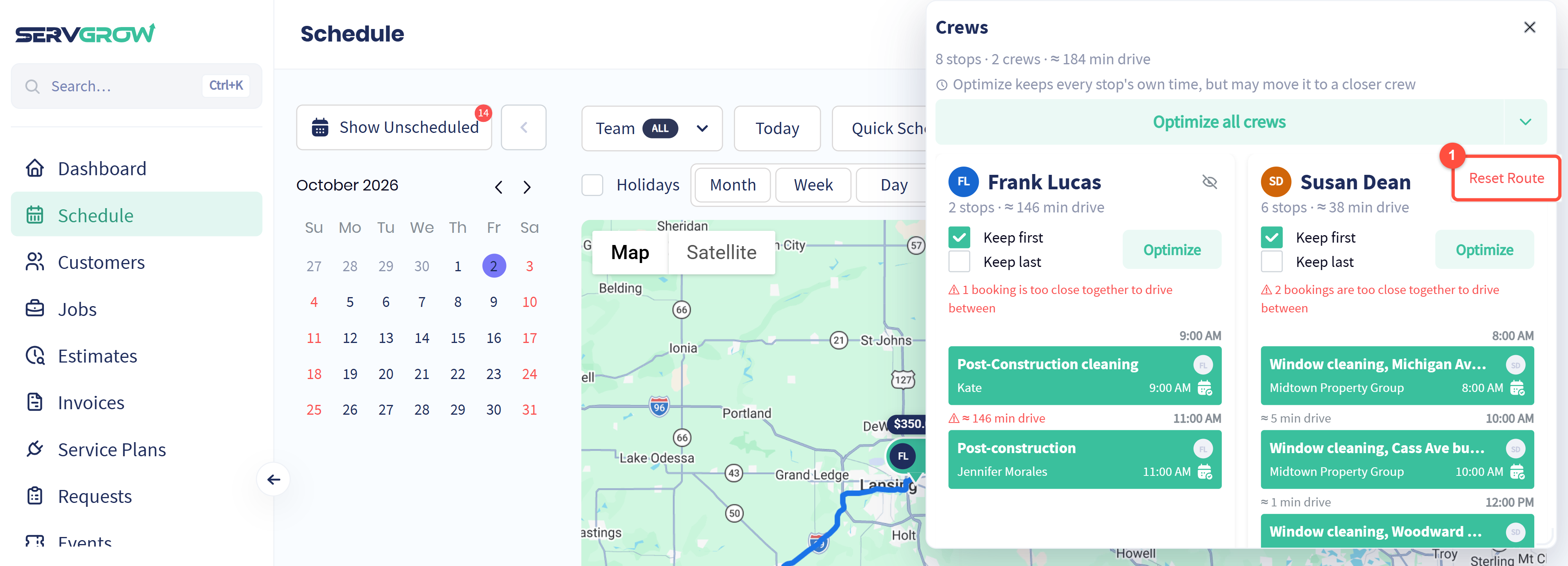
Click the arrow beside Optimize all crews and choose Reset Route to throw away the changes you made to the day's routes and start them fresh.
What your crews and customers see
In the mobile app, each tech sees their own route for the day, in the same order as on the web.
The On My Way text includes an arrival estimate based on the real drive time to the customer's door, so fewer customers call to ask where you are.
When you book work, Quick Schedule shows how far each team member would drive to get there, so you can send the closest one.
Tips
Check Crews the afternoon before. Red warnings are easy to fix the day before and painful at 8am.
Set a start address if your crews leave from the shop, so the drive to the first job is part of the plan.
Use Keep first for fixed starts. A crew that always opens a site or picks up supplies keeps that stop first while the rest is reordered.
Look for crews crossing paths. Two lines that overlap on the map usually mean one stop belongs to the other crew.
Related articles