
Not every job fits in an afternoon. A strip and wax, a big install or a two-day clean runs past the end of the day, and if your system only understands single visits, that work ends up booked as a guess, split across entries nobody can follow, or written on a whiteboard.
Servgrow books a job straight across the days it needs. The whole job sits on your calendar as one bar, so everyone can see it is still running, and nobody double-books that crew. When you pick who goes, Servgrow also shows how long each person would spend driving to the customer, so the job goes to whoever is closest instead of whoever comes to mind.
Book a job that runs over several days
Click Jobs, then Add Job, and pick your customer. On Schedule time, click an open time on the calendar to open Schedule Details.
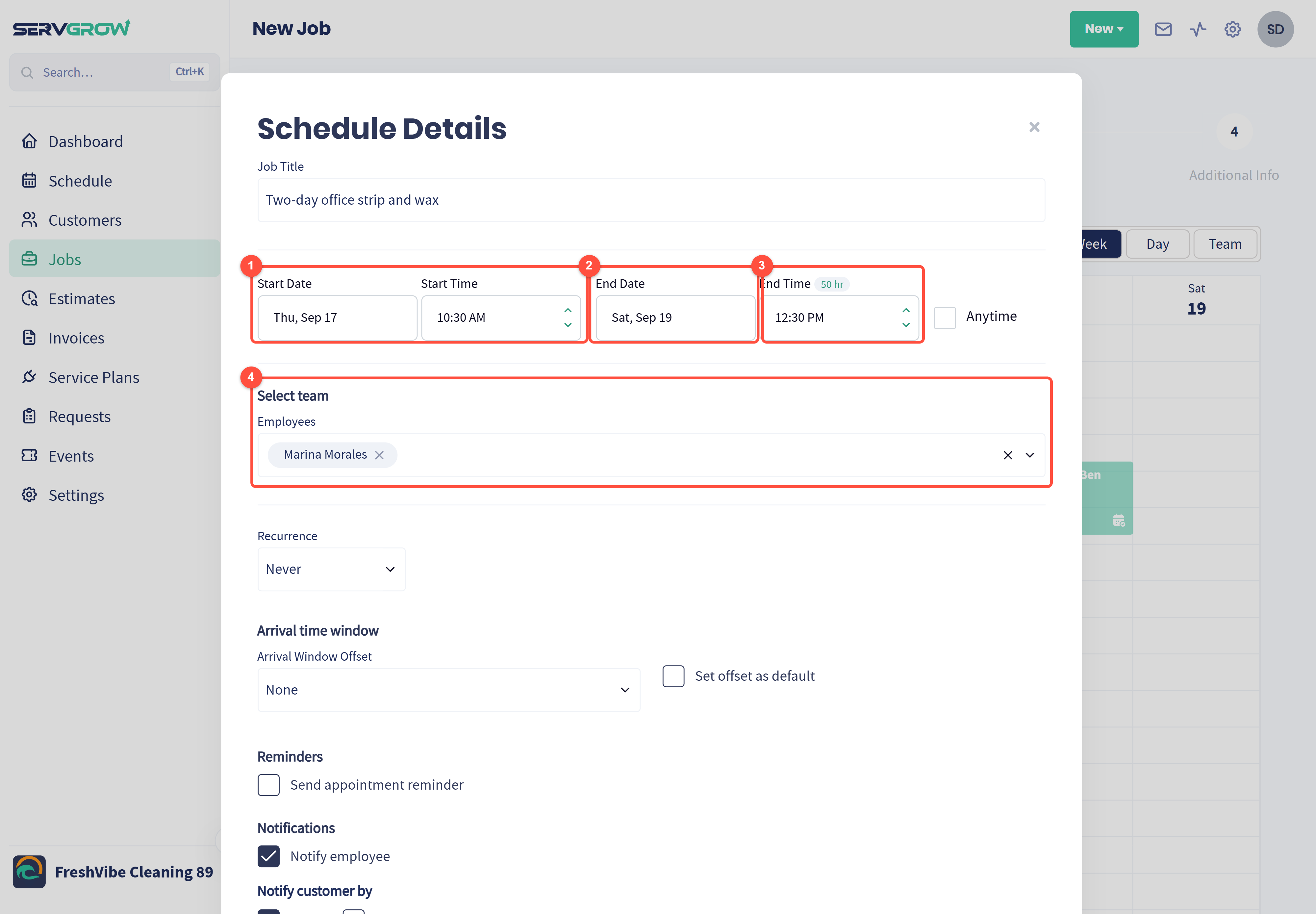
Start Date and Start Time: when the crew arrives on the first day.
End Date: click it and pick the day the work finishes. This is the only thing that makes a job multi-day.
End Time and the badge next to it: the badge shows how long the whole booking runs. Thursday 10:30 AM to Saturday 12:30 PM shows as 50 hr.
Select team: everyone who is on the job for those days.
Click Schedule Job.
How it looks on the calendar
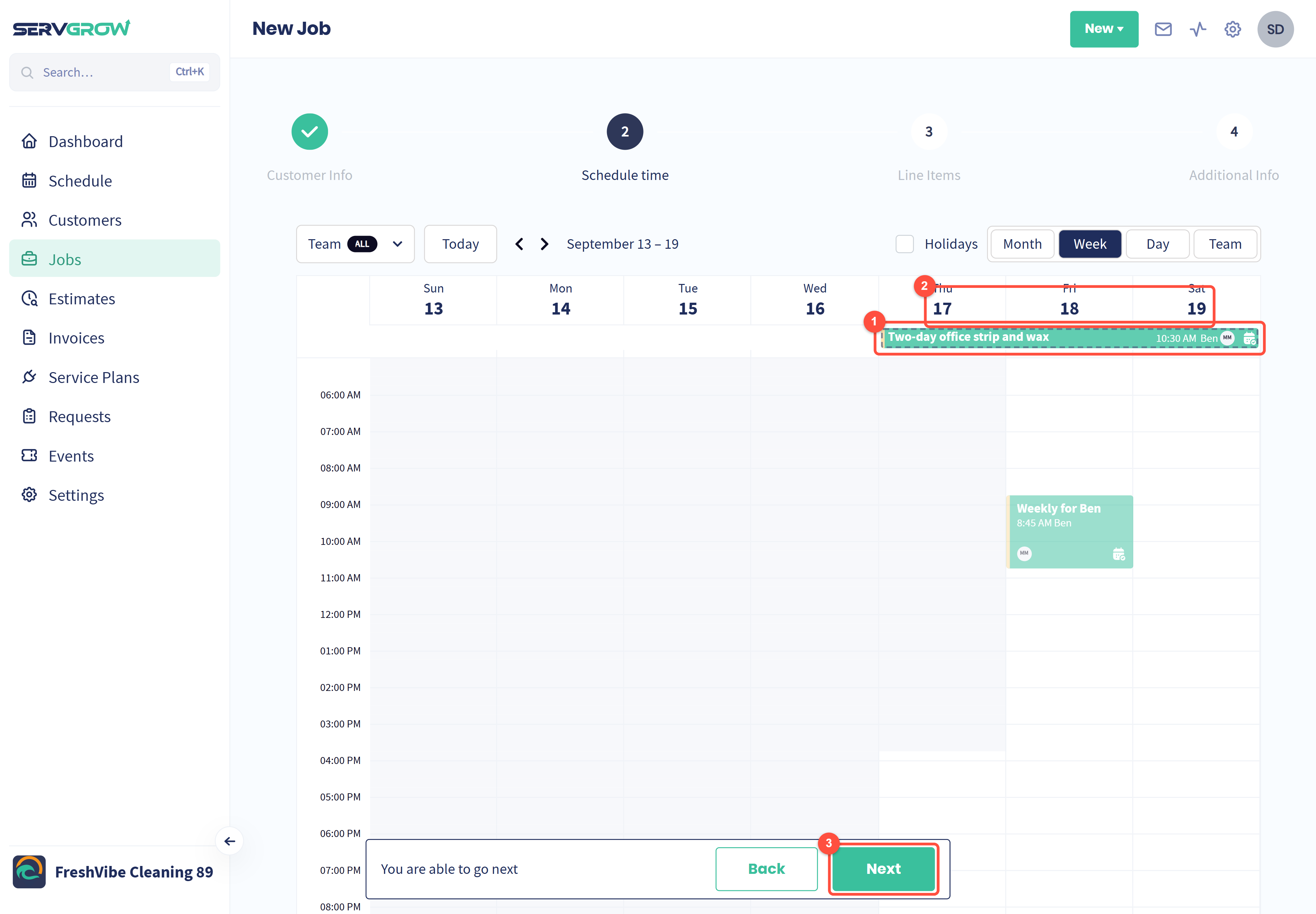
The job becomes one bar with its title, start time, customer and the assigned team member's initials.
The bar runs across every day the job covers, in the strip above the hours, so a two-day job is never mistaken for a two-hour one.
Click Next to add your line items and finish creating the job.
To change the dates later, open the job and click the calendar icon on the Schedule step of the progress bar, or drag the job to a new slot on your Schedule.
Drive time: send whoever is closest
On your Schedule, click Quick Schedule, pick the customer, then click + Assign team members.
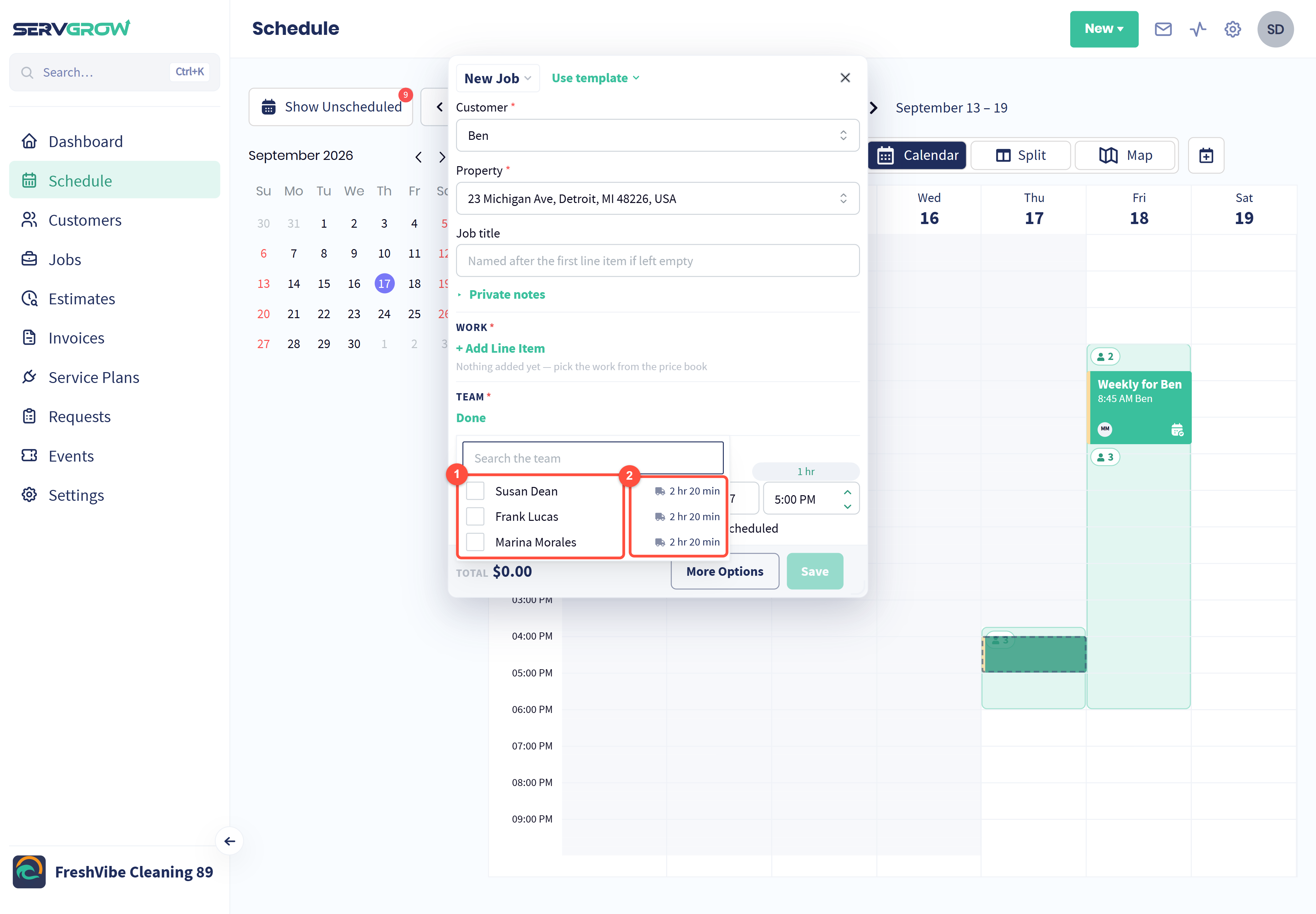
Tick whoever is doing the work.
The time next to each person is how long they would drive to this customer, measured from their earlier job that day, or from your company's start point when they have nothing booked before it.
Drive times appear once you have picked the customer. Sometimes you see a short note instead of a time, for example when the address is not on the map yet or the job falls outside your service area.
Travel time while the job runs
Drive time before you book is an estimate. The real time is recorded on the job: clicking OMW starts travel tracking, and clicking Start stops travel tracking and starts timing the work itself. See Jobs 101: From Scheduling to Getting Paid.
Routes for the whole day
Click the gear icon, then Routing.
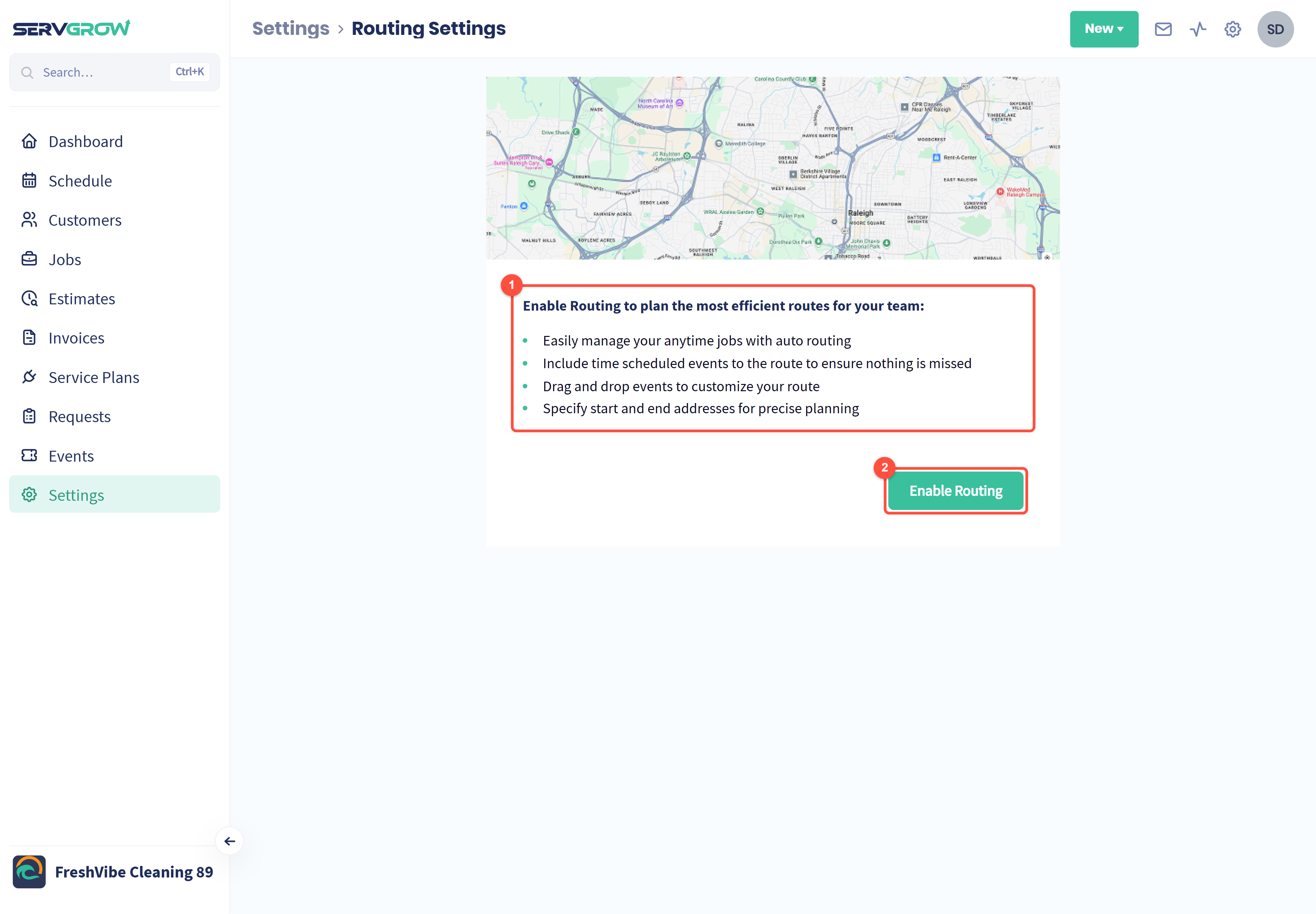
Routing plans the most efficient order for the day, adds your timed jobs to the route, lets you drag jobs into a different order and uses start and end addresses you set.
Click Enable Routing to turn it on for the map on your Schedule.
Tips
Set the end date before you pick the team. Then you are choosing people who are free for the whole job, not just the first morning.
Check the drive times before you assign. Ten minutes saved on every job adds up to an extra job most weeks.
Use the map for the day around it. Long jobs anchor a crew in one area, so fill the days around them with nearby work.
Related articles