
When a customer calls to book, every extra screen is a chance to lose them. Long forms slow you down, and guessing who is free often means a callback later to move the visit.
Quick Schedule puts a small booking card right on top of your Schedule. Pick the customer, add the work from your price book, choose who goes and pick a time, all in one place. While you book, Servgrow shows you when your team is free and how far each person would have to drive. Most jobs are booked in under a minute, while the customer is still on the phone.
Where to find it
Click Schedule in the left menu.
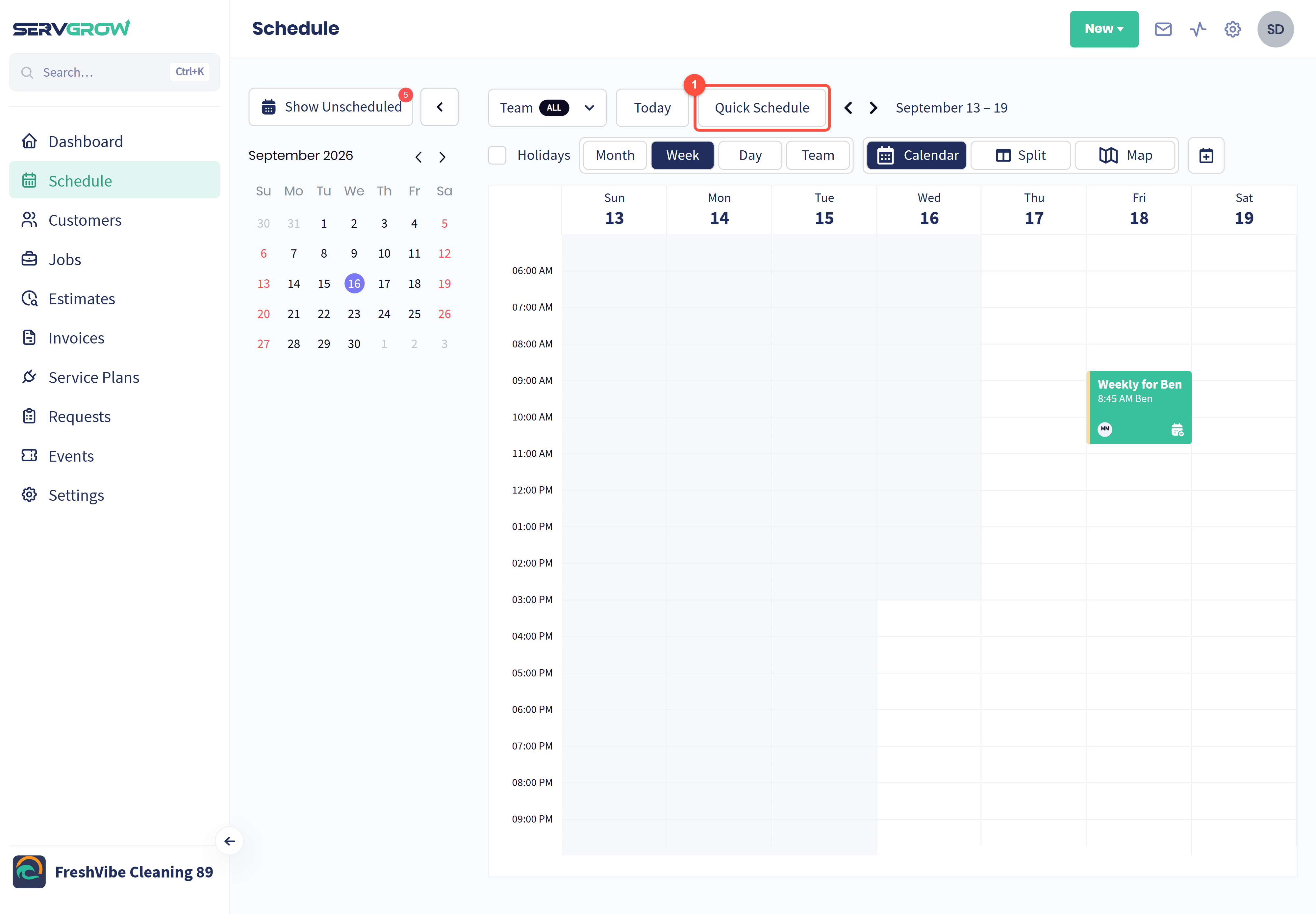
Click Quick Schedule, next to Today.
You see the button if your role can create jobs and see prices. If it is missing, ask your account admin.
Fill in the card
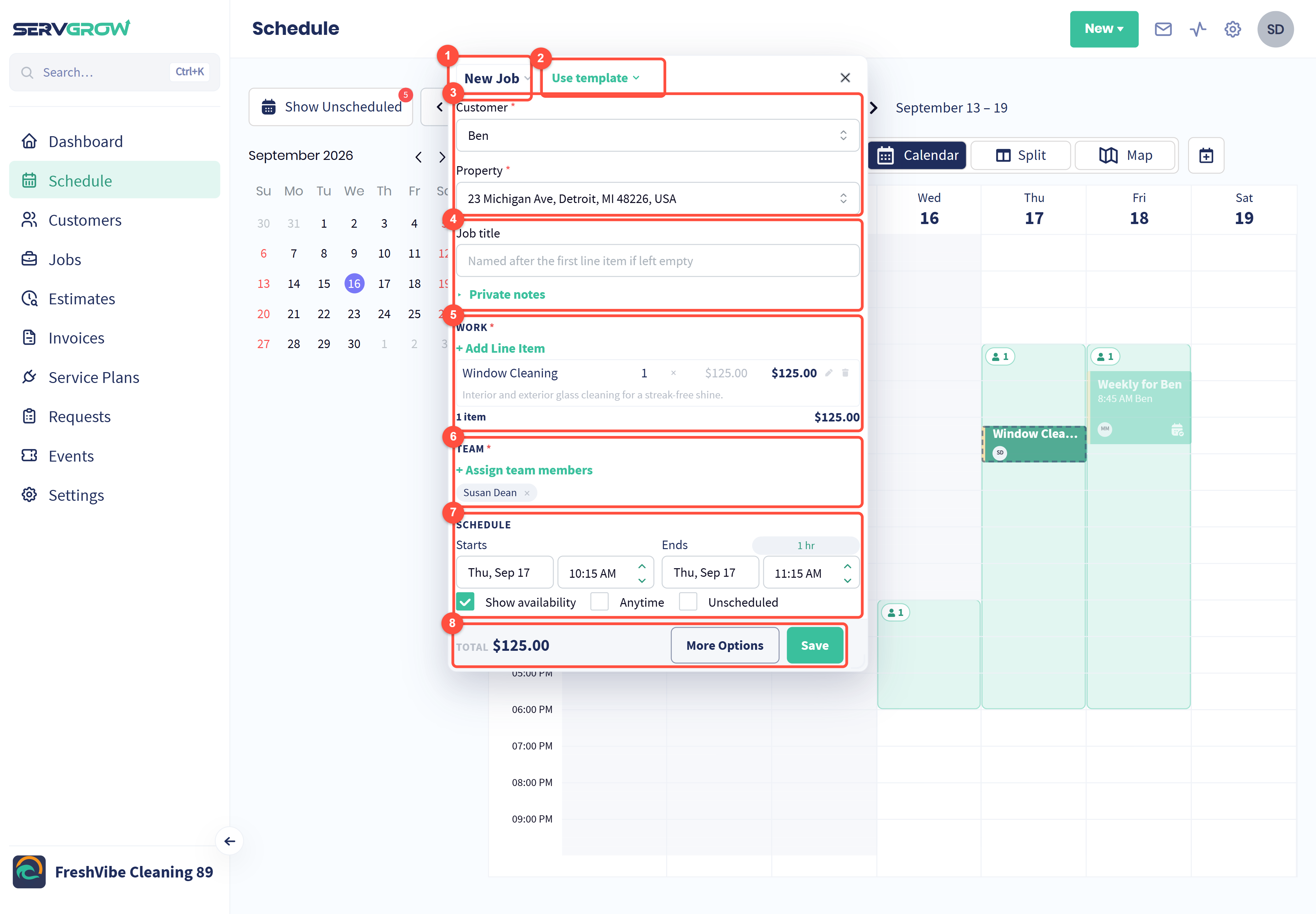
New Job: click to switch to New Estimate. The card works the same way for both.
Use template: pick one of your job or estimate templates to fill in the card for you. Changed your mind? Click Undo.
Customer: search by name, email or address. If the customer has more than one property, choose the right one under Property.
Job title is optional. Leave it empty and the job is named after the first line item. Click Private notes to add notes only your team can see.
Work: the services you are booking and their total.
Team: who is doing the work.
Schedule: when the work happens.
The Total updates as you add work. Save turns on once the customer, property, work and team are filled in.
Add the work from your price book
Click + Add Line Item.
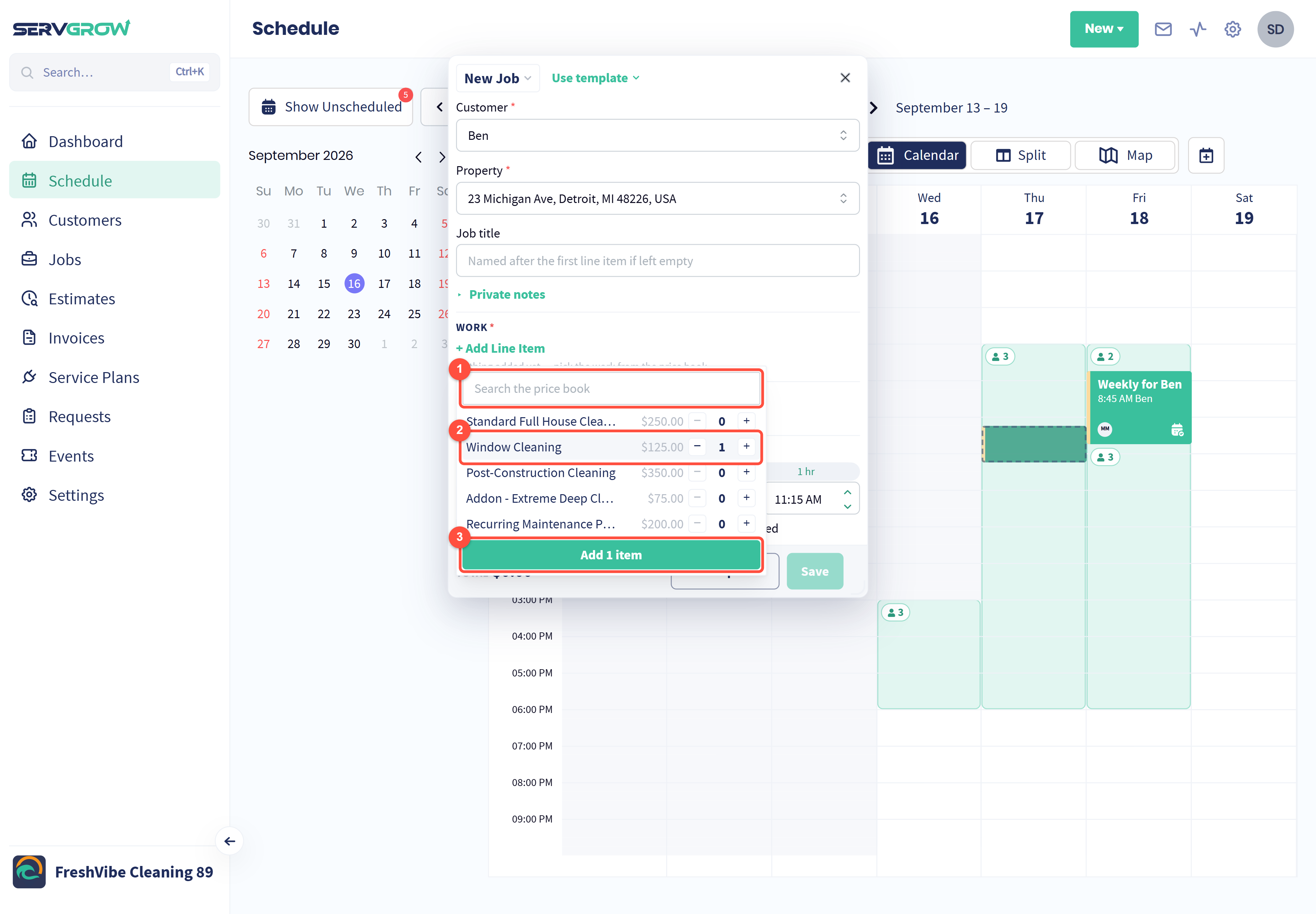
Search your price book, or scroll the list.
Use + and - to set how many of each service you need. You can add several services at once.
Click Add to put them on the card.
To change a price or description after adding it, click the pencil next to the line item.
Choose the team and see drive times
Click + Assign team members.
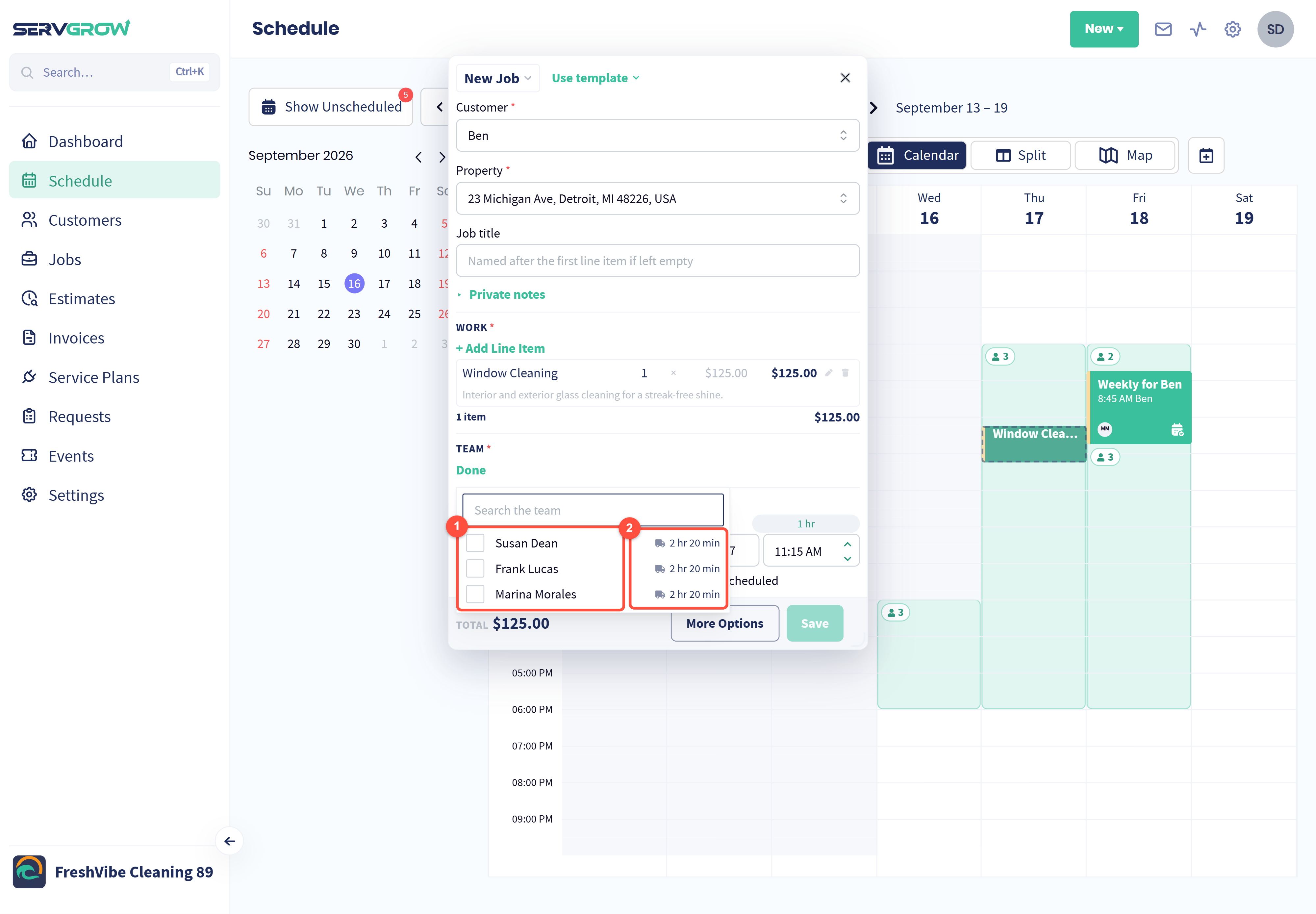
Tick everyone who is doing the work. Use Search the team if you have a big team.
The drive time shows how long each person would take to get to this customer, from their earlier job that day or from your company's start point. Pick the person who is closest and you save fuel and time.
Click Done when you are finished. Drive times show once you have picked a customer and need Routing & Drive Time on your plan.
Pick a time when your team is free
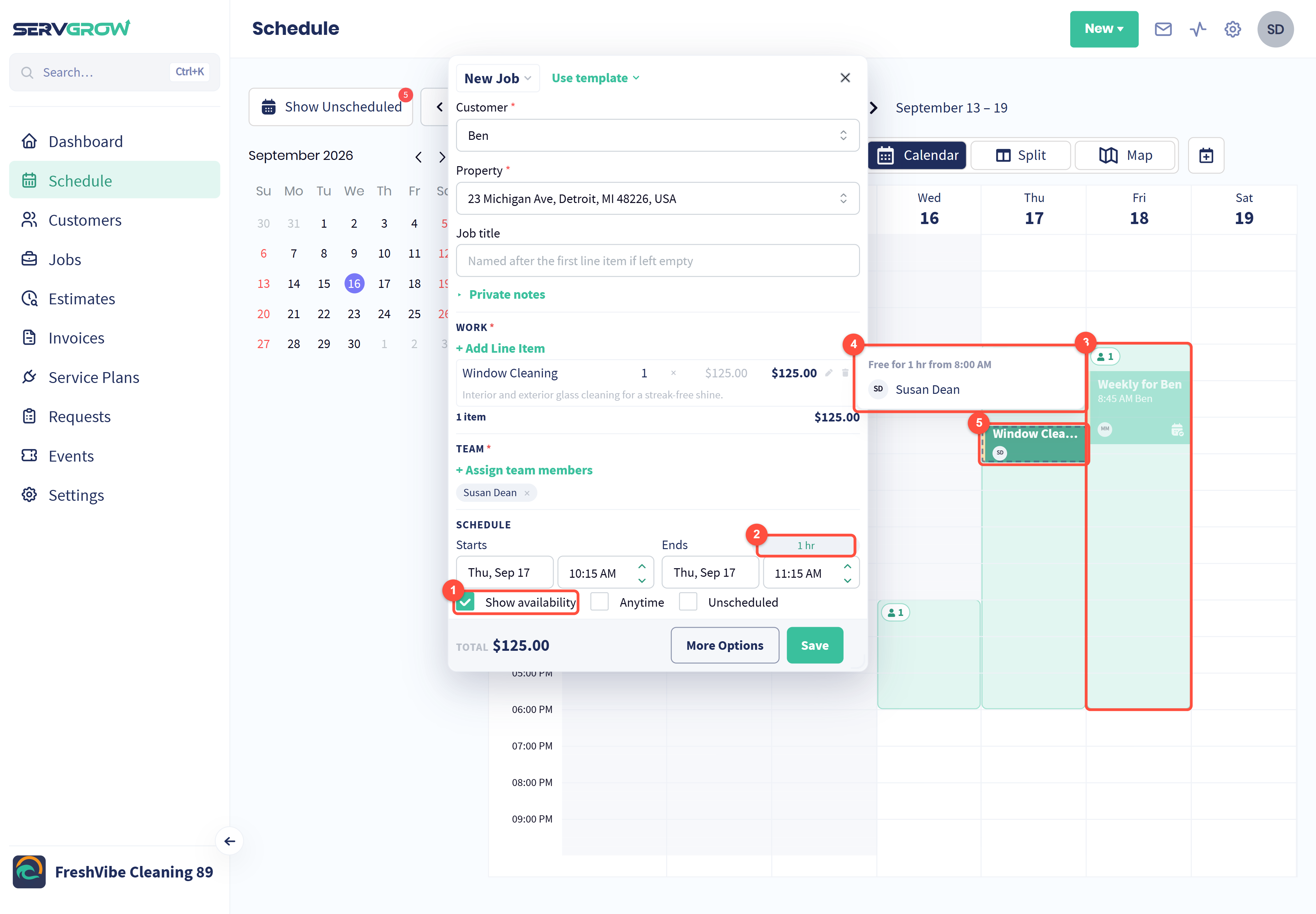
Tick Show availability. Servgrow highlights the times on the calendar when the job fits.
The length of the job. Click it to pick a different length. Availability updates to match.
The number on each highlighted window is how many of your chosen team members are free. With no one chosen yet, it counts your whole team.
Hover over the number to see who is free and from what time.
Click any time on the calendar and the job moves there. The dashed block shows where it will land.
You can also type the date and time in Starts and Ends. Two more options sit next to Show availability:
Anytime: book the day without a set time.
Unscheduled: save the work without a date. It waits in your Unscheduled list until you drag it onto the calendar.
More Options
Everything here is optional. Click More Options when you need it.
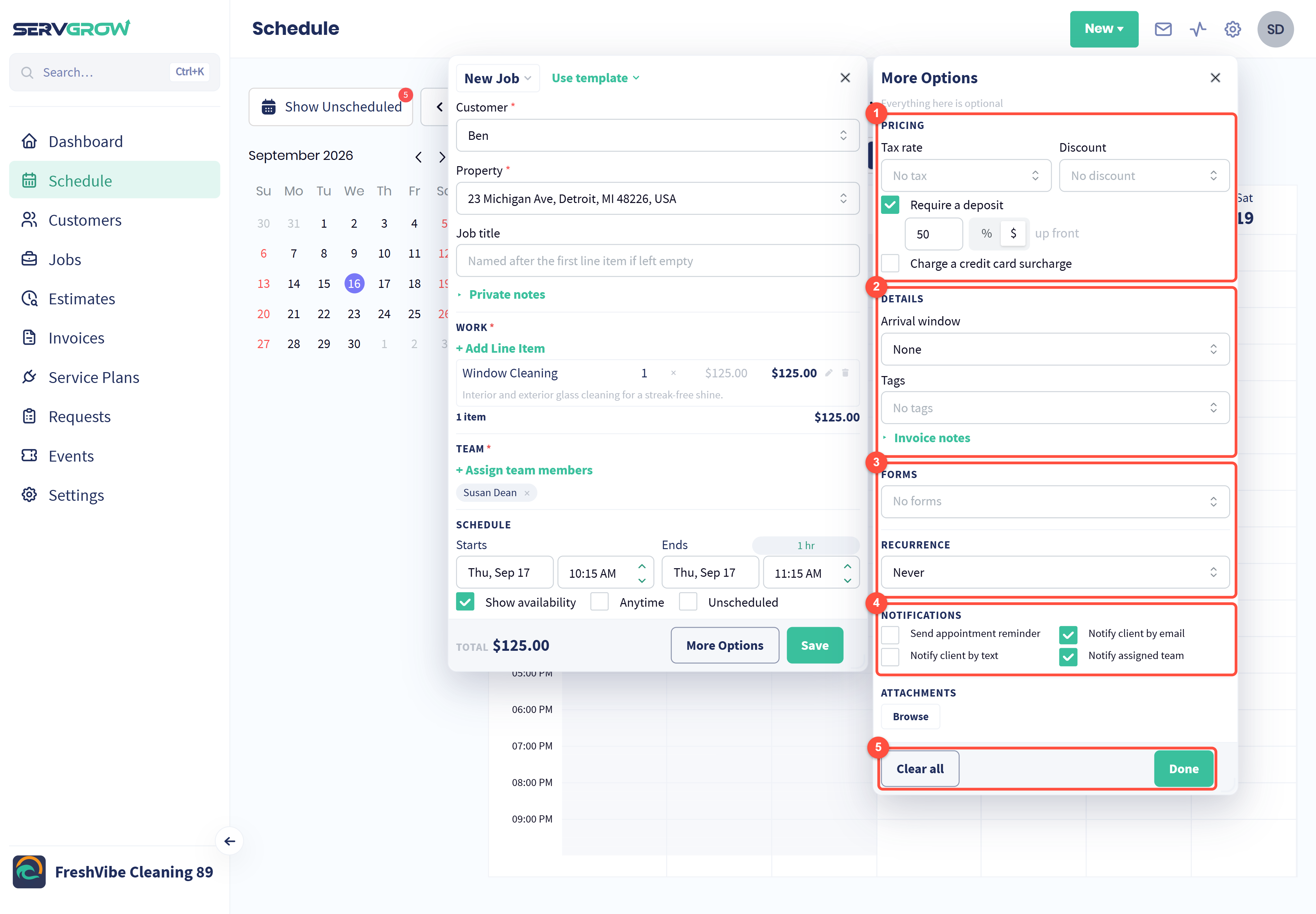
Pricing: add a tax rate or discount, require a deposit up front (as a percentage or a set amount) and charge a credit card surcharge.
Details: set an arrival window, add tags and add invoice notes.
Forms: attach forms your team fills in on the job. Recurrence: make the job repeat.
Notifications: choose whether to send an appointment reminder, tell the customer by email or text, and tell the assigned team.
Clear all resets these options. Done takes you back to the card.
For estimates, More Options has pricing, details (with estimate notes), notifications and attachments.
When everything looks right, click Save.
Tips
Keep Show availability on while you are on the phone. You can offer the customer times that really work instead of calling back.
Set up templates for the jobs you book most. One click fills in the work, and you just pick the customer and time.
Check the drive times before you assign. Sending the closest person keeps your team on time for the rest of the day.
Related articles