
When a customer calls, you want to look at the week, see an open spot and book it before they hang up. When plans change, you want to move the visit in seconds, not rebuild the job. And the work you have sold but not booked yet should never sit forgotten in a list.
Your Servgrow Schedule handles all three. Click an open time to start a job or estimate already set for that slot. Drag work that has no date onto the calendar. Reschedule a visit in a couple of clicks and let Servgrow tell your team and your customer. Your calendar stays accurate, your crew always knows where to be, and fewer customers slip through the cracks.
Where to find it
Click Schedule in the left menu.
Book a job or estimate from an open time
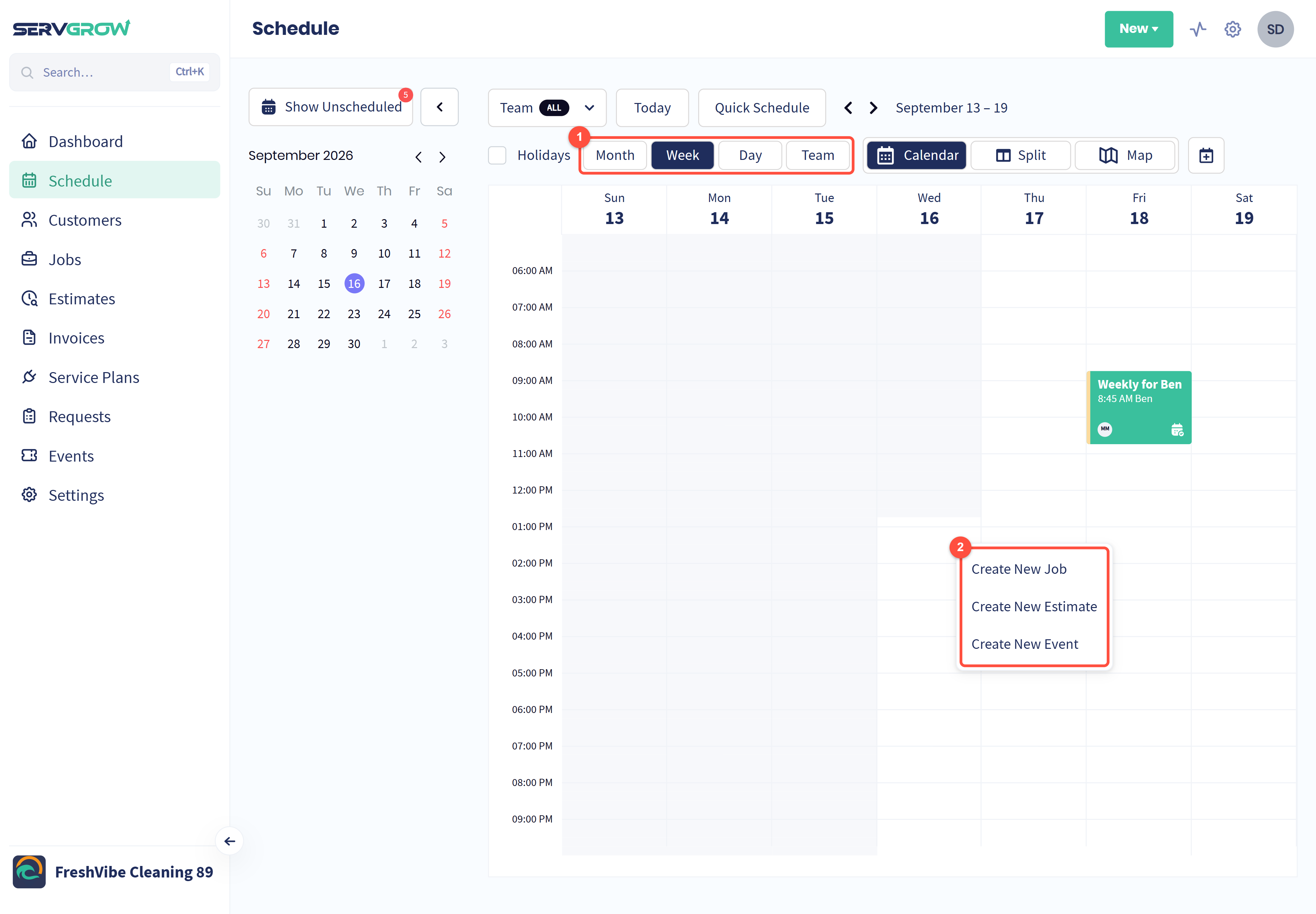
Switch to Week or Day view so you can see the times of day.
Click an open time. Choose Create New Job, Create New Estimate or Create New Event (for things like meetings or time off).
Create New Job opens the New Job form. Pick the customer and click Next, and the Schedule Details window opens with the time you clicked already filled in.
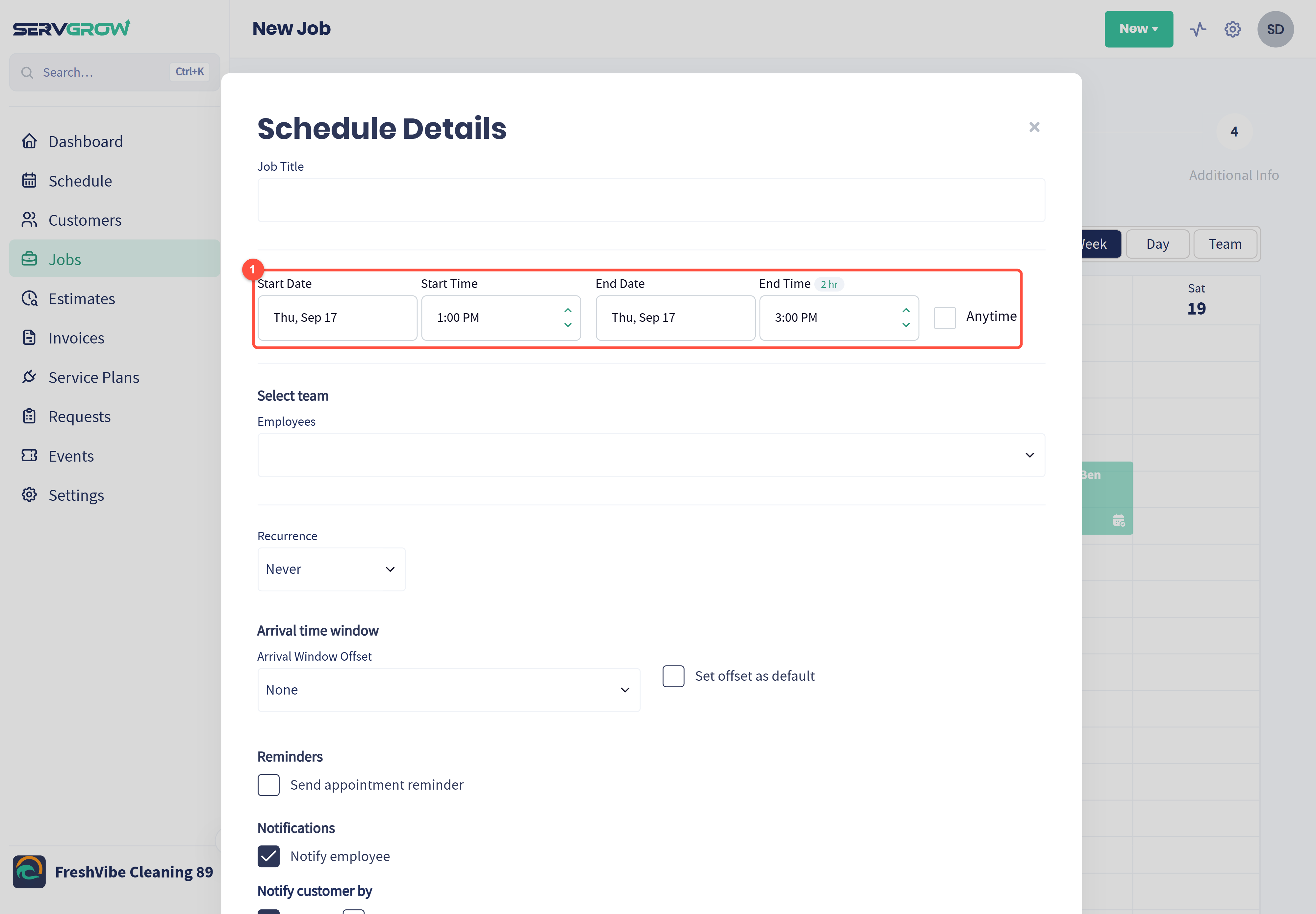
Check the Start Date, Start Time, End Date and End Time. The job runs two hours by default. Adjust it if the work takes longer.
Then finish the job as usual. For every field in the form, see How to Create a Job. Create New Estimate opens the New Estimate form in the same way. See Creating an Estimate (W/WO Options).
Schedule work that has no date yet
Jobs and estimates can be created without a time, for example when you write one up before the customer has picked a day. They wait in your Unscheduled list until you book them.
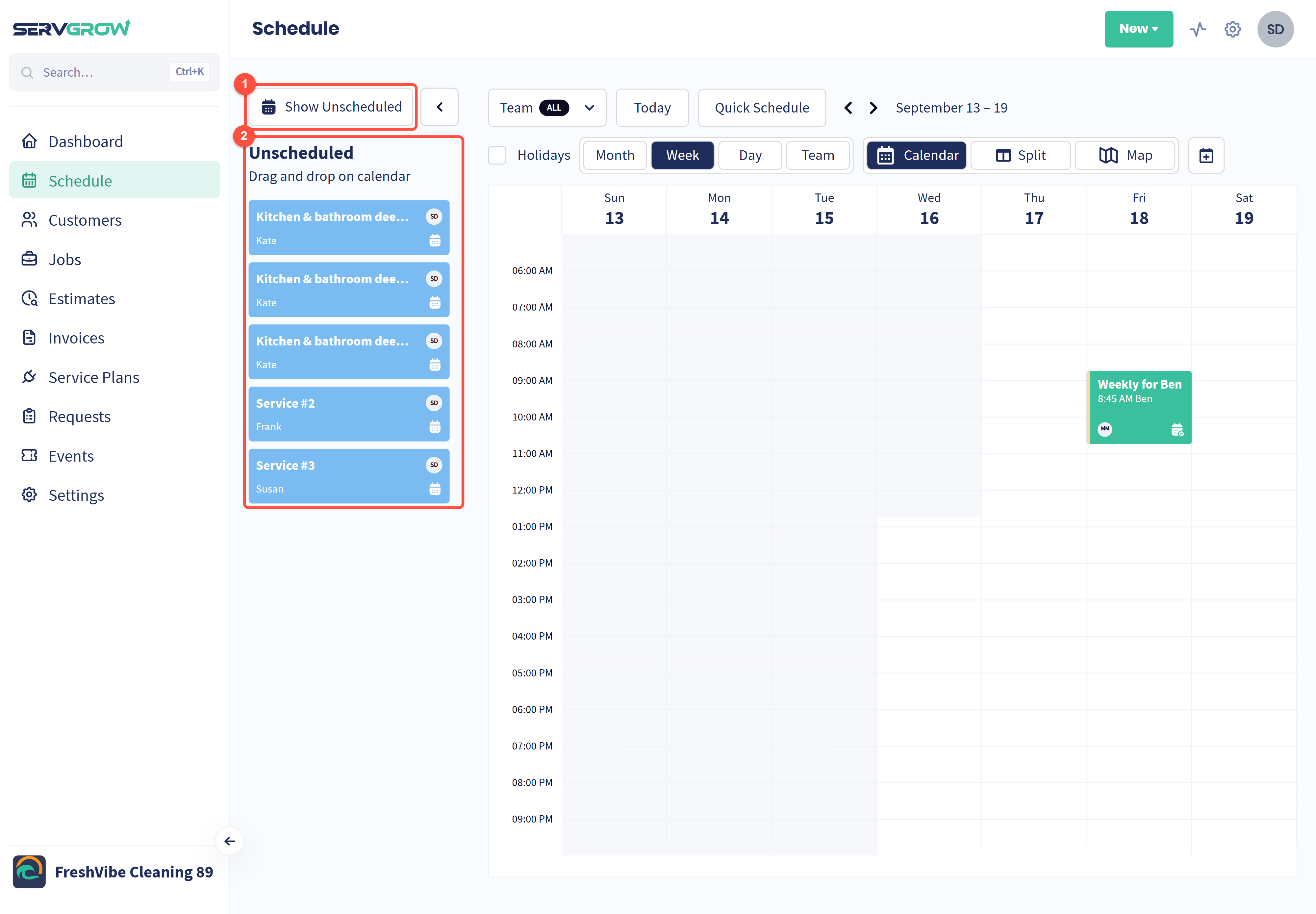
Click Show Unscheduled. The red badge shows how many items are waiting.
The Unscheduled list opens next to the calendar. Drag an item onto the day and time you want.
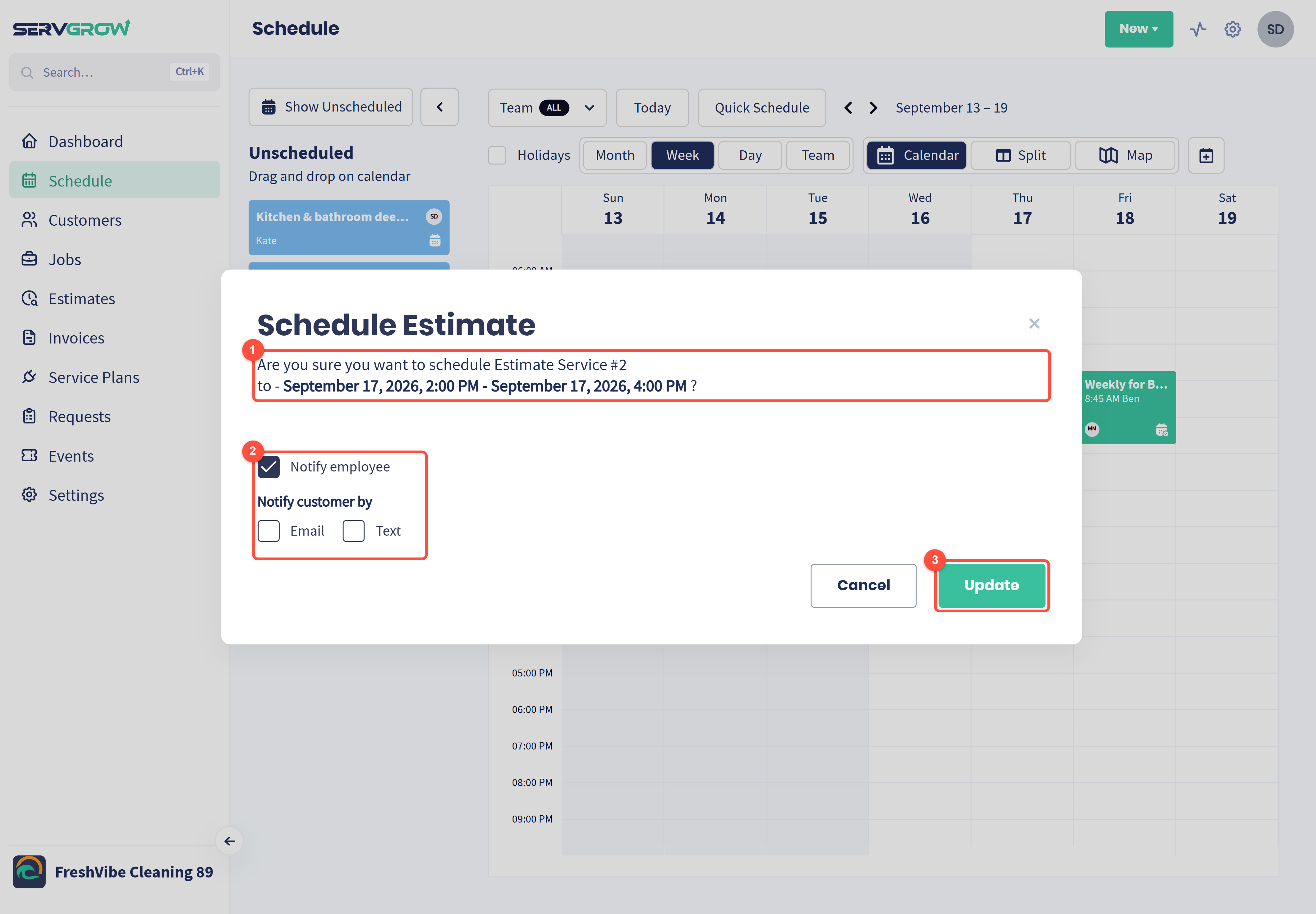
Servgrow asks you to confirm the date and time.
Choose who hears about it. Notify employee tells the assigned team. Tick Email, Text or both under Notify customer by to let the customer know.
Click Update.
Make it a weekly habit. Every item in that list is work you have already won. Booking it quickly is the easiest revenue you will find.
Reschedule a job
Click any job on the calendar to open its details.
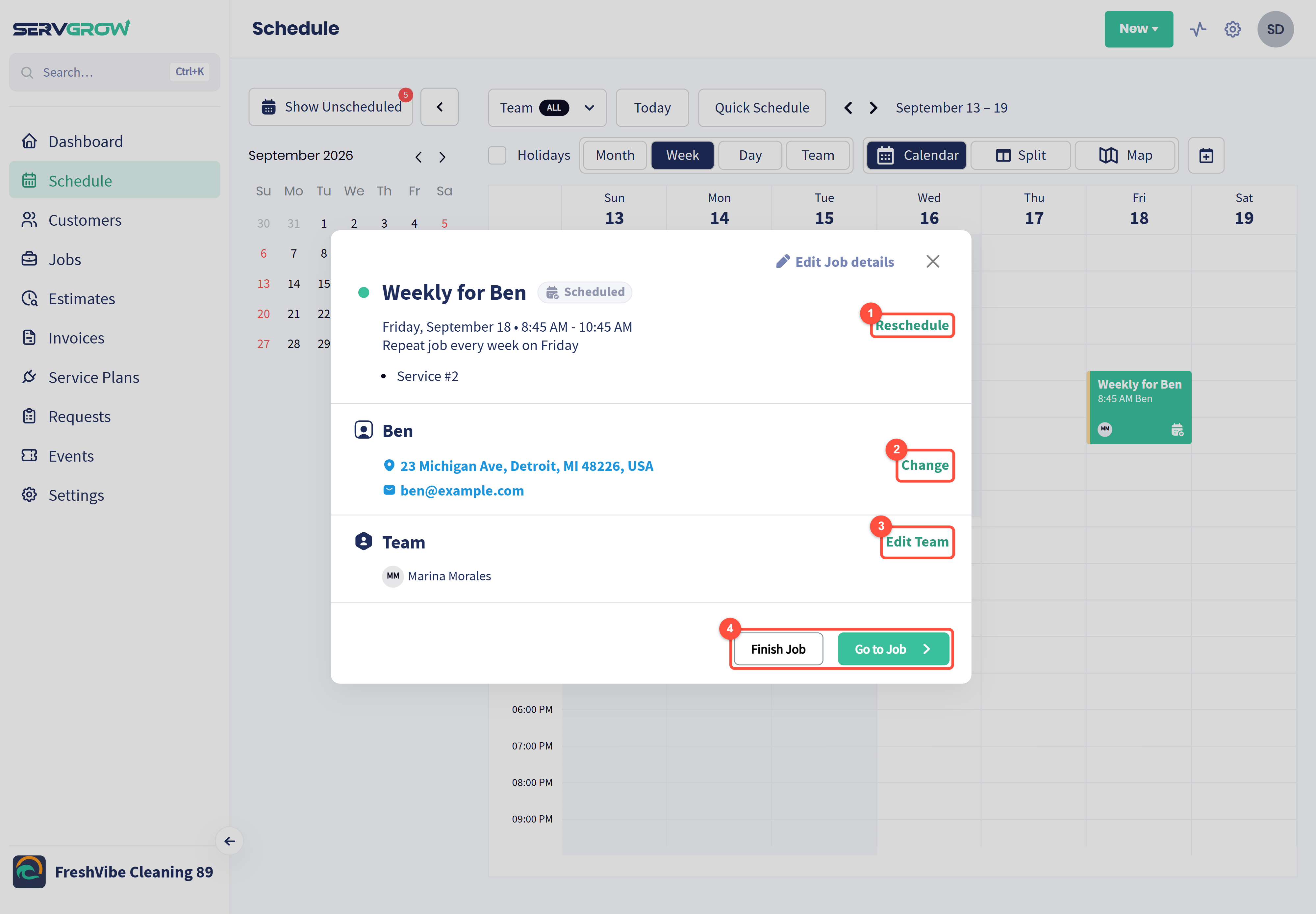
Reschedule: move the job to a new day or time.
Change: pick a different property for this visit.
Edit Team: swap or add the employees doing the work.
Finish Job marks the work done, and Go to Job opens the full job.
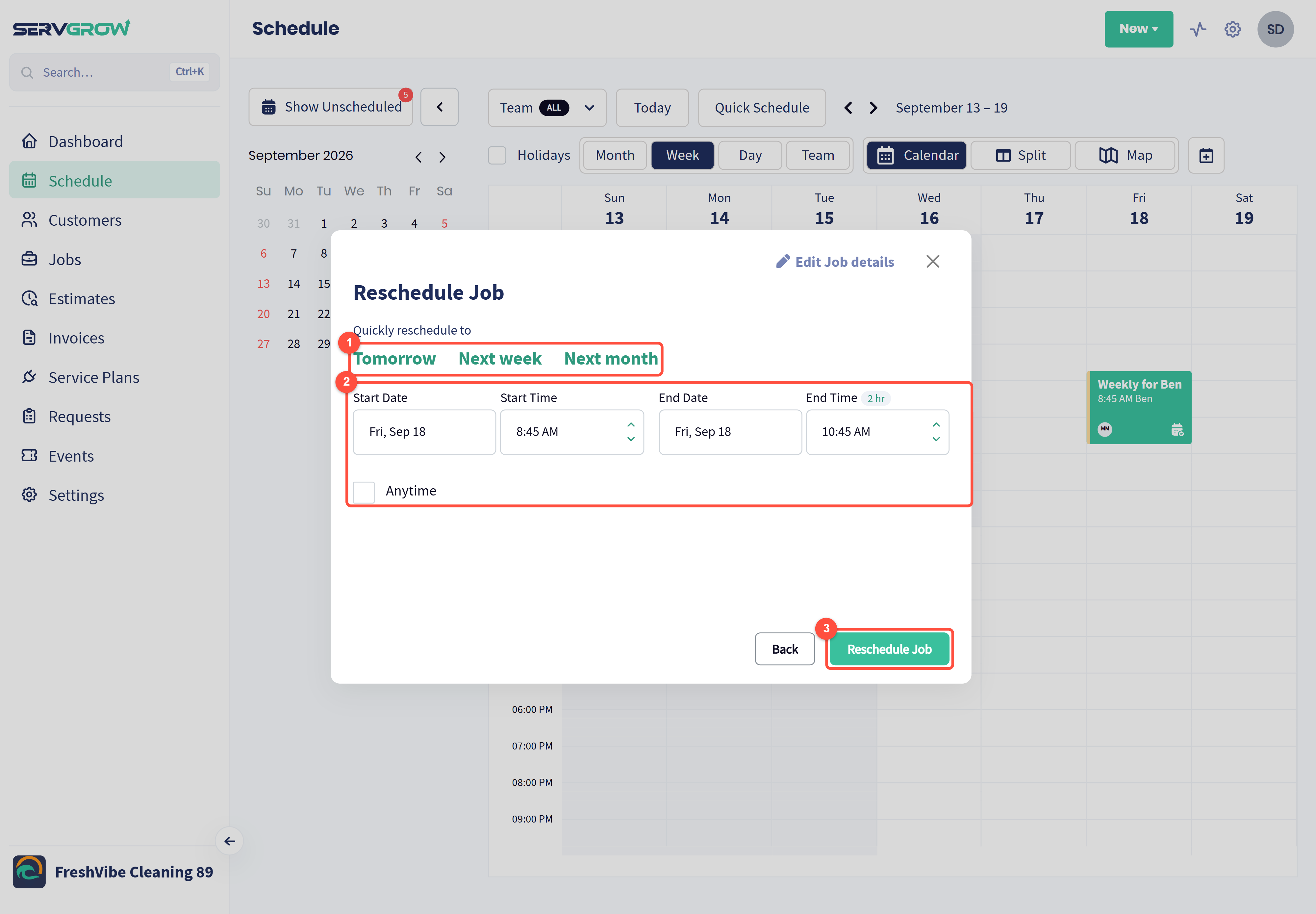
Use a shortcut, Tomorrow, Next week or Next month, to move the job in one click.
Or set the Start Date, Start Time, End Date and End Time yourself. Tick Anytime if the day matters but the time does not.
Click Reschedule Job.
Or drag it
You can also drag a job straight to a new day or time on the calendar. If the job repeats, Servgrow asks which visits to move.
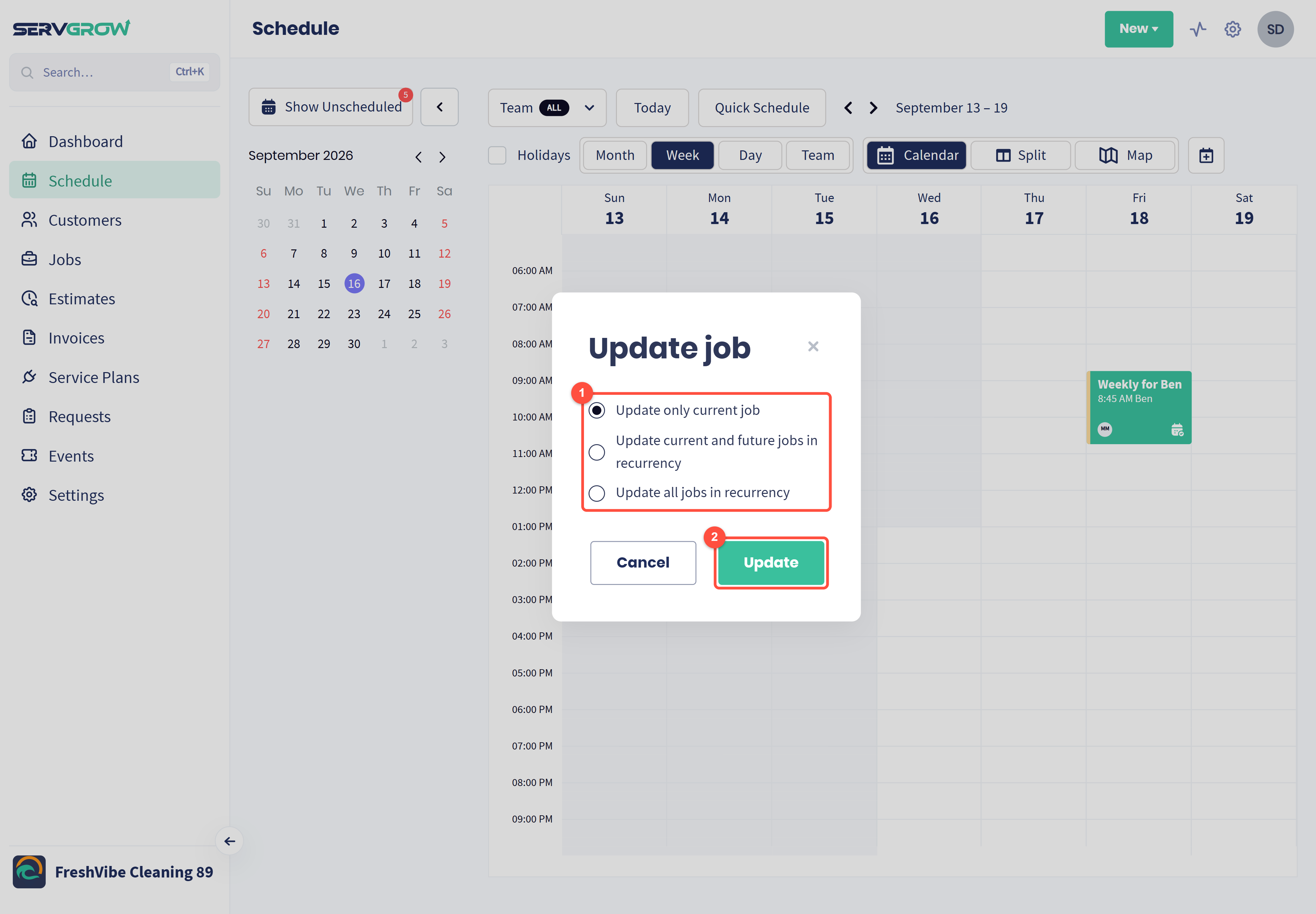
Choose Update only current job to move just this visit, Update current and future jobs in recurrency to shift the rest of the series from here on, or Update all jobs in recurrency to move every visit.
Click Update.
Tips for a schedule you can trust
Tell the customer when a time changes. A quick text saves a wasted trip and an unhappy call.
Filter by team member before you book. Use Team at the top of the calendar to see one person's day and avoid double-booking them.
Move one visit, not the whole series, when a repeat customer asks for a one-off change.
Related articles