
Work that has been sold but not booked is money waiting to be earned. Booking it with whoever happens to be free often sends a tech across town, while someone else is already working a few streets away. That costs fuel, burns hours on the road and squeezes fewer jobs into the day.
With the map on your Schedule, you can see your unscheduled work next to where your team is already working, give it to the tech who is closest, and put it on the calendar in a few clicks. Your team drives less, fits more work into each day, and customers get booked sooner.
Step 1: Find unscheduled work near your team
Click Schedule, then Map, and go to the day you are planning. Click Show Unscheduled.
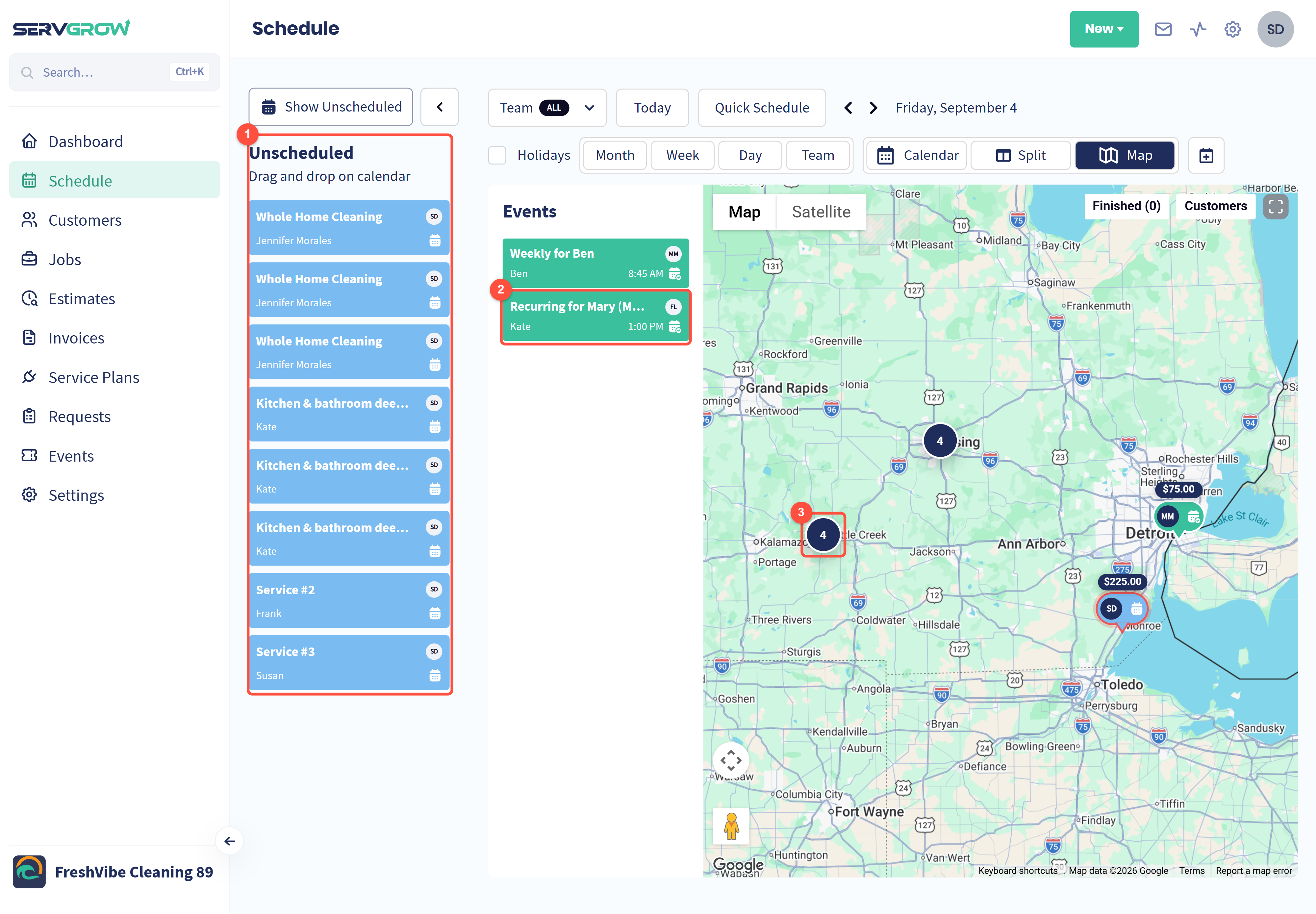
Unscheduled: work that has no date yet. Each piece also appears on the map.
Events: the day's scheduled work and who is doing it. Here Frank has a job in Battle Creek at 1:00 PM.
A number means several pieces of work are close together. This one is in Battle Creek, right where Frank will be.
Step 2: See what is in the area
Click the number on the map.
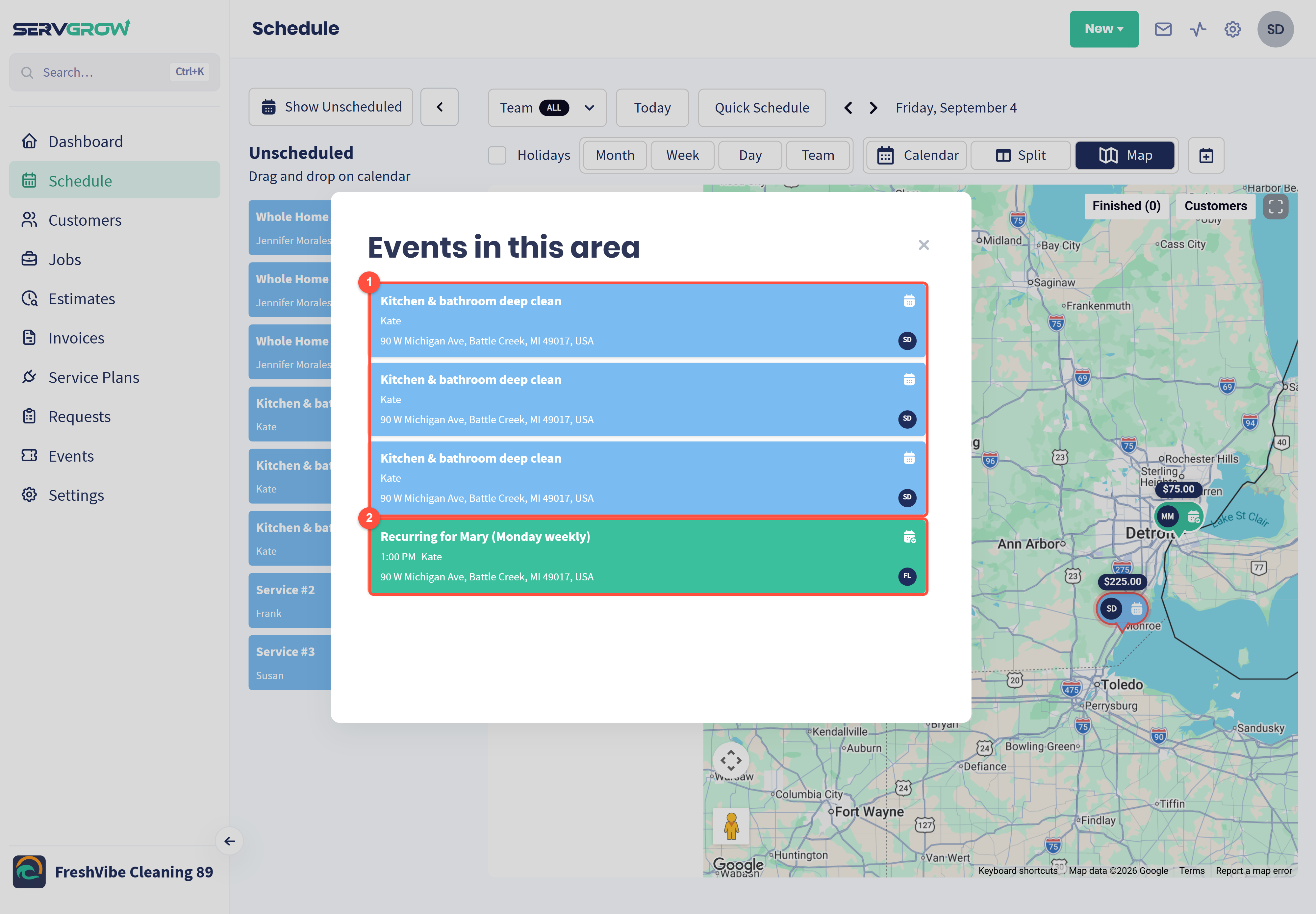
Three unscheduled estimates for the same customer. They are assigned to Susan, who is not working nearby.
Frank's scheduled job at the same address. Frank is the best person to take this work.
Click the work you want to assign.
Step 3: Open the work
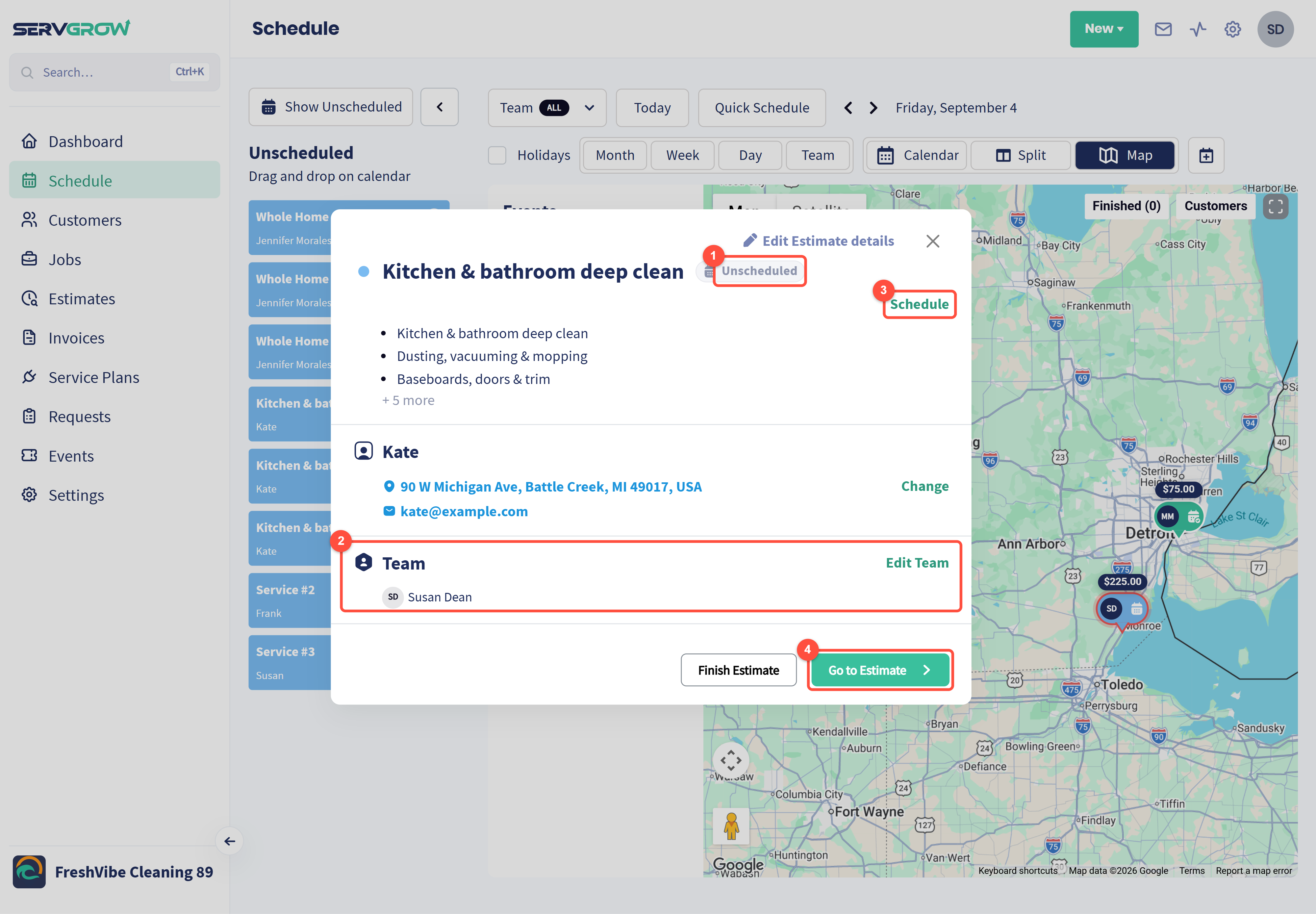
Unscheduled: this work has no date yet.
Team: who it is assigned to now. Click Edit Team to change it.
Schedule: give it a date and time (Step 5).
Go to Estimate (or Go to Job) opens the full page.
Step 4: Give it to the nearest tech
Click Edit Team, then click Select employees.
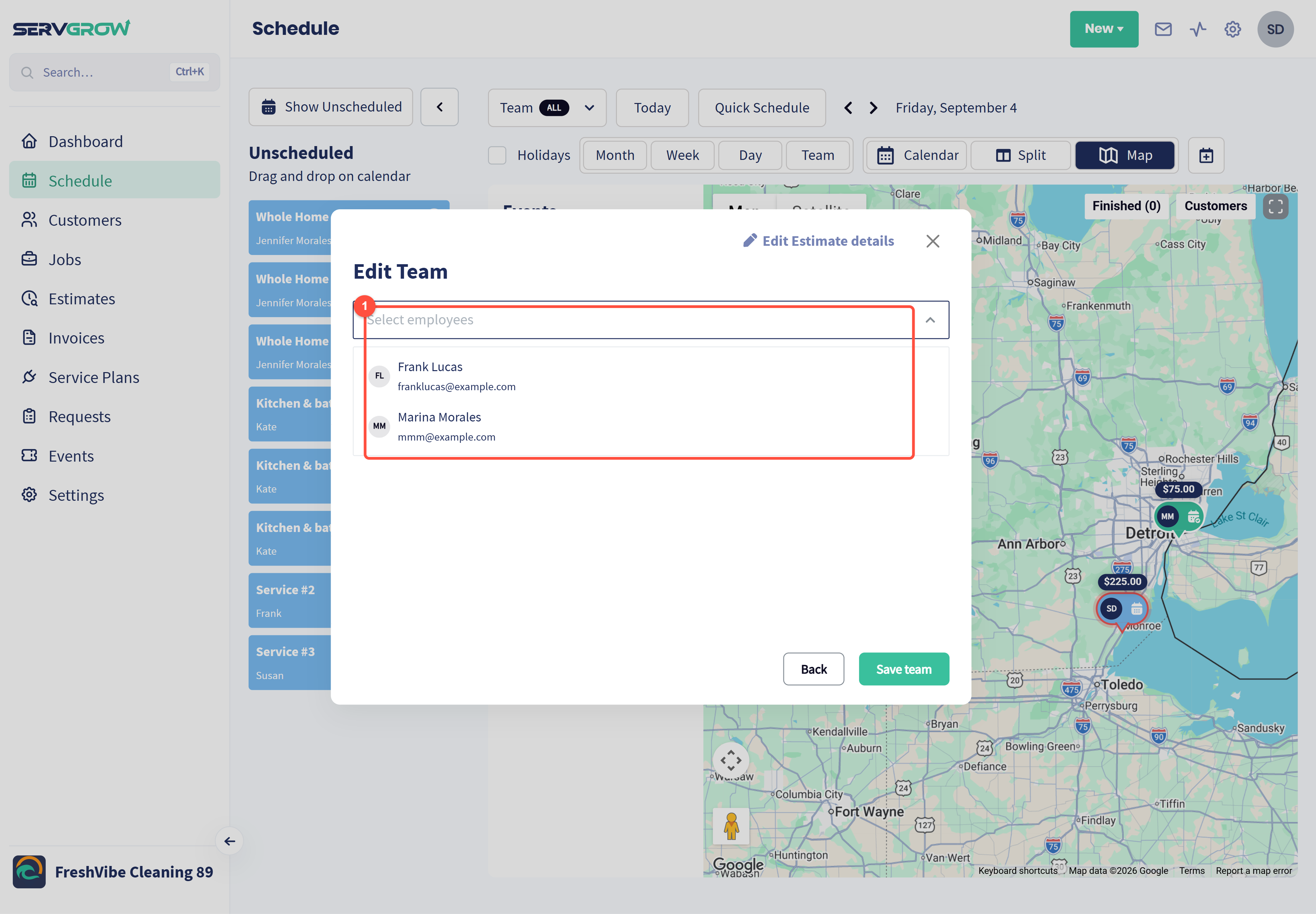
Click the team member who is closest. People already assigned are not in the list.
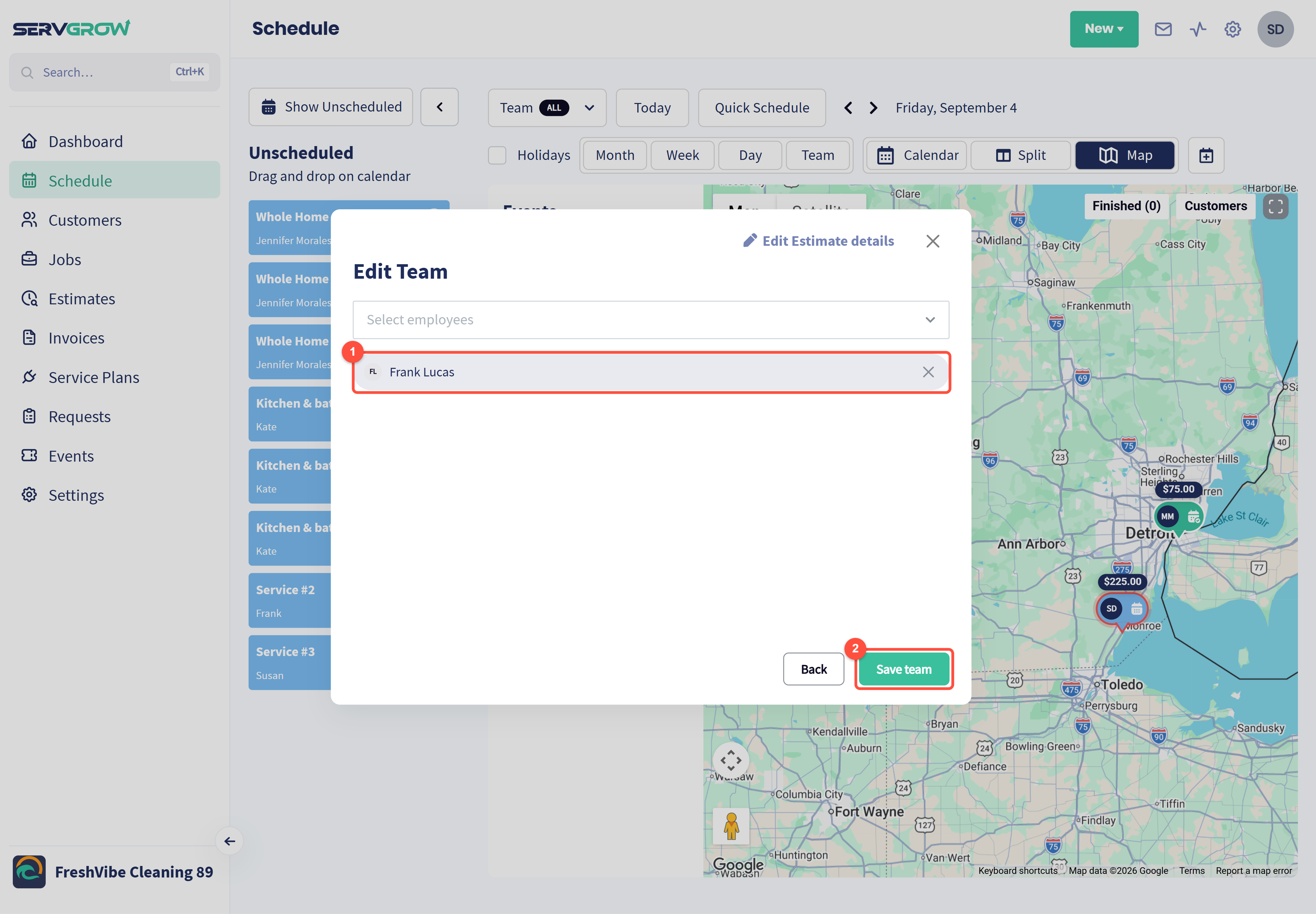
Remove anyone who should no longer do the work by clicking the X next to their name. Keep more than one person if it is a two-person job.
Click Save team. If the work repeats, Servgrow asks whether the change is for this visit only, this visit and the ones after it, or the whole series.
Step 5: Put it on the calendar
Click Schedule on the panel. If the panel has closed, click the work on the map again.
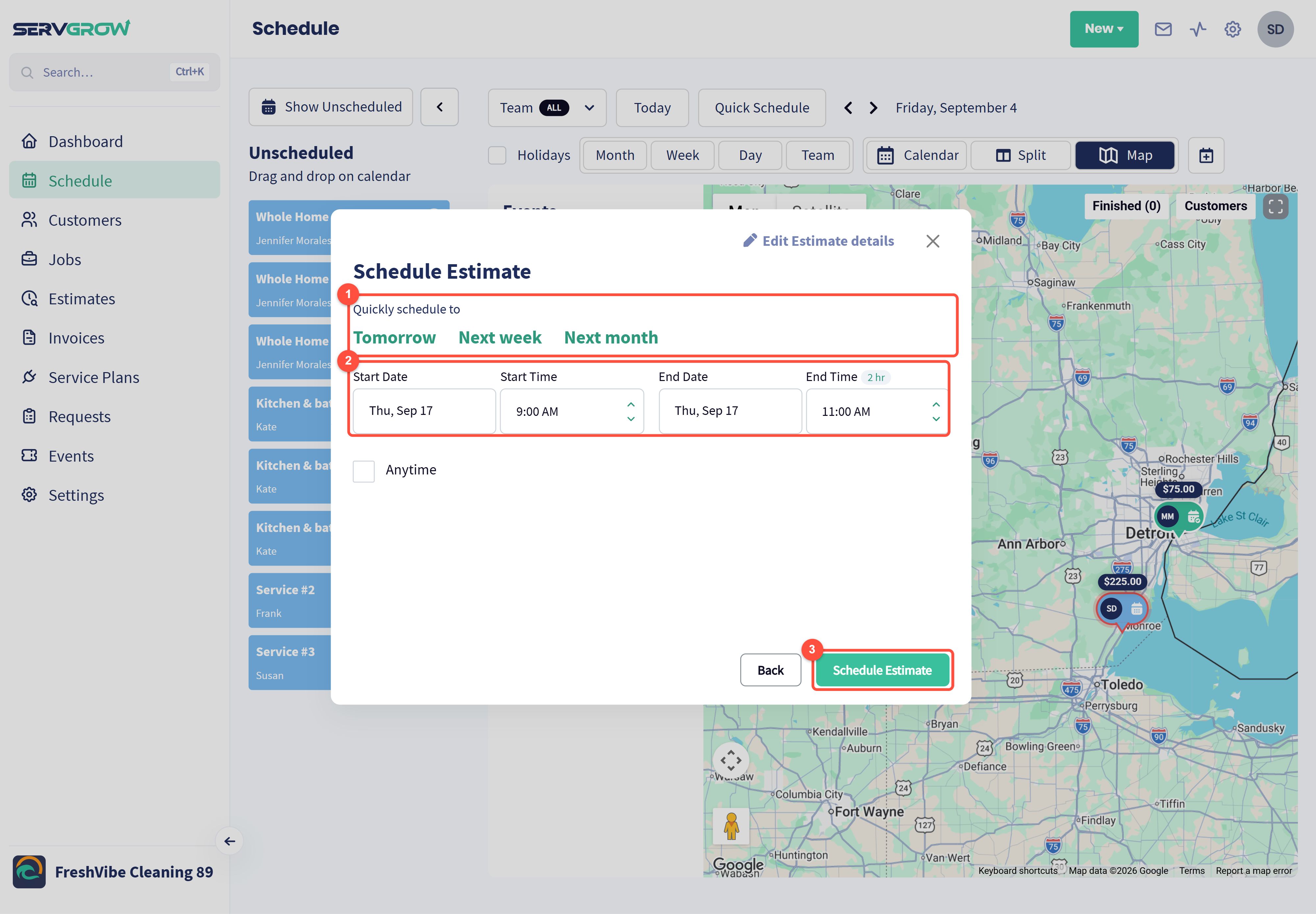
Click Tomorrow, Next week or Next month to pick a date in one click.
Or set the Start Date, Start Time, End Date and End Time yourself. A good slot is right before or after the tech's nearby job. Tick Anytime if the time of day does not matter.
Click Schedule Estimate (or Schedule Job).
Tips
Plan tomorrow at the end of today. Open tomorrow on the map, show unscheduled work and pair each piece with the closest tech.
Look at one tech at a time. Use the Team filter on the map to see only their jobs, then find unscheduled work around them.
Booking brand new work? Use Quick Schedule. It shows each team member's drive time to the customer while you pick who goes.
Related articles