
Customers go on holiday, move house or stop the service. When that happens you want to stop exactly the right amount of work: this Tuesday only, everything from next month, or the lot. What you do not want is to wipe out a job you still need for your records, or leave visits sitting on the calendar that nobody is doing.
Servgrow separates the two. Cancelling keeps the job in your records but takes it out of play. Deleting removes it for good, and lets you choose how much of the series goes with it.
Cancel or delete: which one?
Cancel when the visit is not happening but you want the history, for example a customer who called off the day before. The job stays, marked cancelled, and cannot be edited afterwards.
Delete when the job should never have existed, or the customer has stopped the service and you do not want the visits or their invoices. This cannot be undone.
Open the job
Find the visit on your Schedule or under Jobs and open it, then click Options.
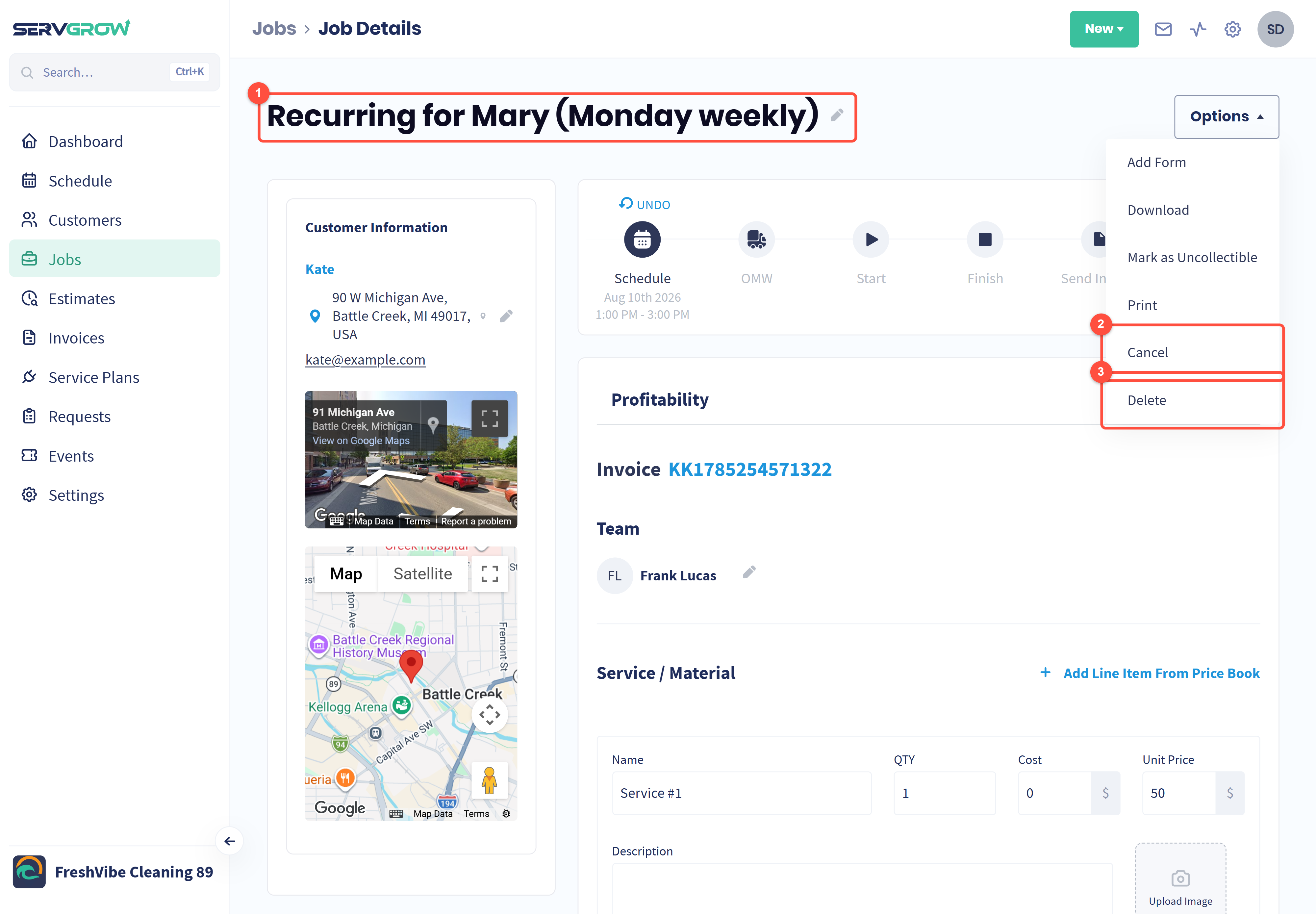
Check you are on the right visit. The title and the date at the top tell you which one you have open.
Cancel: call off this visit but keep the record.
Delete: remove the visit, and choose how much of the series goes with it.
Cancel one visit
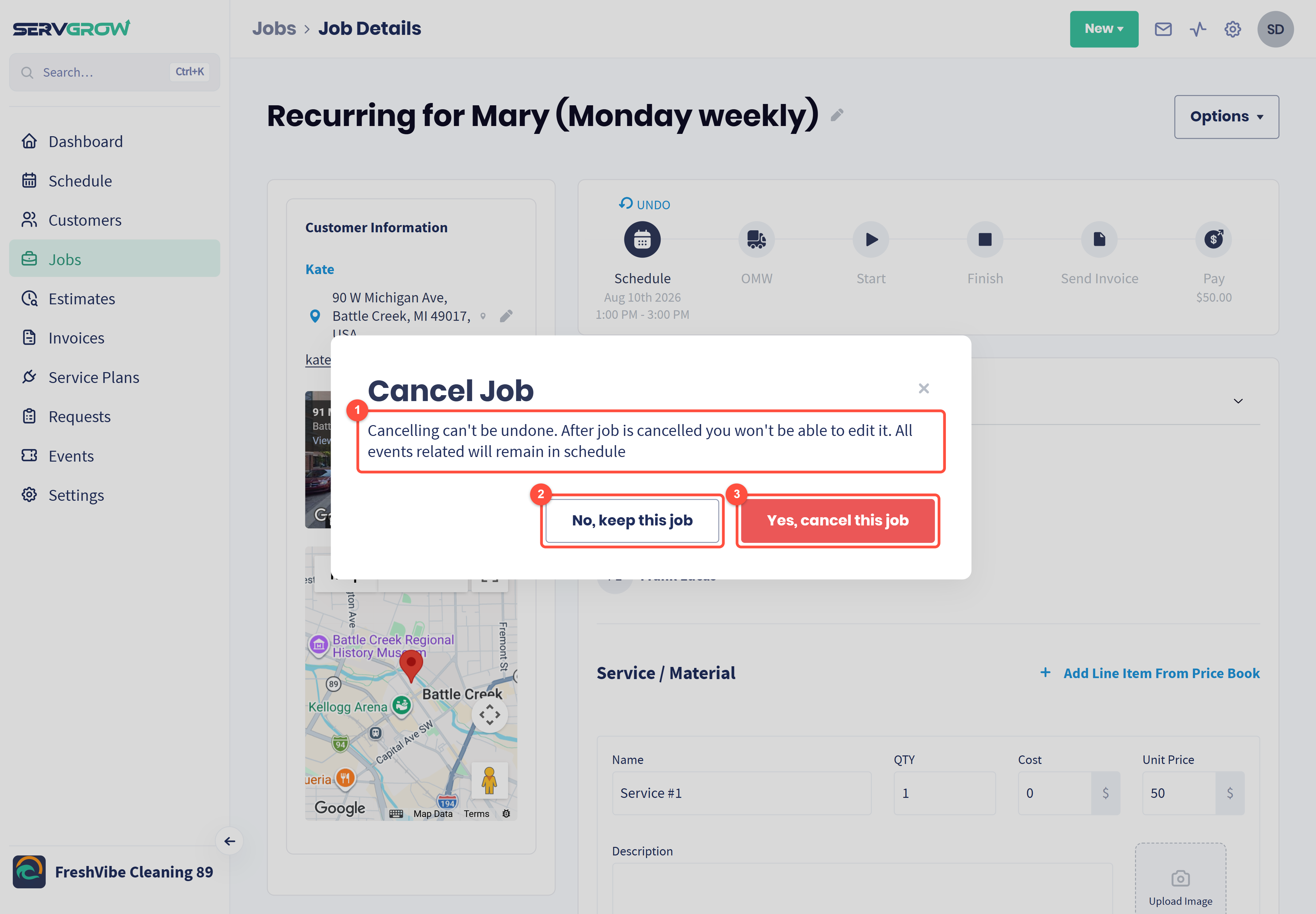
Read the warning. Cancelling cannot be undone, and a cancelled job can no longer be edited. Anything else related stays on the schedule.
No, keep this job backs out.
Yes, cancel this job calls it off.
Delete this visit, the ones after it, or the whole series
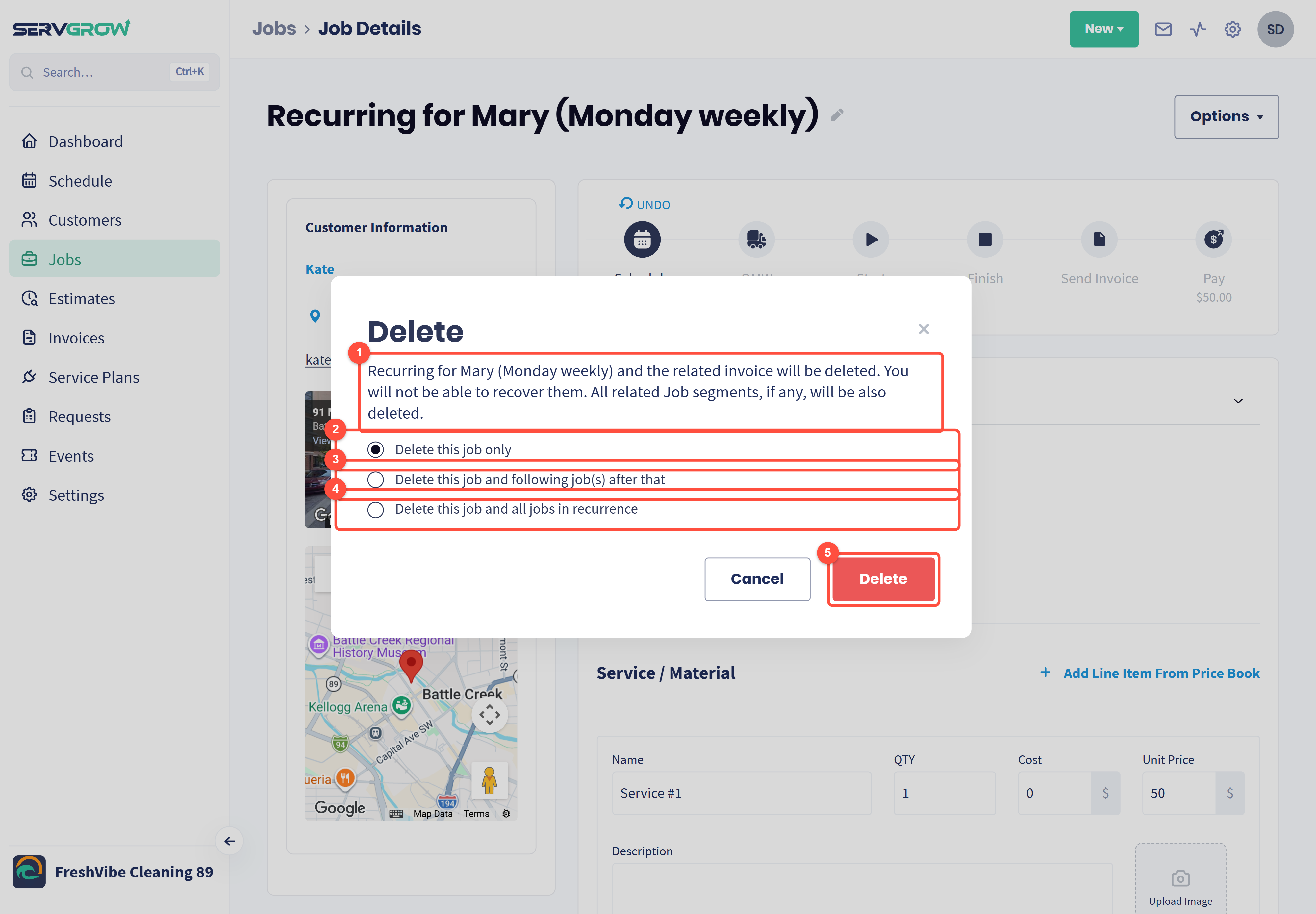
The warning names the job and tells you the related invoice goes too, along with any job segments. None of it can be recovered.
Delete this job only: just this visit. The rest of the series carries on.
Delete this job and following job(s) after that: this visit and everything still to come. Use this when a customer stops the service from a date but you want to keep what you already did.
Delete this job and all jobs in recurrence: the whole series, past visits included.
Click Delete.
If the work is on a service plan
Repeat work booked as a Service Plan is cancelled on the plan, not on each visit. Open the customer's plan from Service Plans or the customer's page.
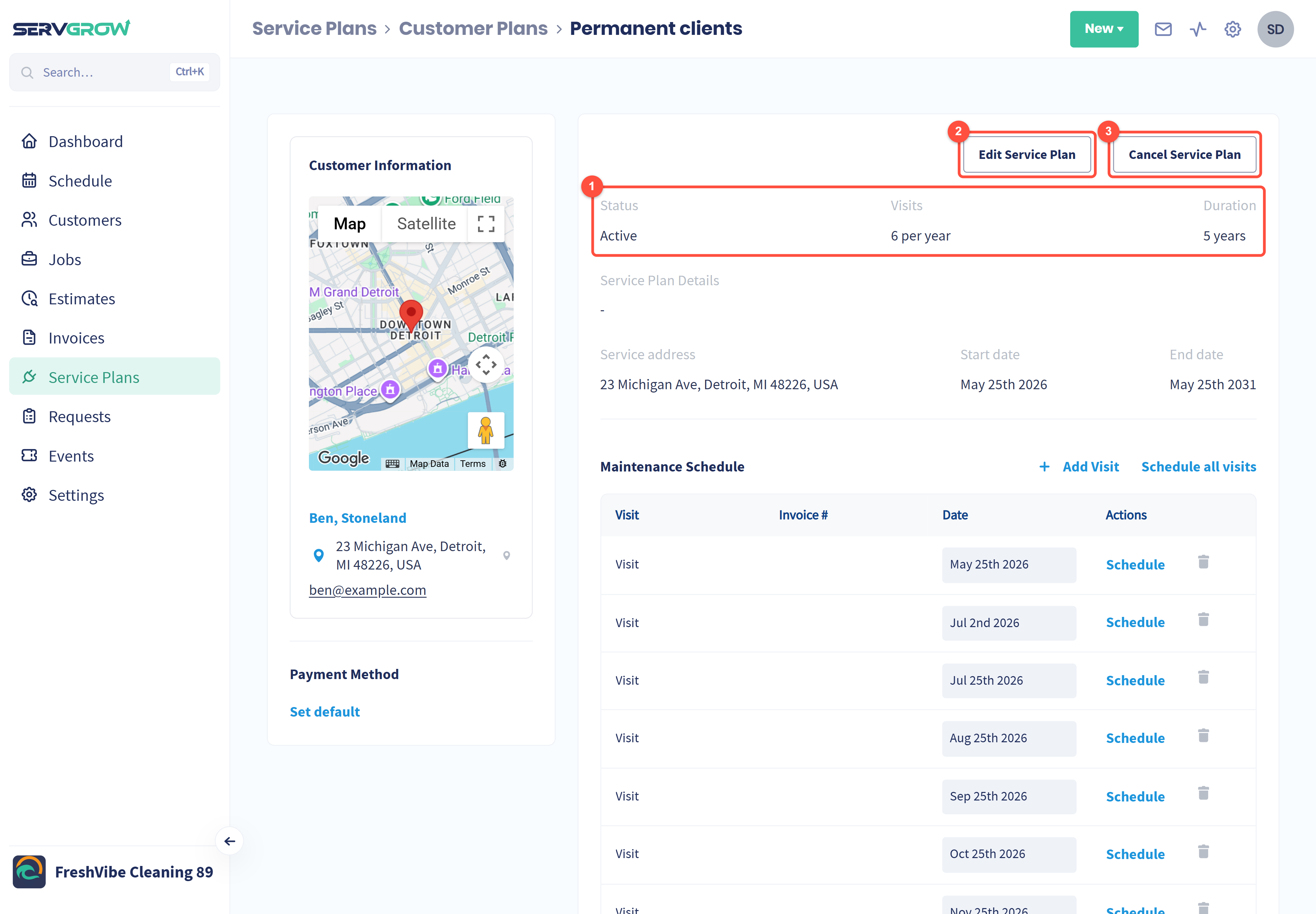
Check the plan: its status, how many visits a year it includes and the dates it runs between.
Edit Service Plan changes it instead, for example fewer visits a year.
Cancel Service Plan ends it. You are asked to confirm, and it cannot be undone.
Tips
Cancel, do not delete, when money has changed hands. Deleting takes the invoice with it, so cancel instead when you need the paper trail.
"This job and following" is the one you usually want when a customer ends a regular service. Past visits and their invoices stay put.
Check the date at the top before you confirm. Every visit in a series looks the same, and only the date tells them apart.
Related articles