
Not everyone on your team needs to see everything. A new technician does not need your revenue numbers, a subcontractor should not see what you charge, and only a few people should be able to delete a job. When everyone has full access, mistakes happen and private information travels further than it should.
Roles and permissions let you decide exactly what each person can see and do in Servgrow. Three ready-made roles cover most teams, and you can adjust them or create your own, such as Crew Lead or Subcontractor. Your customer information and your prices stay protected, your field team gets a simpler app with only what they need, and you stay in control as the team grows.
Where to find it
Click the gear icon at the top right, then click Employees. Only Company Admins can open this page.
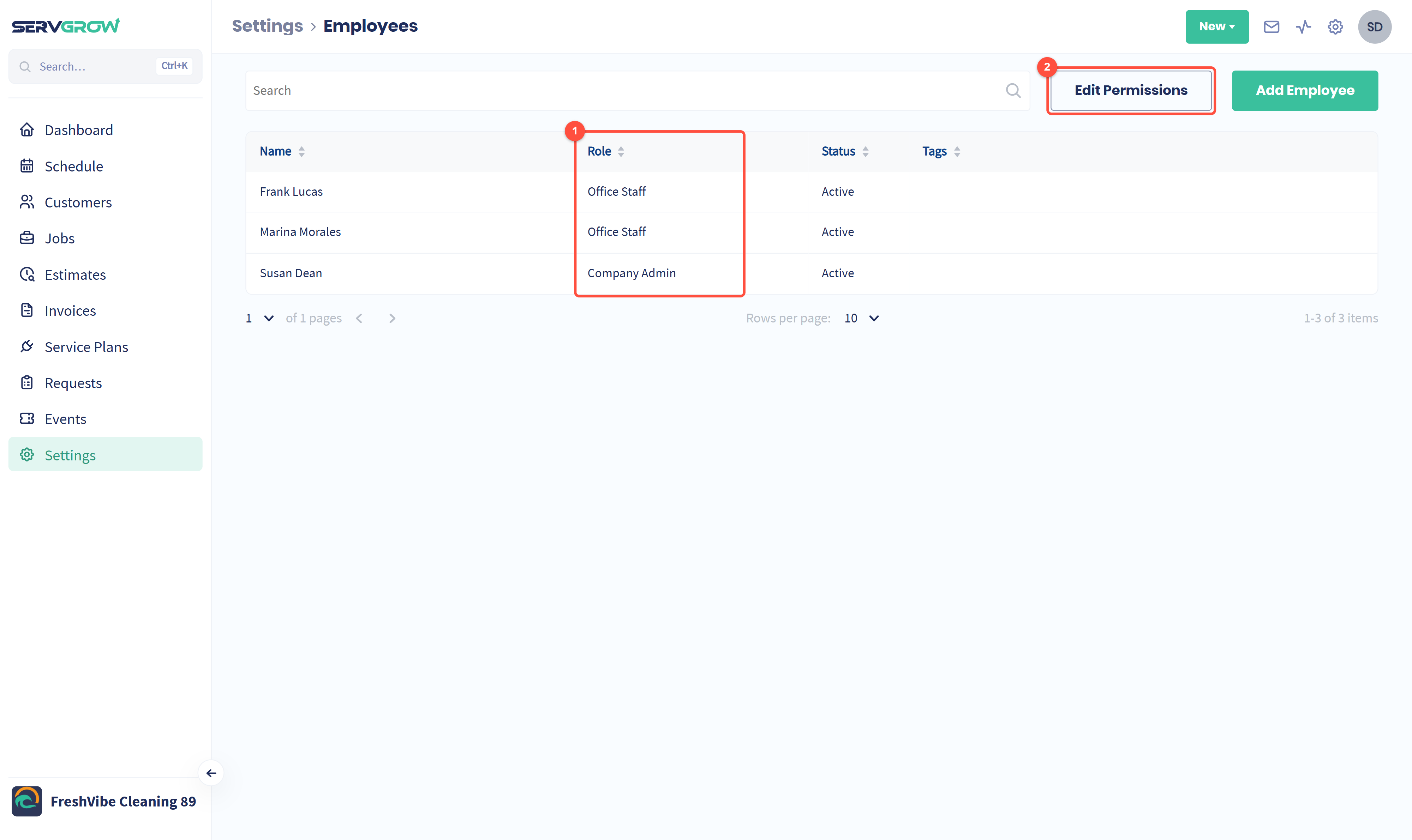
Role: the role each team member has.
Edit Permissions: change what each role can see and do.
If you do not see Edit Permissions, click the chat bubble and ask our support team.
Change someone's role
Click the team member's name.
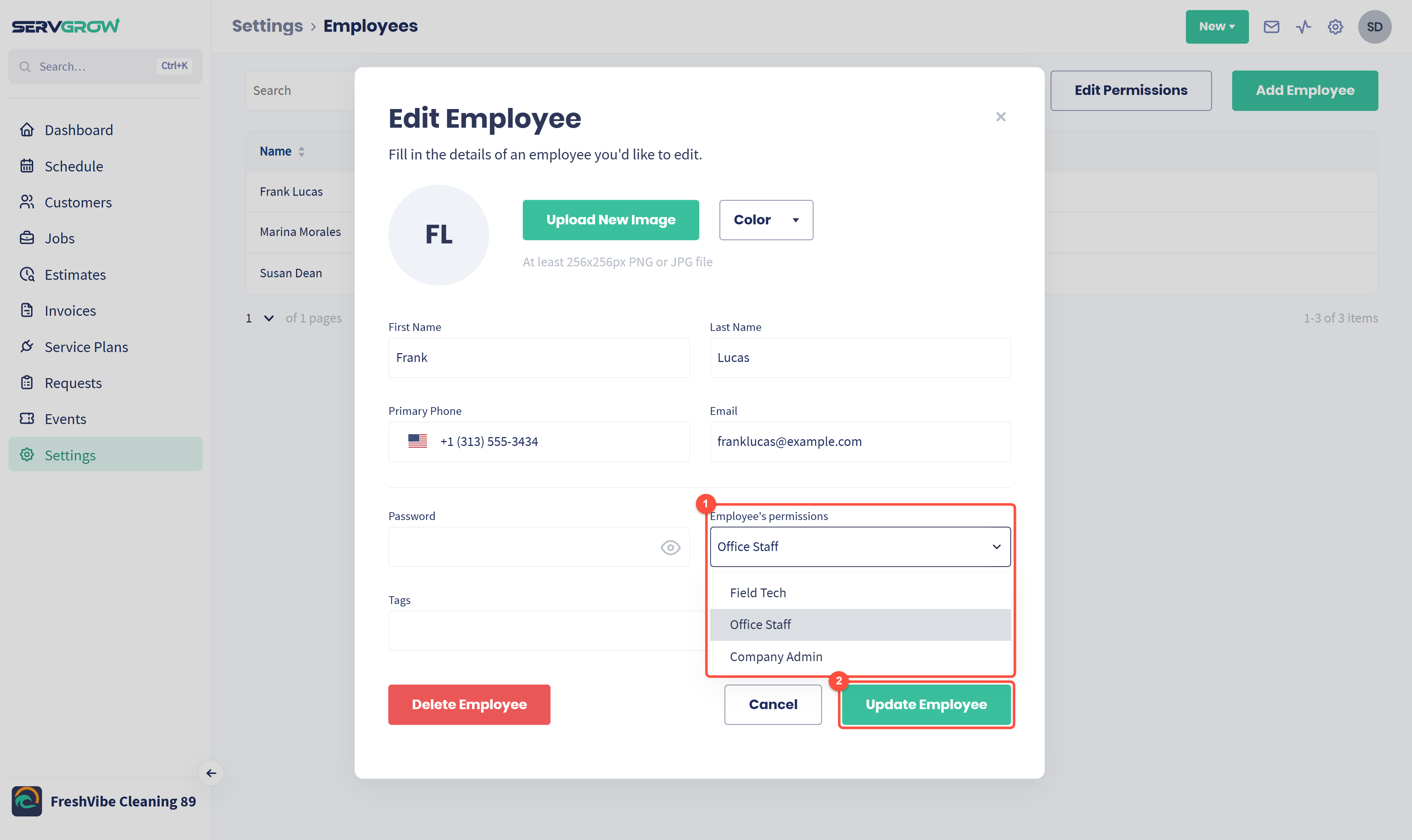
Open Employee's permissions and pick a role. Roles you create show up in this list too.
Click Update Employee.
What the ready-made roles can do
Field Tech: sees only the customers, jobs, estimates, invoices, text conversations and events assigned to them. Can create and edit jobs, see prices, assign service plans and manage events. Cannot see the Dashboard or Activity Feed, delete jobs or add and edit customers.
Office Staff: sees everything across customers, jobs, estimates, invoices, texts and events, plus the Dashboard and Activity Feed. Can add and edit customers, delete jobs and create service plans. Can view Online Booking but not change it. In Settings, Office Staff can open Reports and Expenses.
Company Admin: everything Office Staff can do, plus full access to Online Booking and the rest of Settings, such as Employees, Billing, Company Profile and Price Book.
You can change the ticks for any role, as described below.
Change what a role can do
Click Edit Permissions.
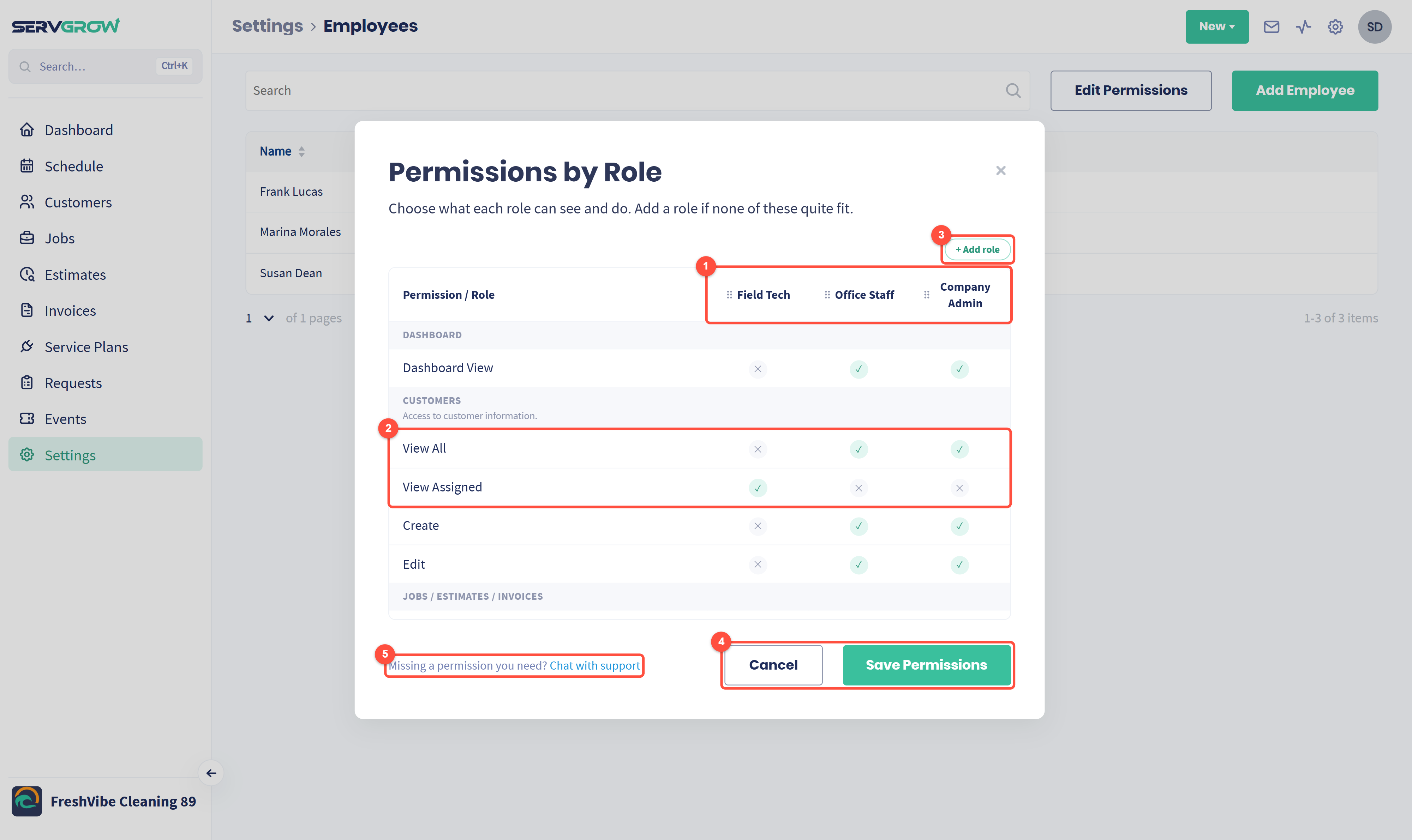
Each role has its own column. A green tick means the role has that permission. Click a tick or cross to switch it.
View All shows every record in that area. View Assigned shows only the ones the person is assigned to. A role can have one or the other, so switching one on switches the other off.
+ Add role: create your own role (see below).
Click Save Permissions to apply your changes to everyone with those roles, or Cancel to leave without saving.
Need a permission that is not in the list? Click Chat with support.
Scroll the table to see every area:
Dashboard: see the main Dashboard.
Customers: view all or assigned customers, create and edit them.
Jobs / Estimates / Invoices: view all or assigned work, create new, edit details and delete.
Show Pricing: see prices. With it off, prices are hidden on invoices as well.
2-Way Text: view all text conversations or only assigned ones.
Service Plans: create service plans and assign them.
Events: view all or assigned events, create, edit and delete them.
Activity Feed: see the Activity Feed.
Online Booking: full access or read only.
Some permissions need another one first
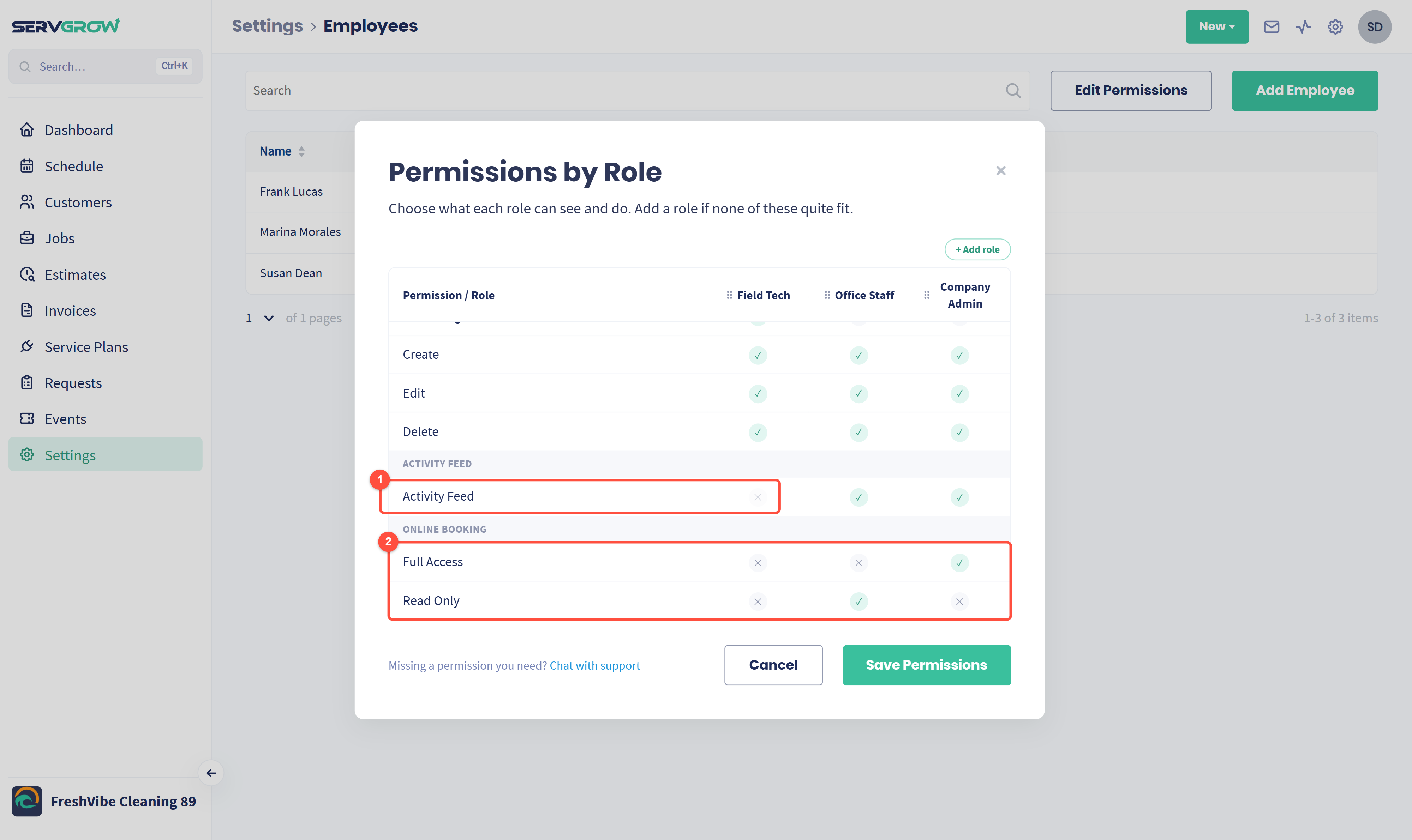
A faded cross means the permission needs something else switched on first. Hover over it to see what. Here, Field Tech cannot have Activity Feed until Dashboard View is on.
Online Booking: choose Full Access or Read Only, not both.
For example, Create New for jobs needs a view permission and Show Pricing, and Edit Details and Delete need a view permission. If you switch off a permission that others depend on, those are switched off too.
Add your own role
When none of the ready-made roles fit, click + Add role.
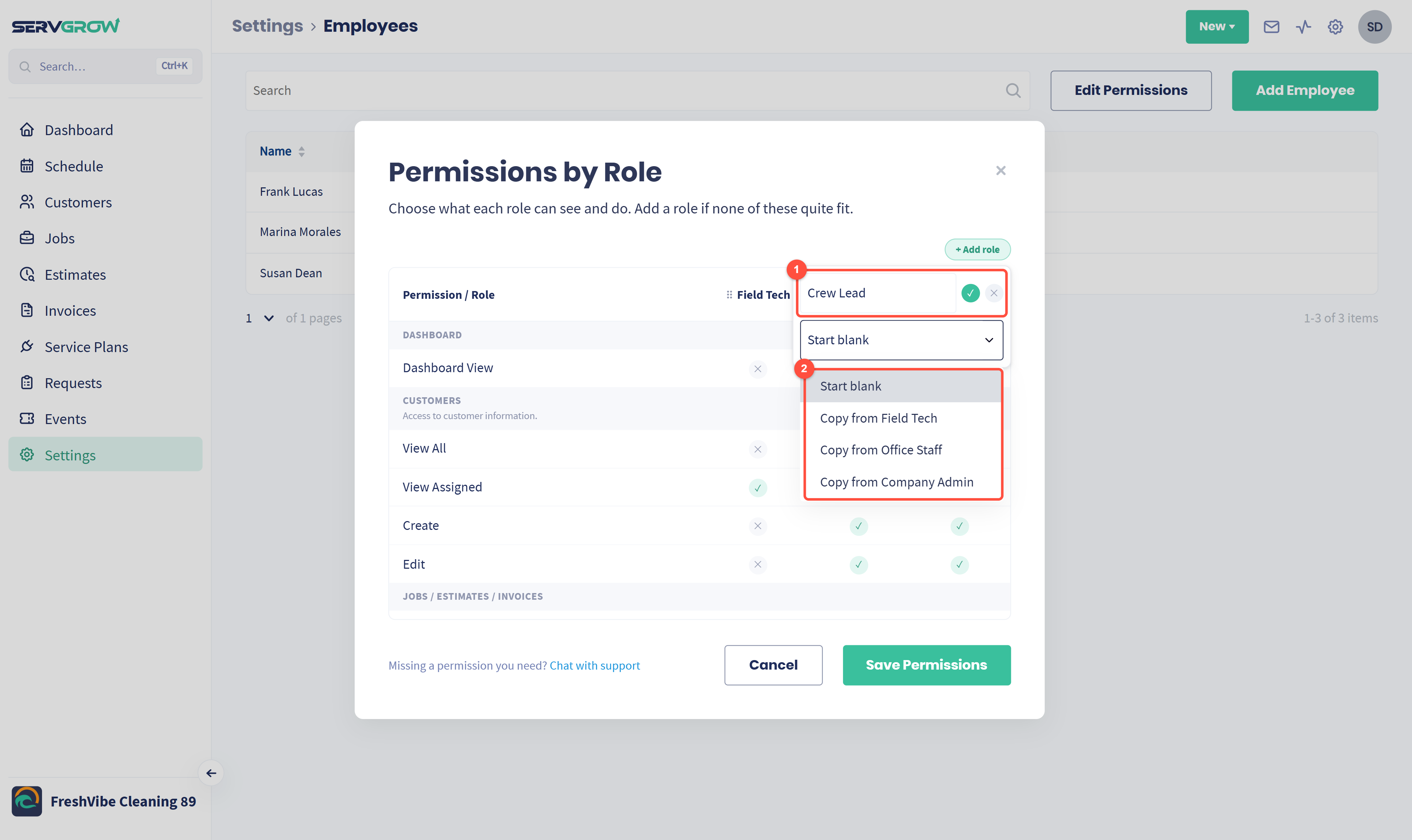
Type a name for the role. Click the green tick to add it, or the cross to cancel.
Choose where to start: Start blank (every permission off) or Copy from one of your roles. Copying the closest role saves you the most clicks.
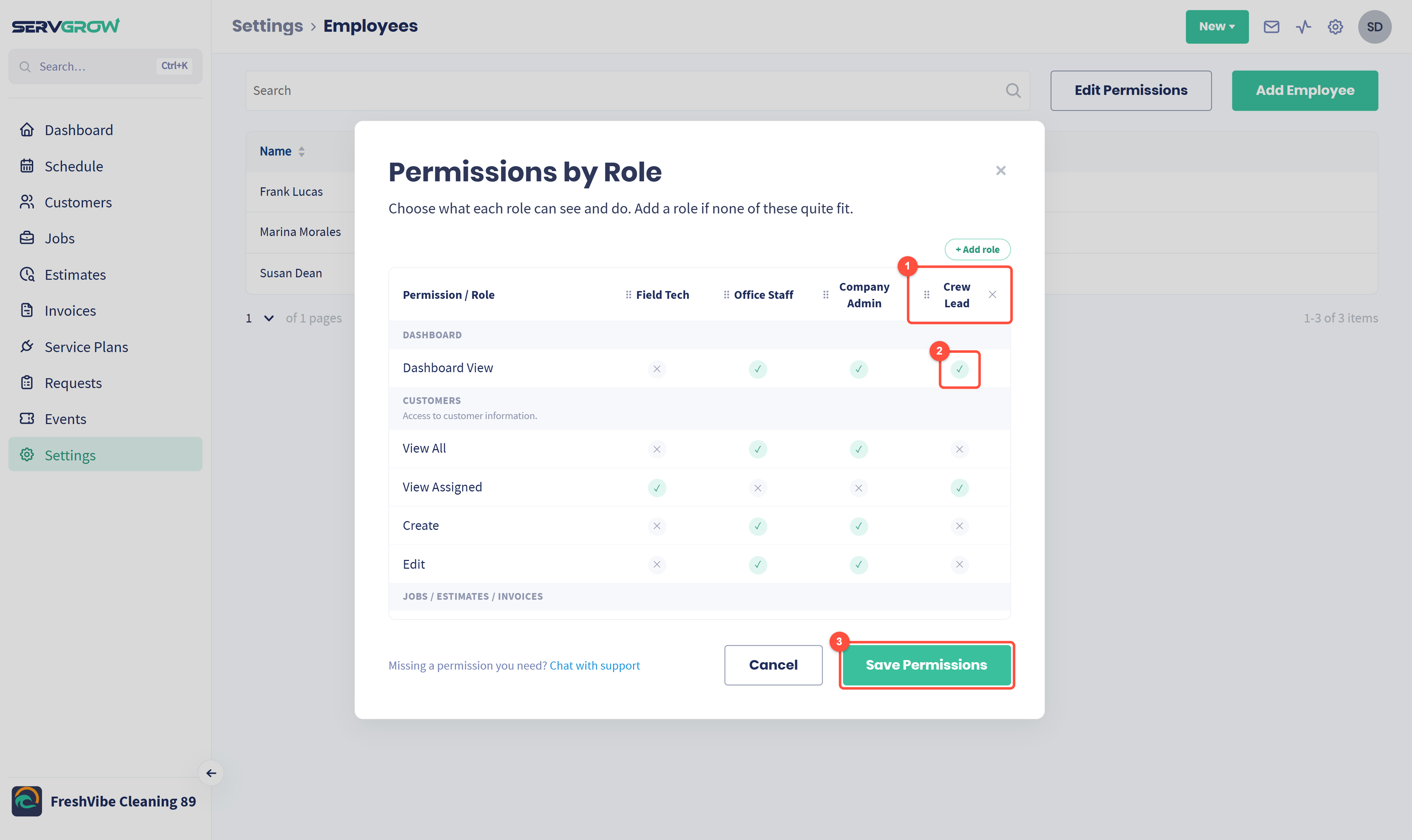
The new role gets its own column. Drag the dotted handle next to a role's name to change the column order.
Switch the permissions you want to change. Here, Crew Lead can see the Dashboard, unlike Field Tech.
Click Save Permissions. You can now give the role to team members in Employee's permissions.
Remove a role you added
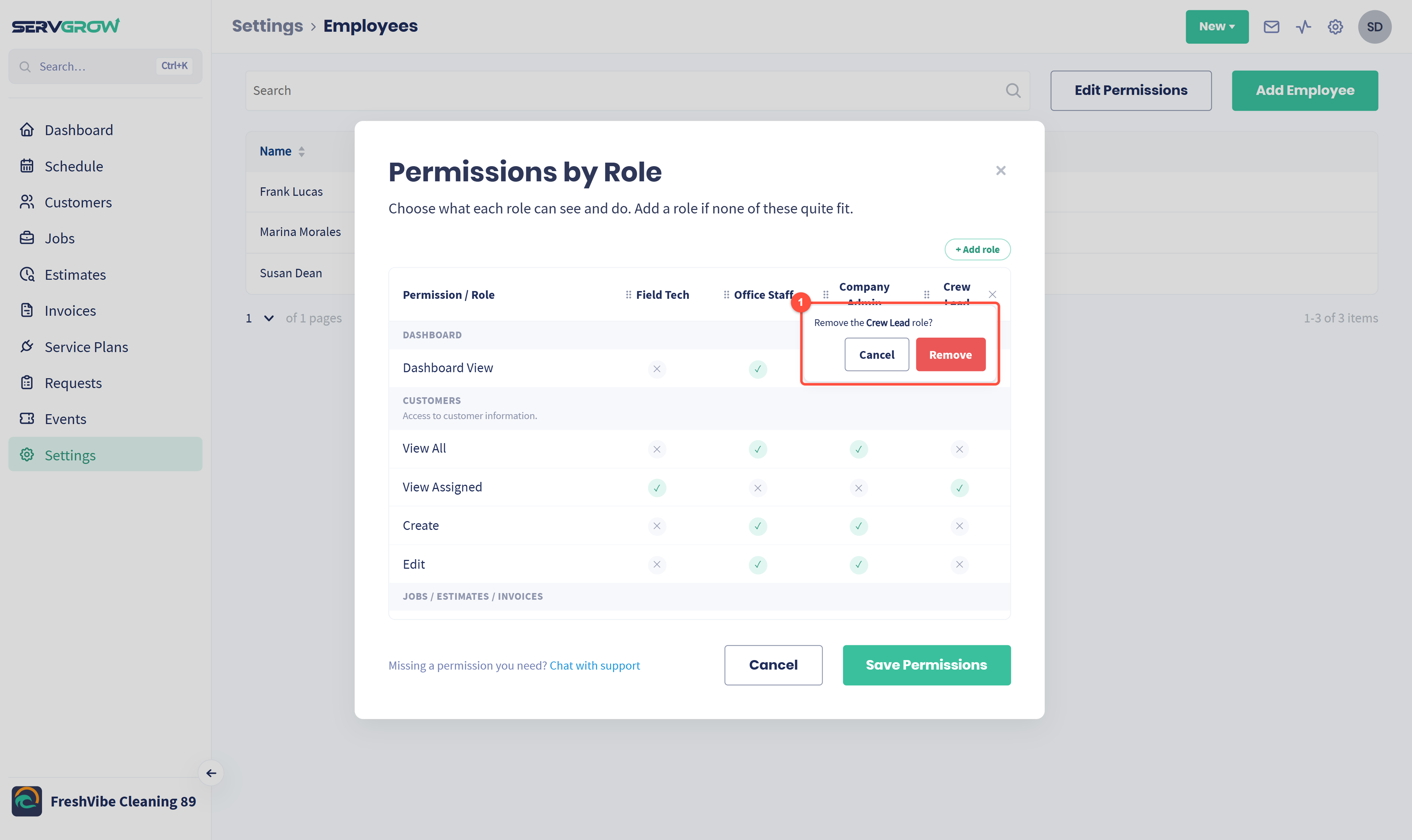
Click the cross next to the role's name, then Remove. Then click Save Permissions.
Only roles you added can be removed. If team members still have the role, Servgrow asks you to give them another role first.
Tips
Give field techs View Assigned. They see their own work without scrolling past everyone else's.
Turn off Show Pricing for subcontractors. Remember they will then not be able to create new jobs, because creating work needs pricing.
Copy a role instead of starting blank. Change only the few ticks that are different.
Review roles when someone's job changes. A promotion to office manager is a good moment to update their role.
Related articles