
Your invoice is the last thing a customer sees from you, and the thing that decides when you get paid. Invoice settings let you set it up once to match how your business already works: numbers your bookkeeper recognizes, payment terms you actually want, and what the customer sees on the page. Every invoice after that follows the same rules without anyone remembering them.
Find your invoice settings
Click Settings, then Invoice settings.
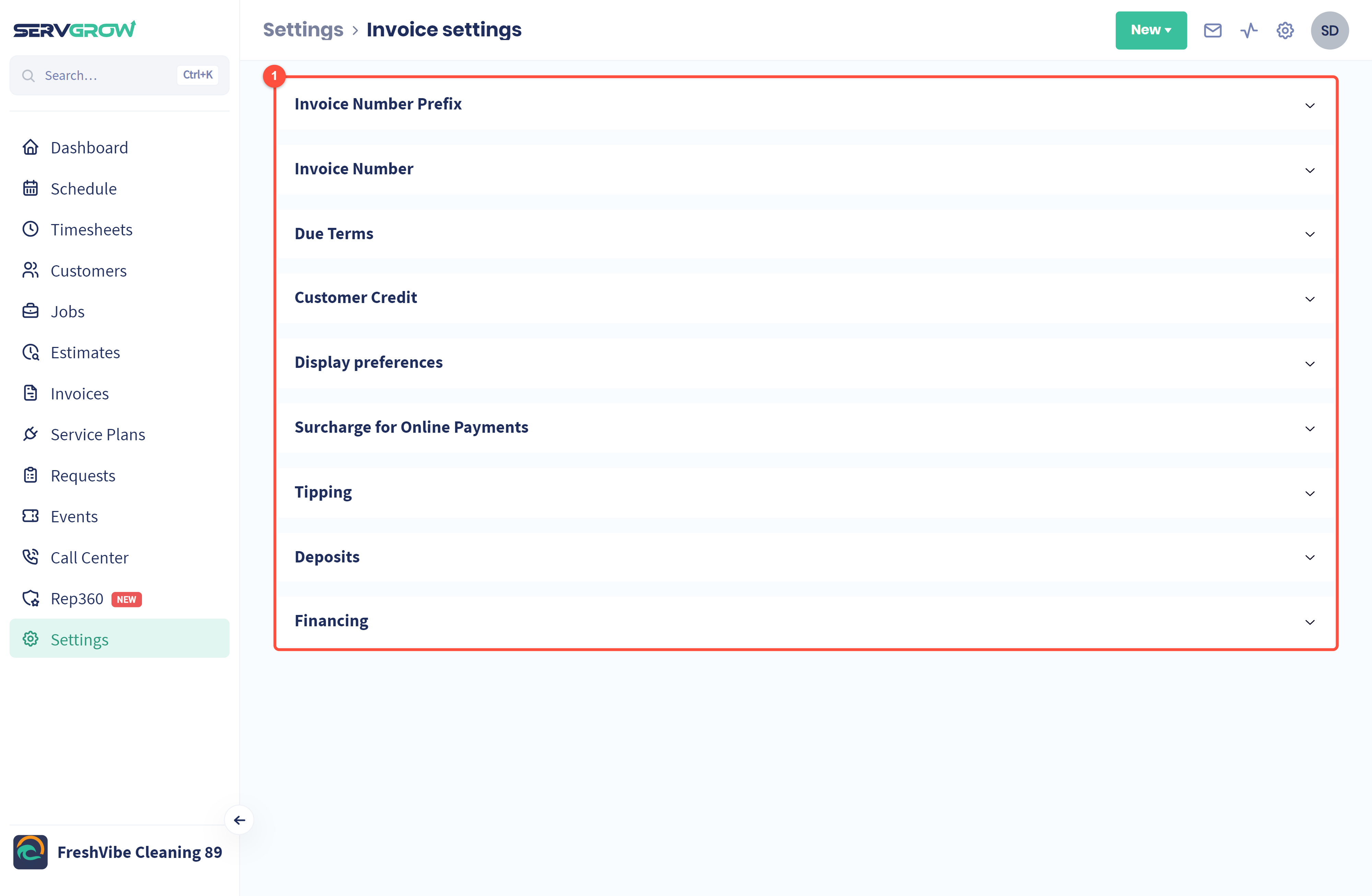
Each section opens when you click it. Change what you need and click Save inside that section. Nothing changes until you save.
This article covers invoice numbers, due terms, customer credit, display and surcharges. Tipping, Deposits and Financing have their own articles (see the end of this page).
Invoice number prefix
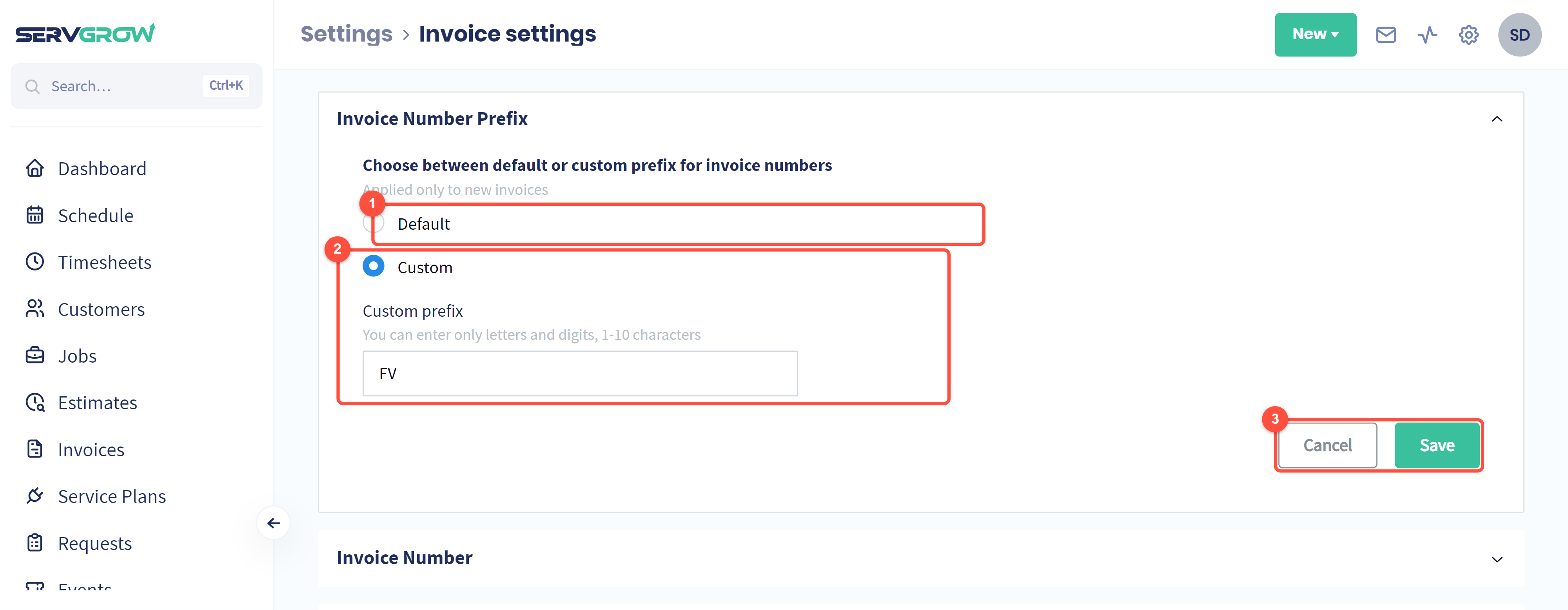
Default: the number starts with the customer's initials.
Custom: your own prefix, 1 to 10 letters or digits, for example your company's initials. It applies to new invoices only.
Save (or Cancel to undo).
Invoice number
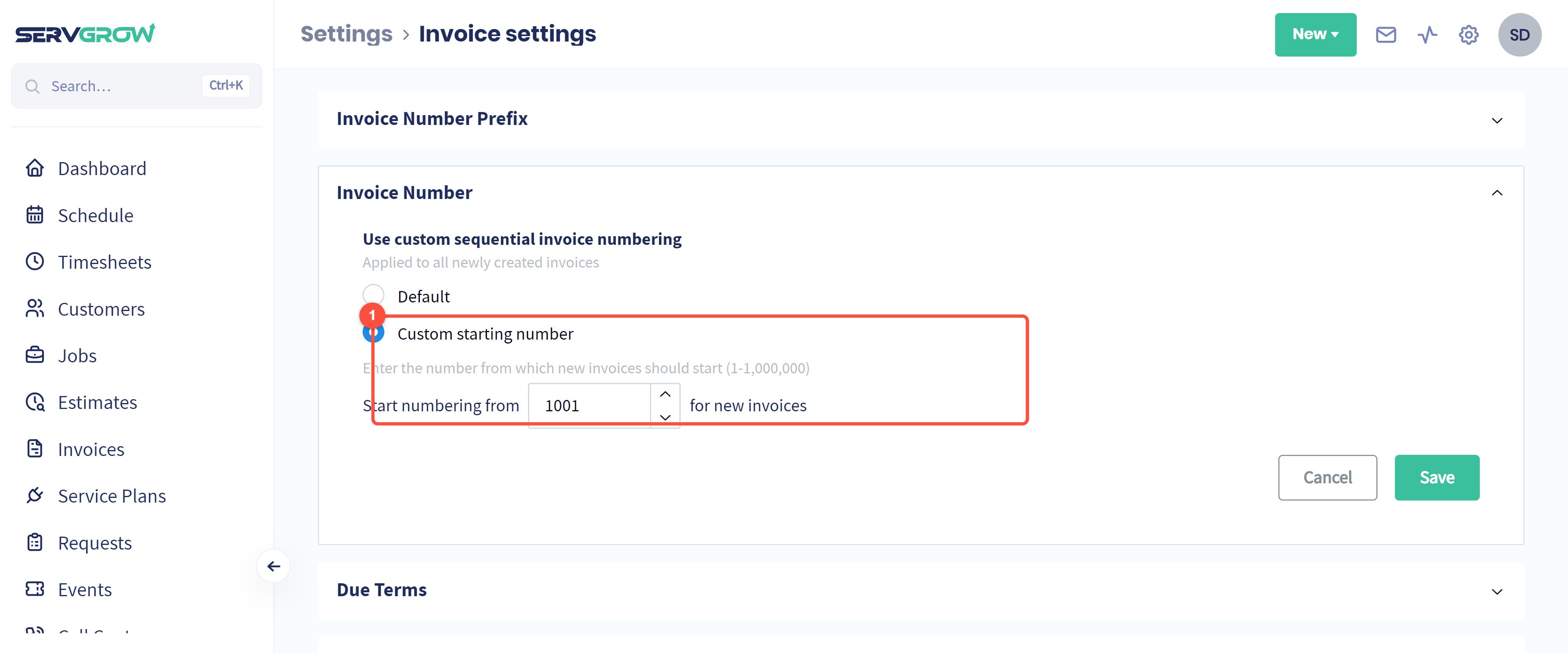
Custom starting number: make invoices count up from a number you choose (1 to 1,000,000). Useful when you move to Servgrow and want to carry on from your old numbering. Leave it on Default for Servgrow's standard numbers.
Due terms
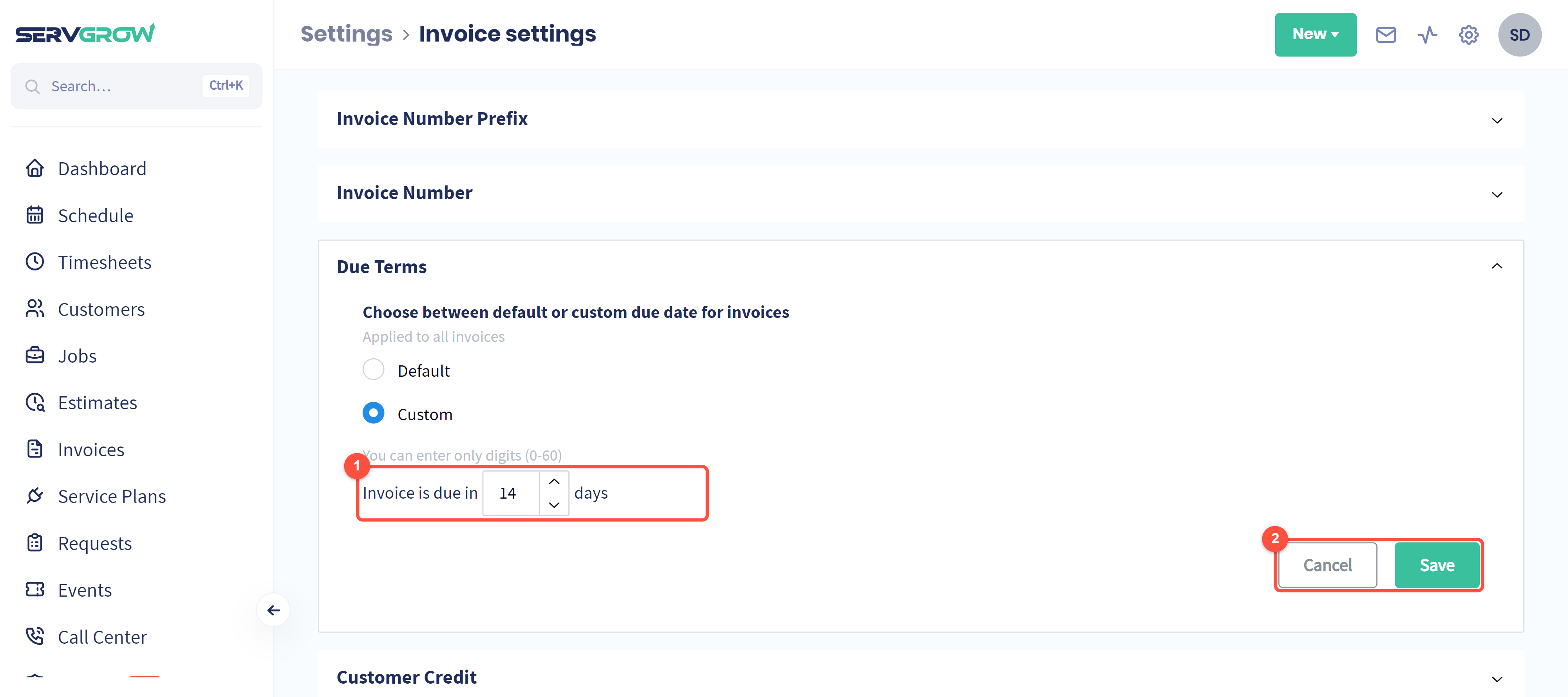
By default an invoice is due in 7 days. Choose Custom to set your own, from 0 (due on receipt) to 60 days.
Click Save. The new terms apply to all invoices.
Customer credit, display and surcharges
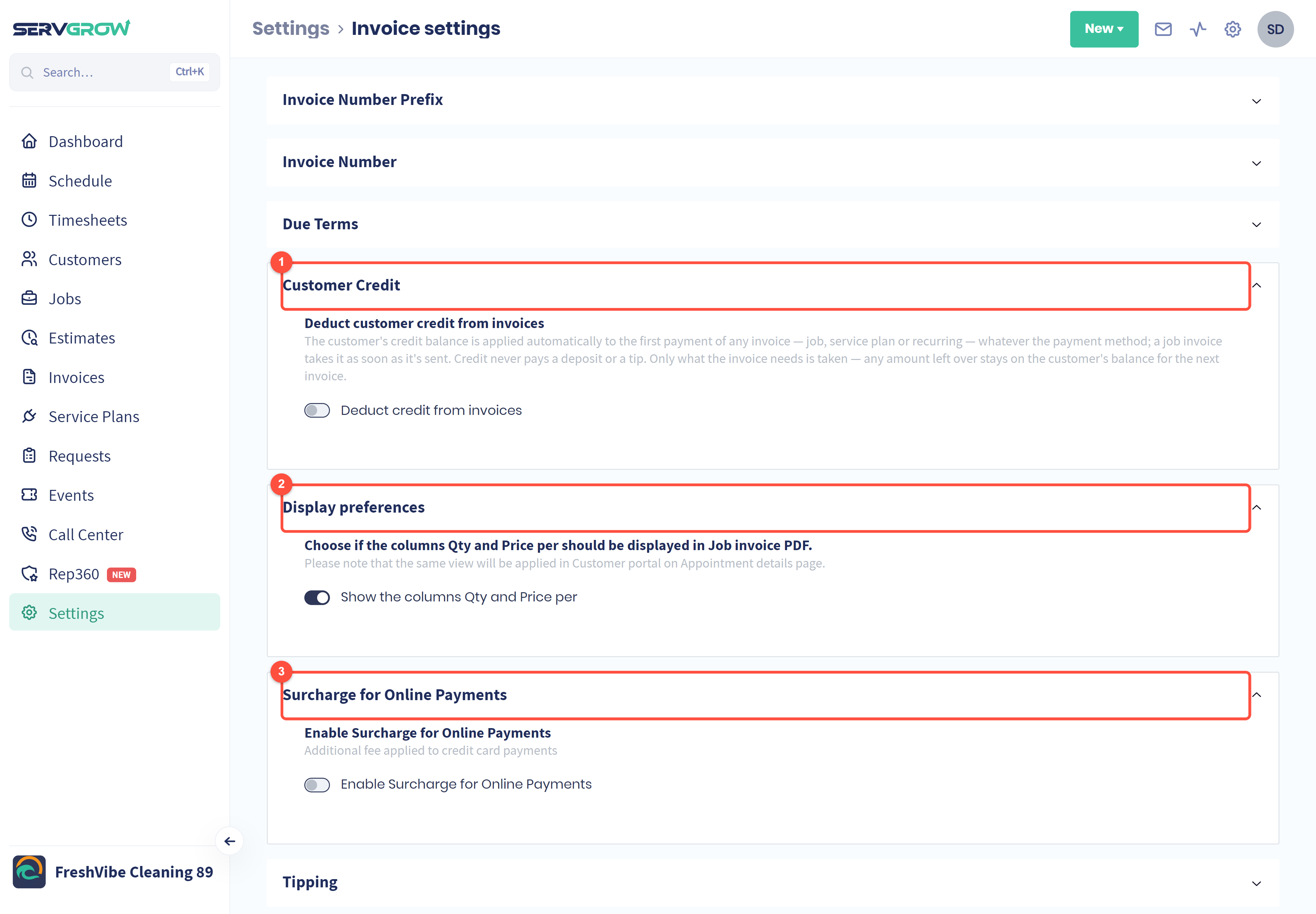
Customer Credit: switch on Deduct credit from invoices and any credit a customer has is taken off their next invoice automatically, whether it is a job, service plan or recurring invoice. Credit never pays a deposit or a tip, and any credit left over stays for next time.
Display preferences: show or hide the Qty and Price per columns on job invoice PDFs and in the customer portal. Hide them if you prefer to show one price per line.
Surcharge for Online Payments: add a fee to card payments to cover your processing costs.
Tips
Set your prefix and starting number before you send your first invoice so your numbering is consistent from day one.
Shorter due terms get you paid sooner. Most home service customers are happy with due on receipt or 7 days.
Check local rules before you add a surcharge. Some states limit or ban card surcharges.
Related articles