
Nothing wrecks a day faster than booking a job for someone who is not working that day. Servgrow keeps each employee's working hours and time off in one place, so you can see who is available before you book. Vacations and days off block scheduling automatically, your team can request time off from their own login, and a report shows who is out and when, so you can plan around it instead of finding out the morning of.
See everyone's week at a glance
Click Settings, then Employees.
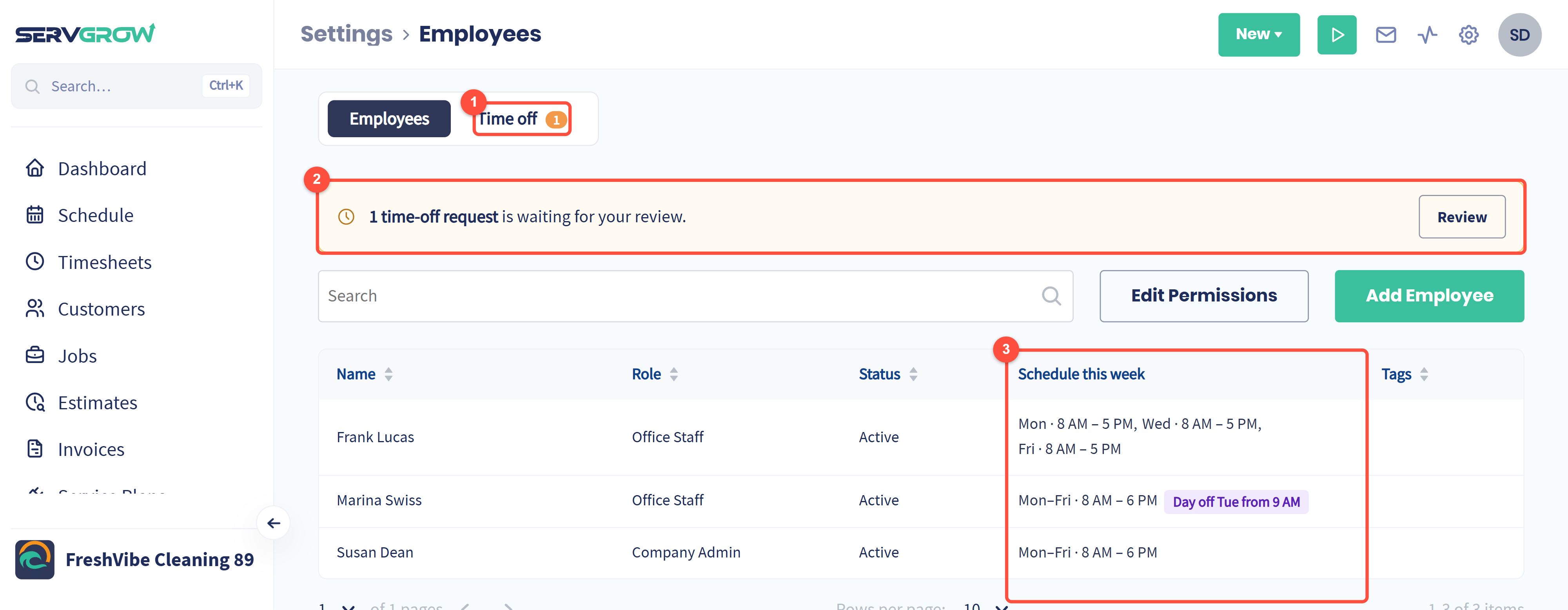
Time off: every vacation, day off and request. The number shows how many requests are waiting for you.
When someone asks for time off, a banner tells you. Click Review to see the request.
Schedule this week: each person's working hours this week, with any time off flagged.
Set an employee's working hours
Working hours are the days and times a person can be scheduled. Servgrow uses them for scheduled hours on timesheets and for clock-out reminders. Click the employee's name, then the Schedule tab.
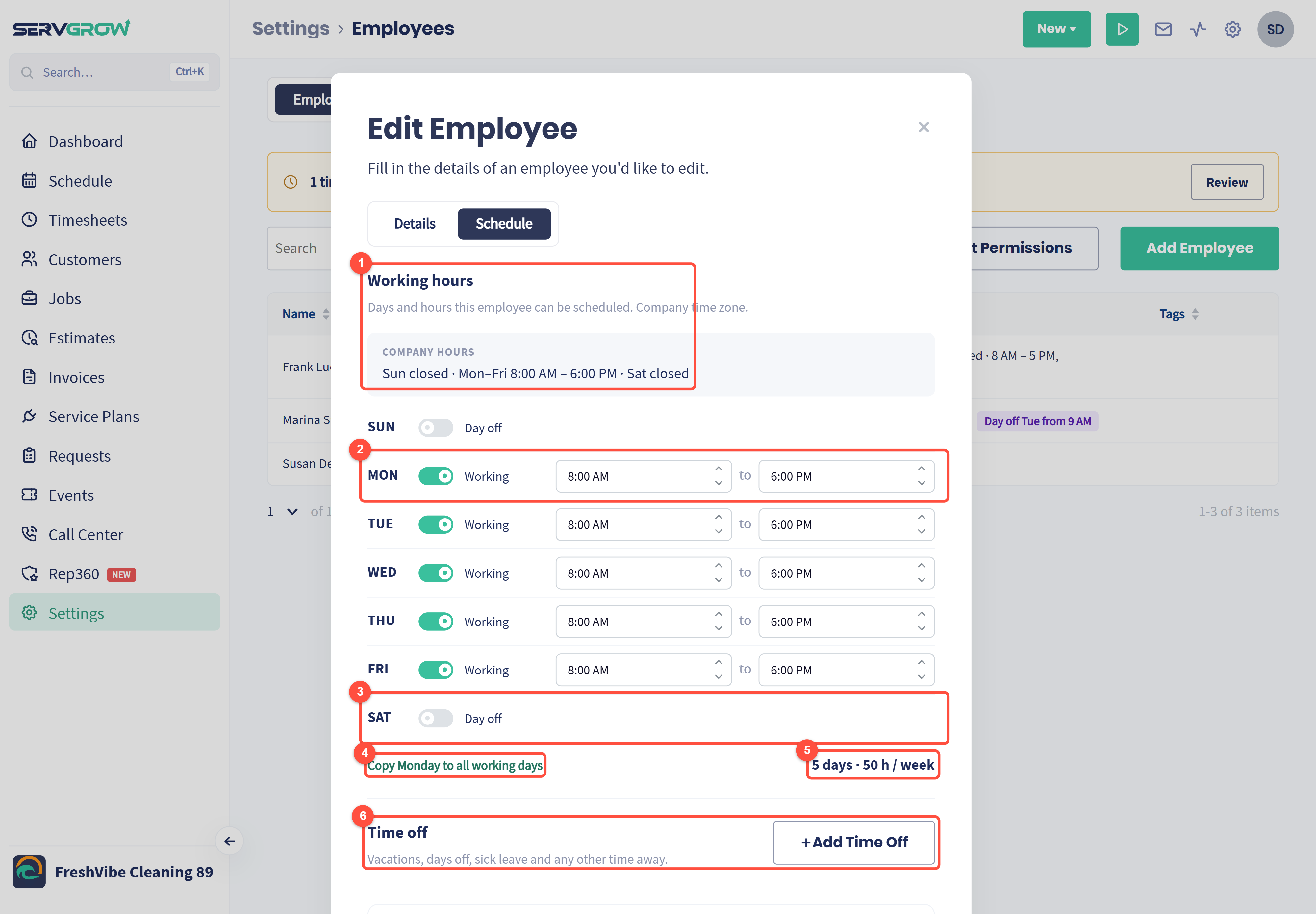
Working hours, in the company time zone. Your company's own hours are shown for reference.
Turn a day on for Working and set the start and end time.
Turn a day off for a Day off.
Copy Monday to all working days fills in the rest of the week in one click.
The total shows how many days and hours a week that comes to.
Time off: this person's time off, with Add Time Off to book more.
Click Update Employee to save. Only admins can change working hours.
Manage time off for the team
On the Employees page, click the Time off tab.
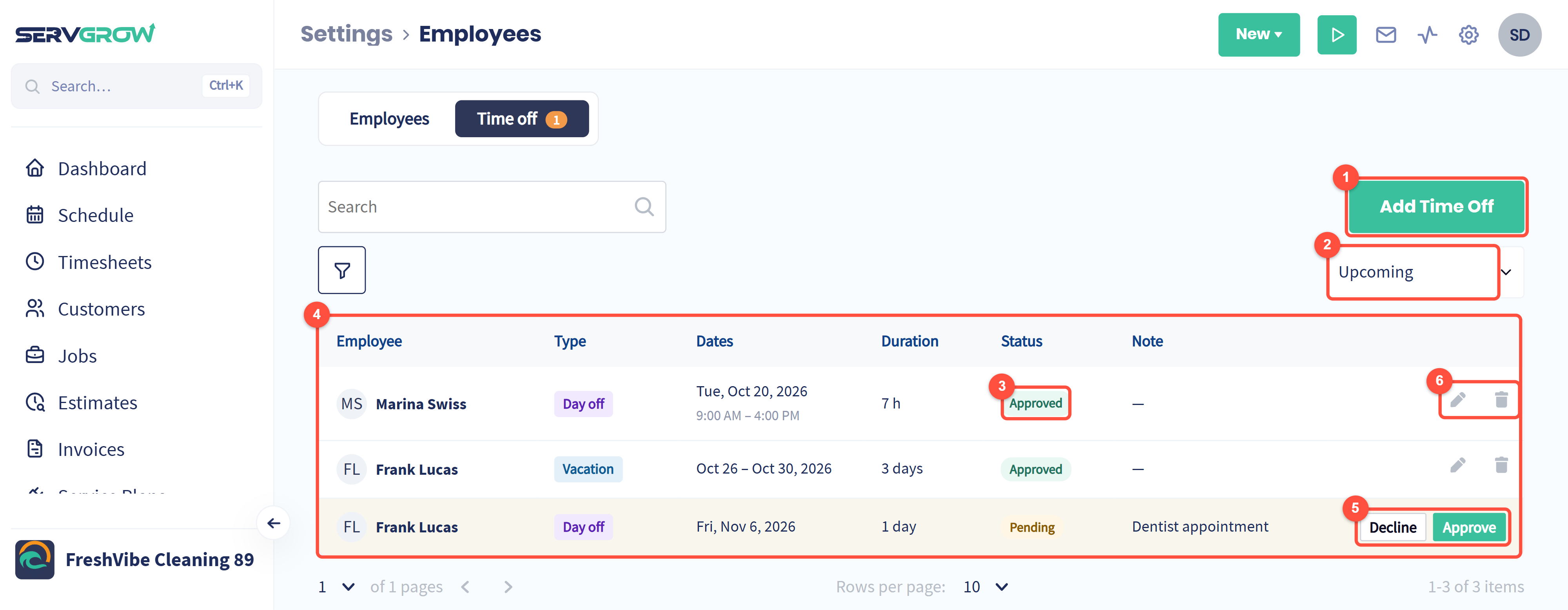
Add Time Off: book time off for anyone.
Switch between upcoming time off and the rest. The funnel filters the list.
Approved: time off that is confirmed and blocks scheduling.
The list shows who, the type, the dates, how long, the status and any note.
A request from your team shows as Pending. Click Approve or Decline. The employee is notified either way.
Use the pencil to change time off, or the bin to delete it.
If the person already has work booked during time off you approve, that work stays on the schedule with a warning until you reassign it.
Add time off
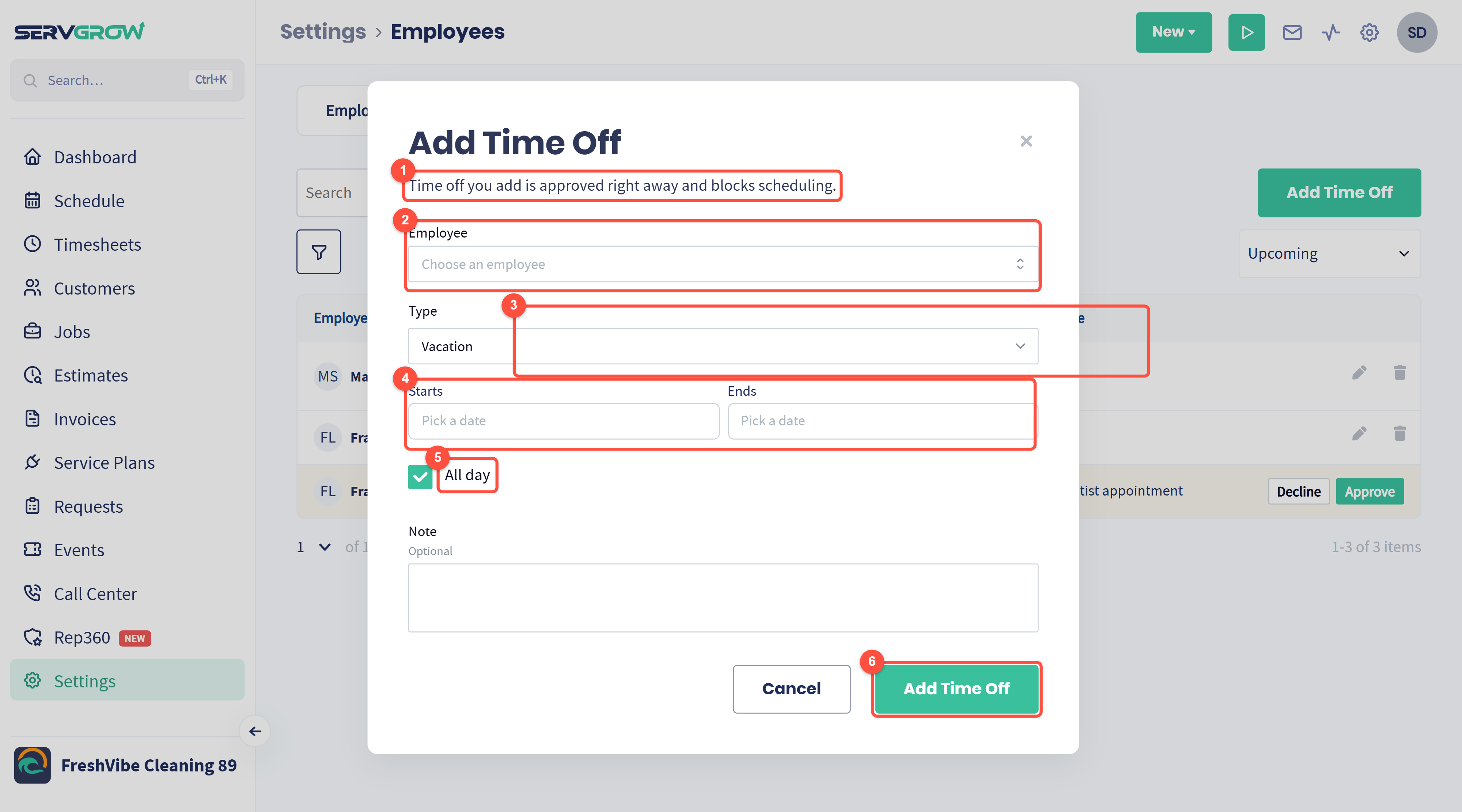
Time off you add yourself is approved straight away and blocks scheduling.
Choose the Employee.
Choose the Type: Vacation, Day off or Sick leave, or type your own, such as Jury duty.
Pick the Starts and Ends dates.
Leave All day ticked for whole days. Untick it for part of a day, such as a morning appointment, and set the times.
Add an optional note, then click Add Time Off.
How your team requests time off
Each team member has their own schedule page. They click their initials at the top right of Servgrow.
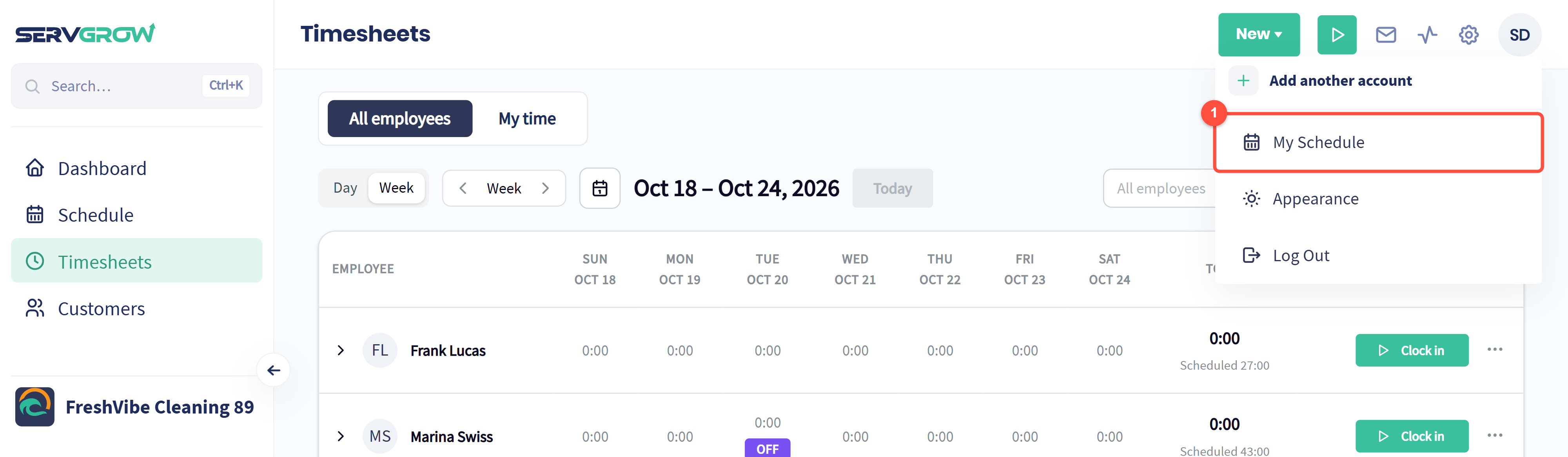
Click My Schedule.
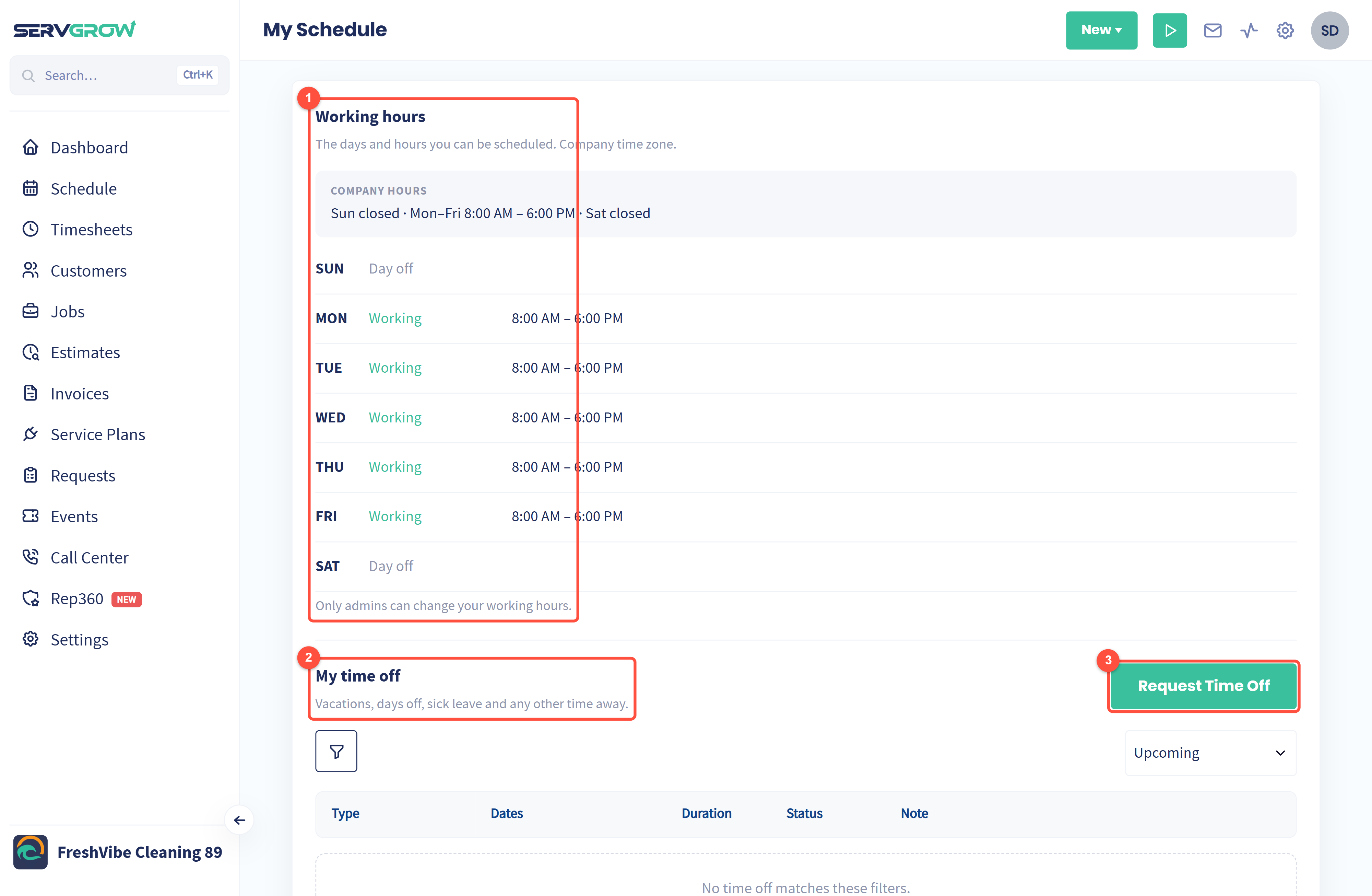
Working hours: the days and hours they can be scheduled. Only admins can change them.
My time off: their vacations, days off and sick leave, with the status of each request.
Click Request Time Off.
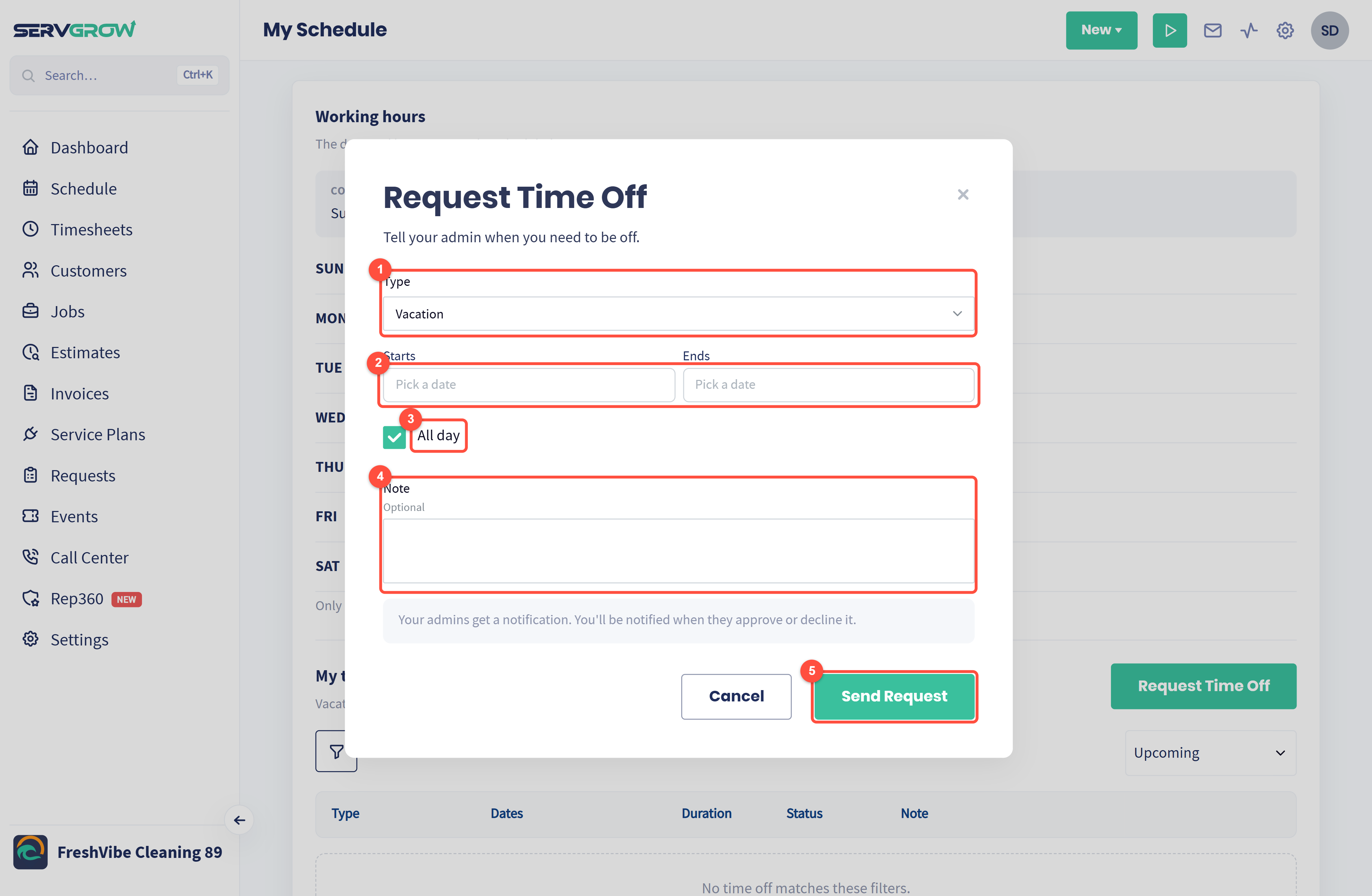
Choose the Type.
Pick the dates.
Untick All day for part of a day.
Add a note for you, such as the reason.
Click Send Request. You get a notification, and they are notified when you approve or decline it. Until then, they can withdraw the request.
See who is out with the Time Off report
Click Settings, then Reports.
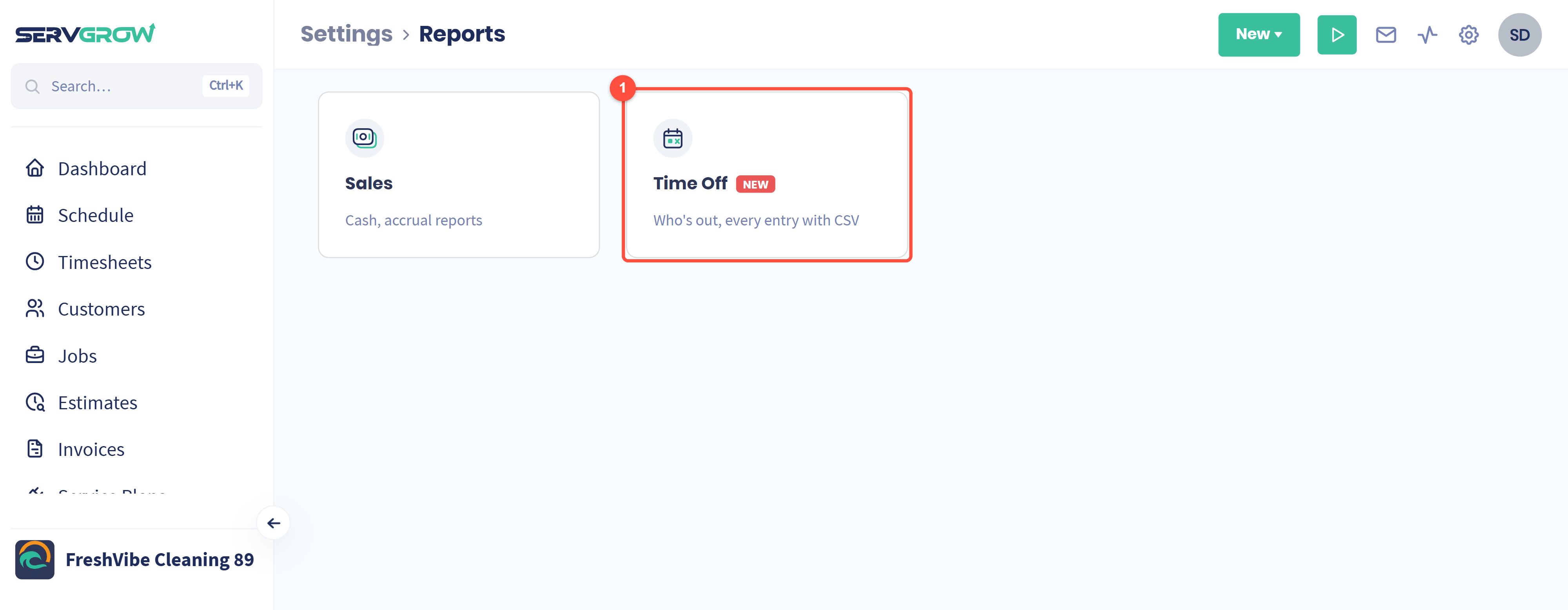
Click Time Off.
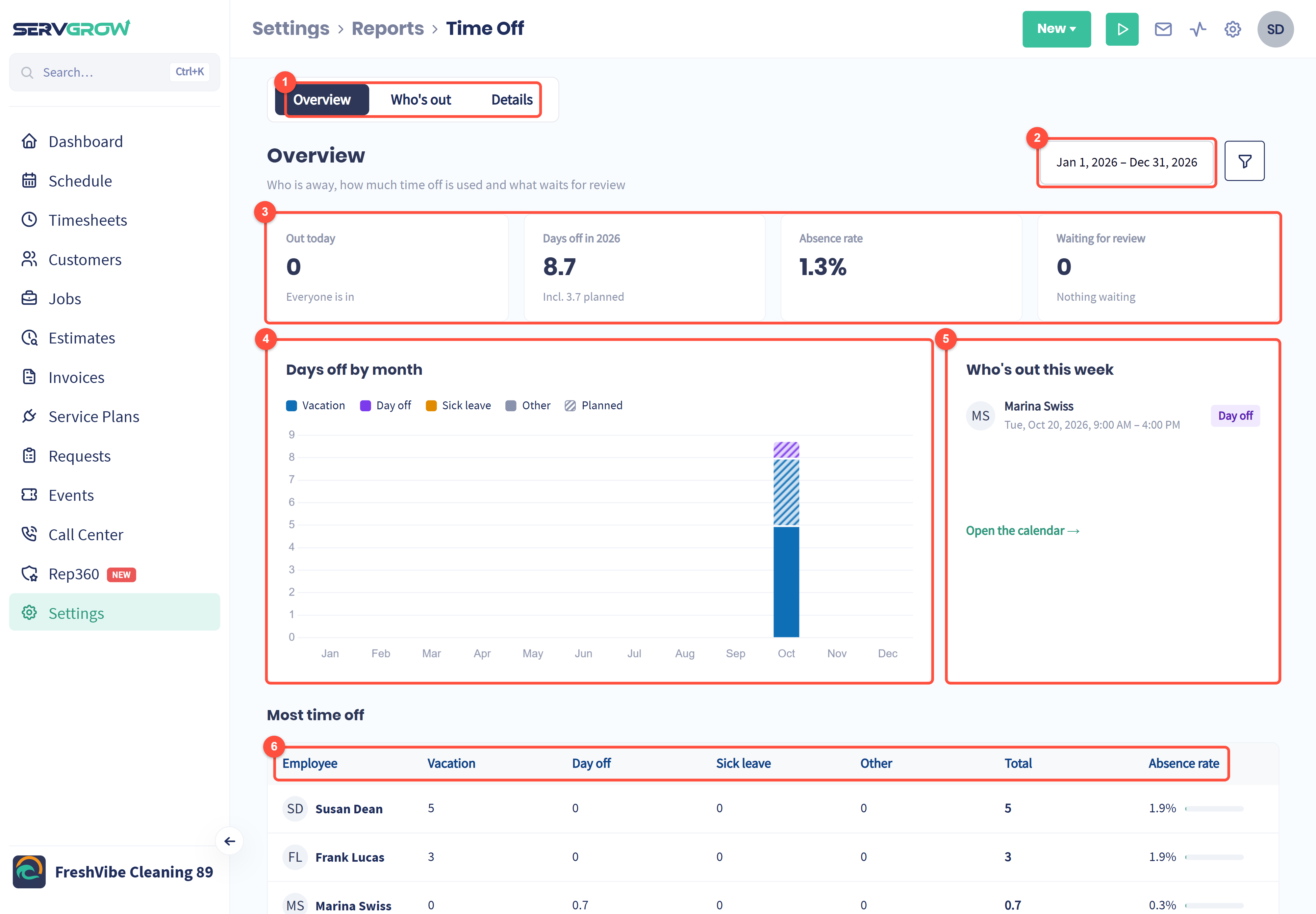
Overview, Who's out (who is away, day by day) and Details (every time off entry, with a CSV export).
Pick the date range. The funnel filters the report.
Who is out today, days off so far, the absence rate and how many requests are waiting for review.
Days off by month, by type. Hatched bars are time off that is booked but has not happened yet.
Who's out this week, so you can plan the schedule around it.
Most time off: days off per person by type, with their absence rate.
Tips
Set working hours for everyone on day one. Scheduled hours, availability and clock-out reminders all depend on them.
Answer requests within a day. The banner and the Time off count make waiting requests hard to miss.
Check Who's out this week before you build the schedule. It takes seconds and saves a lot of rebooking.
Use your own types. Add Training or Jury duty so the report shows where the time really goes.
Related articles