
Paper timesheets and "I think I started around eight" cost you money every week: hours get rounded up, travel gets forgotten, and payroll turns into guesswork. Servgrow Timesheets records your team's time as they work. They clock in with one tap, and job and travel time is logged from the visit statuses they already tap on the job. You review the week, approve it, and the hours are locked and ready for payroll. Add each employee's labor cost and every job shows what it really cost you to do.
Turn on Timesheets
Click Settings in the left menu.
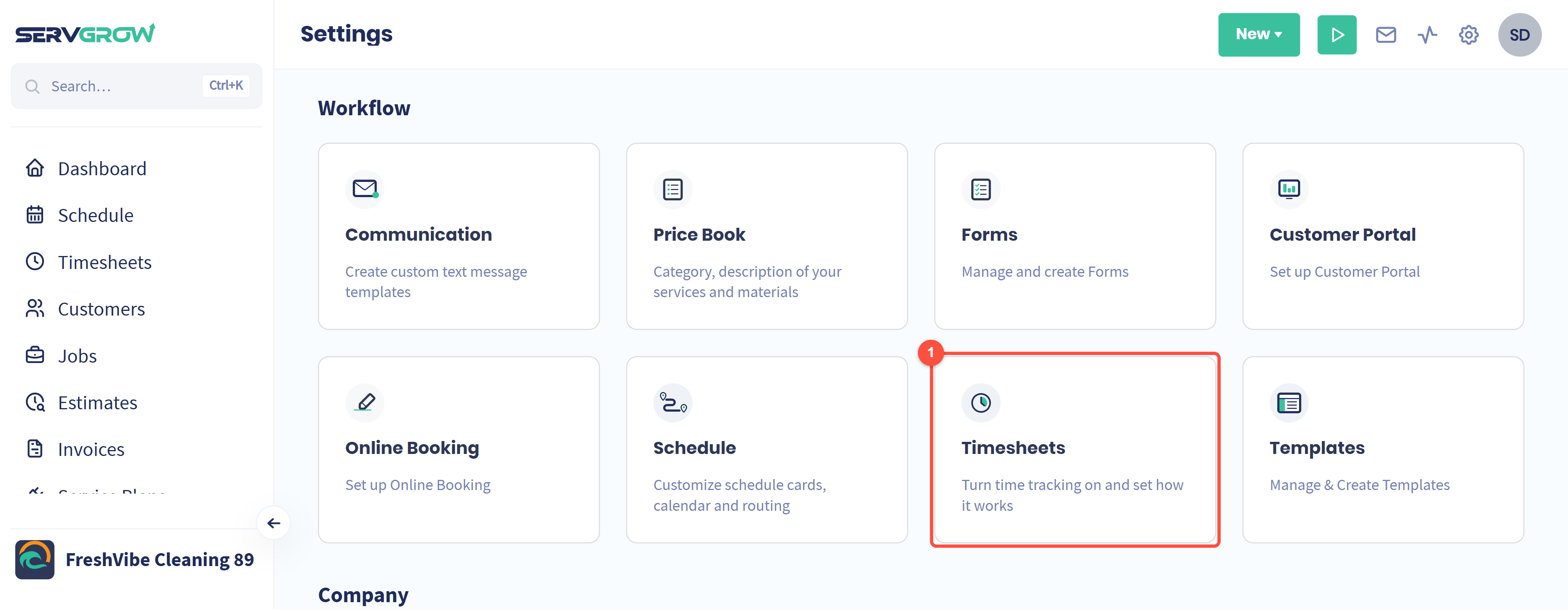
Click Timesheets.
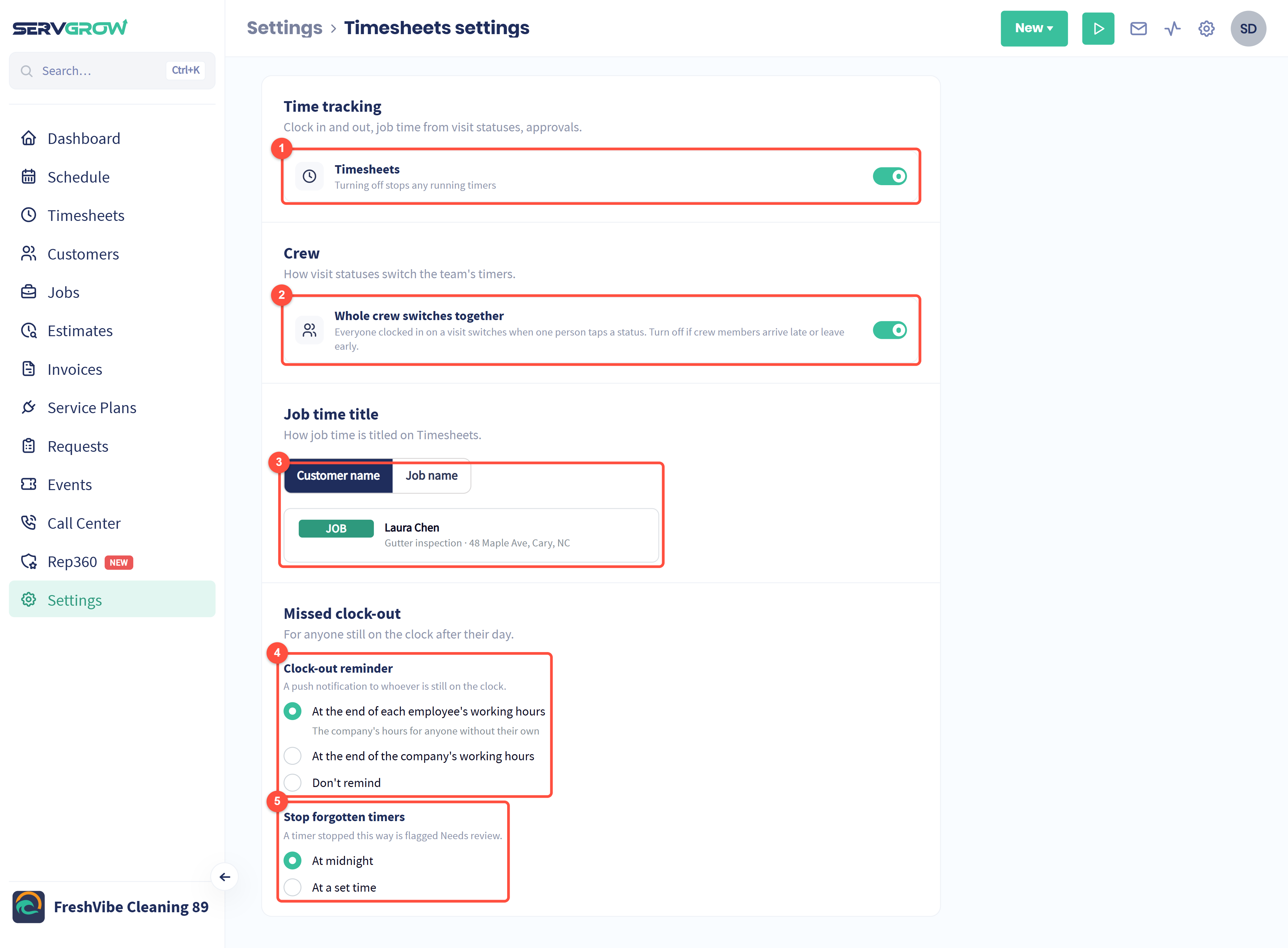
Timesheets: turns time tracking on for the whole company. Turning it off stops any running timers.
Whole crew switches together: when one person on a visit taps a status, such as Start, everyone clocked in on that visit switches with them. Turn it off if crew members often arrive late or leave early.
Job time title: show job time on timesheets by the Customer name or the Job name. The preview shows how an entry will look.
Clock-out reminder: a push notification to anyone still on the clock at the end of their own working hours, at the end of the company's hours, or not at all.
Stop forgotten timers: stops a timer someone forgot to stop, at midnight or at a time you set. Time stopped this way is flagged Needs review so you can check it before you approve it.
Click Save changes when you are done.
How time gets recorded
Every entry is one of three types: General (on the clock, not on a job, such as loading the van or a training day), Travel (on the road between jobs) and Job (working on a job or estimate). Most of it is recorded without anyone touching the timesheet:
Clock in and out: your team clocks in when the day starts and out when it ends.
Visit statuses: when someone taps On My Way, Start and Finish on a visit, their timer switches to match, so travel and job time land on the right job.
Start my time: on a job page, anyone on the team can start and stop their own time on that job.
Add entry: you can add or correct time by hand, for example when someone forgot to clock in.
Clock in
Click Timesheets in the left menu.
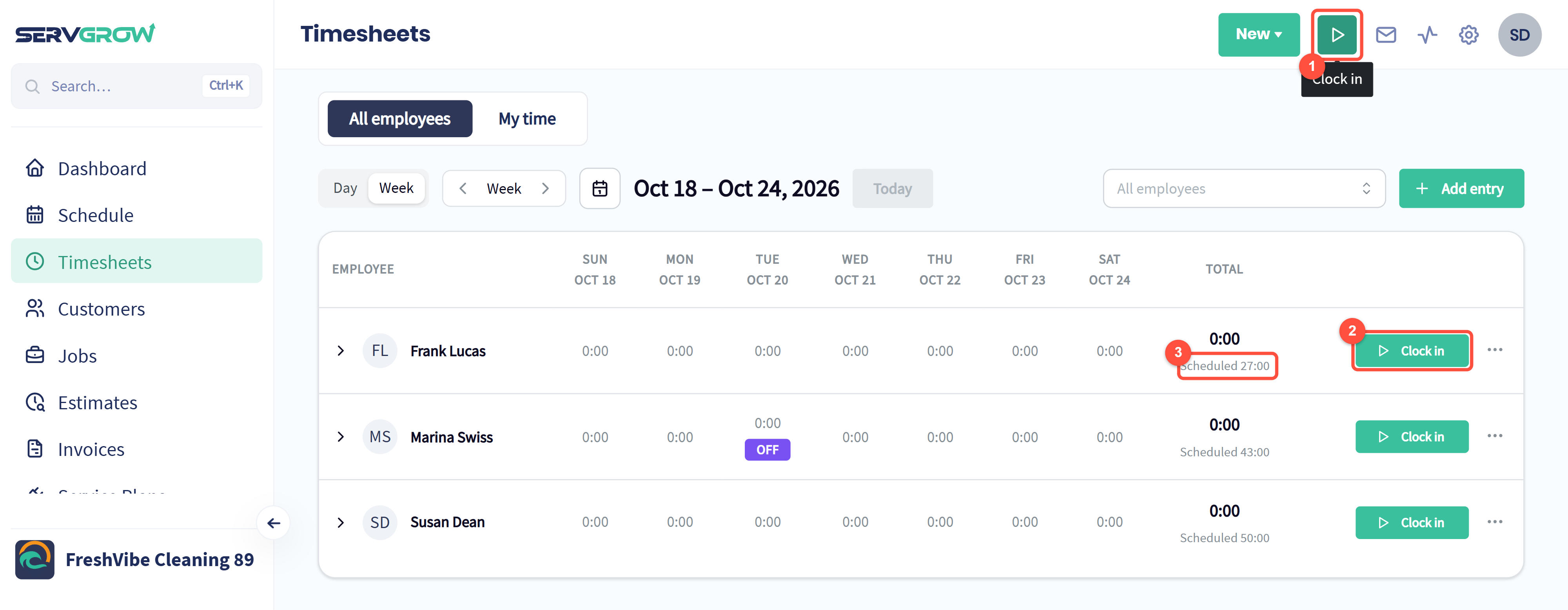
The clock button at the top of every page clocks you in with one tap, and out again when you are done.
Clock in on an employee's row clocks that person in, for example when they arrive at the shop without the app.
Under each total you can see how many hours the person is scheduled for that week, from their working hours.
Find your way around the timesheet
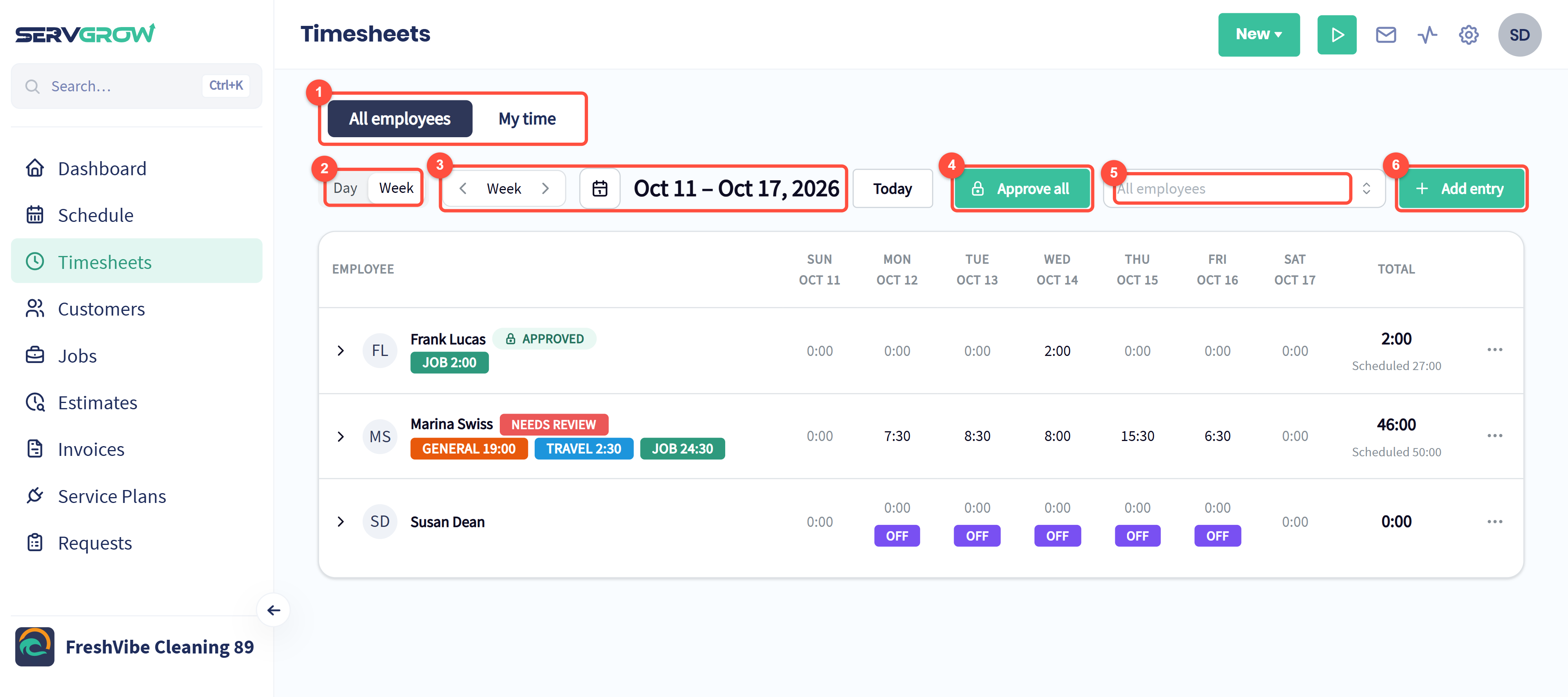
All employees shows the whole team. My time shows only your own hours.
Switch between a Day and a Week view.
Step back and forward a week, or click the calendar to jump to a date. Today brings you back.
Approve all approves everything in the period you are looking at, once you are happy with it.
Filter to one or more employees.
Add entry adds time by hand.
Read the week
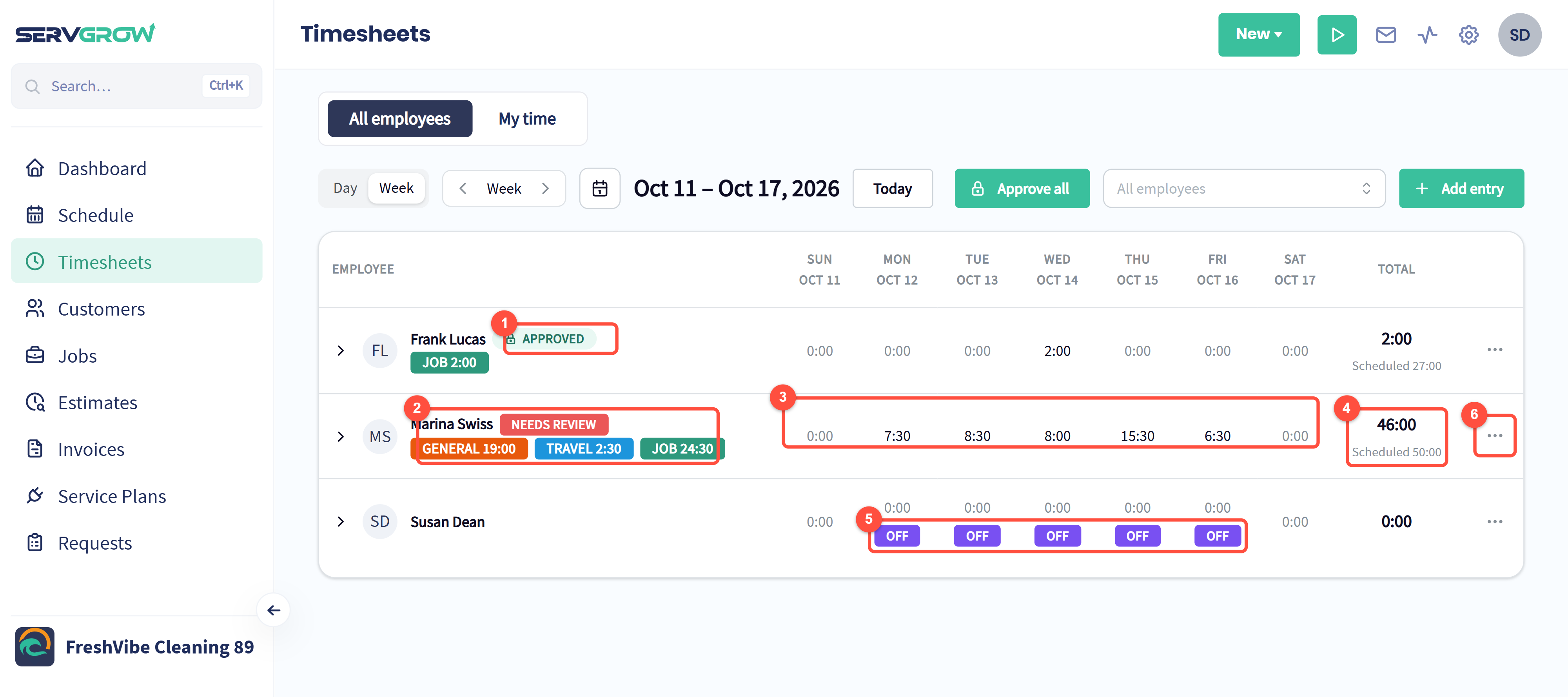
Approved: this person's time for the period is approved and locked.
Needs review: at least one entry was stopped automatically or changed by the employee. Underneath, the week's hours are split into General, Travel and Job.
Hours worked each day.
The week's total, with the hours they were scheduled for underneath. A big gap either way is worth a look.
OFF: approved time off, such as a vacation day.
The ... menu approves or unlocks this person's time.
Click the arrow at the start of a row to see every entry behind the totals.
Check the entries
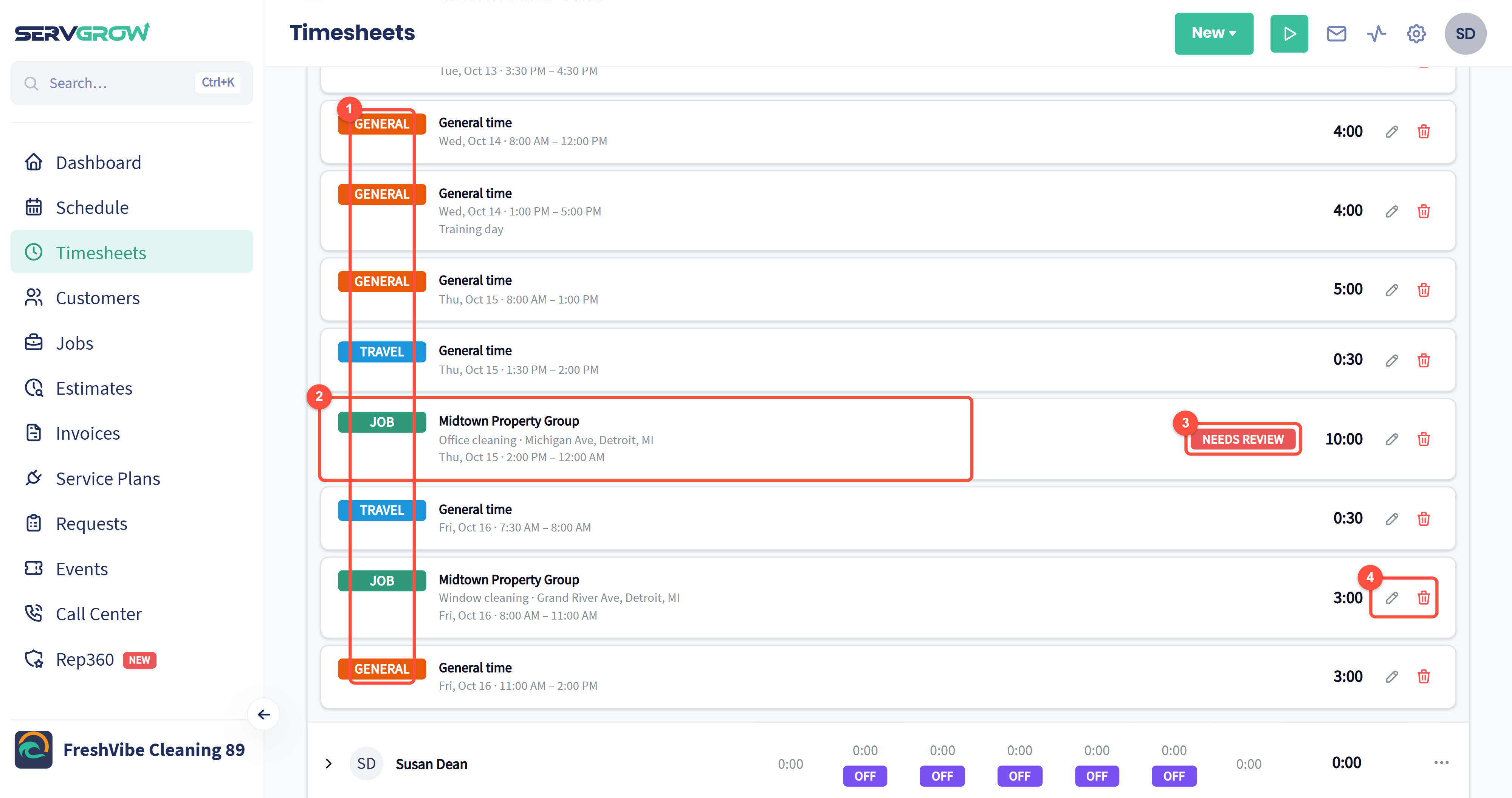
Each entry shows its type: General, Travel or Job.
Job time shows the customer, the job and the address, with the date and times.
Needs review marks the entries to check. Here, a timer ran until midnight because nobody stopped it, so ten hours were recorded for a three-hour clean. Fix the end time before you approve.
Click the pencil to edit an entry, or the bin to delete it. Click an entry itself to open its details.
Add or correct time
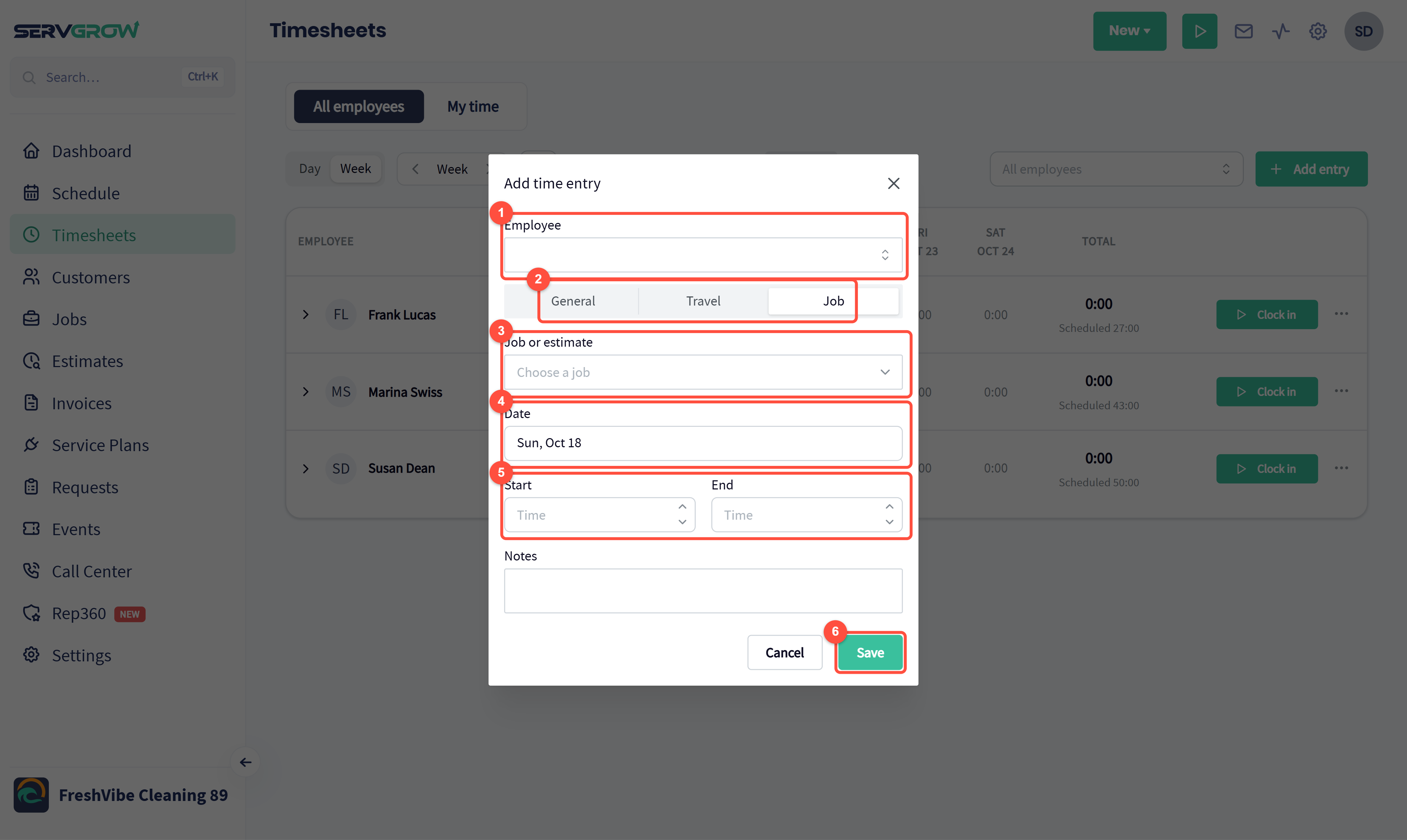
Choose the Employee.
Pick the type: General, Travel or Job.
For job time, choose the Job or estimate. Search by customer or address.
Pick the Date.
Set the Start and End. An end before the start is treated as running into the next day. Add a note if it helps.
Click Save.
Approve the time
Approving locks the hours, so nobody can change them after you have run payroll on them.
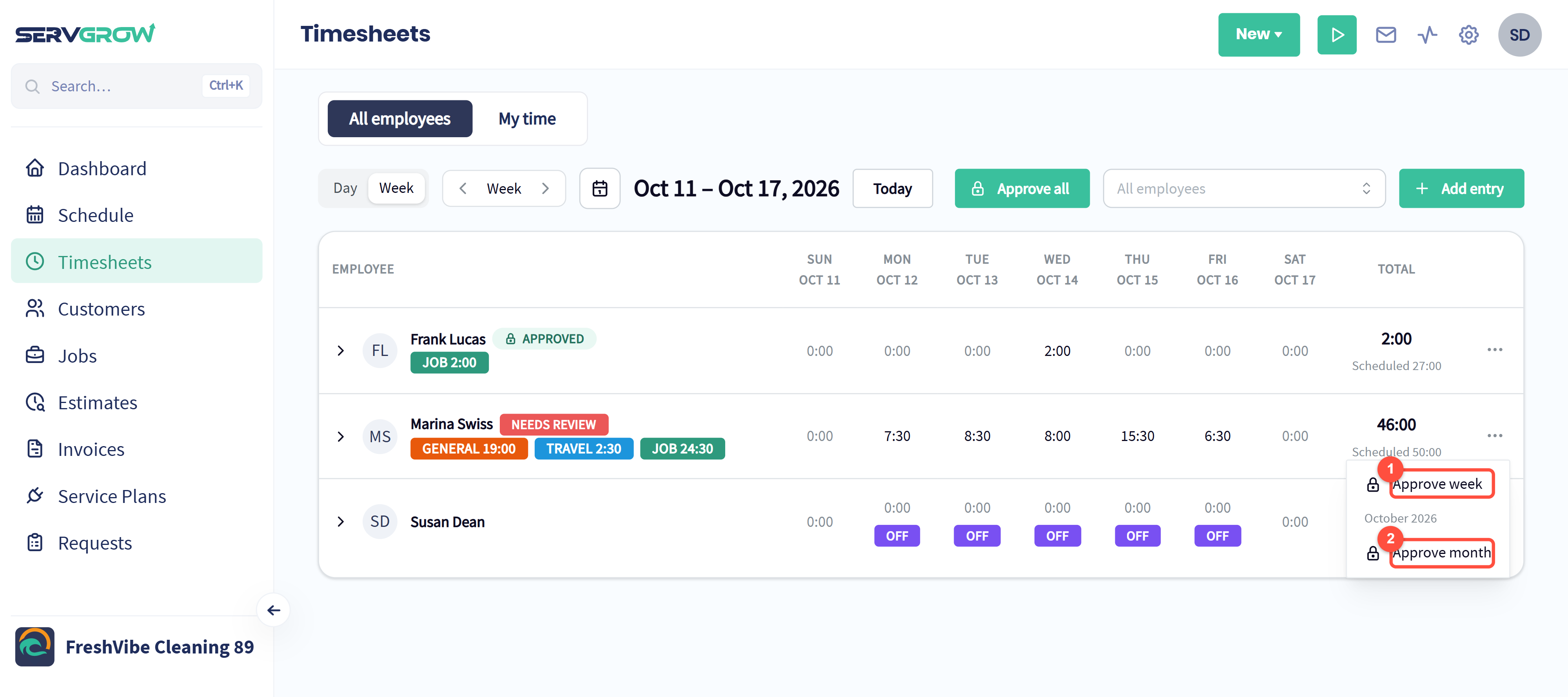
Approve week: approve this person's time for the week you are looking at.
Approve month: approve the whole month in one go.
Or click Approve all at the top to approve everyone's time for the period. If you need to change approved time, the same menu offers Unlock week and Unlock month.
Approved time is locked, with a full history
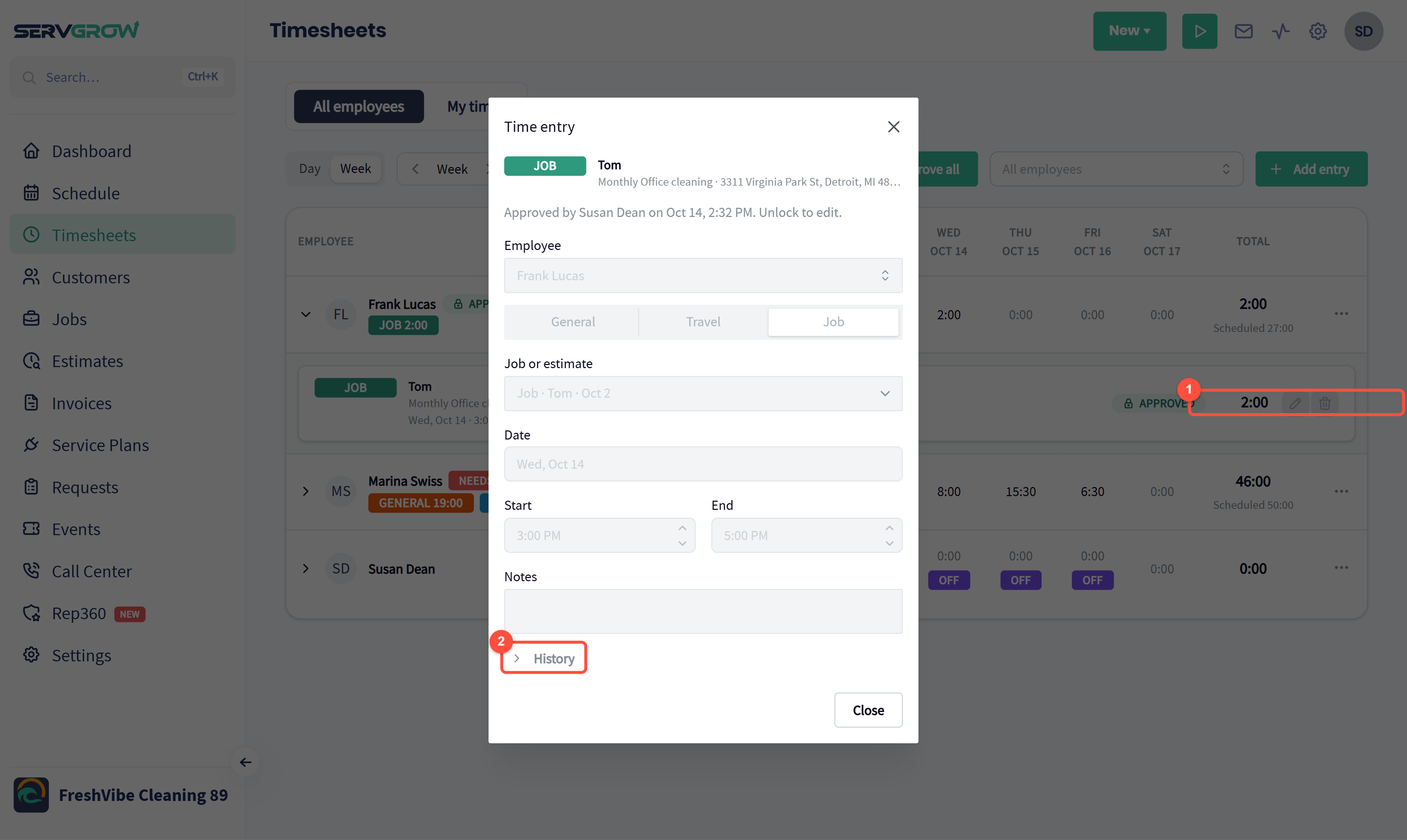
An approved entry says who approved it and when. Unlock it to edit it.
Click History to see every change.
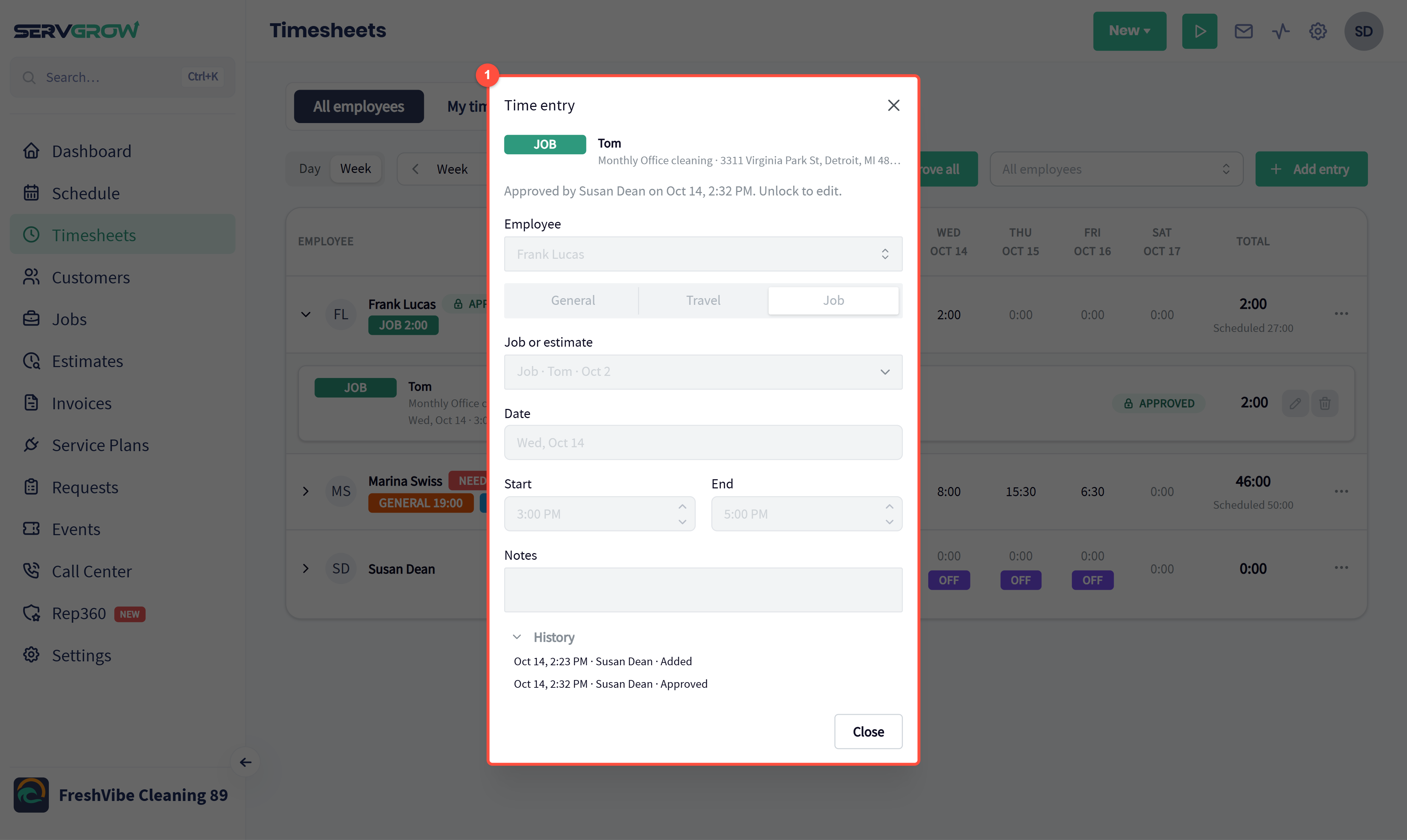
The history lists who added, changed, approved or unlocked the entry and when, so a question about someone's hours can be answered in seconds.
See time and labor cost on the job
Your team can also track their own time on a job straight from the job page.
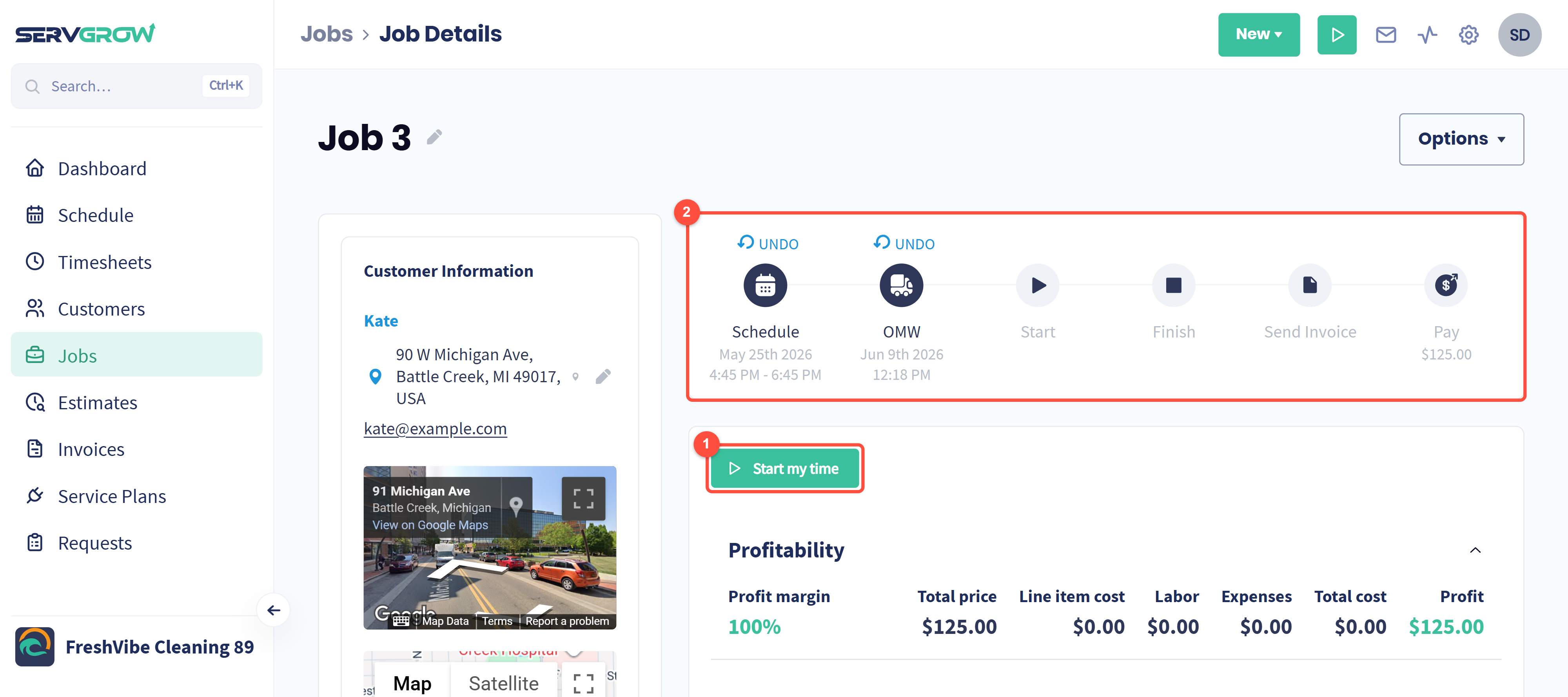
Start my time: start your own timer on this job. Click it again to stop.
The visit steps. Tapping OMW, Start and Finish switches the timers of everyone on the visit.
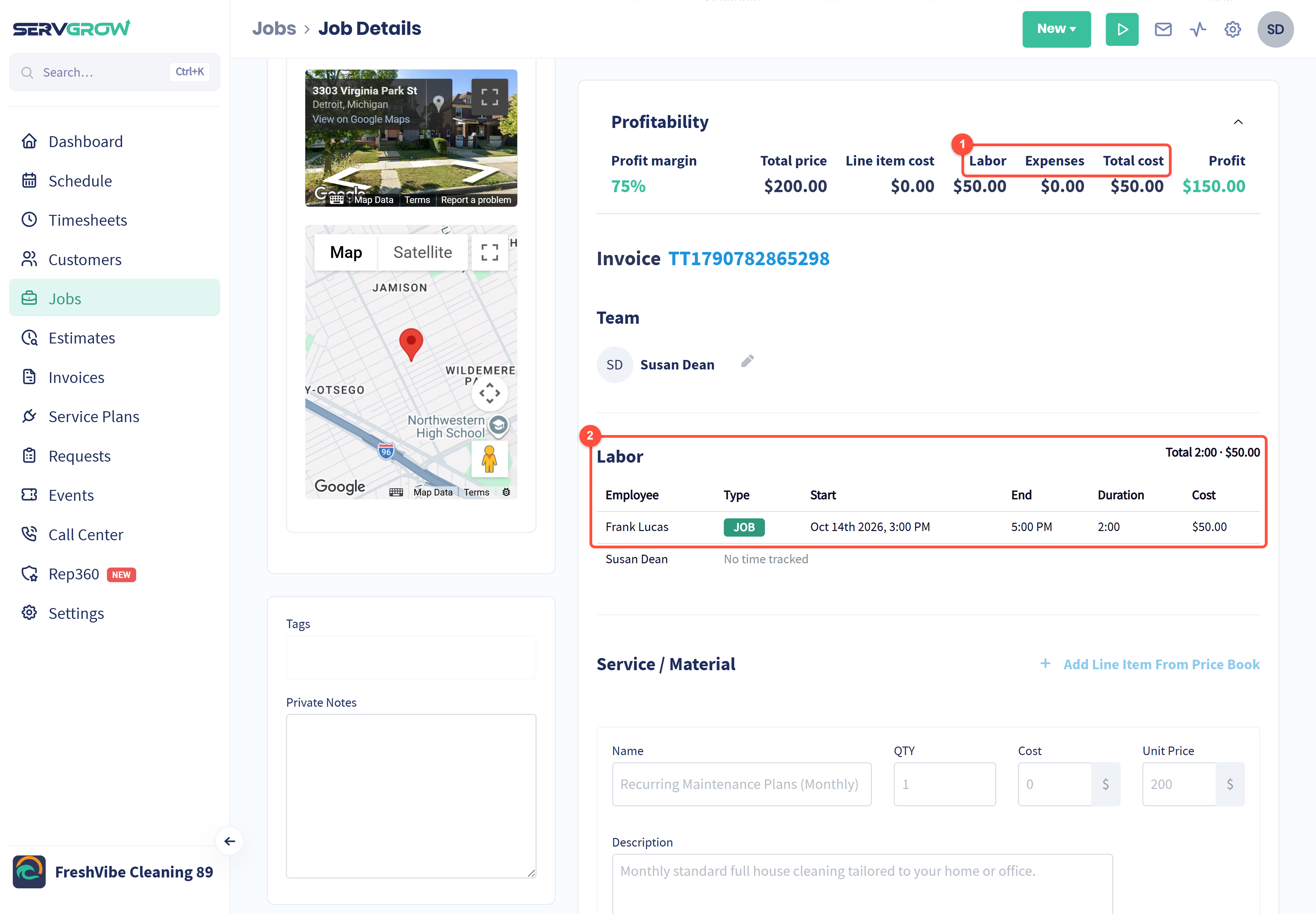
Profitability now includes Labor, so the profit is what the job really earned after paying for the time.
The Labor table lists who worked on the job, the type of time, when, how long and what it cost.
Set each employee's labor cost
Labor cost comes from each employee's rate. Click Settings, then Employees, then the employee's name.
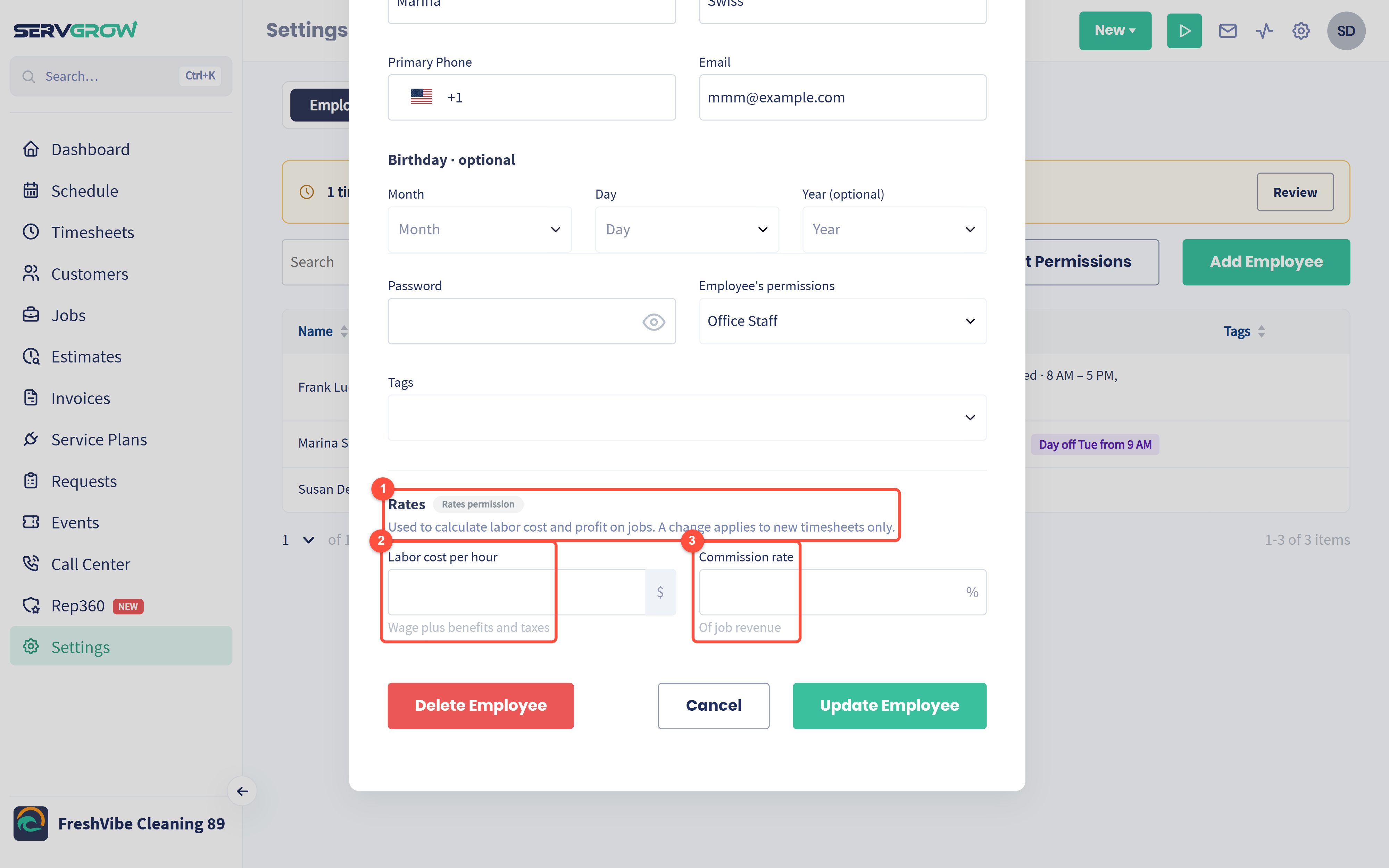
Rates are used to work out labor cost and profit on jobs. A change applies to new timesheets only.
Labor cost per hour: their wage plus benefits and taxes, so the cost is realistic.
Commission rate: a percentage of job revenue, if you pay one.
Click Update Employee to save. Labor costs also appear in the Sales report.
Tips
Review Needs review first. Forgotten timers are the biggest source of wrong hours, and the flag finds them for you.
Approve every week. A ten-minute review on Monday beats untangling a month of hours on payday.
Compare worked hours with scheduled hours. Someone regularly well over their schedule may need help or a lighter route.
Set working hours for everyone. Clock-out reminders and scheduled hours both use them. See Employee Schedules and Time Off.
Add labor rates. It takes a minute per employee and shows you which jobs actually make money.
Related articles