
Switching to Servgrow should not mean typing in every customer by hand. Import your whole list from a spreadsheet in one go: names, phone numbers, emails, every property address, notes and tags. Your team can schedule and invoice from day one. You can also export your customer list any time, to keep a backup or to use it in another tool.
Open Import/Export
Click Customers in the left menu.
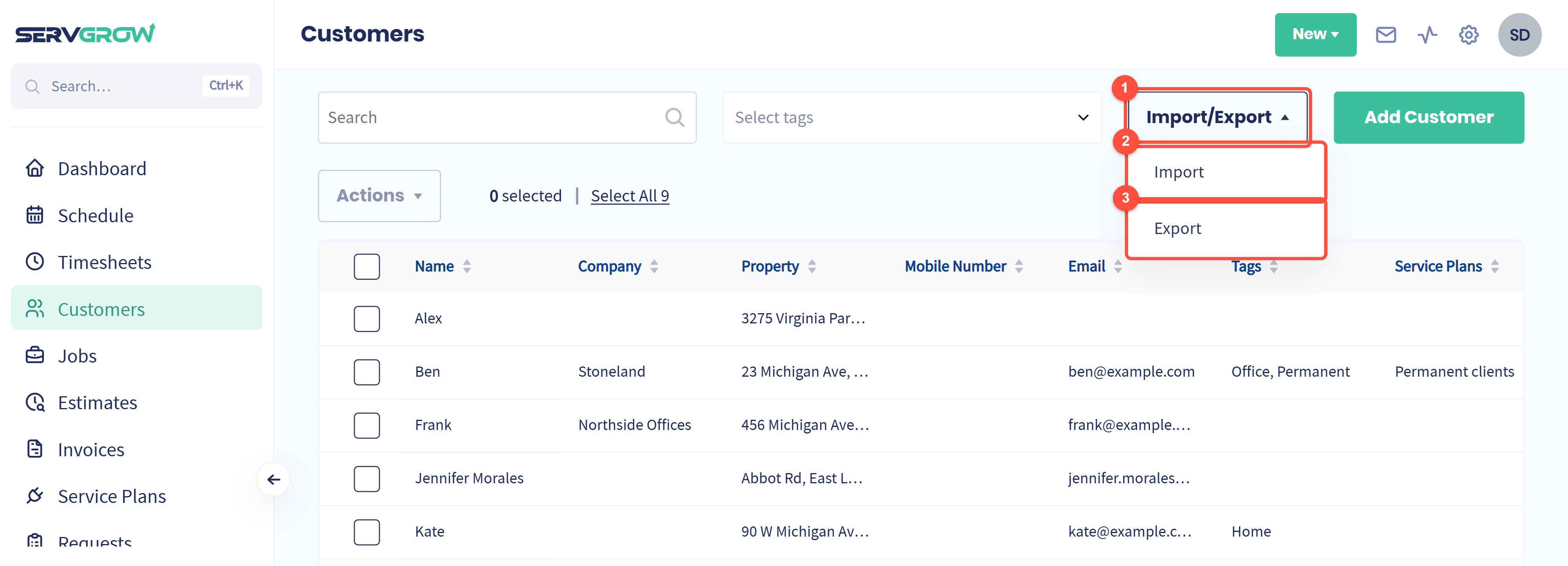
Click Import/Export.
Import: bring customers in from a CSV file.
Export: download every customer to a file called customers.csv straight away.
Import your customers
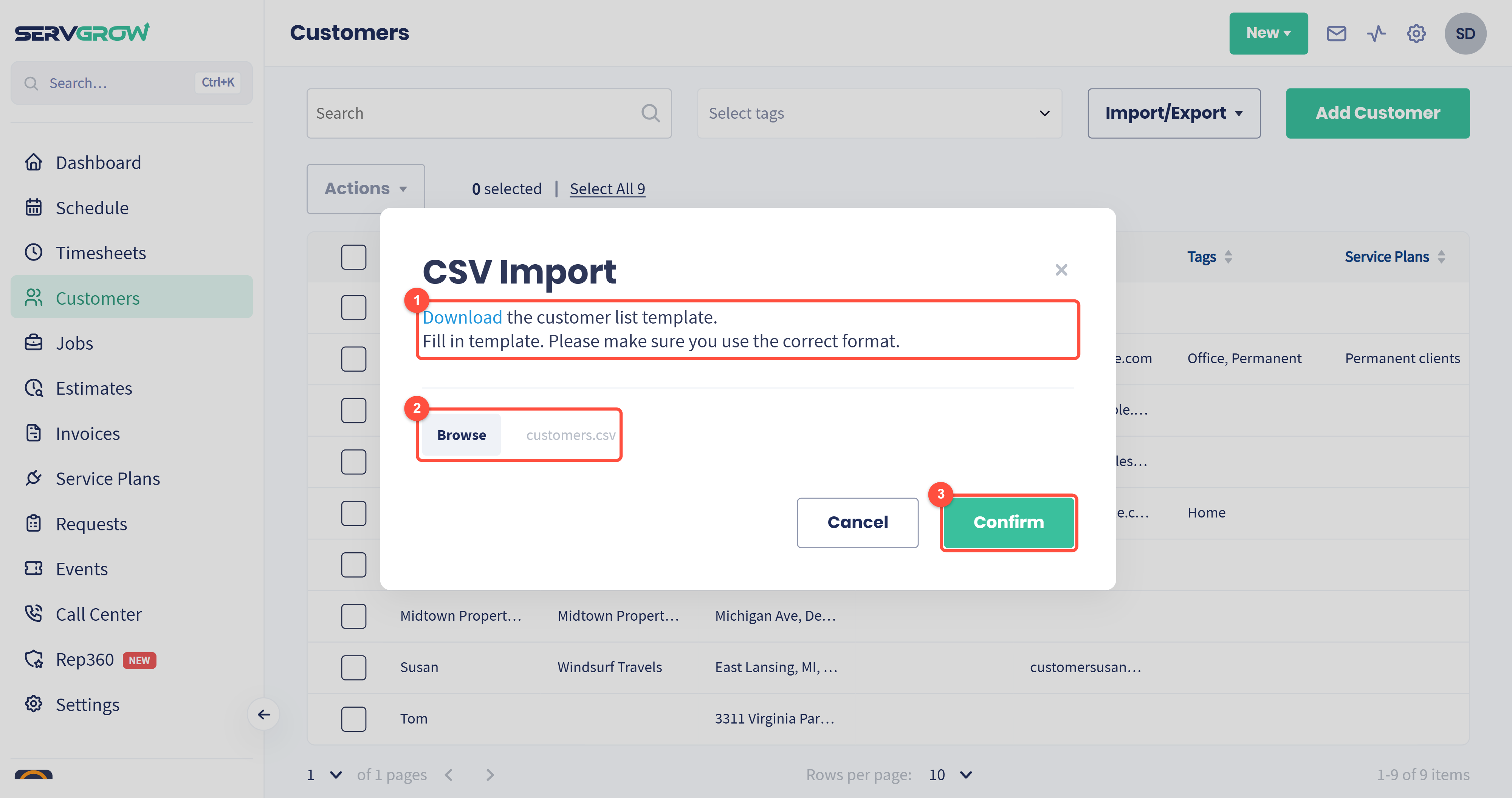
Click Download to get the customer list template (customers_template.csv). Open it in Excel, Google Sheets or Numbers. It has one sample customer in the second row showing the format; replace it with your own customers, one customer per row. Keep the column headings exactly as they are.
Save the file as CSV, then click Browse and choose it. The file name appears next to the button.
Click Confirm. Your customers appear in the Customers list.
What goes in each column
FirstName, LastName: the customer's name.
Email, PrimaryPhone: the main contact details. Write phone numbers with the country code, like the sample: +12025551122.
JobTitle, CompanyName: for business customers.
NotificationsEnabled: True if the customer should get your automatic notifications, False if not.
Property1.Location to Property5.Location: up to five service addresses, written in full (street, city, state, zip). Each property also has .Notes (gate code, parking, pets), .UnitNumber, and .IsBilling (True for the one address that goes on invoices).
Notes: anything else worth knowing about the customer.
AdditionalEmails1-5 and AdditionalPhones1-5: extra contacts, such as a spouse or an office manager.
Tags: tags to put on the customer, written the way the sample shows them:
'No calls', 'Update'.
What an export contains
The export has the same columns as the template, plus the customer's birthday (BirthdayMonth, BirthdayDay, BirthdayYear). That makes it a complete backup, and you can open it in any spreadsheet.
Tips
Export from your old software first. Most programs can export customers to CSV. Copy their columns into the matching template columns rather than renaming headings.
Import a few customers first. Try five rows, check they look right in Servgrow, then import the rest.
Tidy as you go. Remove duplicates and old test entries in the spreadsheet; it is quicker there than after the import.
Watch your campaigns. A Custom Campaign that starts when "a customer is added" only counts imports if you ticked Customer import on it. Leave that off unless you really want every imported customer to get the welcome message.
Export before a big clean-up. Download your list before deleting customers in bulk, so you can always look something up later.
Related articles