
Most repeat work, reviews and referrals are lost for one simple reason: nobody followed up. Custom Campaigns fix that for good. You set up a campaign once, and from then on Servgrow sends the right email or text at the right moment to every customer it applies to: a thank-you after the job, a welcome when someone new signs up, a nudge before an invoice is due, a birthday message, and a "we miss you" when a customer has gone quiet. Nobody on your team has to remember a thing.
Set your campaigns up before your first customer, not after your hundredth. A campaign only acts on what happens after it goes live, so every job you finish before then is a review you never asked for and a customer you never welcomed. Turning on three campaigns in your first week takes about twenty minutes and pays for itself with the first repeat booking.
The three campaigns to turn on in your first week
Post-job check-in (starts when a job is finished): a text two days later asking if everything is holding up, then an email with a review link. Happy customers leave reviews; unhappy ones tell you instead of the internet.
New customer welcome (starts when a customer is added): a warm welcome with your phone number and your customer portal link, so they save your number and know how to reach you.
Win back quiet customers (starts when nothing has been on a customer's calendar for six months): an email, then a text a week later inviting them to book again. This is the cheapest new work you will ever get: these people already know and trust you.
All three are ready-made recipes, so each one takes a few minutes. Here is how.
Open Custom Campaigns
Click Settings, then Communication.
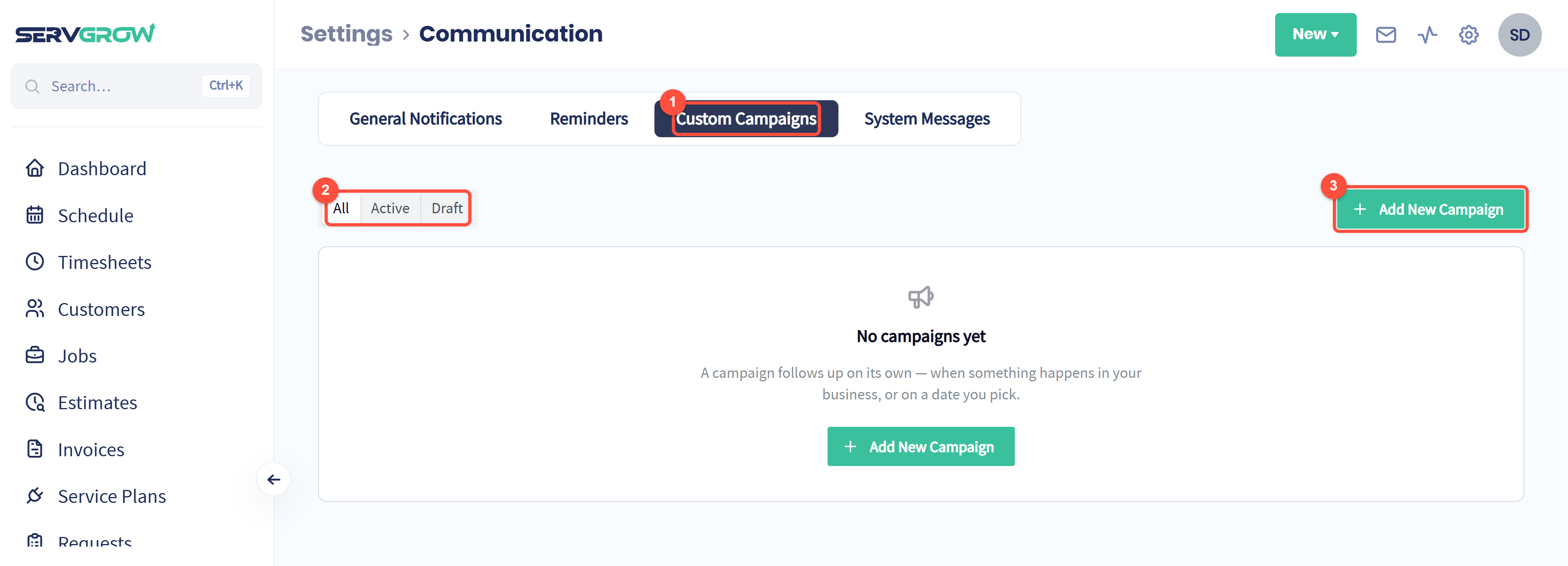
The Custom Campaigns tab. Every campaign you build lives here.
All, Active and Draft filter the list: Active campaigns are sending, Drafts are saved but switched off.
Add New Campaign starts a new one. Once a campaign is live, open it from the list to see how it is performing at the top.
Start from a recipe
On the new campaign page, click Start from a recipe. A recipe fills the board with a proven sequence and sample wording that you then adjust.
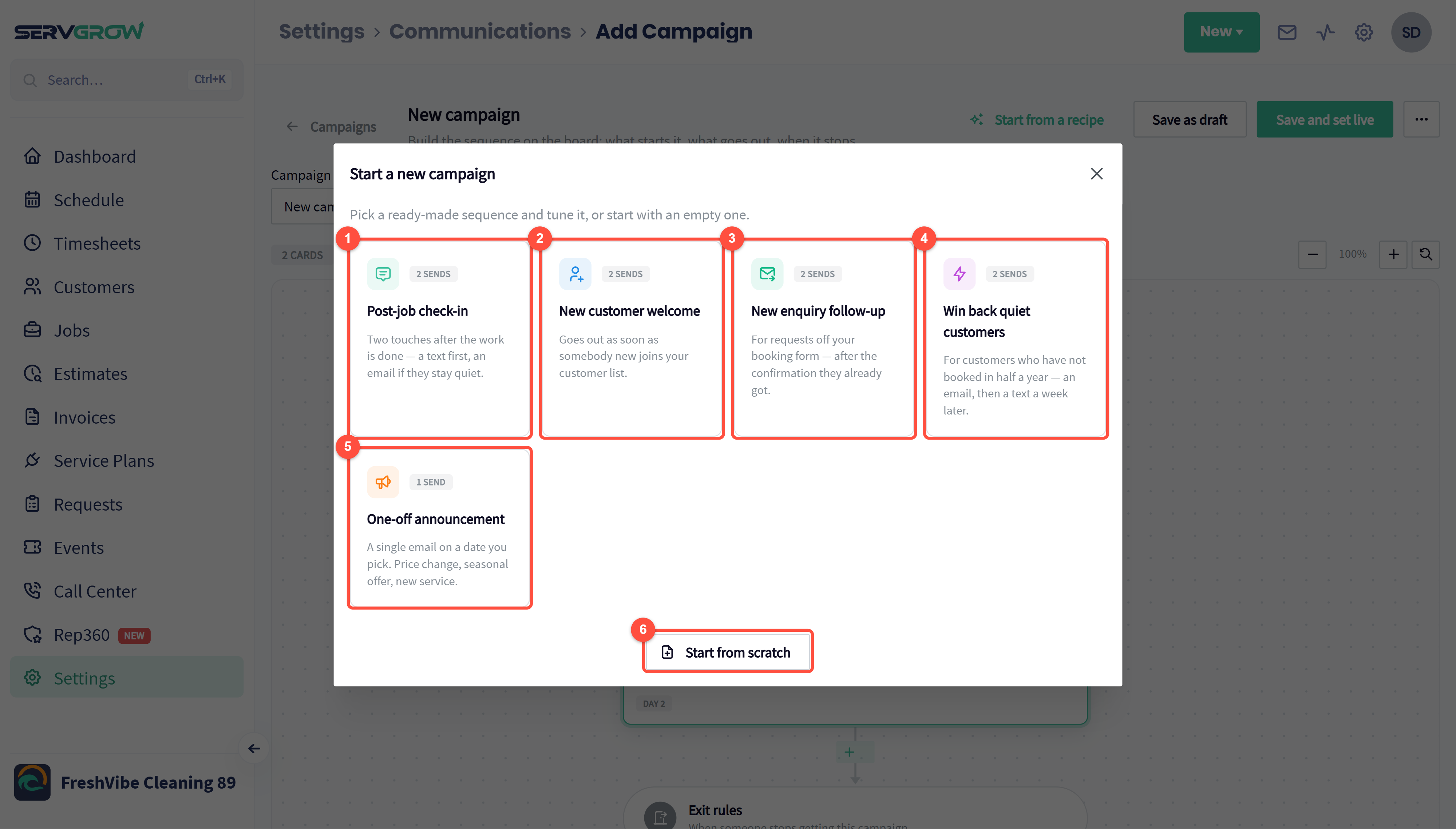
Post-job check-in: two touches after the work is done, a text first and an email if they stay quiet.
New customer welcome: goes out as soon as somebody new joins your customer list.
New enquiry follow-up: for requests from your online booking form, on top of the confirmation they already get.
Win back quiet customers: for customers who have not booked in half a year, an email and then a text a week later.
One-off announcement: a single email on a date you pick, such as a price change, a seasonal offer or a new service.
Start from scratch: an empty board for anything else.
Get to know the board
Every campaign is built on a board that reads from top to bottom: what starts it, who to leave out, what goes out and when, and when it stops.
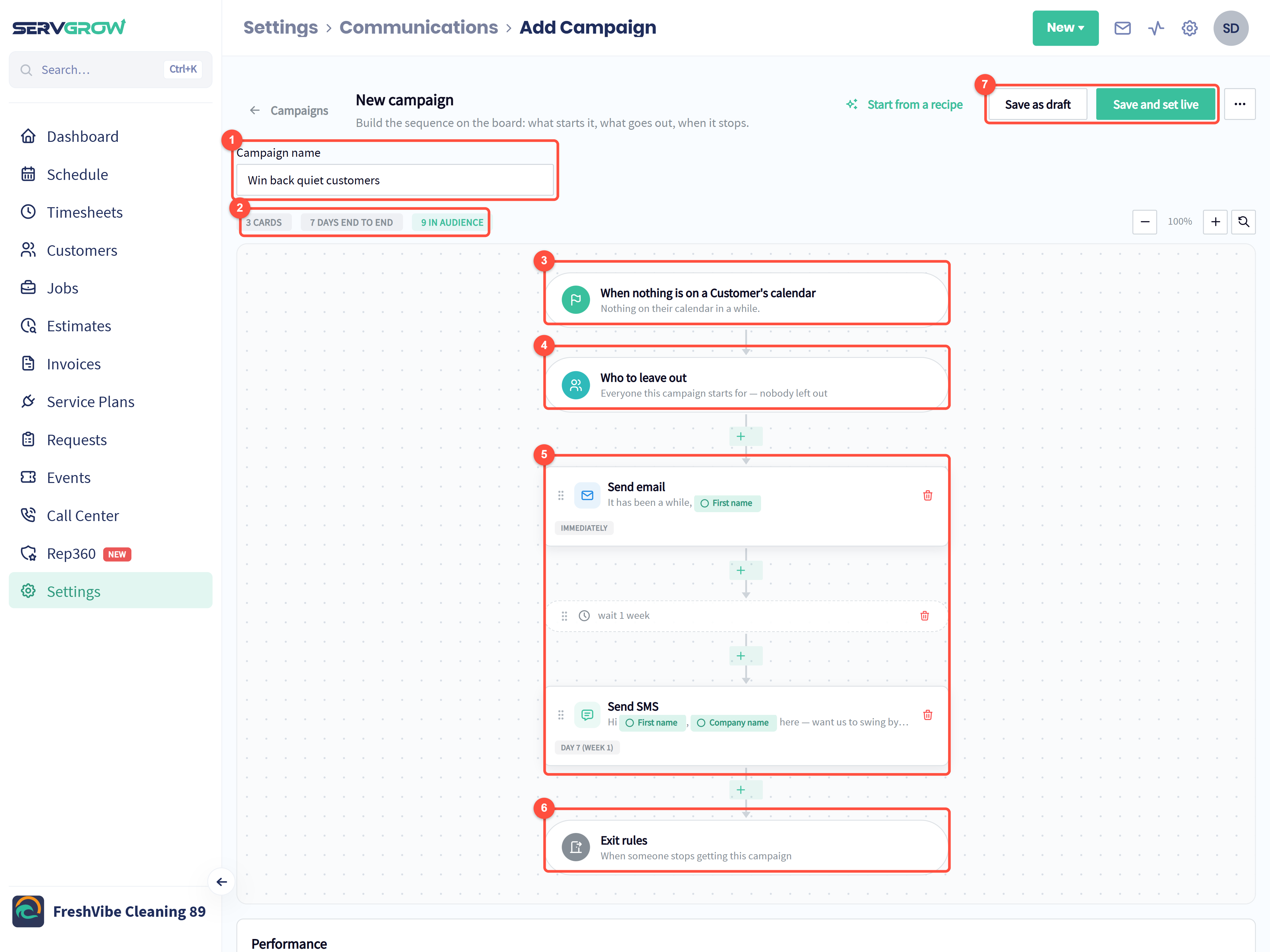
Campaign name: name it after what it does, such as "Win back 6 months" or "Review request after job", so your team knows it at a glance.
A quick summary: how many steps, how many days from first to last message, and how many customers match right now.
The trigger: what starts the campaign for a customer. Click it to change it.
Who to leave out: customers who should never get this campaign.
The steps: emails, texts, waits and tags, in order. The label under each message shows when it goes out (Immediately, Day 2, Day 7 and so on). Drag the handle on the left of a step to reorder it, the bin removes it, and the + between steps adds a new one.
Exit rules: when somebody stops getting the campaign, for example as soon as they reply.
Save as draft keeps your work without sending anything. Save and set live switches the campaign on.
Choose what starts it: the triggers
Click the trigger card at the top of the board, then the Start the campaign when list.
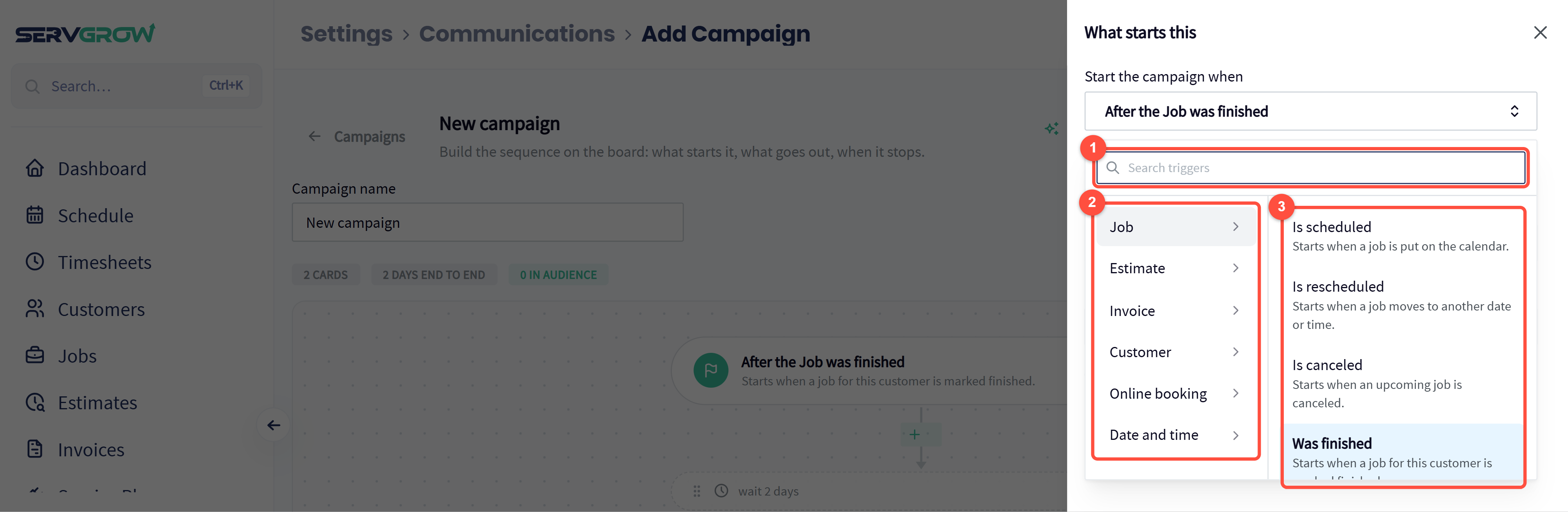
Search triggers if you know what you want.
Triggers are grouped by what they watch: Job, Estimate, Invoice, Customer, Online booking, and Date and time.
Pick a group to see its triggers, each with a one-line description.
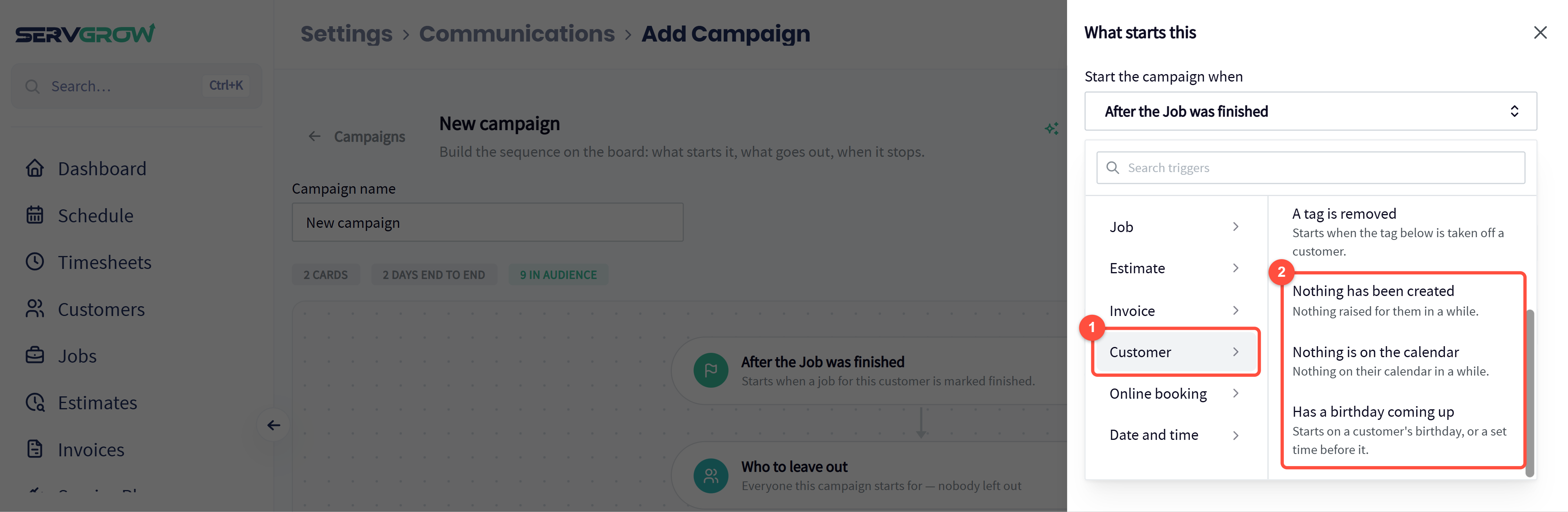
The Customer group holds the relationship triggers.
Scroll the list for the quiet-customer triggers (Nothing has been created, Nothing is on the calendar) and Has a birthday coming up.
Every trigger, and when to use it
Job
Is scheduled: starts when a job is put on the calendar. Use it to send "what to expect" tips, such as clearing the driveway or securing pets. Example: "Hi [First name], you are booked with [Company name]. To help us do our best work, please make sure the gate is unlocked."
Is rescheduled: starts when a job moves to another date or time. Use it to confirm the new time and apologise if the change was yours.
Is canceled: starts when an upcoming job is canceled (service plan visits and finished work do not count). Use it to win the booking back: "Sorry we missed you, [First name]. Here is our booking link whenever you are ready: [Booking link]."
Was finished: starts when a job is marked finished. The most valuable trigger you have: thank-you notes, review requests, "how is everything holding up" check-ins, and rebooking reminders weeks or months later (a gutter cleaning reminder six months on, a pest treatment every quarter, a carpet clean every year).
Estimate
Is scheduled, Is rescheduled and Is canceled: the same as for jobs, for estimate visits. Use them to send what to expect at the estimate visit, or to rebook a canceled one.
Was approved: starts when a customer says yes. Use it to say thank you and set expectations: what happens next, how to prepare, and how to reach you.
Was declined: starts when a customer says no. Use it for a second chance: ask what held them back, offer a smaller option, or follow up in a month when timing may be better.
Invoice
Is sent: starts when an invoice goes to the customer. Use it to thank them and remind them how easy it is to pay online.
Is coming up on its due date: starts a set time before the invoice is due. Use it as a friendly heads-up so payment arrives on time (example below).
Is past its due date: starts a set time after the due date. Use it for a polite, firm reminder, then a second one a week later if needed.
Is paid in full: starts when the invoice is fully paid. Use it to say thank you, ask for a review, or invite a referral while they are happiest.
Customer
A customer is added: starts when someone new joins your customer list. You choose which ways count: added by hand, a customer import, a job import, a booking request, the QuickBooks sync or Zapier. Leave imports and syncs unticked unless you really mean it, because an import can add thousands of people at once and every one of them gets the first message.
A tag is added: starts when a tag you choose is added to a customer. This is the most flexible trigger: tag someone "Interested in lawn care" or "Gutter guards quote" and a matching sequence starts on its own.
A tag is removed: starts when that tag comes off, for example when "Active plan" is removed, send an offer to restart.
Nothing has been created: starts when no new job, estimate or service plan has been raised for a customer in the time you set. Use it to reach customers you have stopped doing business with.
Nothing is on the calendar: starts when a customer has had nothing on your calendar for the time you set. This is the reactivation trigger (example below).
Has a birthday coming up: starts on a customer's birthday, or a set time before it. Save birthdays on the customer's profile, then send a short note or a small discount. It costs nothing and customers remember it.
Online booking
A request comes in: starts when someone sends a request from your booking form. Use it to follow up the next day if you have not booked them yet, while they are still deciding who to call.
Date and time
On a date you pick: a one-off send at the date and time you choose. Use it for announcements: a spring special, holiday hours, a price change or a new service. Nobody enters after it has gone out.
Example: win back customers who have not had service in a while
Load the Win back quiet customers recipe, then click its trigger card to fine-tune who counts as quiet.
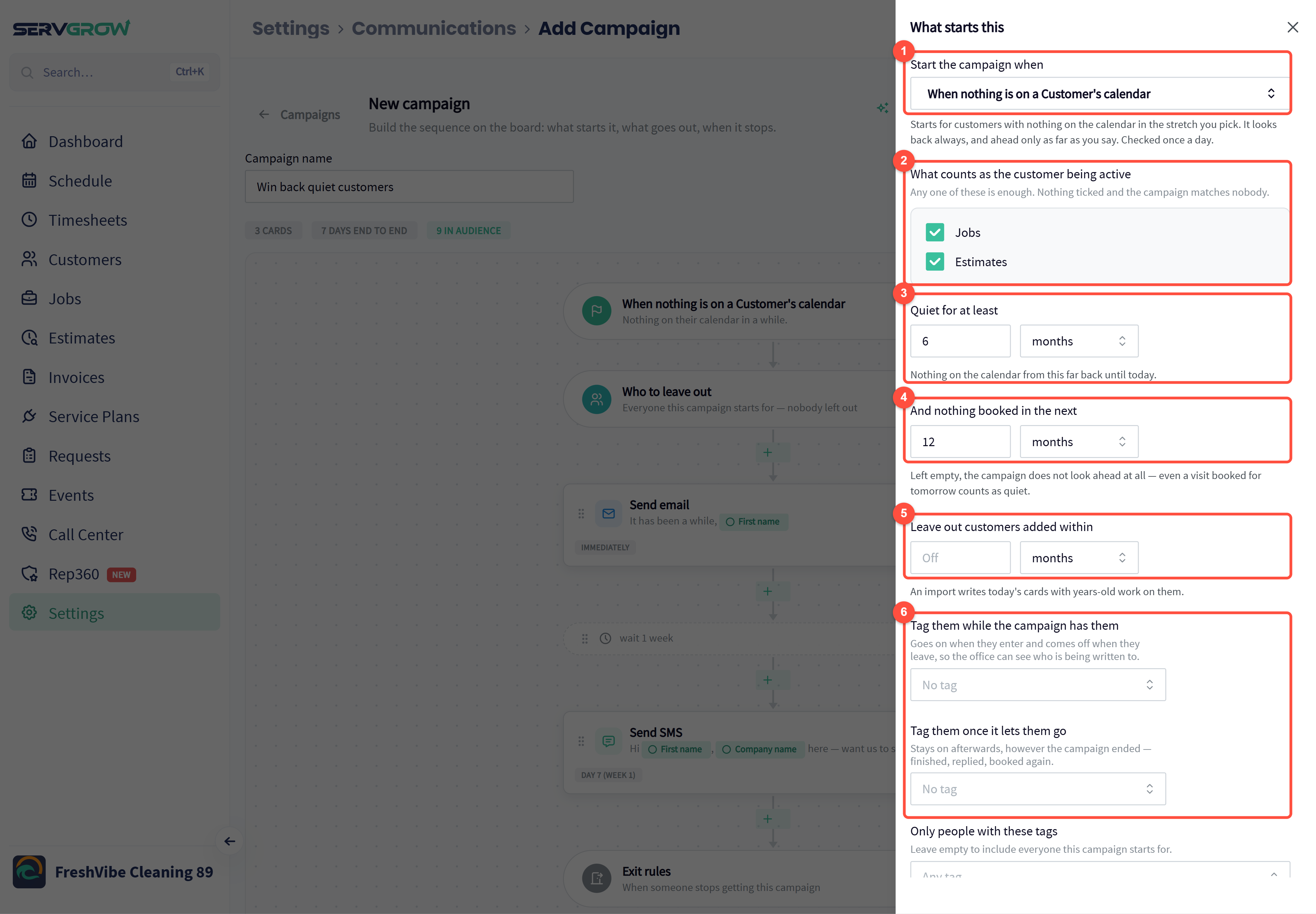
The trigger: When nothing is on a Customer's calendar. It is checked once a day.
What counts as the customer being active: tick Jobs, Estimates or both. Any one is enough. If nothing is ticked, the campaign matches nobody.
Quiet for at least: how long since their last visit. Match it to your service: 6 months for most cleaning and maintenance, 12 months for yearly services like gutters, chimneys or HVAC tune-ups.
And nothing booked in the next: set this (for example 12 months) so customers who already have a visit coming up are not asked to book. Left empty, a customer with a visit booked for tomorrow still counts as quiet.
Leave out customers added within: skip recently added customers. Use it after an import, because imported customers can carry years-old work that makes them look quiet.
Tag them while the campaign has them and Tag them once it lets them go: optional tags so your office can see who is being written to, and who has been through the campaign.
A win-back message that works: "Hi [First name], it has been a while since [Company name] was out your way. We have openings this month. Book a time here: [Booking link], or just reply to this text." Keep it short, personal and easy to act on.
Prefer to count only new work rather than calendar visits? Use Nothing has been created instead. It has the same settings and can also count service plans as activity.
Leave out the people who should not get it
Click Who to leave out on the board.
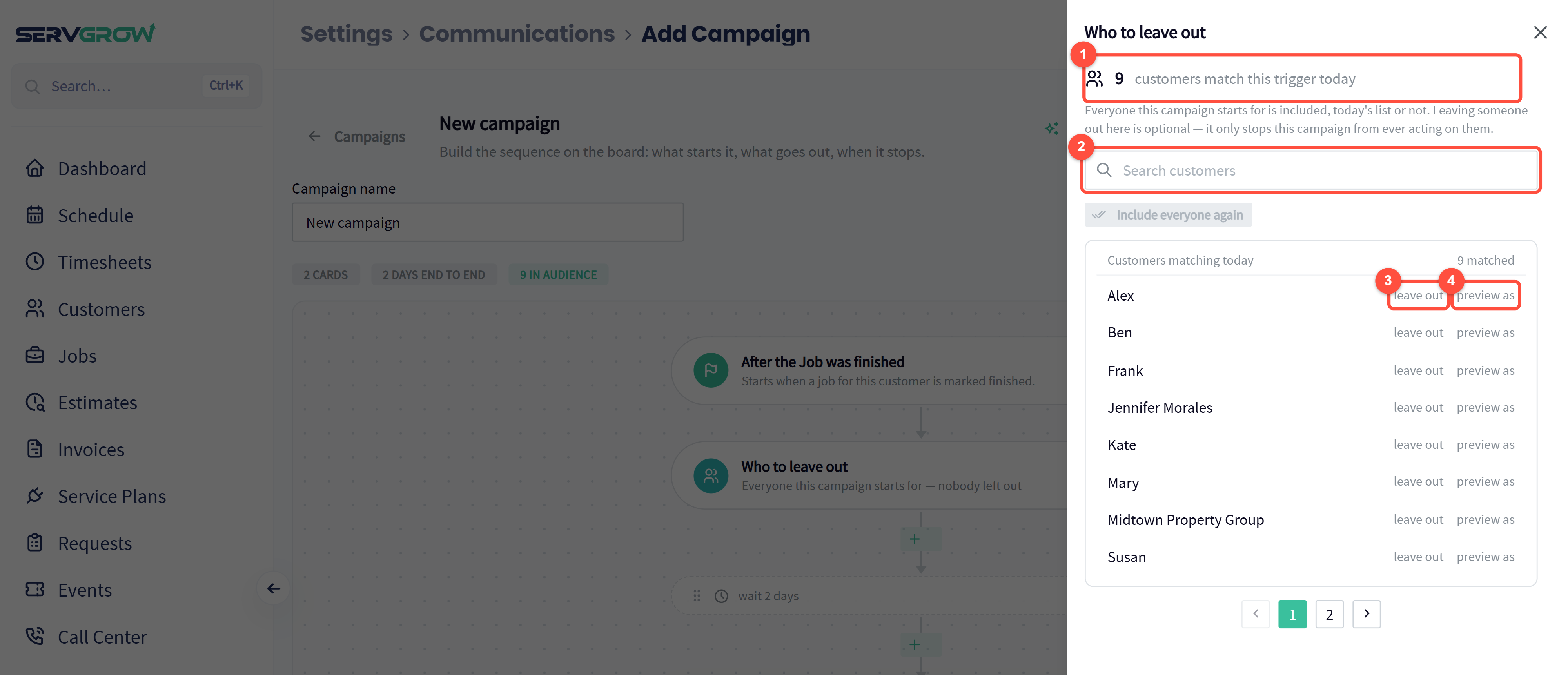
How many customers match the trigger today.
Search customers to find someone quickly.
leave out: this customer never gets this campaign, for example a commercial account with its own billing contact, or a customer who asked not to be marketed to. Include everyone again undoes it.
preview as: see the messages exactly as this customer will receive them, with their name and details filled in.
You can also limit any trigger by tag: Only people with these tags (for example only "Residential") and Never send to people with these tags (for example "Do not market").
Add the steps
Click any + between steps to add one.
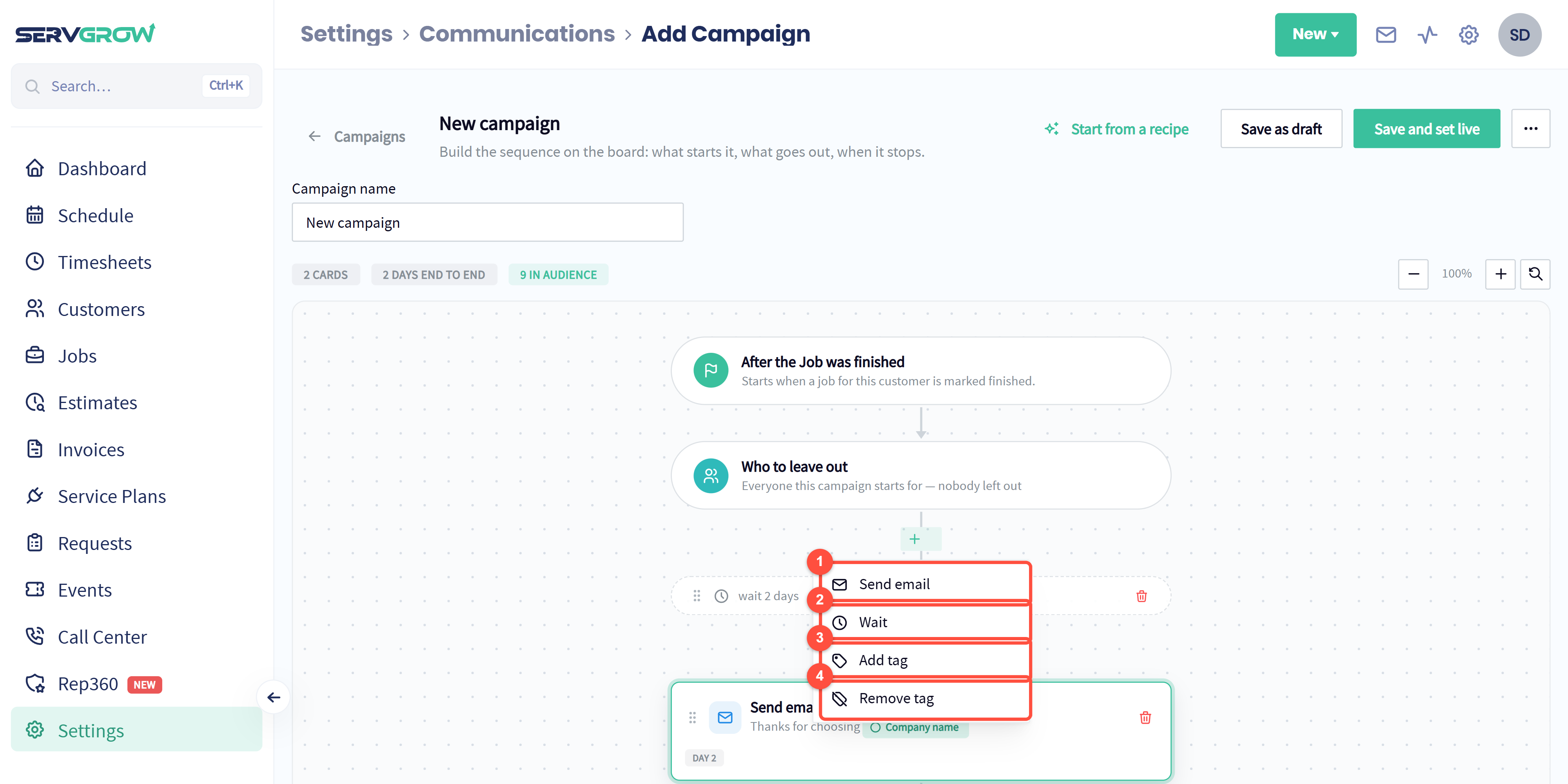
Send email: a branded email with your logo.
Wait: pause before the next step. Set how long and the unit, such as 2 days or 1 week.
Add tag: tag the customer at this point, for example "Win-back sent".
Remove tag: take a tag off.
Send SMS steps appear here once your Servgrow business number for 2-Way Text is set up and approved. Texts get read within minutes, so a text plus an email is the strongest combination.
Write the email
Click an email step to edit it.
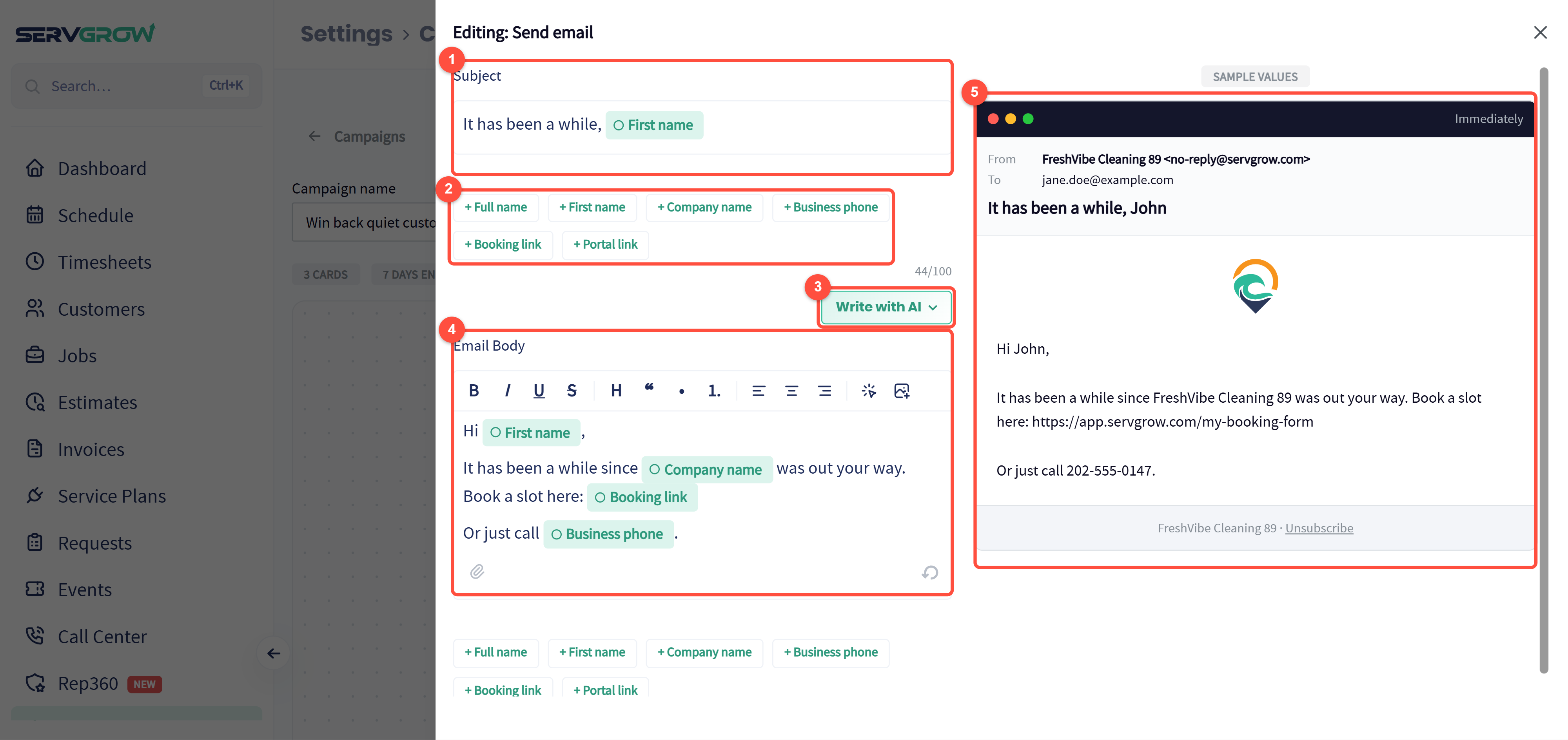
Subject: keep it short and personal. "It has been a while, [First name]" gets opened; "Newsletter" does not.
Merge fields: click one to drop in the customer's name, your company name, your business phone, your Booking link or their Portal link. Job triggers add more, such as the service address and job title.
Write with AI: help with the wording (see below).
Email Body: format text, add a button or an image (before and after photos work well), and attach a file.
The live preview shows the email with sample values, including your logo, the sender and the unsubscribe link, and when it goes out.
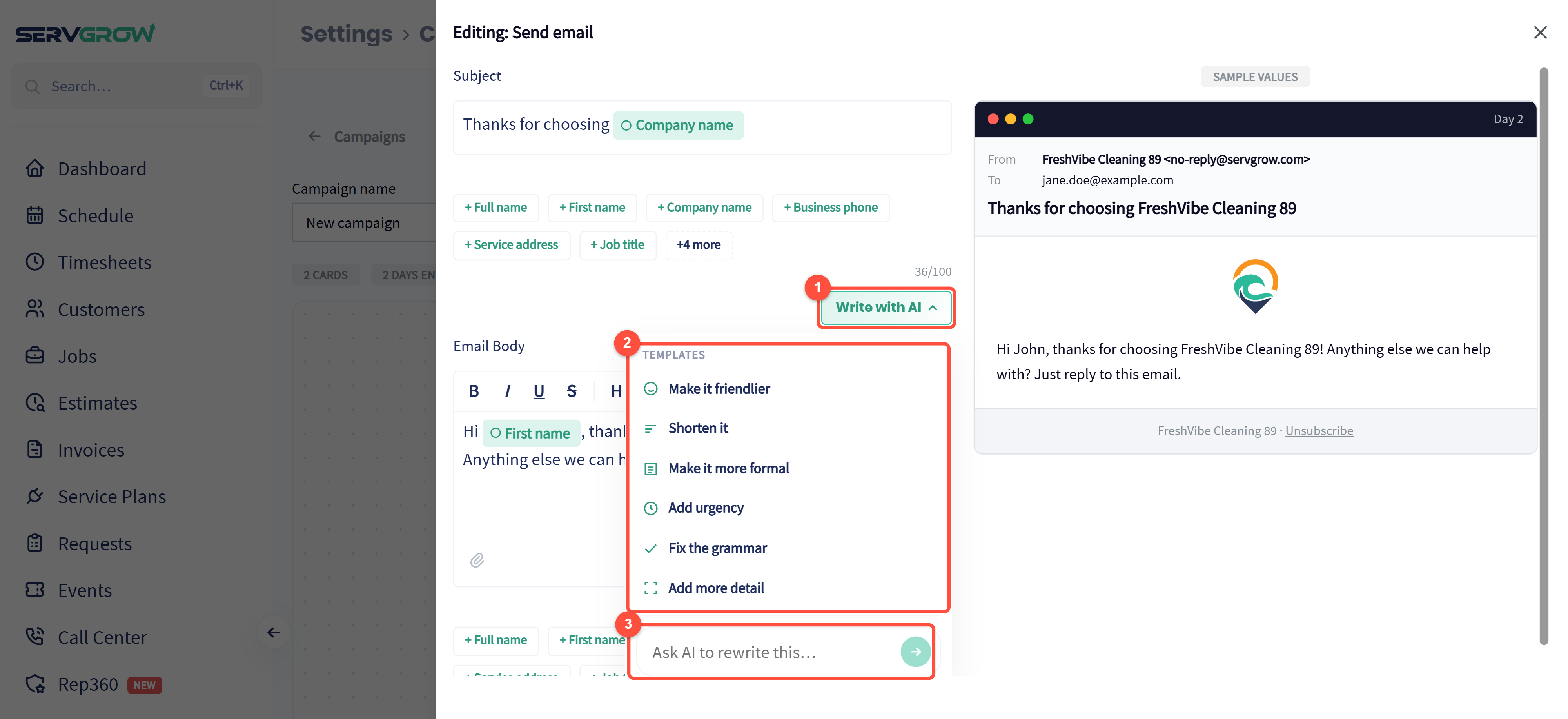
Click Write with AI.
One click rewrites your draft: Make it friendlier, Shorten it, Make it more formal, Add urgency, Fix the grammar or Add more detail.
Or type your own instruction, such as "mention our 10% spring discount", and send it. Always read the result before you go live.
Write the text
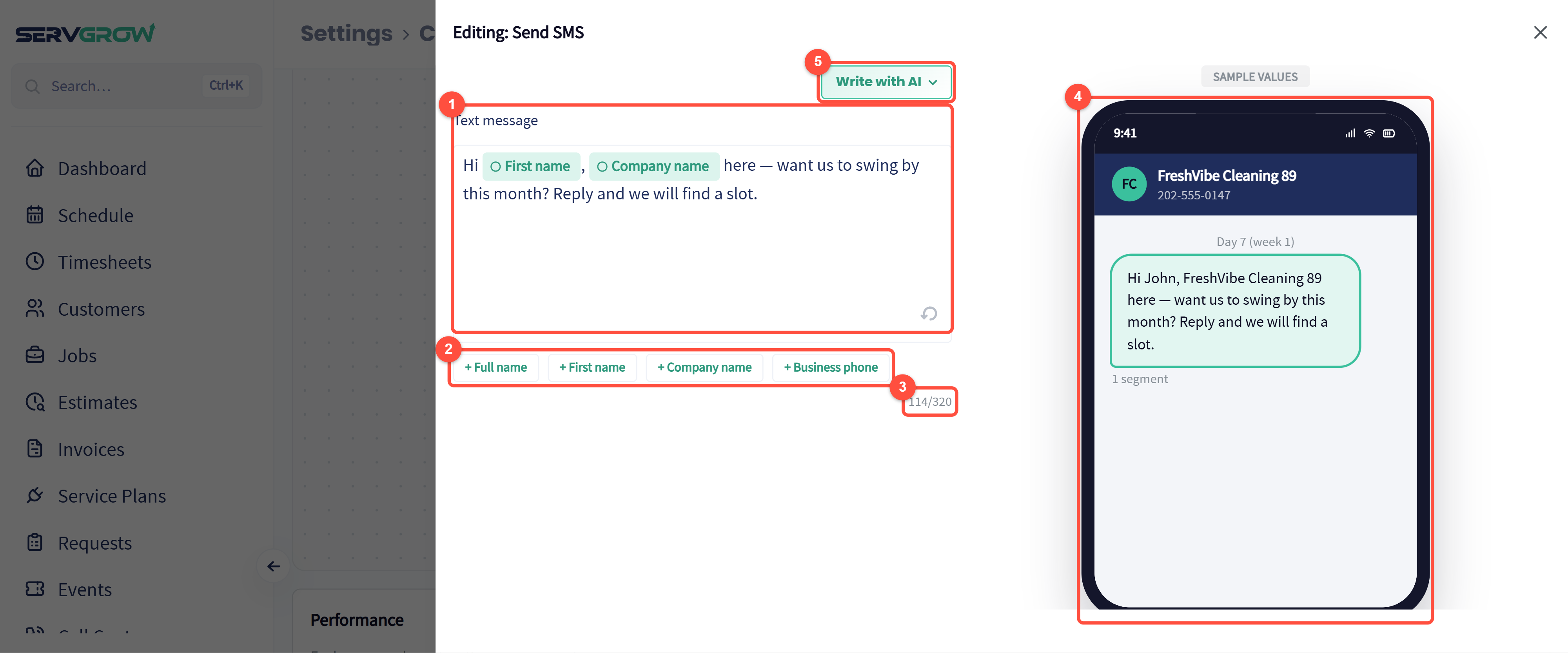
Text message: write it like a person would. Texts that ask a question ("Want us to swing by this month?") get the most replies.
Merge fields for the customer's name, your company name and your business phone.
The character count. Under the preview, Servgrow shows how many segments the text uses; keep it to one segment where you can.
The phone preview shows exactly what the customer sees, and on which day.
Write with AI works here too.
Decide when it stops: exit rules
Click Exit rules at the bottom of the board.
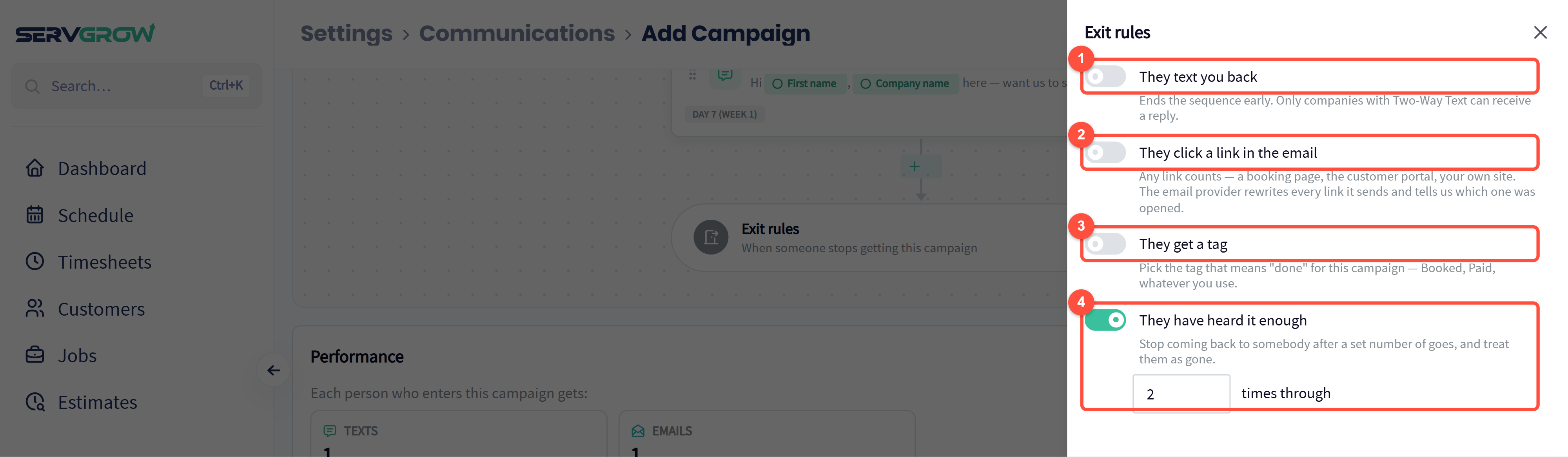
They text you back: the campaign stops as soon as they reply, so nobody gets a "we miss you" text after they have already answered. Needs 2-Way Text.
They click a link in the email: stops when they click any link, such as your booking page or their portal.
They get a tag: pick the tag that means "done" for this campaign, such as Booked or Paid.
They have heard it enough: stop after a set number of times through the campaign, so a customer who never responds is not written to forever.
Example: get paid on time with a reminder before the due date
Choose Invoice, then Is coming up on its due date.
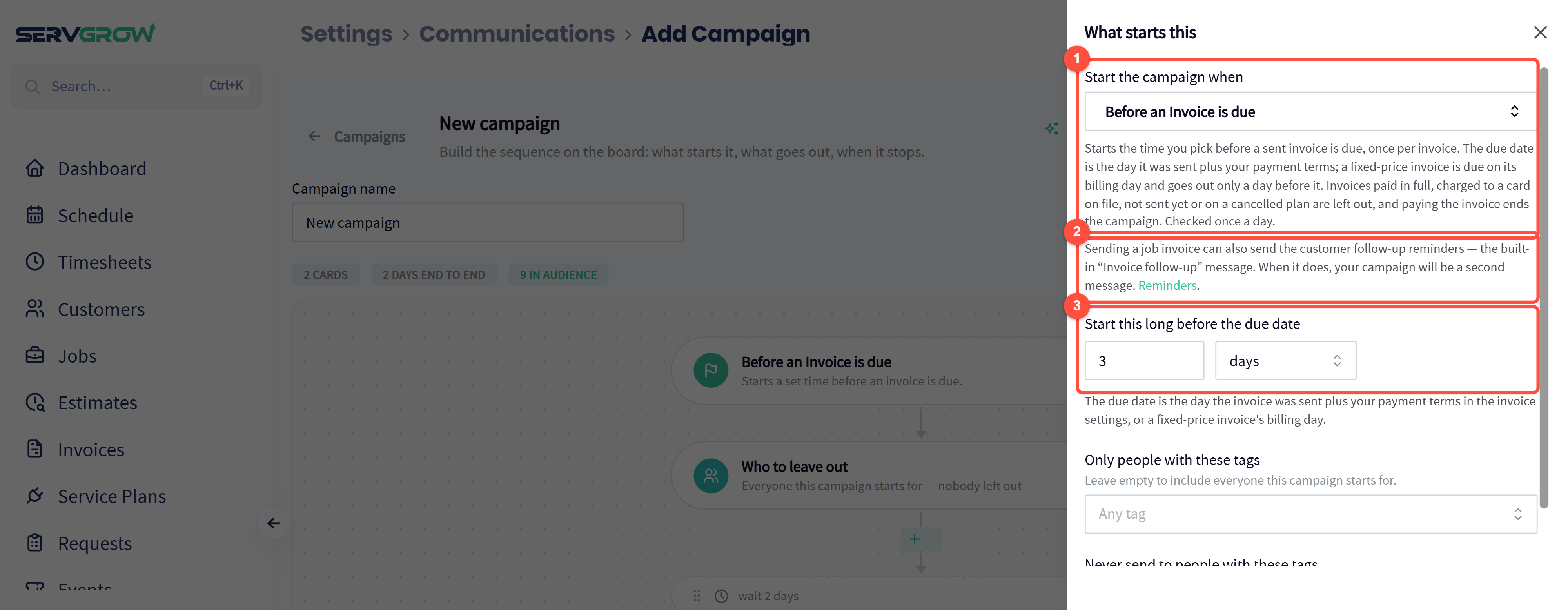
The campaign starts a set time before each sent invoice is due, once per invoice. Invoices already paid, charged to a card on file or not sent yet are skipped, and paying the invoice ends the campaign.
Servgrow can already send its built-in Invoice follow-up reminders (under Reminders). If those are on, your campaign is a second message, so use one or the other, or make your campaign a different kind of message.
Start this long before the due date: 3 days works well. The due date comes from your payment terms in Invoice settings.
Example: "Hi [First name], a quick heads-up that your invoice from [Company name] is due in 3 days. You can pay online in under a minute from your portal: [Portal link]. Thank you!"
Save and go live
Click Save as draft to come back later, or Save and set live to start sending. Before going live, use preview as on a real customer and read every message once. When a campaign is live, open it from the Custom Campaigns list to see its results at the top.
Ready-to-use campaign ideas
Review request: Job was finished, wait 1 day, text "Thanks for choosing us! Would you leave us a quick review?" with your Google review link.
Rebook reminder: Job was finished, wait 5 months, email "Time for your next visit?" with your booking link. Set the wait to match how often your service is needed.
Referral ask: Invoice is paid in full, wait 3 days, email asking them to pass your number to a friend or neighbour.
Second chance on a no: Estimate was declined, wait 2 weeks, email asking what held them back and offering a smaller option.
Thank you for the yes: Estimate was approved, send immediately: what happens next and how to prepare.
Unbooked request follow-up: A request comes in, wait 1 day, text to help them pick a time. Add an exit rule on the "Booked" tag.
Cross-sell: A tag is added ("Window cleaning customer"), wait 2 weeks, email about your gutter cleaning.
Birthday: Has a birthday coming up, on the day, a short note and a small thank-you discount.
Overdue payment: Invoice is past its due date by 3 days, a polite reminder with the portal link; wait 7 days, a firmer one.
Seasonal push: On a date you pick, in early spring, an email to everyone about booking before the busy season.
Tips
Check what already goes out. Servgrow sends built-in messages under General Notifications, Reminders and System Messages (booking confirmations, invoice follow-ups). Make your campaigns add something new rather than repeat them.
Add a wait before the first message after a job, so a check-in or review request arrives once the customer has seen the result.
Always give one clear next step: a booking link, a portal link, or "just reply".
Use exit rules on every sales campaign, so a customer who books or replies stops hearing the pitch.
Turn on Allow repeat enrollments on triggers like Job was finished if you want a customer to go through every time it happens, not just once.
Start with the three recipes, watch the results for a month, then add more.
Related articles