
A discount you type in by hand is a discount you will get wrong sooner or later: a different amount for the same promotion, or a percentage worked out on the back of a receipt. Set your discounts and tax rates once and every estimate, job and invoice uses the same numbers. Your team picks from a list, the totals work themselves out, and you know exactly what you gave away.
Set up your discounts
Click Settings, then Discounts & Tax Rates.
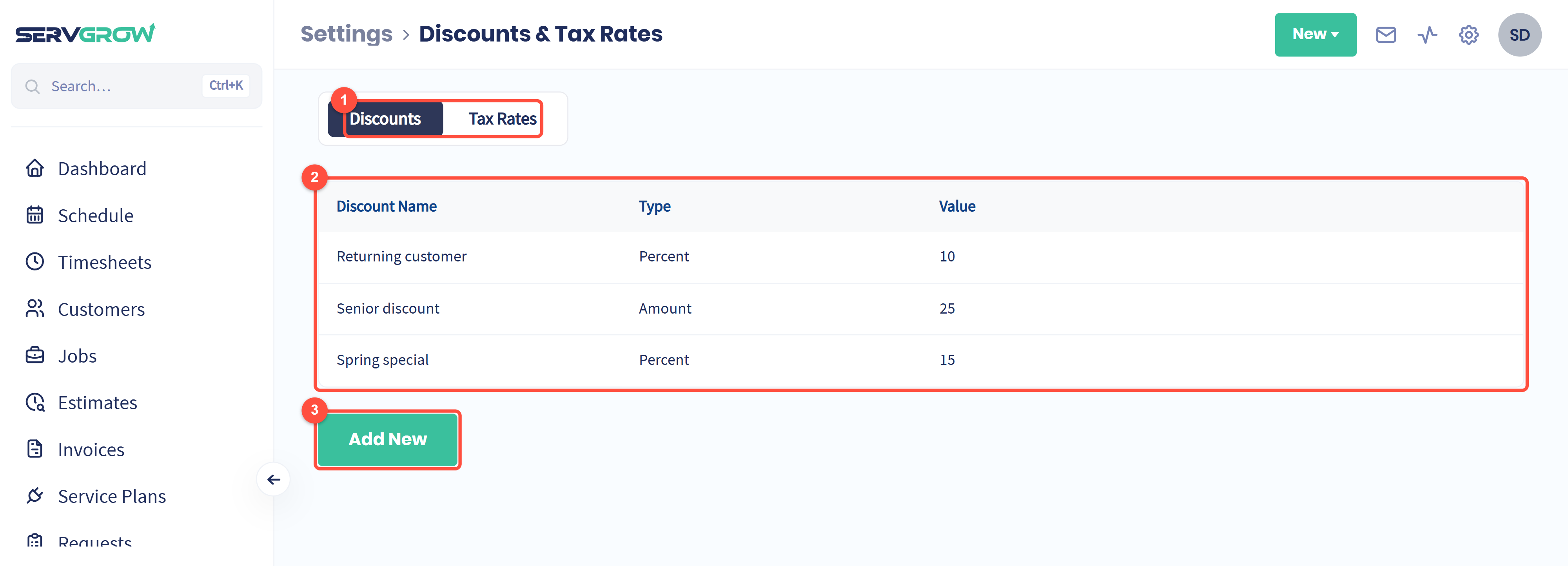
Two tabs: Discounts and Tax Rates.
Every discount your team can use, with its type and value.
Add New creates a discount.
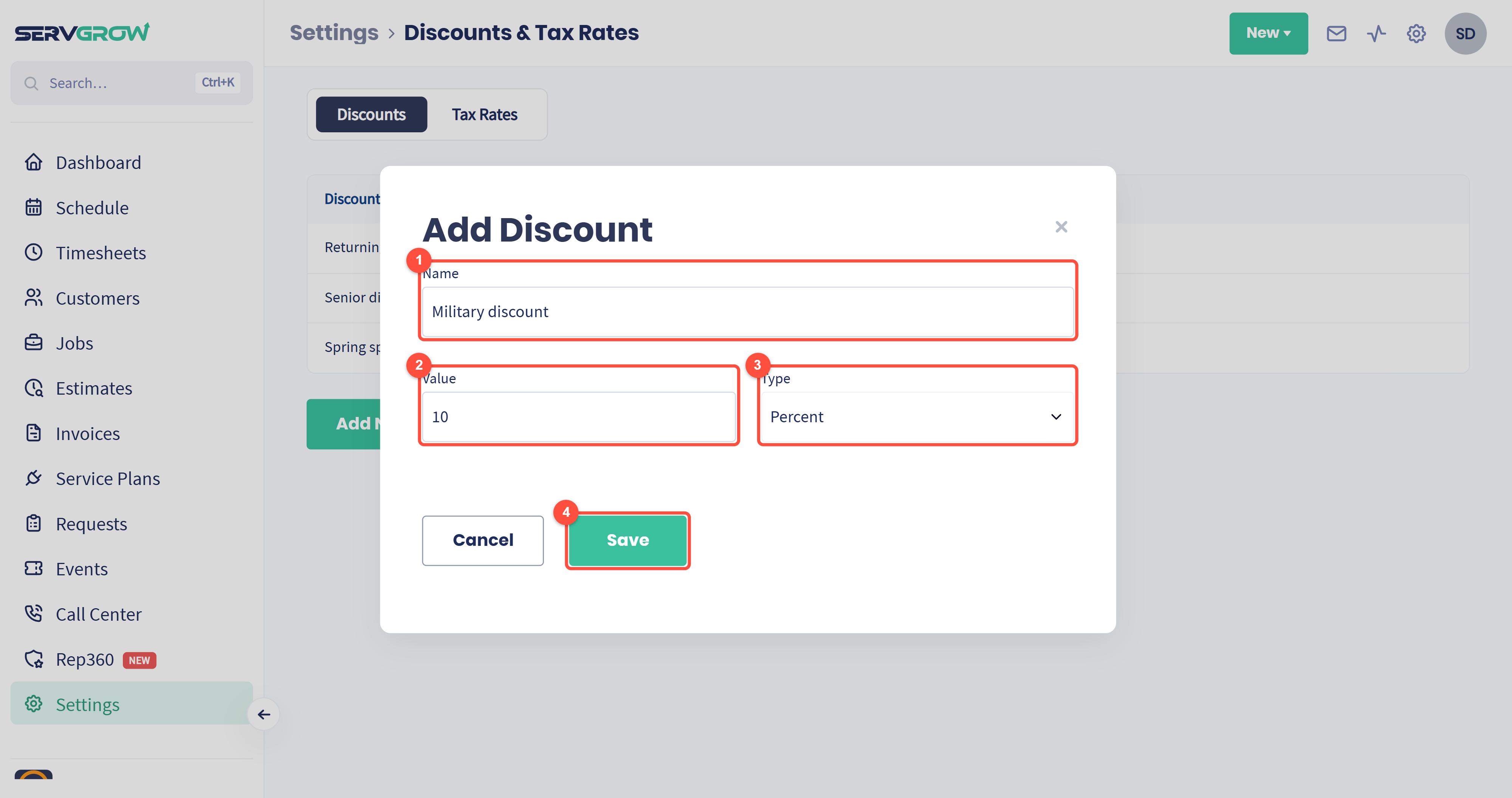
Name: what you and your team will see in the list, for example Returning customer or Spring special. Each name can be used once.
Value: how much comes off.
Type: Percent takes a percentage off the total, Amount takes a fixed dollar amount off.
Click Save.
Set up your tax rates
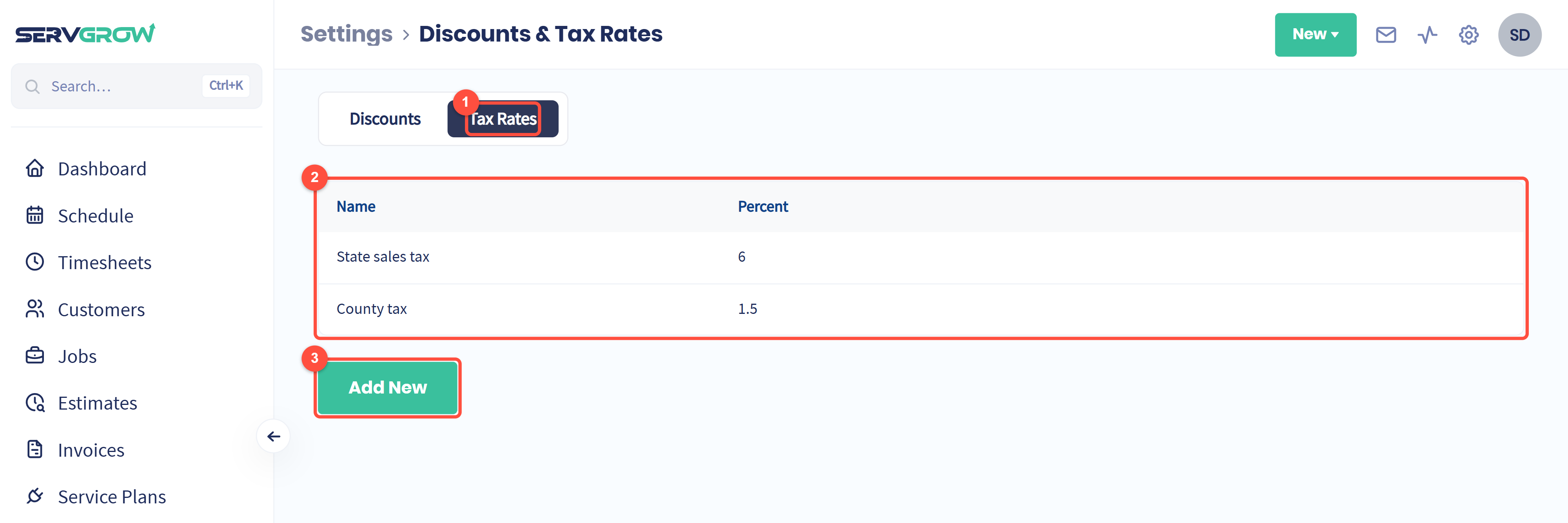
Open the Tax Rates tab.
Every rate you charge, with its percentage.
Add New creates a rate.
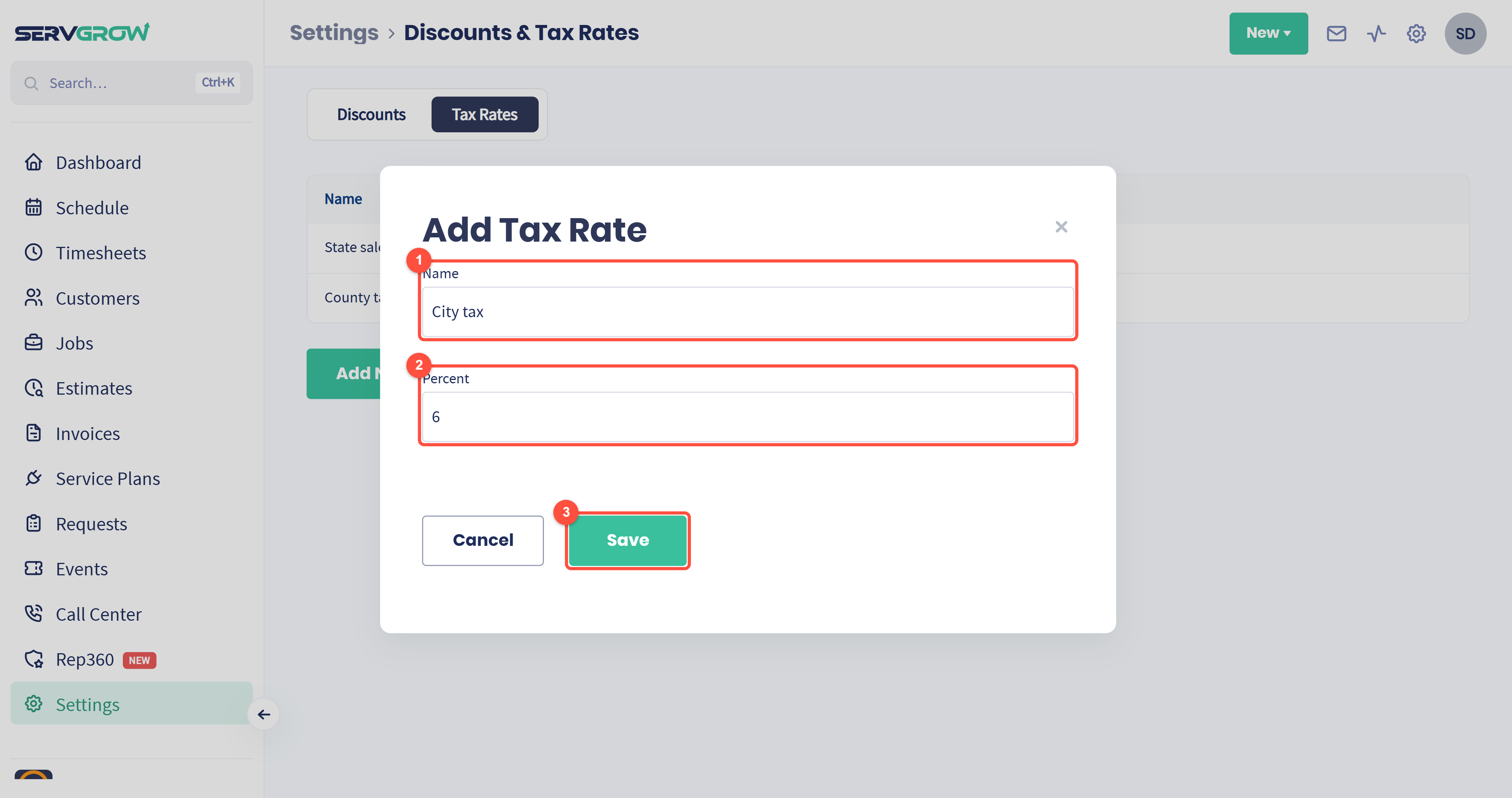
Name: something your team will recognize, such as State sales tax. Each name can be used once.
Percent: the rate, for example 6.
Click Save.
Which services are taxable is set on each item in your Price Book (the Taxable tick box).
Use them on an estimate or job
Open the estimate or job and scroll to Discounts.
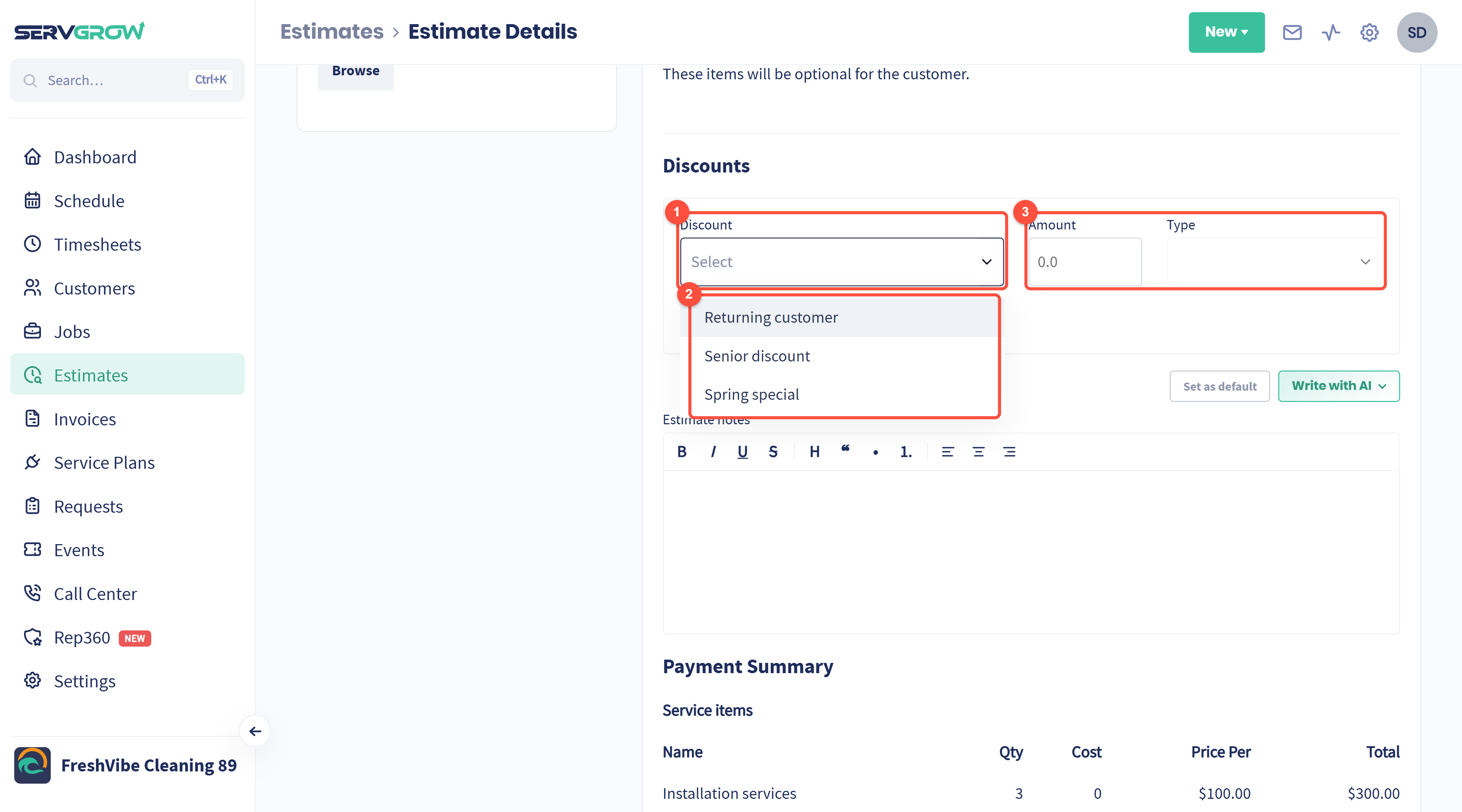
Discount: open the list.
Pick one of your saved discounts.
Amount and Type fill in from the discount. You can change them for this one customer without changing the saved discount.
Need a new discount while you are quoting? Create New Company Discount, under the list, saves it for everyone to use next time.
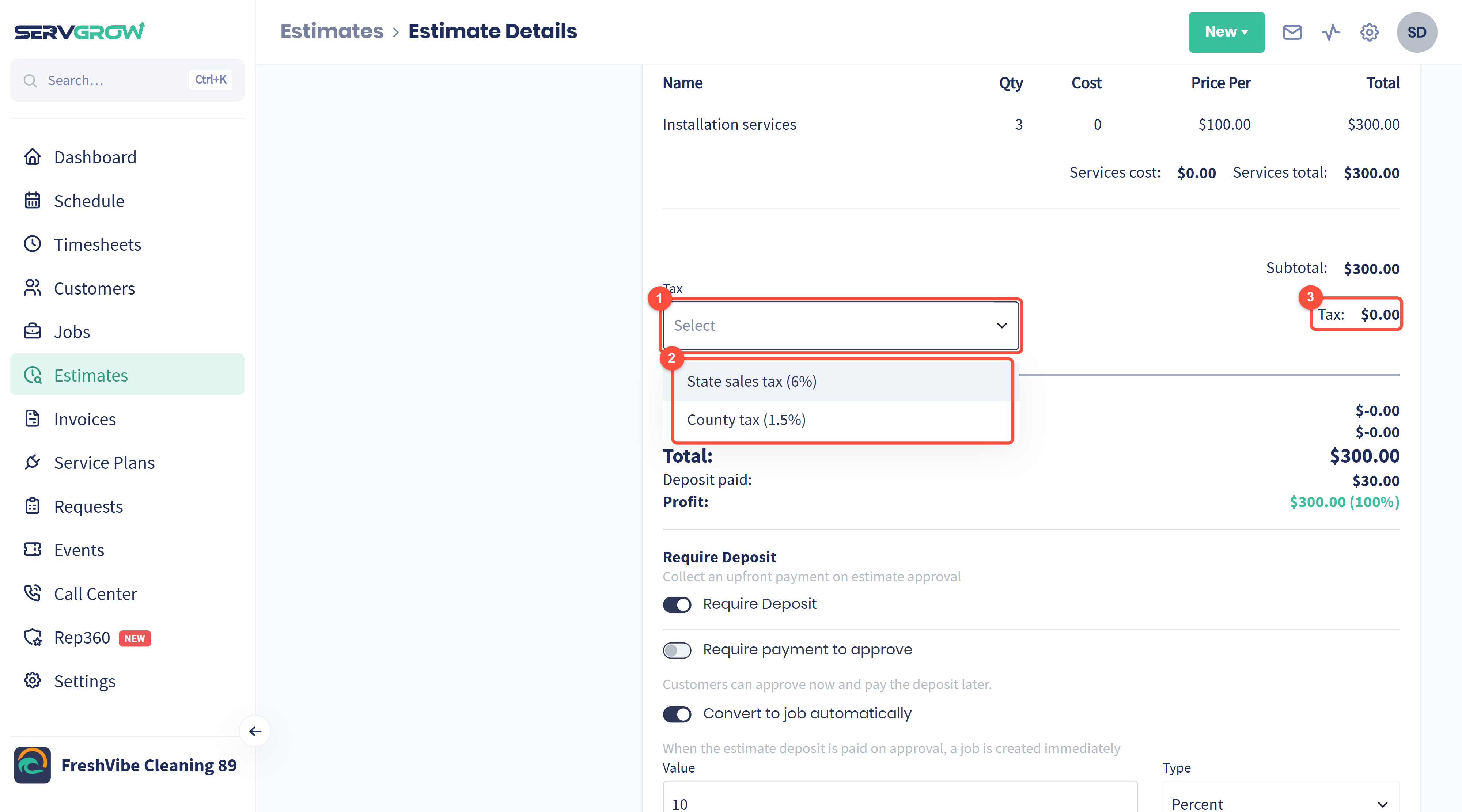
Tax: open the list near the totals.
Pick the rate that applies to this customer.
The Tax line in the totals updates straight away.
Tips
Name discounts after the reason (Returning customer, Senior, Referral), not the amount. Reports and invoices then tell you why money came off.
Keep the list short. Three or four standard discounts are easier to use consistently than twenty one-offs.
Check the profit before you discount. The estimate's Profitability section shows what you keep after the discount.
Add one tax rate per area you work in if rates differ between towns or counties.
Related articles