
"I never got that estimate." "Nobody told me the time changed." The activity feed is how you answer both without arguing: one timestamped list of everything that happened in your account, including whether the customer actually opened what you sent.
It is also how you keep an eye on a busy office. Who created that job, who marked it finished, who sent the invoice, and when.
Open the activity feed
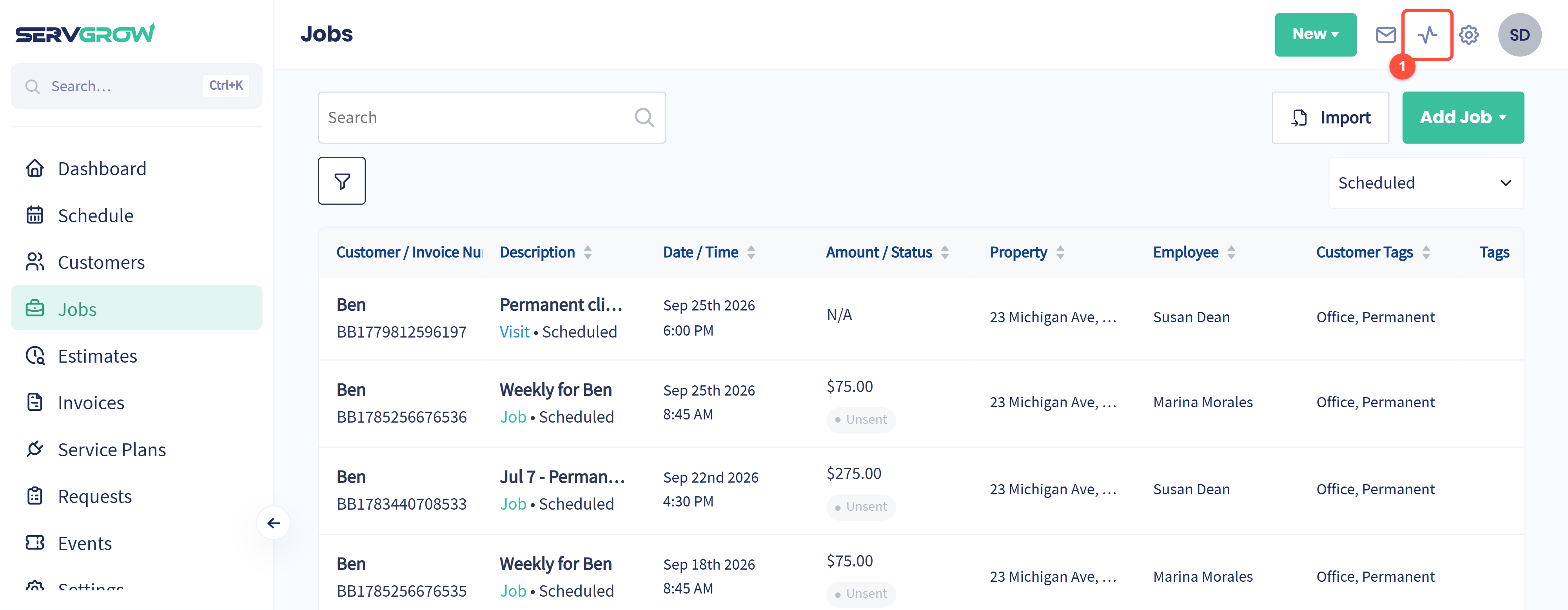
Click the activity icon in the top right, between the inbox and the settings cog.
If you cannot see the feed, your role does not have the Activity Feed permission. An admin can grant it under Settings, Employees, Edit Permissions.
Read the feed
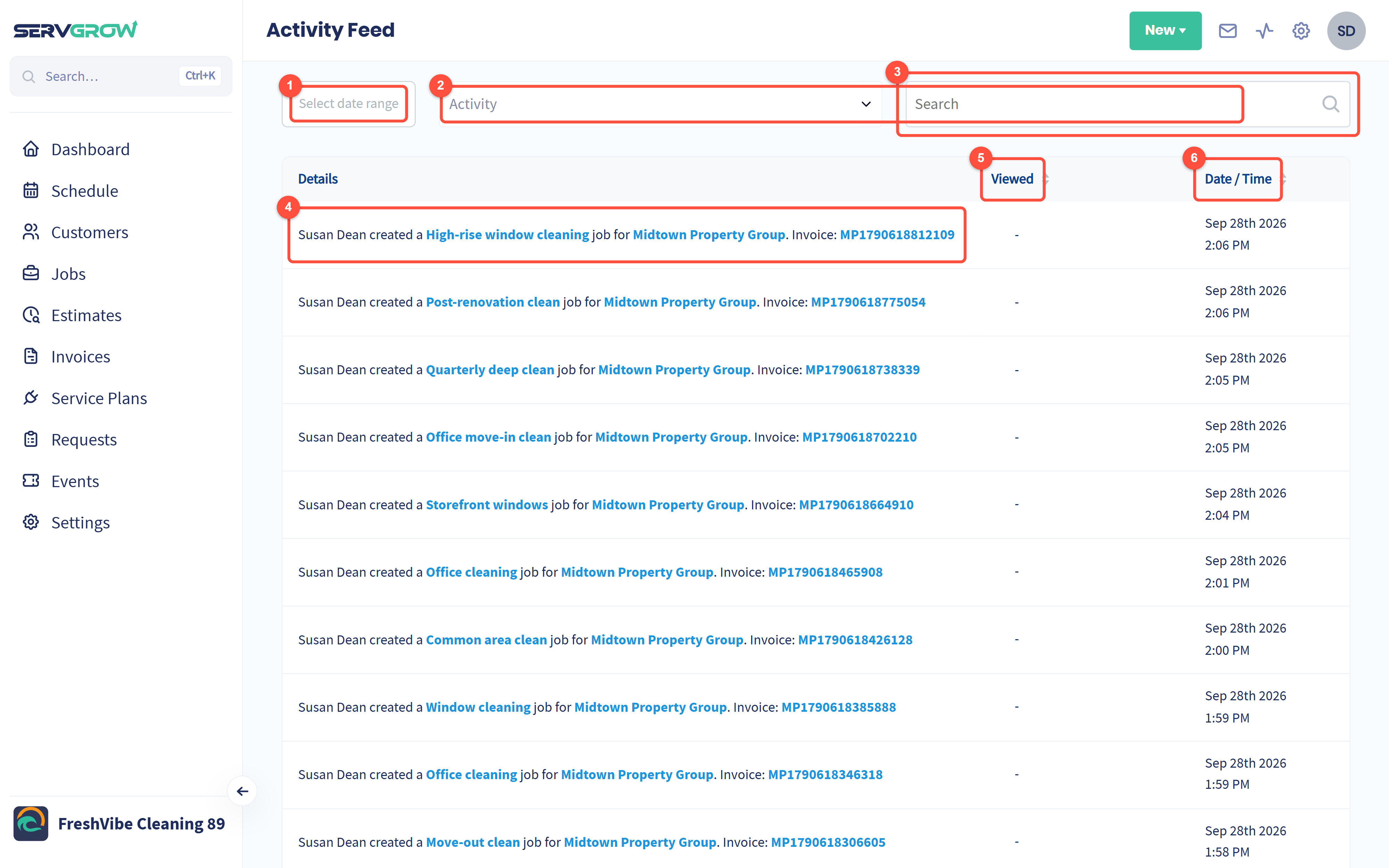
Select date range: narrow it to a day, a week, or the stretch you are asking about.
Activity: filter by what happened.
Search: find activity for one customer, job or invoice number.
Each line is written in plain English: who did what, for which customer, and on which job or invoice. The blue parts are links, so you can jump straight to the job, the customer or the invoice.
Viewed: for anything you sent the customer, an eye tells you whether they opened it. Hover it to see when. A dash means the entry is not something that gets opened, like a job being created.
Date / Time: when it happened. Click the heading to sort.
Filter by what happened
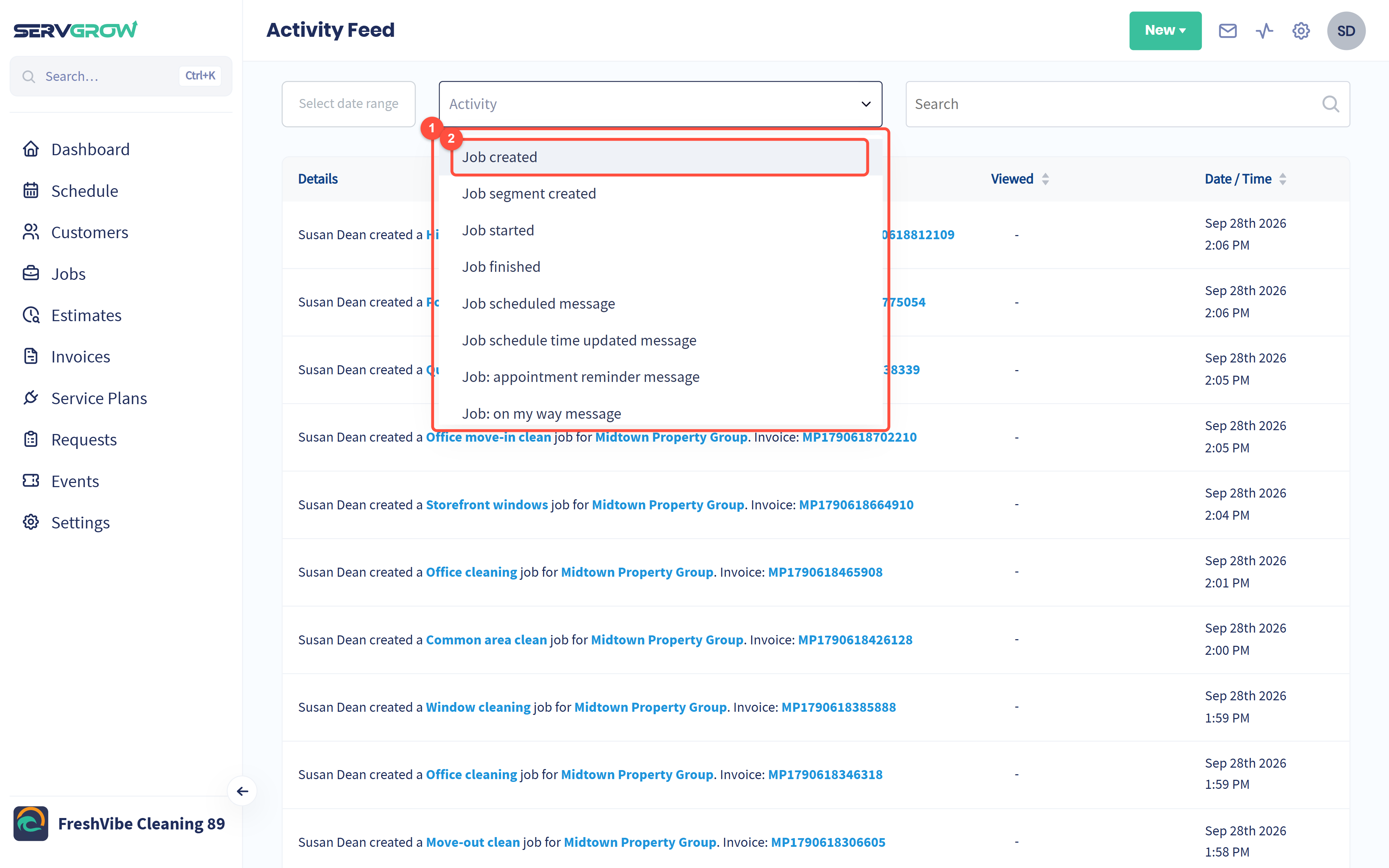
Open Activity and pick a type. The list covers the whole life of a job: Job created, Job segment created, Job started, Job finished, and the messages that went out (Job scheduled message, Job schedule time updated message, appointment reminders, on my way texts). Estimates and invoices have the same set, plus Invoice paid, Invoice deposit paid, Estimate deposit paid, Service plan assigned and Photo added.
Pick one and the feed shows only that.
What to use it for
"Did they get it?" Filter to the estimate or invoice message and look at the Viewed column before you chase.
"Who moved that job?" Filter to Job schedule time updated message for the day in question.
"Did the crew mark it done?" Job finished, with the time it was marked.
Proof for a dispute. Every line carries a name and a timestamp, so there is a record of what was sent and when.
Tips
Check Viewed before you re-send. If the customer opened the estimate twice yesterday, they are thinking about it, and a chase call beats another email.
Narrow the dates first. A busy account fills this feed quickly, and the date range is the fastest way to cut it down.
Use the links. Every job, customer and invoice in a line is clickable, so the feed doubles as a way to find things.
Related articles