
Your schedule tells you about today. The Jobs list tells you about everything: every visit you have booked, what it is worth, who is doing it and whether the money has actually landed. It is the screen that answers "what did we do for the Hendersons in August?" in about five seconds, and the one that shows you, in a single glance, which finished jobs are still sitting there unpaid.
Learn the three views and the filter panel and you can pull up any slice of your work: this week's cancellations, every recurring visit for one customer, everything still unsent.
Open your jobs list
Click Jobs in the left menu.
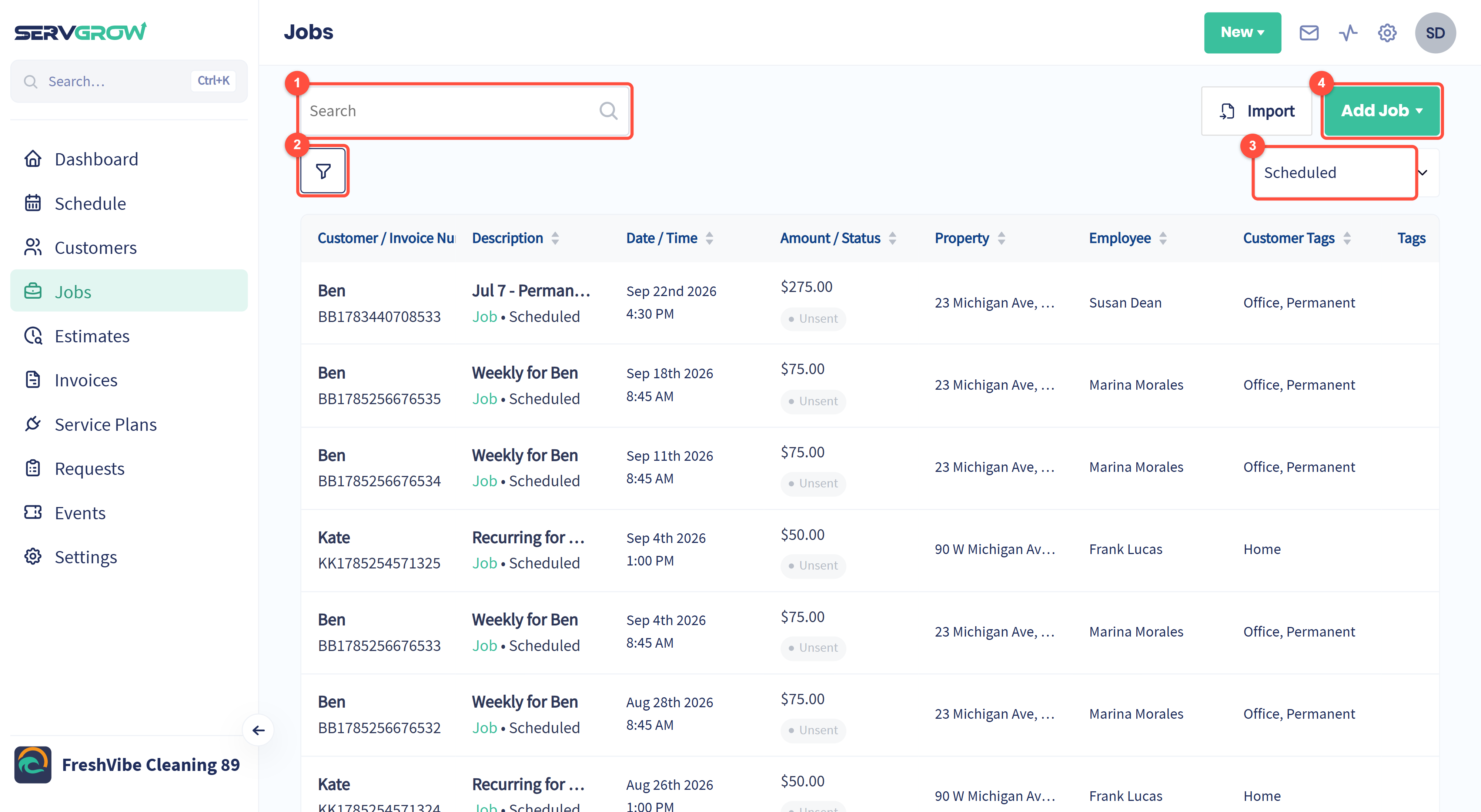
Search: type a customer, a street or a few words from the job title.
Filters: the funnel narrows the list by type, status, tag or date.
View: switch between Scheduled, Upcoming and Unscheduled.
Add Job: book new work without leaving the list.
What each column tells you
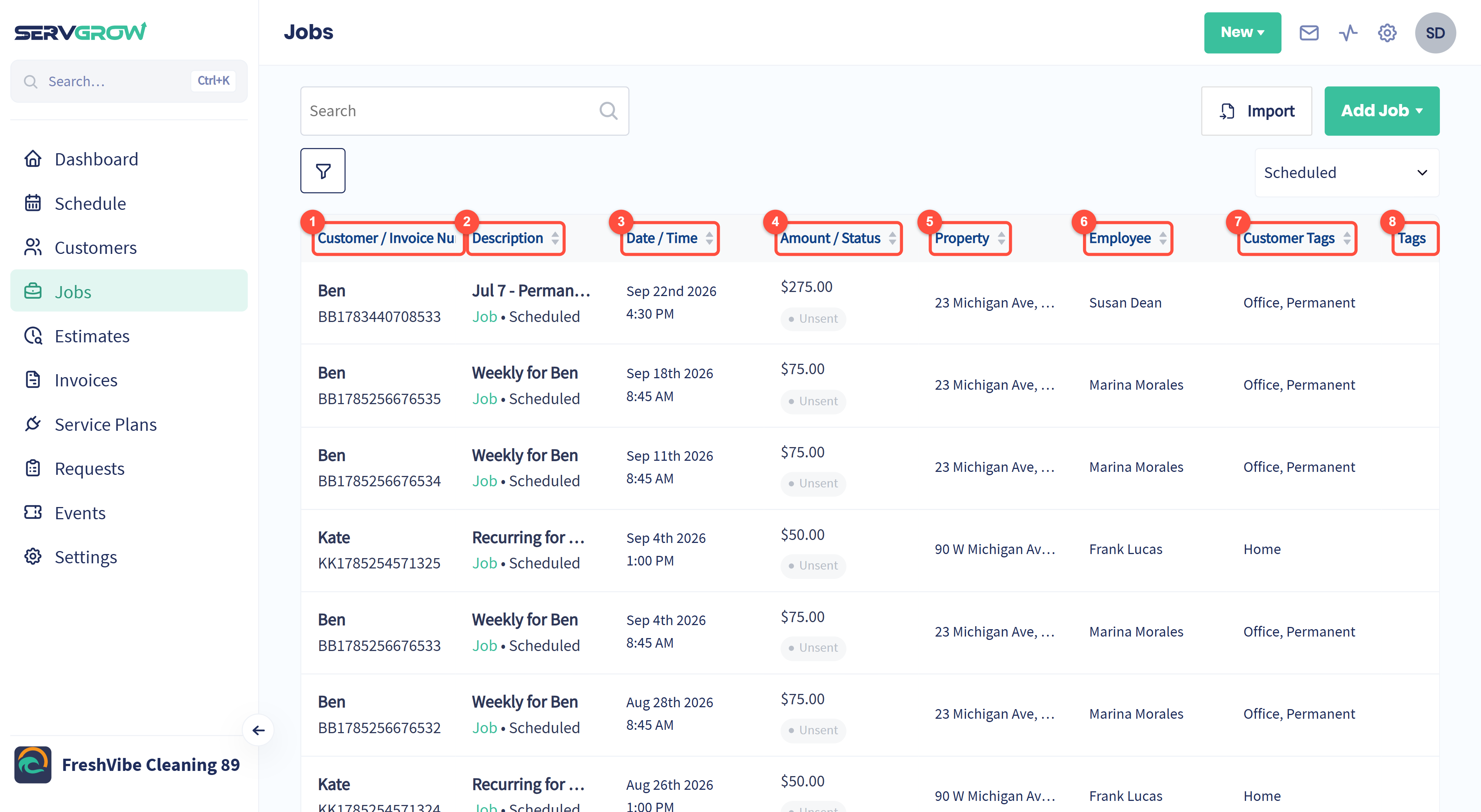
Customer / Invoice Number: who the work is for, and the job's own number.
Description: the job title, with the type and the job status underneath.
Date / Time: when it is booked in.
Amount / Status: what it is worth, and where the invoice has got to.
Property: the address your crew is going to.
Employee: who is assigned.
Customer Tags: the tags on the customer, for example Home or Office.
Tags: tags on the job itself.
Every heading sorts. Click it once for one direction, again for the other, so you can put the biggest jobs or the oldest dates at the top.
How to read one row
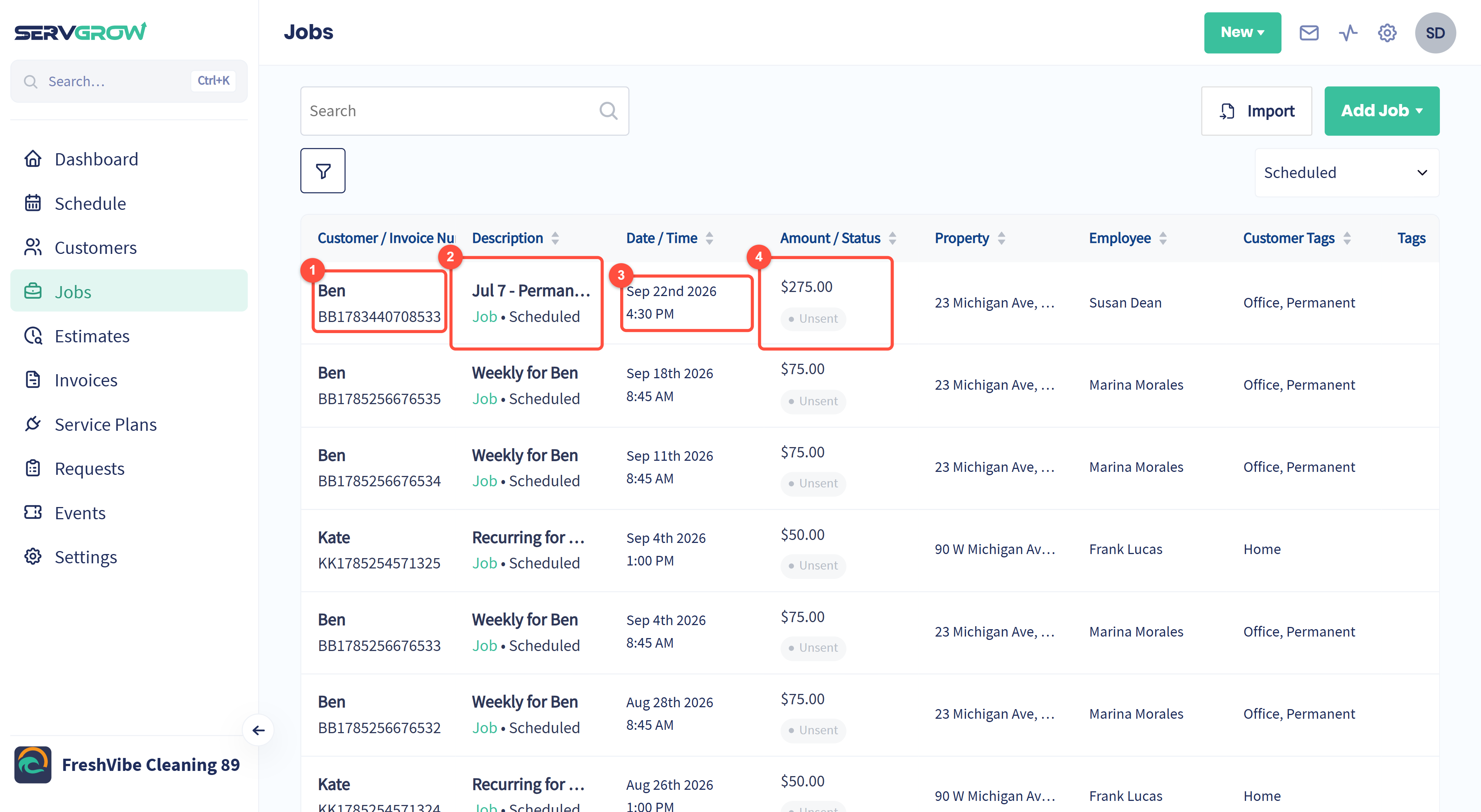
The customer's name, with the job number underneath. Quote that number to a customer and you are both talking about the same visit.
The job title, then Job or Visit and the job status. A Visit is one appointment from a service plan; a Job is everything else. The status runs Scheduled, On my way, Started, Finished, or Cancelled.
The date and start time.
The value of the work, and under it the invoice: Unsent, Due, Overdue, Paid and so on. This is the fastest way to catch work you finished and never billed.
Click anywhere on a row to open the job.
The three views
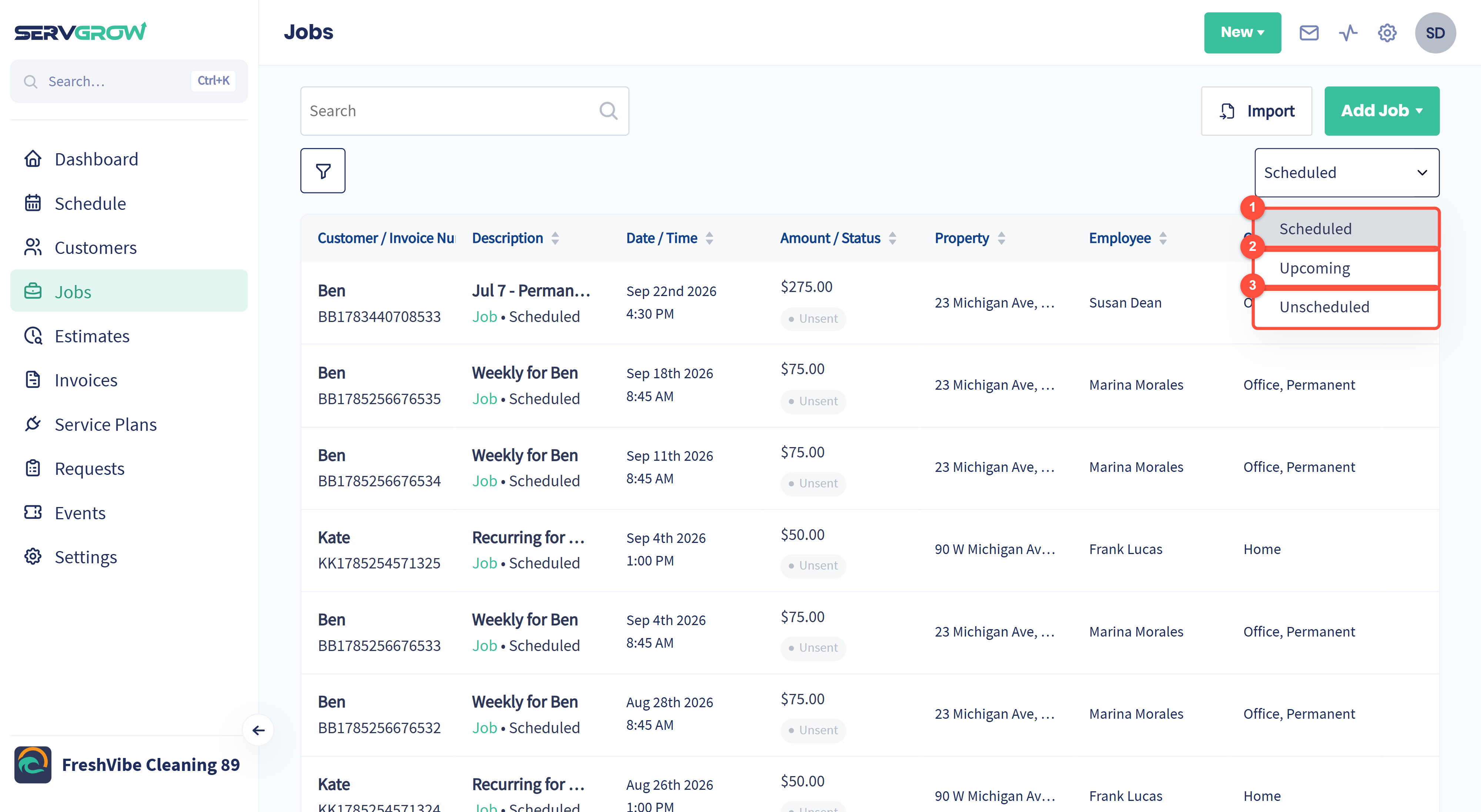
Scheduled: everything booked up to and including today, newest first. This is your history.
Upcoming: everything booked for a future date, including the visits a recurring job or a service plan has already put on the calendar.
Unscheduled: work that exists but has no date yet. Keep an eye on this one, because nobody is going to turn up for a job that is not on the calendar.
Narrow the list with filters
Click the funnel. The panel has four tabs, and each one adds to the others, so you can ask for something as specific as "cancelled recurring visits in the last 30 days".

The four tabs: Type, Status, Tags and Date range.
All Types, Job or Visit.
Any, Recurring or One-time. Pick Recurring to see only repeat work.
Reset all clears every tab at once. Each tab also has its own Reset.
Filter by job status

Tick any combination of Scheduled, On my way, Started, Finished and Cancelled. Tick Finished on its own and you are looking at completed work, which pairs nicely with the Unsent chip.
Reset clears just this tab.
Filter by tag

Open Select tags and pick one or more of your job tags. This is how you pull out a whole category of work, for example everything you tagged Warranty or Discount.
Filter by date

Click Select date range.
Use a preset: Last 7 days, Last 30 days or This month. Or click a start date and an end date on the calendar for any range you like.
Search
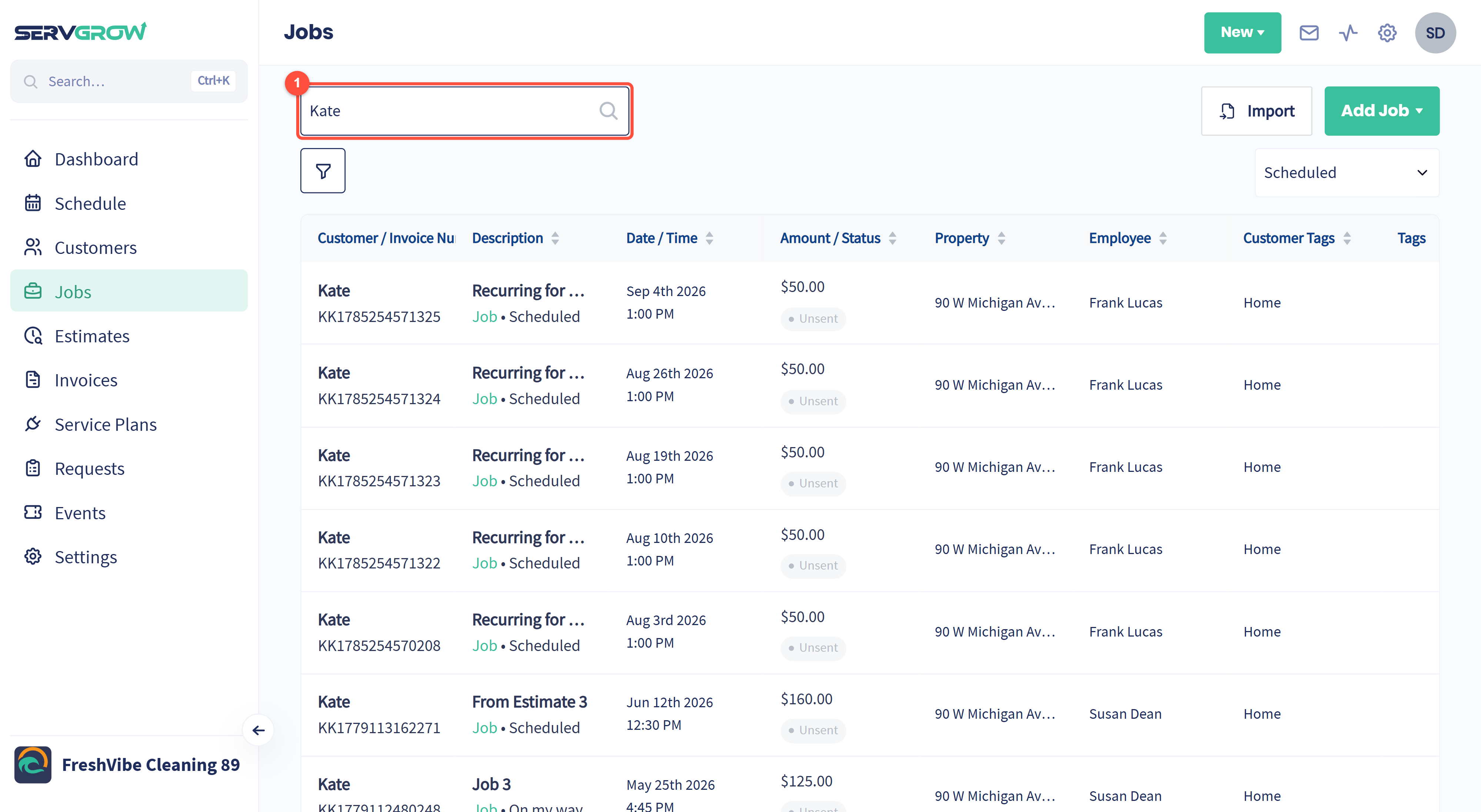
Type in the Search box. It matches the customer, the job description and the property address, and the list narrows as you type.
Search works together with the view and the filters, so if a job you expect is missing, check which view you are in first.
Working through a long list
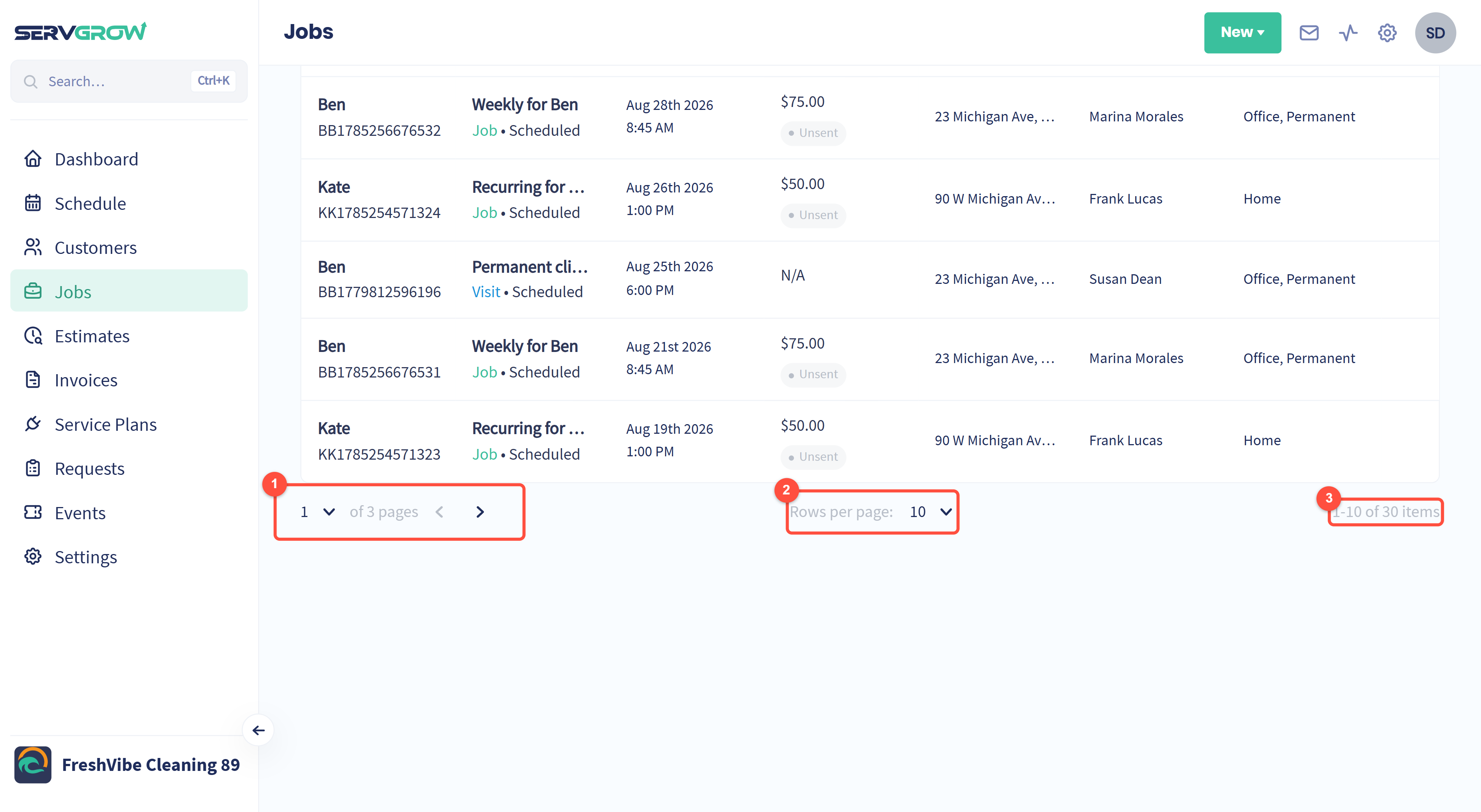
Jump to a page, or step through with the arrows.
Rows per page: show more rows at once on a big screen.
The count on the right tells you how many jobs match what you have asked for. Watch it while you filter.
Add work from here
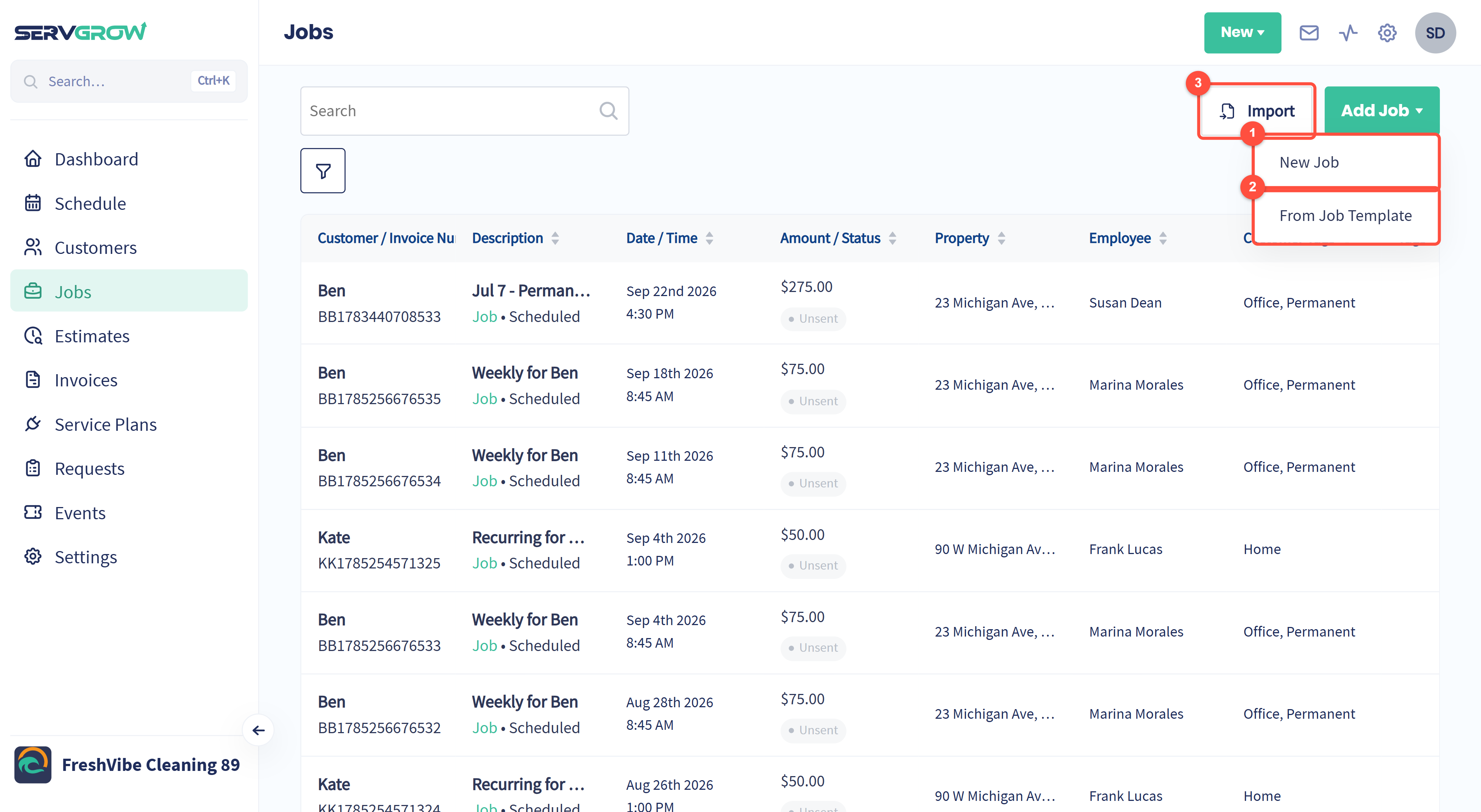
New Job: the usual booking flow, with the customer, schedule and line items.
From Job Template: start from a template you have already built, so the services, prices and checklists are filled in for you.
Import: bring jobs in from a CSV file. The wizard takes you through choosing the file, matching your columns to Servgrow's fields and reviewing what will happen before anything is created.
Tips
Finished plus Unsent is your money list. Filter the status to Finished and scan the Amount column for Unsent: that is work you have done and not billed.
Check Unscheduled once a week. Jobs land there when they are created without a date, and they are easy to forget.
Sort by Amount to see your biggest jobs. Useful when you are deciding what to chase first.
The job number is the thing to quote. It is under the customer's name on every row, and it is what your customer sees on the invoice.
Related articles