
You do not live in one calendar. The school run, the dentist, the quote you promised to do on Saturday morning: if your Servgrow jobs are not next to all that, you will double book yourself eventually.
Calendar Sync gives you a private link to your Servgrow schedule that Google Calendar, Apple Calendar, Outlook or anything else that reads the .ics standard can subscribe to. Add it once and your jobs turn up in your own calendar, and keep updating themselves as the schedule changes.
Get your calendar link
Click Schedule in the left menu.
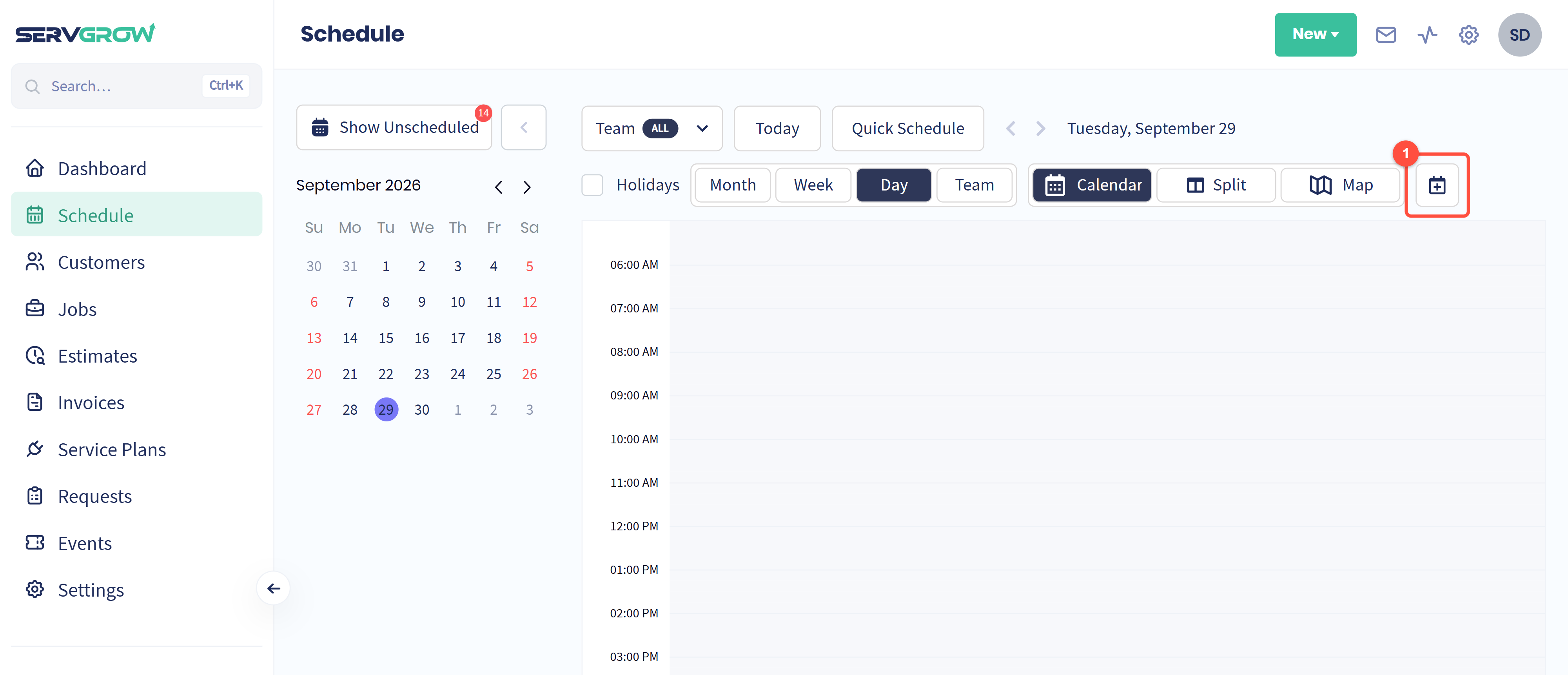
Click the calendar icon at the end of the row of view buttons, after Map.
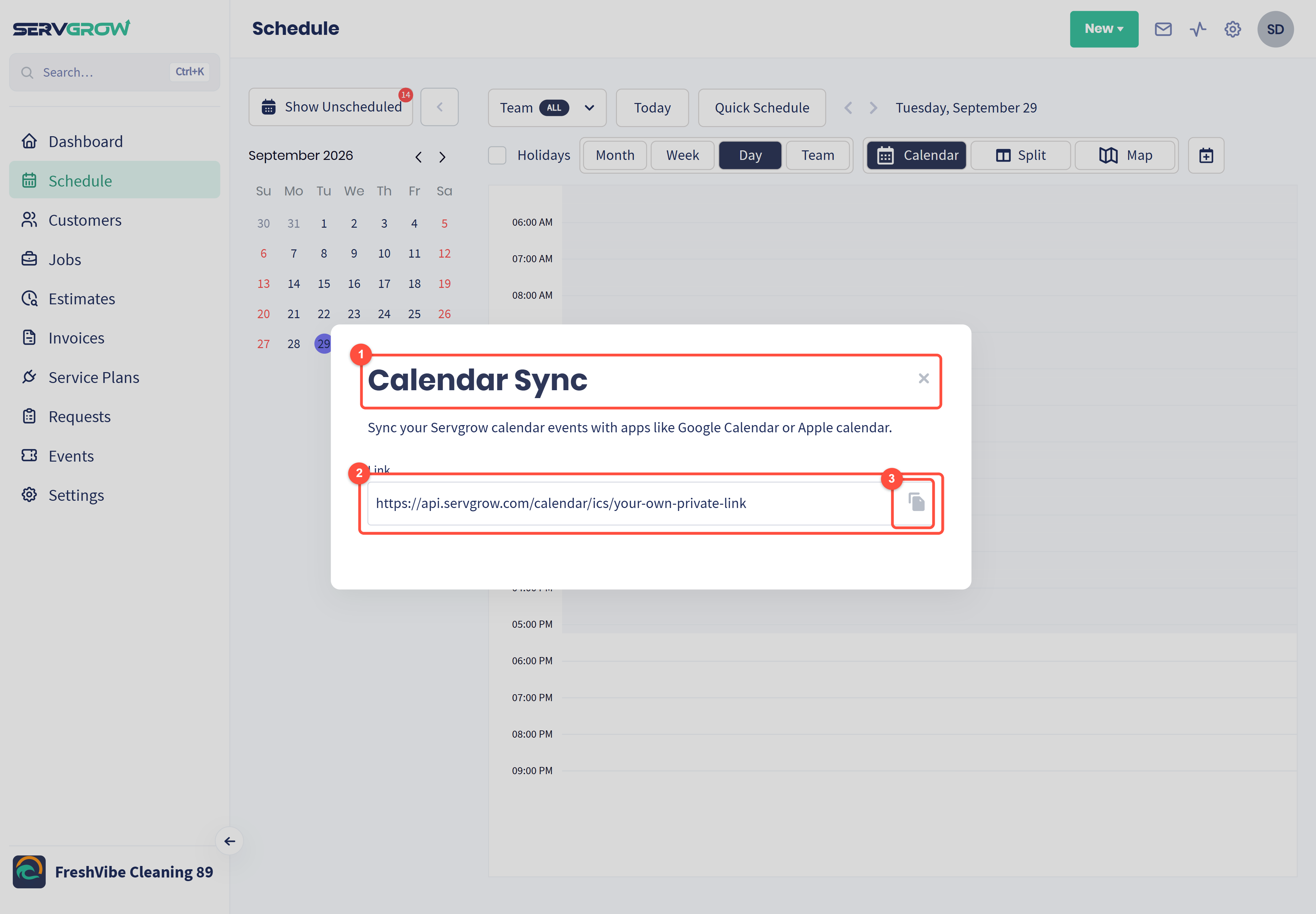
Calendar Sync explains what it does: sync your Servgrow calendar events with apps like Google Calendar or Apple Calendar.
Link: your own private calendar address. The one in this screenshot is a placeholder; yours will be a long web address ending in a unique code.
Click the copy button to put it on your clipboard.
Treat this link like a password. Anyone who has it can see your schedule without signing in to Servgrow, so do not post it anywhere public.
Add it to Google Calendar
Open Google Calendar on a computer. The phone app cannot add a calendar by link.
In the left column, next to Other calendars, click the plus and choose From URL.
Paste your link and click Add calendar.
Your jobs appear as a separate calendar you can switch on and off. Google decides how often it refreshes, and it can take several hours for a change to show, so treat it as a view of your schedule rather than the place you work from.
Add it to Apple Calendar
On a Mac, open Calendar and choose File, then New Calendar Subscription.
Paste your link and click Subscribe.
Set Auto-refresh to how often you want it checked.
On an iPhone, go to Settings, Apps, Calendar, Accounts, Add Account, Other, then Add Subscribed Calendar and paste the link.
Outlook and everything else
Almost every calendar supports this. Look for wording like Add calendar, Subscribe from web, From internet or From URL, then paste the link. In Outlook on the web it is Add calendar, then Subscribe from web.
What syncs, and what does not
The link is a one-way, read-only feed: Servgrow sends your schedule out, and nothing you type in Google or Apple comes back.
Changes you make in Servgrow flow out on the other calendar's refresh cycle, which is usually hours rather than seconds.
To move a job, change it in Servgrow. Moving the entry in Google Calendar changes nothing here.
Tips
Give it its own colour in your calendar app, so work is obvious next to everything else.
Do not rely on it for same-day changes. The refresh delay belongs to the other calendar, so the Servgrow schedule or the mobile app is still the source of truth on the day.
Keep the link private. If it ever gets out, tell Servgrow support so it can be reissued.
Related articles