
Most service businesses quote and book the same handful of jobs over and over. Typing them in fresh each time is slow, and it is how prices drift: one person forgets the add-on, another charges last year's rate. A template saves a job or an estimate once, with its services, prices, optional extras, notes and checklists. Next time, pick the template, choose the customer and the work is filled in for you. Every quote goes out complete and at the same price, no matter who on the team builds it.
Where templates live
Click Settings in the left menu.
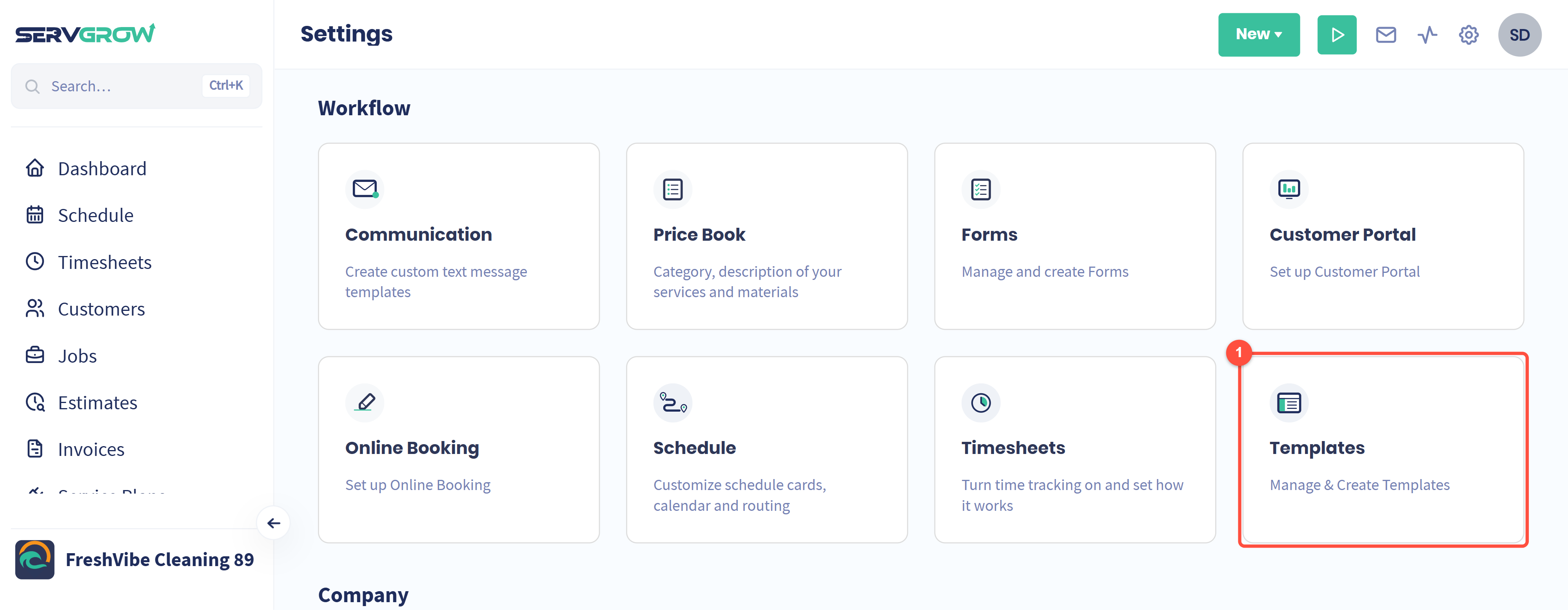
Click Templates.
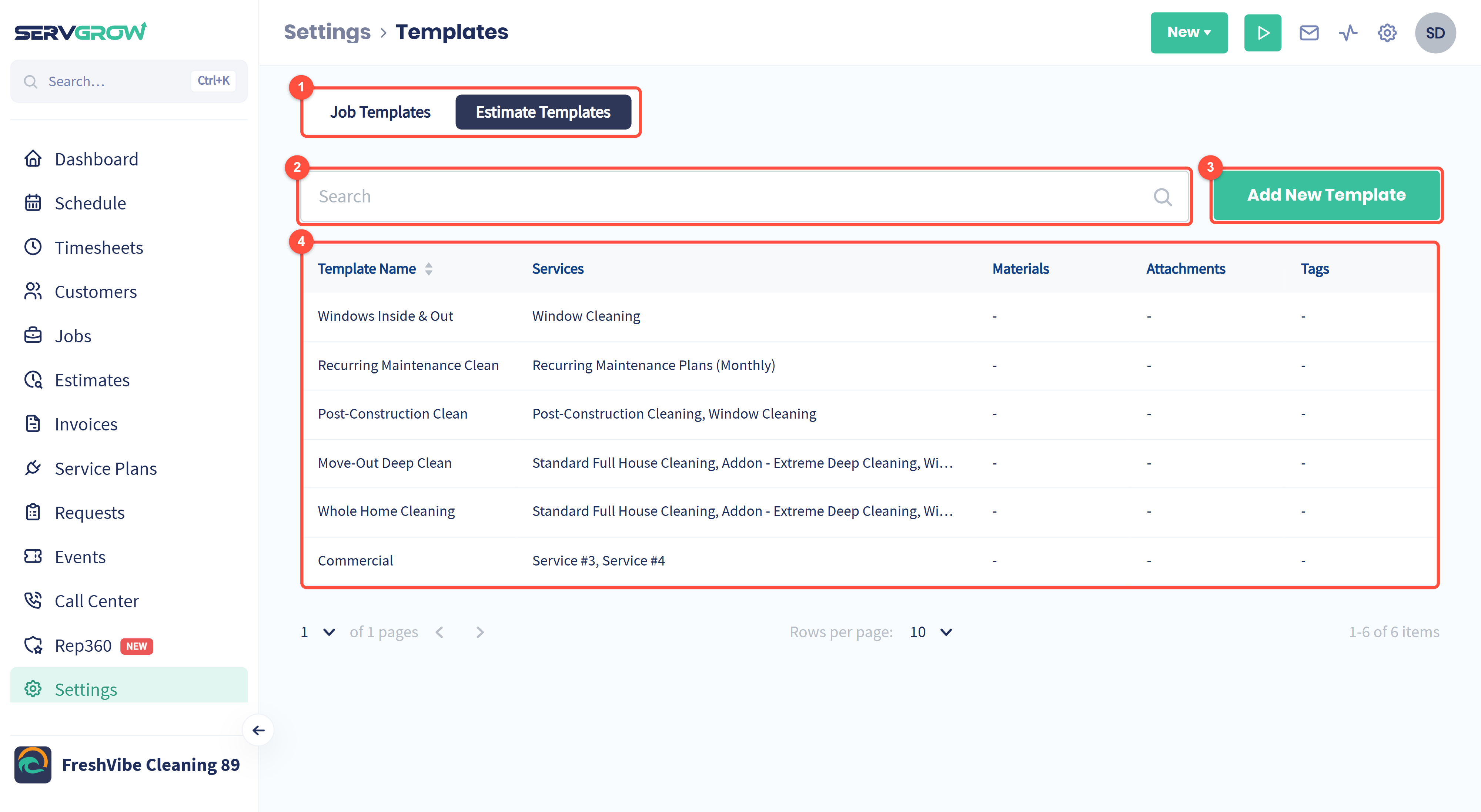
Job Templates and Estimate Templates are kept separately. Pick the tab for the kind you want.
Search finds a template by name.
Add New Template creates one.
The list shows each template's name, the services on it, and any materials, attachments and tags. Click a template to open and edit it.
Create a template
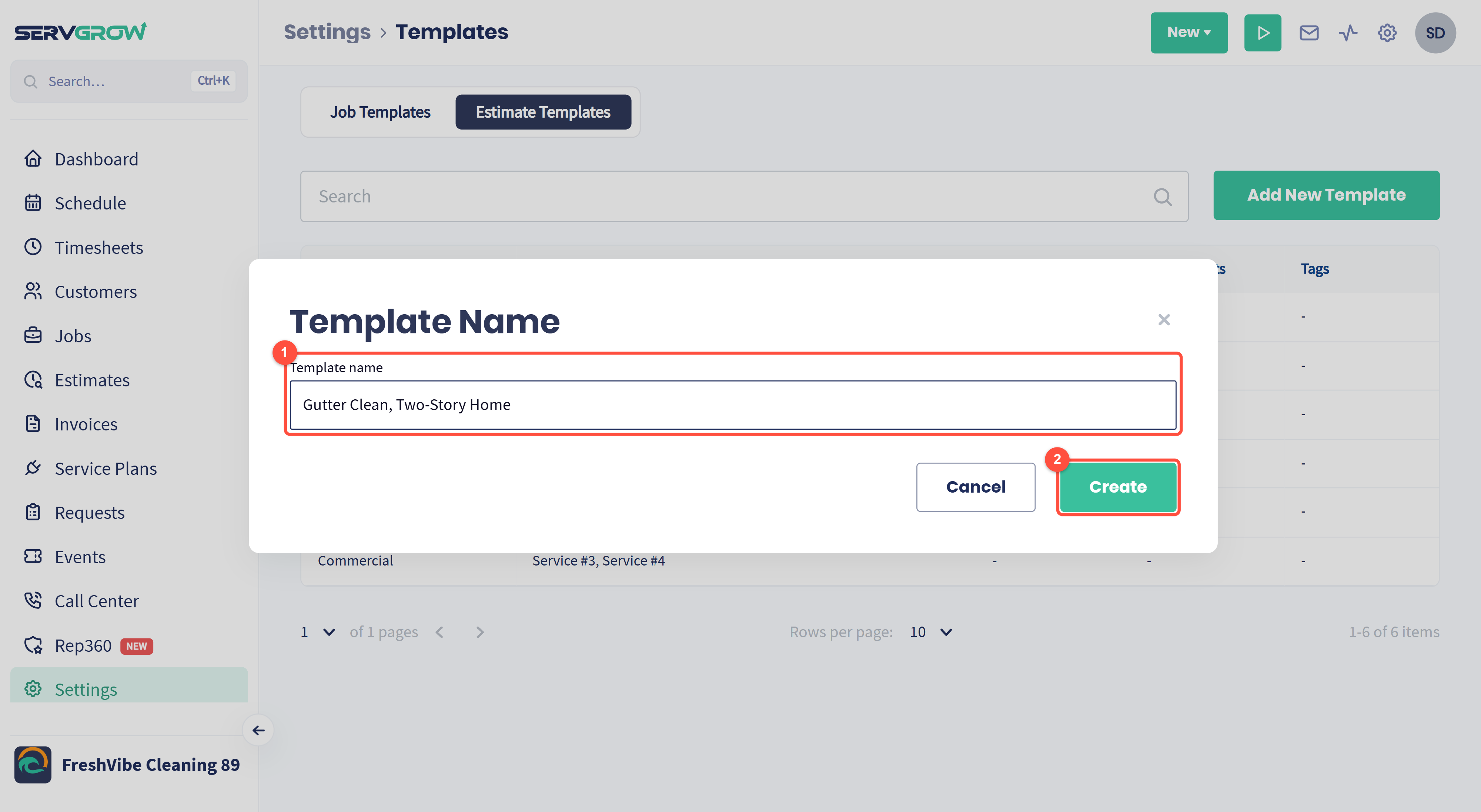
Click Add New Template and give it a name your team will recognize at a glance, such as the service and the size of the job.
Click Create. A blank template opens with that name, ready to fill in. Nothing is saved yet.
Fill in the template
A template has the same sections as a real job or estimate, so fill it in exactly as you would for a customer. Here is a finished estimate template:
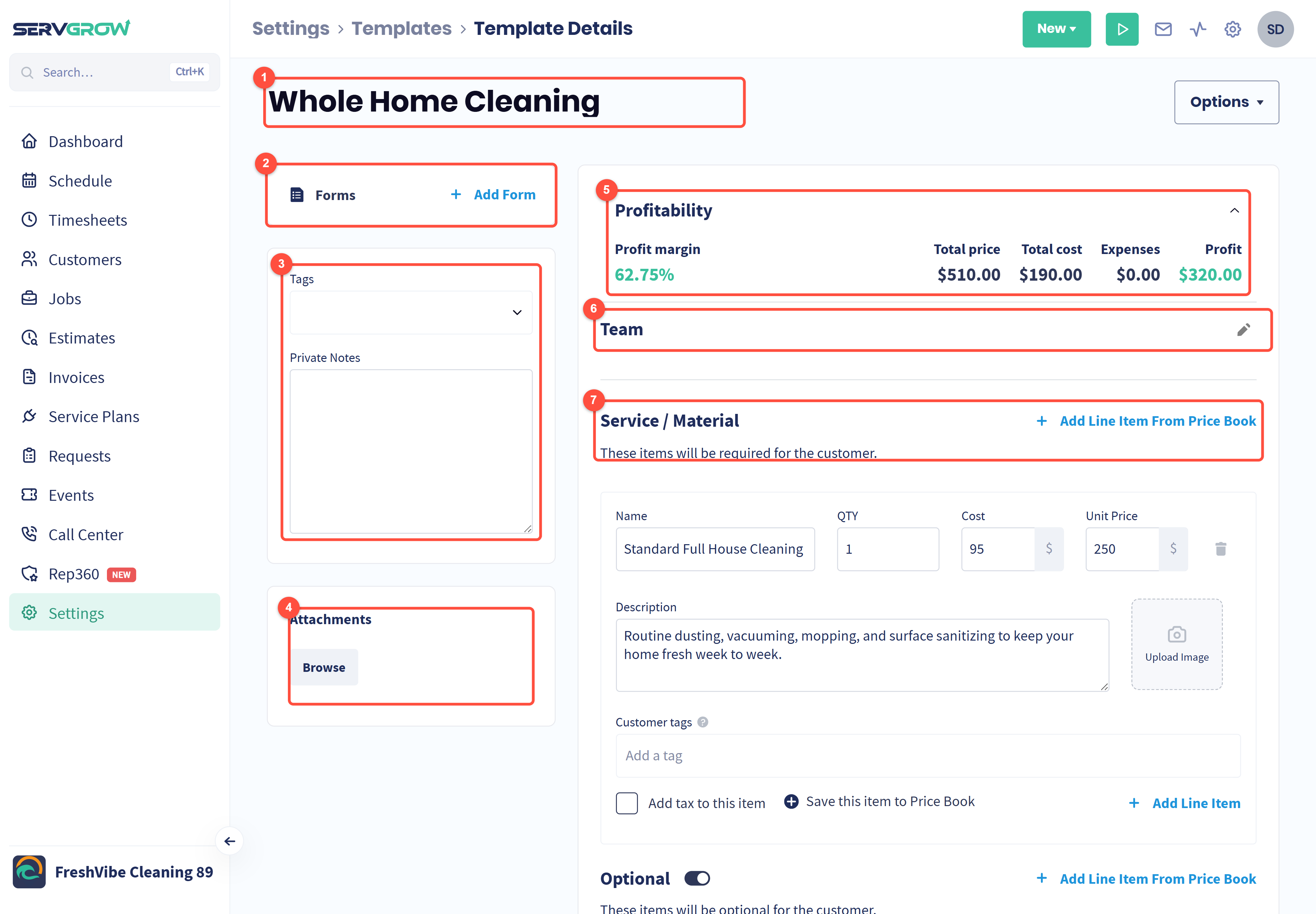
Name: click it to rename the template.
Forms: click Add Form to attach a checklist or sign-off sheet, so it comes with every job or estimate made from this template.
Tags and Private Notes: tags to put on the new job or estimate, and notes for your team only, such as what to bring.
Attachments: add files that should go with it, such as a spec sheet or your terms.
Profitability: the total price, what the work costs you and the profit, worked out as you add items. Check it once here and every job built from the template starts with a healthy margin.
Team: click the pencil to choose who usually does this work.
Service / Material: the line items. Click Add Line Item From Price Book so names, costs and prices match your Price Book, or type one in.
Further down are Discounts, the notes the customer reads (Estimate Notes on an estimate template, Invoice Notes on a job template), Tax and Expenses.
When it is ready, click Create Template at the bottom of the page to save it. Leave without it and the new template is gone.
Build your upsells into estimate templates
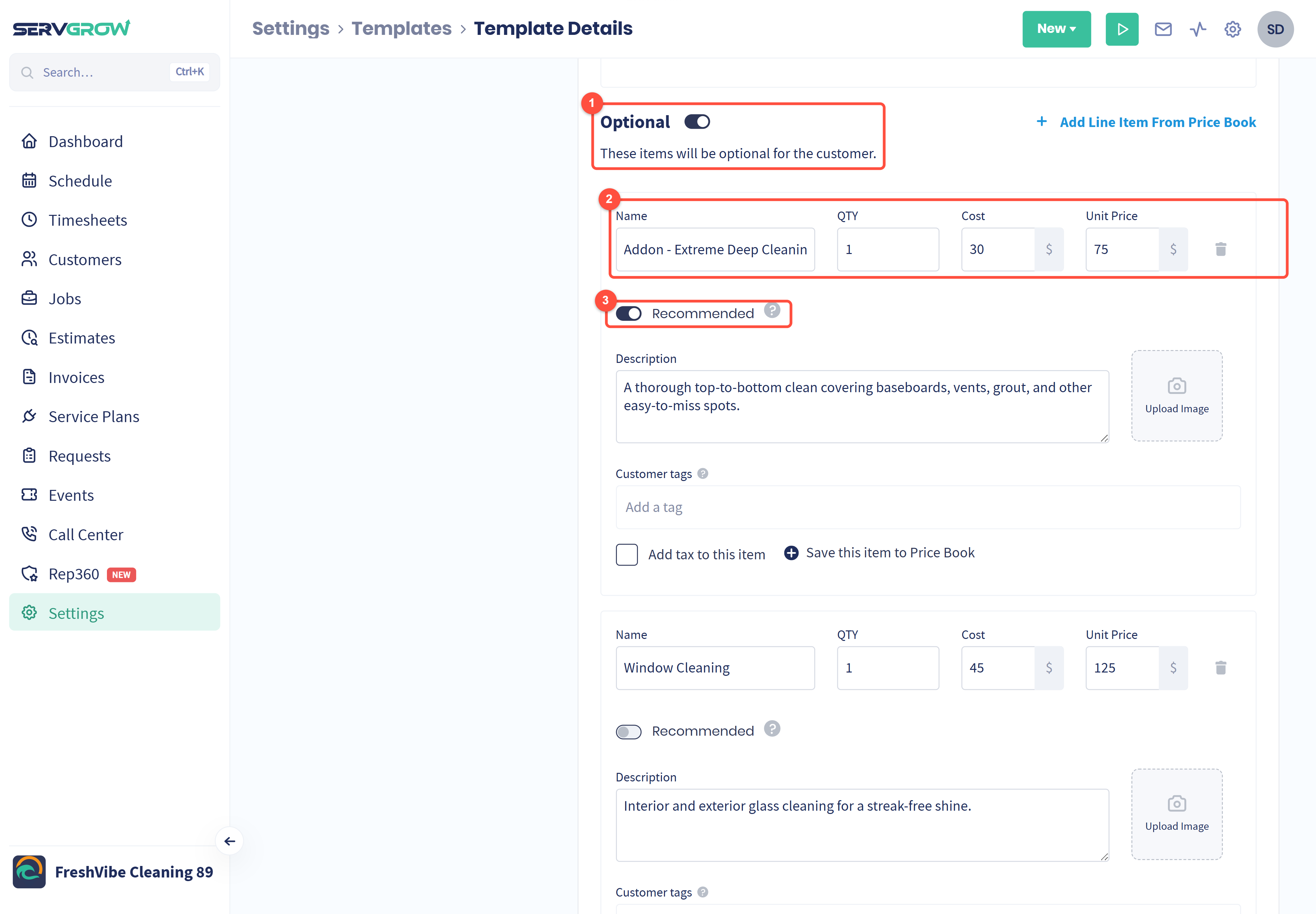
Turn on Optional to add extras the customer can choose for themselves.
Add each extra as a line item, for example a deep-clean add-on.
Turn on Recommended for the extras you want to suggest. They start out ticked for the customer, so they are included unless the customer takes them off.
Put your best add-ons on the template once and every quote offers them, even when the person quoting forgets to mention them.
Change or delete a template
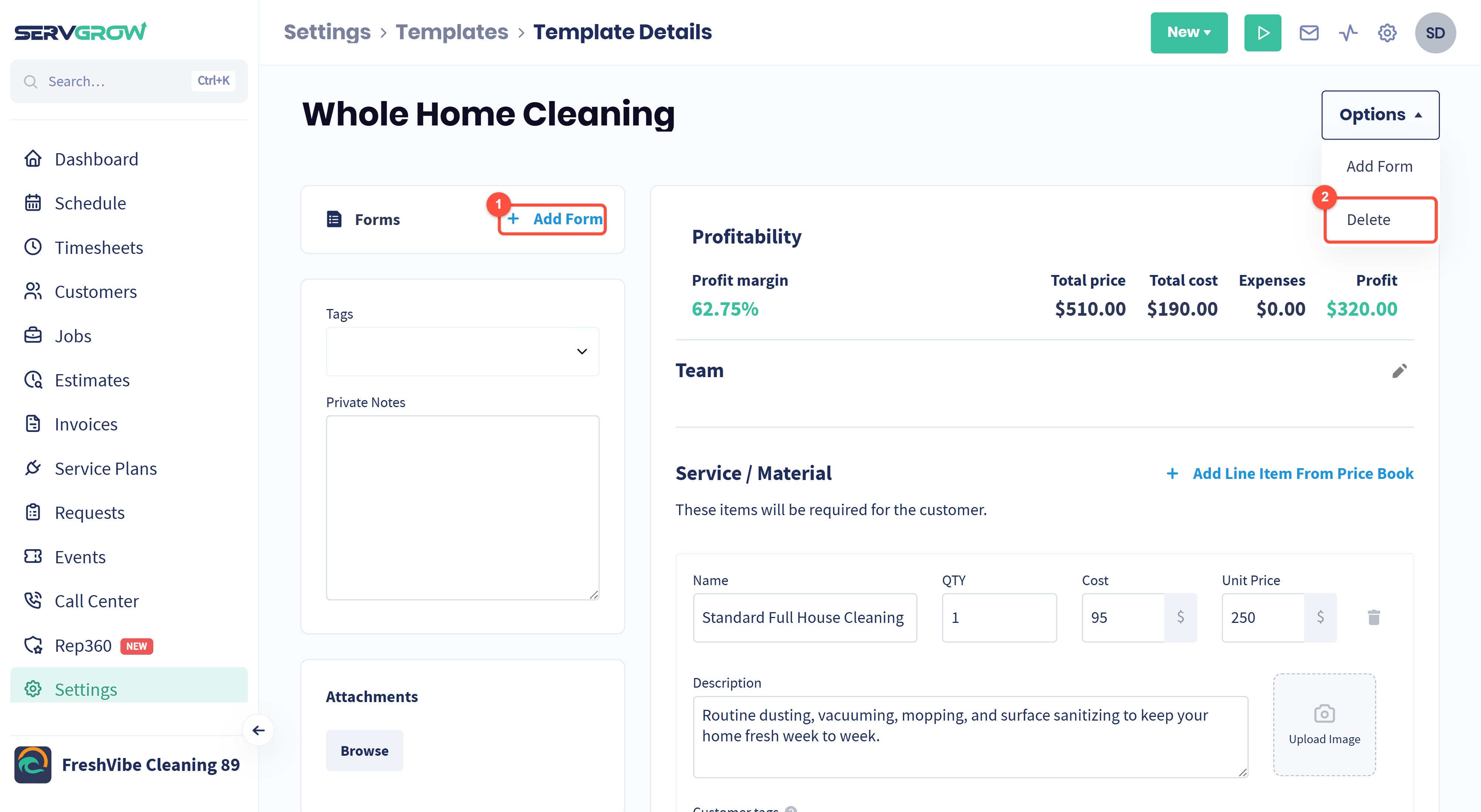
Add Form: the same as the Forms card.
Delete: remove the template. Jobs and estimates you already made from it keep their details.
To change a template, open it and edit it. A bar appears saying you have unsaved changes: click Update to save, or Reset to undo. Every job or estimate you create from it afterwards uses the new version.
Book a job from a template
Click Jobs in the left menu.
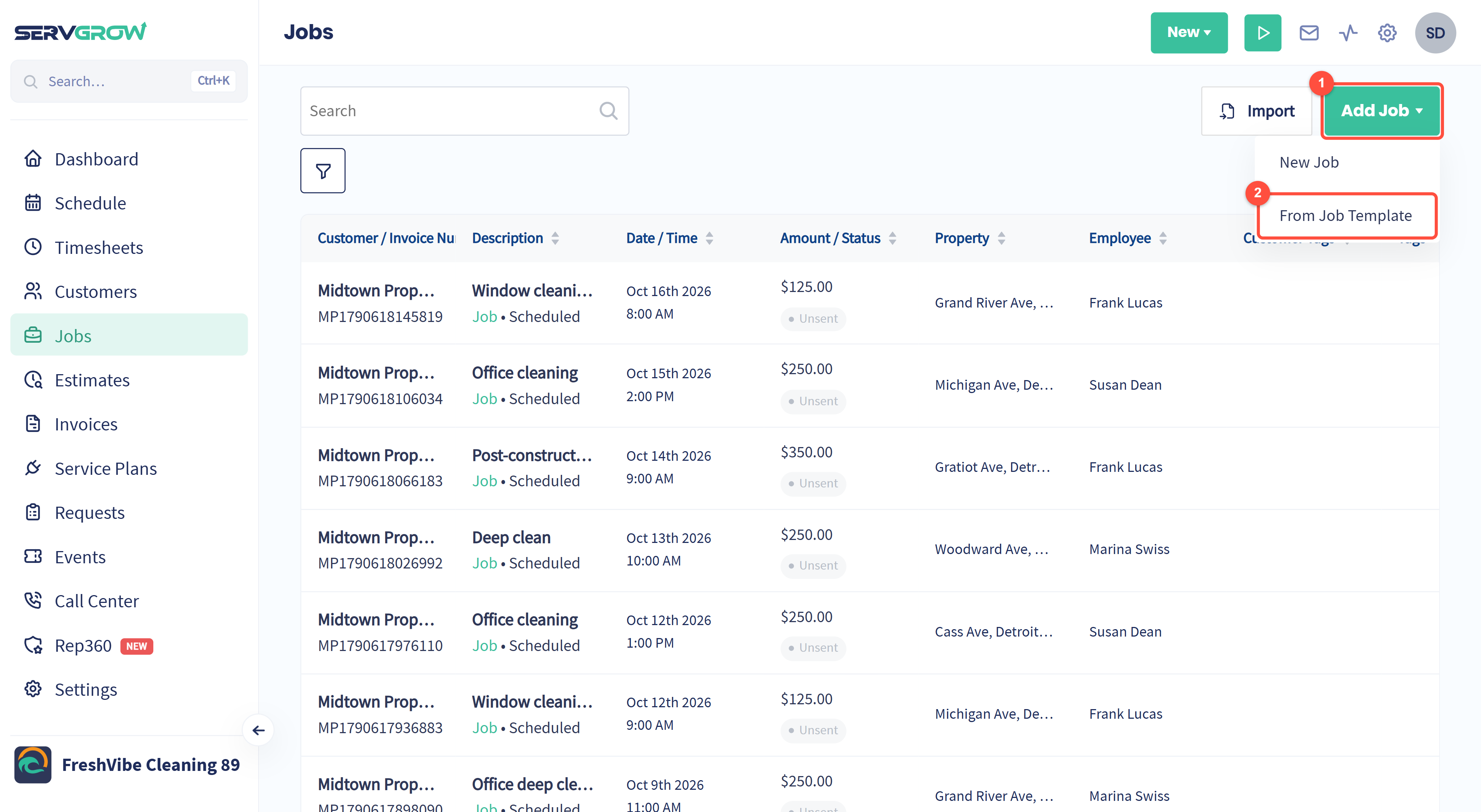
Click Add Job.
Choose From Job Template.
For a quote, it works the same way: click Estimates, then Add Estimate, then From Estimate Template.
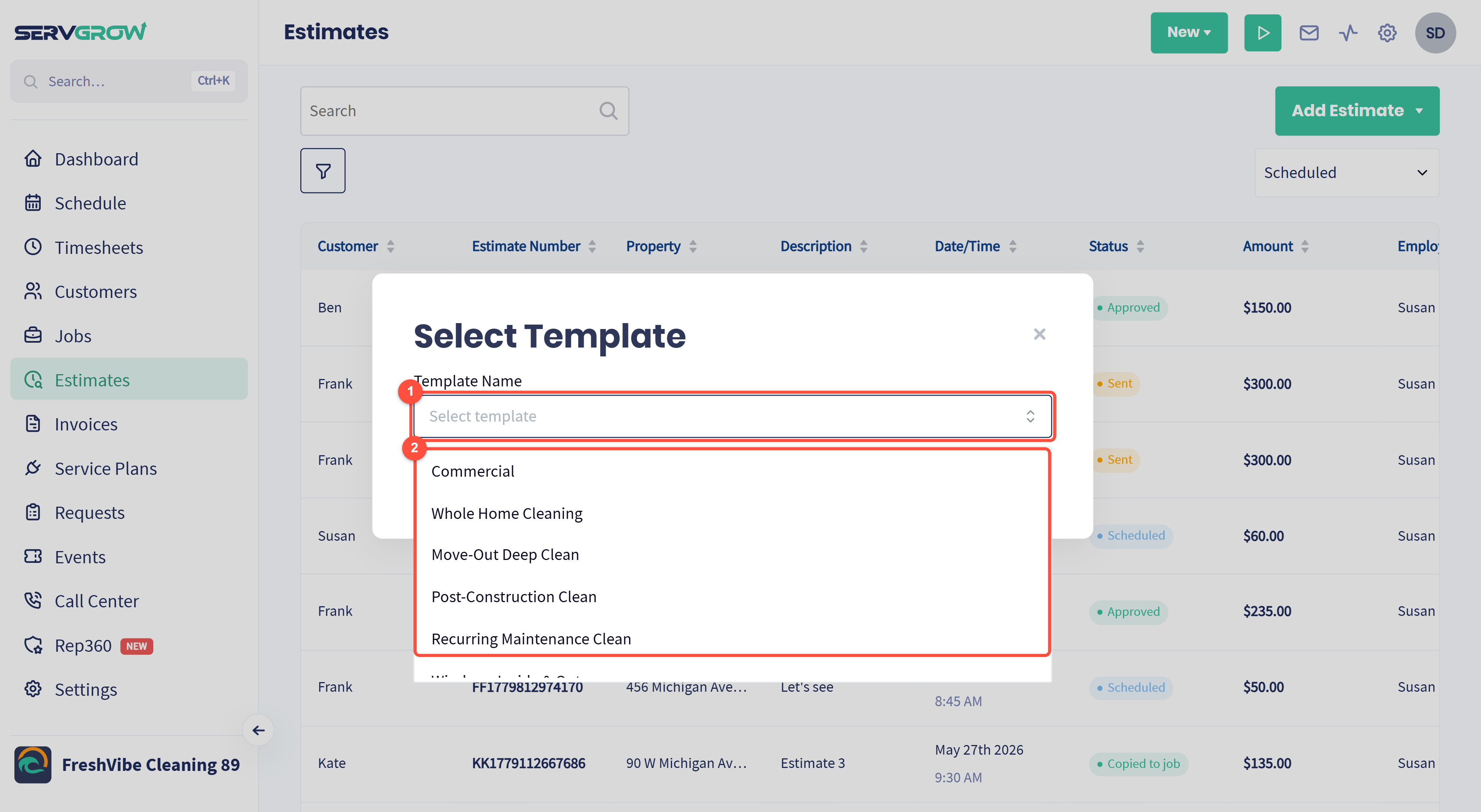
Click Select template.
Pick a template from the list.
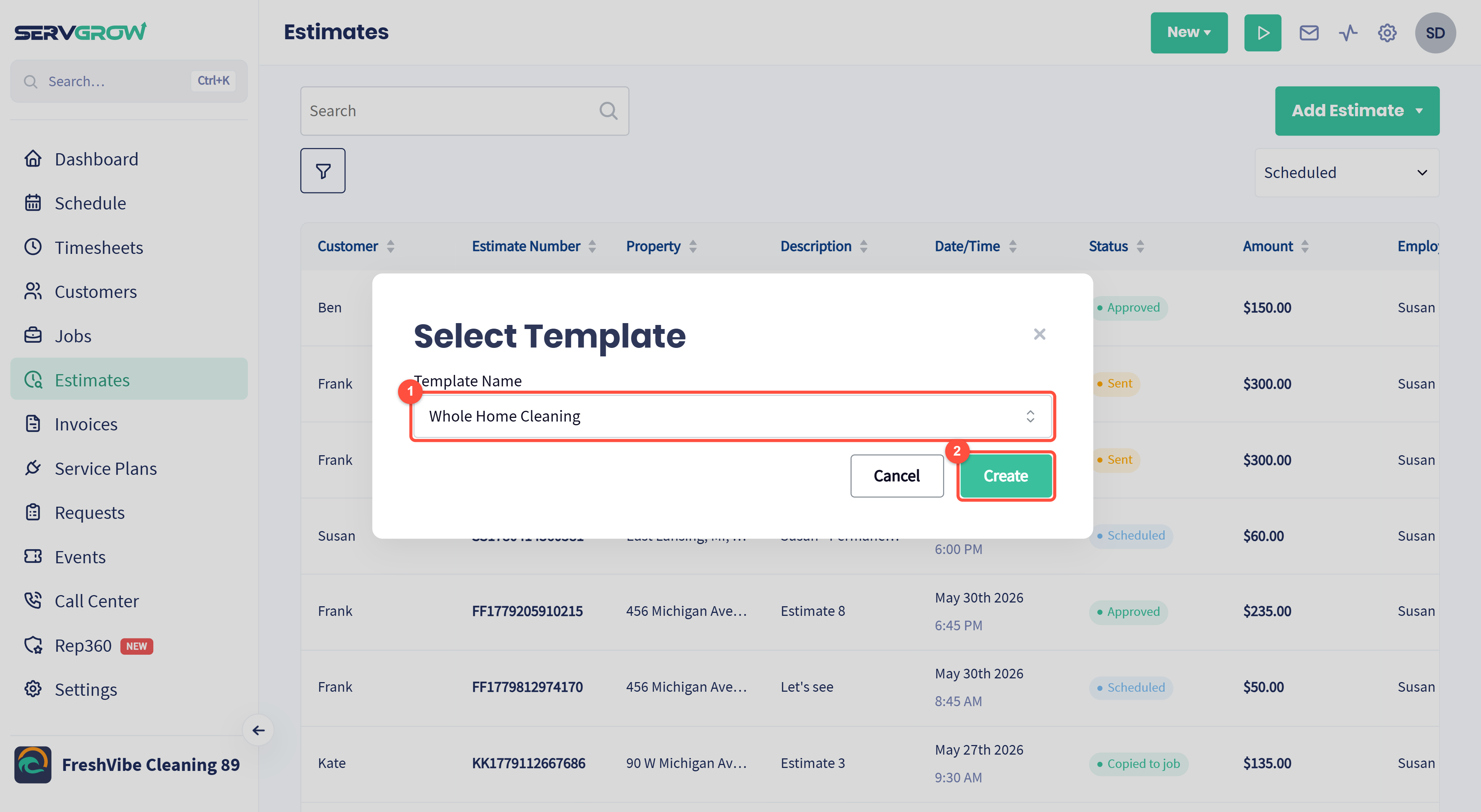
Check you picked the right one.
Click Create.
The usual booking steps open. Choose the customer, then schedule a time or skip it, just as you would for any new job or estimate.
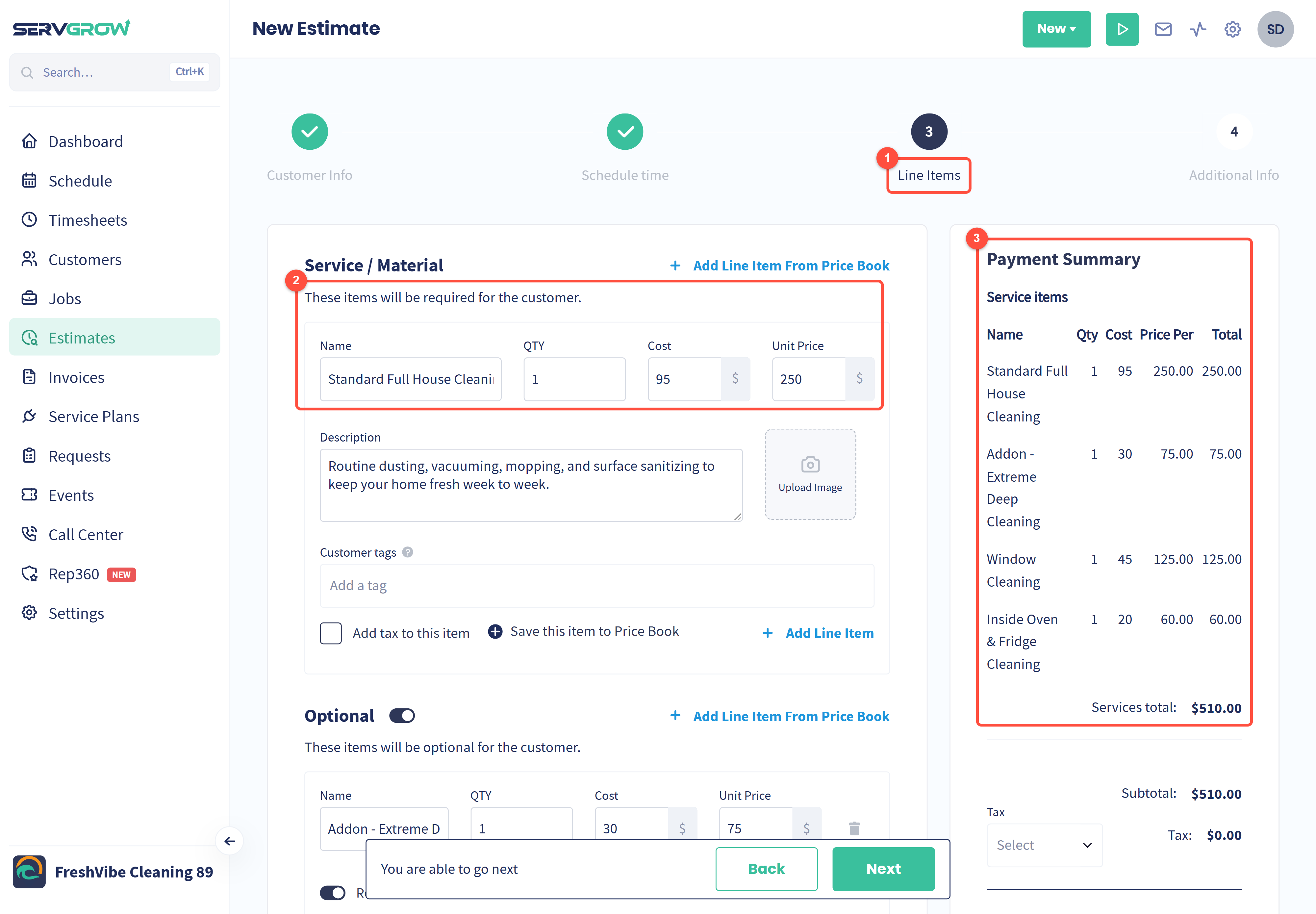
At Line Items, everything from the template is already there.
The services and prices, ready to send. Change anything that is different for this customer; the template itself stays as it was.
The Payment Summary adds it all up, including the optional extras.
Booking from the calendar? Quick Schedule has a Use template option too, so you can fill in a job or estimate from a template right on the schedule.
Tips
Start with your top five. Look at the jobs you quote most often and make a template for each. That covers most of your week.
Name templates by job and size, such as "Move-Out Deep Clean, 3 Bed", so the right one is obvious in the list.
Use the Price Book for every line item. Names, costs and prices then match across your templates, quotes and reports.
Attach your checklist. A form on the template means the crew gets the same steps on every job.
Review templates when prices change, for example at the start of each year.
Related articles