
An open quote from three months ago is a problem: your prices have changed, your calendar has filled up, and the customer can still click Approve. With Estimate settings, sent estimates expire on their own after the number of days you choose, and the customer gets a reminder a few days before, so they decide while the price still stands. You can also number your estimates the way your books do, with your own prefix and starting number.
Open Estimate settings
Click Settings in the left menu.
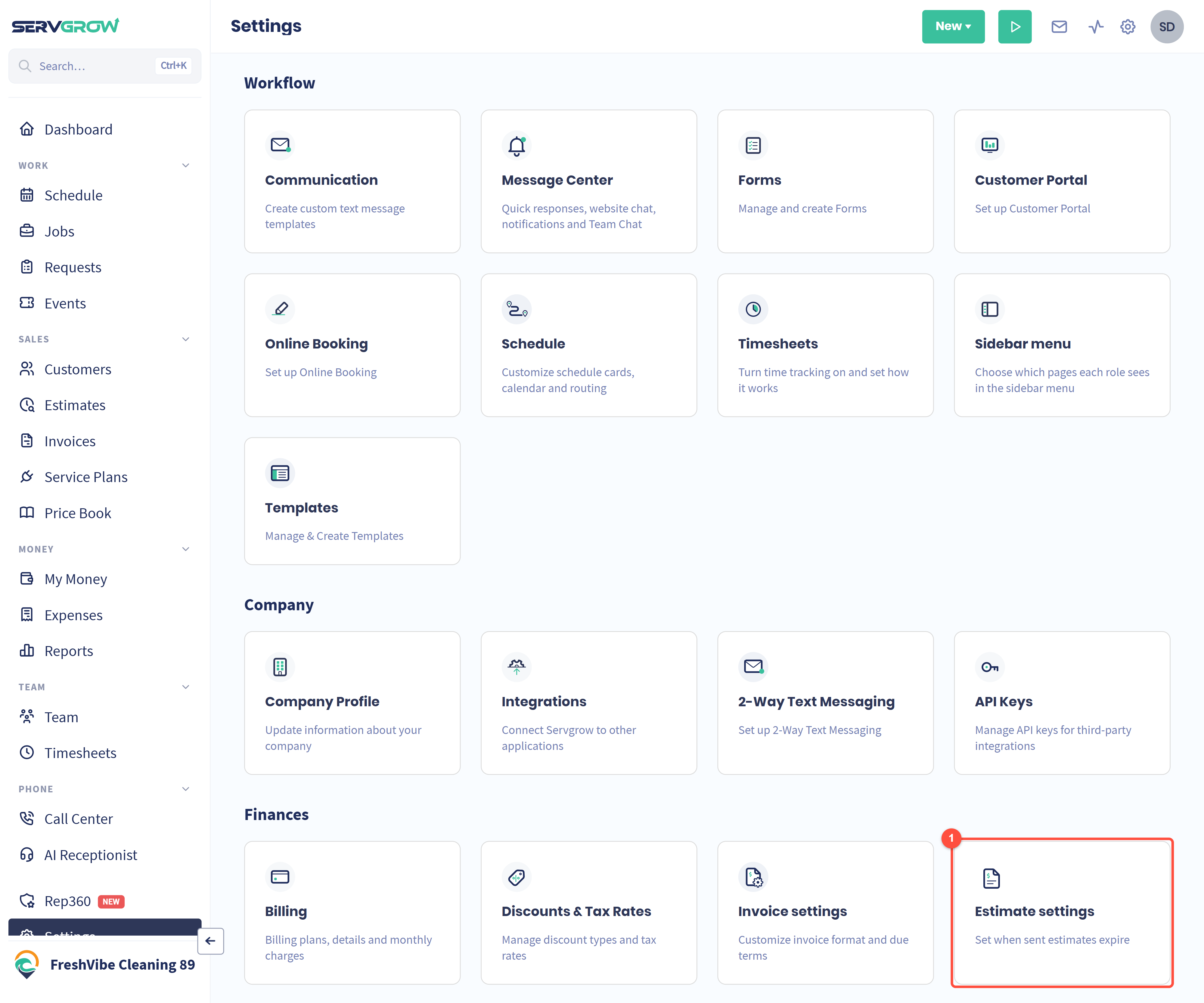
Click Estimate settings, under Finances.
Number your estimates and choose when they expire
Click a section's title to open it. Each section has its own Save button.
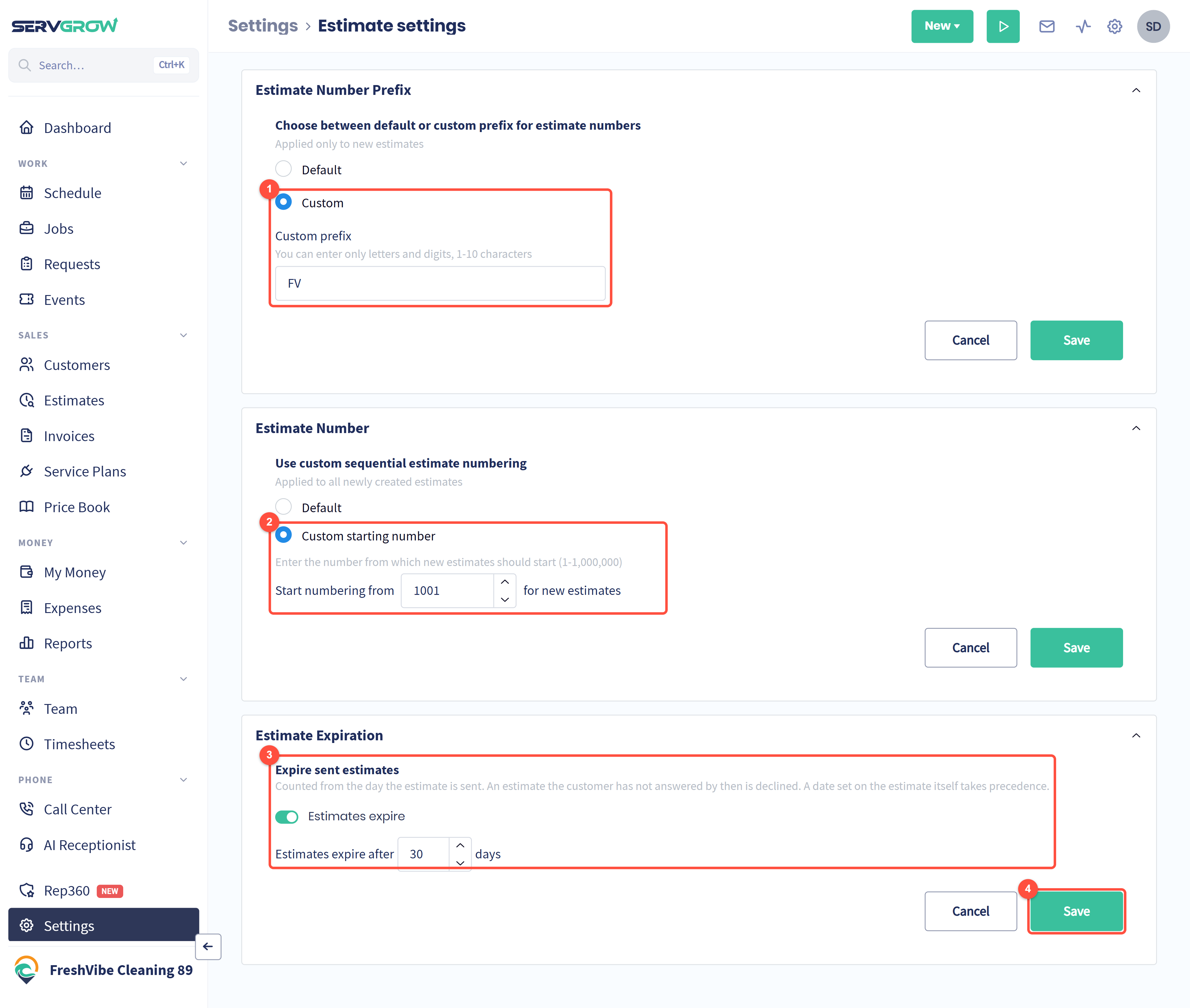
Estimate Number Prefix: by default, the prefix is made from the customer's first and last initials. Choose Custom to use your own instead, such as your company's initials: letters and digits only, 1 to 10 characters. It applies to new estimates only.
Estimate Number: choose Custom starting number and enter the number new estimates should start from, between 1 and 1,000,000. Handy when you move to Servgrow and want to carry on from the number you were at.
Estimate Expiration: turn on Estimates expire and choose after how many days. The days count from the day the estimate is sent, and an estimate the customer has not answered by then is declined.
Click Save in each section you changed.
Give one estimate its own expiry date
Some quotes need a different deadline, such as a seasonal price that ends with the month. Open the estimate and find Expires on.
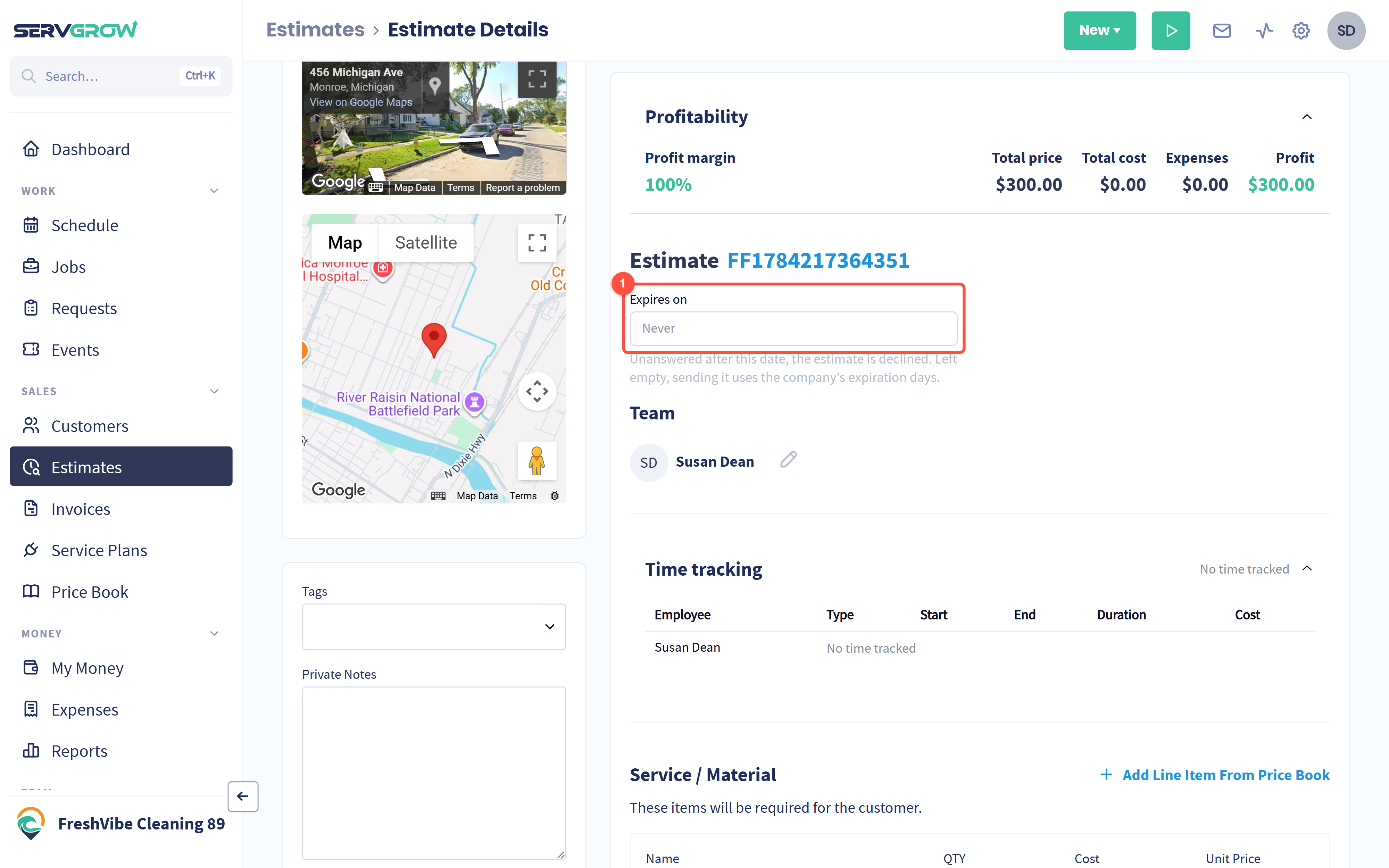
Expires on: pick a date for this estimate only. A date set on the estimate takes precedence over Estimate settings.
Remind the customer before it expires
A short nudge a few days before the deadline turns "I'll get to it" into a yes. Click Settings, then Communication, and find Estimate Expiring Reminder under Before the visit. Click it to open it.
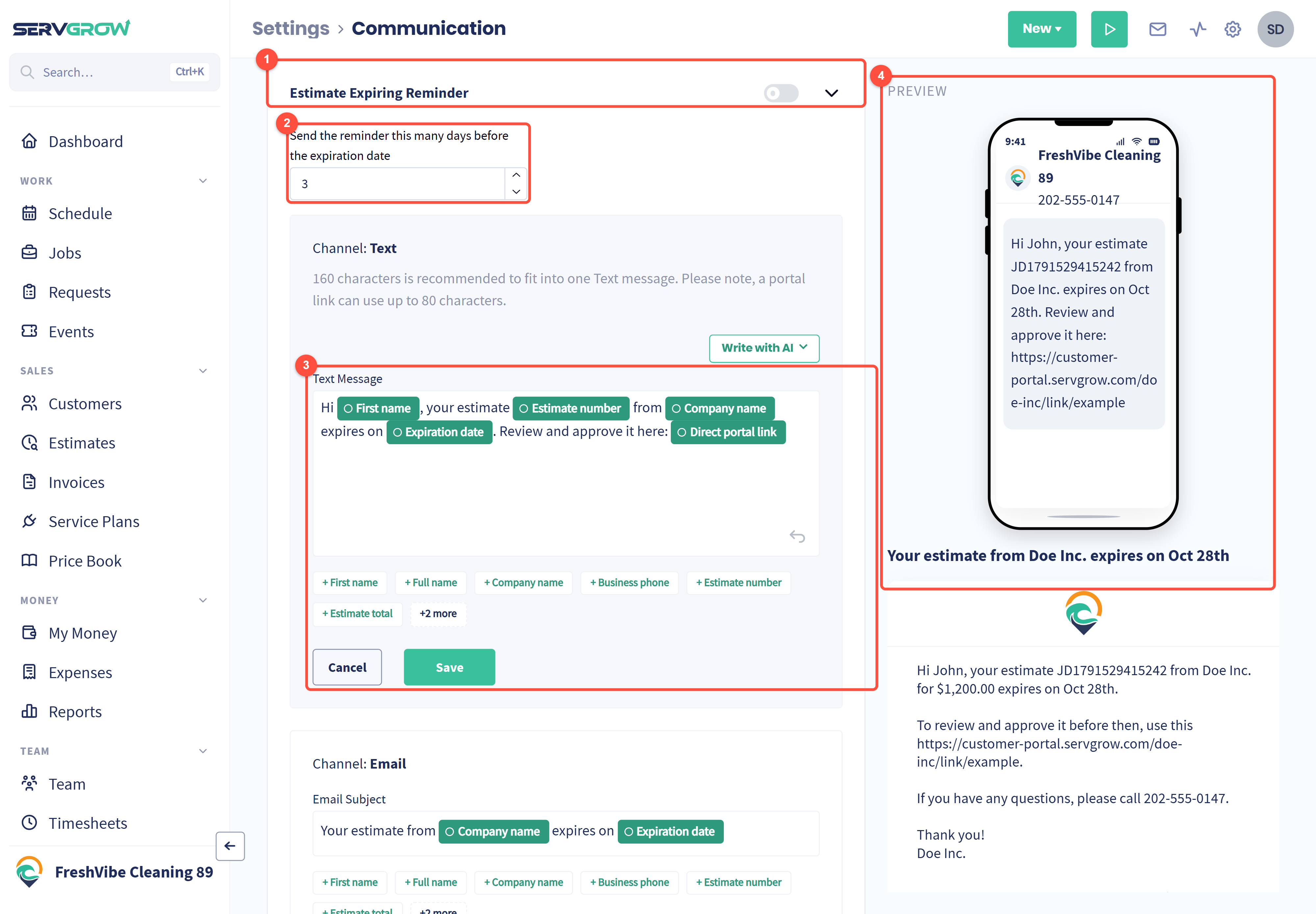
Turn on Estimate Expiring Reminder. It goes to the customer before a sent estimate expires, so they can approve it in time.
Choose how many days before the expiration date it is sent, from 1 to 365.
Change the text message if you like. The green tags fill in the customer's name, the estimate number, your company name, the expiration date and a link that opens the estimate so they can approve it. Write with AI can draft it for you. Click Save. The email version is just below and works the same way.
The preview shows what the customer receives.
See how your estimates are doing
The cards at the top of the Estimates page, and the Estimates card on your Home dashboard, show how many of your quotes turn into jobs. See Estimates List: Find Any Quote Fast and See Which Ones Still Need a Yes.
Tips
Match the expiry to how long your prices hold. 30 days suits most businesses; go shorter in your busy season, when your calendar fills fast.
Send the reminder about 3 days before. Early enough to act on, close enough to feel like a deadline.
Moving from another system? Set the starting number above your last estimate number, so no two estimates ever share a number.
Related articles