
An estimate nobody follows up on is a job you handed to a competitor. The Estimates list shows every quote you have written and exactly where each one stands: booked, sent, approved, declined or already turned into a job. A quick look each morning tells you which customers are waiting on you and which ones you are waiting on, so no quote quietly goes cold.
Open your estimates list
Click Estimates in the left menu.
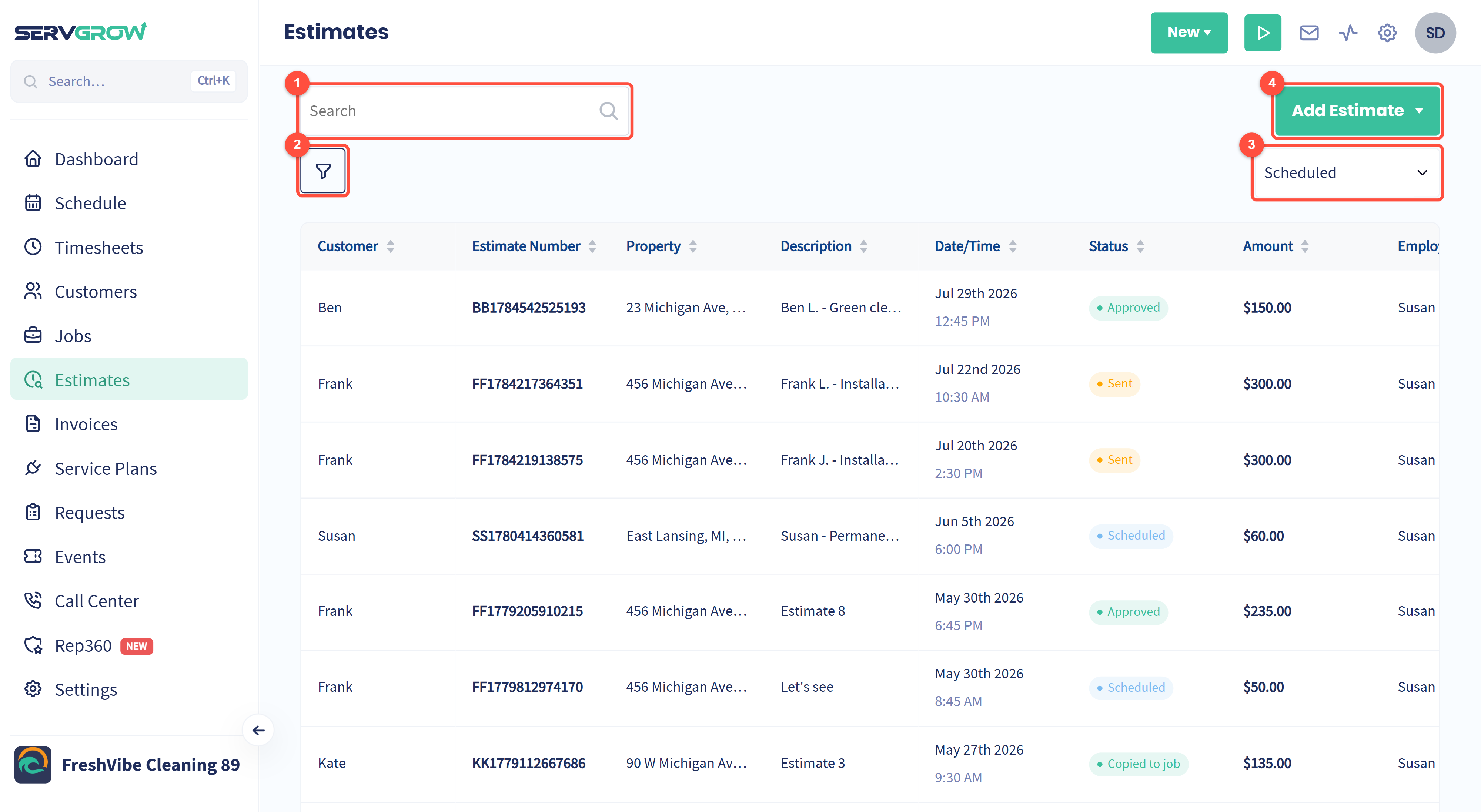
Search: find an estimate by customer, estimate number, description or address.
Filters: narrow the list by status, customer, requested changes, tags, date or archive.
View: switch between Scheduled, Upcoming and Unscheduled.
Add Estimate: start a new quote, from scratch or from a template.
What each column tells you
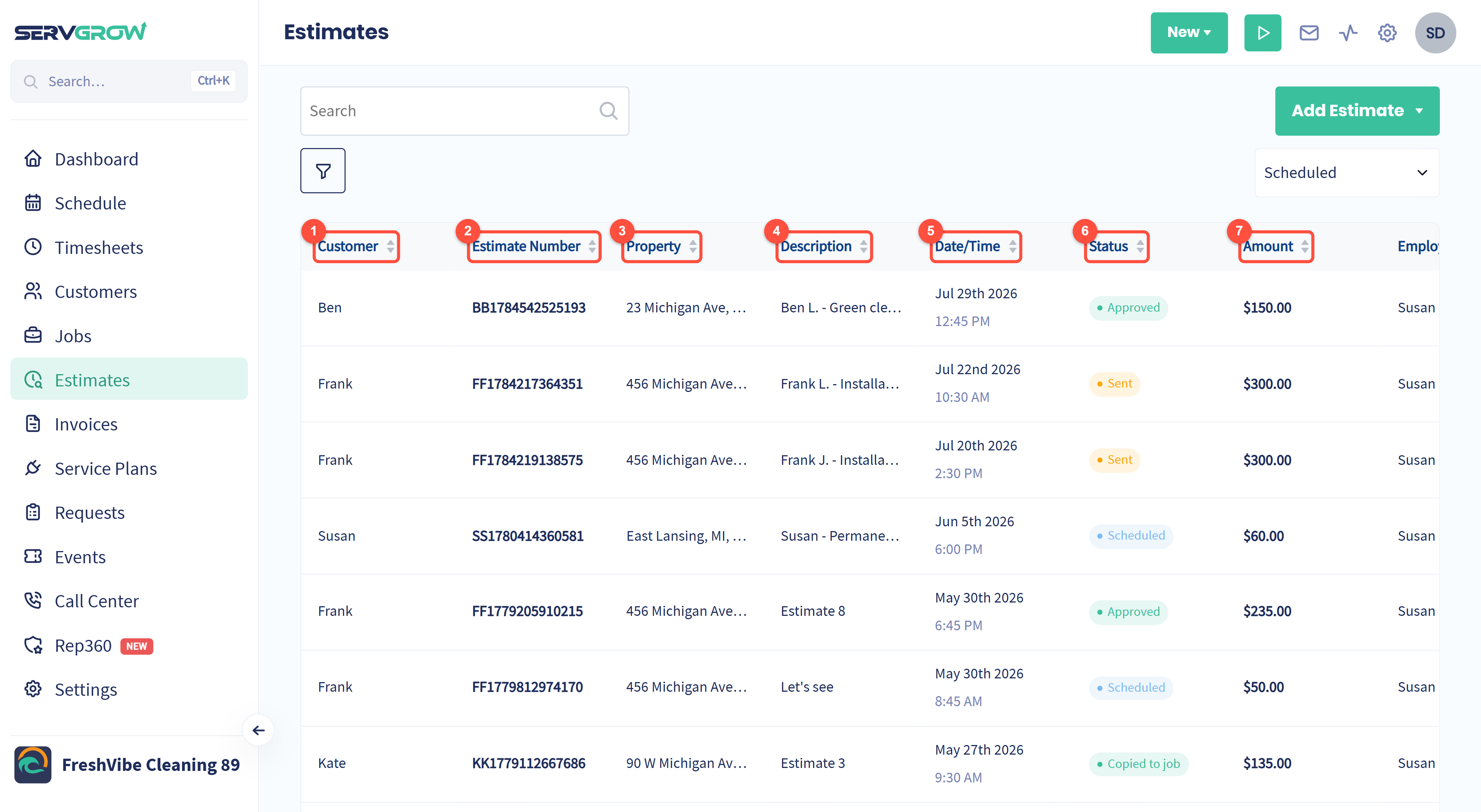
Customer: who the quote is for.
Estimate Number: the number the customer sees on their estimate. Quote it on the phone and you are both looking at the same thing.
Property: the address the work is at.
Description: the estimate's title.
Date/Time: when the estimate visit is booked, if you quote on site.
Status: where the estimate has got to (see below).
Amount: the total of the quote.
Scroll the table to the right for Employee (who is assigned), Tags and Customer Tags. Click a heading to sort by it, and click again to reverse the order. Click any row to open that estimate.
Read the status at a glance
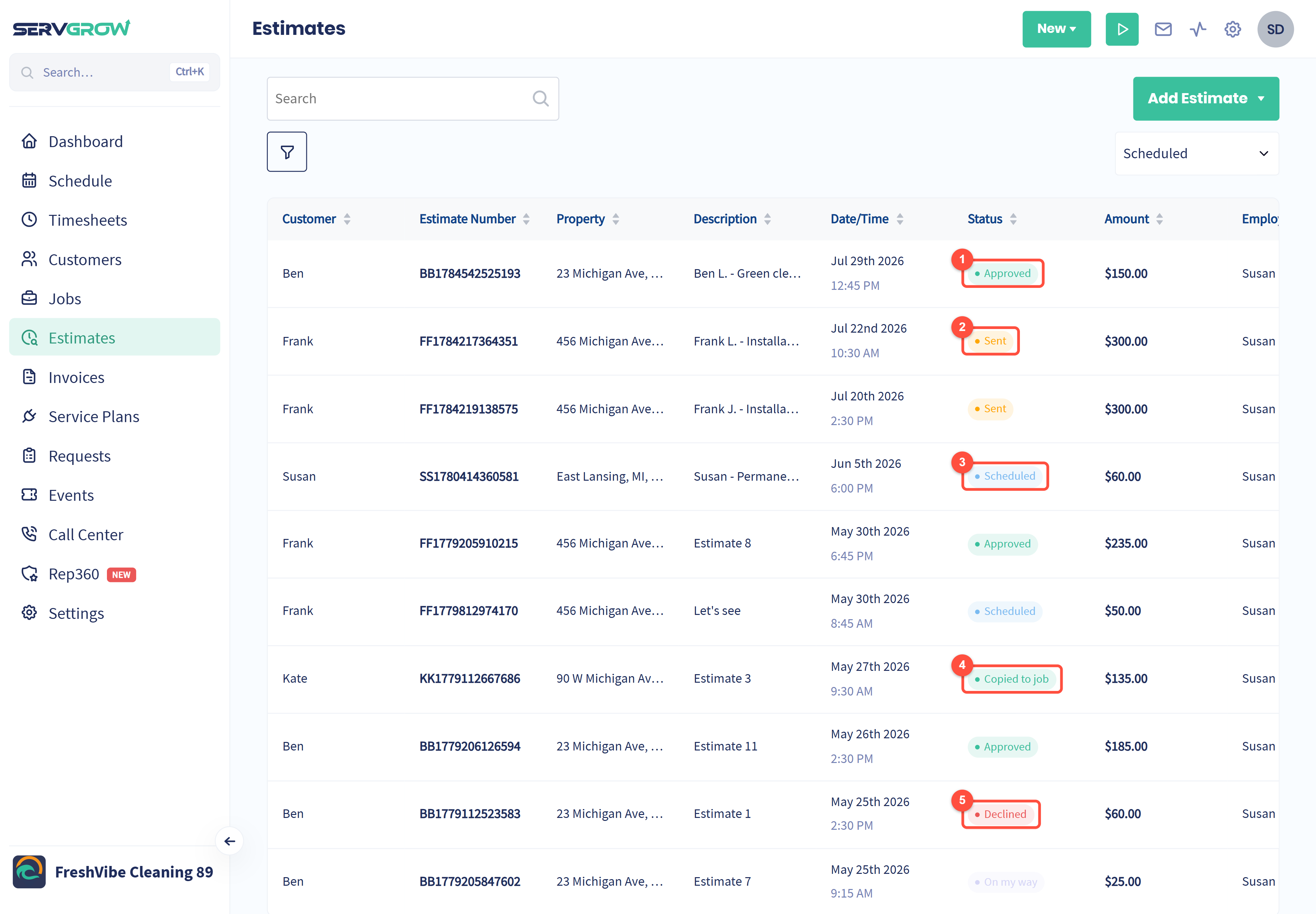
Approved: the customer said yes. Turn it into a job.
Sent: the customer has it and has not answered yet. These are your follow-ups.
Scheduled: an estimate visit is booked; the quote has not gone out yet.
Copied to job: approved and already booked as a job. Nothing more to do here.
Declined: the customer said no, or the estimate passed its expiry date without an answer.
You will also see On my way, Started, Finished and Cancelled, which follow the estimate visit the same way they follow a job.
The three views
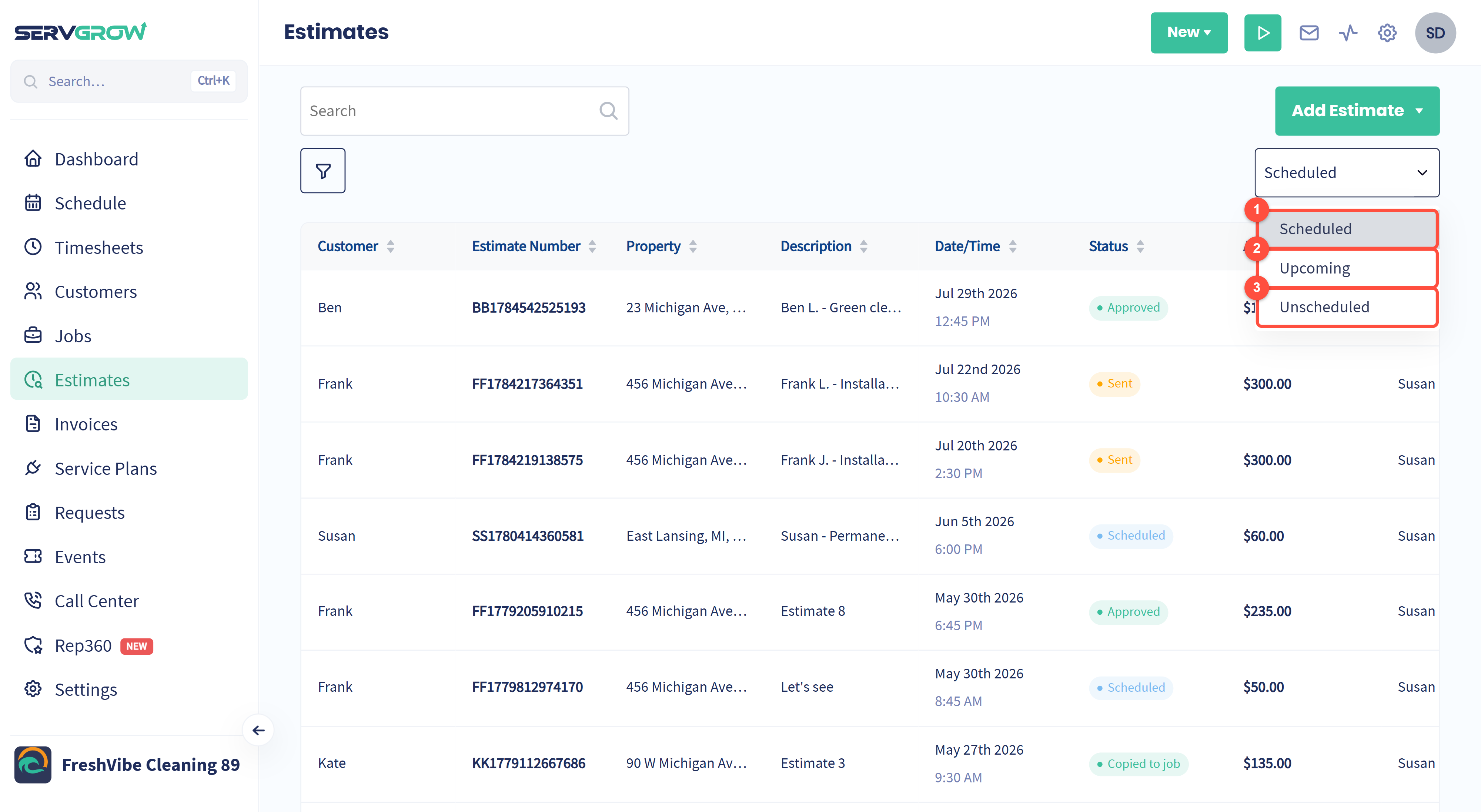
Scheduled: estimates dated up to today, newest first. This is your quoting history.
Upcoming: estimate visits booked for a future date.
Unscheduled: estimates with no date, such as quotes you wrote from the office.
Find the quotes that need you
Click the funnel to open the filters. Each tab adds to the others, so you can ask for something as specific as "sent estimates for one customer this month".

The tabs: Status, Customer, Request Changes, Tags, Date range and Archived.
Tick any of the statuses. Tick Sent on its own and you have every quote still waiting on an answer: your follow-up list for the day.
Reset clears this tab.
Reset all clears every tab at once.
Customer narrows the list to one customer's estimates. Tags and Date range work the same way as on the Jobs list.
Estimates where the customer asked for changes

Customers can ask for changes to a quote instead of approving it. Open Request Changes.
Pick Yes to see only those estimates. These customers are interested and waiting for you, so revise and resend them first.
Archived estimates

Archive old quotes you no longer need to see from the estimate's Options menu. They leave the list but are not deleted.
Active, the default, hides archived estimates. Pick Archived to see only those, or All for everything.
Search
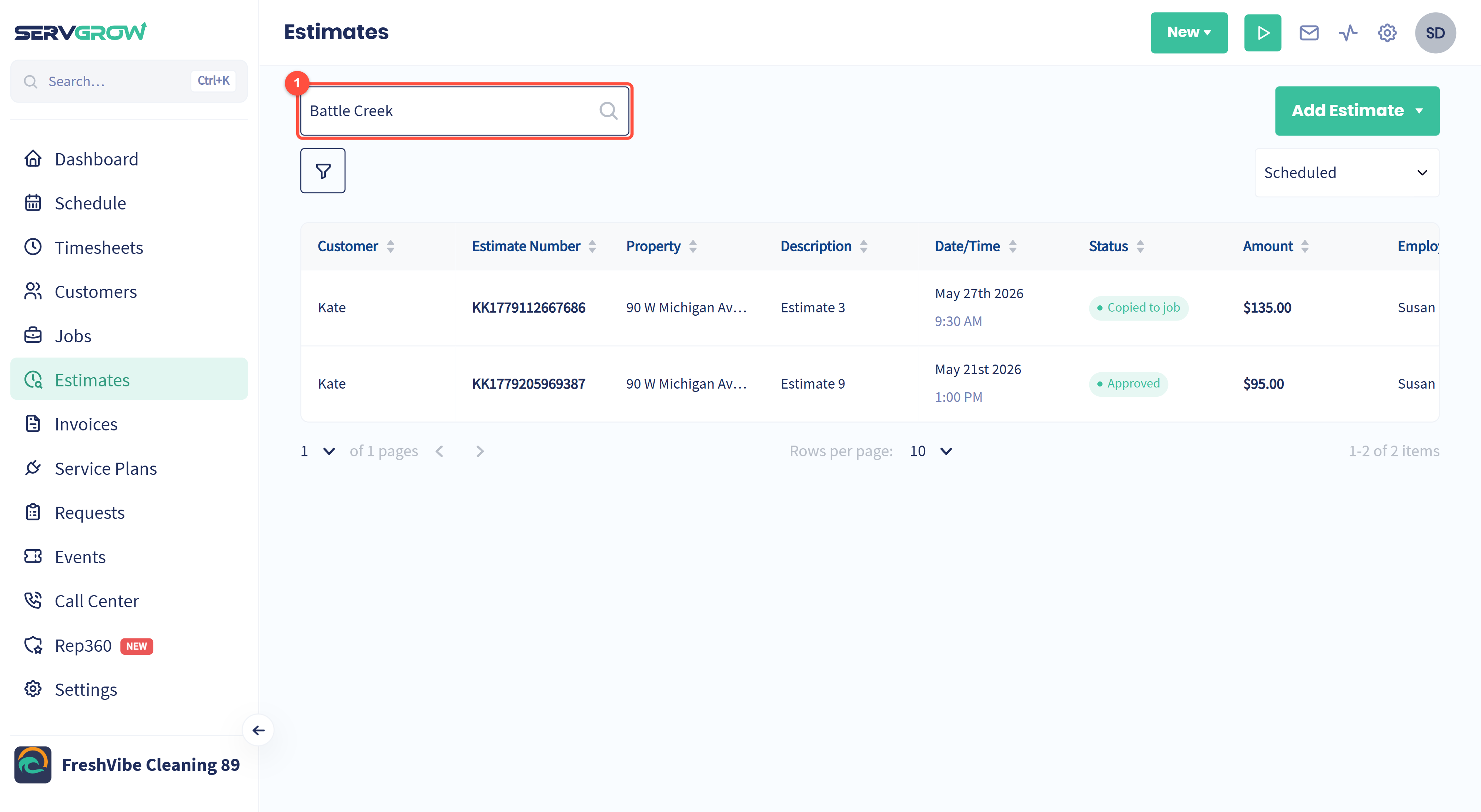
Type in Search. It matches the customer's name, the estimate number, the description and the address, so a street or a town works too, as here.
Search works together with the view and the filters. If an estimate you expect is missing, check which view you are in first.
Start a new estimate
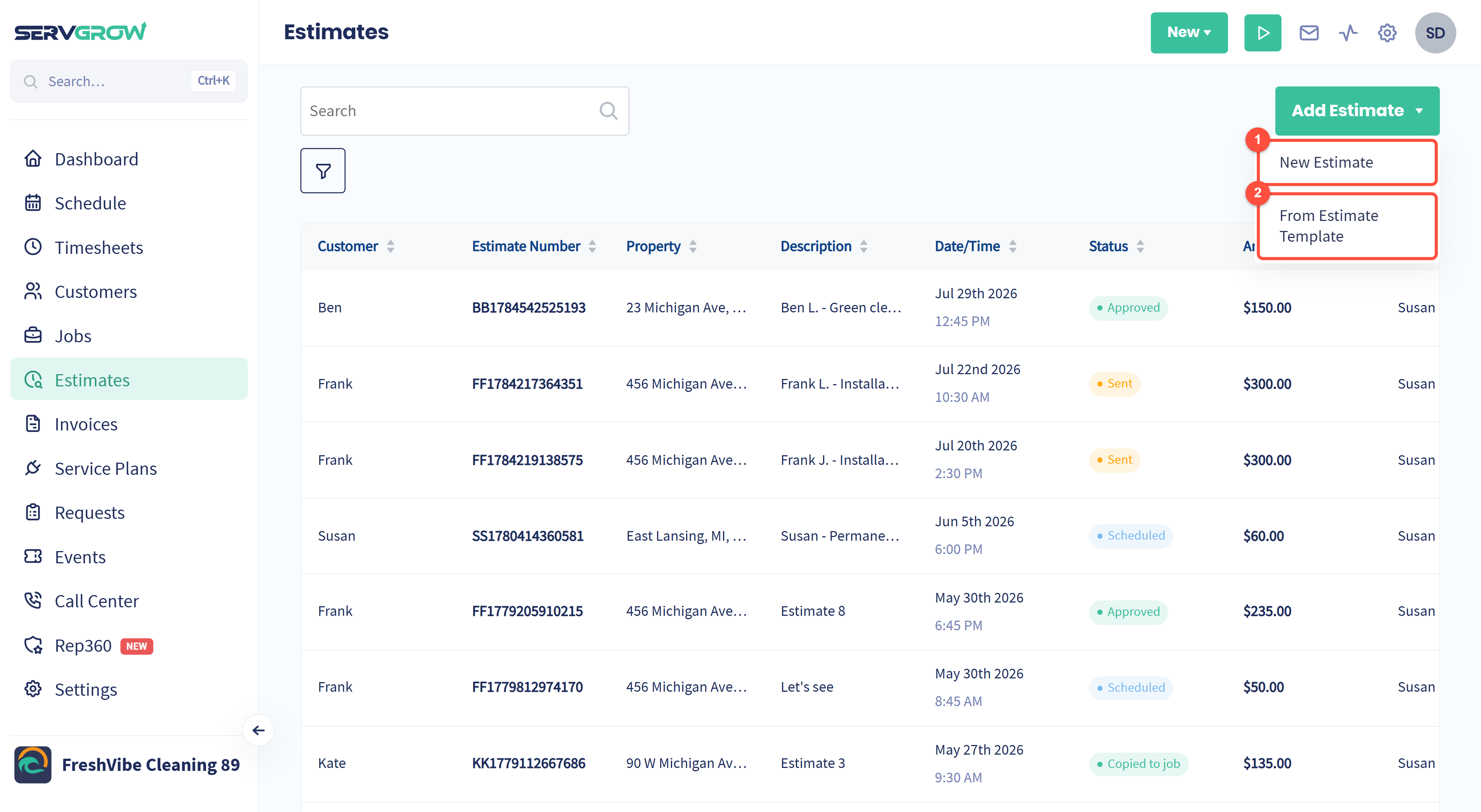
New Estimate: the full flow, from choosing the customer to the line items and notes.
From Estimate Template: pick a saved template and the services, prices and notes are filled in for you.
Tips
Work the Sent list every day. A quick call or text a few days after a quote goes out wins more jobs than anything else you can do.
Check Approved before you plan the week. Every approved estimate that is not yet copied to a job is work you have won but not booked.
Answer change requests first. Those customers have told you they want to go ahead.
Let a campaign handle the no's. A Custom Campaign on Estimate was declined can follow up a couple of weeks later with a smaller option.
Archive rather than delete. Old quotes are useful history when a customer calls back a year later.
Related articles