
When a customer gets one price, the only choice they have is yes or no. Give them two or three versions of the same job, such as a basic, a standard and a premium option, and the question becomes "which one?" instead. Customers who would have said no to one price often say yes to the simpler option, and plenty pick the better one when they see what it adds. Estimate versions let you put those options on the same quote in a couple of clicks.
Add a version
Open the estimate from the Estimates list.
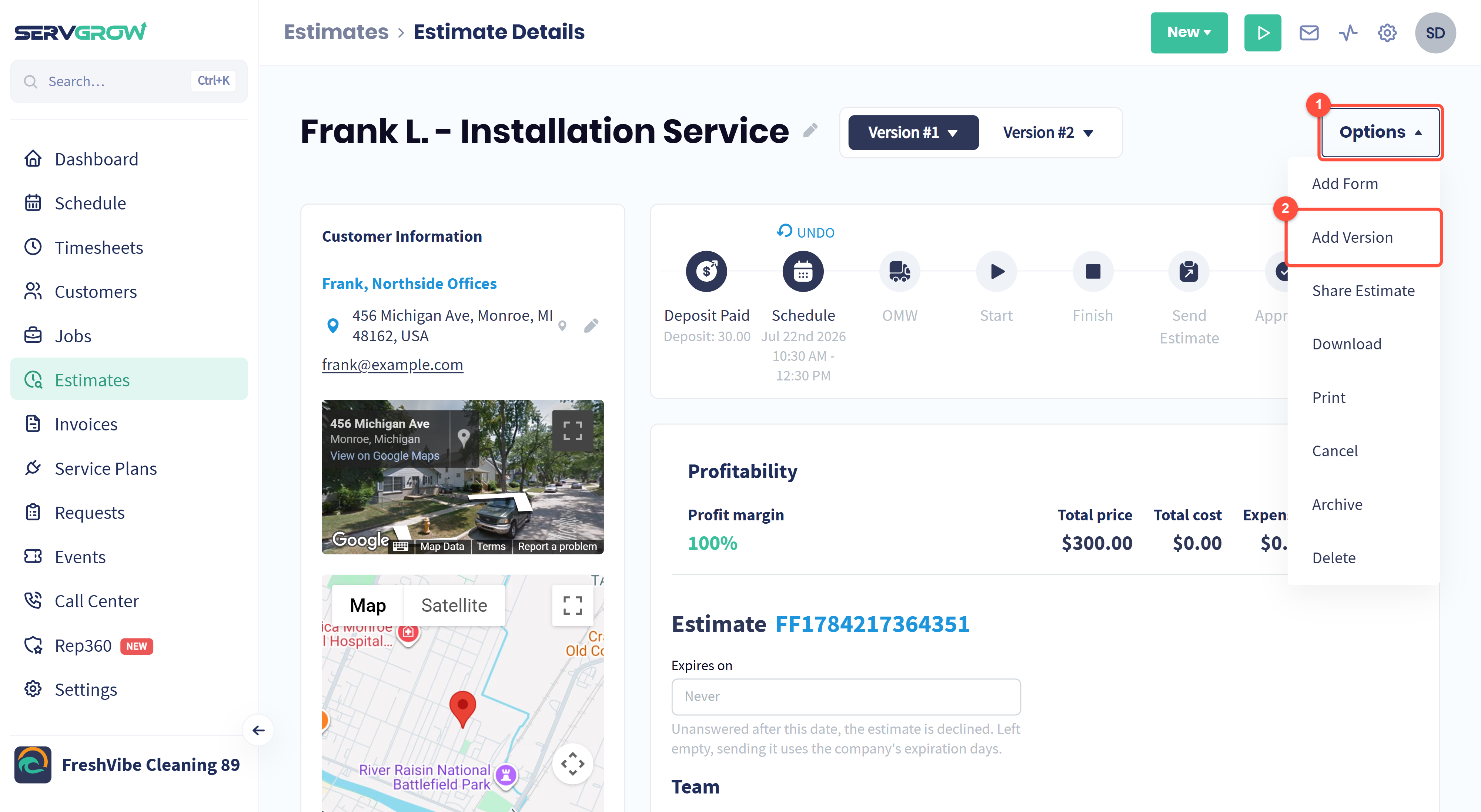
Click Options.
Click Add Version.
Servgrow adds Version #2 to the same estimate. Add Version again for a third option.
Switch between versions
Once an estimate has more than one version, the versions appear as tabs next to its title.
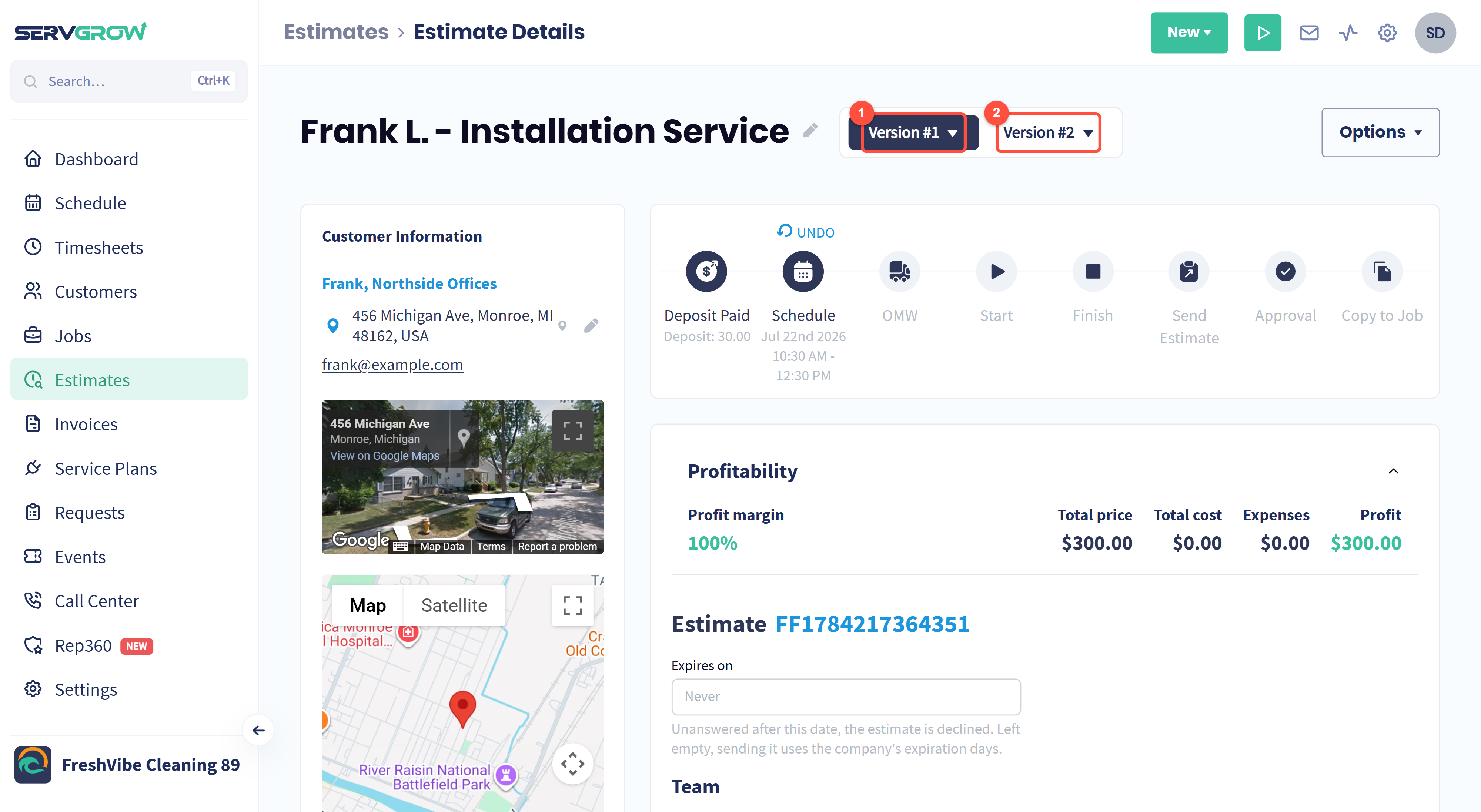
The highlighted tab is the version you are looking at. The line items, optional extras, discount, deposit and total on the page all belong to that version.
Click another version to open it.
Open each version and set what that option includes and what it costs. Each version is a full estimate of its own, so you can change anything: add a premium service, take one away, offer a different discount or ask for a different deposit.
Name each version
"Version #2" means nothing to a customer. Name each option so it is clear what they are choosing between. Click the small arrow on a version's tab.
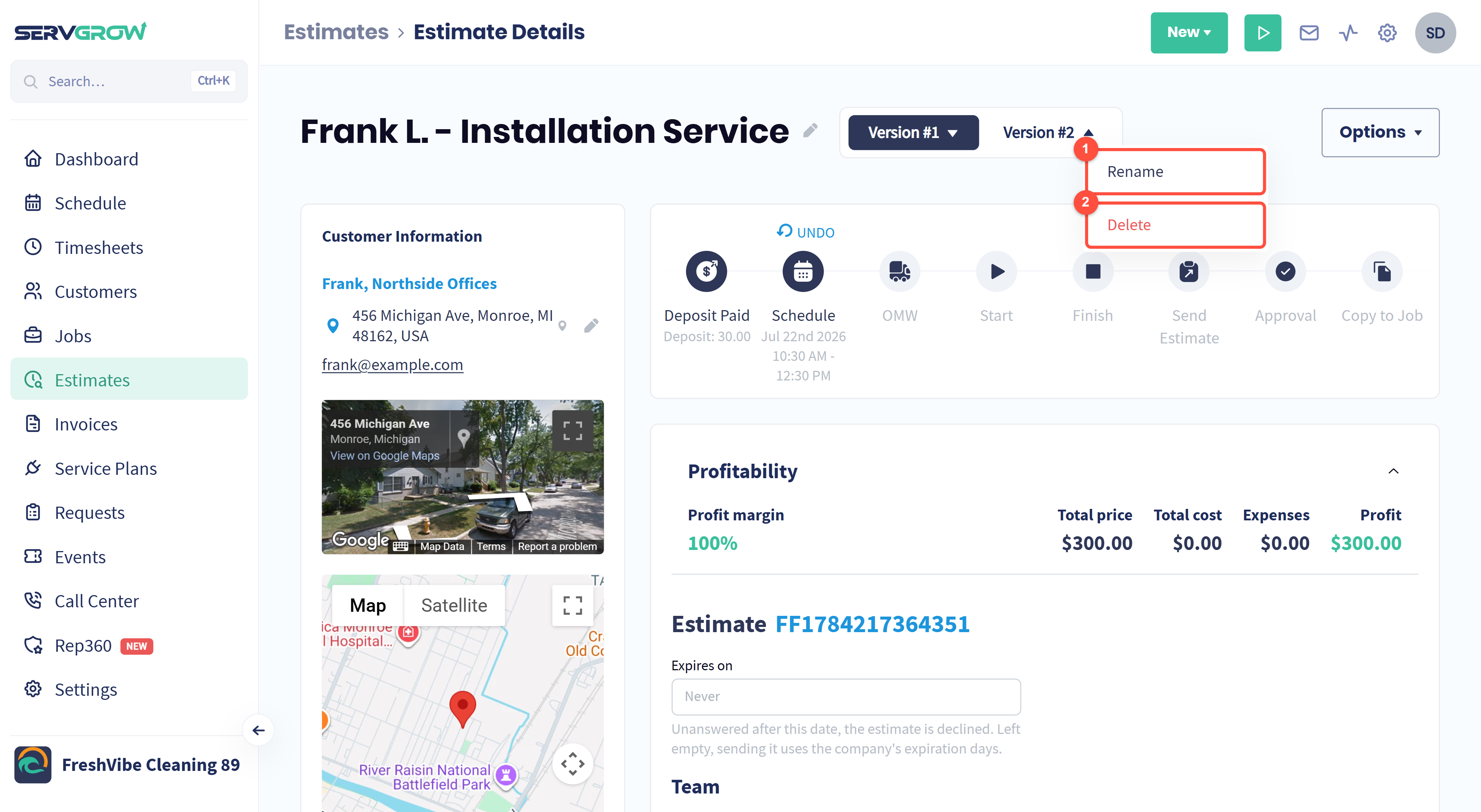
Rename: give the version a clear name.
Delete: remove a version you no longer want to offer.
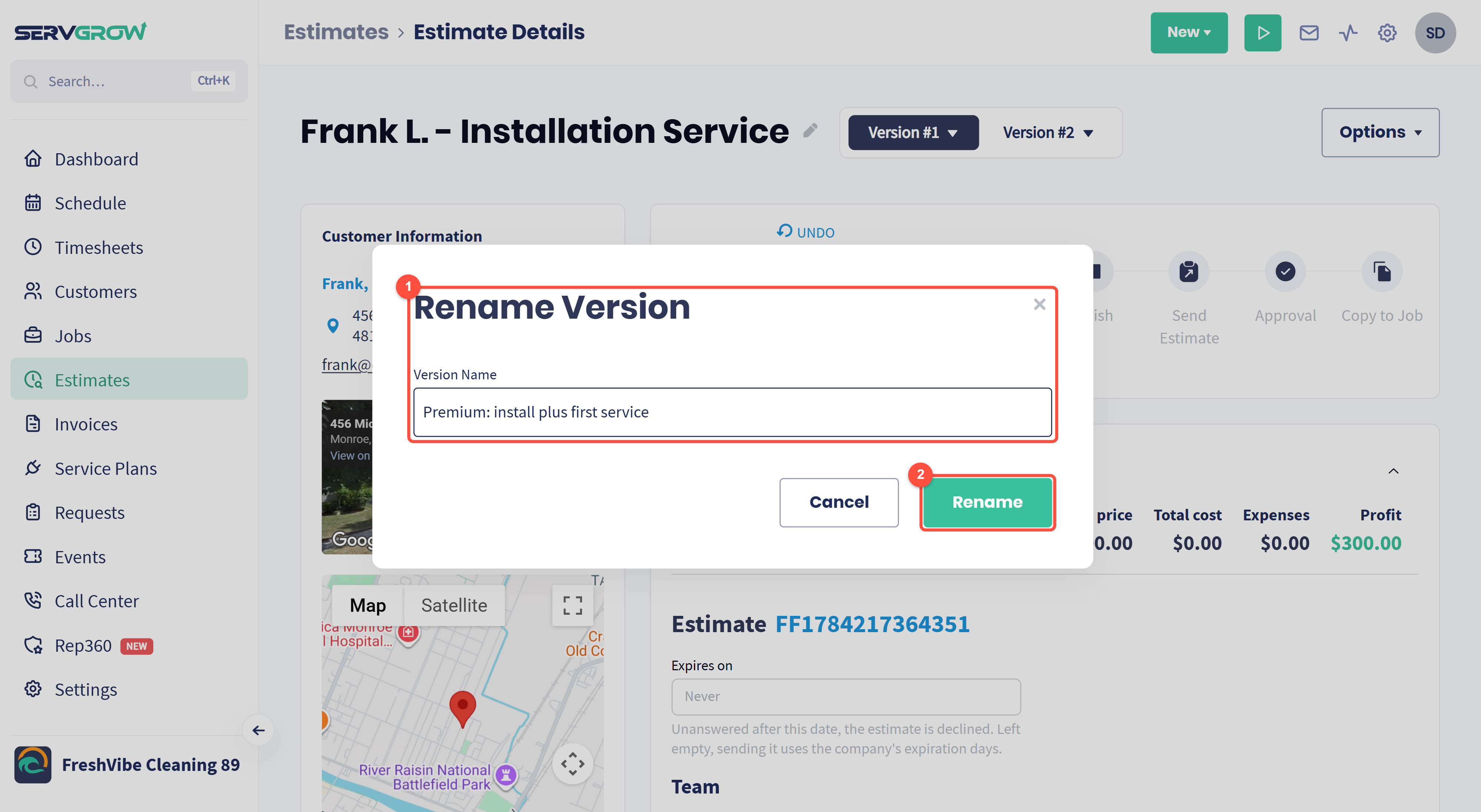
Type a name that says what is different, for example Standard: install only and Premium: install plus first service.
Click Rename.
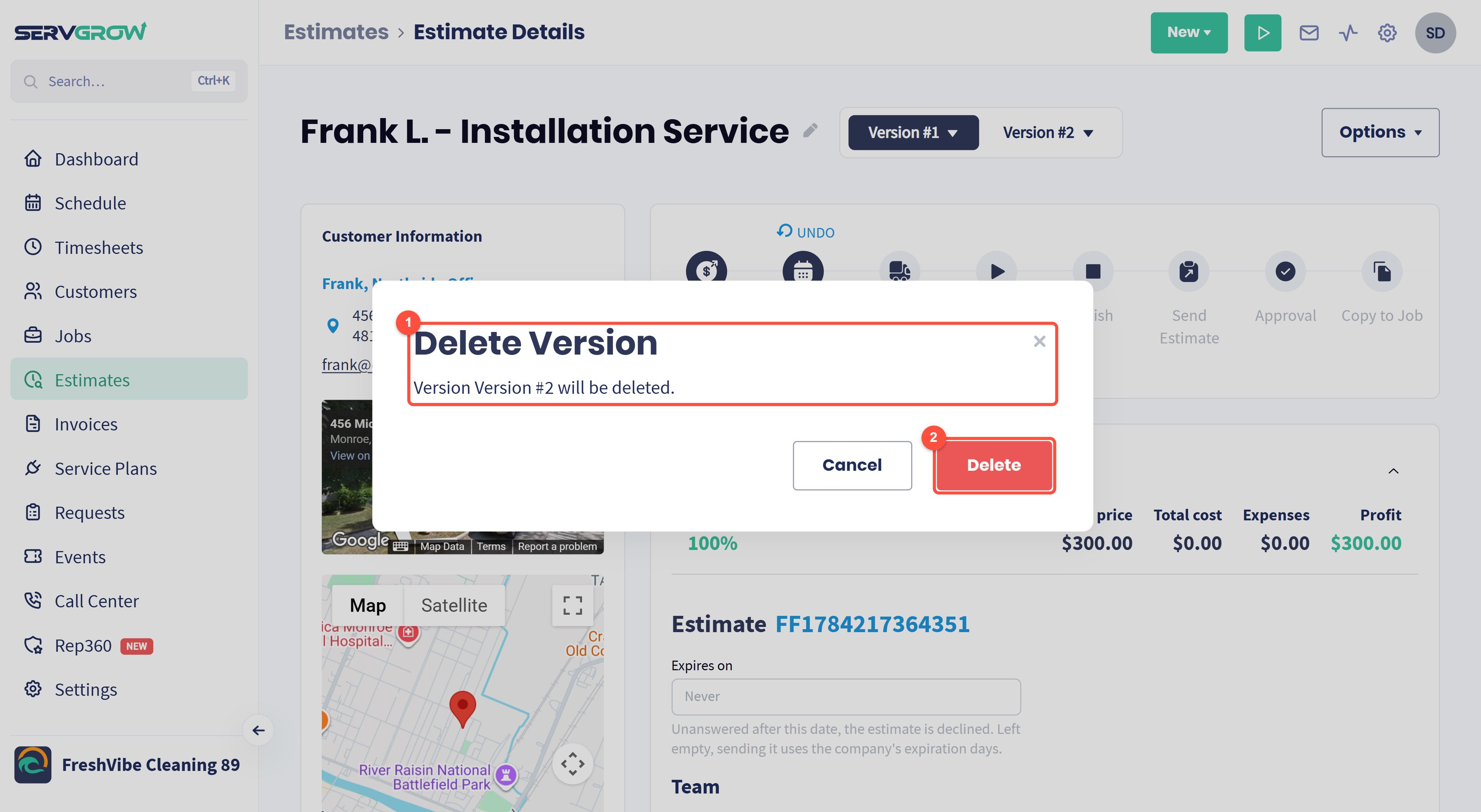
Deleting asks you to confirm, and names the version that will go.
Click Delete to remove it. The other versions stay as they are.
Send the options and let the customer choose
Send the versions you want the customer to consider: open each one and use its Send Estimate step.
In the Customer Portal, each version appears as its own estimate, marked with its version number, such as #1 and #2. They open the one they like and approve it, choosing any optional extras and paying the deposit if you asked for one.
When a version is approved, click Copy to Job on that version to book the work.
Versions or optional items?
Optional items are add-ons to one quote: the customer ticks the extras they want. Use them for small upsells, such as inside the oven or the windows.
Versions are different ways of doing the whole job, each with its own price. Use them when the options really differ, such as repair versus replace, or a one-time clean versus a clean plus a maintenance plan.
You can use both: each version can have its own optional items.
Tips
Three is plenty. Good, better and best is easy to compare. More options than that and customers put off deciding.
Put the option you recommend in the middle. Many customers pick the middle option, so make it the one you would choose for them.
Make the difference obvious. Use the version names and each line item's description to say exactly what the extra money buys.
Follow up on declined quotes. A Custom Campaign on Estimate was declined can offer a smaller option a couple of weeks later.
Related articles