
Someone calls in sick at 7am and four jobs need a different name on them. You do not want to rebuild those jobs, and you do want the new person to actually find out. Both routes below take about ten seconds each, and both can tell the crew for you.
From the schedule, without leaving the day
Click Schedule, find the job and click it.
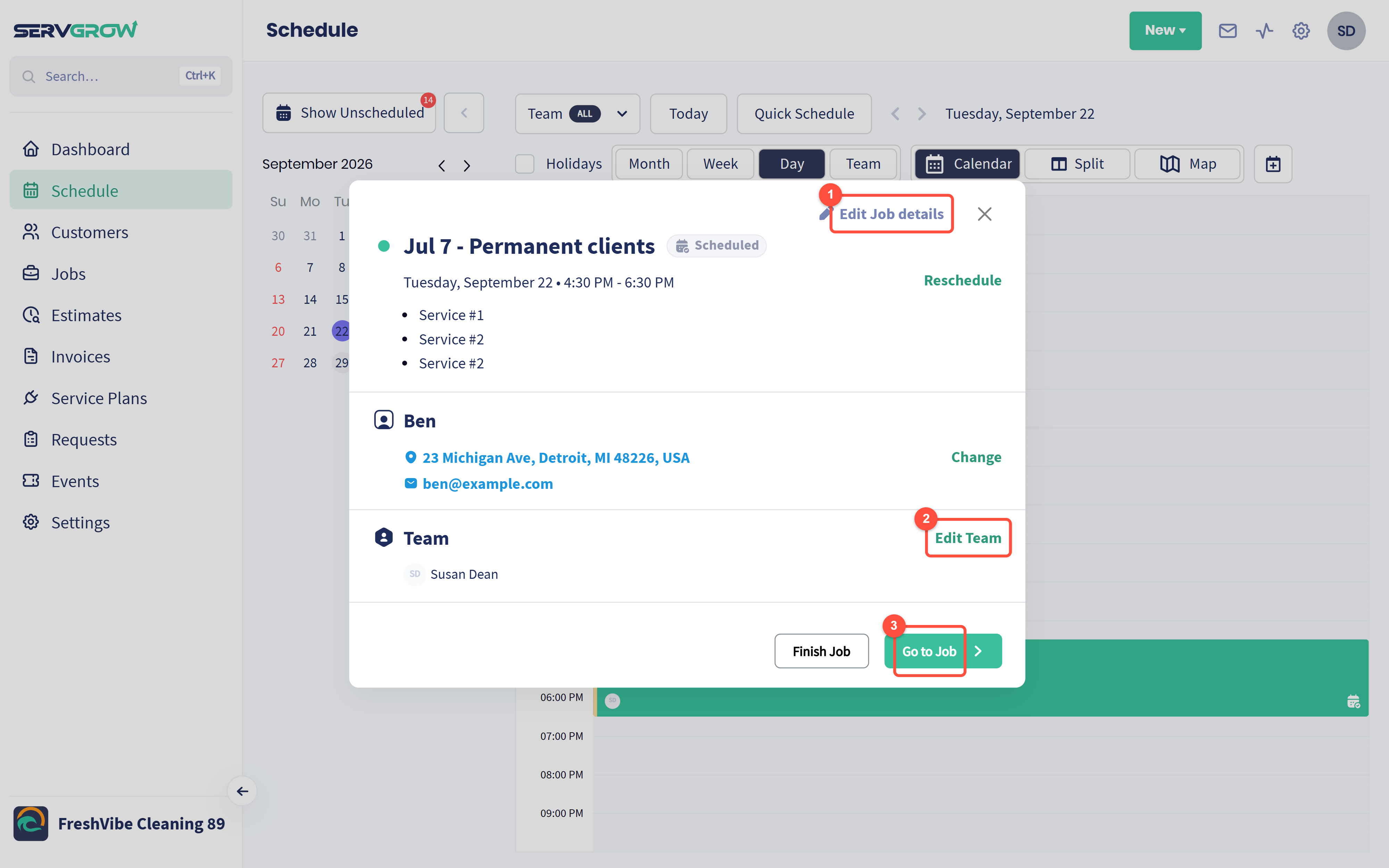
Edit Job details opens the full details window (title, times, team, notifications).
Edit Team is the quick one: it changes who is on the job and nothing else.
Go to Job opens the job page if you need everything else.
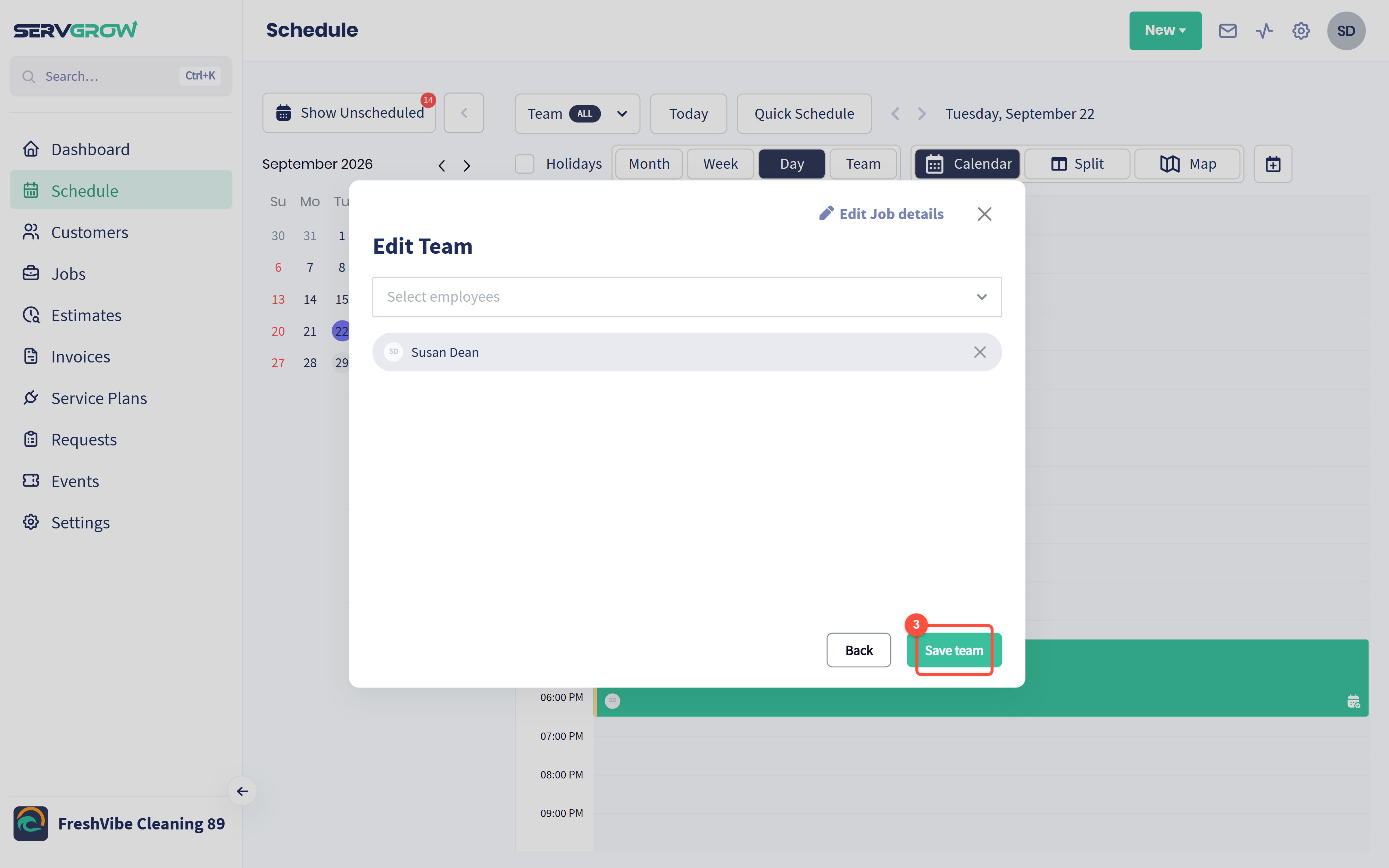
Select employees: pick who you want on the job. Add as many as the work needs.
Whoever is already on it shows underneath. Click the cross beside a name to take them off.
Click Save team.
From the job itself
Open the job and click the pencil beside its title.
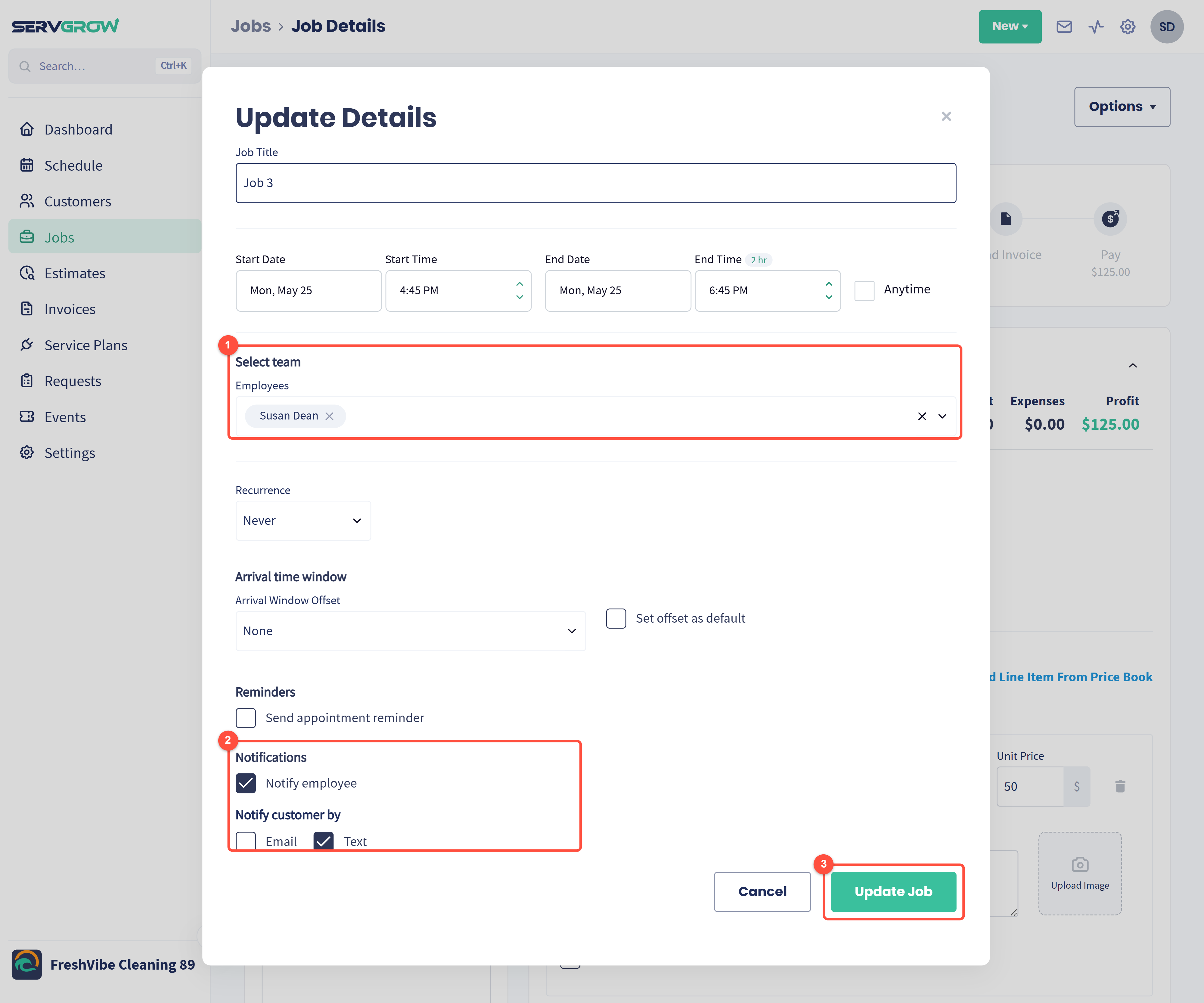
Select team: add or swap employees, the same as above.
Notifications: Notify employee tells the new person, and Notify customer by Email or Text tells the customer who is coming. Worth leaving on when the name on the door changes.
Click Update Job.
Estimates and service plan visits work the same way, and the window is called Estimate Details or Visit Details.
Moving several jobs at once
If you are rebalancing a whole day rather than fixing one job, use the map instead: it shows where everyone already is, so you can hand work to whoever is closest.
Tips
Use Edit Team for a straight swap. It saves in one click and does not touch the time or anything else.
Leave Notify employee ticked. A reassignment nobody was told about is the same as no reassignment.
Add, do not replace, for a two-person job. The picker takes as many names as you need.
Related articles
Video
Adding or reassigning an employee from the calendar view:
And from the job details page: