
"Job 3" tells nobody anything. Half your schedule looking like that is how a tech ends up at the wrong address with the wrong kit, and how you end up scrolling the list twice to find the one you wanted. Give the work a name people recognise and the whole schedule reads itself: "Move in clean, 2 bed", "Gutter clear, back of house", "Warranty callback".
The pencil beside the title does more than rename. It opens one window where you can also move the job, change the crew, set an arrival window and choose who gets told.
Find the pencil
Open the job from your Schedule or the Jobs list.
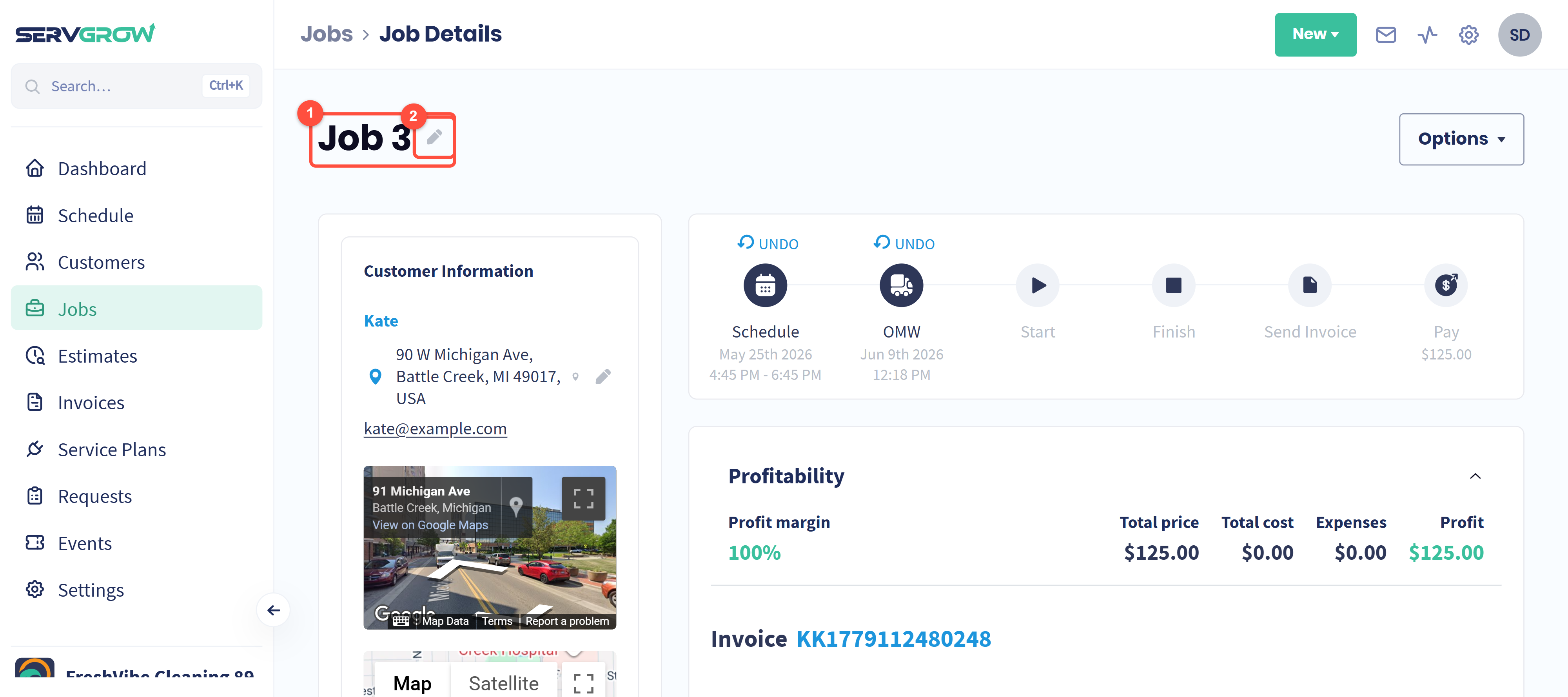
The title as it stands.
The pencil. Click it.
Change what you need and save
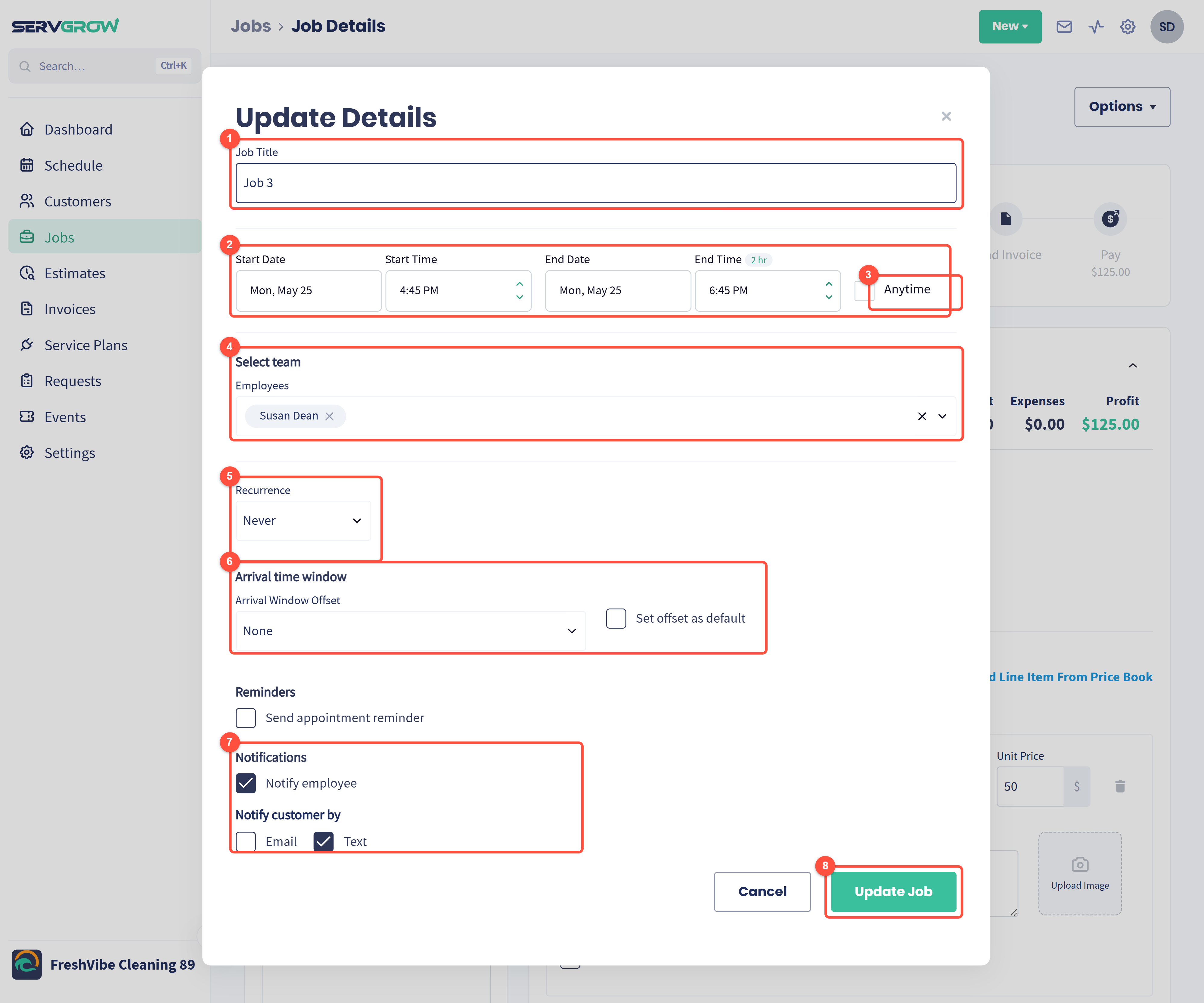
Job Title: type the name you want. This is what shows on your schedule, in the Jobs list and on the job itself.
Start Date, Start Time, End Date and End Time: move the job or change how long it takes. The little badge beside End Time keeps a running total, for example "2 hr".
Anytime: for work with no fixed slot, so the crew fits it in around the booked jobs.
Select team: add or swap employees. Handy when someone calls in sick.
Recurrence: turn a one off into a repeating job, or leave it on Never.
Arrival time window: give the customer a window rather than an exact minute, and tick Set offset as default to use the same window on future jobs.
Notifications: Notify employee tells the crew, and Notify customer by Email or Text tells the customer. Turn these off for a quiet tidy up of a title, on when the time has really moved.
Click Update Job. Cancel closes the window and changes nothing.
Estimates work the same way
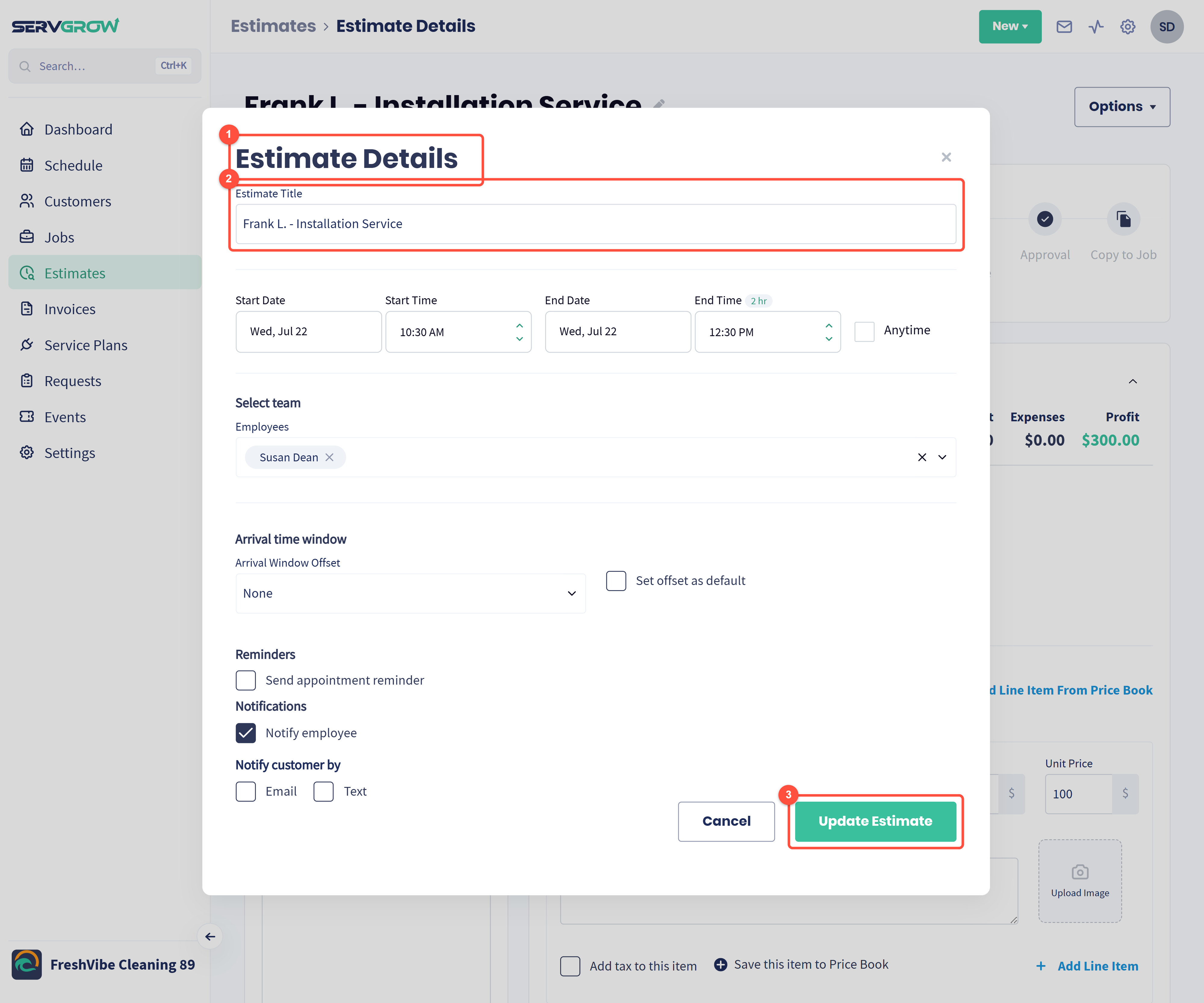
On an estimate the window is called Estimate Details.
Estimate Title: same idea. Name it for what you are quoting, because the customer sees this.
Click Update Estimate. Everything else in the window matches a job, minus recurrence.
And so do service plan visits
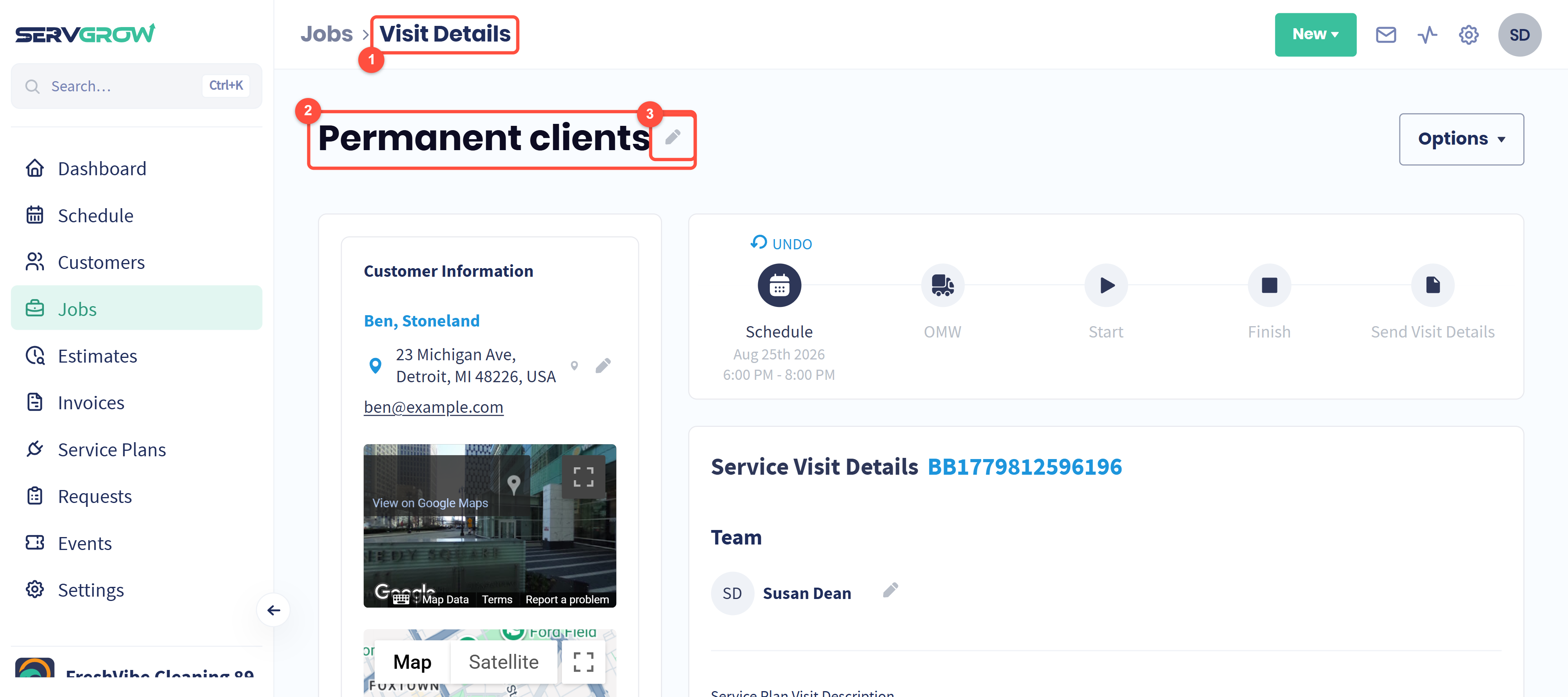
A visit from a service plan opens as Visit Details.
It carries the plan's name by default, for example "Permanent clients".
The same pencil renames it, so one visit in a long running plan can say what it is: "Winter service", "Second coat".
Tips
Name jobs the way you search for them. Whatever you would type into the Jobs list search is what belongs in the title.
Say what is different. Six identical "Weekly clean" visits are hard to tell apart; "Weekly clean, keys with neighbour" is not.
Turn the notifications off for a tidy up. A customer does not need a text because you corrected a spelling.
Changing the time here is a proper reschedule. The crew and the customer can both be told in the same click.
Related articles
Video